Windows 11 Alternatives in 2026: 9 Operating Systems Compared

How we put this together: we compare official feature and pricing pages, app store listings, privacy policies and public user reviews. Prices change, so check the provider's site before you pay.
Key takeaways
- Most Windows 11 alternatives in this list are free Linux systems that run well on older hardware.
- Zorin OS and Linux Mint are the easiest starting points if you want a familiar desktop and a simple installer.
- ChromeOS Flex suits web-first users, while Ubuntu suits users who want broad software support.
- Check your must-have apps first, because some Windows-only software needs a workaround or a different tool.
- Back up your files and test from a USB drive before you replace Windows.
Quick comparison
| Name | Who it suits | Starting price | Free option | |
|---|---|---|---|---|
 Linux Mint | Familiar Windows-like desktop | Free | Yes | Visit |
 Ubuntu | Broad support and software | Free | Yes | Visit |
 Zorin OS | Easy switch from Windows | Free | Yes | Visit |
 Fedora | Up-to-date Linux desktop | Free | Yes | Visit |
 Debian | Stable and long-lived system | Free | Yes | Visit |
 Pop!_OS | Work and gaming on Linux | Free | Yes | Visit |
 elementary OS | Clean and simple desktop | Free | Yes | Visit |
 Manjaro | Rolling updates with easy install | Free | Yes | Visit |
 ChromeOS Flex | Reviving older PCs for web work | Free | Yes | Visit |
The best Windows 11 alternatives
We focused on systems you can install today on a standard PC, with active updates, a graphical installer, and a real desktop. This list leaves out systems that need expert setup or that have stopped receiving security updates. Before you switch, list the apps you cannot live without, then check whether each one runs natively, through a web version, or through a Linux alternative.
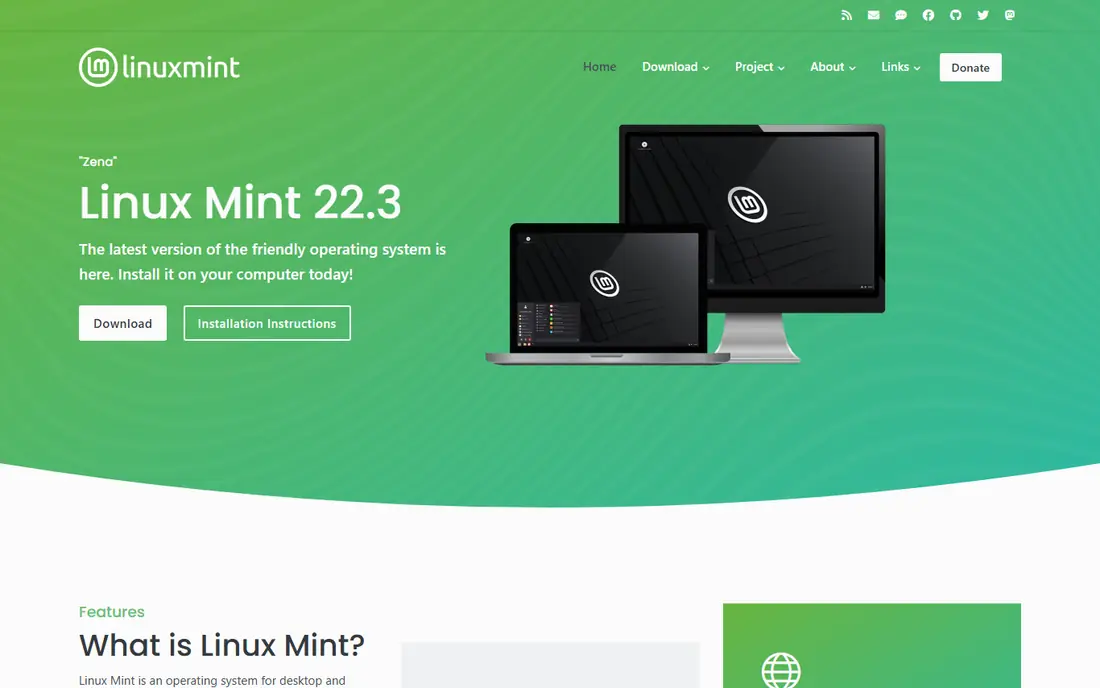
Linux Mint is our pick for most people leaving Windows, because the desktop feels familiar from the first boot. You get a start menu, a taskbar, system tray, and a software manager that works like an app store, so daily tasks need little relearning. It is based on Ubuntu, which gives it a large software base and long support for its main releases. The catch is pace. Mint favours stability over the newest packages, so users who want the latest app versions on day one may prefer Fedora or Ubuntu. For most home and office use, that stability is a benefit.
- Familiar start menu and taskbar layout
- Cinnamon, MATE, and Xfce editions
- Strong community help
- Software versions can lag behind Fedora
- Limited support for very new hardware at release
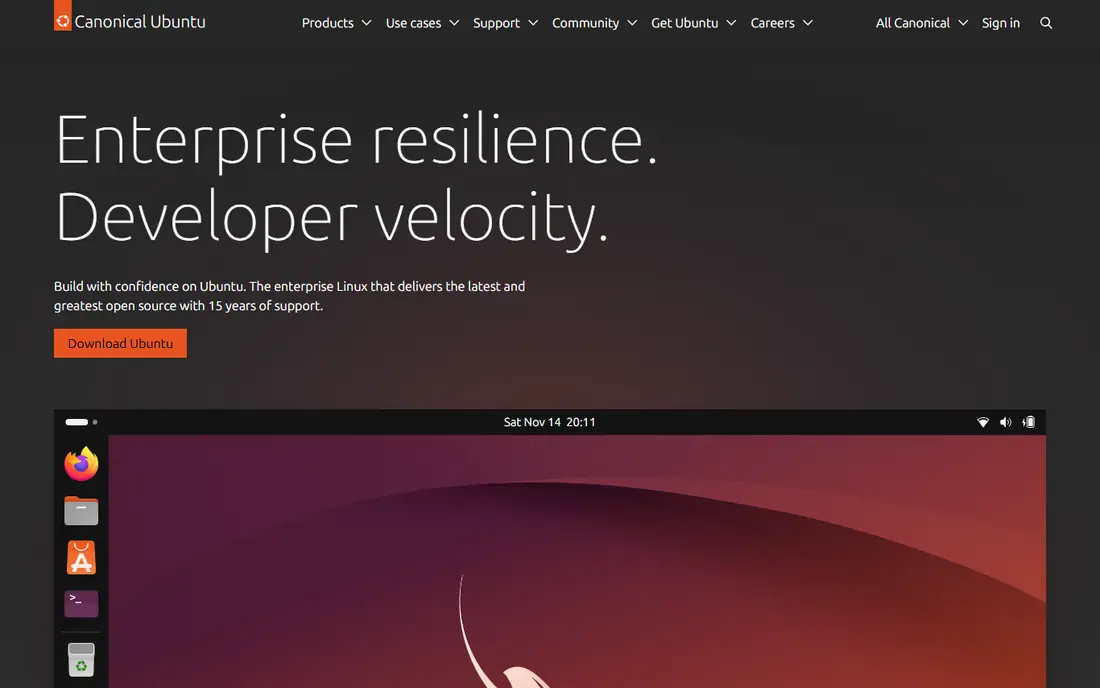
Ubuntu is the safest all-round alternative, because so many guides, apps, and hardware makers target it first. Long-term support releases receive years of updates, which suits office PCs, student laptops, and family computers that should just keep working. The desktop uses a dock and Activities view rather than a Windows-style taskbar, so give yourself a few days to adjust. The honest weakness is packaging. Some users dislike Snap apps for slower first launches, though you can install many apps as regular packages or Flatpaks instead.
- Huge software and hardware support
- Long-term support releases
- Extensive documentation
- Default desktop differs from Windows
- Snap packages can feel slow to some users
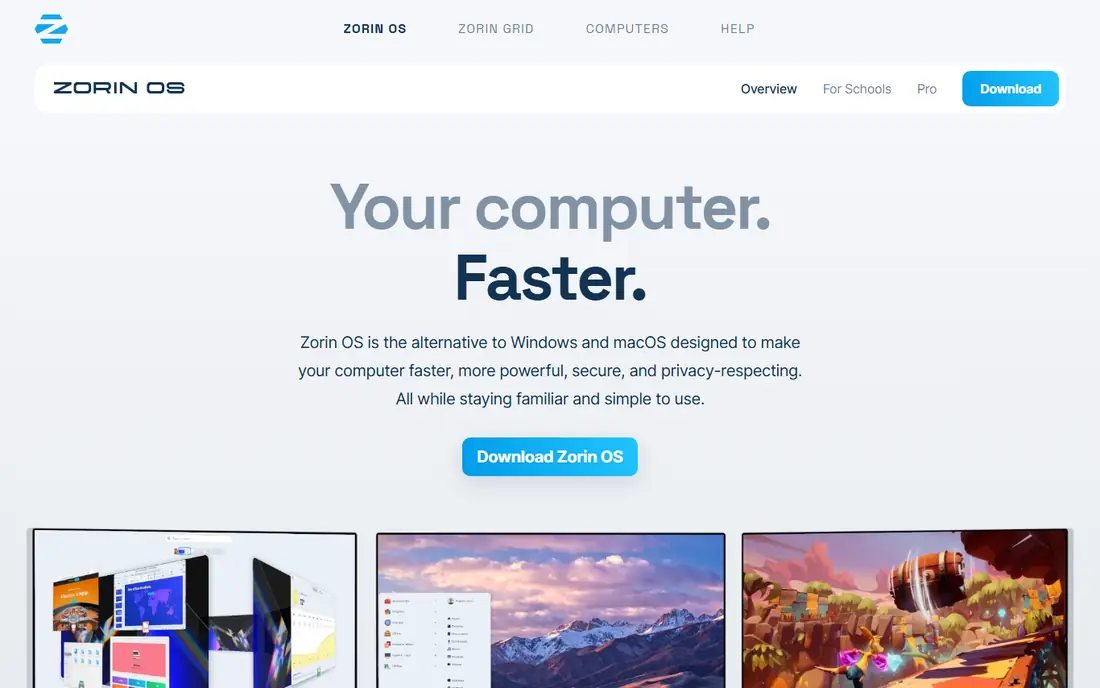
Zorin OS is built for switchers. Its appearance tool offers layouts that echo Windows, macOS, and other desktops, and the Core edition includes a browser, office suite, and media apps out of the box. That makes the first week easier, because you spend less time hunting for basic tools. It is based on Ubuntu, so software support is broad. The catch is that the full set of layouts and extra creative apps sits in the paid Pro edition, while Core covers everyday needs well. Start with Core, and only pay if you want the extra layouts and bundled apps.
- Windows-like layouts included
- Core edition is free
- Can run many Windows apps through included tools
- Pro edition is paid
- Some premium layouts need the paid version
Fedora suits users who want current software without building a system by hand. It ships recent kernels and desktop versions, which helps with newer laptops and hardware, and its Workstation edition is a clean, focused desktop. Security features such as SELinux are on by default, which is a plus for careful users. The trade-off is support length. Fedora releases are supported for about a year, so you will upgrade more often than with an Ubuntu long-term release. That is fine if you like fresh software, and less ideal if you want to set a PC up and leave it alone for years.
- Recent software and kernel versions
- Clean GNOME desktop
- Strong security defaults
- Shorter support window than Ubuntu LTS
- Newer packages can bring occasional rough edges
Debian is the quiet workhorse behind many other systems, including Ubuntu and Mint. It is famous for stability, and it runs well on older machines and servers alike. If you value a system that changes slowly and rarely breaks, Debian is hard to beat. The honest cost is effort. The installer asks more questions, and you may need to add non-free firmware for Wi-Fi or graphics on some laptops. Experienced users will not mind, but first-time switchers will have an easier start with Mint, Zorin OS, or Ubuntu.
- Very stable base
- Huge package archive
- Runs on a wide range of hardware
- Installer and setup need more care
- Software can be older than on Fedora or Ubuntu
Pop!_OS comes from System76, a company that sells Linux PCs, and it shows in the polish for developers and gamers. It offers separate installers for Nvidia and AMD graphics, which removes a common headache, and its window tiling helps people who juggle many windows. It is based on Ubuntu, so software availability is broad. The weakness is scale. Its community is smaller than Ubuntu or Mint, so niche problems may take longer to solve. If you game on Linux or write code daily, that trade is often worth it.
- Good Nvidia graphics support
- Tiling window management
- Solid for development and gaming
- Based on Ubuntu, so it shares some of its quirks
- Smaller community than Ubuntu itself
elementary OS is for users who want a calm, consistent desktop and do not want to tweak every setting. Its apps share a clear design language, and its AppCenter focuses on curated, pay-what-you-can apps. That restraint is the point: the system stays out of your way. The catch is choice. If you need a wide range of specialised tools, you will still install them from other sources, and heavy customisation is not the focus here. For writing, browsing, email, and light office work, elementary OS is a pleasant Windows alternative.
- Beautiful, consistent desktop
- Curated app store
- Calm design with few distractions
- Smaller app selection in its store
- Less customisation than Mint or Fedora
Manjaro gives you Arch Linux software with a friendlier installer and sensible defaults. Rolling updates mean you get new app versions as they arrive, without waiting for a major release, and you do not need to reinstall every year or two. That appeals to users who like fresh software and are comfortable with occasional update notes. The trade-off is maintenance. Rolling systems reward users who read update news and keep backups, and a bad update, while uncommon, can need troubleshooting. If you want set-and-forget stability, Mint or Debian will suit you better.
- Rolling release with current software
- Graphical installer
- Access to Arch software
- Rolling updates need occasional attention
- Less predictable than a fixed release
ChromeOS Flex turns an old PC or Mac into a Chromebook-like machine, which is ideal for browsing, email, docs, and video calls. It boots fast, updates itself, and is hard to break, because most work happens in the browser. Schools and families like that simplicity, and it can give a slow laptop a second life. The limitation is scope. If you need desktop Windows apps, heavy offline editing, or specialised software, ChromeOS Flex will frustrate you. Treat it as a web-first alternative, and keep a Linux system in mind if your work goes beyond the browser.
- Very light on old hardware
- Simple and secure by design
- Easy to manage for schools and families
- Needs Google services for full value
- Limited offline and Windows app support
How we picked these
We compared official project pages, installer quality, update support, hardware needs, and software availability. We required a graphical installer, current security updates, and a desktop that an ordinary Windows user can learn without command-line work. We left out abandoned systems and expert-only distributions, because this guide is for people who want a working PC, not a weekend project.
How to switch without losing your work
Back up first, and test second. Copy documents, photos, and browser bookmarks to an external drive or cloud storage, and make sure you can open the backup from another device before you install anything. Then create a USB installer for your chosen system and boot from it in live mode, which lets you try the desktop, Wi-Fi, and printer without changing your hard drive. Check sound, sleep, and your most-used apps in that live session, because those are the issues that cause regret later.
Next, decide between dual boot and full replacement. Dual boot keeps Windows for apps that have no Linux version, but it needs disk space and care during install. Full replacement is simpler and cleaner, and it suits users whose apps all work on the new system. Either way, keep your Windows licence key and installer media safe, in case you want to return. After install, set up updates, install your browser and office tools, and test printing and backups in the first week.
Frequently asked questions
What are the best alternatives to Windows 11 for an old laptop?
Linux Mint, Zorin OS Core, and ChromeOS Flex are strong picks for old laptops, because they are light and include a full desktop or browser system. Mint and Zorin OS give you desktop apps, while ChromeOS Flex is best if most of your work is in the browser.
Are there good alternatives to Windows 10 as well as Windows 11?
Yes. The same systems work as Windows 10 alternatives, and they are often chosen by Windows 10 users whose PCs do not meet Windows 11 hardware requirements. Mint, Ubuntu, and Zorin OS all run on hardware that Windows 11 may reject.
Which Windows alternatives are free?
Linux Mint, Ubuntu, Fedora, Debian, Pop!_OS, elementary OS, Manjaro, and ChromeOS Flex are all free to download and use. Zorin OS Core is also free, while Zorin OS Pro is a paid edition with extra layouts and apps.
Can I run Windows apps on these alternatives?
Some Windows apps run through compatibility tools or web versions, and many have strong Linux versions, such as LibreOffice for office work. Check each must-have app before you switch, because specialised Windows software may need dual boot or a different tool.
What are the best Windows 365 alternatives for a cloud desktop?
If you want a cloud desktop rather than a local system, look at ChromeOS Flex with web apps, or a Linux desktop with browser-based office tools. For a managed cloud PC, compare provider pricing separately, because this guide covers local operating systems.
Is Linux hard to use after Windows?
Modern Linux desktops are close to Windows for browsing, email, office work, and media, and Mint and Zorin OS are designed to feel familiar. You may need to learn a new software manager and new app names, but daily use does not require command-line work.
Sources we checked (9)

Online Jobs is an independent blog about careers, online work, learning new skills and the tools that help people earn. More about us.
Keep reading
All posts
Eventbrite Alternatives
Compare the best Eventbrite alternatives for ticketing fees, free events and event pages, with honest notes on cost, discovery and fit for organisers.
Chrome Alternatives
Chrome alternatives compared: Brave, Firefox, Vivaldi, Edge and more for privacy, speed and tab organisation, with free plans, pros and cons to compare.
Buffer Alternatives
Compare the best Buffer alternatives for scheduling, analytics and team approvals, with pricing notes and honest trade-offs for creators, teams and agencies.