Chrome Alternatives in 2026: 8 Browsers Compared


Privacy-focused browsing with Chrome extension compatibility · Starting price: Free
How we put this together: we compare official feature and pricing pages, app store listings, privacy policies and public user reviews. Prices change, so check the provider's site before you pay.
Key takeaways
- Brave suits users who want built-in ad and tracker blocking without extra extensions.
- Firefox suits users who want an independent engine and strong privacy controls.
- Vivaldi suits power users who want deep customisation and tab tools.
- Microsoft Edge suits Windows and Microsoft 365 users who want a familiar Chromium browser.
- Opera, DuckDuckGo, Zen Browser and Safari each suit a narrower need, from built-in tools to Apple devices.
Quick comparison
| Name | Who it suits | Starting price | Free option | |
|---|---|---|---|---|
| Brave | Privacy-focused browsing with Chrome extension compatibility | Free | Yes | Visit |
 Firefox | Users who want an independent browser engine and privacy controls | Free | Yes | Visit |
 Vivaldi | Power users who want to shape the browser to their workflow | Free | Yes | Visit |
 Microsoft Edge | Windows users and Microsoft 365 households | Free | Yes | Visit |
 Opera | Users who want sidebar apps and built-in tools | Free | Yes | Visit |
 DuckDuckGo Browser | Private browsing with simple defaults | Free | Yes | Visit |
 Zen Browser | Arc-style workspaces and vertical tabs on a Firefox base | Free | Yes | Visit |
 Safari | Apple device users who want efficiency and continuity | Free | Yes | Visit |
The best Chrome alternatives
We compared browsers that can replace Chrome for daily work, with a focus on privacy, compatibility, tab organisation and platform support. Most alternatives use Chromium, Firefox, or WebKit engines, and that engine choice affects extension support and site compatibility. A Chromium browser will feel closest to Chrome, while Firefox and Safari offer a different engine and a different trade-off.
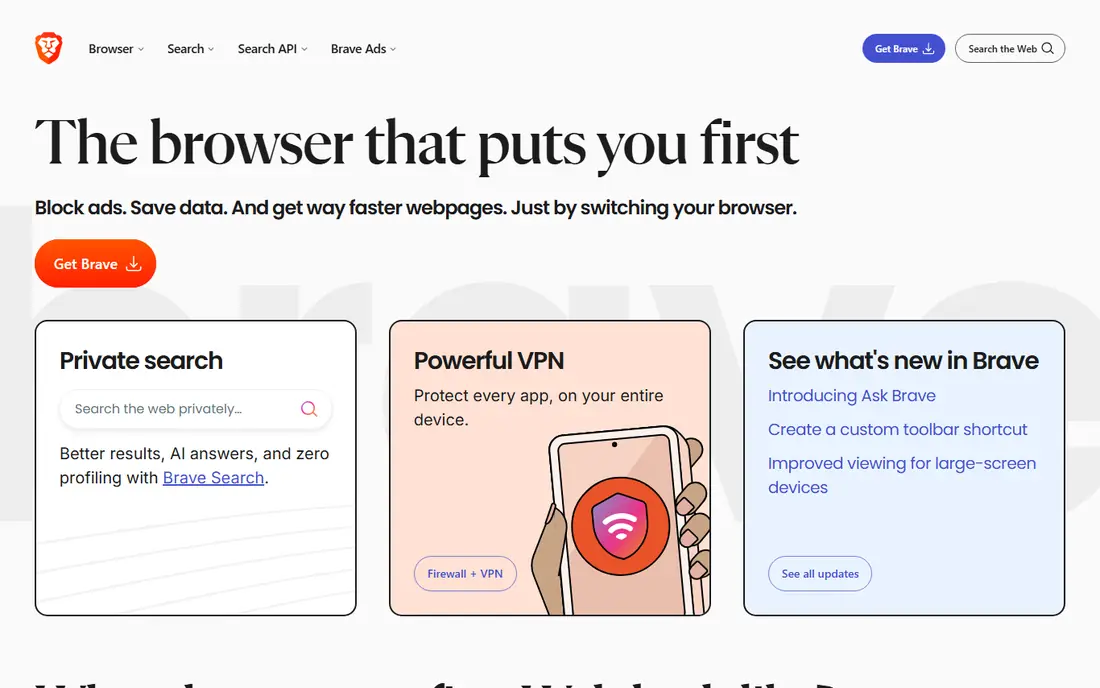
Brave blocks ads and trackers by default through its Shields feature, which can speed up ad-heavy pages and reduce tracking without installing extra extensions. Because Brave is built on Chromium, most Chrome extensions work, and site compatibility is close to Chrome for daily work. That mix makes the switch low-friction for many users. Some users will want to turn off Brave Rewards and crypto features in settings, since they are not needed for plain browsing. A few sites may also need Shields lowered to work fully. For users who want privacy defaults plus Chrome compatibility, Brave is the easiest first alternative to test.
- Built-in ad and tracker blocking, Chromium extension support, fast page loads on ad-heavy sites, sync across devices
- Crypto and rewards features need muting for some users, some sites may need Shields adjusted, smaller support team than Google
Firefox
Who it suits: Users who want an independent browser engine and privacy controls

Firefox uses its own Gecko engine rather than Chromium, which gives users a real alternative to a Chromium-only web. Privacy controls, Enhanced Tracking Protection and container tabs help separate work, shopping and social browsing. The extension range is wide, and Firefox runs on Windows, macOS, Linux, iOS and Android. Site compatibility is generally good, but a few sites built only for Chromium may show small differences. Test your key work apps, video tools and banking sites before switching fully. For users who value engine diversity and Mozilla privacy controls, Firefox remains a strong and mature choice.
- Independent Gecko engine, strong privacy controls, container tabs, wide extension range
- Some Chrome-only sites may behave differently, performance varies by site, sync needs a Mozilla account
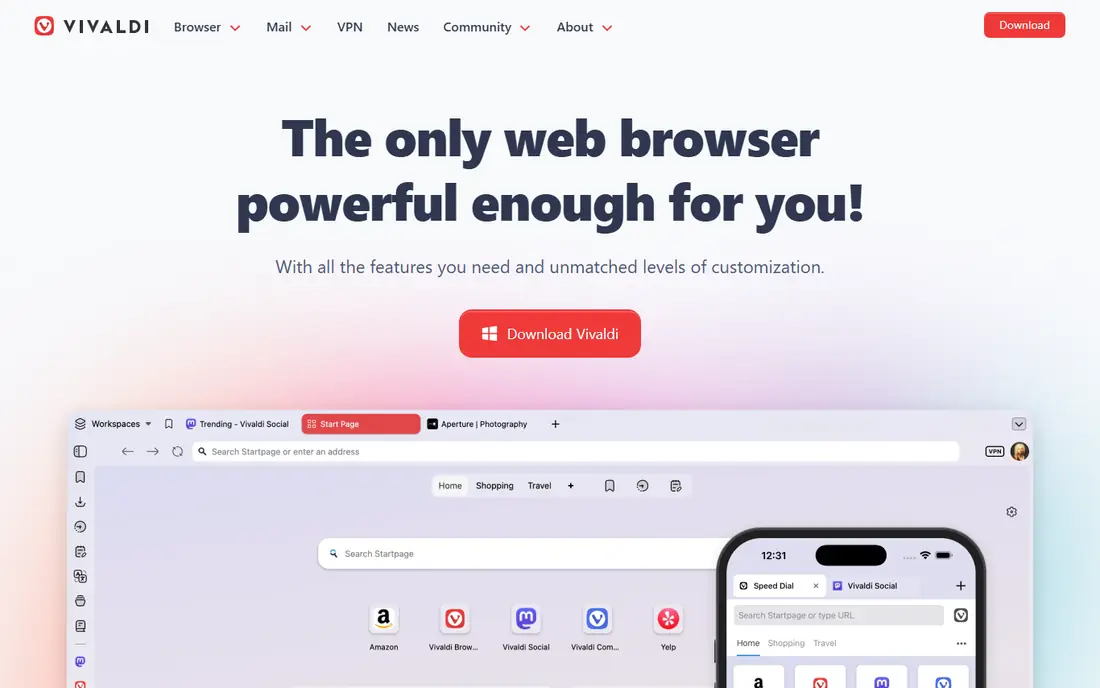
Vivaldi is built for users who want control over tabs, layout and shortcuts. Tab stacks group related tabs, tab tiling shows several pages side by side, and workspaces separate projects or contexts. Built-in mail, calendar and notes reduce the need for extra tabs, and almost every part of the interface can be adjusted. That depth is also the trade-off. New users may find the settings list long, and the interface can feel heavier than a minimal browser. For power users with many tabs and a clear workflow, Vivaldi rewards the setup time with a browser that fits how they work, rather than forcing a single layout.
- Tab stacks and tiling, workspaces, built-in mail and calendar, deep customisation
- Interface can feel heavy, learning curve for new users, smaller team than major browsers
Microsoft Edge is the default Chromium browser on Windows, with deep integration into Windows and Microsoft 365. Sleeping tabs help reduce memory use for inactive tabs, collections help save research, and vertical tabs suit users with many open pages. Chrome extensions work, so switching from Chrome is straightforward. Some users dislike Microsoft service prompts and default settings, which can be adjusted in settings. Privacy defaults are less strict than Brave or Firefox, so check tracking settings after install. For Windows users who already use Microsoft tools, Edge is a convenient and capable Chrome alternative.
- Chromium compatibility, Windows integration, sleeping tabs, collections and vertical tabs
- Microsoft service prompts can annoy some users, less privacy-first than Brave or Firefox, Windows-focused benefits
Opera packs many tools into the browser, including sidebar access to messengers, a built-in VPN option, tab islands for grouping, and workspaces for projects. That all-in-one approach suits users who keep several web apps open and want them in a sidebar rather than in separate tabs. Chromium compatibility keeps most sites working as expected. The built-in VPN option is a browser-level proxy, not a system-wide VPN, so users who need full device VPN protection should use a dedicated VPN app. The interface can also feel busy if you prefer a minimal browser. For users who like built-in tools, Opera is a feature-rich option.
- Sidebar messengers, built-in VPN option, tab islands, workspaces, Chromium compatibility
- Built-in VPN is a browser proxy, not a full VPN, interface is busy for minimalists, smaller market share
DuckDuckGo Browser extends the private search brand into a full browser, with tracker blocking, private search defaults and a simple interface. It suits users who want privacy without adjusting many settings, and who mainly browse, search and read rather than managing complex tab workflows. The mobile apps are mature, and desktop versions cover Windows and macOS. Extension support and tab tools are more limited than Brave, Firefox or Vivaldi, so power users may miss features. Test your must-have extensions and work sites before switching. For a simple, privacy-first daily browser, DuckDuckGo is a clean and easy choice.
- Strong privacy defaults, tracker blocking, private search, simple interface
- Extension range is smaller than Chromium or Firefox, fewer power-user tab tools, desktop version is newer
Zen Browser
Who it suits: Arc-style workspaces and vertical tabs on a Firefox base
Zen Browser brings an Arc-style workflow to a Firefox base, with workspaces, vertical tabs, split view and a compact interface. It suits users who liked Arc organisation but want a Firefox engine and an open-source project. The design feels modern, and tab organisation is the main draw rather than a long list of built-in apps. As a smaller, fast-moving project, Zen can change quickly and may have rough edges that larger browsers have already smoothed out. Users who need a stable, fully supported browser for critical work should test Zen alongside a main browser first. For tab-heavy users who want a fresh workspace model, Zen is worth trying.
- Workspaces, vertical tabs, split view, open-source Firefox base, clean modern interface
- Smaller project with faster changes, some features are still maturing, support is community-led
Safari is the default browser on Mac, iPhone and iPad, with strong efficiency on Apple hardware and continuity through iCloud. Tabs, passwords and reading lists move across devices, and privacy controls include tracker prevention and private browsing options. The interface is clean, and battery use on laptops is often lower than Chromium browsers. The limits are platform and extensions. Safari runs only on Apple devices, and its extension range is smaller than Chrome or Firefox. Some web apps may also work better in a Chromium browser. For Apple users who value efficiency and continuity over deep customisation, Safari is a calm and capable daily browser.
- Efficient on Apple hardware, iCloud tab and password sync, privacy controls, clean interface
- MacOS and iOS only, smaller extension range than Chromium, some web apps work better in Chromium
How we picked these
We picked browsers that are actively maintained, widely available, and offer a clear reason to switch from Chrome, whether privacy, tab organisation, platform fit or engine choice. We included Chromium, Firefox and WebKit options, since engine choice affects compatibility and privacy. We also included both mainstream browsers and smaller projects like Zen Browser, with a note on maturity where it matters. All browsers in this list are free to download, so the free plan column is Yes across the board. Some offer optional paid extras, such as VPN upgrades or supporter tiers, but you do not need them to browse. Check the vendor site for your devices before switching, since platform support varies.
What to look for when choosing a Chrome alternative
Start with compatibility. List your must-have sites, extensions and work apps, then test them in the new browser for a week. A browser that blocks trackers well but breaks a key work app is not a good switch, while a browser with slightly weaker defaults but full compatibility may be the better daily tool. Import bookmarks, passwords and history using the built-in import tool, and check sync across your devices. Next, check privacy and tab habits. Decide whether you want strict blocking by default, a separate engine, or deep tab organisation, and set those controls after install. Turn off features you do not need, such as rewards or service prompts, and review privacy settings on a fresh install. A short parallel test with Chrome still installed will make the switch safer and easier to reverse.
Frequently asked questions
What is the best Chrome alternative?
Brave is the best Chrome alternative for most users who want privacy plus Chrome extension compatibility. Firefox suits users who want an independent engine, while Vivaldi suits power users who want tab control. The best alternatives to Chrome depend on whether privacy, compatibility or tab organisation matters most to you.
Is Brave better than Chrome for privacy?
Brave blocks ads and trackers by default, which reduces tracking and can speed up ad-heavy pages. Chrome offers privacy controls too, but its defaults are less strict and its business model is tied to advertising. Check Brave Shields settings after install and adjust them for any site that needs an exception.
Can I use Chrome extensions in another browser?
Chromium browsers like Brave, Edge, Vivaldi and Opera support most Chrome extensions from the Chrome Web Store or their own stores. Firefox uses its own extension store, with many popular extensions available in a Firefox version. Safari uses its own extension system, which is smaller. Test your must-have extensions before switching fully.
What is the best browser alternative to Google Chrome for Windows?
Brave and Firefox are strong Windows choices, with Edge also a convenient option for Windows users. Brave offers privacy plus Chromium compatibility, Firefox offers an independent engine, and Edge offers Windows integration. Try Brave or Firefox first if privacy is your main reason to switch.
Does switching browsers lose my bookmarks and passwords?
No, if you use the import tool. Most browsers can import bookmarks, history and passwords from Chrome, and many can import extensions and settings as well. Export a backup of bookmarks and passwords before switching, then check that key logins work in the new browser during your test week.
Is Firefox still a good browser in 2026?
Yes. Firefox remains a mature, actively developed browser with an independent engine, strong privacy controls and wide platform support. It suits users who want an alternative to Chromium browsers and who value Mozilla privacy features. Test your key sites first, since a few Chromium-only sites may behave differently.
Sources we checked (8)

Online Jobs is an independent blog about careers, online work, learning new skills and the tools that help people earn. More about us.
Keep reading
All posts
Eventbrite Alternatives
Compare the best Eventbrite alternatives for ticketing fees, free events and event pages, with honest notes on cost, discovery and fit for organisers.
Buffer Alternatives
Compare the best Buffer alternatives for scheduling, analytics and team approvals, with pricing notes and honest trade-offs for creators, teams and agencies.
Best Free PDF Split Software
Find the best free PDF split software in 2026. We compare 8 free tools for splitting PDFs by pages, ranges, bookmarks, and size offline or online in detail.