Best Remote Work Software in 2026: 8 Tools Compared

How we put this together: we compare official feature and pricing pages, app store listings, privacy policies and public user reviews. Prices change, so check the provider's site before you pay.
Key takeaways
- Slack and Zoom cover the daily communication core for most remote teams, with chat and video as separate strengths.
- Asana and Trello suit task tracking, while Notion suits shared docs and knowledge, so many teams need one of each.
- Google Workspace and Microsoft Teams bundle the most tools for the price, which suits teams that want fewer subscriptions.
- Miro fills the whiteboard gap for workshops and planning, but it is an addition to a stack, not a replacement for chat or tasks.
Quick comparison
| Name | Who it suits | Starting price | Free option | |
|---|---|---|---|---|
 Slack Slack | Team chat and channels | Free | Yes | Visit |
 Zoom Zoom | Video meetings | Free | Yes | Visit |
 Asana Asana | Project and task tracking | Free | Yes | Visit |
 Notion Notion | Docs and shared knowledge | Free | Yes | Visit |
 Google Workspace Google Workspace | Docs, mail and meetings bundle | $7 per month | No | Visit |
 Microsoft Teams Microsoft Teams | Chat and meetings in Microsoft 365 | See website | No | Visit |
 Trello Trello | Simple visual task boards | Free | Yes | Visit |
 Miro Miro | Online whiteboards and workshops | Free | Yes | Visit |
The best remote work software
Remote work fails when chat, meetings, tasks and documents live in disconnected places. The tools below cover those four jobs, and most teams end up with three or four of them rather than one. We compared official feature pages, pricing pages, app store listings, privacy policies and public reviews to build this list.
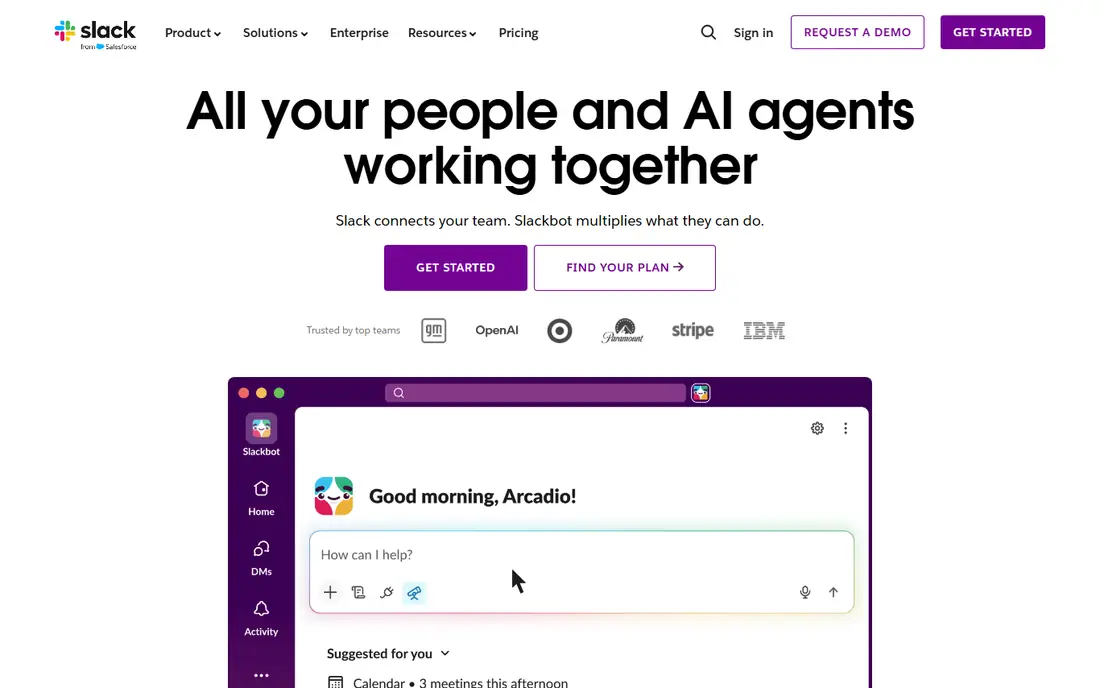
Slack is the default team chat for remote work, and its channel model is why. Conversations sit in topic channels rather than inboxes, so new joiners can read back context and find decisions without asking around. Threads keep side discussions tidy, and integrations with tools such as Asana, Google Drive and Zoom bring updates into the channels where people already work.
The catch is history and noise. The free plan keeps 90 days of message history, which is fine for small teams but limiting for larger ones that need a searchable record. Paid plans start at a per-user monthly price and add full history, larger file uploads and guest access. Set channel naming rules early, or Slack becomes as messy as the email it replaced.
- Channels keep conversations organised
- Huge integration range
- Huddles for quick voice chats
- Free plan limits message history to 90 days
- Notification overload needs careful channel habits
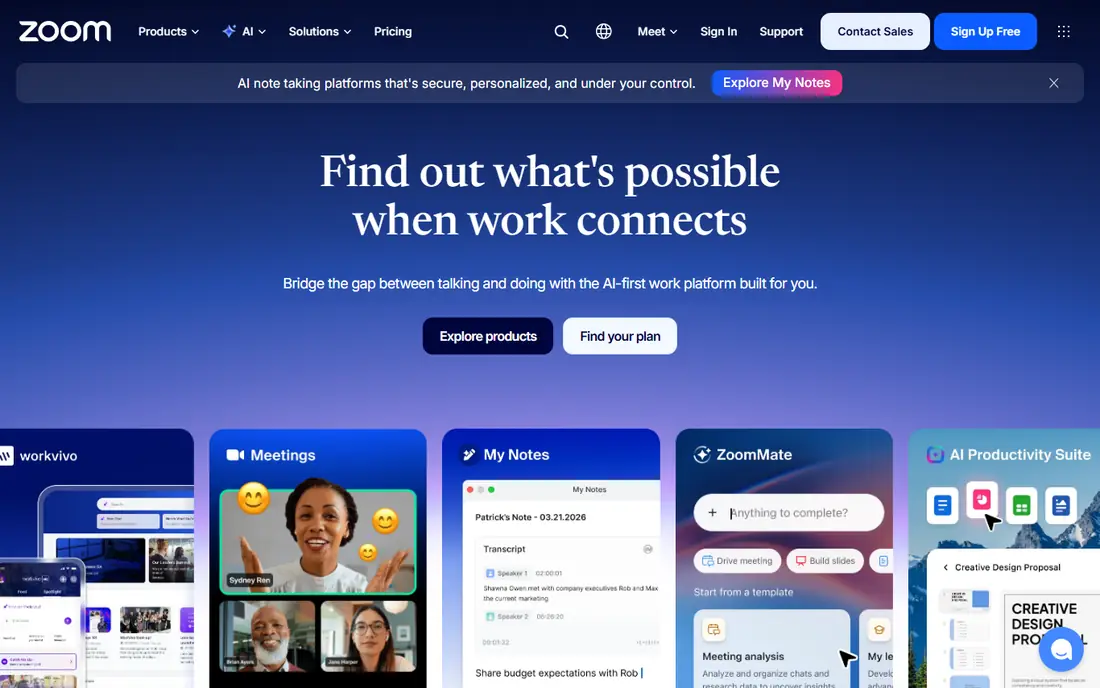
Zoom remains the safest choice for video meetings, mainly because it works well across devices and connections. Group calls, screen sharing, breakout rooms, recording and a built-in whiteboard cover most meeting types, from one-to-ones to all-hands sessions. The chat and phone features in Zoom Workplace add more, but meetings alone justify its place here.
The free Basic plan limits group meetings to 40 minutes, which is enough for short check-ins but not for workshops. Paid Pro plans, priced per user per month when billed annually, remove that limit and add cloud recording and reporting. Zoom does not replace chat or task tracking, so pair it with Slack or Teams rather than expecting it to carry the whole stack.
- Reliable video and screen sharing
- Breakout rooms and whiteboard
- Wide device support
- Free group meetings end after 40 minutes
- Meeting fatigue needs agenda discipline
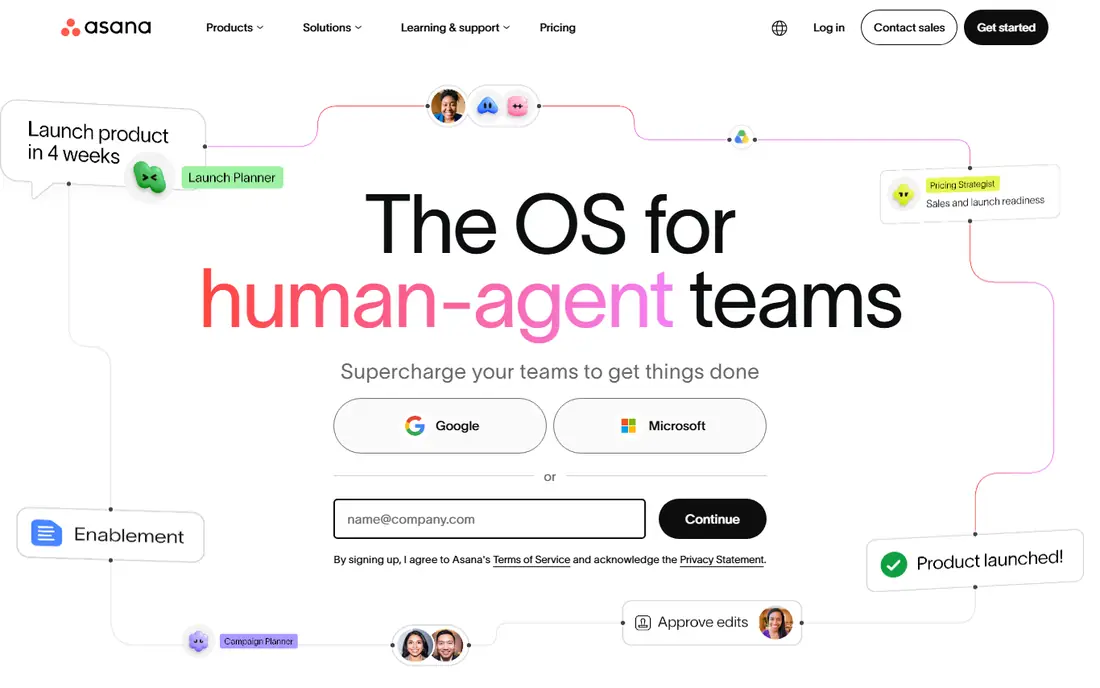
Asana suits teams that need to know who owns what and when it is due. Tasks carry assignees, due dates, subtasks and dependencies, and projects can be viewed as lists, boards, calendars or timelines. Forms turn requests into tracked tasks, and dashboards on paid plans show progress across projects without manual status meetings.
The free Personal plan covers up to two users, which is generous for a pair but not for a team, so most teams will need the Starter plan, priced per user per month when billed annually. Asana is stronger on execution than on documents, so keep long-form knowledge in Notion or Google Docs and link it from tasks. Used that way, it keeps remote work visible and accountable.
- Clear task ownership and deadlines
- Timeline and board views
- Strong reporting on paid plans
- Free Personal plan is limited to two users
- Setup takes time for complex workflows
Notion is where remote teams store what they know: handbooks, meeting notes, project docs and databases that link them together. Pages can hold text, tables, boards and calendars, and templates cover common needs such as roadmaps, content calendars and onboarding checklists. The free plan suits individuals and small groups, while Plus, priced per member per month when billed annually, adds collaboration and permission controls.
The risk is sprawl. Because anyone can create pages, a Notion workspace without an owner and a clear structure becomes hard to search. Appoint someone to maintain the sidebar, archive old pages, and set naming rules. With that discipline, Notion replaces scattered docs and repeated questions, which is one of the biggest time sinks in remote work.
- Flexible docs, wikis and databases in one place
- Good templates
- Free for individuals
- Can become disorganised without ownership
- Paid plans needed for advanced permissions
Google Workspace bundles the everyday tools a remote team needs: Gmail, Calendar, Drive, Docs, Sheets, Slides and Meet. Real-time co-editing is its standout strength, with comments, suggestions and version history built into every document. The Business Starter plan, priced per user per month, includes a business email address and shared drives, which suits small teams that live in the browser.
The trade-off is dependence on Google apps. Teams that need desktop Office apps or advanced compliance controls will need higher tiers or Microsoft 365 instead. Storage is also per user on lower plans, so heavy video or design teams should check limits. For browser-first teams, Workspace is the simplest all-in-one bundle on this list.
- Gmail, Docs, Drive and Meet in one bundle
- Strong real-time co-editing
- Simple admin
- No single desktop office suite in the base plan
- Storage limits apply per user
Microsoft Teams combines chat, video meetings, file sharing and app integrations in a single app, and it shines for teams already using Word, Excel and Outlook. Documents open for co-editing without leaving a meeting, and channels keep project conversations next to their files. Teams Essentials is priced per user per month, while fuller value comes from Microsoft 365 Business plans that include the Office apps and OneDrive.
The catch is complexity. Teams packs a lot into one window, and new users can find channels, chats and apps confusing at first. It also makes most sense inside the Microsoft ecosystem; teams on Google Workspace will find Slack and Zoom a cleaner pairing. If your team already pays for Microsoft 365, Teams is the obvious communication layer.
- Chat, meetings and file collaboration in one app
- Deep Office integration
- Enterprise security options
- Interface can feel busy
- Best value comes inside a Microsoft 365 subscription
Trello is the simplest task tool here, and that simplicity is its strength. Boards hold lists, lists hold cards, and cards hold checklists, due dates, members and attachments. A team can set up a content pipeline, hiring tracker or sprint board in minutes, and the free plan covers up to 10 collaborators per board. Power-Ups add calendar views, custom fields and integrations when needed.
The limit is scale. Trello lacks the dependencies, portfolios and reporting that Asana offers, so complex programmes with many linked projects will strain it. Paid plans, priced per user per month, add more views and automation, but the tool stays board-shaped. Choose Trello when visual simplicity matters more than heavy project management.
- Easiest board setup on this list
- Cards with checklists, dates and attachments
- Free for up to 10 collaborators per board
- Weak reporting and dependencies
- Large projects outgrow boards quickly
Miro replaces the office whiteboard for remote teams, with an open canvas for sticky notes, diagrams, flowcharts and planning boards. Templates cover retros, user story mapping, org charts and brainstorming, and participants can join from a browser without installing software. The free plan includes several editable boards, which is enough to test it with a real workshop.
Miro is an addition, not a core system. Boards without a facilitator and a clear purpose drift into clutter, and the outputs still need to land in tasks or docs afterwards. Paid Starter plans, priced per user per month, add private boards and more controls. For planning sessions, design reviews and team workshops, Miro is the most useful visual tool on this list.
- Large canvas for workshops and planning
- Many templates
- Good for hybrid sessions
- Needs a facilitator to stay useful
- Paid plans needed for private boards at scale
How we picked these
We compared official feature pages, pricing pages, app store listings, privacy policies and public reviews for tools that remote teams actually use daily. We favoured tools with a usable free tier or a clear bundle, strong integrations, and a distinct job in the stack, rather than listing every chat or task app available. We also checked security basics, including admin controls, single sign-on availability on business plans, and data handling statements.
Building a remote stack that holds together
Start with communication, then tasks, then knowledge. Pick one chat tool and one meeting tool, add one task tracker, and keep docs in one place. Every extra tool adds a place where information can hide, so remove a tool when its job is already covered by another one in the stack.
Rules that matter more than the tools
Agree on response times, so chat does not become an always-on demand. Use threads for side discussions, keep decisions in docs or tasks rather than buried in chat, and record meetings that people in other time zones will miss. These habits decide whether a remote team feels connected or fragmented, regardless of which tools it buys.
Security and access basics
Use single sign-on and two-factor authentication where your plans support them, and review guest access and shared links regularly. When someone leaves, remove their access from every tool in the stack, not just email. These checks take minutes and prevent the most common remote access problems.
Frequently asked questions
Which software is best for remote work overall?
There is no single winner, because remote work needs chat, meetings, tasks and docs, and no one tool does all four well. A common strong stack is Slack for chat, Zoom for meetings, Asana or Trello for tasks, and Notion or Google Workspace for docs. Start with that shape and adjust one tool at a time.
Is Slack or Microsoft Teams better for remote teams?
Slack suits teams that want a focused chat tool with many integrations, especially alongside Google Workspace or Zoom. Microsoft Teams suits teams already paying for Microsoft 365, since chat, meetings and Office apps sit in one subscription. The deciding factor is usually which ecosystem your team already uses.
Can a small remote team work with free plans?
Yes, small teams can run on free plans from Slack, Zoom, Asana, Notion, Trello and Miro, with limits on history, users or meeting length. The limits that usually force an upgrade are Slack message history, Zoom group meeting length, and Asana free user count. Start free and upgrade the tool whose limit you hit first.
What is the best remote work tool for project management?
Asana suits structured projects with deadlines, dependencies and reporting, while Trello suits simple visual boards that a team can set up in minutes. Notion can track projects too, but it works best as a docs and knowledge layer with tasks linked from it. Choose based on project complexity, not on feature count alone.
Do remote teams need a whiteboard tool?
Not every team does, but teams that run workshops, planning sessions or design reviews benefit from Miro. It replaces the shared wall where ideas get mapped and sorted, which chat and docs handle poorly. Teams that rarely workshop can skip it and use a shared doc instead.
How do I reduce tool overload in a remote team?
Audit the stack every few months and list what each tool is for. If two tools cover the same job, keep the one the team actually opens daily and drop the other. Also agree where decisions live, such as in a doc or a task, so people do not have to search chat, email and boards to find them.
Sources we checked (8)

Online Jobs is an independent blog about careers, online work, learning new skills and the tools that help people earn. More about us.
Keep reading
All posts
Zoom Alternatives
Zoom alternatives compared for 2026: Google Meet, Microsoft Teams, Webex, Jitsi and more for free calls, large meetings and webinars for teams and classrooms.
PowerPoint Alternatives
Compare the best PowerPoint alternatives, from free Google Slides and Canva to Prezi and Gamma, with prices, collaboration and export options covered.

Gmail Alternatives
Gmail alternatives compared for 2026: Proton Mail, Outlook, Tuta, Fastmail, Zoho Mail and more for privacy, business and cross-platform use for US readers.