Best Banner Design App in 2026: 8 Tools Compared

How we put this together: we compare official feature and pricing pages, app store listings, privacy policies and public user reviews. Prices change, so check the provider's site before you pay.
Key takeaways
- Canva is the easiest all-round banner tool for non-designers, with the largest template range.
- Adobe Express suits teams already in Adobe tools, with strong fonts and commercially safe AI images.
- Snappa and VistaCreate suit fast social banners, with one-click resizing and animation options.
- Creatopy suits agencies that need HTML5 ads and bulk banner production.
- Start with a free plan and a real banner size, since templates alone do not prove a tool fits your workflow.
Quick comparison
| Name | Who it suits | Starting price | Free option | |
|---|---|---|---|---|
 Canva | Easiest all-round design | $12.99 per month | Yes | Visit |
 Adobe Express | Adobe ecosystem polish | $9.99 per month | Yes | Visit |
 Snappa | Fast social banners | See website | Yes | Visit |
 Creatopy | Agency ad production | See website | Yes | Visit |
 VistaCreate | Animated banners | $10 per month | Yes | Visit |
 Visme | Data and brand banners | See website | Yes | Visit |
 Pixlr | Photo-led banner editing | See website | Yes | Visit |
 Fotor | Photo plus banner design | See website | Yes | Visit |
The best banner design app
Banner design covers web banners, social headers, ad creatives and print banners, and each format needs correct sizes, clear text and fast export. The tools below let you start from a template, resize for each platform, and export in the right format without desktop software. Pick by speed, template quality and export needs, not just by brand name.
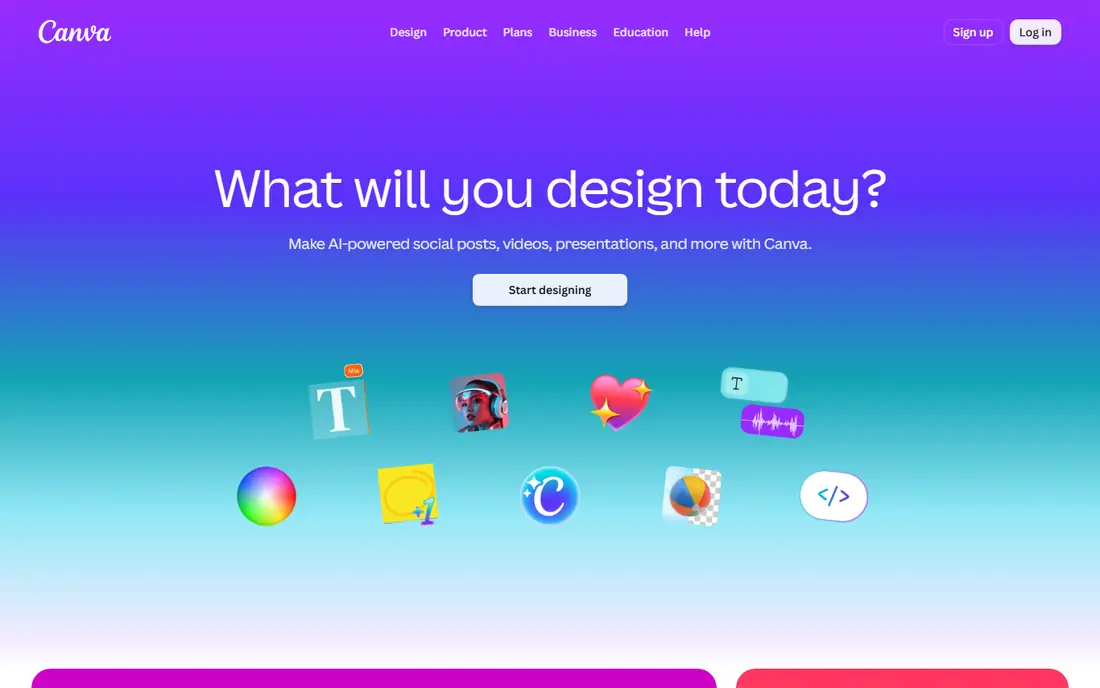
Canva is the default banner tool for most small businesses, and the reason is speed. You pick a banner size, choose a template, swap the text and image, and export in minutes. The drag-and-drop editor needs almost no training, which helps when a non-designer must make a banner on a deadline. The template range covers social banners, web ads, YouTube headers, email headers and print formats, so you rarely start from a blank canvas. Paid plans add Magic Resize, brand kits, background removal and a larger stock library, which matter when you produce banners every week. The catch is cost at team scale. Pro is priced per user for individuals, and business team pricing is per user as well, so a large team pays more than a single user. Free users also face limits on premium templates and assets. For a solo creator or small team, Canva is still the easiest starting point.
- Huge template library
- Drag-and-drop editor
- Magic Resize on paid plans
- Some premium assets need a paid plan
- Team pricing is per user
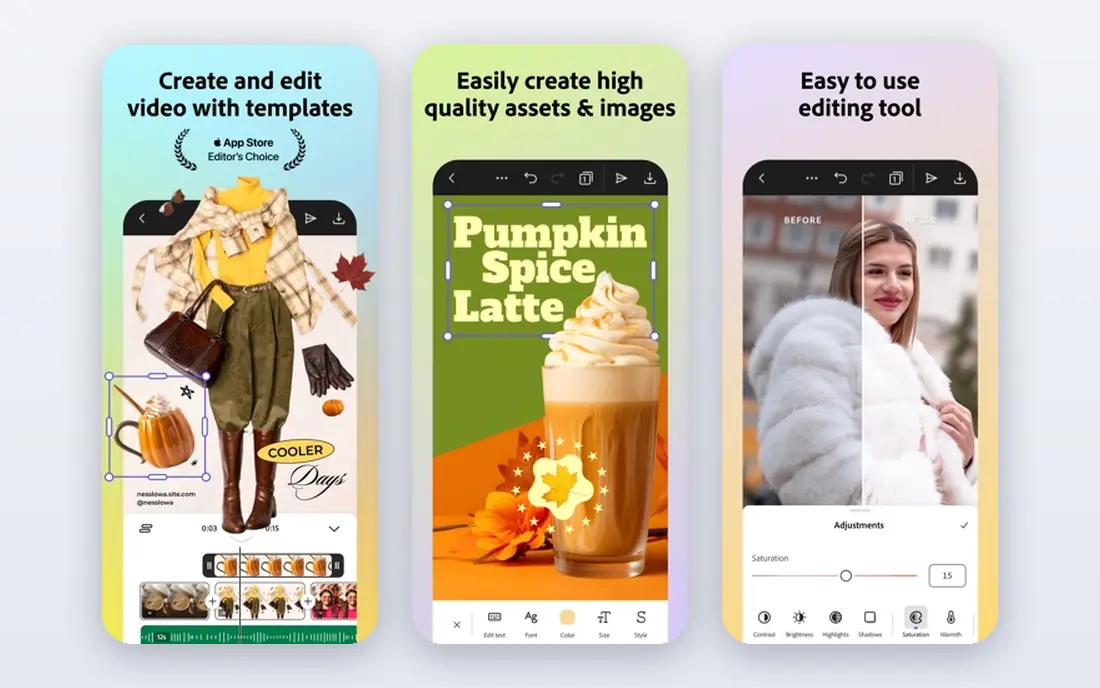
Adobe Express suits creators who want polished typography and AI images without opening Photoshop. The template range is strong, the font library is large, and Firefly image generation is built for commercial use, which helps for client work where image rights matter. Integration is another plus. If you already pay for Photoshop, Illustrator or a Creative Cloud plan, Express Premium is often included at no extra cost. Assets can also link to desktop Adobe files, so a designer can update a logo or graphic and see it change in an Express banner. The downside is performance. Express can feel heavy on older laptops, especially on complex canvases with many layers. Social scheduling is also less intuitive than Canva for some users. If you are already in Adobe tools, Express is the best value. If you are not, Canva is simpler to learn.
- Strong fonts and Firefly AI
- Adobe Stock access
- Included with many Creative Cloud plans
- Heavier on older computers
- Scheduling is less smooth than Canva
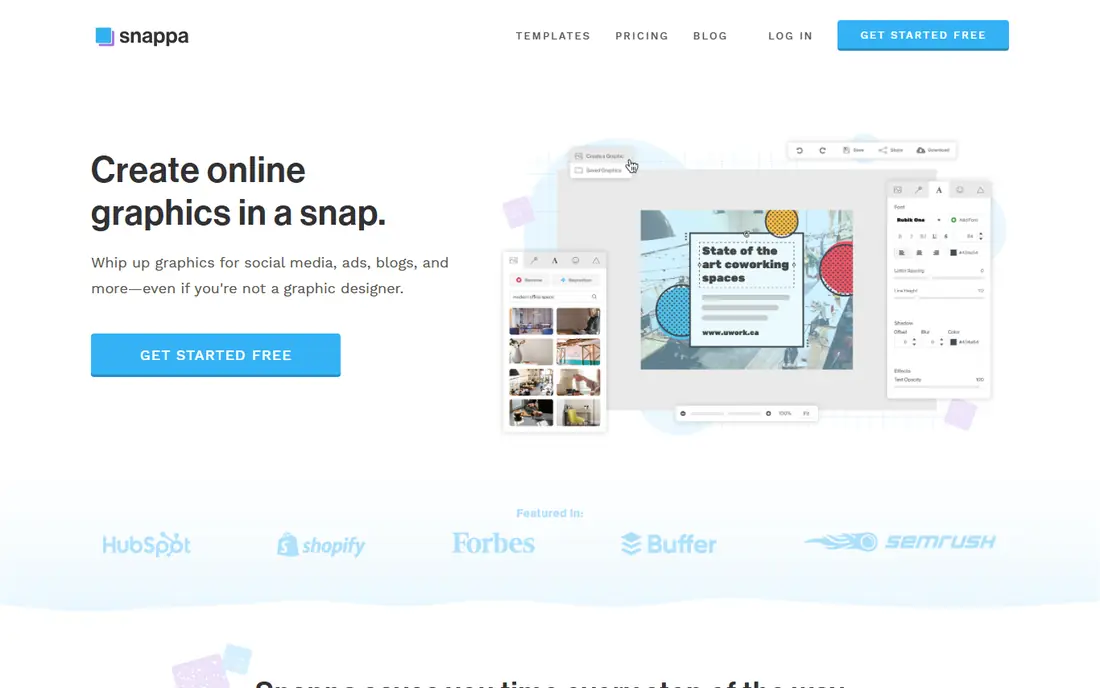
Snappa is built for speed. The editor is simple, the templates are focused on social and web banners, and one-click resizing turns one banner into sizes for many platforms. That resizing feature alone saves a lot of time for small businesses that post the same offer in several places. The stock photo library is solid, and the free plan lets you test the workflow before you pay. For a marketer who needs a clean banner fast, Snappa removes the extra features that slow down larger tools. You pick a size, edit text, export, and move on. The limit is depth. Snappa does not offer the same template volume, animation range or photo editing depth as Canva, Adobe Express or Pixlr. If you need advanced editing or a huge template library, look elsewhere. If you need fast, clean banners, Snappa is a strong fit.
- One-click resizing
- Simple editor
- Good stock photo library
- Smaller template range than Canva
- Fewer advanced editing tools
Creatopy, formerly Bannersnack, is built for ad teams that produce many banners at once. You can design animated HTML5 ads, create size variations in bulk, and manage brand assets for a team. That bulk workflow is hard to match in a general design tool, where each size is often a separate file. The platform also supports ad automation and team review, which helps agencies that must deliver dozens of creatives for one campaign. Templates cover display ads, social ads and animated formats, and export options fit common ad networks. The trade-off is scope and price. Creatopy is more than a solo creator needs for one banner, and pricing reflects agency use. If you make banners occasionally, Canva or Snappa will be cheaper and simpler. If you make ads at scale, Creatopy can pay for itself in saved production time.
- HTML5 animated ads
- Bulk banner creation
- Team and brand controls
- Higher starting price for agencies
- Overkill for a single banner
VistaCreate, from VistaPrint, suits creators who want animated banners without learning video software. The template library includes animated social banners, stories and ads, and the editor lets you change text, colours and timing in a few clicks. For social campaigns, motion can help a banner stand out in a feed. The free plan gives a useful test of the workflow, and the paid plan adds more templates, stock assets and brand tools. The editor is simple enough for non-designers, which keeps production fast for small teams. The limit is ecosystem size. VistaCreate does not match Canva for integrations, collaboration or template volume. If you need a large app ecosystem or team workflow, Canva or Adobe Express fits better. If animation is your main need, VistaCreate is a focused and affordable pick.
- Animation templates
- Large design library
- Simple editor
- Smaller ecosystem than Canva
- Some features need a paid plan
Visme is a good pick when a banner needs data, not just a headline and an image. You can add charts, icons and infographic elements to a banner, which suits reports, events, webinars and product launches where a number or comparison must be clear at a glance. Brand kits keep colours and fonts consistent across designs. The platform also covers presentations, documents and social graphics, so a banner can sit inside a larger brand workflow. That breadth helps small teams that need one tool for several content types, rather than a separate app for each format. The downside is banner depth. Visme offers fewer pure banner templates than Canva or Snappa, and the data tools take time to learn. If your banners are mainly promotional images, a simpler tool will be faster. If your banners must explain data clearly, Visme earns its place.
- Charts and data visuals
- Brand kits
- Presentation and document tools in one place
- Banner templates are fewer than Canva
- Learning curve for data features
Pixlr suits banner makers who start from a photo, not a template. The editor offers layers, filters, background removal and AI tools, with a feel closer to desktop photo software than a simple template app. That control helps when a banner needs a cleaned-up product photo or a custom background. PSD support is another plus, since designers can open and edit Photoshop files in the browser. The web and mobile apps make it easy to start a banner on a computer and finish it on a phone, or vice versa. The free version covers basic banner work well. The catch is templates and ads. Pixlr offers fewer ready-made banner templates than Canva, so you will design more from scratch. The free version also shows ads, which can slow the workflow. For photo-led banners, Pixlr is strong. For template-led speed, Canva or Snappa is faster.
- Strong photo editing
- PSD support
- Web and mobile apps
- Ads in the free version
- Template range is smaller than Canva
Fotor combines photo editing with banner templates, which suits sellers and creators who edit product photos and make banners in the same session. You can enhance a photo, remove a background, add text, and export a banner without switching apps. Batch editing helps when many product images need the same treatment. The template range covers social banners, ads and headers, and the AI tools speed up common tasks like background removal and enhancement. For e-commerce sellers, that photo-to-banner flow is practical, since product images are already part of the job. The limit is consistency. Template quality varies more than in Canva, and some AI features sit behind a paid plan. Check the free plan limits for your banner size and export needs before you commit. If photo editing is central to your banners, Fotor is a useful all-in-one option.
- Photo editing plus templates
- AI background remover
- Batch editing
- Template quality varies
- Some AI features need a paid plan
How we picked these
We reviewed official feature pages, pricing pages, template libraries and public reviews for each tool. We focused on banner sizes, template quality, resizing, animation, export formats and free plan limits, rather than only general design features. Where pricing varied by plan or region, we used See website instead of a single figure. We checked that each tool is still sold and working in 2026 and truly supports banner design, not just general image editing with no banner sizes. Tools that only offered one banner size or had closed did not make the list. Confirm current pricing and free limits on the vendor site, since design tools change plans often.
How to make a banner that actually works
Start with the size and placement, not the template. A banner for a website header, a social feed and a display ad needs different sizes, text lengths and safe areas. Pick the exact size first, then choose a template that fits that space, so text does not get cut off on mobile. Next, keep the message to one idea. A banner with a headline, a short benefit and one call to action performs better than a banner crowded with offers. Use high contrast for text, keep the focal image simple, and leave space around the text so it stays readable at small sizes. Finally, export and test at real size. View the banner on a phone and on a desktop, check loading speed for web use, and confirm the file format matches the platform, such as PNG for crisp text or JPG for photos. A banner that looks good in the editor but blurs on a phone has not finished the job.
Resize once, check every platform
Use a resize tool to create platform sizes, then check each one by eye. Text that fits on a wide web banner often overflows on a square social post. Adjust text length and image crop for each size, rather than only scaling the same file.
Frequently asked questions
Which app is best for banner design for beginners?
Canva is the best banner design app for most beginners, because the editor is simple and the template library is large. Adobe Express is also beginner-friendly, especially for users who want stronger fonts. Try both free plans with a real banner size before you pay.
Can I design banners for free?
Yes, every tool on this list offers a free plan, though free plans limit premium templates, stock assets and exports. Canva, Adobe Express, Snappa and VistaCreate all let you make usable banners for free. Paid plans mainly add premium assets, brand kits and resizing features.
What size should a banner be?
Banner size depends on placement, so there is no single correct size. Common web banner sizes include leaderboard and rectangle formats, while social banners vary by platform. Use the template size for your exact placement, and check the platform guide before you export.
Is Canva better than Adobe Express for banners?
Canva is better for template range, collaboration and ease of use, while Adobe Express is better for fonts, Adobe integration and commercially safe AI images. If you already pay for Creative Cloud, Express may be free for you. If you need the largest template library, Canva wins.
Can I animate a banner without video software?
Yes, VistaCreate and Creatopy both offer animated banner templates that you can edit without video software. Canva also offers animation on paid plans. For display ads, Creatopy offers HTML5 animation that fits ad network requirements.
Do I need Photoshop to make a good banner?
No, you do not need Photoshop for most banners. Canva, Adobe Express, Snappa and VistaCreate cover template design, text and export in a browser. Photoshop or Pixlr helps only when you need advanced photo editing, layer control or PSD file support.
Sources we checked (8)

Online Jobs is an independent blog about careers, online work, learning new skills and the tools that help people earn. More about us.
Keep reading
All posts
n8n Alternatives
n8n alternatives compared for 2026, with Zapier, Make, Activepieces, and more, covering visual builders, code steps, self-hosting, and pricing models.
ZoomInfo Alternatives
The best ZoomInfo alternatives in 2026, compared on price, free plans, data coverage, and which tool fits small teams or large sales teams best in detail.
Workday Alternatives
We compared the best workday alternatives for HR, payroll, and global hiring, from BambooHR and Gusto to Rippling, Deel, and HiBob for growing teams in 2026.