What Software Is Best for Thumbnails in 2026: 10 Products Compared

How we put this together: we compare official feature and pricing pages, app store listings, privacy policies and public user reviews. Prices change, so check the provider's site before you pay.
Key takeaways
- Canva is the best starting point for most creators, with YouTube thumbnail templates, drag-and-drop editing and a usable free plan.
- Adobe Express suits Adobe users who want templates plus Firefly image tools in one browser editor.
- Adobe Photoshop and Affinity Photo suit designers who want full manual control over layers, masks and retouching.
- Photopea and GIMP give Photoshop-like control for free, with Photopea in a browser and GIMP as a desktop app.
- Snappa, VistaCreate, Fotor and Pixlr suit quick, template-led thumbnails when speed matters more than deep editing.
Quick comparison
| Name | Who it suits | Starting price | Free option | |
|---|---|---|---|---|
 Canva | Template-led thumbnails for most creators | Free | Yes | Visit |
 Adobe Express | Adobe templates plus AI image tools | Free | Yes | Visit |
 Adobe Photoshop | Full manual control for designers | See website | Free trial | Visit |
 Snappa | Quick, simple thumbnail edits | Free | Yes | Visit |
 VistaCreate | Template and animation options | Free | Yes | Visit |
 Fotor | Photo editing plus templates | Free | Yes | Visit |
 Photopea | Free browser Photoshop-like editing | Free | Yes | Visit |
 GIMP | Free desktop photo editing | Free | Yes | Visit |
 Pixlr | Fast browser photo editing | Free | Yes | Visit |
 Affinity Photo | One-time purchase pro editing | See website | Free trial | Visit |
The best software for thumbnails
A thumbnail has a simple job: stop a scroll, show the topic clearly, and stay readable on a phone screen. The tools below do that job in different ways, from template editors that work in minutes to full photo editors that give you control over every layer. Pick by speed, skill level and whether you need templates, photo retouching or brand consistency.
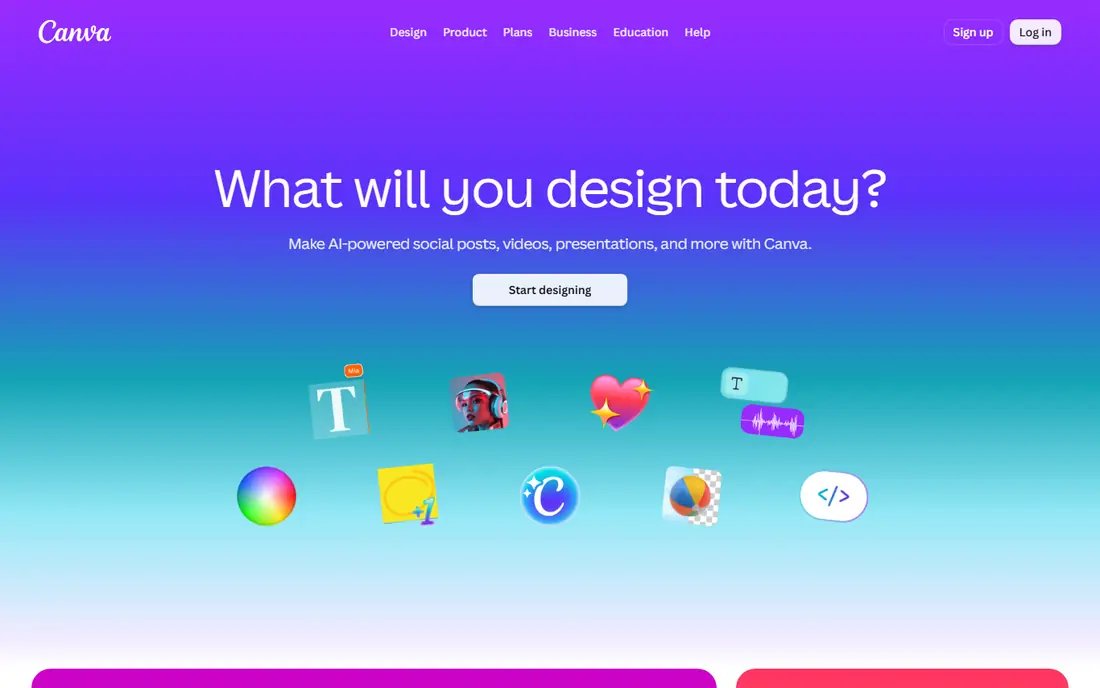
Canva is our pick for most creators because it removes the blank-page problem. You pick a YouTube thumbnail size, choose a template, swap the photo and text, and export in minutes. The drag-and-drop editor is easy to learn, and the mobile app lets you finish a thumbnail on a phone when a video is ready to publish. The catch is sameness. Free templates used unchanged can look like many other channels, so change colours, fonts and layout to match your brand. Background removal and brand kit tools sit behind Pro, so check the current price on the vendor site. For speed, templates and consistency, Canva is the default starting point.
- Large YouTube thumbnail template library
- Drag-and-drop editor
- Mobile app works well
- Background remover and brand kit need Pro
- Free templates can look generic if used unchanged
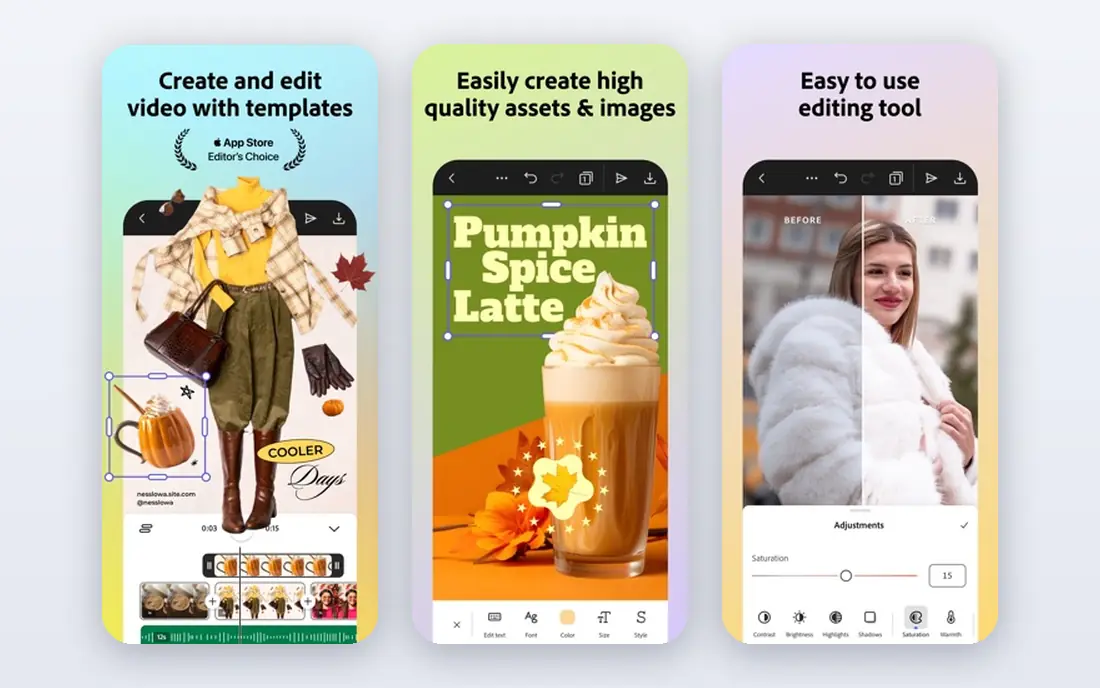
Adobe Express pairs templates with Adobe image tools in a browser editor. You can start from a YouTube thumbnail template, generate or edit a background with Firefly tools, add text and brand elements, and export for YouTube. That mix suits creators who want AI help with backgrounds without learning Photoshop. The free plan covers a lot, but premium templates, fonts and AI credits sit behind a paid plan, so check limits on the vendor site. Manual control is lighter than Photoshop, which is fine for most thumbnails and a limit for complex composites. If you already use Adobe tools, Express is a natural, fast companion.
- Templates plus Firefly image tools
- Adobe fonts and stock
- Browser editor with mobile app
- Deepest features need a paid plan
- Less manual control than Photoshop
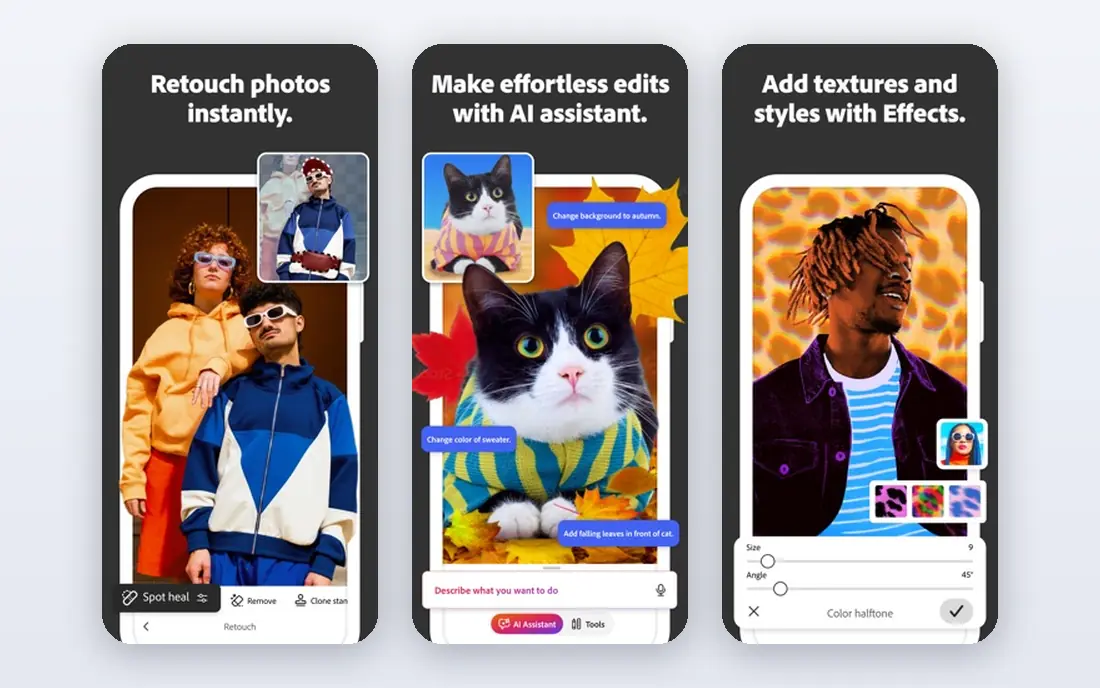
Photoshop remains the benchmark for manual thumbnail work. Layers, masks, selections, retouching and text effects give you control over every pixel, which matters for complex composites, product shots and face retouching. The tutorial range is huge, so almost any technique has a guide. That power costs time and money. A subscription is needed after the trial, and beginners can feel lost among panels and tools. For a creator who publishes weekly and wants a consistent, polished look, Photoshop is worth learning. For a creator who needs one thumbnail fast, Canva or Express will be quicker.
- Full layer, mask and retouch control
- Industry standard
- Huge plugin and tutorial range
- Subscription cost
- Learning curve for beginners
- More than most thumbnails need
Snappa is built for speed. You pick a YouTube size, choose a template or a photo, add bold text, and export, often in under ten minutes. The editor stays simple, with fewer panels than Canva, which helps creators who dislike complex design tools. The free plan limits downloads per month, so check current limits on the vendor site before you build a daily workflow around it. The template library is smaller than Canva, but for quick, clean thumbnails, Snappa is a lean, focused alternative that does not get in your way.
- Very fast editor
- Preset YouTube sizes
- Simple templates and stock photos
- Free plan limits downloads per month
- Smaller template library than Canva
VistaCreate, formerly Crello, offers templates for YouTube thumbnails, social posts and ads, with animation options for short social clips. The editor is template-led, so a new creator can start from a layout and change text, colours and images without design training. That breadth suits creators who publish across platforms. Free downloads are limited, so check current limits on the vendor site. The interface packs in many templates, which can feel busy at first. For creators who want templates plus simple animation, VistaCreate is a useful alternative to Canva, especially for social formats beyond YouTube.
- Large template library
- Animation options
- Brand kit tools on paid plans
- Free plan limits downloads
- Interface can feel busy
Fotor mixes photo editing with thumbnail templates, which suits creators who start from a photo rather than a template. You can adjust light, colour and filters, add text and shapes, and export a YouTube-sized image. Batch editing helps when you need several thumbnails in a similar style. Some free exports carry a watermark, and the best features need a paid plan, so check terms on the vendor site. For photo-led thumbnails, Fotor is a practical middle ground between a template editor and a full photo editor. It will not match Photoshop for composites, but it is faster for photo fixes.
- Photo editing and filters
- Thumbnail templates
- Batch editing options
- Some exports are watermarked on free plan
- Premium features need a paid plan
Photopea is a free, browser-based editor that works much like Photoshop, with layers, masks, selections and PSD file support. You open the site, edit a thumbnail, and export, with no install and no account needed for basic work. That makes it ideal on a borrowed computer or a Chromebook. The free plan shows ads, and heavy files can strain a browser, so a desktop editor may suit large composites better. For free, full-control thumbnail editing in a browser, Photopea is the strongest option here. It rewards users who know layers, and it costs nothing to learn.
- Free in a browser
- Layers, masks and PSD support
- No install needed
- Ads on free plan
- Performance depends on browser and machine
GIMP is a free, open-source desktop editor with layers, masks, selections and plugins, comparable to Photoshop for many thumbnail tasks. It works offline, handles large files well, and costs nothing, which makes it a long-term choice for creators who dislike subscriptions. The interface feels dated, and there are no built-in YouTube templates, so you must set the canvas size yourself, usually 1280 by 720 pixels for YouTube, and build layouts from scratch or from your own templates. That extra setup pays off once you save a reusable template. For free, offline, full-control editing, GIMP is a solid pick.
- Fully free desktop editor
- Layers, masks and plugins
- Works offline
- Learning curve
- Interface feels dated
- No built-in thumbnail templates
Pixlr offers a fast browser editor with two modes: a simple editor for quick fixes and an advanced editor for layers. AI tools help with background removal and retouching, which speed up thumbnail work when a photo needs a clean cutout. That speed suits creators who edit in a browser and want results quickly. The free plan has ads and limits, and full AI features need a paid plan, so check terms on the vendor site. For quick browser edits, Pixlr is faster to open than a desktop app. For complex composites, Photoshop, Photopea or GIMP give more control.
- Fast browser editor
- AI tools for background and retouch
- Simple and advanced modes
- Free plan has ads and limits
- Premium needed for full AI features
Affinity Photo gives professional photo editing without a subscription, with layers, masks, retouching and RAW support in a fast desktop app. It suits designers who want Photoshop-level control but prefer to buy once rather than pay monthly. The interface is modern and the performance is strong. The plugin and tutorial range is smaller than Photoshop, and there are no built-in YouTube templates, so set your canvas size and save your own template. Check the current purchase price and trial on the vendor site. For a one-time purchase pro editor, Affinity Photo is the best alternative to Photoshop here.
- Pro layer and retouch tools
- One-time purchase model
- Fast on modern machines
- Smaller plugin range than Photoshop
- No built-in thumbnail templates
How we picked these
We started with thumbnail and design tools that appear in current 2026 creator guides and vendor listings, then kept only tools that are live, work on current browsers or desktops, and can produce a YouTube-sized thumbnail. We checked each vendor site or store listing for free or trial terms, template support, and main editing features such as layers, text and background removal. We favoured tools with a free or trial route and clear pricing, and we dropped tools that were only AI generators with no layout editing. Where a price was not stated clearly, we wrote See website. We did not claim hands-on testing.
How to make a thumbnail that works on a phone
Keep text large, short and high contrast
Use three to five words at most, in a large, bold font with strong contrast against the background. Test the thumbnail at phone size, not just on a large monitor, since most viewers see it small. If you cannot read the text in a small preview, shorten it or increase the font size.
Use one clear subject and a simple background
Pick one face, product or scene as the subject, and keep the background simple so the subject stands out. A cluttered thumbnail with many elements disappears on a phone feed. Remove distracting details, increase contrast around the subject, and leave space for text that does not cover a face.
Save a reusable template and check export size
Save a template with your colours, fonts, logo placement and canvas size, so each thumbnail stays consistent and fast to make. For YouTube, start with 1280 by 720 pixels, and check the final file size and format before upload, since very large files can fail or compress poorly. A consistent template also helps viewers recognise your channel at a glance.
Frequently asked questions
What software is best for thumbnails for beginners?
Canva is the best beginner pick, with templates, drag-and-drop editing and a free plan. Adobe Express is also easy for beginners, with AI image help. Start with Canva, save a template, and only move to Photoshop or Affinity Photo when you need manual control.
What is the best free app for thumbnails?
Canva is the best free template app, Photopea is the best free browser editor with layers, and GIMP is the best free desktop editor. Snappa is also free for a limited number of downloads per month. Pick Canva for speed, Photopea or GIMP for control.
Do I need Photoshop to make good thumbnails?
No. Most creators make strong thumbnails in Canva, Adobe Express or Snappa, with templates and bold text. Photoshop helps for complex composites and retouching, but it is not required for a clear, high-contrast thumbnail that works on a phone.
What size should a YouTube thumbnail be?
Use 1280 by 720 pixels as a starting size, which matches the 16 by 9 ratio YouTube uses. Check the current YouTube upload guide for file size and format limits before publishing, since those rules can change. Always preview at phone size before you publish.
Can AI tools make thumbnails for me?
AI image tools can generate a background or concept, but they do not place text, choose layout, or judge readability for you. Use AI for a background, then finish the thumbnail in Canva, Express or Photoshop, where you control text size, contrast and composition. Human design choices still decide whether a thumbnail works.
How do I keep thumbnails consistent across a channel?
Save a template with your colours, fonts, logo and layout, and reuse it for each video. Change only the photo, subject and short text. That consistency helps viewers recognise your videos in a feed, and it makes each new thumbnail faster to produce.
Sources we checked (10)

Online Jobs is an independent blog about careers, online work, learning new skills and the tools that help people earn. More about us.
Keep reading
All posts
Best Free CAD Software
Looking for the best free CAD software? We compare 8 free tools for 2D drafting, 3D modeling, beginners, engineers, printing, exports, and file formats.
8 Best Tools for UI Design for Teams, Freelancers, and Beginners
Looking for the best tools for UI design? We compare 8 UI design tools on price, collaboration, prototyping, and handoff to help you pick for every team.

8 Best AI Design Tools for Graphics, Layouts, and Brand Assets
Searching for the best AI design tool? We compare 8 AI design apps and software on templates, image generation, editing, and pricing for every budget.