Best PDF Editing Software in 2026: 9 Apps Compared


Full professional editing · Starting price: $19.99 per month
How we put this together: we compare official feature and pricing pages, app store listings, privacy policies and public user reviews. Prices change, so check the provider's site before you pay.
Key takeaways
- Adobe Acrobat remains the compatibility benchmark, but Foxit and PDFelement cover most of the same ground for less money.
- If you only edit PDFs occasionally, PDFgear, Smallpdf and iLovePDF handle everyday tasks free or nearly free.
- Mac and iPad owners get the smoothest experience from PDF Expert, which is built only for Apple devices.
- Scanned documents change the choice: you need OCR, and the strongest OCR sits in Acrobat, ABBYY-style tools and Foxit.
- A perpetual license still exists if you hate subscriptions, through Foxit and PDFelement, while Adobe is subscription only.
Quick comparison
| Name | Who it suits | Starting price | Free option | |
|---|---|---|---|---|
| Adobe Acrobat | Full professional editing | $19.99 per month | Free trial (7 days) | Visit |
 Foxit PDF Editor Foxit PDF Editor | Acrobat alternative for less | $10.99 per month | Free trial (14 days) | Visit |
 Wondershare PDFelement Wondershare PDFelement | Best value full editor | $129.99 one-time | Free trial | Visit |
 Nitro PDF Pro Nitro PDF Pro | Teams standardizing on one tool | $16.50 per user per month | Free trial (14 days) | Visit |
 Smallpdf Smallpdf | Quick browser tasks | $10 per month | Yes | Visit |
 PDFgear PDFgear | Free desktop editing | Free | Yes | Visit |
 PDF Expert PDF Expert | Mac and iPad users | $139.99 one-time | Free trial (7 days) | Visit |
 iLovePDF iLovePDF | Browser tools for casual use | $5 per month | Yes | Visit |
 Sejda Sejda | Simple online editing | See website | Yes | Visit |
The best pdf editing software
Most people do not need the most powerful PDF editor. They need the one that opens fast, edits text without breaking the layout, and does not charge a monthly fee for a job they do twice a year. The nine tools below cover that whole range, from free desktop apps to the professional standard.
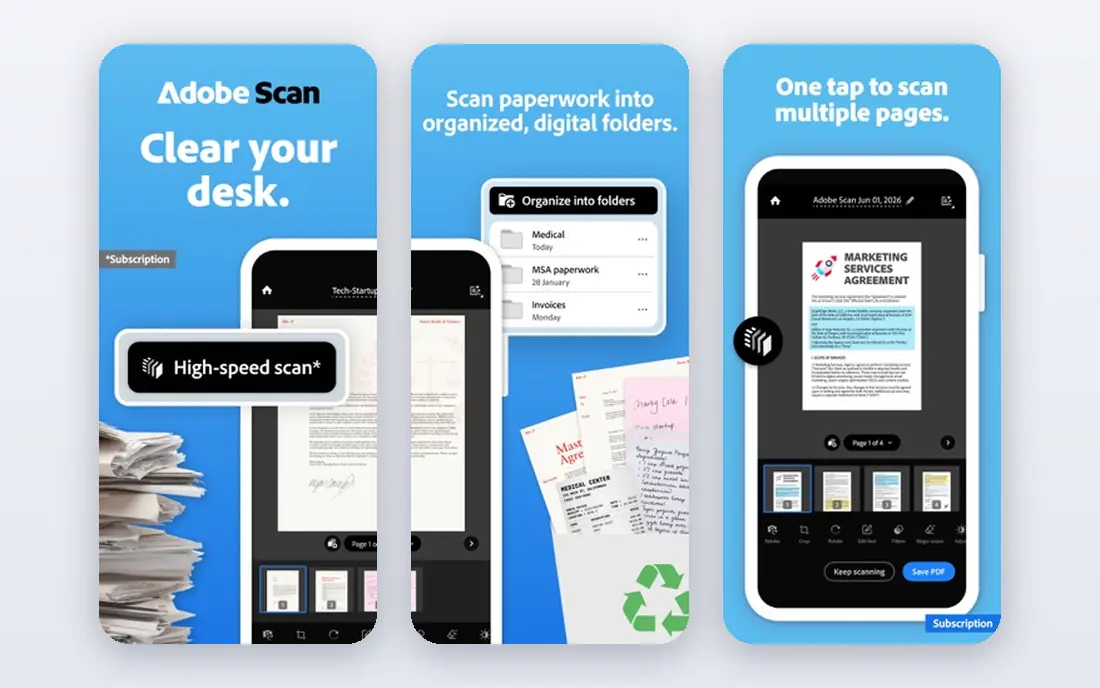
Adobe invented the PDF format, and Acrobat still sets the standard other editors are measured against. When a document renders oddly in a cheaper tool, it almost always renders correctly here, which matters for contracts, forms and files that pass through many hands. The editing tools cover text, images, page order, forms, redaction and comparison, and the built-in AI assistant can summarize long documents and answer questions about them.
The catch is the price and the subscription model. Acrobat Pro costs more per month than every rival on this list, and Adobe no longer sells a perpetual license to new customers. If you edit PDFs daily for work, that cost buys peace of mind. If you edit a few files a month, one of the cheaper options below will feel like better value.
- Best compatibility with complex PDFs
- Strongest OCR and redaction
- Deep e-signature tools
- Highest price here
- More features than most people will use
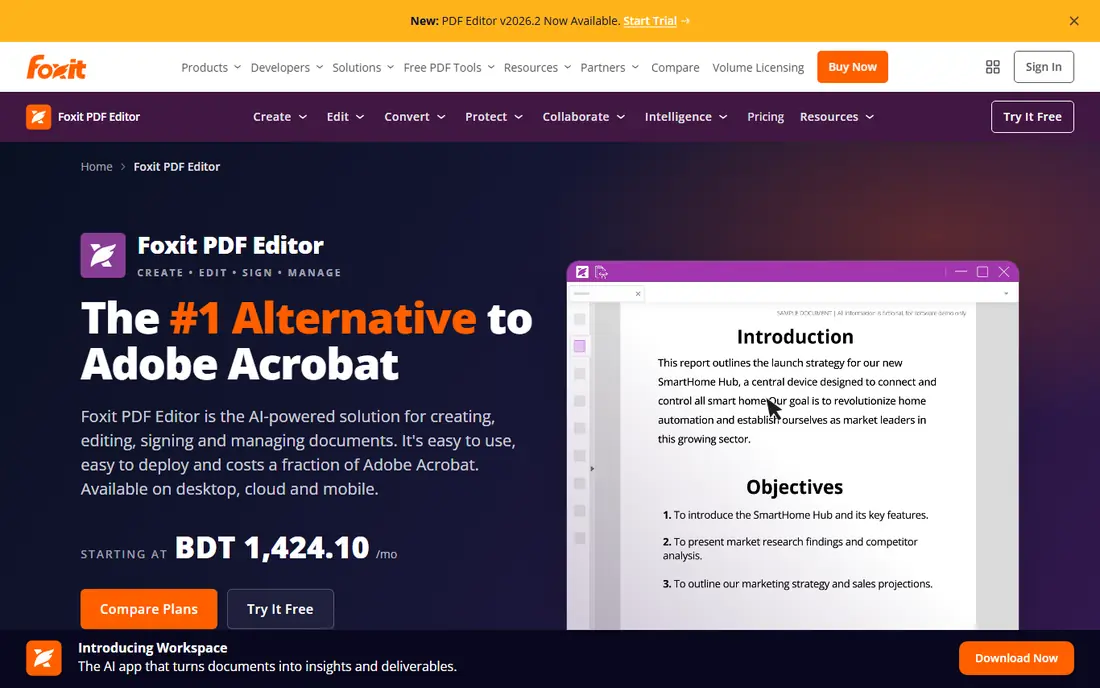
Foxit is the closest full-featured alternative to Acrobat, and it undercuts Adobe on price while adding something Adobe dropped: a one-time perpetual license. Editing, OCR, redaction, form creation and comparison are all present, and the interface will feel familiar to anyone who has used Acrobat. Its own homepage lists subscriptions starting at $10.99 per month, with the perpetual license at $209.99.
For small businesses, the included document management features and 300 monthly AI credits add real value. The trade-off is polish on mobile, where the apps lag behind the desktop version, and the AI features are metered rather than unlimited. Still, for a team that wants Acrobat-level capability without Acrobat-level billing, Foxit is the first place to look.
- Close to Acrobat on core features
- Perpetual license available
- Lighter on system resources
- Mobile apps trail the desktop version
- AI credits are capped on lower tiers
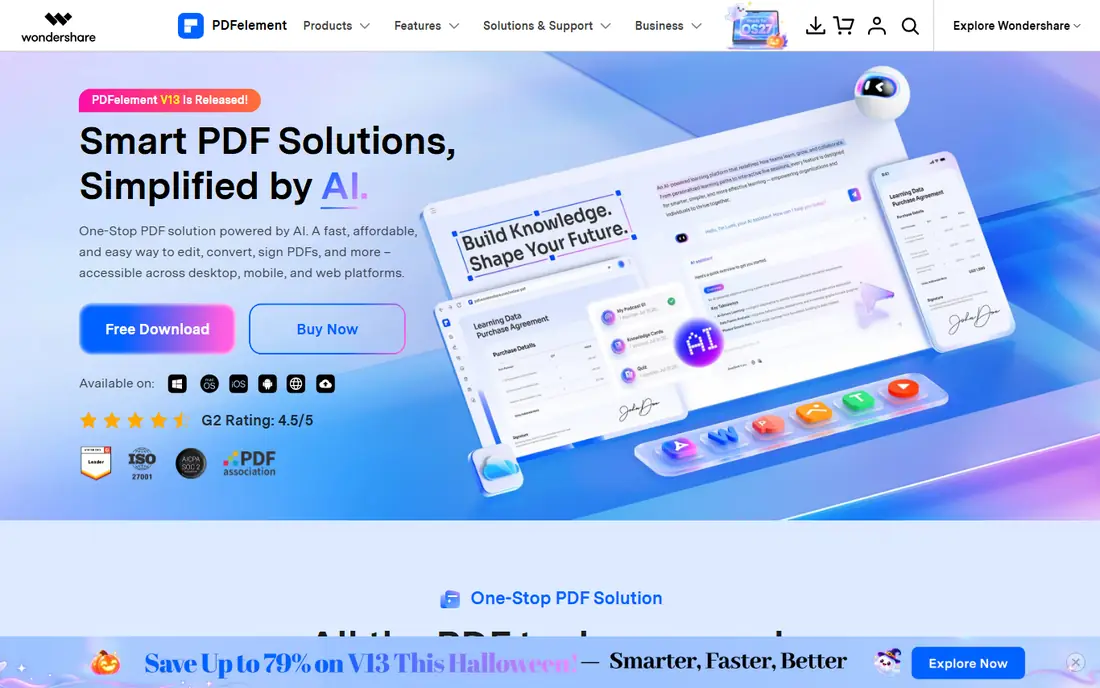
PDFelement packs nearly everything Acrobat does into a friendlier interface at a fraction of the price. Its homepage lists a personal perpetual plan at $129.99, which buys editing, conversion, OCR, forms and signing on Windows or Mac. The AI tools for summarizing, translating and chatting with documents are genuinely useful for long reports and contracts.
Where it gives ground is OCR on difficult scans, where Adobe still leads, and some cloud features that sit behind subscription plans rather than the perpetual license. For a freelancer or small office that wants a complete desktop editor without a monthly bill, PDFelement is hard to beat on value.
- Full editing, OCR and forms at a low one-time price
- Friendly interface
- AI summaries and translation
- OCR accuracy trails Adobe on poor scans
- Cloud features need the subscription tiers
Nitro aims at organizations rather than individuals, bundling PDF editing with e-signing, redaction and analytics under one admin console. That matters when an IT team has to deploy, manage and measure document tools across departments, and Nitro's analytics show how licenses are actually used. Every plan includes AI tools for summarizing and extracting data from documents.
The per-user pricing means the bill grows with headcount, and solo users will find cheaper editors elsewhere. But for a mid-size company that wants one vendor for PDF and signing, with admin controls and audit trails, Nitro is a strong, well-supported choice.
- PDF, e-sign and redaction in one platform
- Admin controls and analytics
- AI tools included
- Priced per user, so large teams pay more
- Best value needs the full platform
Smallpdf lives in the browser, which is its whole appeal: no download, no install, just open the site and merge, compress, convert or sign a file. The free tier covers a couple of tasks per day across its 30 tools, which is enough for the occasional form or merged report. Paid plans start at $10 per month billed annually and remove the limits.
It is not a replacement for a desktop editor if you work with PDFs all day, since heavy editing and large files are smoother in a dedicated app. For quick jobs on a borrowed computer or a Chromebook, though, Smallpdf is the fastest route from problem to finished file.
- 30 browser tools in one place
- No install needed
- Free tier for occasional tasks
- Free tier limited to a few tasks per day
- Full editing needs the paid plan
PDFgear is the rare free tool that does not feel like a demo. The desktop apps edit text and images, merge and split pages, convert files, sign documents and run OCR, all without watermarks or a subscription. Its homepage confirms the core toolkit costs nothing, and an AI chat feature can summarize documents and answer questions about them.
What you give up is the business layer: admin controls, team deployment and priority support are thin compared with paid rivals. For students, home users and anyone who edits PDFs a few times a month, PDFgear removes the need to pay anything at all.
- Fully free with no watermarks
- Desktop apps for Windows and Mac
- AI chat with documents
- Fewer team and admin features
- Support is thinner than paid rivals
PDF Expert is built only for iPhone, iPad and Mac, and that focus shows in how fast and natural it feels. Editing, annotation, signing, form filling and OCR all sit in an interface that follows Apple design conventions, and the iPad version with Apple Pencil is one of the best ways to mark up documents anywhere. A lifetime license for Mac is listed at $139.99.
The obvious limit is platform: there is no Windows or Android version, so mixed-device households and offices cannot standardize on it. If your world is Apple hardware, though, PDF Expert is the most pleasant editor on this list.
- Fastest, most Mac-like experience
- Excellent annotation on iPad
- One-time lifetime option
- Apple devices only
- Windows and Android users are left out
iLovePDF offers one of the widest browser toolsets around, covering merge, split, compress, convert, sign, watermark, redact and more, with most tools free for basic use. Premium starts at $5 per month billed annually and adds desktop access, advanced OCR and e-signature requests. The site is straightforward and fast, which counts when you just want a file converted before a meeting.
Heavy, repeated editing is still better in a desktop app, and the free tier has processing limits. As a free first stop for occasional PDF chores, iLovePDF is one of the best options available.
- Huge toolset in the browser
- Free tier for basic jobs
- Cheap premium plan
- Advanced editing and OCR need Premium
- Browser-only workflow suits light use
Sejda keeps its browser editor simple: add text, fill forms, sign, annotate, merge and convert without installing anything, and its desktop app works offline on Windows, Mac and Linux. The company states that files processed online are permanently deleted after processing, which is reassuring for sensitive documents. A free tier covers light use, with paid plans removing the limits.
The free tier caps how many tasks you can run per hour and day, so regular users will hit the ceiling quickly. For occasional, privacy-conscious editing in a browser, Sejda is a tidy, honest choice.
- Clean browser editor with desktop option
- Files deleted after processing
- Free tier
- Free tier has hourly and daily limits
- Paid plans priced per user
How we picked these
We compared official feature pages, pricing pages and app store listings for each product, and checked that every homepage listed here loads and belongs to the product named. We favored tools that cover real editing (changing text, not just annotating), that publish clear prices, and that work in October 2026. Prices change often, so we note where a figure comes from a vendor page and use "See website" where a price could not be confirmed.
What to check before you pay
Start with how often you edit PDFs. A free tool covers a few files a month, while daily work justifies a paid desktop editor with OCR and batch processing. Next, check your platform: PDF Expert only serves Apple devices, while Foxit, PDFelement and Nitro cover Windows and Mac. Finally, think about scans. If your documents arrive as photos or paper scans, OCR is not optional, and the strongest OCR sits in the paid desktop editors rather than the free browser tools. Try the free trial or free tier first, and only pay once the tool has handled your messiest real file.
Frequently asked questions
What is the best software for editing PDFs overall?
Adobe Acrobat is the most complete editor, with the best compatibility, OCR and redaction. Foxit PDF Editor is our pick for most people, since it covers nearly the same ground for less money and offers a perpetual license.
Is there a completely free PDF editor?
Yes. PDFgear offers full desktop editing free, with no watermarks, and Smallpdf, iLovePDF and Sejda all have free tiers for browser tasks. Free tiers usually limit how many tasks you can run per day.
Which PDF editor is best on a Mac?
PDF Expert, because it is built only for Apple devices and feels faster and more natural on Mac and iPad than cross-platform rivals. Foxit and PDFelement are the best cross-platform choices if you also use Windows.
Can I edit a PDF in my browser without installing anything?
Yes. Smallpdf, iLovePDF and Sejda all edit PDFs in the browser, and they handle merging, splitting, compressing, signing and light text edits. Heavy editing and large files are smoother in a desktop app.
Do I need OCR in a PDF editor?
You need it if your PDFs come from scans or photos, since scanned pages are pictures of text rather than selectable text. Acrobat, Foxit and PDFelement all include OCR, while most free browser tools offer it only on paid plans.
Sources we checked (9)

Online Jobs is an independent blog about careers, online work, learning new skills and the tools that help people earn. More about us.
Keep reading
All posts
Zoom Alternatives
Zoom alternatives compared for 2026: Google Meet, Microsoft Teams, Webex, Jitsi and more for free calls, large meetings and webinars for teams and classrooms.
What Is the Best Free Tool to Rotate a PDF
What is the best free tool to rotate a PDF? We compare eight free rotation tools on per-page control, limits, privacy and saved output quality in detail.
What Is the Best AI Dubbing Tool
We compared the best AI dubbing tools in 2026, from ElevenLabs and HeyGen to Rask AI, Dubverse and Veed, for videos and creators in many languages worldwide.