What's the Best App to Read PDFs in 2026: 9 Apps Compared


Most readers, most PDFs · Starting price: Free
How we put this together: we compare official feature and pricing pages, app store listings, privacy policies and public user reviews. Prices change, so check the provider's site before you pay.
Key takeaways
- Adobe Acrobat Reader is the safest default for most readers, because it is free and handles nearly any PDF correctly.
- PDF Expert is the best pick for Apple users who annotate heavily, while Foxit suits Windows users who want a fast, light reader.
- Xodo stands out for free cross-device reading and annotation without a subscription.
- SumatraPDF is the lightest option on this list, and it suits readers who only need speed and simplicity.
- If you edit, sign, or convert PDFs often, a paid editor like Nitro PDF Pro or PDFelement will save more time than a free reader.
Quick comparison
| Name | Who it suits | Starting price | Free option | |
|---|---|---|---|---|
| Adobe Acrobat Reader | Most readers, most PDFs | Free | Yes | Visit |
 Foxit PDF Reader | Fast Windows reading | Free | Yes | Visit |
 PDF Expert | Apple annotation | Free | Yes | Visit |
 Xodo PDF Reader | Free cross-device annotation | Free | Yes | Visit |
 GoodReader | Power reading on iPad | See website | No | Visit |
 SumatraPDF | Lightweight Windows reading | Free | Yes | Visit |
 Nitro PDF Pro | Editing and conversion | See website | Free trial | Visit |
 PDFelement | Affordable PDF editing | See website | Free trial | Visit |
 PDFgear | Free editing basics | Free | Yes | Visit |
The best apps to read PDFs
We compared readers on rendering quality, annotation, search, speed, and how much is free before a paywall appears.
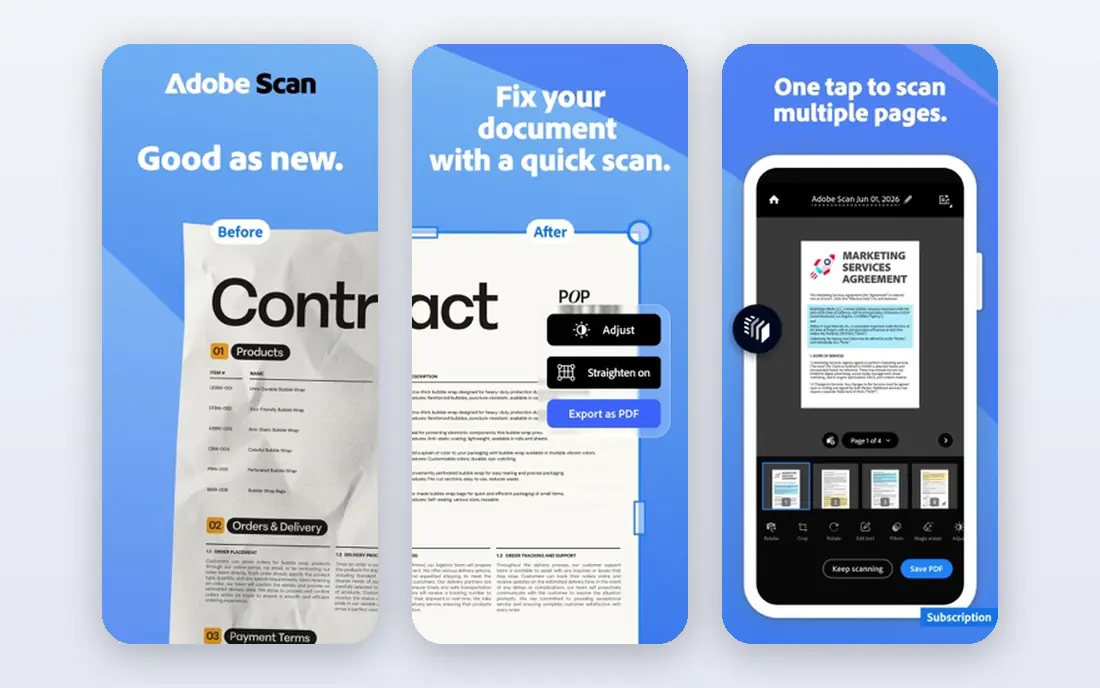
Adobe Acrobat Reader remains the default answer for a reason that has little to do with habit. Because Adobe created the PDF format, its free reader handles forms, fonts, and complex layouts more reliably than most rivals. For contracts, textbooks, and scanned documents, that reliability matters, and the reader is free on desktop and mobile. The limit is editing. Reading, commenting, and filling many forms are free, but editing text, converting files, and combining documents need a paid Acrobat plan. Most readers will never need those tools, so the free reader is enough. If you do need them, compare Nitro PDF Pro and PDFelement before paying Adobe prices.
- Free reader from the company behind PDF
- Handles complex files well
- Available on desktop and mobile
- Editing and conversion need a paid plan
- App can feel heavy on older devices
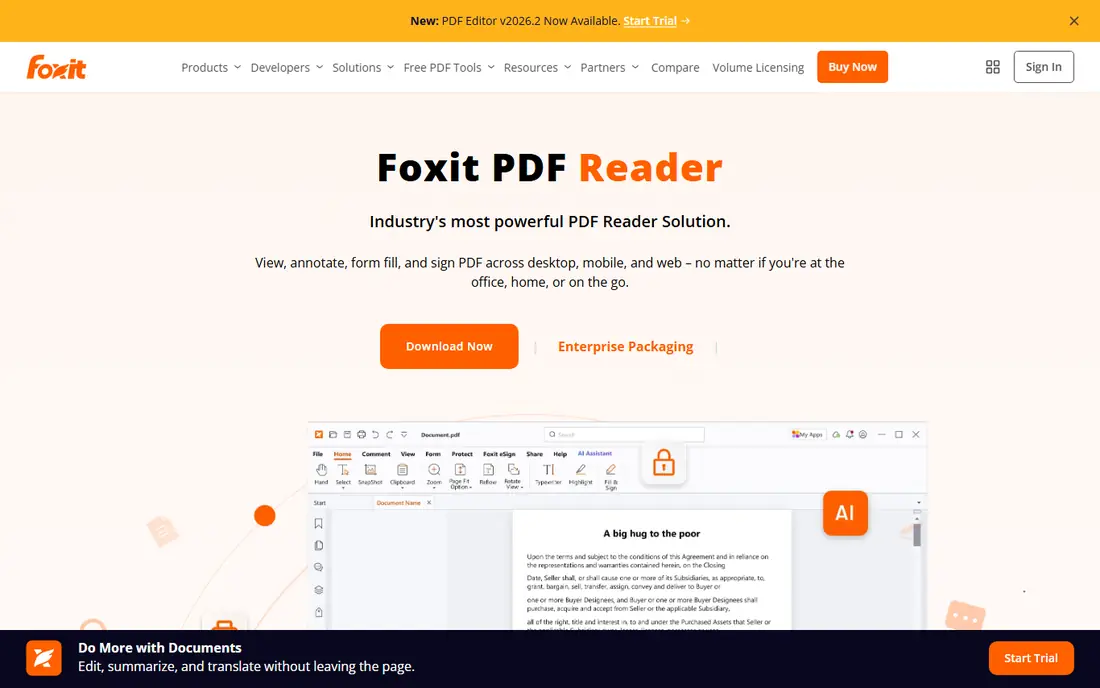
Foxit PDF Reader is the pick for Windows users who find Adobe Acrobat Reader slow or cluttered. It opens quickly, reads and annotates well, and covers the daily needs of students and office workers without a subscription. Highlighting, comments, and form filling all work in the free version, which is more than many readers ask for. The trade-off is that Foxit, like Adobe, keeps its deeper editing tools behind a paid plan. Mobile users may also prefer Xodo or PDF Expert, since Foxit's mobile app is not its strongest version. On a Windows desktop, though, Foxit is a strong free default and a genuine rival to Adobe.
- Free and fast on Windows
- Good annotation tools
- Lighter feel than Adobe for many users
- Advanced editing needs a paid version
- Mobile app is less polished than desktop
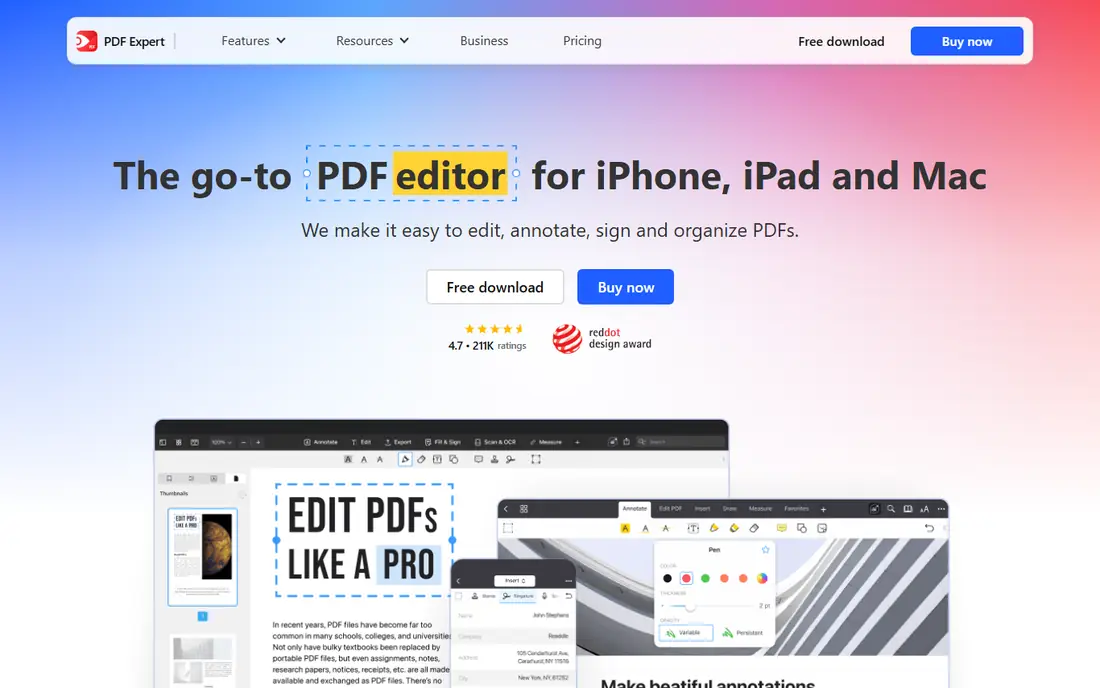
PDF Expert is the reader Apple users most often end up keeping, and the design explains why. Reading feels calm, annotation with an Apple Pencil feels natural, and the app handles large documents without fuss. Students marking up lecture slides and professionals reviewing contracts both get a tool that stays out of the way. It is Apple only, so Windows and Android users should look at Xodo or Foxit instead. The free version covers reading and basic annotation, while editing, conversion, and advanced tools need a paid plan. If you read and mark up PDFs mainly on Apple devices, PDF Expert is worth the download first.
- Excellent annotation and reading on Mac, iPad, and iPhone
- Clean design
- Good Apple Pencil support
- Full editing features need a paid plan
- Not available on Windows or Android
Xodo is the best free choice for readers who move between devices, because it works on the web, on mobile, and on desktop with cloud sync. You can start a document on a laptop, add highlights on a phone, and pick it up again later without emailing files to yourself. Annotation, form filling, and signing are included without a subscription. Paid editors still beat Xodo for heavy text editing and conversion, and the interface takes a little learning. For reading and markup, though, Xodo gives away more for free than most rivals. Students and remote workers who need one reader everywhere should try it before paying for anything.
- Free reading and annotation across devices
- Syncs through the cloud
- Works on web, mobile, and desktop
- Editing depth is limited compared with paid editors
- Interface can feel busy at first
GoodReader has a loyal following among researchers and students who read huge PDFs on an iPad, and it earns that loyalty through file handling. It manages large documents, supports detailed annotation, and connects to cloud storage and local files in ways that simpler readers do not. For a thesis, a case file, or a long technical manual, that control matters. It is a paid, Apple-only app with a plain, functional look, so casual readers will prefer a free option. Power readers who organize hundreds of PDFs, though, often find GoodReader's filing and annotation tools worth the price. Check the current price on the developer's site before buying.
- Strong file management and annotation on iPad
- Handles large files well
- Good for research and study
- Paid app
- Apple only
- Interface is more functional than pretty
SumatraPDF is the reader for people who only want to read, and want to do it fast. It opens in a blink, uses little memory, and handles PDFs plus ebook and comic formats without extra clutter. On an older Windows laptop, the difference from a heavier reader is easy to feel. Annotation is the weak point, since SumatraPDF offers far less markup than Foxit, Xodo, or PDF Expert. Readers who highlight and comment all day should pick one of those instead. Readers who open a PDF, read it, and close it will find SumatraPDF hard to beat for speed and simplicity.
- Extremely fast and light
- Free and open source
- Opens PDFs, ebooks, and comics
- Windows only
- Annotation tools are limited
- Plain interface
Nitro PDF Pro is for readers who also need to change PDFs, not just read them. It edits text and images, converts PDFs to Word and Excel, combines files, and handles signing and forms in one package. For office workers who process documents daily, it is a credible alternative to Adobe Acrobat at a price worth comparing on the vendor's site. Casual readers should not buy it, since a free reader covers their needs. The trial is the right way to judge it: run your real documents through editing and conversion, and see whether the output matches your original layout. If it does, Nitro can replace several separate tools.
- Full editing, conversion, and signing tools
- Good Adobe alternative on Windows and Mac
- One-time purchase options have been offered
- Paid software
- Free trial is time limited
- Overkill if you only read PDFs
PDFelement aims at the same buyer as Nitro: someone who edits PDFs often but does not want Adobe prices. It covers text editing, OCR for scanned pages, form creation, and conversion, with desktop and mobile apps. For small businesses and students with regular editing needs, that breadth at a lower price is attractive. The trial limits some features, so test the exact jobs you need, such as OCR on a scanned chapter or converting a table-heavy document. If those pass, PDFelement is a practical buy. If you only read and highlight, stay with a free reader and save the money.
- Editing, OCR, forms, and conversion in one app
- Often cheaper than Adobe
- Available on desktop and mobile
- Some features are limited in the trial
- Interface can feel crowded
PDFgear is the surprise pick on this list, because it gives away editing basics that most rivals charge for. Reading, annotating, editing text, converting files, and compressing PDFs are available free, without an account for core features. That makes it a strong choice for students and small teams on a tight budget. It is newer and less proven than Adobe or Foxit, and paid editors still offer deeper OCR, batch work, and form tools. Readers should also keep an eye on how the free model holds up over time. For now, though, PDFgear offers more free editing than any other app here, and it deserves a trial before you pay for an editor.
- Free reading, editing, and conversion basics
- Works on desktop and mobile
- No account needed for core features
- Newer than Adobe and Foxit
- Advanced features are thinner than paid editors
How we picked these
We compared official feature pages, pricing pages, app store listings, privacy policies, and public reviews, and we favored readers that are actively maintained and render PDFs accurately. We tested the distinction between reading and editing carefully, because many apps are free to read but paid to edit, and that distinction decides the real cost. Prices are listed as See website where a vendor does not publish a clear starting rate, so confirm current pricing on the vendor's site before buying.
How to choose the right PDF app
The right reader depends on what you do after you open the file.
If you only read
Pick Adobe Acrobat Reader, Foxit, or SumatraPDF, depending on your device and how light you want the app to be. SumatraPDF wins on speed for Windows, Foxit balances speed and annotation, and Adobe wins on compatibility with tricky files. All three are free for reading.
If you annotate all day
PDF Expert on Apple devices and Xodo everywhere else are the strongest free annotation picks. GoodReader suits iPad power readers with large libraries. Try your real documents, not sample files, because annotation feel and handwriting support vary more than feature lists suggest.
If you edit, sign, or convert
Start with PDFgear for free basics, then trial Nitro PDF Pro and PDFelement for heavier work. Check OCR quality on scanned pages and conversion quality on tables, since those two jobs separate good editors from poor ones. Pay only for the editor that passes your own documents.
Frequently asked questions
What is the best app to read PDFs for free?
Adobe Acrobat Reader is the safest free pick for most people, thanks to reliable rendering and wide device support. Foxit PDF Reader is a strong free alternative on Windows, and Xodo is the best free pick for annotation across devices. For pure speed on Windows, SumatraPDF is also free and very light.
What is the best PDF reader for iPad?
PDF Expert is our pick for most iPad readers, with clean reading and strong Apple Pencil annotation. GoodReader suits power readers with large research libraries. Xodo is a good free cross-device option if you also read on a phone or computer.
What is the best PDF reader for Android?
Xodo and Adobe Acrobat Reader are the strongest Android picks, with Xodo better for free annotation and Adobe better for tricky files. Foxit also works on Android, though its desktop app is stronger. PDFgear is worth trying if you want free editing basics on mobile too.
Can I edit a PDF for free?
Yes, for basic edits. PDFgear offers free text editing, conversion, and compression, and Xodo covers free annotation and form filling. Deeper editing, OCR, and batch conversion usually need a paid editor like Nitro PDF Pro or PDFelement, so trial those with your real files before paying.
Why do some PDFs look wrong in one reader but fine in another?
PDFs can use embedded fonts, scanned images, and complex layouts that readers handle differently. Adobe Acrobat Reader usually renders such files most faithfully, since Adobe created the format. If a document looks wrong in one reader, try Adobe first, then check whether the file itself is scanned or damaged.
Do I need a paid PDF app to sign documents?
No, for most signing needs. Adobe Acrobat Reader, Xodo, and PDFgear all support signing in their free versions, and many forms can be filled without paying. Paid plans matter when you need bulk signing, advanced security, or business workflows, rather than an occasional signature.
Sources we checked (9)

Online Jobs is an independent blog about careers, online work, learning new skills and the tools that help people earn. More about us.
Keep reading
All posts
Zoom Alternatives
Zoom alternatives compared for 2026: Google Meet, Microsoft Teams, Webex, Jitsi and more for free calls, large meetings and webinars for teams and classrooms.
Which Software Is Best for Data Entry
Compare the best data entry software for forms, OCR scanning, and spreadsheets, with free plans, pricing, and honest limits for each tool before you commit.
What Is the Best Free Tool to Rotate a PDF
What is the best free tool to rotate a PDF? We compare eight free rotation tools on per-page control, limits, privacy and saved output quality in detail.