Best AI Photo Editor Software in 2026: 9 Tools Compared


Everyday RAW editing everywhere · Starting price: $11.99 per month
How we put this together: we compare official feature and pricing pages, app store listings, privacy policies and public user reviews. Prices change, so check the provider's site before you pay.
Key takeaways
- Adobe Lightroom remains the most complete all-round choice for photographers who want RAW editing, organisation and mobile sync in one place.
- Luminar Neo is the strongest pick for fast AI edits such as sky replacement and portrait retouching without a subscription.
- Free options such as Photopea and darktable cover a surprising amount of ground, though they need more patience and manual control.
- The best ai photo editor app for phone-first editing is not always the best desktop tool, so check where you actually edit most.
- Prices change often, so confirm the plan on the vendor site before you buy, especially for AI features that may be capped or renewed separately.
Quick comparison
| Name | Who it suits | Starting price | Free option | |
|---|---|---|---|---|
| Adobe Lightroom | Everyday RAW editing everywhere | $11.99 per month | Free trial | Visit |
 Adobe Photoshop | Detailed retouching and composites | $22.99 per month | Free trial | Visit |
 Luminar Neo | Fast AI edits on desktop | See website | Free trial | Visit |
 Capture One | Studio and colour critical work | See website | Free trial | Visit |
 DxO PhotoLab | Image quality and noise control | See website | Free trial | Visit |
 ON1 Photo RAW | One app for browsing and editing | See website | Free trial | Visit |
 Affinity Photo | One time purchase pixel editing | Free | Yes | Visit |
 Photopea | Browser based Photoshop style editing | Free | Yes | Visit |
 darktable | Free open source RAW editing | Free | Yes | Visit |
The best AI photo editor software
We looked for tools that use AI for real editing work, such as masking, denoising, object removal and portrait retouching, rather than tools that only add filters. The nine below cover desktop, mobile and browser editing, paid and free routes, and different levels of control.
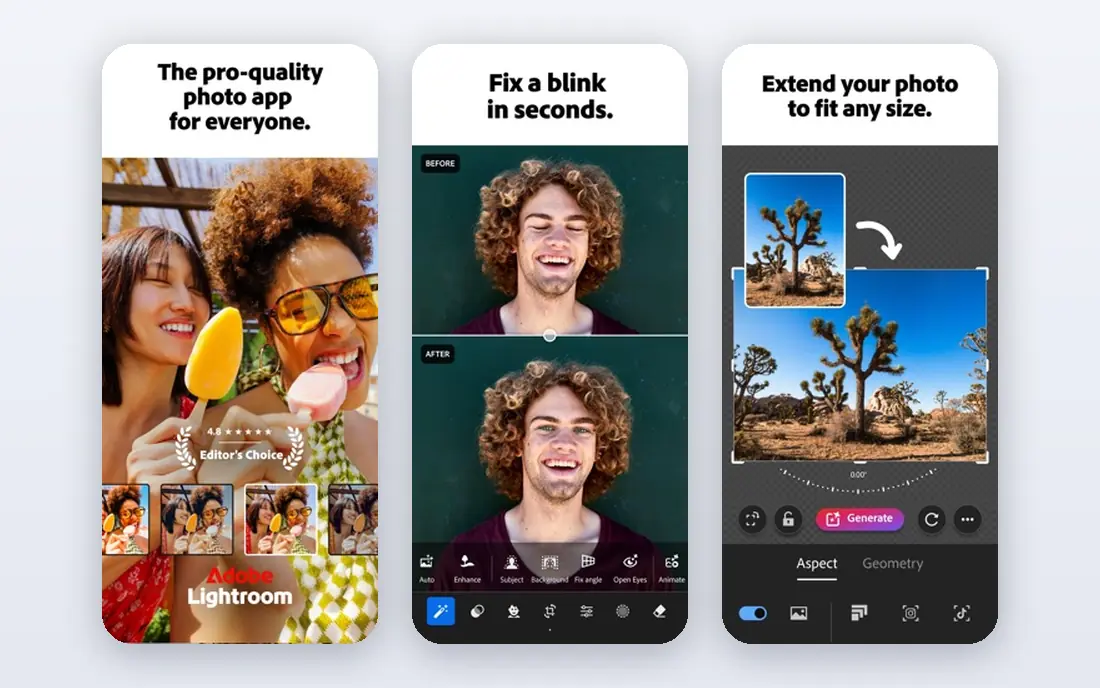
Lightroom is the editor most photographers already know, and that familiarity counts for a lot. The cloud version and Lightroom Classic share a family of tools for importing, organising, developing RAW files and exporting finished images, and edits made on a phone appear on the desktop without manual file handling. Its AI masking can pick out a subject, sky or background with a click, and its denoise tool has become genuinely useful for high ISO shots. The trade off is the subscription and the split between the two versions. Beginners often open the wrong one and wonder why a feature is missing, and photographers with very large local catalogues may find performance uneven. If you want one workflow that works on every device and you are happy to pay monthly, Lightroom is still the safest starting point in this list.
- Strong RAW tools and presets
- Edits sync across desktop and mobile
- Large tutorial and preset community
- Subscription only
- Two Lightroom versions can confuse new users
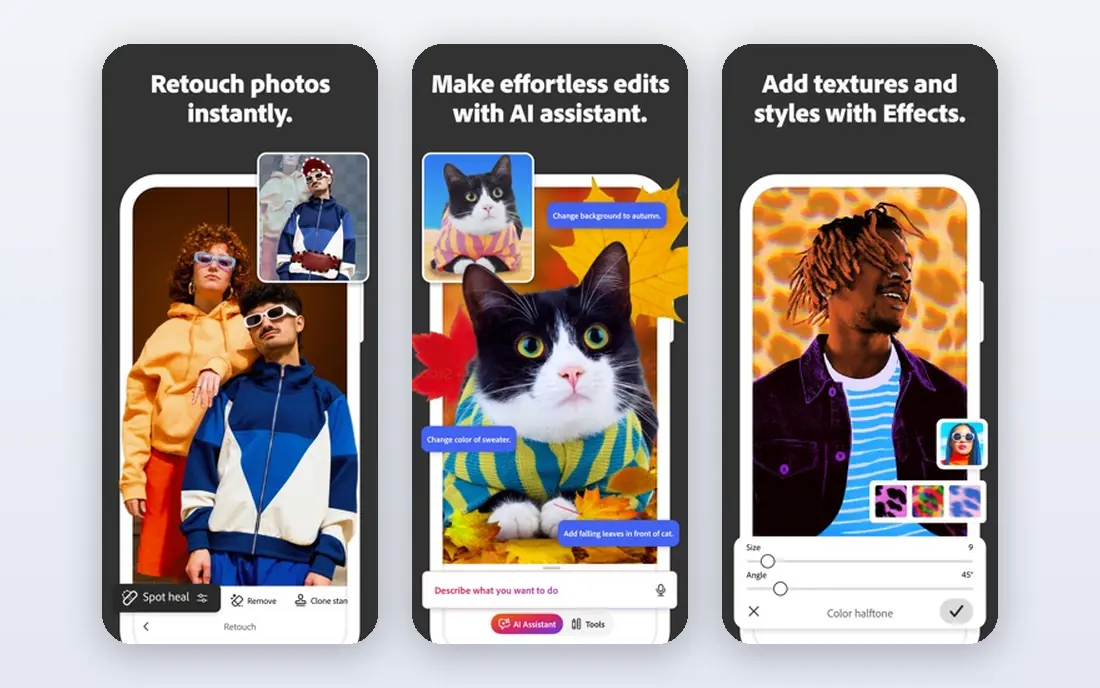
Photoshop is the tool to reach for when an edit goes beyond exposure and colour. Layers, masks, selections and retouching brushes give you control over single pixels, and Generative Fill can extend a background or remove an object in ways that basic editors cannot match. It pairs with Lightroom for a full workflow, with Lightroom handling the catalogue and Photoshop handling the difficult files. That depth is also its weakness for everyday use. Photoshop is not a fast photo browser, and its learning curve is steep if you only want quick AI cleanups. For portrait retouching, product work and composites, however, nothing else in this list offers the same ceiling, and the best ai photo editor software shortlist would feel incomplete without it.
- Deepest control for retouching
- Generative Fill for object work
- Huge plugin and tutorial base
- Subscription only
- More than most photographers need for simple edits
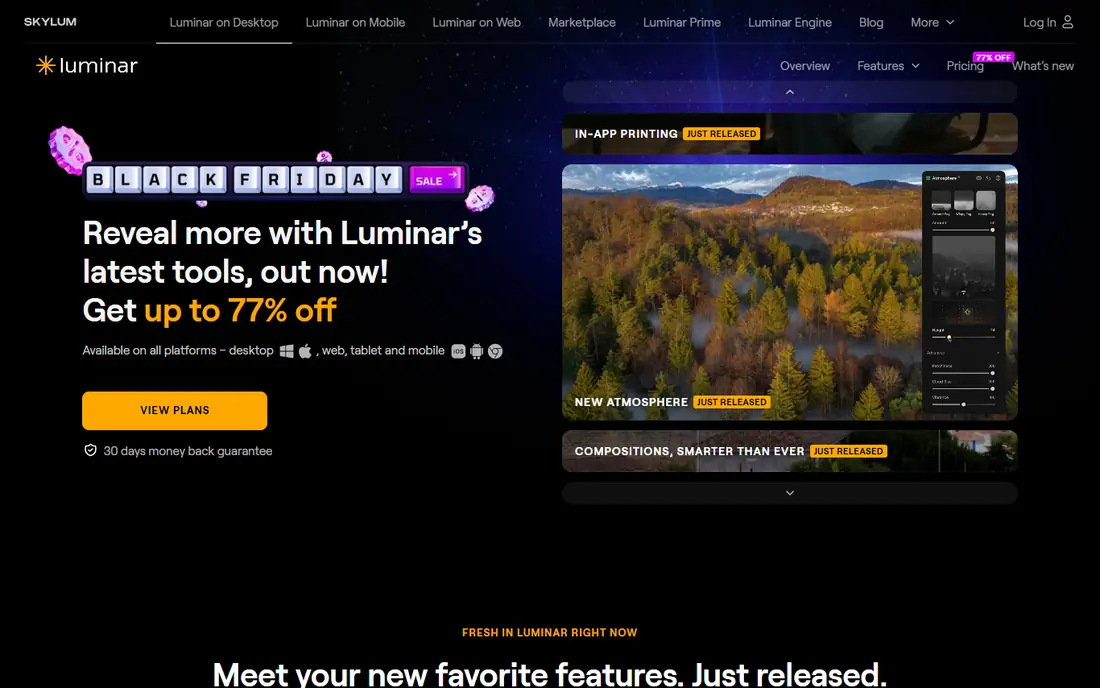
Luminar Neo is built around the idea that many edits should take seconds, not a long manual session. Sky AI can replace a flat sky, Skin AI handles portrait retouching without careful masking, and Erase AI removes distractions with a brush stroke. For photographers who shoot a lot and edit in batches, that speed is the main reason to choose it. The catalogue side is less developed than Lightroom, so heavy library management is not its strength. Check the licence terms too, because some generative tools are tied to a renewal period even on a perpetual licence. If your priority is fast, good looking results from ordinary photos, Luminar Neo earns its place near the top of any best ai photo editor tools list.
- Quick sky, portrait and erase tools
- Works as a plugin for Lightroom and Photoshop
- Perpetual licence option
- Catalogue tools are lighter than Lightroom
- Some generative features need renewal after the first year
Capture One has long been the studio favourite, and its colour tools are the reason. Colour grading is precise, skin tones are handled with care, and tethered shooting lets a photographer see results on a large screen during a session. Layers and masks give local control without leaving the RAW workflow, which suits fashion, product and portrait work. It is not the friendliest first editor, and casual photographers may find the interface dense. The best ai photo editor tool for a studio is not always the best choice for a holiday album, and Capture One sits firmly on the professional side of that line. If colour accuracy and tethered work matter to your income, it is worth the effort.
- Precise colour editing
- Strong tethered shooting
- Excellent layer based local adjustments
- Higher learning curve
- Pricing can be high for casual users
DxO PhotoLab starts from image quality rather than speed. Its DeepPRIME noise reduction is widely praised for rescuing high ISO files, and its lens corrections are based on lab measurements for specific camera and lens combinations. That combination gives RAW files a clean, detailed starting point before you make creative choices. Photo management is lighter than in Lightroom, so many users pair PhotoLab with another organiser. The interface is functional rather than flashy, which will not bother photographers who care about output more than presentation. If you shoot in low light or print large, PhotoLab deserves a trial on your own files.
- Excellent noise reduction
- Lens corrections from lab measurements
- Strong RAW detail
- No photo catalogue as complete as Lightroom
- Interface feels dated to some users
ON1 Photo RAW tries to cover the whole job in one place. You can browse folders without importing, develop RAW files, apply layers and effects, and use AI tools for masking and portrait work. That single app approach appeals to photographers who dislike juggling a catalogue app and a separate editor. Performance can vary, especially on older hardware or with very large files, so try it with your own catalogue before committing. Some tools feel a step behind the Adobe equivalents in polish, but the breadth is real. For photographers who want the best ai photo editor software without a subscription and without a multi app workflow, ON1 is a solid contender.
- Browsing, RAW editing and effects in one app
- AI masking and portrait tools
- No import step required
- Performance varies on older machines
- Some tools feel less polished than Adobe equivalents
Affinity Photo, now part of Canva, is the closest thing to Photoshop without a monthly bill, and it is currently offered free with a Canva account. Layers, masks, live filters and retouching tools cover most pixel editing work, and the interface will feel familiar to Photoshop users. For compositing and detailed retouching on a budget, it is hard to beat. It is not a full Lightroom replacement, because RAW development and catalogue management are lighter. Many users therefore use it alongside a RAW editor. If you already have a RAW workflow and need a strong pixel editor, Affinity Photo is the value pick in this guide, and the best ai photo editor app discussion should not ignore free tools of this quality.
- Full pixel editing without a subscription
- Strong layer and mask tools
- Good value over time
- RAW workflow is less complete than Lightroom
- Smaller plugin ecosystem
Photopea is a browser editor that surprises first time users with how much it can do. It opens PSD files, handles layers and masks, and includes selection and retouching tools that feel close to desktop software. Because nothing needs installing, it works on borrowed machines, Chromebooks and office computers where installing software is not allowed. The free tier shows ads, and heavy files can strain a browser, so it is not a full replacement for desktop software on large projects. For quick edits, student work and anyone who needs the best photo ai editor app experience without paying, Photopea is a practical choice. It also makes a useful second editor when your main tool is on another machine.
- Runs in a browser with no install
- Opens PSD and RAW files
- Useful AI selection tools
- Ads on the free tier
- Performance depends on your browser and machine
darktable is a free, open source RAW editor for photographers who want control and are willing to learn. Its modules cover exposure, colour, lens correction, noise and local adjustments, and all edits are non destructive, so originals stay untouched. For Linux users in particular, it is one of the few full featured RAW options available. The interface is technical and the learning curve is real, so beginners should expect to watch tutorials before the workflow clicks. Once it does, darktable can handle serious RAW work at no cost. If budget is zero and you shoot RAW, start here before paying for anything else.
- Powerful RAW development for free
- Non destructive editing
- Active open source community
- Steep learning curve
- Interface can feel technical
How we picked these
We checked official feature pages and pricing pages, app store listings and privacy policies, and public reviews from photographers and editors. We only kept tools that are still sold or maintained in 2026 and that offer real AI assisted editing, not just preset filters. We mixed well known leaders with smaller and free options so readers with different budgets and workflows could find a fit. We did not claim hands on testing for any tool, and where a price could not be verified on the vendor site at the time of writing, we used See website rather than guessing.
What to check before you pay
Start with where you edit. A desktop RAW editor suits photographers who shoot in batches, while a phone app suits creators who post the same day. Next, check the AI features that matter to you, because sky replacement, denoising, masking and generative fill are sold and capped in different ways. Some tools include them in the base plan, others charge for credits or renewals.
RAW, catalogue and output
If you shoot RAW, confirm RAW support for your camera, because new bodies sometimes lag behind updates. If you keep thousands of photos, catalogue search, keywords and ratings matter as much as editing tools. Finally, check export options for print size, colour profiles and file formats you actually use, and try the free trial on your own photos before paying.
Subscriptions and free tiers
A subscription can be good value if you edit every week, but a one time licence or free tool may suit occasional editors better. Read what happens when a subscription ends, whether your edits stay accessible, and whether AI credits expire. A free plan is only useful if its limits match your volume, so test it with a real batch, not a single test photo.
Frequently asked questions
What is the best ai photo editor software for beginners?
Lightroom is the easiest starting point for most beginners because its RAW tools, presets and tutorials are widely available. Luminar Neo is also friendly if you want fast AI results with less manual learning. Try both free trials on your own photos and pick the interface that feels clearer to you.
Which is the best ai photo editor app for phones?
Lightroom mobile and the mobile versions of Luminar and Affinity related tools are strong phone options, but the best choice depends on whether you shoot RAW on your phone or edit photos taken on a camera. For quick social edits, a phone app with AI masking and portrait tools is enough, while serious RAW work still benefits from a desktop editor.
Is there a good free best ai photo editor tool?
Yes. Photopea and darktable are both free and capable, and Affinity Photo is currently offered free with a Canva account. Free tools need more learning and may lack some generative features, but they cover RAW development, retouching and export for most everyday needs.
Do AI photo editors replace Photoshop?
No, not for every job. AI editors speed up common tasks such as masking, sky replacement and noise reduction, but Photoshop still offers deeper control for composites, advanced retouching and complex layer work. Many photographers use an AI editor for speed and Photoshop for difficult files.
What should I check about AI credits and renewals?
Check whether AI features use credits, whether credits expire, and whether generative tools need a separate renewal. Some perpetual licences include a year of generative tools and then charge for renewal, so read the licence terms on the vendor site before you buy.
Sources we checked (9)
- https://www.adobe.com/products/photoshop-lightroom.html
- https://www.adobe.com/products/photoshop.html
- https://skylum.com/luminar
- https://www.captureone.com
- https://www.dxo.com/dxo-photolab/
- https://www.on1.com/products/photo-raw/
- https://affinity.serif.com/en-us/photo/
- https://www.photopea.com
- https://www.darktable.org

Online Jobs is an independent blog about careers, online work, learning new skills and the tools that help people earn. More about us.
Keep reading
All posts
Lightroom Alternatives
Lightroom alternatives compared in 2026: Capture One, DxO, ON1 and free editors for RAW photos, catalogs and one-time purchase options, with pros and cons.
Best Adobe Lightroom Alternatives
Compare the best Adobe Lightroom alternatives in 2026, from Capture One and DxO PhotoLab to Luminar Neo, ON1 Photo RAW, Affinity and free Darktable today.
n8n Alternatives
n8n alternatives compared for 2026, with Zapier, Make, Activepieces, and more, covering visual builders, code steps, self-hosting, and pricing models.