TeamViewer Alternatives in 2026: 9 Tools Compared


Fast remote sessions on weak connections · Starting price: $23.12 per month
How we put this together: we compare official feature and pricing pages, app store listings, privacy policies and public user reviews. Prices change, so check the provider's site before you pay.
Key takeaways
- Chrome Remote Desktop and RustDesk are the strongest no-cost starting points for personal use and self-hosted access.
- AnyDesk, Splashtop, and Zoho Assist cover most small business needs, but they price very differently, so check whether you pay per technician, per computer, or per user.
- Support teams should shortlist Zoho Assist and ConnectWise ScreenConnect first, because their plans are built around helping other people rather than reaching your own machines.
- If you only need to reach your own computer from elsewhere, RemotePC and RealVNC Connect are usually cheaper and simpler than a full helpdesk tool.
- Free plans often limit commercial use, session length, or the number of devices, so read the licence terms before you rely on one for work.
Quick comparison
| Name | Who it suits | Starting price | Free option | |
|---|---|---|---|---|
| AnyDesk | Fast remote sessions on weak connections | $23.12 per month | Yes | Visit |
 Splashtop | Small IT teams on a budget | See website | Free trial | Visit |
 Zoho Assist | Helpdesk support with Zoho tools | See website | Yes | Visit |
 RemotePC | Low-cost access to your own computers | See website | Free trial | Visit |
 Chrome Remote Desktop | Free personal remote access | Free | Yes | Visit |
 RustDesk | Self-hosted open source access | Free | Yes | Visit |
 ConnectWise ScreenConnect | MSPs and larger support teams | See website | Free trial | Visit |
 RealVNC Connect | Simple secure access across devices | See website | Yes | Visit |
 GoTo Resolve | All-in-one IT support and management | See website | Free trial | Visit |
The best teamviewer alternatives
TeamViewer is well known, but it is not the only sensible choice, and for many readers it is not the cheapest one either. The tools below split into two groups: tools for reaching your own computers, and tools for supporting other people. Knowing which group you are in will narrow the list fast.
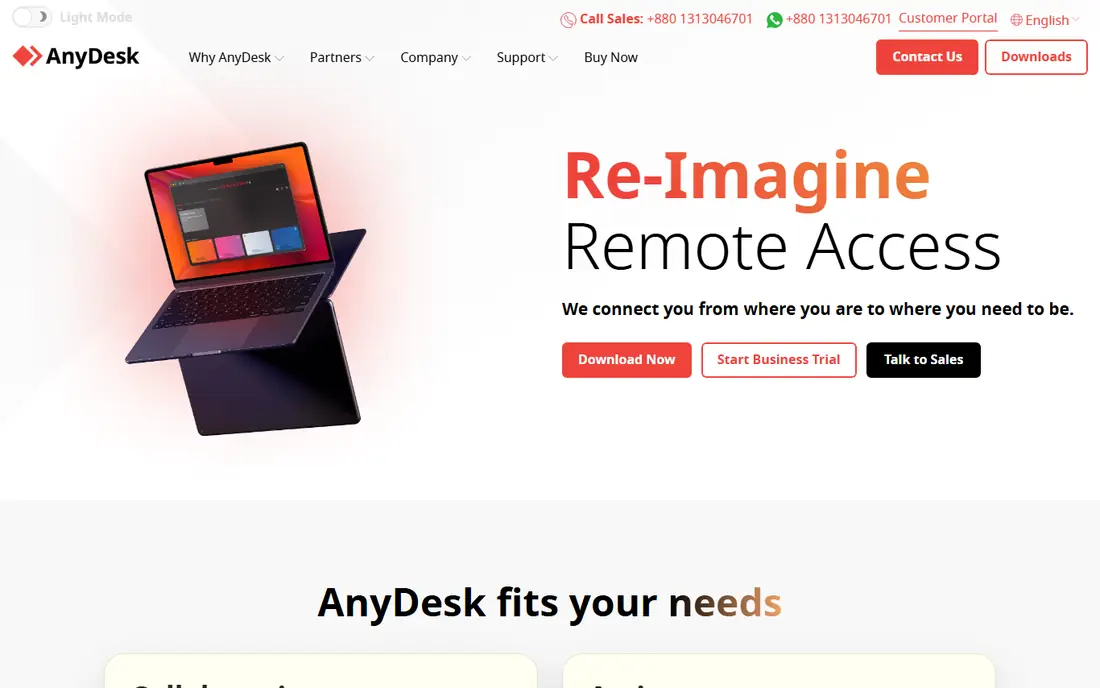
AnyDesk earns its place at the top for speed. The client is small, sessions start with little fuss, and it holds up better than most rivals when the connection at one end is weak. For a freelancer who jumps between client machines, or a family member who helps relatives with computer problems, that low friction matters more than a long feature list.
The catch is licensing. The free version covers personal use, and business use needs a paid plan. Our pick for most people who need a paid plan is the Solo tier shown on the vendor site at $23.12 per month when billed annually, but check the current pricing page before you buy, because the vendor lists a discounted rate alongside a higher list rate. If you need many users, team management, or mass deployment, expect to move up a tier.
- Lightweight client that starts quickly
- Works across Windows, macOS, Linux, Android, and iOS
- Unattended access on paid plans
- Free version is for personal use only
- Business features sit behind paid tiers
- Licence terms can confuse small teams
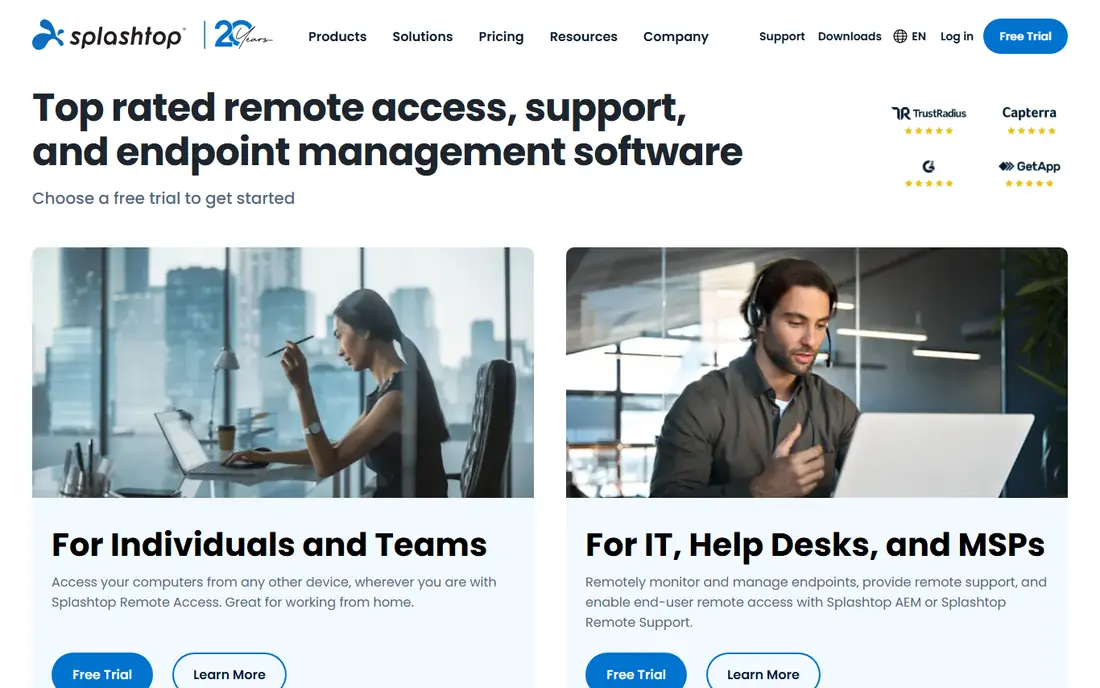
Splashtop is the value pick for small IT teams. It separates remote access to your own machines from remote support for other people, which makes it easier to buy only what you need. The interface is plain and quick to learn, and multi-monitor support helps when you are working on a desk setup rather than a single laptop screen.
The trade-off is that there is no free plan to fall back on for ongoing business use, only a trial. That makes Splashtop a weaker choice for occasional personal help, where Chrome Remote Desktop or AnyDesk personal use may do the job for nothing. For a team that supports staff every week, though, the lower entry cost compared with several rivals is a real advantage.
- Clear business plans for remote access and remote support
- Multi-monitor support
- Works on Chromebook as well as major desktop and mobile systems
- No permanent free plan for business use
- Advanced features need higher tiers
- Pricing varies by product line, so compare like with like
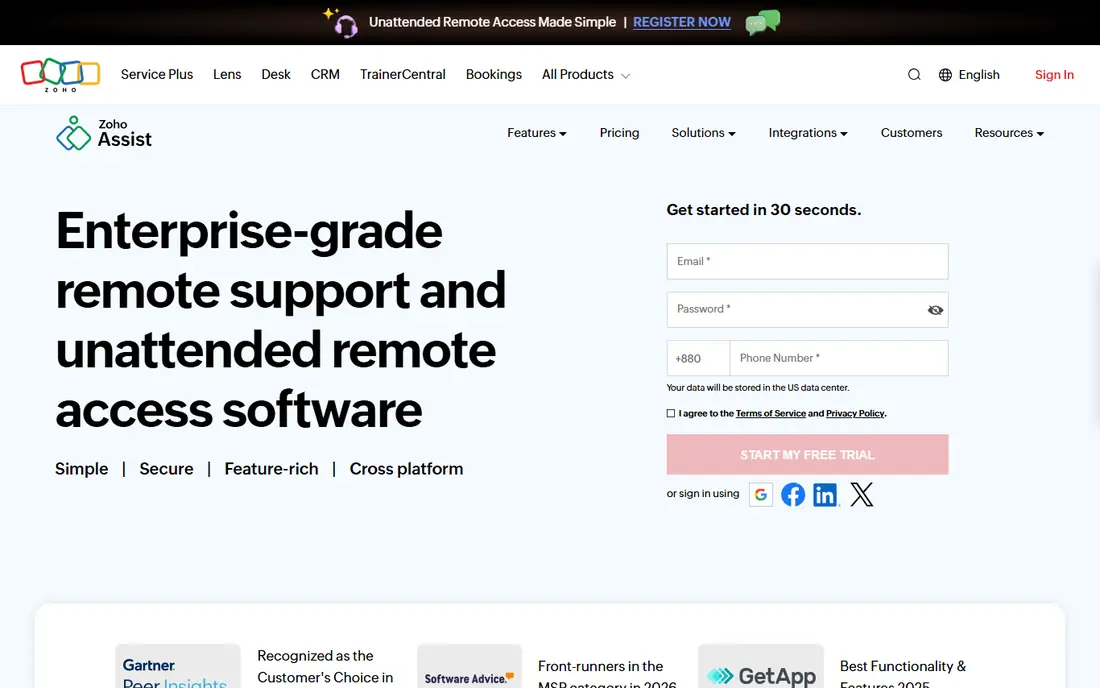
Zoho Assist is built for support work. A technician invites a customer to join a session, takes control with permission, and can move files or restart machines as needed. If your business already runs Zoho CRM, Zoho Desk, or another Zoho product, the integration is a genuine plus, because tickets and sessions can sit in one workflow.
The free plan is useful for very small setups, covering one technician and a small number of computers for unattended access, but growing teams will hit its limits quickly. Check the current plan table for session recording, multi-monitor support, and the number of technicians included, because those details decide whether the entry plan is enough for you.
- Free plan for basic unattended support
- Per-technician pricing suits small helpdesks
- Integrates with other Zoho products
- Session recording and some advanced controls need higher plans
- Interface feels businesslike rather than polished
- Best value if you already use Zoho
RemotePC suits a different job from Zoho Assist. It is mainly about reaching your own computers when you are away from them, whether that is a home PC, an office desktop, or a small set of machines you own. Pricing per computer, rather than per technician, can make it strikingly cheap if you only have one or two machines to reach.
That simplicity has limits. If you support many different customers, you will miss the ticketing, queue, and multi-technician controls of a helpdesk product. RemotePC is best when the question is "how do I get to my own files and programs from elsewhere" rather than "how do I support a queue of customers."
- Per-computer pricing can be very cheap for one or two machines
- File transfer and remote printing included on most plans
- Simple setup
- Support features are thinner than a dedicated helpdesk tool
- Higher plans needed for session recording
- Mobile experience is functional rather than elegant
Chrome Remote Desktop is the tool we suggest first for personal use. If you want to reach your home computer from a laptop, or help a relative by taking control of their screen, it does that job with almost no setup and no cost. You install a small extension or app, set a PIN for unattended access, and connect from a browser.
It is not a business support platform, and it should not be judged as one. There is no technician console, no session reporting worth the name, and no way to manage a fleet of customer machines. For personal and family use, though, those gaps rarely matter, and the price is hard to argue with.
- Free for personal use
- Runs in the browser with apps for Android and iOS
- Setup takes only a few minutes with a Google account
- No helpdesk queue, ticketing, or multi-technician controls
- File transfer is basic
- Not designed for commercial support work
RustDesk is the pick for readers who want control over their own infrastructure. The software is open source, and you can run your own relay and rendezvous server so sessions do not depend on a vendor cloud. That appeals to privacy-minded teams, schools, and small firms with someone comfortable running a server.
The honest catch is effort. Self-hosting means updates, backups, and security are your job, and the polished onboarding of a commercial rival is absent. If that sounds like work you would rather avoid, the paid hosted option removes the server burden but brings RustDesk back into the same price comparison as the other tools here.
- Open source client and server you can host yourself
- No per-seat licence for the self-hosted version
- Works across major desktop and mobile systems
- Self-hosting needs technical confidence
- Hosted cloud plans are paid
- Support is community-led rather than a vendor helpdesk
ConnectWise ScreenConnect
Who it suits: MSPs and larger support teams
ConnectWise ScreenConnect, formerly known simply as ScreenConnect, is the heavyweight support option in this list. Managed service providers and internal IT teams use it to run many simultaneous sessions, keep audit trails, and manage access across technicians. If your team supports dozens of clients, that structure pays for itself in fewer mix-ups and clearer records.
For a solo supporter, it is usually more tool than needed, and the price reflects that. Start here only if you have a real support queue, more than one technician, or compliance needs that demand detailed session logs. Everyone else will get the same practical result from a simpler and cheaper tool.
- Built for multi-technician support teams
- Strong session management and auditing
- Integrates with the wider ConnectWise platform
- Priced for teams rather than solo users
- Setup takes longer than simpler tools
- Smaller firms may pay for depth they never use
RealVNC Connect is a calm, steady choice for reaching machines you own. It is based on VNC technology, it has been around for years, and it does not try to be a full helpdesk. The free plan covers personal use on a small number of devices, which makes it a fair alternative to Chrome Remote Desktop for readers who prefer a dedicated app.
Where it falls short is team support. If you need to invite customers into sessions, run a queue, or hand sessions between technicians, a helpdesk product will serve you better. For quiet, regular access to your own computers, RealVNC Connect is dependable and easy to live with.
- Long-established VNC technology with a simple model
- Free plan for personal use
- Direct connections suit always-on machines
- Support and collaboration features are lighter than helpdesk tools
- Higher plans needed for larger device counts
- Interface is plain
GoTo Resolve closes the list because it goes beyond remote control. It bundles remote support with endpoint management, patching, and ticketing, so a small IT team can handle support and upkeep from one console. That breadth is its main selling point, and it is also its main risk: if you only need to take control of a screen now and then, you will pay for management features you rarely open.
Choose GoTo Resolve when support is a regular job and device upkeep is part of it. If remote access is occasional, start with a simpler tool and move up only when ticket volume or device counts make the extra structure worthwhile.
- Combines remote support with device management and ticketing
- Background access without disturbing the user
- Suits growing IT teams
- No permanent free plan
- Breadth can feel heavy for simple remote access
- Pricing depends on the number of devices managed
How we picked these
We compared official feature pages, pricing pages, and app store listings, and we checked that each vendor homepage loads and belongs to the product named. We favoured tools that are still actively sold, work on current Windows and macOS systems, and fit one of the two clear jobs in this article: reaching your own machines, or supporting other people. Prices shown come from vendor pages where we could verify them; where a price varies by plan or region, we wrote See website rather than guessing.
What to check before you switch
Start by writing down your actual job. Count how many computers you need to reach, how many technicians will run sessions, and whether you need unattended access when nobody is at the other end. Those three numbers decide most of the price, because vendors charge per user, per technician, per computer, or per managed device, and the cheapest headline price is not always the cheapest total.
Next, test with a real session, not just a demo video. Connect from the network you will actually use, try file transfer, check how multi-monitor setups behave, and confirm that unattended access survives a reboot. Also read the licence terms for free plans, because personal-use-only terms are common and using a personal plan for commercial support can lead to a blocked account. Finally, check security basics: two-factor sign-in for the technician account, permission prompts on the remote machine, and a session log you can review later.
Frequently asked questions
What are the best alternatives to TeamViewer?
AnyDesk is the closest all-round replacement, Splashtop is the budget pick for small teams, and Zoho Assist is the helpdesk pick for teams that already use Zoho. Chrome Remote Desktop covers free personal use, and RustDesk covers self-hosted use. Your best choice depends on whether you reach your own machines or support other people.
Is there a free alternative to TeamViewer?
Yes. Chrome Remote Desktop is free for personal use, RustDesk is free when you self-host it, and AnyDesk, Zoho Assist, and RealVNC Connect all offer free plans with limits. Free plans usually restrict commercial use, device counts, or advanced features, so check the terms for your situation.
What is the best TeamViewer alternative for small business?
Splashtop and Zoho Assist are the usual starting points, because both price for small teams and keep setup simple. RemotePC is worth a look if you mainly reach your own computers. For a support queue with several technicians, ConnectWise ScreenConnect or GoTo Resolve may justify their higher cost.
Can I use these tools on Mac and Windows?
Yes, all of the tools in this list support Windows and macOS, and most also support Linux, Android, and iOS. Mobile support varies, so if you plan to control a computer from a phone or support mobile devices, check the vendor page for your exact devices before you commit.
Is RustDesk safe to use?
RustDesk is open source, which means its code can be inspected, and self-hosting keeps session traffic on infrastructure you control. Safety still depends on how you run it: keep the server updated, use strong passwords and two-factor sign-in where offered, and only accept sessions from people you trust.
Sources we checked (9)

Online Jobs is an independent blog about careers, online work, learning new skills and the tools that help people earn. More about us.
Keep reading
All posts
Zoom Alternatives
Zoom alternatives compared for 2026: Google Meet, Microsoft Teams, Webex, Jitsi and more for free calls, large meetings and webinars for teams and classrooms.

What Is the Best Free Tool to Rotate a PDF
What is the best free tool to rotate a PDF? We compare eight free rotation tools on per-page control, limits, privacy and saved output quality in detail.

What Is the Best AI Dubbing Tool
We compared the best AI dubbing tools in 2026, from ElevenLabs and HeyGen to Rask AI, Dubverse and Veed, for videos and creators in many languages worldwide.