Best Photoshop Alternatives in 2026: 9 Tools Compared

How we put this together: we compare official feature and pricing pages, app store listings, privacy policies and public user reviews. Prices change, so check the provider's site before you pay.
Key takeaways
- Affinity is our pick for most people leaving Photoshop, because the core desktop editor is now free and covers layers, RAW, and retouching.
- Photopea is the best browser pick for PSD files, because it opens Photoshop files without an install.
- GIMP is the best free desktop pick for deep customization and plugins, while Krita is best for digital painting.
- Pixlr and Paint.NET suit quick edits and light Windows work, while Pixelmator Pro suits Mac users who want a one-time purchase.
- Check PSD compatibility, RAW support, and plugin needs before you switch, because no single free tool matches Photoshop on every feature.
Quick comparison
| Name | Who it suits | Starting price | Free option | |
|---|---|---|---|---|
 Affinity Affinity | Closest full replacement | Free | Yes | Visit |
 GIMP GIMP | Free desktop editing | Free | Yes | Visit |
 Photopea Photopea | PSD files in a browser | Free | Yes | Visit |
 Pixlr Pixlr | Quick web edits | Free | Yes | Visit |
 Krita Krita | Digital painting | Free | Yes | Visit |
 Paint.NET Paint.NET | Light Windows editing | Free | Yes | Visit |
 Pixelmator Pro Pixelmator Pro | Mac photo editing | $49.99 one-time | Free trial | Visit |
 Luminar Neo Luminar Neo | AI photo editing | See website | Free trial | Visit |
 Corel PaintShop Pro Corel PaintShop Pro | Windows photo suite | See website | Free trial | Visit |
The best photoshop alternatives
Photoshop remains the reference photo editor, but its subscription price pushes many people to look elsewhere. The tools below cover free desktop editors, browser editors, painting tools, and paid one-time purchases, so you can match the tool to photo retouching, illustration, or quick social edits.
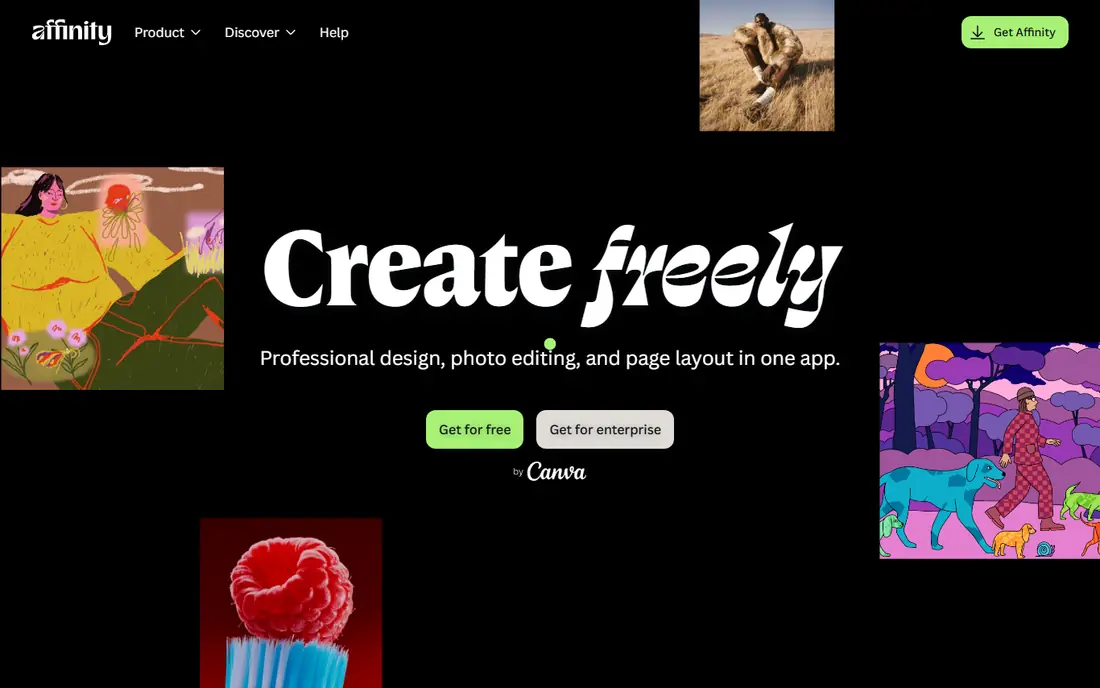
Affinity, formerly Affinity Photo and now part of Canva Affinity, is the closest free replacement for Photoshop for most photo work. It covers layers, masks, RAW development, retouching, batch processing, and HDR and focus merging, without a monthly subscription for the core desktop editor. That breadth makes it the first tool to try when you leave Photoshop.
The limit is the ecosystem. Photoshop plugins, generative AI features, and some team collaboration tools are not matched here, and newer AI tools in Affinity need a paid Canva plan. If your work depends on Photoshop plugins or Firefly features every week, check those gaps first. For everyday retouching, compositing, and RAW work, Affinity is our pick.
- Full layers, masks, and RAW development
- Non-destructive editing
- No subscription for the core editor
- Newer AI and team tools need a paid Canva plan
- Plugin support is thinner than Photoshop
GIMP, the GNU Image Manipulation Program, is the long-running free desktop editor for photo retouching and compositing. It supports layers, masks, selections, and a large plugin library, plus scripting for repetitive tasks. For a user who wants a free desktop tool with no account and no subscription, GIMP remains the most customizable choice.
The interface takes time to learn, and it does not feel as polished as Affinity or Photoshop. PSD compatibility is useful, but complex Photoshop files with smart objects and adjustment layers may not transfer cleanly. GIMP suits a patient user who values control, plugins, and a free tool that works on every major desktop system.
- Free and open source
- Deep customization and plugins
- Works on Windows, Mac, and Linux
- The interface feels dated
- PSD support is good but not perfect for complex files
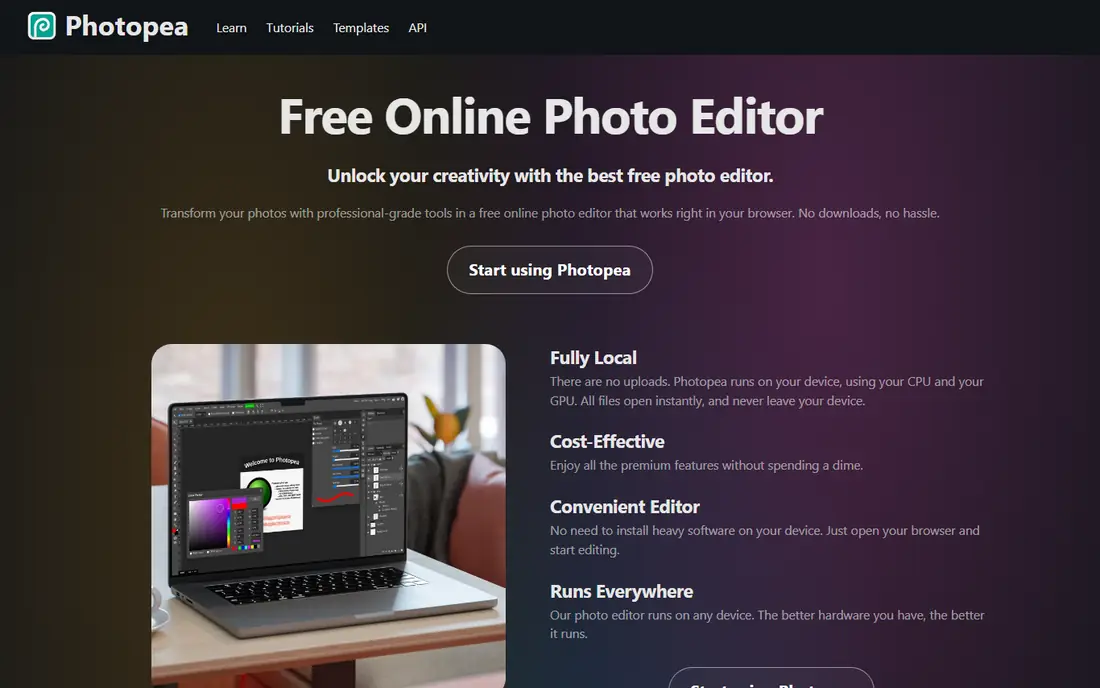
Photopea is the best pick when you need to open a PSD file right now, on any computer, without installing software. It runs in a browser, opens PSD and other common design files, and offers layers, masks, adjustments, and retouching in a layout that Photoshop users will recognize. That makes it useful for a quick edit, a shared computer, or a Chromebook.
The free version is ad-supported, and the paid plan, at $5 per month, removes ads and adds more AI credits. Photopea is not a full desktop replacement for large, layered projects, and it needs an internet connection. For PSD compatibility and quick edits, though, few tools beat it for convenience.
- Opens PSD, XCF, Sketch, and XD files in a browser
- No install needed
- A familiar Photoshop-style layout
- Free version shows ads
- Advanced AI features need the paid plan
Pixlr suits fast edits, social images, and quick fixes without a desktop install. Pixlr X covers quick adjustments, while Pixlr E adds layers and more advanced tools, and both run in a browser or as a mobile app. AI features for background removal, object removal, and image generation help with product photos and social graphics.
Free plans include ads and limits, and paid plans start around $2.49 per month in some listings, with prices varying by plan and billing term, so check the vendor pricing page. Pixlr is not a full Photoshop replacement for deep retouching or large print work. For speed and simple AI edits, it is one of the easiest alternatives to start with.
- Fast browser and mobile editing
- AI background removal and object removal
- Two editors for quick and advanced work
- Free version shows ads
- The most useful AI features sit on paid plans
Krita is a digital painting program first, and a photo editor second, which makes it the best Photoshop alternative for illustrators. Brush engines, color tools, and drawing feel are strong, and the program supports layers, masks, and light animation for short clips. If your Photoshop use is mainly painting, concept art, or comics, Krita will feel more natural than a photo-focused editor.
For photo retouching, Krita lacks the depth of Affinity or GIMP, and RAW processing is limited. Use Krita for drawing and illustration, and pair it with Affinity or GIMP for photo work if you need both. Krita is free, works on Windows, Mac, and Linux, and has a large community of artists sharing brushes and tutorials.
- Excellent brushes for painting and illustration
- Free and open source
- A simple animation timeline
- Photo retouching tools are thinner than GIMP or Affinity
- RAW support is limited
Paint.NET is a lightweight Windows editor for quick retouching, resizing, and simple compositing. It starts fast, uses few resources, and supports layers, effects, and plugins that extend its basic toolset. For a Windows user who finds Photoshop heavy for simple tasks, Paint.NET is a calm, free alternative.
It is Windows only, so Mac and Linux users need another tool. RAW support needs a plugin, and advanced features such as non-destructive adjustment layers are thinner than in Affinity. Paint.NET suits everyday edits, screenshots, and simple graphics, not a full professional retouching workflow.
- Light and fast on Windows
- Simple layers and effects
- A large plugin community
- Windows only
- RAW support needs a plugin
- Less depth than Affinity or GIMP
Pixelmator Pro is the best one-time purchase pick for Mac users who want a native, fast photo editor without a subscription. It covers layers, retouching, color adjustments, and machine learning tools for tasks such as background removal and image upscaling, in a clean Mac interface. At $49.99 one-time on the Mac App Store in recent listings, it costs less than a few months of Photoshop for many users.
It is Mac only, so Windows users need another tool, and its plugin ecosystem is smaller than Photoshop. Check the current App Store price, because it can change. For a Mac user who wants a polished editor and a single payment, Pixelmator Pro is a strong alternative.
- A native Mac editor with a one-time price
- Machine learning tools for retouching
- Clean design
- Mac only
- Plugin and Photoshop file support are not as deep as Photoshop
Luminar Neo focuses on photographers who want fast, AI-assisted edits rather than manual layer work. Sky replacement, portrait retouching, and outdoor scene tools can finish a photo in minutes, and the catalog workflow suits a photographer who edits many images from a shoot. That speed is the main reason to choose it over a general editor.
Luminar Neo is less suited to compositing, graphic design, and pixel-level work than Affinity or Photoshop. Pricing varies by plan, subscription, and promotion, so check the vendor pricing page and use the trial on your own photos. Choose Luminar Neo when AI photo enhancement matters more than full Photoshop-style editing.
- AI tools for sky, portrait, and outdoor edits
- A simple catalog and editing workflow
- Good for photographers
- Less suited to deep compositing and graphic design
- Pricing varies by plan and subscription
Corel PaintShop Pro is a Windows photo suite that combines editing, organization, and AI tools in one purchase. It covers layers, retouching, RAW editing, and portrait tools, plus photo management for a growing library. For a Windows photographer who wants a suite rather than a single editor, and who prefers a purchase over a subscription, it is a practical alternative.
It is Windows only, and the interface packs in many features, which can feel busy for a beginner. Pricing and bundles vary, so check the vendor site for the current edition and price. PaintShop Pro suits a Windows user who wants an all-in-one photo suite, while Affinity or GIMP suit a user who wants a focused editor.
- A full Windows photo suite with editing and organization
- AI tools for portraits and backgrounds
- A one-time purchase model
- Windows only
- The interface can feel busy
- Pricing and bundles vary
How we picked these
We compared official feature pages, pricing pages, app store listings, and public reviews for editors that replace Photoshop photo work in the United States. We favored tools with layers, retouching, and export options, plus clear pricing, and we noted where PSD support, RAW support, or plugins limited a choice. We did not claim hands-on testing, and we did not treat a template tool as a full Photoshop replacement.
Check the vendor pricing page before you buy, because free status, AI features, and one-time prices have changed in this category, especially after Affinity became free for its core editor.
What to check before you switch
Switching editors is easier when you test your real files, not just a sample image. Open a layered PSD, a RAW photo, and a recent project, and check that layers, masks, and colors survive the move. That test reveals more than a feature list.
PSD files, RAW photos, and plugins
Photopea and Affinity handle PSD files well for many projects, while GIMP handles them with more limits on complex files. For RAW photos, Affinity, Luminar Neo, and PaintShop Pro offer stronger development tools than Krita or Pixlr. List the plugins you use in Photoshop, and check whether each alternative offers a matching tool or plugin, because plugin loss is a common reason people return to Photoshop.
Print, web, or social output
A web and social editor can be lighter than a print editor. For print, check color management, resolution, and export formats, and test a print file before you commit to a client project. For web and social work, check export sizes, format options, and whether the tool keeps your brand colors consistent across exports.
Cost over two years
A free tool costs nothing, a $5 per month browser tool costs $120 over two years, and a $49.99 one-time Mac editor can be cheaper than a year of Photoshop. Compare the two-year cost, including AI credits and paid upgrades, not just the first price. A subscription that adds AI features you use daily can still be worth it, but only if you use those features.
Frequently asked questions
What are the best alternatives to Photoshop?
Affinity is our pick for most people, because its core editor is free and covers layers, RAW, and retouching. GIMP is a strong free desktop pick, Photopea is best for PSD files in a browser, and Krita is best for painting. The best Adobe Photoshop alternatives for you depend on whether you edit photos, paint, or work with PSD files.
What is the best free Photoshop alternative?
Affinity gives the most complete free photo editing experience, with layers, masks, and RAW support. GIMP is a close free pick for customization and plugins, while Photopea is best when you need a browser tool. For quick edits, Pixlr and Paint.NET are also free and easy to start with.
Is Affinity really free now?
Yes, the core Affinity desktop editor became free, following its move under Canva, while newer AI tools and some team features need a paid Canva plan. Check the Affinity site for the current terms, because free status and AI limits can change. For core photo editing, the free editor is a full product, not a short trial.
What is a good Photoshop alternative for Mac?
Affinity and Pixelmator Pro are strong Mac picks. Affinity is free for its core editor and covers a wide range of photo work, while Pixelmator Pro offers a native Mac experience for a one-time price. GIMP and Krita also work on Mac, and Photopea works in any browser on a Mac.
What is a cheap Photoshop alternative?
Photopea Premium at $5 per month and Pixlr paid plans are cheap browser options, while Affinity, GIMP, Krita, and Paint.NET are free. Pixelmator Pro at $49.99 one-time is a cheap long-term pick for Mac users. Compare the two-year cost, because a low monthly price can exceed a one-time purchase over time.
Can Photoshop alternatives open PSD files?
Yes, with limits. Photopea opens PSD files well in a browser, and Affinity opens many PSD files with layers intact. GIMP opens PSD files too, but complex files with smart objects and adjustment layers may not transfer cleanly. Test your own PSD files in the trial or free version before you switch a client project.
Sources we checked (9)

Online Jobs is an independent blog about careers, online work, learning new skills and the tools that help people earn. More about us.
Keep reading
All posts
Best Writing Software
Looking for the best writing software in 2026? We compared 9 writing apps for books, articles and screenplays on price, features and fit. All verified.

Best Weather Apps
Searching for the best weather app? We compared eight top weather apps for accurate forecasts, radar, severe alerts, and daily planning near you today.
Best Video Editing Software
We compared the best video editing software for beginners and pros, checking official pricing, free plans and honest limits before ranking all nine editors.