Neofetch Alternatives in 2026: 8 Tools Compared

How we put this together: we compare official feature and pricing pages, app store listings, privacy policies and public user reviews. Prices change, so check the provider's site before you pay.
Key takeaways
- Fastfetch is the default replacement for most users, with fast C-based output, JSON configuration, presets, and support for Linux, macOS, Windows, and FreeBSD.
- Screenfetch and Hyfetch suit users who want the classic Neofetch look, with Hyfetch adding color themes and active maintenance on top of a Neofetch-style display.
- Macchina, Pfetch, and NerdFetch cover the minimalist end, trading deep customization for speed and tiny footprints.
- Archey4 and Winfetch fill specific gaps, with Archey4 offering Python-based customization and Winfetch offering a native PowerShell option for Windows.
Quick comparison
| Name | Who it suits | Starting price | Free option | |
|---|---|---|---|---|
 Fastfetch | Default replacement | Free | Yes | Visit |
 Screenfetch | Classic bash look | Free | Yes | Visit |
 Hyfetch | Color themes, Neofetch style | Free | Yes | Visit |
 Macchina | Fast Rust minimalism | Free | Yes | Visit |
 Archey4 | Python customization | Free | Yes | Visit |
 Pfetch | Tiny shell script | Free | Yes | Visit |
 NerdFetch | Nerd Font icons | Free | Yes | Visit |
 Winfetch | Windows PowerShell users | Free | Yes | Visit |
The best neofetch alternatives
Neofetch showed system information next to a distribution logo in the terminal, and it became a staple of desktop screenshots. It has not been actively maintained for years, so users have moved to tools that keep the same idea alive with faster output, better customization, or support for newer systems. The tools below are all free and open source, and they differ mainly in speed, configuration style, and platform support.
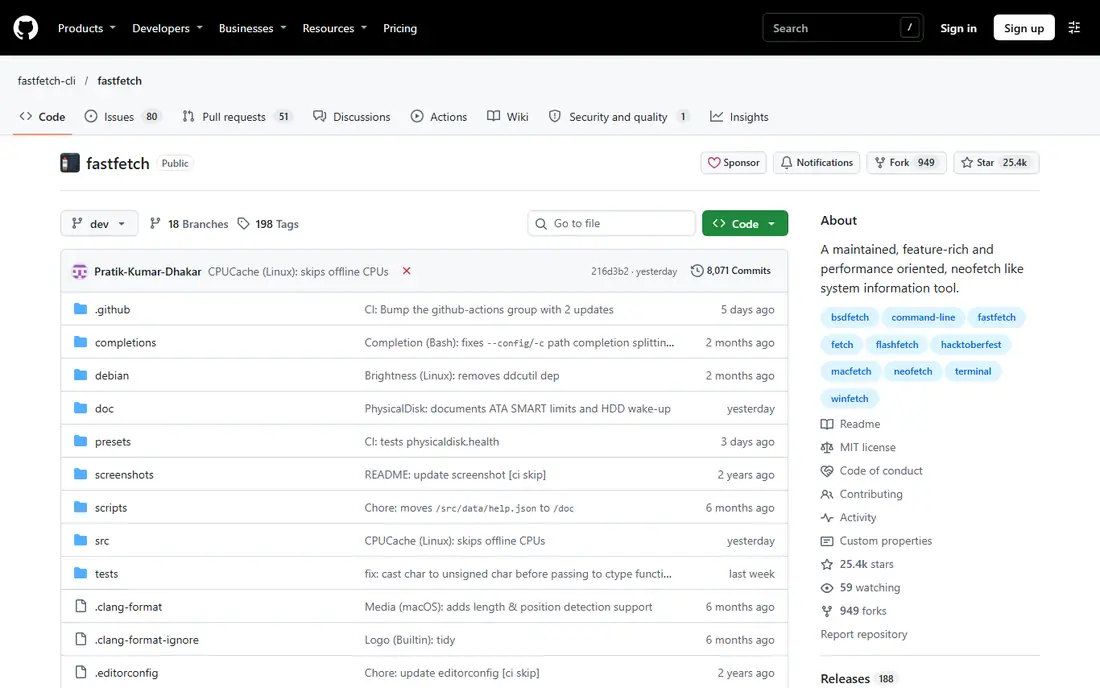
Fastfetch is our pick for most people replacing Neofetch. It is written in C, runs quickly, and displays operating system, kernel, uptime, CPU, GPU, memory, disk, shell, terminal, and desktop details alongside a logo. Configuration uses JSON files, with presets to start from and commands to list presets, logos, and modules, so you can build a display once and reuse it.
The catch is complexity. JSON configuration is powerful, but a user who only wants a quick screenshot may find it more work than a simple shell script. Fastfetch also offers so many modules and logo options that the first setup can take longer than expected. Once configured, though, it is the most complete and best-maintained replacement in this list, and it works across Linux, macOS, Windows, and FreeBSD.
- Very fast C implementation
- JSON configuration with presets
- Image, logo, and module customization
- JSON configuration can feel heavy for simple tweaks
- Many options can overwhelm newcomers
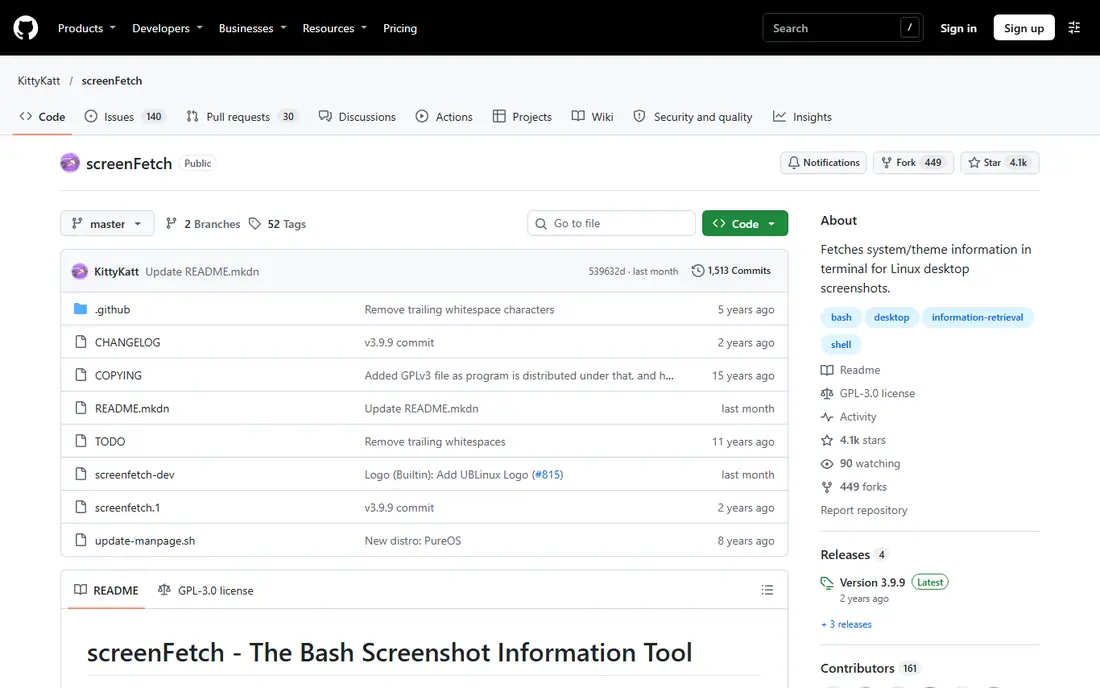
Screenfetch predates Neofetch and offers a similar experience: a distribution ASCII logo beside standard system data, with color and artwork options. Because it is a bash script, it is easy to read, tweak, and extend, and it is available in the default repositories of many Linux distributions, plus macOS and Windows variants.
The trade-off is speed and depth. A bash script will not match Fastfetch for speed, and Screenfetch does not offer the same module system or image support. For users who want a familiar, low-fuss display and who already know bash, that simplicity is a strength. For users chasing the fastest or most customizable output, Fastfetch or Macchina will feel better.
- Simple bash script
- Familiar Neofetch-style output
- Available in many distribution repositories
- Slower than C or Rust tools
- Less active feature development than Fastfetch
Hyfetch is Neofetch with color themes and continued development. It keeps the classic layout many users liked, then adds pride flag color schemes and related customization, plus support for using Neofetch, Fastfetch, or Macchina as the backend that gathers system data. Recent versions have moved the core to Rust for better performance, while keeping the theme-focused experience.
The catch is setup. Choosing a backend and a theme adds steps compared with running a single tool, and results can vary by backend. Hyfetch is the right pick if you want the Neofetch look with modern upkeep and colorful themes. If you want the fastest possible output with no theme layer, run Fastfetch directly instead.
- Neofetch-style output with pride flag color themes
- Can use Neofetch, Fastfetch, or Macchina as a backend
- Active development including a Rust rewrite
- Theme setup takes a few extra steps
- Backend choice affects speed and features
Macchina is a Rust tool focused on performance and minimalism. It displays hostname, kernel, uptime, desktop environment, processor, memory, battery, and other core details, with themes kept separate from configuration files so themes can be shared easily. Published comparisons have described it as several times faster than Neofetch in typical runs, which matches its design goal.
The limit is breadth. Macchina covers core data well, but it does not match Fastfetch for modules, image logos, or deep customization. It is a good pick for a clean, fast fetch on a daily driver or a lighter machine, and it also works as a Hyfetch backend. Users who want every possible module will still prefer Fastfetch.
- Fast Rust implementation
- Separate theming system
- Shows core system data cleanly
- Fewer modules than Fastfetch
- Theming options are more limited
Archey4 suits Python users who want to tweak their fetch tool in a language they already know. It is written in Python, offers a visually clean display with distribution logos, and supports Linux, macOS, and FreeBSD. Configuration is more approachable than JSON for some users, and the code is easy to read and extend.
The trade-off is speed. Python startup and execution will not match C or Rust tools, though for a tool run occasionally in a terminal, that difference rarely matters. Archey4 also offers fewer modules and logos than Fastfetch. Pick it if Python customization matters more than raw speed or maximum options.
- Python code that is easy to modify
- Clean output
- Supports Linux, macOS, and FreeBSD
- Slower than compiled tools
- Smaller logo and module range than Fastfetch
Pfetch is the minimalist pick. It is a small POSIX shell script designed to show core system information with almost no dependencies, which makes it ideal for containers, embedded systems, and minimal installs where installing a larger tool feels wasteful. It runs quickly and stays out of the way.
What you give up is depth. Pfetch does not offer the module system, image logos, or extensive theming of Fastfetch, and its output is deliberately sparse. That is the point for its audience. If you want a quick, light fetch and you do not need detailed GPU, package, or display data, Pfetch delivers it with the smallest footprint in this list.
- Single POSIX shell script with minimal dependencies
- Very fast and light
- Good for containers and minimal systems
- Minimal customization
- Fewer data fields than full fetch tools
NerdFetch is a shell-script fetch tool built around Nerd Fonts, so its icons and logos look modern on terminals that already use those fonts. It offers a default mode plus modes for different icon styles, which lets users match their terminal theme without heavy configuration. Installation is simple, with packages for Arch users and a direct script download for others.
The catch is font dependence. Without a Nerd Font, the display loses much of its appeal, so users on stock terminal fonts should check font setup first. NerdFetch is also narrower than Fastfetch in modules and customization. It is the right pick for a user who already uses Nerd Fonts and wants a light, good-looking fetch.
- POSIX shell script
- Uses Nerd Font icons for a modern look
- Extra modes for different icon sets
- Needs a Nerd Font installed to look right
- Narrower feature set than Fastfetch
Winfetch fills the Windows gap that Linux-focused fetch tools leave open. It is written in PowerShell and gives Windows terminal users a Neofetch-style display without needing a Linux compatibility layer. That makes it useful for Windows developers and screenshots, and for users who split time between Windows and Linux but want a native tool on Windows.
The limit is scope. Winfetch is Windows-focused, so a user who wants one tool across Linux, macOS, and Windows should choose Fastfetch instead. Its community and module range are also smaller. For a Windows-only terminal, though, a native PowerShell fetch is cleaner than forcing a cross-platform tool into place.
- Native PowerShell implementation for Windows
- Neofetch-style output on Windows terminals
- No Linux layer needed
- Windows-focused, so cross-platform users need another tool elsewhere
- Smaller community than Fastfetch
How we picked these
We compared official project pages, documentation, and recent roundups of Neofetch replacements, focusing on tools that are free, actively maintained or widely used, and that display system information beside a logo in the terminal. We favored a mix of fast compiled tools, classic scripts, minimalist options, and platform-specific picks, so readers can match a tool to speed, customization, or operating system. All tools here are free, so the choice comes down to workflow, not price.
What to check before you choose a fetch tool
Start with your operating system and terminal. Fastfetch covers the widest range, including Linux, macOS, Windows, and FreeBSD, while Winfetch is Windows-specific and some scripts assume a Unix-like shell. Check that your terminal font supports the logos and icons you want, especially for NerdFetch, since a missing font turns a polished display into boxes and gaps.
Next, decide how much configuration you enjoy. Fastfetch rewards time spent on JSON presets and modules, while Screenfetch, Pfetch, and Macchina reward users who want a good default with light tweaks. If you plan to run the tool on every terminal launch, speed matters more, and a compiled tool will feel better. If you run it only for screenshots, looks and logo choice matter more than milliseconds.
Finally, test the output on your real machine, not just in a screenshot. Check that CPU, GPU, memory, disk, and package data show correctly for your distribution and hardware, and that the tool does not print errors for missing fields. A fetch tool that looks good on one distribution but breaks on yours is not a good default, no matter how popular it is.
Speed versus customization
Compiled tools like Fastfetch and Macchina win on speed, while script tools like Screenfetch, Pfetch, and NerdFetch win on simplicity and easy editing. JSON configuration in Fastfetch offers the deepest customization, but it takes longer to learn. Choose speed for daily terminal use, and choose simple scripts when you want to read and edit the tool itself.
Fonts, logos, and screenshots
Logo quality depends on terminal width, font, and color support. Test your chosen tool at your normal terminal size, and check image logo support if you want a picture instead of ASCII art. Fastfetch supports image logos on capable terminals, while most script tools stick to ASCII. For screenshots, a clean logo and readable spacing matter more than the number of data fields shown.
Frequently asked questions
What is the best neofetch alternative?
Fastfetch is the best default for most users, thanks to speed, active maintenance, JSON presets, and cross-platform support. Screenfetch suits users who want a classic bash tool, Hyfetch suits users who want Neofetch style with color themes, and Macchina suits users who want a fast, minimal Rust tool. Try Fastfetch first, then switch only if its configuration feels too heavy.
Why is Neofetch no longer recommended?
Neofetch has not been actively maintained for years, so it lacks updates for newer distributions, hardware, and terminal features. Alternatives like Fastfetch, Hyfetch, and Macchina continue development, fix detection issues, and add support for modern systems. Staying on Neofetch still works on some setups, but it will fall further behind over time.
Is Fastfetch faster than Neofetch?
Yes, in typical use. Fastfetch is written in C and designed for fast output, while Neofetch is a bash script with slower startup and detection. Macchina and Pfetch are also fast, with Macchina in Rust and Pfetch as a tiny shell script. For a tool run on every shell launch, that speed difference is noticeable.
Can I use a neofetch alternative on Windows?
Yes. Fastfetch supports Windows, and Winfetch offers a native PowerShell option for Windows terminals. Screenfetch also has Windows variants, though setup differs from Linux. Check the project page for your terminal, since Windows Terminal, PowerShell, and compatibility layers each have their own setup notes.
Do I need a Nerd Font for these tools?
Only for NerdFetch, which is built around Nerd Font icons. Fastfetch, Screenfetch, Hyfetch, Macchina, Archey4, and Pfetch work with standard terminal fonts for ASCII logos, though image logos in Fastfetch need a terminal that supports graphics. If you already use a Nerd Font, NerdFetch will look best. If not, the other tools need no font change.
How do I customize Fastfetch?
Fastfetch uses JSON configuration files, with presets you can list and apply from the command line. Start with a preset close to what you want, generate a config file, then edit modules, logo, colors, and spacing. The project documentation lists modules and logo options, and small changes to one preset are easier than writing a config from scratch.
Sources we checked (8)
- https://github.com/fastfetch-cli/fastfetch
- https://github.com/KittyKatt/screenFetch
- https://hyfetch.org
- https://github.com/Macchina-CLI/macchina
- https://github.com/HorlogeSkynet/archey4
- https://github.com/dylanaraps/pfetch
- https://github.com/ThatOneCalculator/NerdFetch
- https://github.com/LilleAila/winfetch

Online Jobs is an independent blog about careers, online work, learning new skills and the tools that help people earn. More about us.
Keep reading
All posts
iPhone Alternatives
Looking for iPhone alternatives in 2026? Compare 9 Android phones from Samsung, Google, OnePlus, and more, with cameras, battery life, and honest trade-offs.

Who Has the Best Home Internet Service
Find who has the best home internet service for your address, with fiber, cable, 5G, and satellite providers compared on price, speed, and coverage here.

Software Engineering Best Practices
Learn software engineering best practices through 8 tools for CI, testing, code review, and observability that support better engineering for growing teams.