Best Video Making App in 2026: 9 Apps Compared

How we put this together: we compare official feature and pricing pages, app store listings, privacy policies and public user reviews. Prices change, so check the provider's site before you pay.
Key takeaways
- CapCut and InShot lead for quick social videos, with templates, captions, and fast exports for short form clips.
- VN Video Editor and iMovie suit creators who want clean exports without a subscription, on mobile and Apple devices respectively.
- KineMaster and PowerDirector add layers, keyframes, and chroma key for editors who want more control on a phone.
- Filmora and LumaFusion bridge mobile and desktop work, with Filmora favouring templates and LumaFusion favouring a pro timeline.
- Clipchamp suits Windows users who want a browser based editor tied to a Microsoft account.
Quick comparison
| Name | Who it suits | Starting price | Free option | |
|---|---|---|---|---|
 CapCut | Short form social video | Free | Yes | Visit |
 InShot | Quick mobile edits | Free | Yes | Visit |
 VN Video Editor | No watermark free editing | Free | Yes | Visit |
 KineMaster | Layer based mobile editing | Free | Yes | Visit |
 PowerDirector | Everyday YouTube editing | Free | Yes | Visit |
 Filmora | Templates and AI tools | See website | Yes | Visit |
 LumaFusion | Pro mobile editing | $29.99 one time | No | Visit |
 iMovie | Free Apple editing | Free | Yes | Visit |
 Clipchamp | Windows browser editing | Free | Yes | Visit |
The best video making apps
The best video app depends on where you publish and how much control you want. A short social clip needs templates, captions, and a fast export. A longer YouTube video needs a proper timeline, audio control, and colour tools. The apps below cover both ends, from free phone editors to pro tools that work on tablets and desktop.
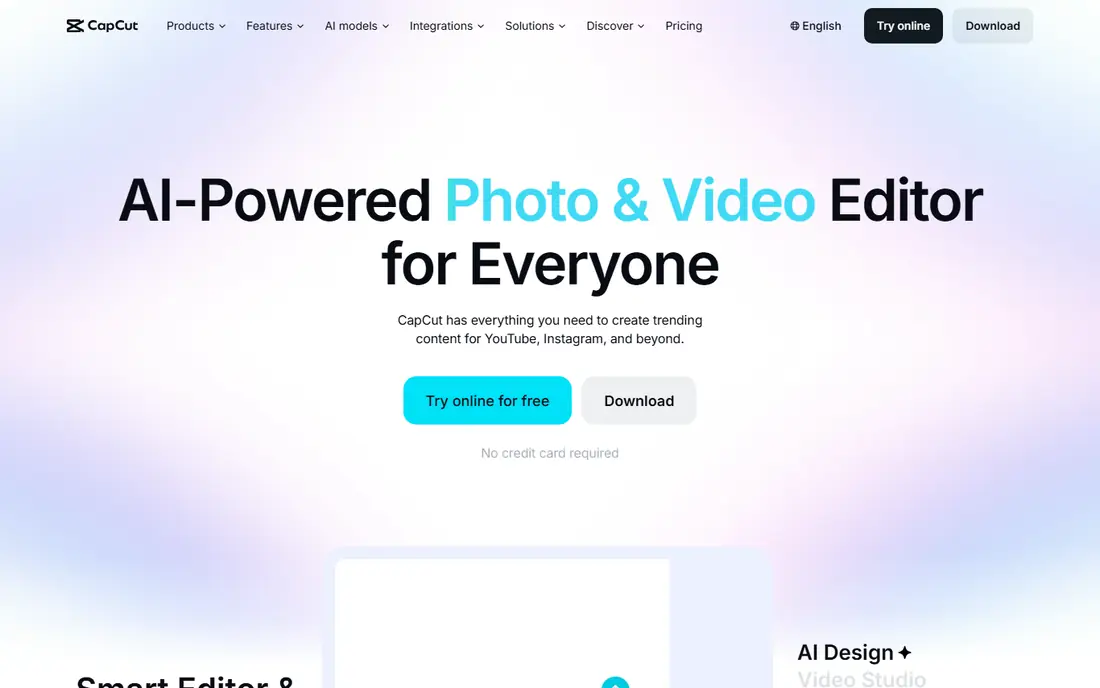
CapCut became the default short form editor for good reason. Templates, trending effects, auto captions, and background removal turn rough phone clips into polished Reels, TikToks, and Shorts quickly. The free version covers a great deal, and the desktop and web versions let you start on a phone and finish on a larger screen.
The catch is the Pro tier. Some effects, templates, and higher quality exports sit behind a subscription, and long form projects can feel less comfortable than in a dedicated desktop editor. For social video, though, CapCut remains our pick for most creators, especially those who publish several short clips a week.
- Large template and effects library
- Auto captions and background removal
- Desktop, web, and mobile versions
- Advanced tools require a Pro subscription
- Some features work best with short clips rather than long projects
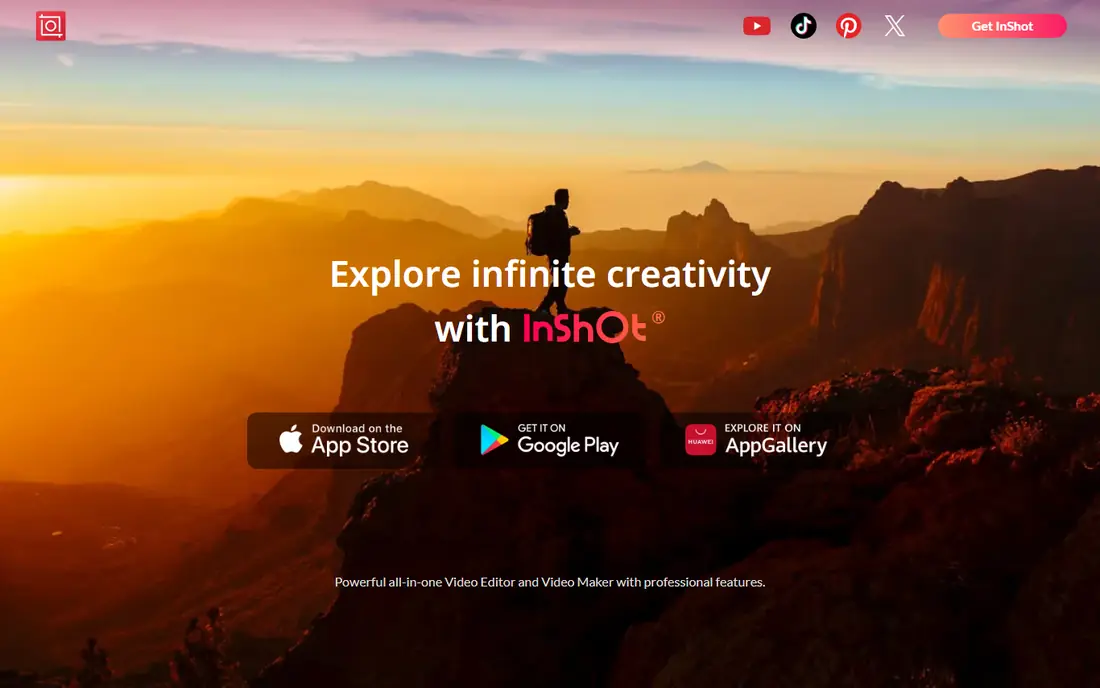
InShot suits creators who want to trim, merge, add music, and post without learning a complex editor. The timeline is simple, text and stickers are easy to place, and speed control helps with short punchy edits. For Instagram and TikTok posts, that speed matters more than deep colour or audio tools.
The free version adds a watermark, which is the main reason to consider the paid tier. If you publish often, the subscription removes the watermark and adds more filters and effects. For occasional edits, the free version is still useful for drafts and personal videos.
- Very easy timeline for trimming and merging
- Music, text, filters, and speed control
- Fast exports for social formats
- Free exports include a watermark
- Fewer advanced tools than KineMaster or PowerDirector
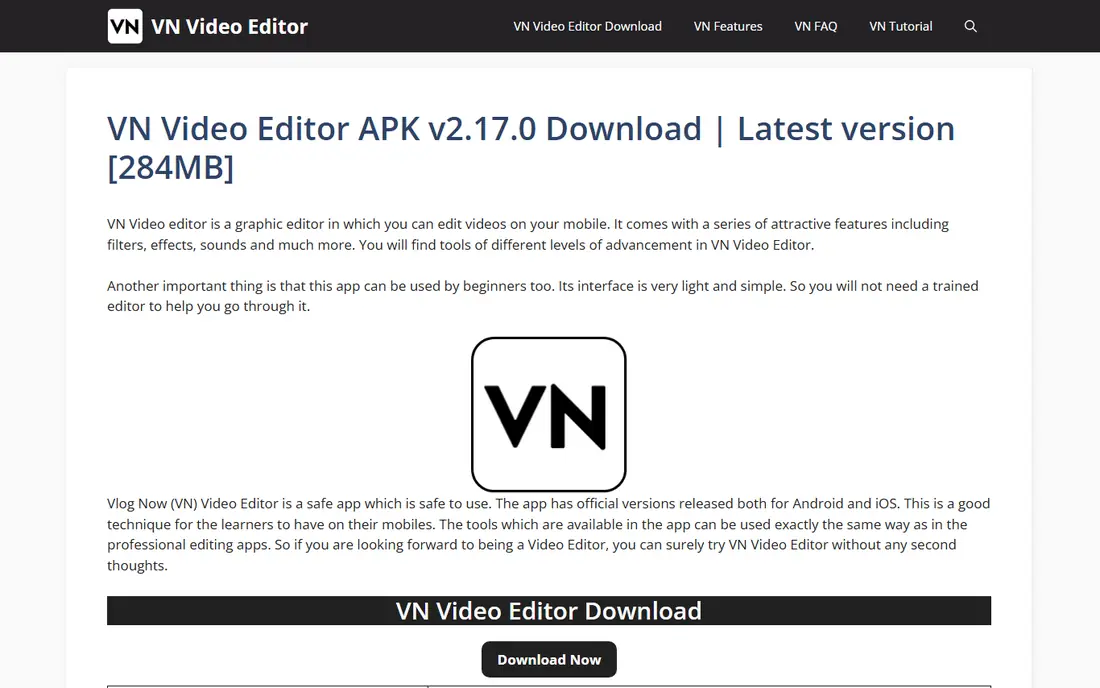
VN Video Editor is the pick for creators who want real editing tools without paying. It offers a multi track timeline, keyframe animation, and 4K export, with clean exports that set it apart from many free rivals. That combination suits YouTubers and social creators who need more than a template app but do not want a subscription yet.
The free version includes ads, and some plans limit project counts or charge credits for AI captions. Those limits are manageable for many creators, and a paid Pro option exists for those who need more. For free mobile editing with genuine control, VN is hard to beat.
- Multi track timeline with keyframes
- Clean exports without a watermark on the free tier in many listings
- Works on mobile and desktop
- Ads in the free version
- Project limits and AI caption credits apply on some plans
KineMaster appeals to mobile editors who want desktop style layers on a phone. You can stack video, images, text, and effects, use chroma key for green screen work, and adjust clips with keyframes. The asset store adds transitions, music, and effects, which helps creators who publish regularly and want fresh looks.
Beginners may find the layer system busy at first, and the free version adds a watermark and ads. A paid subscription removes those limits and adds the full asset store. For editors who want the most control available on a phone, KineMaster remains a strong choice.
- Multi layer editing with chroma key and blending
- Large asset store
- Works on phones, tablets, and Chromebooks
- Free exports include a watermark and ads
- Interface can feel busy for beginners
PowerDirector sits between simple social editors and pro tools. It handles everyday YouTube editing well, with a multi track timeline, transitions, chroma key, and AI tools for effects and audio cleanup. The mobile app is strong, and the desktop version adds more room for longer projects.
The trade off is that some AI features, including auto captions, require a paid plan, so check the tier before you rely on them. The number of features can also feel like a lot on first open. Start with trimming, titles, and music, then add effects as you need them, and PowerDirector becomes a reliable everyday editor.
- Multi track editing with chroma key and AI tools
- Good balance of simplicity and depth
- Mobile and desktop versions
- Auto captions sit on paid tiers in some listings
- Large feature set can feel daunting at first
Filmora suits creators who want a polished result without learning a pro timeline from scratch. Templates, effects, and AI tools speed up common jobs, such as adding captions, cleaning audio, or removing a background. The mobile app works well for social clips, and desktop sync helps when a project grows beyond phone editing.
The free version is best seen as a trial, since full exports and many effects need a paid plan. Prices vary by plan and platform, so check the vendor site for the current offer. For creators who value templates and guided tools over manual control, Filmora is a good fit.
- Large template and effects library
- AI tools for captions, background removal, and audio
- Mobile to desktop sync
- Full features require a paid plan
- Watermark on free exports in many listings
LumaFusion is the closest thing to a desktop editor on an iPad or iPhone. It offers a multi track timeline, keyframes, colour correction, and audio mixing, in an interface that professionals use for journalism, documentary work, and YouTube production. The one time purchase model is a clear advantage over subscriptions, especially for creators who edit every week.
Beginners will need time to learn it, and there is no free version to test first. Some extras cost more, so check the current in app options before you buy. For serious mobile editors who want pro control without a monthly fee, LumaFusion is our top pick in this list.
- Desktop style timeline with up to six video tracks
- Keyframes, colour tools, and audio mixing
- One time purchase with no subscription
- No free version
- Learning curve for beginners
- Some advanced features, such as speed ramping, cost extra
iMovie remains the best free starting point for Apple users. It is preinstalled on many devices, exports in 4K without a watermark, and handles trimming, titles, transitions, and basic colour with ease. Trailers and templates help beginners make a watchable video on the first try, and projects can move between iPhone, iPad, and Mac.
The limit is depth. iMovie lacks the multi track control, advanced colour grading, and audio mixing of LumaFusion or desktop pro tools. That is fine for family videos, school projects, and simple YouTube content. When a project outgrows iMovie, VN or LumaFusion are natural next steps on Apple devices.
- Free on iPhone, iPad, and Mac
- 4K export with no watermark
- Simple trailers and templates for beginners
- Apple devices only
- Limited multi track and colour tools compared with pro editors
Clipchamp suits Windows users who want to edit in a browser without installing heavy software. It offers templates, stock video and audio, text to speech, and auto captions, with exports in 1080p on the free tier in many listings. Integration with a Microsoft account makes it easy to save projects to OneDrive and share them.
The free tier has limits, and some features sit behind a Microsoft 365 plan, so check the current tier before a large project. Browser editing also depends on your computer and connection, so very long 4K projects may feel smoother in a desktop app. For everyday Windows video work, Clipchamp is a convenient, low friction choice.
- Browser based editor that works on Windows
- Templates, stock media, and AI tools
- Ties to a Microsoft account and OneDrive
- Higher quality exports and some AI tools need a paid Microsoft plan
- Browser performance depends on your computer
How we picked these
We compared official vendor pages, app store listings, and current editing guides for mobile and desktop video apps, and we favoured apps that are actively maintained, widely used, and genuinely suited to making videos rather than only watching them. We included free, one time purchase, and subscription options, plus apps for iOS, Android, Windows, and Mac, so the list covers most creators. Prices shown come from vendor or app store listings where we could confirm them, and we used See website where pricing varies by plan or region.
Choosing the right video app for you
Match the app to your publishing habit. If you post short social clips daily, CapCut or InShot will save the most time. If you make YouTube videos weekly, VN, PowerDirector, or Filmora give you a stronger timeline without a large cost. If you edit on an iPad for clients or longer projects, LumaFusion justifies its one time price quickly.
Check exports before you commit
Watermarks, resolution limits, and export formats matter more than a long feature list. Test a full export, including captions and music, before you build a series in a new app. Also check whether your projects stay editable if you stop paying, since some apps lock premium effects when a subscription ends.
Keep audio and captions in mind
Viewers often watch with sound off, so captions are not optional for social video. Choose an app with reliable auto captions or an easy manual caption tool, and check audio levels on a phone speaker as well as on headphones. A clean voice track does more for watch time than an extra filter.
Frequently asked questions
What is the best app to make videos on a phone?
CapCut suits short social videos, InShot suits quick trims and posts, and VN Video Editor suits creators who want a fuller timeline without a watermark on free exports. Try the free version of each with the same clip to see which timeline feels natural.
What are the best video making apps for free?
CapCut, InShot, VN Video Editor, iMovie, and Clipchamp all offer free tiers. VN and iMovie stand out for clean exports, while CapCut stands out for templates and effects, so the best free choice depends on whether you value templates or a clean timeline more.
What is the best video and photo editing app?
Canva and Filmora cover both photo and video work for social content, but they are not full photo editors. For video first work, the apps on this list are stronger, and a dedicated photo app will still give better photo control.
What is the best free video maker app without a watermark?
VN Video Editor and iMovie offer clean exports without a watermark on their free tiers in many listings. Always test an export yourself, since free tier terms can change by platform and region.
What is the best editor app for YouTube?
VN Video Editor, PowerDirector, Filmora, and LumaFusion all suit YouTube, with LumaFusion offering the most pro control on mobile. For longer desktop projects, a desktop editor will still beat a phone app for timeline space and audio work.
Is CapCut really free?
CapCut offers a generous free tier, but Pro features, some templates, and higher quality exports require a paid subscription. The free version is enough for many social creators, so start there and upgrade only when you hit a feature you use weekly.
Sources we checked (9)

Online Jobs is an independent blog about careers, online work, learning new skills and the tools that help people earn. More about us.
Keep reading
All posts
What's the Best AI App for Creating Images
Find what's the best AI app for creating images, from Midjourney and Adobe Firefly to Ideogram and Leonardo AI, with free plans and honest limits for beginners.
Best Stop Motion App
Compare the best stop motion app options for phones and computers, from simple frame capture tools to full studio software for longer projects in 2026.
Best Photo Editing Software for PC
Compare the best photo editing software for PC, from free editors to pro RAW workflows, with pricing, free plans, and honest trade offs for each in 2026.