Best Stop Motion App in 2026: 8 Apps Compared


Most beginners and hobbyists · Starting price: Free
How we put this together: we compare official feature and pricing pages, app store listings, privacy policies and public user reviews. Prices change, so check the provider's site before you pay.
Key takeaways
- Stop Motion Studio is our pick for most people because it covers capture, onion skinning, sound, and export in one app at a low cost.
- Dragonframe is the clear choice for serious studio work, with camera control and frame tools that phone apps cannot match.
- Free and low cost options such as Life Lapse, Clayframes, and qStopMotion are enough for short social clips and classroom projects.
- The camera setup matters as much as the app, so use a tripod or stand, lock exposure, and keep lighting steady for every frame.
Quick comparison
| Name | Who it suits | Starting price | Free option | |
|---|---|---|---|---|
| Stop Motion Studio | Most beginners and hobbyists | Free | Yes | Visit |
 Dragonframe | Studio and professional shoots | See website | No | Visit |
 Life Lapse | Quick social media clips | Free | Yes | Visit |
 Clayframes | Simple Android projects | Free | Yes | Visit |
 qStopMotion | Free desktop capture | Free | Yes | Visit |
 Filmora | Editing stop motion into a finished video | See website | Free trial | Visit |
 Adobe Animate | Frame animation with drawing tools | See website | Free trial | Visit |
 Blender | Free 3D and 2D animation support | Free | Yes | Visit |
The best stop motion apps
Stop motion is slow, hands-on work, and the best app is the one that stays out of the way while you move figures a fraction at a time. We compared official feature pages, pricing pages, and app store listings, and we focused on capture controls, onion skinning, sound, and export options. The list below mixes phone apps for quick projects with desktop tools for longer films.
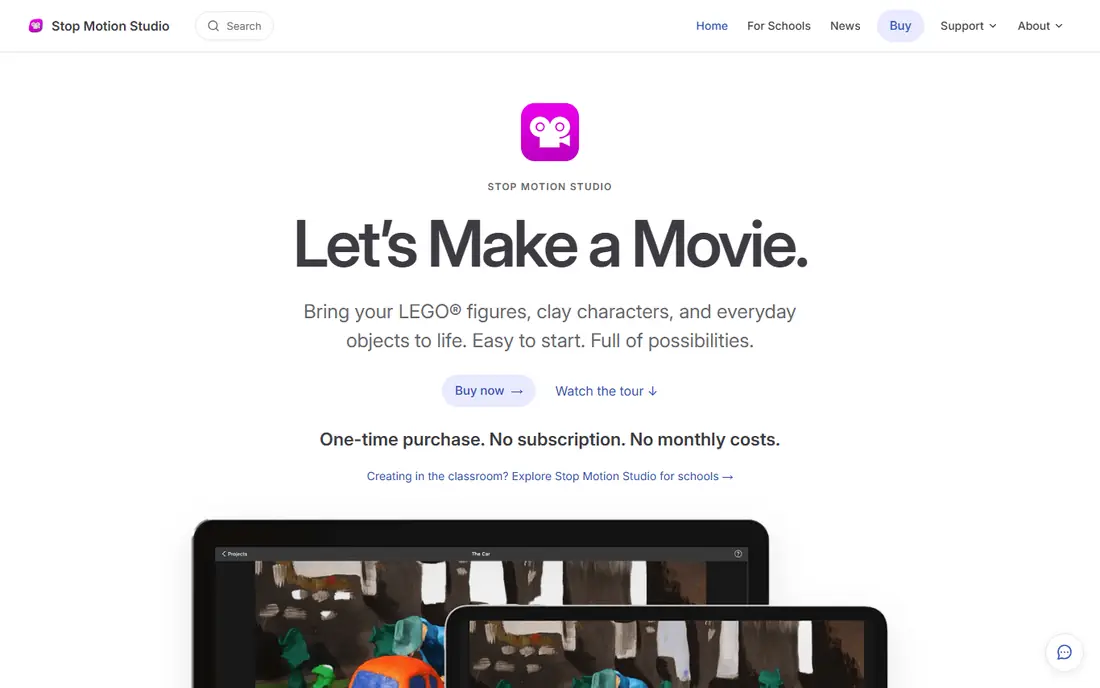
Stop Motion Studio is the easiest place to start, and it is also the app many creators keep using after they learn the basics. You can shoot frame by frame, check the last frame as a faint overlay, copy or delete frames, and add sound, titles, and simple effects without moving to another program. That matters because stop motion already asks for patience, and switching apps in the middle of a shoot breaks focus.
The free version covers a full short project, and the paid upgrade adds higher resolution export, green screen, and more audio options. Our pick for most people is this app because it works on phones, tablets, and computers, and because the workflow is clear from the first shoot. The honest catch is that advanced camera control and long-form editing are still easier in a desktop studio tool, so very ambitious films may outgrow it.
- Onion skinning and frame editing
- Manual camera controls
- Exports in high definition
- Some features need a paid upgrade
- Desktop and mobile features differ by platform
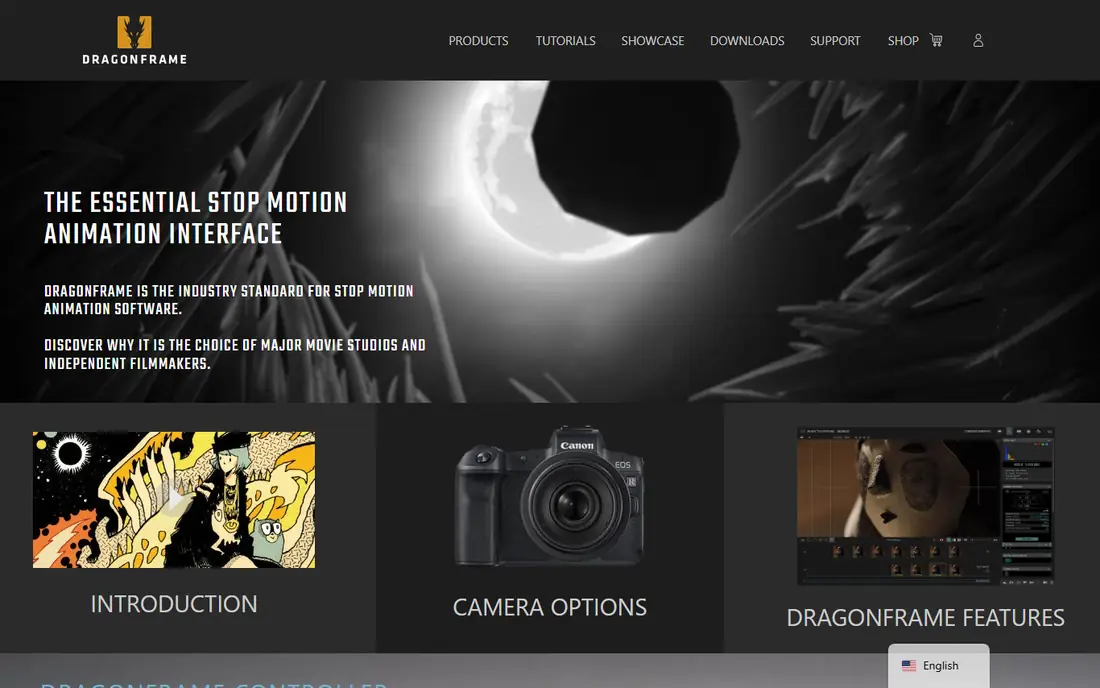
Dragonframe is built for people who shoot with a real camera on a fixed rig and need every frame to be repeatable. It gives you live view, exposure and focus control, frame comparison, and a timeline that makes it easy to spot a jump or a lighting shift before you shoot too far ahead. It also supports audio tracks, lip sync planning, and motion control hardware for smooth camera moves.
That depth comes with a higher price and a steeper learning curve than a phone app, and it is more than most casual creators need. If you are making a short film, a client piece, or a classroom project that will be shown on a large screen, though, the control is worth it. Dragonframe is the tool we would choose when image quality and repeatability matter more than speed.
- Precise DSLR and mirrorless camera control
- Strong onion skinning and timeline tools
- Audio and motion control support
- Priced for serious users
- Learning curve for first time animators
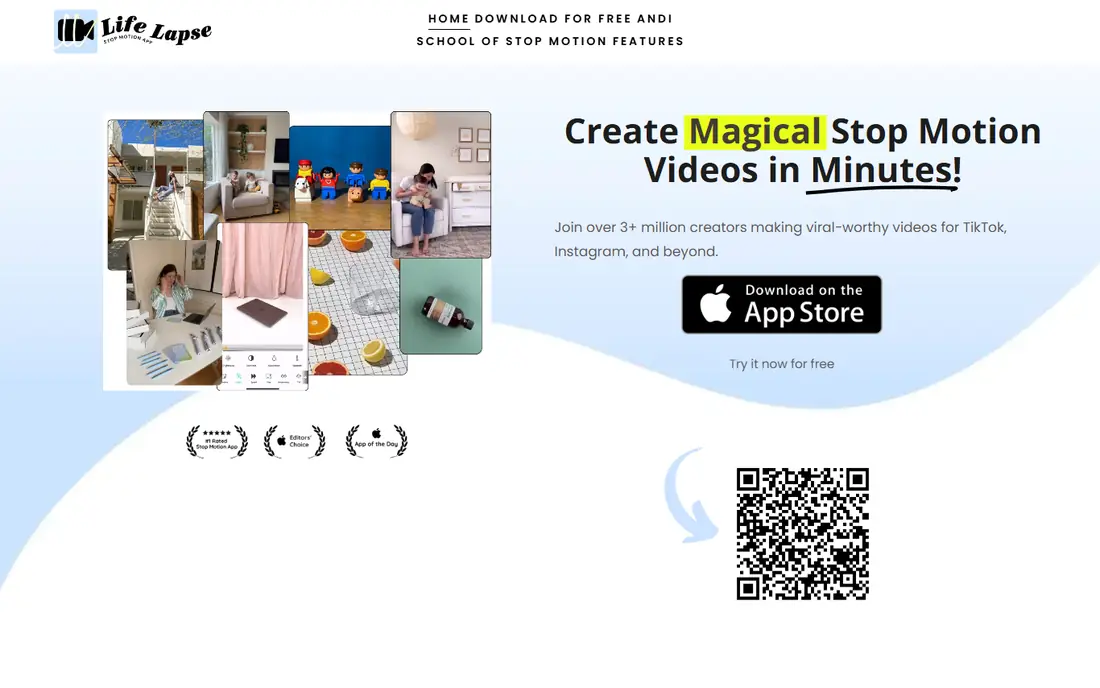
Life Lapse suits creators who want a short clip for social media without learning a full editor. You can shoot a sequence, set the playback speed, add music, and share it in a few minutes. The interface is plain and the steps are short, which helps when you are shooting with toys, food, or craft materials on a table.
The trade off is control. You will not get the same manual camera settings, frame level editing, or long timeline tools that Dragonframe or Stop Motion Studio offer. For a 10 second clip, that is fine. For a story with dialogue, scenes, and careful timing, start with a stronger capture app and use Life Lapse only for quick tests.
- Fast capture and sharing
- Simple speed and interval controls
- Built for phone-first creators
- Fewer manual camera controls than studio apps
- Some export and editing features are paid
Clayframes is a straightforward Android option for clay, paper, and toy animation. It keeps the shoot simple: capture a frame, check the overlay, capture the next frame, and play the result back. That simplicity is a strength for children, students, and first time animators who do not want menus in the way.
It is not a full editor, so sound, titles, and polished exports may need a second app. It also has a smaller feature set than Stop Motion Studio, which is a better choice if you plan to move between phone and computer. Clayframes earns its place here because it does the core job well and costs nothing to try.
- Simple frame capture
- Onion skinning
- Easy sharing from Android phones
- Android only in practice
- Fewer editing and audio tools than larger apps
qStopMotion is a free desktop tool for people who want to shoot on a computer without paying for a studio app. It captures frames from a connected camera, shows an overlay of earlier frames, and lets you review the sequence as you build it. For schools, clubs, and home projects on a tight budget, that is enough to learn the craft.
The interface is plain and the editing tools are basic, so you will likely export the frames and finish sound and titles elsewhere. It also lacks the polished camera support of Dragonframe. Still, if cost is the main barrier, qStopMotion lets you practice the real skill, which is patience and consistent movement, without spending anything.
- Free and open source
- Frame capture with overlay
- Works on desktop computers
- Interface feels dated
- Fewer built in effects and audio tools
Filmora is not the first app we would use to capture frames, but it is a strong choice for finishing a stop motion project. You can import a photo sequence, set how long each frame stays on screen, add music and voiceover, and cut scenes together on a normal video timeline. That makes it useful when your capture app has done its job and you need a clean final edit.
The catch is that you are paying for a general video editor, not a specialist capture tool. If you only need capture and playback, a cheaper app is better. If you also edit other kinds of video, Filmora gives you one place to finish stop motion, add titles, and export for sharing.
- Full timeline editing
- Titles, music, and effects
- Easy export for video sites
- Not a dedicated stop motion capture app
- Paid plan needed to remove trial limits
Adobe Animate fits creators who draw their frames or combine drawn animation with photographed stop motion. It offers a timeline, layers, drawing tools, and export options that a simple capture app does not try to provide. That makes it useful for title cards, drawn effects, and hybrid projects where part of the film is hand drawn.
It is not the simplest stop motion capture tool, and the subscription cost is hard to justify if you only shoot with a phone. Animate belongs on this list because many animators move between drawn frames and photographed frames, and it handles the drawn side well. Check the current plan on the vendor site before you commit, since Adobe pricing changes by plan and region.
- Drawing and timeline tools
- Vector animation
- Export for web and video
- Subscription pricing
- More complex than a capture app
Blender is a free, open source suite for 3D modeling, 2D animation, and video editing. It can support stop motion work in a different way from the apps above: you can build sets and characters in 3D, animate with its Grease Pencil tools, or edit a photographed sequence in its video editor. For creators who want to learn animation more broadly, that range is a real advantage.
The learning curve is steep, and Blender will not hold your hand through a simple phone shoot. It is best for people who already use Blender or who want one free tool for many kinds of animation. For a first stop motion project, start with Stop Motion Studio, then bring Blender in when you want 3D scenes or a deeper edit.
- Free and open source
- 2D and 3D tools
- Video editing built in
- Steep learning curve
- Not a dedicated stop motion capture app
How we picked these
We compared official feature pages, pricing pages, and app store listings for each product, and we checked that each official homepage loads and matches the product named. We favored tools that truly support frame by frame work, either through capture, onion skinning, timeline editing, or drawing tools, and we left out general camera apps with no frame workflow. Prices shown are starting prices only, and we wrote See website where a vendor does not publish a simple starting price or where pricing varies by plan.
What to check before you choose
Start with your device and your project length. A phone app is enough for short clips and learning, while a desktop tool is better for a film with scenes, sound, and careful timing. Check whether the app lets you lock focus and exposure, because auto settings can shift brightness between frames and ruin an otherwise good shoot.
Think about sound and export early. Some free apps limit resolution or add a watermark until you pay, so test a short export before you shoot a long sequence. Also check file format and frame rate options, since a project meant for a video site, a classroom screen, or a festival may need different settings. A tripod, a phone stand, good daylight or a steady lamp, and tape to hold the set still will improve results more than any paid upgrade.
A simple starter setup
Use a tripod or a stack of books to hold the phone or camera still. Mark the position of the camera and the main figures with tape on the table. Shoot a test of 20 frames, play it back, and fix lighting or movement before you commit to a full scene. Keep moves small, about a few millimetres per frame for a slow walk, and review the overlay after every few frames.
Frequently asked questions
What is the best free stop motion app?
Stop Motion Studio, Life Lapse, Clayframes, qStopMotion, and Blender all offer free starting points. Stop Motion Studio is the most complete free option for most people, while qStopMotion and Blender suit desktop users who want no subscription.
What is the best stop motion software for a computer?
Dragonframe is the strongest desktop choice for camera control and studio work. qStopMotion is a free desktop capture option, and Filmora or Blender can finish and edit a sequence after capture.
Can I make stop motion on a phone?
Yes. Stop Motion Studio, Life Lapse, and Clayframes are built for phones and tablets, and they include the frame capture and playback tools you need. Use a stand to keep the phone still, since hand held shooting creates jumps between frames.
Do I need a special camera for stop motion?
No. A phone camera is enough to start, especially with a stand and steady light. A DSLR or mirrorless camera with Dragonframe gives better image quality and manual control, but it is not required for a first project.
How many frames do I need for a short clip?
It depends on frame rate and length. At 12 frames per second, a 10 second clip needs about 120 frames. At 24 frames per second, the same clip needs about 240 frames. Start with a short clip so you can learn pacing without shooting hundreds of frames.
Is stop motion hard for beginners?
The idea is simple, but the work takes patience. Move figures a little at a time, check the overlay, and keep light and camera position steady. Short projects, simple sets, and a clear story make the first film much easier to finish.
Sources we checked (8)

Online Jobs is an independent blog about careers, online work, learning new skills and the tools that help people earn. More about us.
Keep reading
All posts
What's the Best AI App for Creating Images
Find what's the best AI app for creating images, from Midjourney and Adobe Firefly to Ideogram and Leonardo AI, with free plans and honest limits for beginners.
Best Photo Editing Software for PC
Compare the best photo editing software for PC, from free editors to pro RAW workflows, with pricing, free plans, and honest trade offs for each in 2026.
Best Free Video Editing Apps for Beginners
Find the best free video editing apps for beginners, from CapCut and Clipchamp to DaVinci Resolve, iMovie, and open source editors that cost nothing at all.