Best Free Video Editing Apps for Beginners in 2026: 8 Apps Compared

How we put this together: we compare official feature and pricing pages, app store listings, privacy policies and public user reviews. Prices change, so check the provider's site before you pay.
Key takeaways
- CapCut is the fastest free start for social video, while Clipchamp and iMovie are the gentlest desktop starts.
- DaVinci Resolve is the most capable free editor, but it needs more time and hardware than the others.
- Shotcut and OpenShot are fully free and open source, with no watermark and no paid tier.
- Free does not always mean watermark free, so check export terms before you invest hours in a project.
Quick comparison
| Name | Who it suits | Starting price | Free option | |
|---|---|---|---|---|
 CapCut | short form social video on phone and desktop | Free | Yes | Visit |
 iMovie | first edits on Mac and iPhone | Free | Yes | Visit |
 Clipchamp | free watermark free editing on Windows | Free | Yes | Visit |
 DaVinci Resolve | free pro grade editing to grow into | Free | Yes | Visit |
 Shotcut | free open source editing on any system | Free | Yes | Visit |
 OpenShot | simplest free timeline for first projects | Free | Yes | Visit |
 Canva | branded promos and template video | Free | Yes | Visit |
 Filmora | template led editing with a free trial | $49.99 per year | Yes | Visit |
The best best free video editing apps for beginners
The best free video editing apps for beginners share one trait: they let you finish a first video this week. Some do that with templates, some with a simple timeline, and one, DaVinci Resolve, does it with professional tools that take longer to learn. This list covers each path, so you can pick by device, project type, and patience.
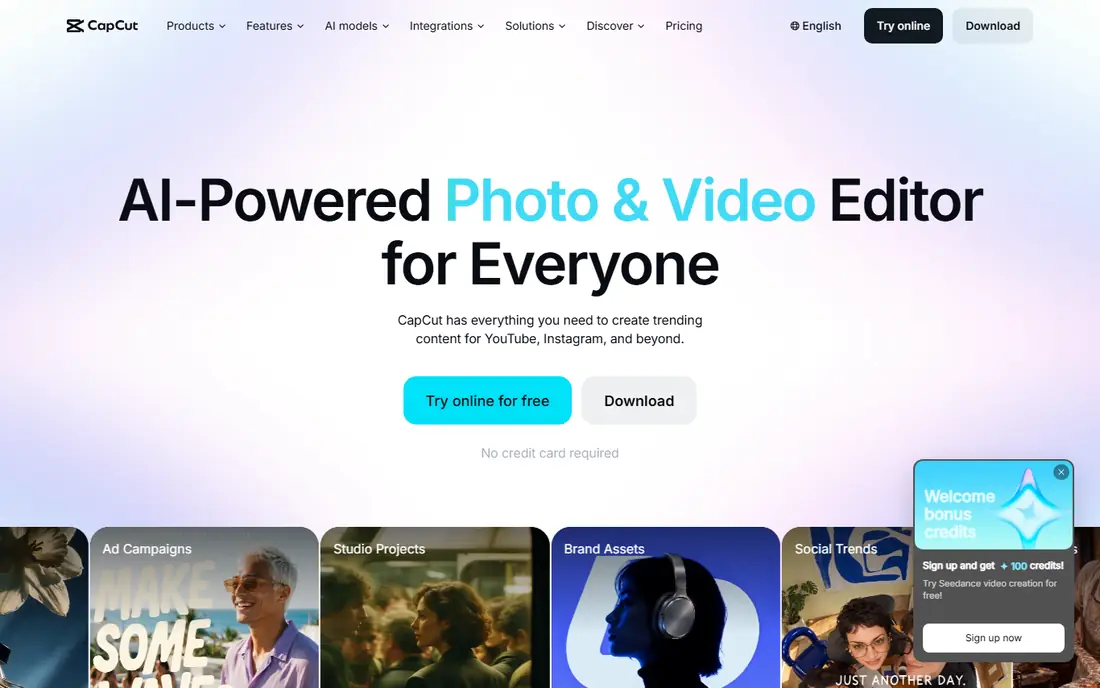
CapCut is the fastest start for short form video, with templates and auto captions that turn a phone clip into a finished post quickly. It works on phone, desktop, and web, so you can start on a phone and finish on a computer without learning a second app.
The catch is Pro gating: premium templates, effects, and some exports need a paid plan, so check which features your project uses before exporting. Before you commit, check the current plan page and the app store listing, since prices and limits change often.
- Free core editor
- Auto captions and templates
- Phone, desktop, and web versions
- Pro templates, effects, and 4K exports need Pro
- Pricing varies by store
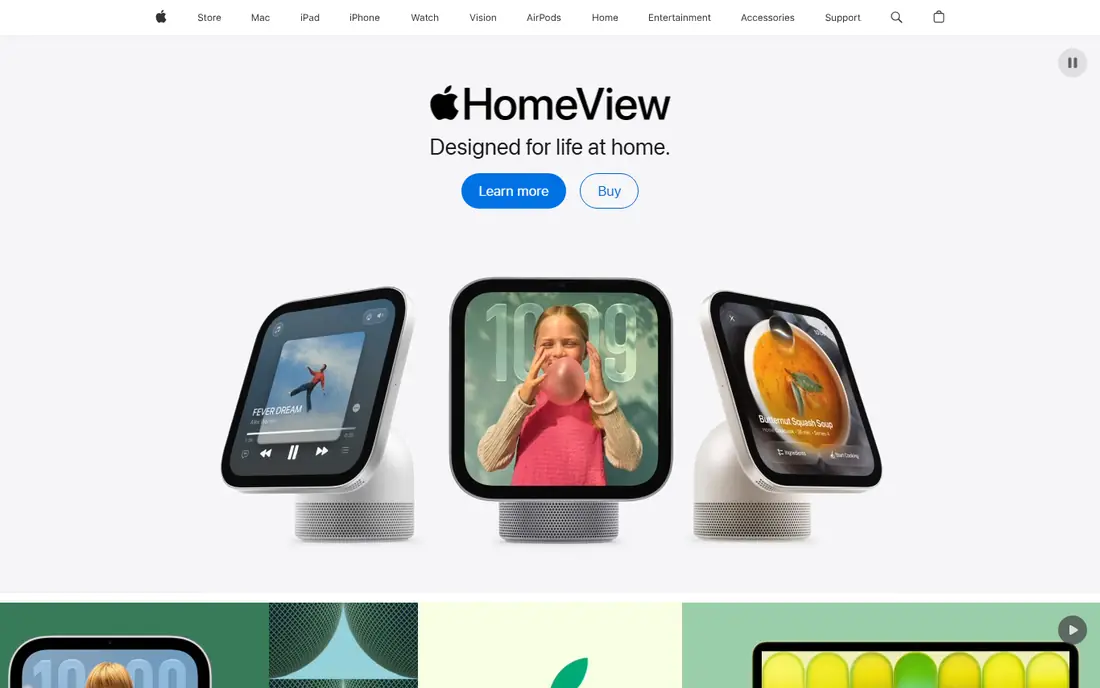
iMovie remains the gentlest first editor for Apple owners, with a simple timeline and themes that make a first video feel finished. Trailers, titles, and transitions cover family videos, school projects, and simple vlogs without a learning curve.
When you outgrow it, Final Cut Pro is the natural next step, but most beginners will not need that move for a long time. Try the free option first on one real item, then decide if the paid tier adds enough to justify the cost.
- Free with Apple devices
- Simple timeline
- Trailers and themes for quick projects
- Apple only
- Limited advanced colour and audio tools beside pro editors
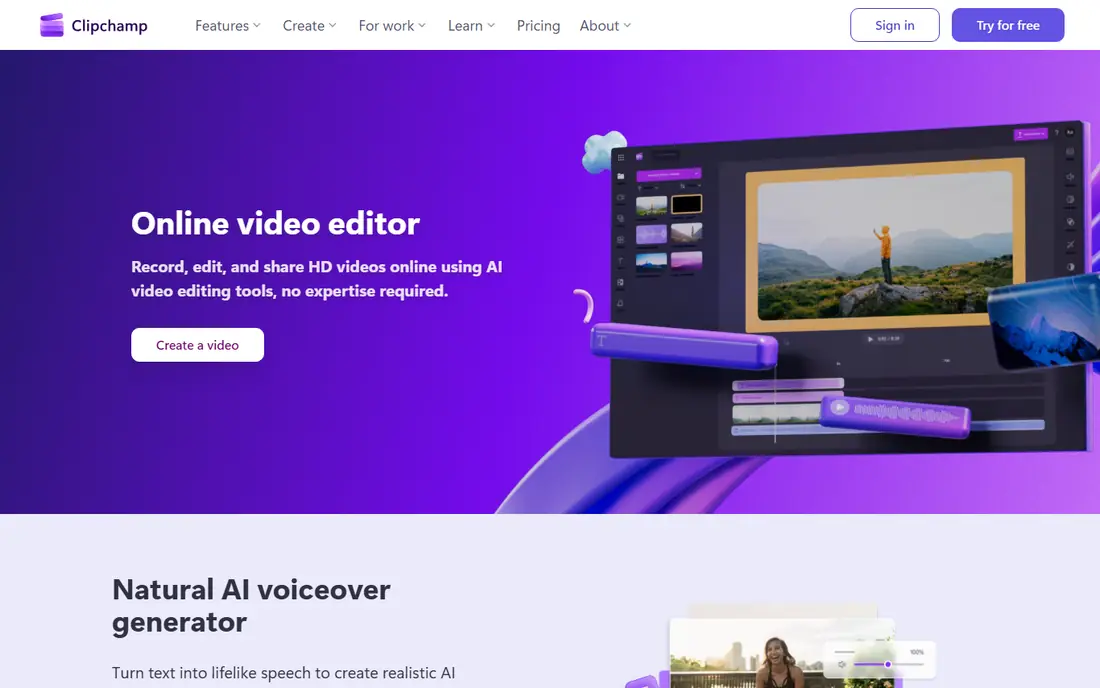
Clipchamp is the closest Windows equivalent to iMovie, with free editing that exports up to 1080p without a watermark. Templates, stock media, and a simple timeline make it easy to finish a first project in a browser or on Windows.
For 4K exports and premium features you need a Microsoft 365 plan, but most beginners will be happy at 1080p for a long while. Read the plan page closely before you pay, and keep an eye on renewal terms and what the free tier leaves out.
- Free plan with 1080p exports and no watermark
- Browser and Windows versions
- Templates included
- 4K and premium features need Microsoft 365
- Browser editing needs a Microsoft account
DaVinci Resolve is the free editor with the highest ceiling, offering professional editing, colour, and audio tools at no cost. Beginners who stick with it gain skills that transfer to paid work, since the same tools appear in professional studios.
It asks more from your computer and your patience than any other pick here, so start with short projects and tutorials. Start small, use it on a real project, and only upgrade once you know which paid feature you actually need.
- Free professional editing, colour, and audio tools
- No watermark on most exports
- Windows, Mac, and Linux
- Steep learning curve
- Needs stronger hardware than browser editors
Shotcut suits beginners who want a free desktop editor with no watermark and no account, on any operating system. It handles a wide range of video formats and offers a full timeline, filters, and transitions without a paid tier.
The interface feels rougher than commercial rivals, and social templates are thinner, so it fits patient learners better than trend chasers. Compare it with one other pick on this list before you settle, since the right fit depends on your budget and habits.
- Free and open source
- No watermark
- Windows, Mac, and Linux support
- Wide format support
- Interface is less polished than CapCut or iMovie
- Fewer templates for social video
OpenShot is the simplest free timeline on this list, which makes it a good first desktop editor for complete beginners. Trimming, titles, and transitions sit where you expect them, and the learning curve is short for a first project.
Larger projects may run slower than in Resolve or Shotcut, so keep early projects short while you learn the basics. Check current pricing and platform support before you sign up, because both can change between updates.
- Free and open source
- Simple timeline
- Easy titles and transitions
- Cross platform
- Fewer advanced features than Shotcut or Resolve
- Performance varies on large projects
Canva suits beginners whose video is really a design asset, such as a promo, announcement, or social post with text and branding. Templates, brand kits, and stock media let you produce a consistent look quickly, even with no editing experience.
For long form editing with precise cuts and audio work, a timeline editor such as Clipchamp or Resolve fits better. Use the free tier for a week on real tasks, then judge it on results rather than on the feature list alone.
- Free plan with video templates
- Brand kits and stock media
- Browser, desktop, and mobile
- Editing depth is limited beside timeline editors
- Premium elements need Pro
Filmora suits beginners who want templates and effects without jumping straight to a professional editor. Its guided modes and effect packs make YouTube style videos look polished with less manual work than Resolve.
The free version watermarks exports, so budget for the yearly plan if you plan to publish regularly, or start with a truly free editor first. Look at the plan limits first, then test it with your own files or items before you move anything important over.
- Free version to learn the interface
- Templates, effects, and titles
- Guided modes for beginners
- Free exports carry a watermark
- Full use needs a paid plan from $49.99 per year
How we picked these
We compared official pricing pages, free plan details, and feature pages for video editors with a genuine free option. We kept editors that exist now, that export video without payment in some form, and that suit beginners rather than professionals alone. Where a free version watermarked exports or gated features, we said so plainly instead of calling the tool fully free.
We also rechecked plan pages for free tiers and paid limits, and we left out tools that no longer publish clear pricing or that failed to fit the topic. That check matters because prices, free limits, and product availability change often, and a list built on old pages would mislead readers who need a working tool today. When two sources disagreed on a price, we used the vendor page and noted the gap rather than picking the lower figure.
How to choose your first free video editor
Pick by device first
Apple owners should start with iMovie, Windows and browser users with Clipchamp, and phone first creators with CapCut. The best editor is the one already on your device, since setup friction kills more first projects than missing features.
Check the export catch before you edit
Free plans differ on watermarks, resolution, and length. Clipchamp exports 1080p free without a watermark, DaVinci Resolve exports without a watermark on most projects, and Filmora watermarks free exports. Test one short export before editing a long project.
Finish one short project, then judge
Edit a 60 second clip end to end: cut, titles, music, and export. That single project tells you more than any feature list, including whether the interface, speed, and export terms fit your computer and your patience.
Frequently asked questions
What is the best free video editing app for beginners?
CapCut is best for social video on a phone, Clipchamp is best for free Windows editing, iMovie is best for Apple beginners, and DaVinci Resolve is best for beginners who want professional skills. The best pick depends on your device and project type.
What is the best free video editing software for beginners on Windows?
Clipchamp is the gentlest free Windows start, with 1080p exports and no watermark on the free plan. Shotcut and DaVinci Resolve also run on Windows and offer more depth, with a steeper learning curve.
What are the best free video editing tools for beginners with no watermark?
Clipchamp up to 1080p, DaVinci Resolve on most exports, Shotcut, OpenShot, and iMovie all export without a watermark for free. CapCut and Filmora add watermarks or gates when premium items are used.
Is DaVinci Resolve really free?
Yes, the main DaVinci Resolve app is free, with a paid Studio version adding advanced tools. The free version covers editing, colour, and audio for most beginner and intermediate projects.
What is the best free editing video software for social media?
CapCut is the strongest free social editor, with templates, auto captions, and vertical formats built in. Canva also suits branded social promos, while Clipchamp and iMovie suit longer horizontal videos.
Sources we checked (8)

Online Jobs is an independent blog about careers, online work, learning new skills and the tools that help people earn. More about us.
Keep reading
All posts
What's the Best AI App for Creating Images
Find what's the best AI app for creating images, from Midjourney and Adobe Firefly to Ideogram and Leonardo AI, with free plans and honest limits for beginners.
Best Art Apps
Compare the best art apps for 2026, from Procreate and Clip Studio Paint to free options like Krita and ibis Paint, for beginners and pros alike, for all.
Best AI Tools to Animate Photo
Discover the best ai tools to animate photo in 2026. We compare 8 photo animation apps on motion quality, controls, pricing, and exports to help you pick.