Best Video Editing Software in 2026: 9 Editors Compared

How we put this together: we compare official feature and pricing pages, app store listings, privacy policies and public user reviews. Prices change, so check the provider's site before you pay.
Key takeaways
- DaVinci Resolve has the strongest free version for serious editing, with no watermark and no time limit, while the paid Studio version is a one-time purchase.
- Adobe Premiere Pro remains the safest choice for professional client work, but it is a subscription, so the cost keeps coming every month.
- CapCut is the fastest route to short social videos, though its paid pricing varies by region and platform, so check your own upgrade screen.
- iMovie and Shotcut cover simple edits for free, and paying more only makes sense when you need advanced colour, audio or effects tools.
- Beginners should pick by device first, since Final Cut Pro is Mac only and some free editors demand a stronger computer than others.
Quick comparison
| Name | Who it suits | Starting price | Free option | |
|---|---|---|---|---|
 DaVinci Resolve DaVinci Resolve | Serious editing for free | Free | Yes | Visit |
 Adobe Premiere Pro Adobe Premiere Pro | Professional client work | $22.99 per month | Free trial | Visit |
 Final Cut Pro Final Cut Pro | Mac users who want speed | See website | Free trial | Visit |
 CapCut CapCut | Short social videos | Free | Yes | Visit |
 Filmora Filmora | Beginners who want templates | See website | Free trial | Visit |
 iMovie iMovie | Simple Mac and iPhone edits | Free | Yes | Visit |
 Shotcut Shotcut | Free editing on any desktop | Free | Yes | Visit |
 Clipchamp Clipchamp | Quick browser-based edits | Free | Yes | Visit |
 Movavi Video Editor Movavi Video Editor | Simple paid editing on Windows and Mac | See website | Free trial | Visit |
The best video editing software
We compared official feature pages, pricing pages and public reviews, and we weighed the free version on its own terms, not just as a trial for the paid version. The list below mixes professional tools with simple editors, so a beginner, a YouTuber and a client-facing editor can each find a fit.
DaVinci Resolve is the rare free editor that does not feel like a demo. The free version includes editing, colour grading, visual effects and audio tools in one app, and it exports up to Ultra HD without a watermark. That makes it a genuine option for YouTube work, short films and client projects, not just for practice. We confirmed on the official Blackmagic Design page that the free version and the paid Studio version sit side by side, with Studio adding advanced AI tools, higher resolutions and more effects.
The honest catch is hardware and complexity. Resolve runs best on a modern computer with a capable graphics card, and its many pages for editing, colour, effects and audio can overwhelm a first-time editor. If your computer is older or you only cut short clips, a lighter editor will feel faster. For anyone willing to learn, though, the free version removes the usual excuse for staying with a limited trial.
- Full editor, colour tools, effects and audio in one app
- Free version has no watermark
- One-time Studio purchase
- Demanding on older computers
- Learning curve is steep for complete beginners
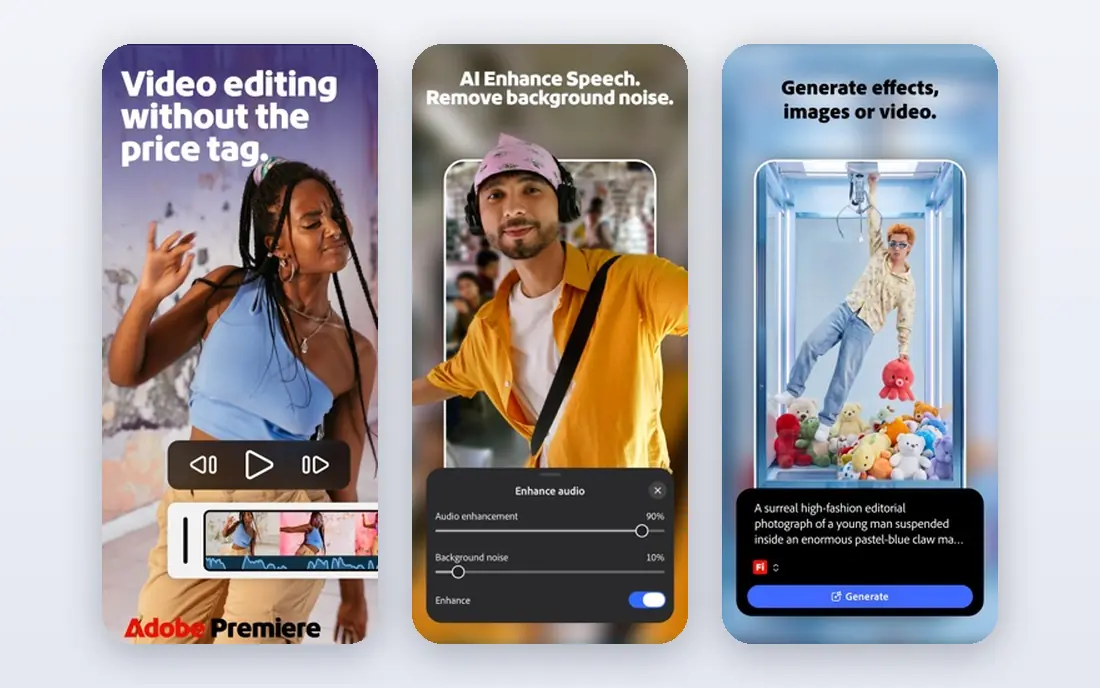
Premiere Pro is the default choice in many professional workflows because clients, collaborators and post houses already use it. Its timeline tools, multicam editing, captioning, audio mixing and colour controls are deep, and it sits inside Creative Cloud alongside After Effects, Audition and Photoshop. The single-app price listed by Adobe for individuals is $22.99 per month on an annual plan billed monthly, with a 7-day free trial.
The cost is ongoing, and there is no one-time purchase, so a hobbyist who edits a few videos a year may pay more than the work justifies. Premiere also rewards study, since its full toolset takes time to learn. If you edit for clients, share projects with other editors or need its specific integrations, that cost and learning time are easier to justify than for casual use.
- Industry-standard timeline and collaboration tools
- Strong audio, captions and colour controls
- Broad format support
- Subscription only
- Needs a capable computer and a learning period
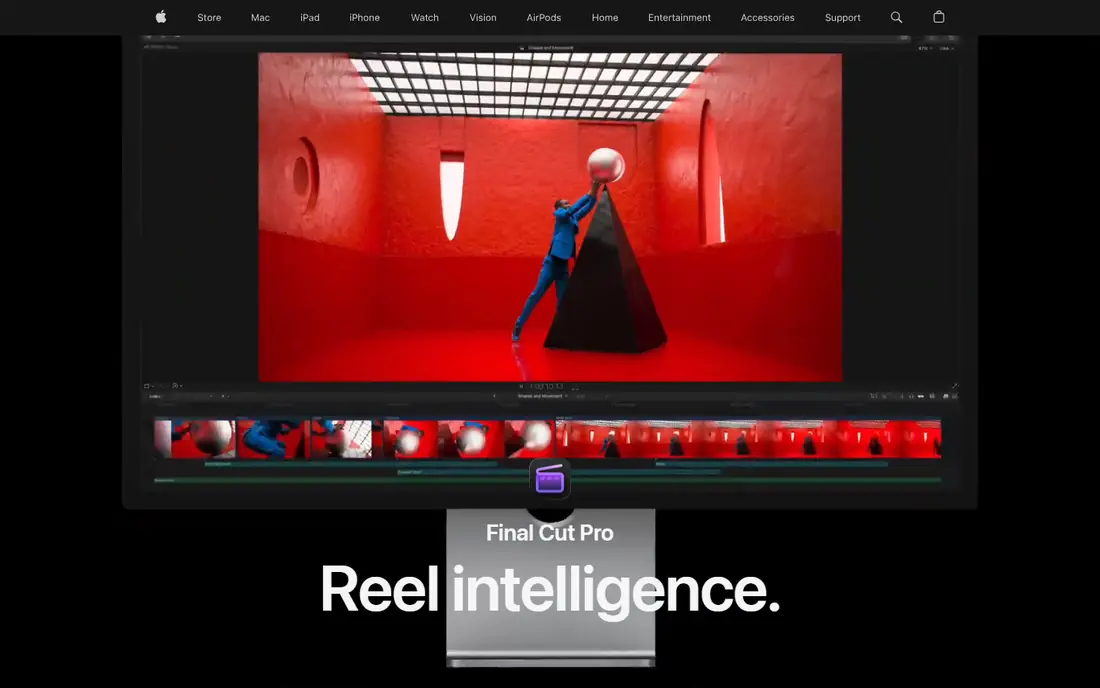
Final Cut Pro appeals to Mac owners who want speed without a monthly bill. Its magnetic timeline keeps clips connected as you trim, which many editors find faster than a traditional track layout, and it is tuned for Apple silicon, so exports and playback feel quick on recent Macs. The library system keeps media, projects and effects organised in one place, which helps when a project grows.
The limits are platform and portability. There is no Windows version, and moving a Final Cut project to Premiere or Resolve takes extra steps and can lose effects or titles. If you work alone on a Mac and value speed, it is a strong pick, but a team that mixes Mac and Windows machines should choose a cross-platform editor instead.
- Fast rendering on Apple silicon
- Magnetic timeline suits many editors
- One-time purchase model
- Mac only
- Project files do not transfer cleanly to other editors
CapCut is built for speed on social platforms. Templates, auto-captions, background removal and a large effects library let a creator turn phone footage into a finished short video in minutes, and the same account works across mobile, desktop and web. The free tier covers basic editing and publishing, which is why so many short-form creators start here and stay here.
Paid pricing needs care. CapCut states that final prices vary by region, device and promotion, and its US page lists Pro at $19.99 per month, while other accounts see different figures. A single Pro-marked effect or music track can also block or watermark an export until you remove it or subscribe. Check your own upgrade screen, and keep free and paid assets separate in a project you plan to export for free.
- Fast templates, auto-captions and effects for social video
- Works on phone, desktop and web
- Free tier covers basic publishing
- Paid pricing varies by region and platform
- Single paid assets can block a free export
Filmora sits between a phone app and a professional editor. Its interface is clear, its library of titles, transitions and effects is large, and its tutorials help a beginner finish a first video without hunting through manuals. For family videos, school projects and simple YouTube content, that guidance matters more than a longer feature list.
The free version is best treated as a trial, since exports carry a watermark until you pay. Colour grading and audio mixing are also simpler than in Premiere or Resolve, so an editor who outgrows templates will hit limits. If you want a gentle start and are happy to pay for watermark-free exports, Filmora is a fair choice, but check the current plan on the vendor site before subscribing.
- Friendly interface with titles, transitions and effects
- Good tutorial support
- Works on Windows and Mac
- Free exports carry a watermark
- Advanced colour and audio tools are limited
iMovie is the easiest way to start editing if you already own an Apple device. It is free, stable and simple, with trailers, titles and transitions that make a first video look finished without much study. Projects can move from iPhone to Mac, which suits someone who shoots on a phone and finishes on a laptop.
Control is the trade-off. Audio mixing, colour tools and effects are basic, and there is no Windows or Android version. If you only trim clips, add music and titles and share online, iMovie is enough, and paying for a larger editor would add complexity without a visible gain. When you start wanting precise audio work or advanced colour, that is the signal to move on.
- Free on Apple devices
- Simple and stable
- Good trailers and titles for beginners
- Apple only
- Limited control over audio, colour and effects
Shotcut is a free, open-source editor for people who want a real desktop timeline without a subscription or a watermark. It supports a wide range of formats, runs on Windows, Mac and Linux, and includes filters, transitions and audio tools that cover most everyday editing. For a student, a charity or a hobbyist on a tight budget, that combination is hard to fault.
The interface is less polished than Filmora or CapCut, and there are fewer ready-made templates, so a beginner must be willing to learn the layout. Performance is also more dependent on your computer, since there is no paid support team to tune it for you. If you value freedom from fees over hand-holding, Shotcut is a solid pick.
- Free and open source with no watermark
- Runs on Windows, Mac and Linux
- Wide format support
- Interface feels dated
- Fewer templates and guided effects than paid rivals
Clipchamp suits quick work when you do not want to install software. It runs in a browser, offers templates, text-to-speech and stock media, and exports in formats suited to social platforms and presentations. For a work laptop, a school computer or a borrowed machine, that browser access is a practical advantage, and the free tier covers basic projects.
A browser editor has natural limits. Large projects, heavy effects and offline work are weaker than in a desktop editor, and a slow connection will slow the whole edit. Clipchamp is best for short, simple videos made quickly, not for a feature-length project or detailed colour work. Use it for speed, and move to Resolve or Premiere when a project outgrows it.
- Runs in a browser with no install
- Templates and stock media included
- Easy sharing to common platforms
- Needs a good internet connection
- Advanced editing is limited compared with desktop editors
Movavi Video Editor targets the same beginner space as Filmora, with a clear timeline, built-in effects and tools for trimming, titles and transitions. It runs on Windows and Mac, and its purchase options appeal to people who would rather pay once than rent an editor by the month, though plan details change, so check the vendor site for the current offer.
The trial version is limited, with short exports and a watermark, so judge it on the paid version if you plan to publish regularly. Depth is also limited next to Resolve and Premiere, especially for colour and audio. If you want a simple paid editor and you dislike subscriptions, Movavi is worth a trial, but compare its current price with Filmora before buying.
- Clear interface for beginners
- Effects and transitions included
- One-time purchase options in some plans
- Free version limits export length and adds a watermark
- Less depth than professional editors
How we picked these
We compared official feature pages, pricing pages and public reviews, and we gave weight to what the free version actually allows, since a free label that blocks exports is not really free. We included professional tools, beginner tools and free open-source options, and we checked platform support, because a Mac-only or Windows-only editor is a poor recommendation for the wrong device.
We did not run hands-on editing tests for this guide. Our comparisons rest on vendor documentation and published reviews, not on our own benchmark results. Where a price could not be verified on the vendor site at the time of writing, we wrote See website rather than repeating a figure from a review site.
How to choose the right editor
Match the editor to the video, not to the longest feature list. A short social clip needs templates, captions and fast export, while a client project needs reliable formats, captions, audio mixing and colour control. A beginner also benefits from tutorials and a simple layout, even if a professional tool can technically do more.
Check your computer first
Professional editors need a modern processor, enough memory and a capable graphics card, especially for 4K footage. If your computer struggles, start with a lighter editor, use proxy files where the app supports them, or edit in 1080p and export in higher resolution only when needed.
Try the free version properly
Edit a real project from start to finish, including export, before you pay. That test reveals watermark rules, export limits, missing formats and performance problems that a feature list hides. Keep a copy of your source files outside the app, so a trial ending does not lock you out of your own footage.
Frequently asked questions
What is the best video editing software for beginners?
CapCut is best for short social videos, Filmora is best for guided desktop editing, and iMovie is best for simple edits on Apple devices. Shotcut is the best free desktop option if you want no watermark and no subscription.
Is there a best free video editing software?
DaVinci Resolve has the strongest free version for serious editing, with no watermark and a full toolset. Shotcut is also free and open source, while iMovie is free on Apple devices and Clipchamp is free in a browser for basic work.
What video editing software do professionals use?
Adobe Premiere Pro, DaVinci Resolve Studio and Final Cut Pro are the common professional choices. Premiere suits mixed-platform teams, Resolve suits colour and finishing work, and Final Cut Pro suits Mac-only workflows that value speed.
Can I edit video on my phone?
Yes. CapCut and iMovie are built for phone editing, and most desktop editors now offer companion mobile apps. Phone editing suits short clips, while longer projects with many tracks are easier on a desktop with a larger screen.
Does free video editing software add a watermark?
Some do and some do not. DaVinci Resolve, Shotcut and iMovie exports have no watermark, while free trials of Filmora and Movavi add one. Always test an export before you commit to a project in a new editor.
Is CapCut free?
CapCut has a free tier that covers basic editing and publishing, and paid Pro and higher plans add 4K export, more AI tools and more storage. Paid prices vary by region and platform, so check the upgrade screen in your own account.
Sources we checked (9)

Online Jobs is an independent blog about careers, online work, learning new skills and the tools that help people earn. More about us.
Keep reading
All posts
Best Writing Software
Looking for the best writing software in 2026? We compared 9 writing apps for books, articles and screenplays on price, features and fit. All verified.

Best Weather Apps
Searching for the best weather app? We compared eight top weather apps for accurate forecasts, radar, severe alerts, and daily planning near you today.
Best Translation App
Searching for the best translation app? We compare 8 free and paid translation apps and tools for travel, work, and study, with prices and honest limits.