Best Transparent Background Tool in 2026: 8 Tools Compared

How we put this together: we compare official feature and pricing pages, app store listings, privacy policies and public user reviews. Prices change, so check the provider's site before you pay.
Key takeaways
- remove.bg is the fastest one click option for a clean cutout, while Adobe Express and Canva suit people who also need to design with the cutout after.
- PhotoRoom suits sellers who need product photos with clean backgrounds at scale, while Pixlr and Fotor suit quick edits in a browser.
- Free tiers usually limit resolution, add watermarks, or cap monthly images, so check export size before you use a tool for a shop or client work.
- Hair, fur, glass and busy backgrounds still need manual clean up in most tools, so keep the original image until the final export looks right.
- For batch work, choose a tool with batch processing and a clear commercial licence, rather than editing one image at a time.
Quick comparison
| Name | Who it suits | Starting price | Free option | |
|---|---|---|---|---|
 remove.bg | Fast one click cutouts | See website | Yes | Visit |
 Adobe Express | Design after cutout | See website | Yes | Visit |
 Canva | Social and marketing design | See website | Yes | Visit |
 PhotoRoom | Product photos | See website | Yes | Visit |
 Pixlr | Browser photo editing | See website | Yes | Visit |
 Kapwing | Video and image cutouts | See website | Yes | Visit |
 Fotor | Quick photo edits | See website | Yes | Visit |
 Erase.bg | Simple free cutouts | See website | Yes | Visit |
The best transparent background tools
A transparent background tool removes the background from a photo and leaves the subject on a clear layer, so you can place it on a new background, a product page, a slide or a social post. The best tool depends on whether you need one quick cutout, a batch of product photos, or a full design after the cutout. We compared official product pages, free tiers, export options and editing tools, and we kept only tools that are actively available today.
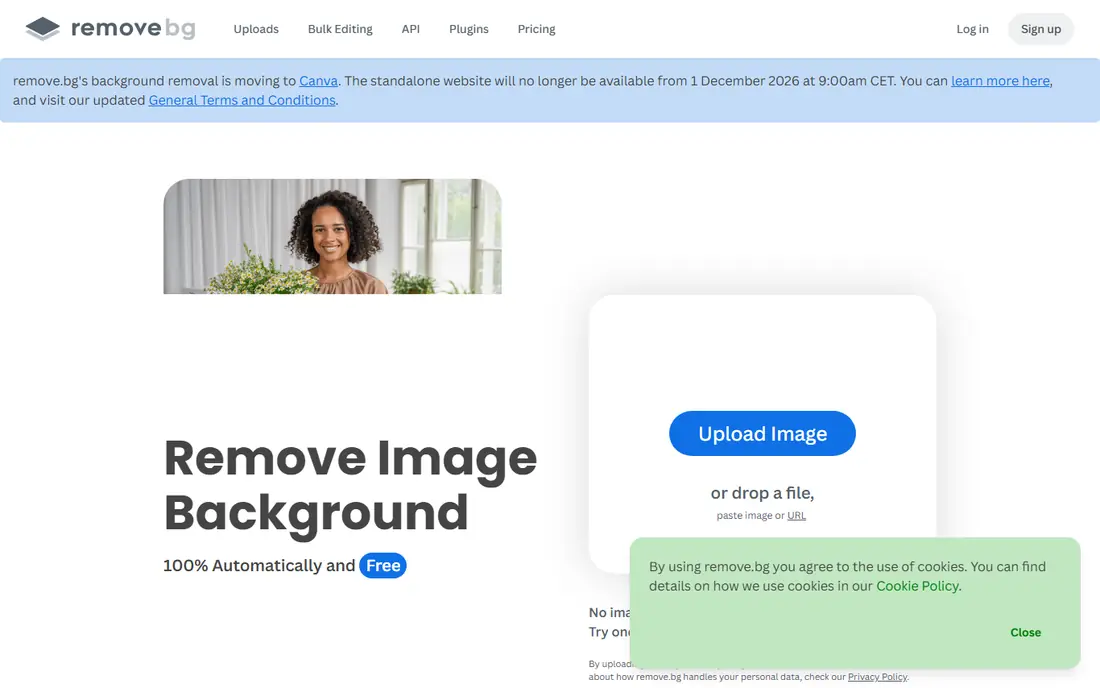
remove.bg is our pick when you need a clean cutout in seconds. Upload a photo, and the tool detects the subject and removes the background without sliders or brushes. It works well for people, pets and products with a clear subject, and it offers plugins and an API for teams that need cutouts inside another workflow.
The free tier is useful for testing, but full resolution downloads use credits, so shop owners should check credit pricing on the remove.bg site before batch work. Manual clean up is limited compared with a full editor, so a tricky edge may need another tool. For speed and simplicity, remove.bg is hard to beat.
- Very fast automatic cutouts
- Good edge detection for people and products
- API and batch options
- Free downloads are lower resolution
- Full resolution needs credits
- Manual editing tools are basic
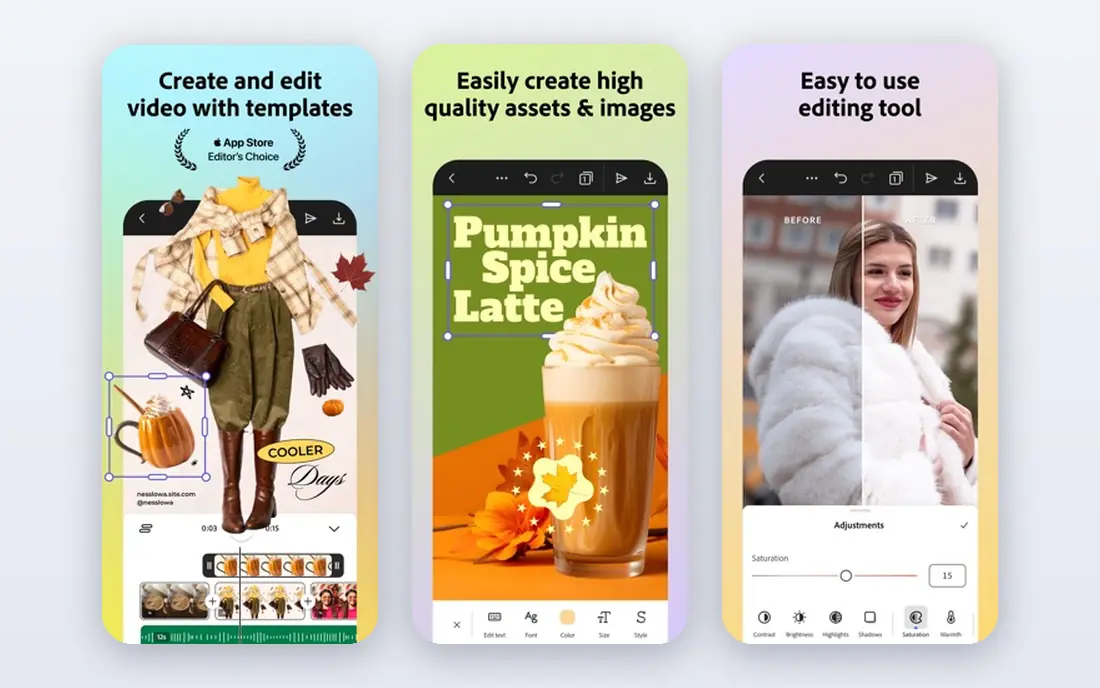
Adobe Express suits people who remove a background as one step in a larger design. You can cut out a subject, place it on a new background, add text, and export a social post or flyer without switching apps. Templates help non designers make a polished result quickly, and Adobe stock and fonts add options for marketing work.
Adobe Express is heavier than remove.bg if you only need a single cutout, and some features sit behind a paid plan. Pricing should be checked on the Adobe site. If your workflow ends with a design rather than a transparent PNG file, Adobe Express saves time by keeping cutout and design in one place.
- Background removal inside a full design tool
- Templates for social posts
- Good Adobe integration
- Best features need a paid plan
- Account needed
- Heavier than a one click tool
Canva is a strong pick for social media managers, teachers and small business owners who already design in Canva. The background remover, available on Pro plans, lets you cut out a subject and drop it into a post, presentation or product graphic in the same workspace. Team folders and brand kits help small teams keep designs consistent.
The catch is that background removal is a Pro feature, so free users cannot use it without upgrading. Pricing should be checked on the Canva site. For precise product cutouts at scale, a dedicated tool may give cleaner edges, but for everyday marketing design, Canva is convenient and familiar.
- Background remover inside a huge template library
- Easy team sharing
- Good export options
- Background remover needs a Pro plan
- Free tier is limited
- Less precise than dedicated editors
PhotoRoom is built for sellers who need clean product photos fast. You can remove a background, add a studio style background, resize for a marketplace, and process many images in a batch. The mobile app suits sellers who photograph stock on a phone and need listings ready the same day.
PhotoRoom is less useful for complex artistic edits or for people portraits that need fine hair detail. Free use has limits, and full features need a paid plan, so check pricing on the PhotoRoom site. For Etsy, eBay, Shopify or social shop sellers, PhotoRoom is one of the most practical tools on this list.
- Strong product photo templates
- Batch processing
- Good mobile app for sellers
- Free exports may carry limits
- Best for products rather than general photos
- Pricing varies by plan
Pixlr suits people who want a browser editor, not just a one click cutout. You can remove a background, then refine edges, adjust colour, add layers and export in common formats, all without installing software. That control helps when an automatic cutout leaves a rough edge or a stray background patch.
The free tier includes ads and limits, and a subscription removes those limits and adds more tools. Pixlr is not as fast as remove.bg for a single cutout, but it is more flexible when you need to fix the result. For students, bloggers and small teams that edit in a browser, Pixlr is a useful all rounder.
- Full browser editor with manual tools
- No install needed
- Good for quick fixes after a cutout
- Ads on free tier
- Advanced features need a subscription
- Interface can feel busy
Kapwing is a good pick for creators who need transparent backgrounds in video as well as images. You can remove a background from a clip, place a subject over new footage, add captions and export for social platforms. Collaboration tools let a team comment and edit the same project, which helps small video teams.
Free exports may carry a watermark, and paid plans remove it and raise limits, so check pricing on the Kapwing site. Kapwing is heavier than a photo only tool, and it is not the best choice for batch product photos. For creators who work in video and images together, it covers both in one workspace.
- Background removal for images and video
- Collaborative editing
- Good for creators
- Free exports may carry a watermark
- Video processing needs a good connection
- Pricing varies by plan
Fotor suits beginners who want a simple photo editor with background removal included. Upload a photo, remove the background, adjust brightness or colour, and export a result without learning a professional editor. Templates and collage tools add options for social posts and simple marketing images.
Fotor free use has limits on resolution and features, and a Pro plan removes many of those limits, so check pricing on the Fotor site. Complex edges such as hair or transparent objects may need manual work in a stronger editor. For quick, everyday cutouts and light edits, Fotor is friendly and fast.
- Simple background remover and photo editor
- Templates and collage tools
- Easy for beginners
- Free tier limits resolution and features
- Ads on free use
- Less precise for complex edges
Erase.bg is a straightforward option when you only need a transparent background and nothing else. Upload an image, get a cutout, and download it without learning an editor or building a design. It works well for profile photos, simple product shots and school or work graphics where speed matters more than fine control.
Erase.bg has fewer design and batch tools than PhotoRoom or Canva, and high resolution downloads may need credits depending on plan, so check the Erase.bg site before client work. For a quick free cutout with no fuss, it is a useful backup to remove.bg, especially when one tool struggles with a particular image.
- Simple upload and cutout flow
- Good for quick personal use
- Supports common image formats
- Fewer design tools than rivals
- High resolution may need credits
- Batch features are limited
How we picked these
We compared official product pages, free tiers, export options and editing features for transparent background tools that are actively available in 2026. We kept tools with a verifiable official homepage, a working background removal feature, and a clear use case for photos, products or design. We used See website for pricing where plans use credits, tiers or subscriptions that vary by use, rather than publishing a single price that would mislead readers.
We did not claim hands on lab testing with a fixed photo set. Our comparison draws on official pages, documentation and public reviews, and users should test a tool with their own photos, especially for hair, glass and busy backgrounds, before buying credits.
How to choose a transparent background tool
Start with what happens after the cutout. If you need a design, choose Canva or Adobe Express. If you need product listings, choose PhotoRoom. If you need one fast cutout, choose remove.bg or Erase.bg. If you need to fix edges, choose Pixlr or another editor with manual tools.
Check export size and licence
Before you pay, export a test image at the size you need for your shop, slide or print job. Check whether the free tier gives full resolution, whether a watermark appears, and whether the licence covers commercial use. For batch work, test ten images, not one, because edge quality can vary across a set.
Keep the original and check tricky edges
Always keep the original photo until the final export is approved. Zoom in on hair, fur, jewellery and glass edges, and check the cutout on both a light and a dark background, because flaws show differently on each. A tool that looks perfect on a simple portrait may struggle with a busy street scene.
Frequently asked questions
What is the best app for transparent background?
remove.bg is the best app for fast one click transparent backgrounds, while Canva and Adobe Express are better when you also need to design with the cutout. PhotoRoom is the best pick for product sellers who need batch cutouts and marketplace sizes.
What is the best free transparent background tool?
remove.bg, Erase.bg and Pixlr all offer free cutouts, but free downloads may be lower resolution or limited in number. Test your exact image size before relying on a free tier for shop or client work, and keep the original file in case you need a paid export later.
How do I make a background transparent in Canva?
In Canva Pro, select an image, open the background remover, and let Canva cut out the subject. You can then place the subject on a new background or download it as a PNG with transparency. Free Canva accounts do not include the background remover, so a Pro plan is needed.
Can I remove a background from a video?
Yes, Kapwing and some other creator tools offer background removal for video, although results depend on lighting, movement and background complexity. For a clean video cutout, film against a plain background where possible, and check the result frame by frame before publishing.
Why does my cutout look rough around hair?
Hair and fur are hard for automatic tools because fine strands blend with the background. Use a photo with good light and a plain background, try a second tool for comparison, and refine edges in an editor such as Pixlr when a perfect edge matters. Keeping the original lets you retry without losing quality.
Sources we checked (8)

Online Jobs is an independent blog about careers, online work, learning new skills and the tools that help people earn. More about us.
Keep reading
All posts
Zoom Alternatives
Zoom alternatives compared for 2026: Google Meet, Microsoft Teams, Webex, Jitsi and more for free calls, large meetings and webinars for teams and classrooms.

What Is the Best Free Tool to Rotate a PDF
What is the best free tool to rotate a PDF? We compare eight free rotation tools on per-page control, limits, privacy and saved output quality in detail.

What Is the Best AI Dubbing Tool
We compared the best AI dubbing tools in 2026, from ElevenLabs and HeyGen to Rask AI, Dubverse and Veed, for videos and creators in many languages worldwide.