Best Tools for Print Design in 2026: 9 Tools Compared


Professional print layout · Starting price: $22.99 per month
How we put this together: we compare official feature and pricing pages, app store listings, privacy policies and public user reviews. Prices change, so check the provider's site before you pay.
Key takeaways
- Professional print work still centres on layout software such as InDesign, Affinity Publisher and QuarkXPress, with vector and photo tools alongside.
- Affinity Publisher is now free, which makes it the strongest no budget pick for real layout work, while InDesign remains the industry standard for teams.
- Browser tools such as Canva and Marq suit marketing teams that need templates, brand control and collaboration more than fine typographic control.
- For print, check bleed, colour mode, resolution and export settings before you choose, since a tool that looks good on screen can still export poorly for press.
Quick comparison
| Name | Who it suits | Starting price | Free option | |
|---|---|---|---|---|
| Adobe InDesign | Professional print layout | $22.99 per month | Free trial | Visit |
 Affinity Publisher Affinity Publisher | Free professional layout | Free | Yes | Visit |
 QuarkXPress QuarkXPress | Long document print publishing | See website | Free trial | Visit |
 Canva Canva | Quick marketing print documents | Free | Yes | Visit |
 Scribus Scribus | Free desktop publishing | Free | Yes | Visit |
 Marq Marq | Team brand publishing | $10 per user per month | Yes | Visit |
 VivaDesigner VivaDesigner | Cross platform desktop publishing | See website | Yes | Visit |
 Swift Publisher Swift Publisher | Low cost Mac page layout | $19.99 one time | Free trial | Visit |
 Adobe Illustrator Adobe Illustrator | Vector artwork for print | See website | Free trial | Visit |
The best tools for print design
Print design is not the same as screen design. A flyer, brochure, magazine or book needs precise page layout, typography, colour handling, bleed and high resolution export, and the tool you choose affects all of those. This list covers professional layout apps, free alternatives, browser tools for teams, and vector software for artwork, so a solo designer, a small business and a publishing team can each find a fit. Prices reflect vendor pages checked during research, with See website where pricing was not confirmed.
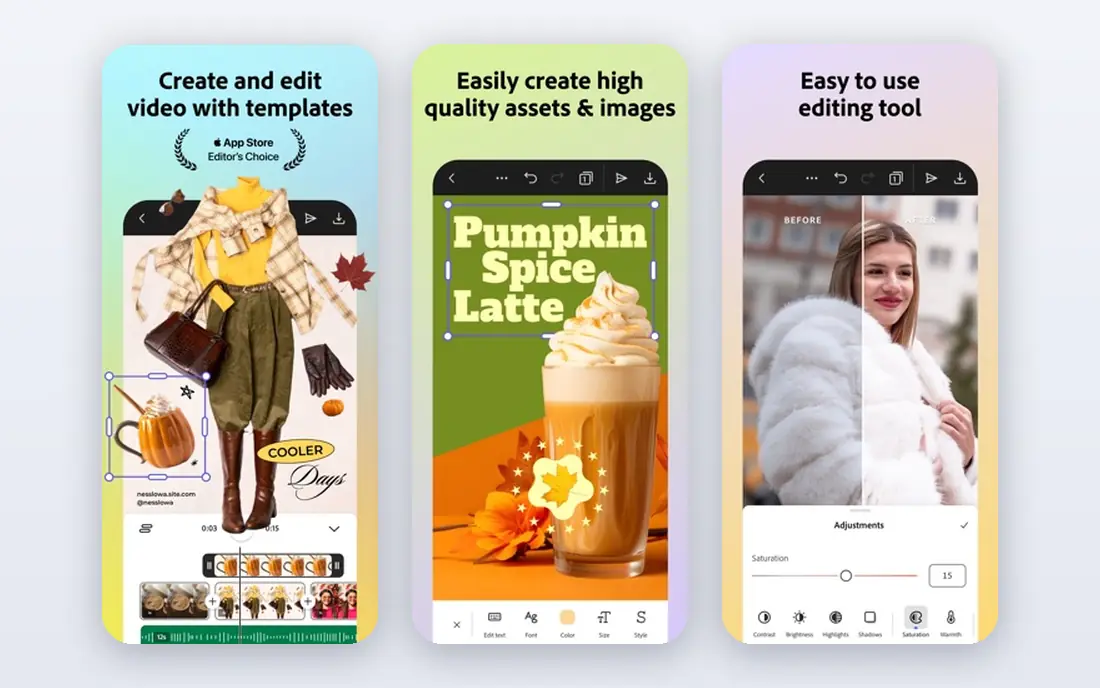
Adobe InDesign remains the professional standard for print layout, from magazines and books to brochures, posters and packaging layouts. Its typography controls, styles, master pages, long document handling and preflight checks are built for production work, where a small error in bleed, colour or fonts can ruin a print run. Integration with Photoshop for images and Illustrator for vector artwork keeps a full print workflow inside one ecosystem, which is why agencies and publishers standardise on it.
The cost and learning curve are real. If print is your job, or you collaborate with printers and agencies that expect InDesign files, that cost is justified. If you design print a few times a year, Affinity Publisher or Canva may serve you better.
- Industry standard for print layout
- Advanced typography and long document tools
- Strong integration with Photoshop and Illustrator
- Subscription cost adds up over time
- Learning curve is steep for beginners
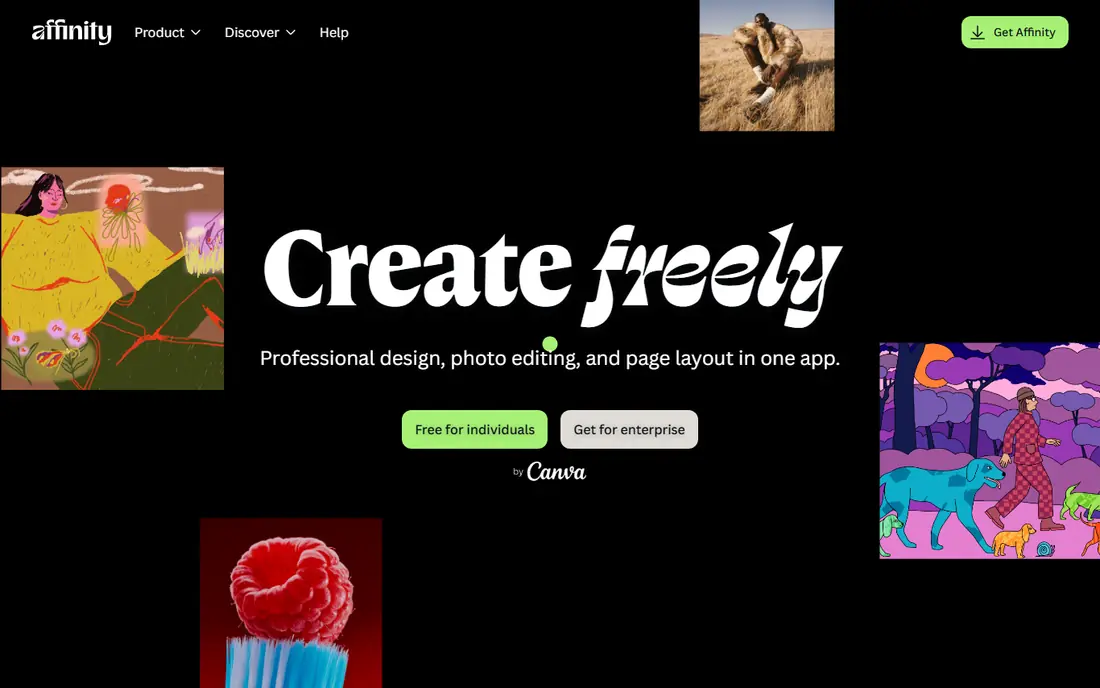
Affinity Publisher is the standout value pick in print design, because it offers professional page layout, typography and photo and vector editing integration without a subscription, and it is now free. You can build multi page documents, set up master pages and styles, place images, and export print ready PDFs, with a workflow that feels familiar to InDesign users. The StudioLink approach, which lets you switch to photo and vector personas inside the same app family, also reduces switching between separate editors for many jobs.
The limits are ecosystem, not core layout power. Adobe still leads for agency file exchange, certain plugins and long established publishing workflows, so a team that must deliver native InDesign files to a printer or publisher may still need Adobe. For most freelancers, small publishers and in house designers, Affinity Publisher now covers the job at no cost, which is hard to argue against. Try it on a real multi page project before deciding whether you still need InDesign.
- Professional layout tools without a subscription
- Now free under Canva ownership
- Works on Windows, Mac and iPad
- Smaller ecosystem than Adobe for plugins and agency file exchange
- Some advanced publishing workflows remain InDesign led
QuarkXPress was once the dominant page layout tool, and it remains a capable choice for print heavy teams, especially for long documents, books and multilingual publishing. For a publishing team with an established Quark workflow, switching to another tool would cost more time than it saves.
The trade off is community size. Quark has fewer tutorials, plugins and freelance users than Adobe or Affinity today, so hiring and troubleshooting can take longer. Pricing also varies by edition and region, so check the current vendor page rather than relying on older figures. Choose QuarkXPress if you already use it, or if your publishing work values its long document and multilingual strengths over the larger Adobe ecosystem.
- Long history in print publishing
- Strong typography and multilingual support
- Perpetual and subscription options in different markets
- Smaller community than Adobe or Affinity today
- Pricing varies and needs checking on the vendor site
Canva is the fastest route to a good looking flyer, poster, brochure or social print asset for a non designer or a busy marketing team. Templates, stock images, brand kits and drag and drop editing let you produce a document in an afternoon, and team plans add approvals, shared brand assets and collaboration in the browser. For small businesses that need consistent marketing material without hiring a designer for every job, that speed is the main value.
The limit is production depth. Canva does not match InDesign or Affinity Publisher for fine typography, long document handling, colour management or complex print export, and free plan exports may not meet a professional printer specification. Check bleed, colour mode and resolution settings before sending a Canva file to press, and ask your printer whether they accept Canva PDFs. For everyday marketing print, Canva is excellent. For a book, magazine or high end brochure, use a layout app instead.
- Huge template library
- Easy drag and drop design
- Brand kits and team collaboration on paid plans
- Fine typographic and print production control is limited compared with InDesign
- Free exports may not suit professional press work
Scribus is the only serious free desktop publishing app with real print ambitions, and it runs on Windows, Mac and Linux. It offers page layout, styles, colour management and PDF export, including print oriented PDF options, which makes it a genuine option for books, newsletters, zines and community publications on a zero budget. For educators, nonprofits and independent publishers, that combination of cost and capability is valuable.
The interface and learning curve are the price of free. Scribus feels more technical than Canva or Affinity Publisher, and beginners will need tutorials to set up styles, master pages and print export correctly. It also lacks the template library and cloud collaboration of browser tools. If you have time to learn it and a tight budget, Scribus can produce professional print work. If you need speed and templates, start with Canva or Affinity Publisher instead.
- Free and open source
- Runs on Windows, Mac and Linux
- Professional page layout and PDF export features
- Interface is less polished than paid rivals
- Learning curve is steeper for beginners
Marq, formerly Lucidpress, is built for teams that produce branded documents again and again, such as brochures, sales sheets, reports and presentations. Managers can lock brand elements, fonts and colours in templates, while team members edit text and images in a browser without breaking the design. That governance matters for companies where many people create documents, since it keeps print material consistent without routing every flyer through a designer.
The trade off is depth for artistic layout. Marq is not a replacement for InDesign or Affinity Publisher for a complex magazine, book or art led brochure, where fine typography and custom grids matter most. Its starting price of $10 per user per month on annual billing also adds up for a large team. Choose Marq when brand consistency and team speed matter more than bespoke layout, and pair it with a layout app for flagship print pieces.
- Browser based brand publishing
- Locked templates and brand controls
- Team collaboration and approvals
- Less suitable for fine art book or magazine layout
- Paid plans needed for full brand control features
VivaDesigner offers desktop publishing across Windows, Mac, Linux and the web, with a free edition for basic work and commercial editions for professional use. Its layout, typography and PDF export tools cover the core print jobs, from flyers to multi page documents, in a single application.
The community is smaller than Adobe, Affinity or Canva, so tutorials and templates are thinner, and commercial pricing should be checked on the vendor site for your edition. For a team that needs a layout tool on every system, or for a user who values a desktop and web hybrid, VivaDesigner is a practical alternative. For a solo designer on one system, Affinity Publisher usually offers more polish at no cost.
- Desktop and web versions
- Runs on Windows, Mac and Linux
- Free edition for basic use
- Smaller community and template library than larger rivals
- Commercial pricing needs checking on the vendor site
Swift Publisher is a low cost Mac page layout app that suits beginners who want to make flyers, brochures, newsletters and booklets without learning a professional tool. You can set up pages, add images and text, and export a PDF for printing without a subscription.
The limits are platform and depth. Swift Publisher is Mac only, so it cannot serve a mixed Windows and Mac team, and it does not match Affinity Publisher or InDesign for long books, complex typography or professional preflight. If you use a Mac, design print a few times a year, and want the simplest possible tool, Swift Publisher is good value. If you may switch systems or tackle a book, choose a cross platform layout app instead.
- Low one time cost
- Template driven and easy for Mac beginners
- Good for flyers, brochures and newsletters
- Mac only, so mixed system teams cannot use it
- Less powerful than InDesign or Affinity Publisher for complex books
Adobe Illustrator is not a page layout app, but it belongs on a print design list because most print projects need vector artwork: logos, icons, illustrations, packaging dielines and large format graphics that must scale without losing sharpness. Illustrator vector files stay crisp at any size, which matters for a logo that appears on both a business card and a banner, and its colour, stroke and export tools are built for print production.
The catch is role and cost. Illustrator alone will frustrate anyone trying to lay out a 100 page book, since that is InDesign work, and its subscription adds to the cost of a layout app if you need both. If you already use Adobe tools, Illustrator is the natural vector companion. If you only need occasional vector work, Affinity Designer, now free alongside Affinity Publisher, may cover the same jobs at no cost.
- Industry standard vector tools
- Scalable logos, illustrations and packaging artwork
- Strong print colour and export options
- Not a page layout tool for multi page books
- Subscription cost on top of a layout app can add up
How we picked these
We compared official product pages, pricing pages and public guides to desktop publishing and print design in October 2026, and we kept only tools that are live, maintained and clearly able to produce print oriented documents or artwork. We favoured tools with page layout, typography and print ready PDF export, or with vector tools essential to print artwork, and we mixed professional, free and browser options so different budgets and team sizes have a real choice. Where a price was not confirmed on the vendor site during research, we wrote See website.
How to prepare a file for print
Start with the printer, not with the tool. Ask for trim size, bleed, colour mode, resolution and file format before you design, since a file built for screen will not automatically print well. Set bleed, usually 3 millimetres or one eighth of an inch, so colour reaches the trimmed edge, use CMYK colour for press work where your printer asks for it, and keep images at 300 dots per inch at final size. Embed or outline fonts where the printer requires it, and check that small text stays readable after printing, not only on screen.
Export and proof carefully. Use a print ready PDF setting, run any preflight check your layout app offers, and print a test copy on paper before ordering a full run. Check margins, page order, image sharpness and colour on the test, since screen colours often look brighter than printed colours. A careful proof costs little compared with reprinting a brochure, magazine or book with a layout error.
Frequently asked questions
What is the best tool for print design for beginners?
Canva is easiest for quick marketing documents, while Affinity Publisher is best for beginners who want to learn real layout without paying. Canva wins on templates and speed, while Affinity Publisher wins on typography, multi page control and print export. Start with Canva for a single flyer, and move to Affinity Publisher if you design print regularly or tackle a brochure or booklet.
Is InDesign still the industry standard for print?
Yes, for professional publishing, agencies and print production teams, InDesign remains the standard, especially where files move between designers, editors and printers. Affinity Publisher now covers much of the same layout work for free, and QuarkXPress remains strong for some long document teams, but InDesign file exchange and ecosystem depth keep it first for many professional workflows.
Can I design for print for free?
Yes. Affinity Publisher is now free and offers professional layout, Scribus is free and open source for desktop publishing, and Canva offers a free plan for simpler marketing documents. Free tools can produce good print work, provided you set bleed, colour and resolution correctly and check the export with your printer. For complex books or agency work, a paid tool may still save time.
What is bleed in print design?
Bleed is extra artwork beyond the trim edge, usually 3 millimetres or one eighth of an inch, that ensures colour or images reach the edge after cutting. Without bleed, a small cutting shift can leave a white strip at the edge of a flyer or brochure. Set bleed in your layout app before you design, extend backgrounds and images into the bleed area, and keep important text inside the safe margin.
Should I use CMYK or RGB for print?
Use CMYK for most commercial press work when your printer asks for it, since presses print with cyan, magenta, yellow and black inks, while RGB is a screen colour mode. Many digital printers accept RGB and convert it, but conversion can shift colours, especially bright blues and greens. Ask your printer which mode they prefer, and proof colours on paper before a large run.
Do I need Illustrator as well as InDesign?
You need Illustrator, or another vector tool, if your print work includes logos, illustrations or packaging artwork that must scale cleanly. InDesign handles page layout and places vector artwork, but it is not a full vector drawing tool. If your work is mainly text and placed photos, a layout app alone may be enough, and Affinity Designer offers a free vector alternative for many jobs.
Sources we checked (8)

Online Jobs is an independent blog about careers, online work, learning new skills and the tools that help people earn. More about us.
Keep reading
All posts
Top Rated Poster Maker Software
Top rated poster maker software compared for 2026: Canva, Adobe Express, VistaCreate, PosterMyWall and more for events, sales and classrooms for US users.
Best Tools for Motion Design
Compare the best tools for motion design in 2026. We review 8 apps for 2D animation, 3D motion, interactive graphics, pricing and free plans. Start here.
Best Graphic Design Software
Compare the best graphic design software for logos, print, social posts and interface design, with free options and professional tools explained in 2026.