Best Tools for Creative Design in 2026: 9 Tools Compared

How we put this together: we compare official feature and pricing pages, app store listings, privacy policies and public user reviews. Prices change, so check the provider's site before you pay.
Key takeaways
- Canva is the fastest route to finished social posts, presentations and print files for people who do not want to learn a pro editor first.
- Adobe Photoshop and Illustrator remain the standard pair for photo work and vector work where print quality and file compatibility matter most.
- Figma is the clear pick for interface work and team review, while Affinity and Inkscape give strong pro options without a monthly subscription.
- Free plans are genuinely useful here, but premium templates, brand controls and some export options still sit behind paid plans.
Quick comparison
| Name | Who it suits | Starting price | Free option | |
|---|---|---|---|---|
 Canva Canva | Fast marketing graphics for non-designers | Free | Yes | Visit |
 Adobe Photoshop Adobe Photoshop | Photo editing and compositing | $22.99 per month | Free trial | Visit |
 Adobe Illustrator Adobe Illustrator | Logos and vector illustration | $22.99 per month | Free trial | Visit |
 Figma Figma | Interface design and team collaboration | Free | Yes | Visit |
 Affinity Affinity | Pro design without a subscription | Free | Yes | Visit |
 Inkscape Inkscape | Free vector editing on any desktop | Free | Yes | Visit |
 Adobe Express Adobe Express | Quick branded social content | Free | Yes | Visit |
 Sketch Sketch | Mac-based interface design teams | $9 per month | Free trial | Visit |
 CorelDRAW CorelDRAW | Print, sign and packaging production | See website | Free trial | Visit |
The best tools for creative design
Creative design covers more than one job, so the best tool depends on what you make most often. This list mixes template tools, photo editors, vector editors and interface tools, with prices checked against vendor pricing pages and app store listings in October 2026.
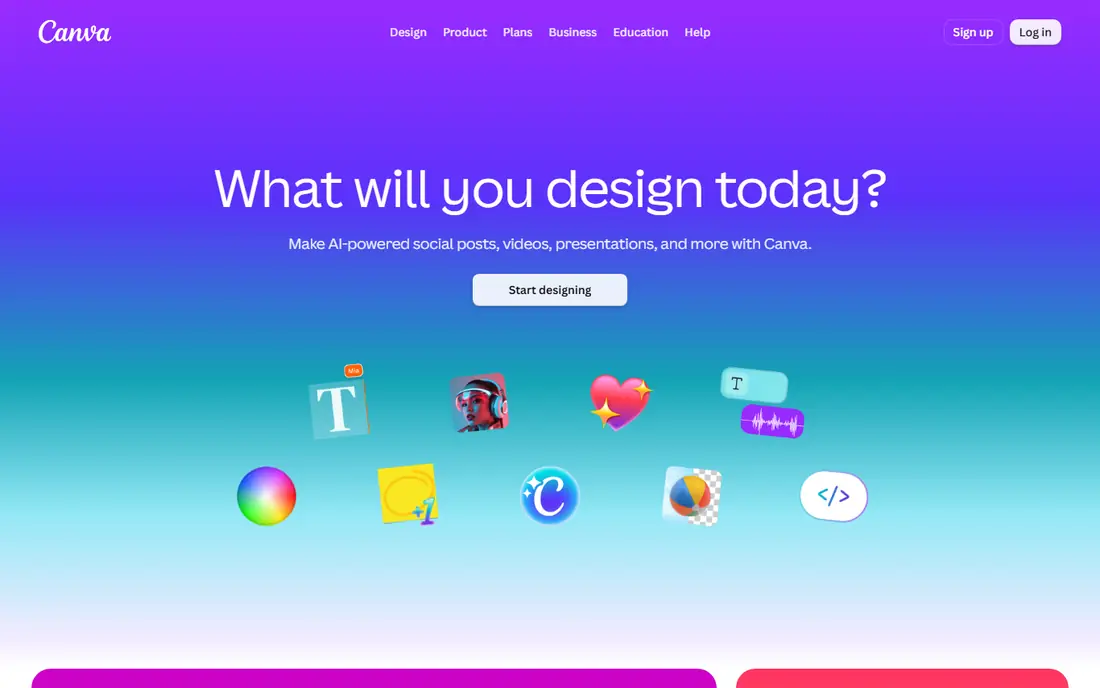
Canva wins on speed. A small business owner can pick a template, swap in their own photos and text, resize it for several social channels, and export it in one sitting. The free plan covers a lot of everyday work, including presentations, posters and social posts, and the editor runs in a browser so there is nothing heavy to install.
The catch is control. If you need exact print colour handling, complex vector paths or very custom layouts, Canva will feel limited next to Photoshop or Illustrator. Pro adds background removal, premium templates, brand kits and more storage, and at $144 per year in the United States it is easy to justify if you design every week. If you design only a few times a month, stay on the free plan and check each export for watermarked premium elements before you publish.
- Huge template library
- Drag-and-drop editing
- Brand kits and scheduling on Pro
- Less precise control than pro editors
- Premium elements can add cost on the free plan
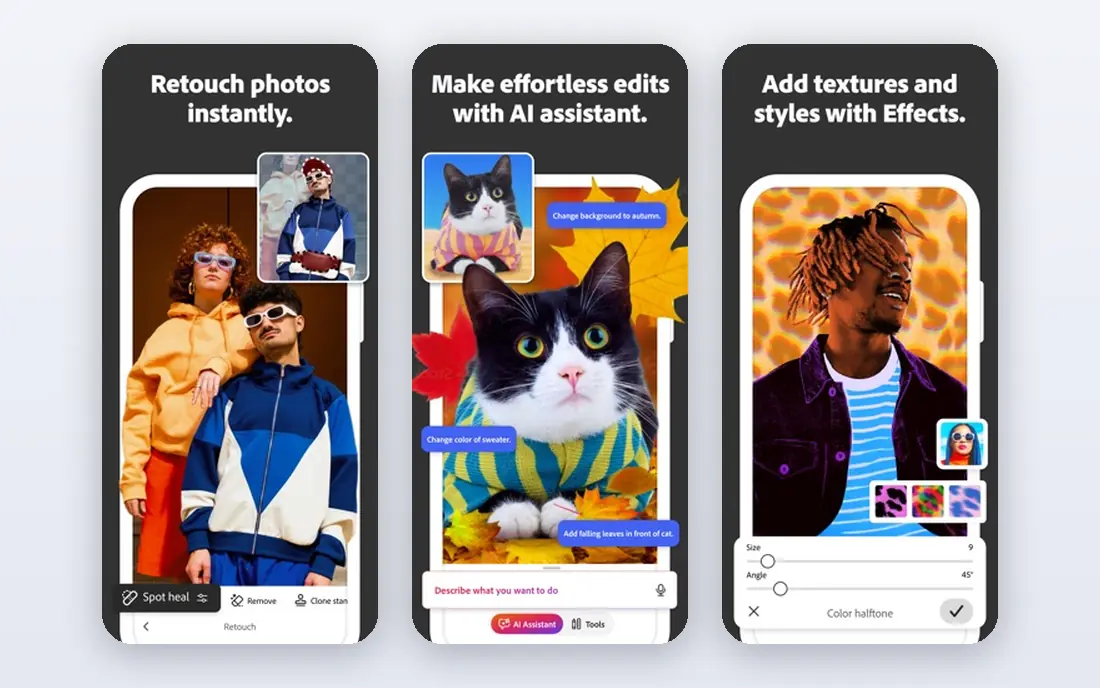
Photoshop is still the tool most photo professionals reach for when an image has to be cleaned up, combined or prepared for print. Layers, masks, selections and colour tools give precise control, and its file format is accepted almost everywhere in publishing and advertising. Recent generative fill features also speed up common jobs such as extending a background or removing an object.
That power comes with a learning curve and a monthly bill. Beginners can feel lost in the panels and menus, and the single-app price of $22.99 per month on an annual plan is hard to justify for occasional edits. Photoshop makes most sense when photo quality is central to your work, or when you already use other Adobe apps and want files that move cleanly between them.
- Deep photo retouching and compositing
- Wide plugin and file support
- Strong generative fill tools
- Subscription cost adds up
- Steep learning curve for beginners
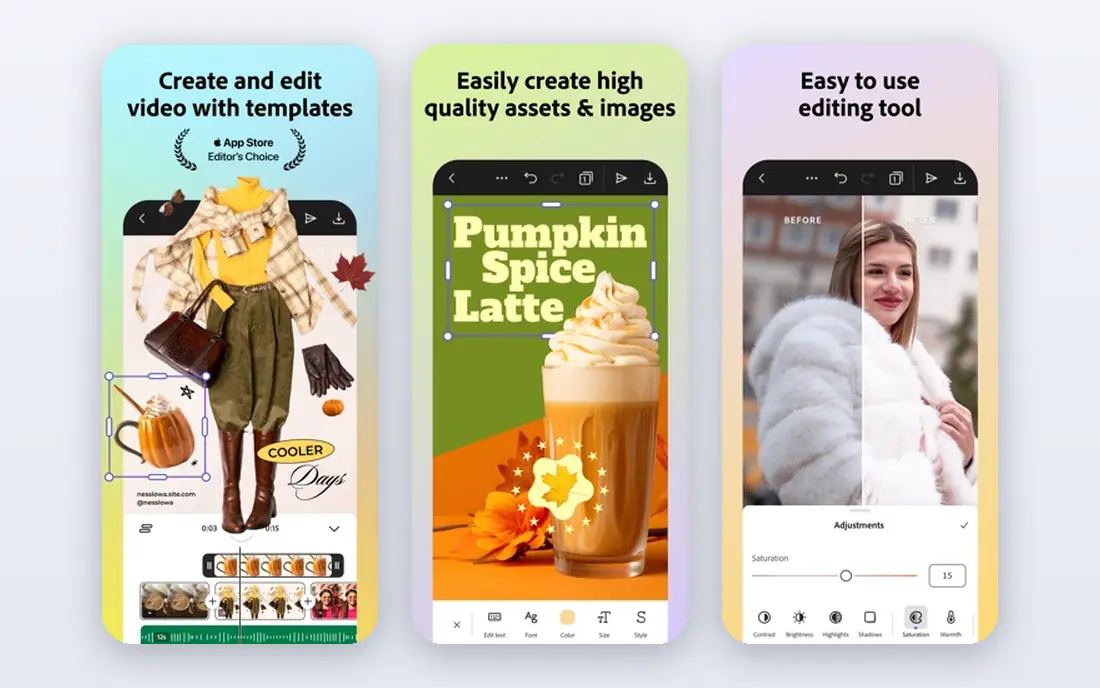
For logos, icons and illustrations that must stay sharp at any size, Illustrator is the reference tool. Vector shapes, pen tools and type controls let designers build brand marks that work on a business card and on a shop sign without redrawing. It also pairs well with Photoshop and InDesign for full brand and print projects.
Illustrator is not a quick template tool. Drawing with the pen tool takes practice, and the subscription price matches Photoshop, so buying both as single apps gets expensive fast. Many designers instead take the full Creative Cloud plan or pair Illustrator with a cheaper tool for everyday posts. Choose it when vector quality, print work or client file compatibility is the priority.
- Industry standard vector tools
- Scales cleanly from icon to billboard
- Strong print output
- Monthly subscription
- Overkill for simple social graphics
Figma changed how product teams design together. Several people can work in the same file, leave comments on exact frames, and share a live prototype link without exporting a stack of images. Components and styles keep buttons, colours and type consistent across screens, which matters once a product grows past a few pages.
The free Starter plan is enough for small personal projects and learning. Paid plans add more editors, shared libraries and advanced controls, starting at $16 per editor per month on annual billing according to vendor pricing pages. Figma is weaker for print work and heavy photo editing, so most teams still pair it with a raster or vector editor for final assets.
- Real-time collaboration in the browser
- Strong prototyping
- Large plugin and component libraries
- Needs an internet connection for full collaboration
- Less suited to print layout
Affinity covers design, photo and publishing in a linked set of apps, and its move to free access for individuals makes it one of the best value options in this list. Designer handles vector illustration, Photo handles raster editing, and Publisher handles multi-page layout, and files can move between them without a subscription hanging over every month.
The trade-off is ecosystem. Adobe still has more plugins, tutorials and agency workflows, and a client who insists on native Adobe files may need an extra export step. For freelancers, students and small studios who own their workflow, Affinity removes a recurring bill without removing pro features. Check the current terms on the vendor site, since business and education terms can differ from the individual offer.
- Professional vector, photo and layout tools
- No monthly fee for individuals
- Fast performance
- Smaller plugin ecosystem than Adobe
- Some client files still need Adobe for full compatibility
Inkscape is the free vector editor to try first if you cannot or do not want to pay. It handles SVG files natively, offers solid path, text and shape tools, and runs on all three major desktop systems. For logos, diagrams, stickers and simple illustrations, it covers the core job well.
You will notice the difference in polish. The interface is busier than Affinity or Illustrator, and there is no built-in template library or stock library to speed up marketing work. Community tutorials and extensions help, but you should expect more setup and searching. Inkscape is best for makers, open source fans and anyone who needs vector tools on a tight budget.
- Completely free and open source
- Strong SVG support
- Runs on Windows, Mac and Linux
- Interface feels less polished
- Fewer templates and stock assets built in
Adobe Express sits between Canva and the full Adobe apps. It gives you templates, Adobe fonts, stock photos and simple video tools in a browser or mobile app, and it is a natural fit if you already use Adobe assets. Making a branded post, story or short clip takes minutes rather than an afternoon of learning.
Depth is the limit. You cannot do the detailed retouching of Photoshop or the precise vector work of Illustrator inside Express, and the best brand and premium features sit on the paid plan at $9.99 per month in many listings. Pick Express when you want Adobe quality assets with Canva-like speed, and keep a pro editor for work that needs finer control.
- Simple templates with Adobe fonts and stock
- Quick resize and video basics
- Ties into Adobe libraries
- Less depth than Photoshop or Illustrator
- Premium plan needed for full brand controls
Sketch built its name on interface design for Mac teams, and it still appeals to designers who prefer a native desktop app over a browser tab. Symbols, libraries and prototyping cover most product design work, and developer handoff tools help engineers turn designs into code without a long export chain.
The Mac-only limit is real. If your team uses Windows or relies on browser-based review with outside clients, Figma will be easier to share. Sketch pricing starts at $9 per editor per month on monthly billing, with an annual option listed by the vendor, so check the current plan before you commit a whole team. It fits best in Mac-centred studios that value a focused, fast desktop workflow.
- Focused interface design tools
- Strong Mac app and libraries
- Clean developer handoff
- Mac only
- Smaller collaboration reach than Figma for mixed-platform teams
CorelDRAW Graphics Suite has long served print shops, sign makers and packaging teams. It combines vector illustration, layout, photo editing and typography in one package, with tools tuned for output to printers and cutters. That practical focus is why many production shops keep it even when they also use Adobe tools.
Pricing is the part to check carefully. The vendor lists subscription and one-time purchase options in different regions, with a subscription around $269 per year and a one-time price around $549 in recent listings, plus a free trial. If you work mainly for screen or in a Figma-led product team, CorelDRAW may feel like extra weight. If your work ends up printed, cut or packaged, its production tools earn their place.
- Strong vector and layout tools in one suite
- One-time purchase option in some listings
- Print shop friendly
- Less common in agency hiring briefs
- Pricing varies by purchase type and region
How we picked these
We compared official feature pages, pricing pages, app store listings, privacy and support pages, and public reviews for tools that cover the main creative jobs: templates, photo editing, vector illustration, interface design and print layout. We favoured tools that are still actively sold and supported in October 2026, that offer a usable free plan or trial, and that fit a clear audience rather than trying to do everything at once. Prices in this article are starting prices for individuals in the United States where the vendor publishes them, and they can vary by region, billing period and promotion. Where pricing was unclear or changed by region, we wrote See website rather than guessing a number.
What to check before you pay
Match the tool to the output, not the hype
Start from the file you have to deliver. Social posts and decks favour Canva or Adobe Express. Logos and print favour Illustrator, Affinity or CorelDRAW. App screens favour Figma or Sketch. Photo-led campaigns favour Photoshop or Affinity Photo. Buying a pro editor for template work wastes money and time, and buying a template tool for print work creates rework later.
Test the free plan on a real job
Use the free plan or trial for one actual project, not just a test canvas. Export the file, open it on another device, and check fonts, colours and image quality. That one test reveals template limits, export limits and collaboration gaps faster than any feature list.
Count the total cost
Add seats, storage, stock assets and extra apps. A cheap single-app price can grow quickly across a team, while a bundle can be cheaper if you truly use two or three apps in it. Check renewal prices too, since first-year offers often differ from the ongoing rate.
Frequently asked questions
What are the best graphic design tools for beginners?
Canva and Adobe Express are the easiest starting points, because templates and guided editing carry most of the early work. Inkscape and Affinity are good next steps when you want more control without jumping straight to a full Adobe subscription.
What is the best graphic design software free?
Canva, Figma, Affinity for individuals, Inkscape and Adobe Express all offer free access that covers real work, not just a demo. Canva is best for fast marketing graphics, Figma for interface work, and Inkscape for free vector editing.
What is the best free design app for social media?
Canva is our pick for most people, with a large template library and mobile apps that make posting quick. Adobe Express is a close second if you prefer Adobe fonts and stock, and both let you start free and upgrade only when brand tools matter.
What is the best graphic art software for illustration?
Illustrator remains the standard for professional vector illustration, Affinity Designer is the strongest no-subscription alternative, and Inkscape is the best free option. For hand-drawn illustration on iPad, a dedicated drawing app may suit you better than any tool on this list.
Should I pay for Adobe or use Affinity and Canva instead?
Pay for Adobe when clients require native Adobe files, when print quality is critical, or when you use several Adobe apps every week. Otherwise, a mix of Canva for speed and Affinity for pro work covers most small studio needs at a much lower ongoing cost.
Sources we checked (7)

Online Jobs is an independent blog about careers, online work, learning new skills and the tools that help people earn. More about us.
Keep reading
All posts
Zoom Alternatives
Zoom alternatives compared for 2026: Google Meet, Microsoft Teams, Webex, Jitsi and more for free calls, large meetings and webinars for teams and classrooms.
PowerPoint Alternatives
Compare the best PowerPoint alternatives, from free Google Slides and Canva to Prezi and Gamma, with prices, collaboration and export options covered.
Gmail Alternatives
Gmail alternatives compared for 2026: Proton Mail, Outlook, Tuta, Fastmail, Zoho Mail and more for privacy, business and cross-platform use for US readers.