Best Tool to Unblur Photos in 2026: 8 Tools Compared


Best desktop quality for blurry and noisy photos · Starting price: See website
How we put this together: we compare official feature and pricing pages, app store listings, privacy policies and public user reviews. Prices change, so check the provider's site before you pay.
Key takeaways
- Topaz Photo AI is our pick for the best overall quality on desktop, especially for noisy, soft or low-resolution photos.
- Remini is fastest for a quick phone fix, mainly for faces and old snapshots, but costs add up with regular use.
- VanceAI and PicWish suit browser-based work and small batches without installing software.
- Adobe Photoshop gives the most manual control, but it takes skill and a subscription to get the best from it.
- No tool can recover detail that was never captured, so set expectations before you pay for a large batch.
Quick comparison
| Name | Who it suits | Starting price | Free option | |
|---|---|---|---|---|
| Topaz Photo AI | Best desktop quality for blurry and noisy photos | See website | Free trial | Visit |
 Adobe Photoshop Adobe Photoshop | Manual control over difficult photos | $22.99 per month | Free trial | Visit |
 Remini Remini | Fast face fixes on a phone | See website | Yes | Visit |
 VanceAI VanceAI | Browser-based unblur without installing software | $9 per month | Yes | Visit |
 HitPaw FotorPea HitPaw FotorPea | All-in-one desktop photo enhancement | See website | Free trial | Visit |
 PicWish PicWish | Fast online enhancement in small batches | $6.99 per month | Yes | Visit |
 Cutout.Pro Cutout.Pro | Online unblur plus background and cleanup work | See website | Yes | Visit |
 Luminar Neo Luminar Neo | Creative editing with enhancement built in | See website | Free trial | Visit |
The best tools to unblur photos
Unblurring is not one job. A shaky phone photo, a soft portrait, a compressed screenshot and an old scan all need different handling. This list leans toward quality and control, with fast mobile and browser options for quick jobs, so you can match the tool to the photo in front of you.
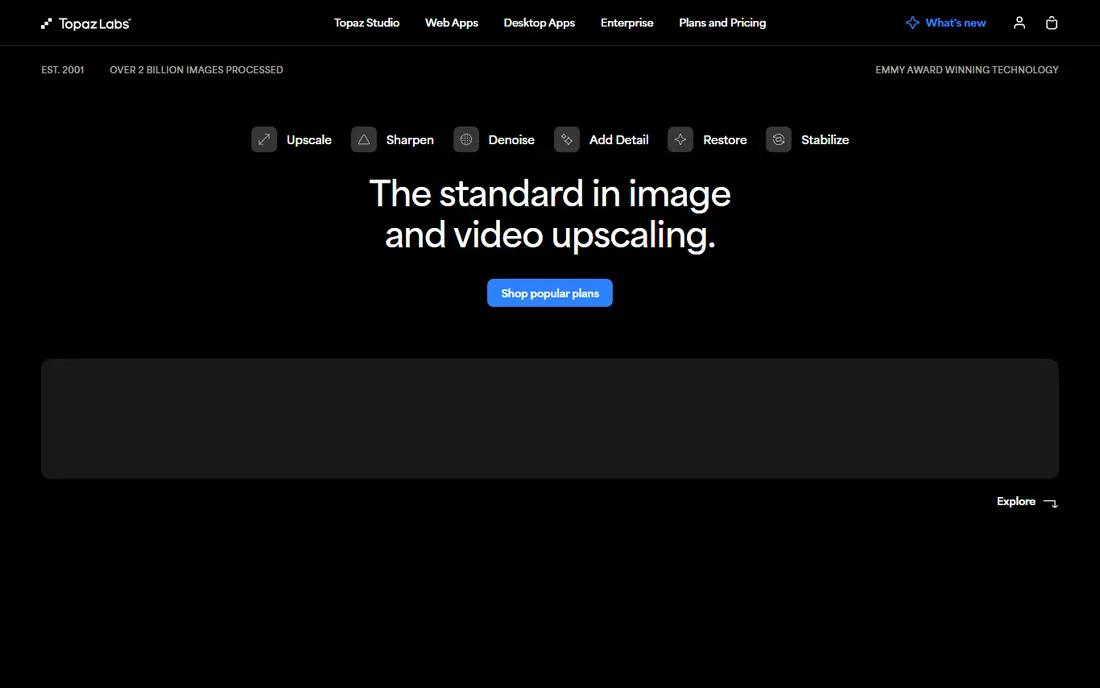
Topaz Photo AI is the tool photographers reach for when a photo matters. It combines sharpening, noise removal and upscaling in one app, and it lets you adjust strength rather than accepting a single automatic result. Face recovery can help soft portraits, while the sharpening models suit motion blur and missed focus better than a simple filter.
The price and hardware needs are the limits. The cost is hard to justify for one or two photos, and older computers may process slowly. For regular photo work, though, the control and output quality justify the cost, and the trial lets you preview results before you buy.
- Strong sharpening, denoise and face recovery
- Manual controls
- Works as a standalone app or plugin
- High yearly price
- Needs a capable computer
- Results vary on badly damaged photos
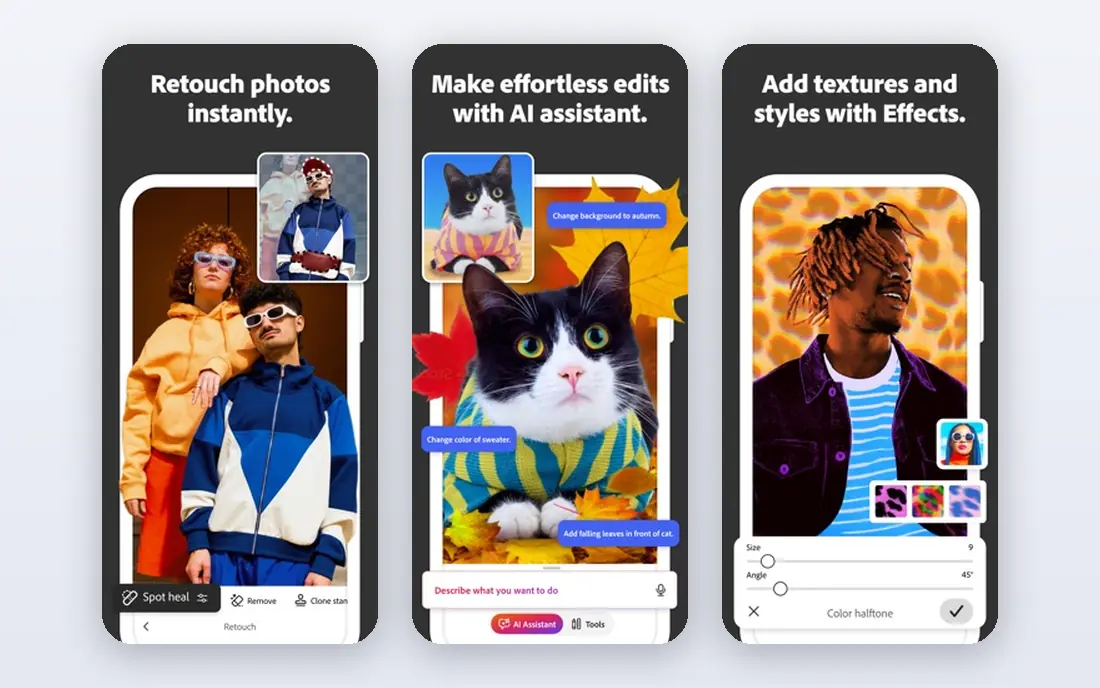
Photoshop does not offer a single unblur button that fixes everything, and that is also its strength. You can sharpen selectively, mask a face while leaving a background soft, and combine AI upscaling with manual retouching. For a photo with mixed problems, such as noise plus soft focus, that control beats a one-click tool.
The drawback is skill and price. Beginners may get better results faster from Topaz or Remini, and the monthly subscription adds up if you only edit photos now and then. If you already use Photoshop, though, its sharpening and upscaling tools are a strong reason to stay inside it for repair work.
- Full manual sharpening and masking
- Super Resolution for low-resolution files
- Huge editing toolkit
- Subscription cost
- Steep learning curve
- AI results still need judgement
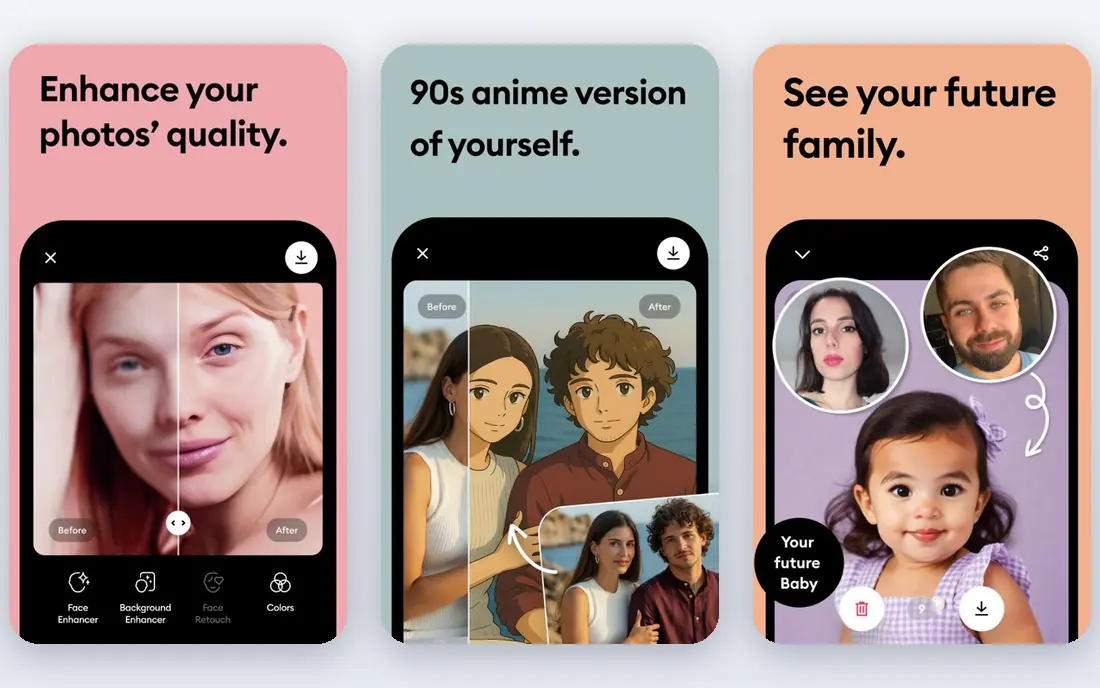
Remini became popular because it does one thing quickly: it makes a soft face look clearer on a phone. You upload a photo, wait a short time, and get a sharper version that often looks much better on a small screen. For old family snapshots and blurry selfies, that speed is hard to beat.
The limits are cost and control. Pricing varies by app store and plan, and frequent use can become costly. You also get fewer manual controls than a desktop app, so a photo that needs careful masking may still need Photoshop or Topaz. Use Remini for quick phone jobs, not for print work that needs fine judgement.
- Very fast on portraits
- Simple mobile workflow
- Good for old snapshots and selfies
- Pricing varies by platform
- Weekly costs add up
- Less control than desktop tools
VanceAI suits people who want to fix a few photos online without installing an app. Its web tools cover sharpening, upscaling and old photo restoration, and credits let you pay for the volume you actually process. A free tier lets you test results before committing to a plan.
Credit maths matters here. A large archive can burn through credits faster than expected, and some photos respond better than others to automatic processing. For occasional browser work and small batches, VanceAI is convenient and fairly priced. For heavy daily use, a desktop licence may work out cheaper.
- Works in a browser
- Credit-based plans
- Separate tools for sharpening and restoration
- Credits limit large batches
- Quality varies by photo type
- Desktop version is a separate product
HitPaw FotorPea, sold as HitPaw Photo AI in some listings, bundles several fixes into one desktop app. You can upscale a low-resolution photo, sharpen soft detail, improve a face and remove noise without switching tools. Batch processing helps when you have a folder of photos from one event or trip.
The main caution is price. Plans and terms vary, so check the current checkout price before you assume a monthly figure. Results also deserve a close look at full size, since AI sharpening can add texture that looks fine in a preview but odd in a print. For regular desktop enhancement, it is a capable all-rounder.
- Upscaling, sharpening and face enhancement in one app
- Batch processing
- Simple interface
- Pricing varies by plan and term
- Can feel costly for casual use
- Results need checking at full size
PicWish is a practical browser choice when you need a photo fixed in minutes. Upload, enhance, download, and move on, with batch tools for a set of similar photos. Extra tools for background removal and cleanup mean you can finish a product photo or social image in the same place.
It is not a replacement for Topaz on a difficult print file. Manual control is limited, and the free tier only covers a small daily amount. For web images, listings and social posts, PicWish offers a good balance of speed, price and simplicity.
- Quick browser workflow
- Batch enhancement
- Background and cleanup tools included
- Free tier is limited
- Less manual control
- Best for web use rather than large prints
Cutout.Pro is useful when an unblur job sits inside a larger edit. You might sharpen a product photo, remove its background and clean a blemish in one browser session, which saves time for sellers and content creators. The free tier lets you test the workflow before paying.
As with other credit-based web tools, check the plan that fits your volume, and do not expect it to rescue a photo with severe motion blur. For clean, web-ready images, it is a handy all-in-one option, especially when background work is part of the same task.
- Browser-based
- Combines enhancement with cutout tools
- Useful for product and portrait photos
- Credit and plan details vary
- Quality depends on the source photo
- No deep desktop editing
Luminar Neo is for photographers who want enhancement inside a broader editor. You can improve detail, adjust light and colour, and work on portraits without leaving the app. That makes it a good choice if unblurring is one step in a normal editing workflow rather than the whole job.
If you only need to fix blur, a dedicated tool such as Topaz will give you more focused controls. Luminar Neo also comes with licence options that need a careful read. For photographers who edit regularly, though, having sharpening and creative tools together is convenient and often cheaper than buying several separate apps.
- AI enhancement inside a full editor
- Portrait and detail tools
- Good for photographers who edit often
- Not a dedicated unblur tool
- Pricing varies by licence
- Can be more app than a casual user needs
How we picked these
We compared official product pages, pricing pages and app listings for tools that specifically offer sharpening, deblur or enhancement, not just general filters. We favoured tools that are still available, that show real examples of their work, and that cover desktop, browser and mobile use. We did not claim hands-on testing, and we avoided tools that only upscale without addressing blur or softness.
What to check before you pay
Start with the photo itself. Motion blur, missed focus, noise and heavy compression look similar at a glance but respond differently. A tool that excels at face recovery may do little for a moving subject, and a tool that upscales well may still leave text unreadable. Test with your worst photo, not your best one, and view the result at full size before you judge it.
Match the tool to the output
Ask where the photo will end up. A social post needs far less detail than a large print, and a quick mobile fix may be enough for the first case. For print, use a desktop tool with manual controls and check skin texture, hair and edges closely. AI tools can invent detail, so a result that looks sharp may not be accurate, which matters for documents, evidence or historical photos.
Watch credits, trials and file limits
Check whether a trial lets you save, how many credits a photo uses, and whether there is a file size or batch limit. Some free tiers add watermarks or cap daily use. For a large archive, work out the total credit cost first, and process a small test batch before you pay for the whole set.
Frequently asked questions
What is the best app to unblur photos on a phone?
Remini is the fastest phone option for faces and old snapshots. For more control on a phone, use a browser tool such as PicWish or VanceAI, then move to a desktop app if the result still looks soft.
What is the best free app to unblur photos?
PicWish, VanceAI and Cutout.Pro all offer free tiers, and Upscayl offers a free desktop upscaler, but free use is limited. For a single important photo, a free trial of a desktop tool often gives a better result than a free tier alone.
Can an online tool to unblur photos fix motion blur?
Sometimes, partly. AI sharpening can improve mild motion blur and missed focus, but severe blur removes detail that no tool can truly recover. Results will look sharper, yet fine detail may be guessed rather than restored.
Is Topaz Photo AI worth it for casual users?
Only if you edit photos often or have images worth printing. Casual users with a few phone photos will get better value from Remini, PicWish or VanceAI, and can use a Topaz trial for a single important file.
Why does my unblurred photo look odd at full size?
AI sharpening can add texture, smooth skin too much or create halos around edges. Zoom to full size, compare with the original, and lower the strength if faces or text start to look artificial.
Sources we checked (8)

Online Jobs is an independent blog about careers, online work, learning new skills and the tools that help people earn. More about us.
Keep reading
All posts
Zoom Alternatives
Zoom alternatives compared for 2026: Google Meet, Microsoft Teams, Webex, Jitsi and more for free calls, large meetings and webinars for teams and classrooms.

What Is the Best Free Tool to Rotate a PDF
What is the best free tool to rotate a PDF? We compare eight free rotation tools on per-page control, limits, privacy and saved output quality in detail.

What Is the Best AI Dubbing Tool
We compared the best AI dubbing tools in 2026, from ElevenLabs and HeyGen to Rask AI, Dubverse and Veed, for videos and creators in many languages worldwide.