Best Tool to Split PDF Files in 2026: 8 Tools Compared

How we put this together: we compare official feature and pricing pages, app store listings, privacy policies and public user reviews. Prices change, so check the provider's site before you pay.
Key takeaways
- iLovePDF is our pick for most people, because splitting by range or page is quick in a browser.
- PDFsam Basic is best for private files, since splitting happens locally on your computer.
- PDF24 Tools is a strong free option for frequent use, with online tools and a Windows app.
- Adobe Acrobat suits users who already pay for it and need reliable handling of large files.
- For sensitive documents, prefer a local tool over uploading to a website.
Quick comparison
| Name | Who it suits | Starting price | Free option | |
|---|---|---|---|---|
 iLovePDF | Quick browser splitting | Free | Yes | Visit |
 Smallpdf | Simple one-off splits | Free | Yes | Visit |
 Adobe Acrobat | Large and complex files | Free | Yes | Visit |
 PDF24 Tools | Free frequent use | Free | Yes | Visit |
 Sejda | Precise split options | Free | Yes | Visit |
 PDFsam Basic | Private local splitting | Free | Yes | Visit |
 PDFgear | Free desktop tools | Free | Yes | Visit |
 Lumin | Splitting inside an editor | Free | Yes | Visit |
The best tools to split PDF files
Splitting a PDF sounds simple, but tools differ on page control, file size limits, privacy, and cost. The tools below cover browser splitting, desktop splitting, and full editors, so you can match the tool to the file.
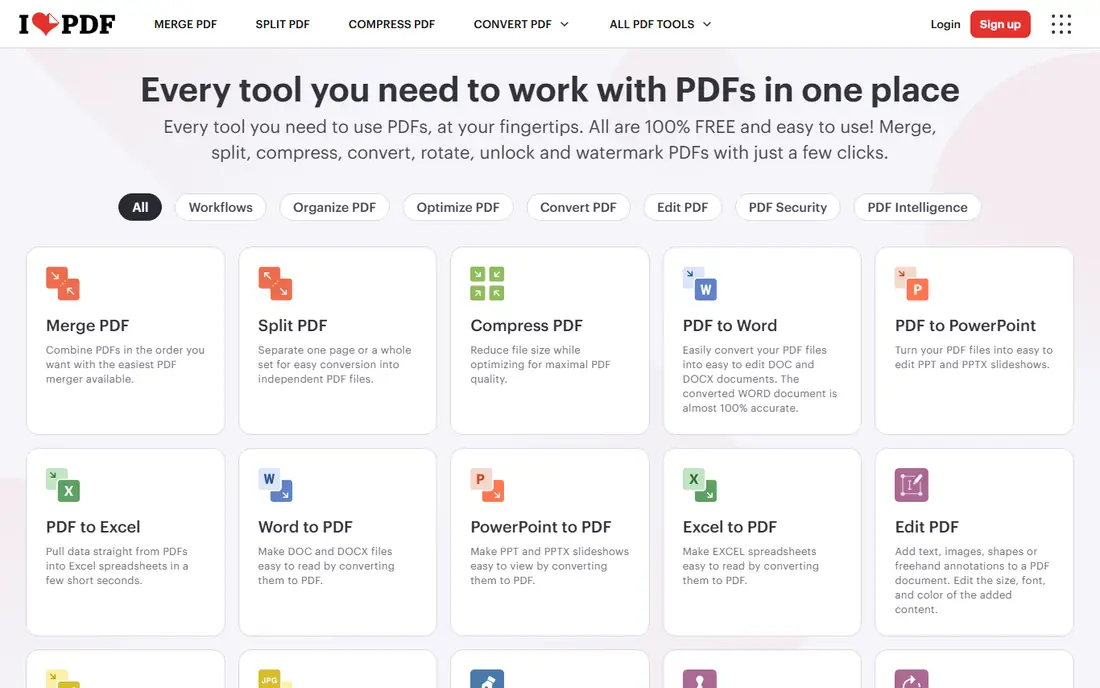
iLovePDF is the easiest starting point for a one-off split. Upload a PDF, choose custom ranges or split every page, preview the pages, and download the results. The interface is clear enough that a first-time user can finish a split in minutes, and the same site covers merging, compressing, and converting.
The limits are the usual online trade-offs. Free processing is capped, and files must be uploaded, which makes it a poor choice for sensitive contracts or medical records. For ordinary documents such as course handouts, reports, and forms, iLovePDF is our pick for speed and simplicity.
- Clear split by range or page
- Easy page selection
- Many related PDF tools
- Free use has processing limits
- Files are uploaded to a server
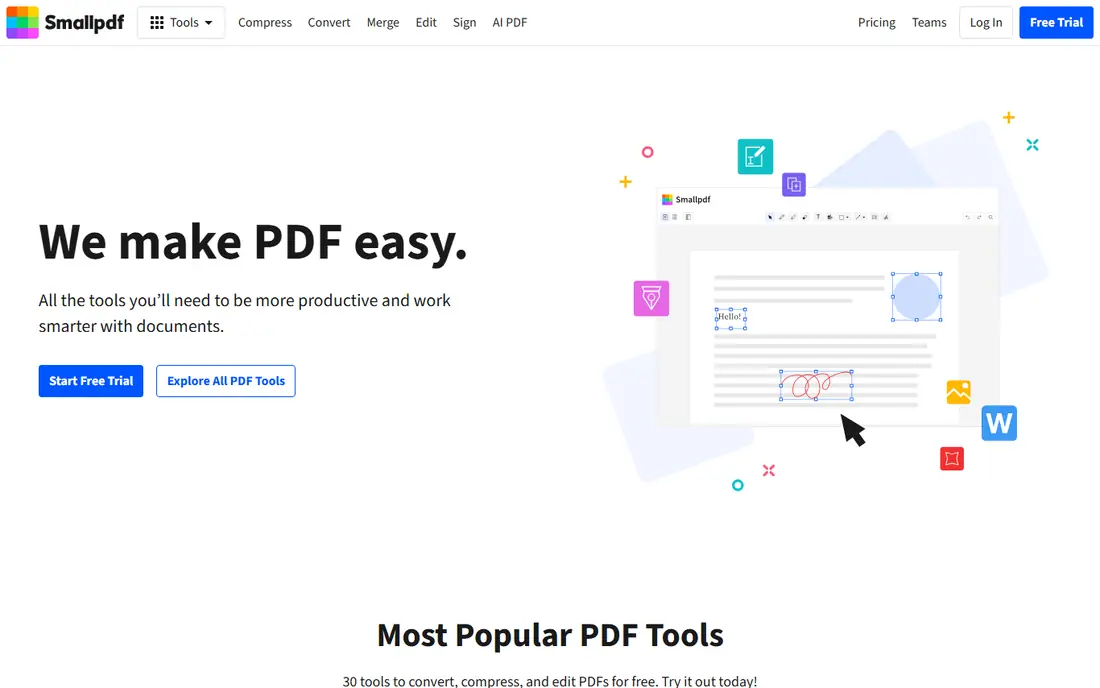
Smallpdf suits users who want a clean, guided split without extra options getting in the way. You can extract selected pages or split a document manually, then download the new files. The design is consistent across desktop and mobile browsers, which helps when a split is needed away from a main computer.
Free use is limited, so frequent users will hit a daily cap. That makes Smallpdf better for occasional jobs than for a daily workflow. If you split PDFs a few times a month and value a tidy interface, it is a solid choice.
- Simple page extraction
- Clean interface
- Works across devices
- Free use is limited per day
- Larger toolset needs a paid plan
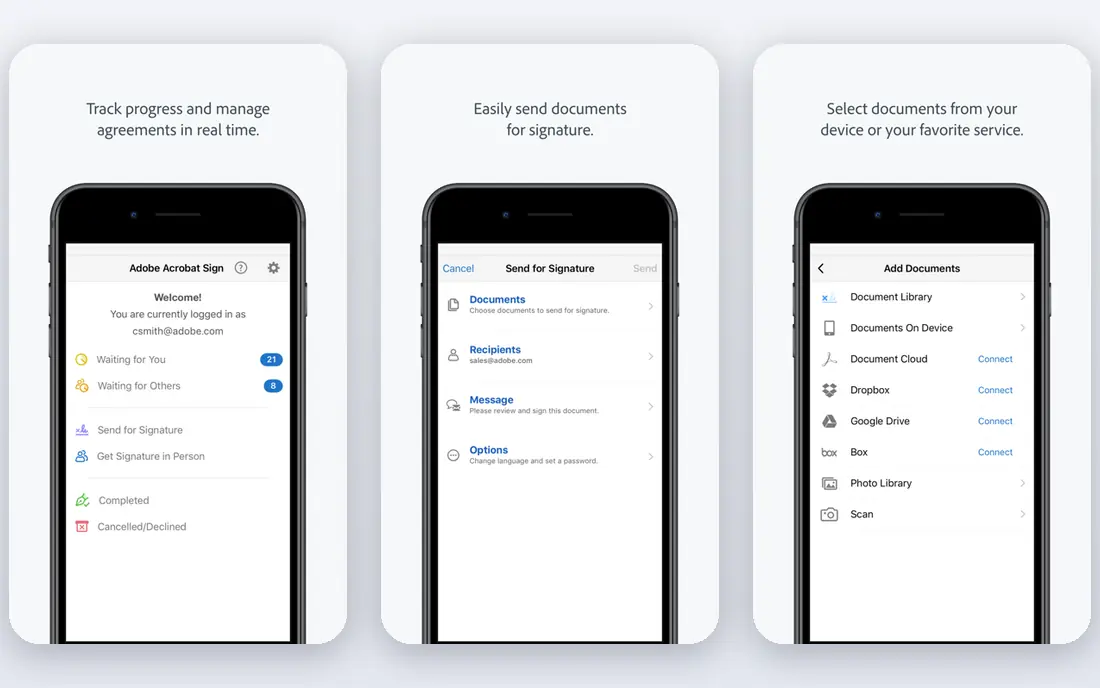
Adobe Acrobat is the heavy-duty option. The desktop app can split by page count, file size, or bookmarks, and it handles large, complex PDFs more reliably than most browser tools. For professionals who already use Acrobat for editing, signing, and form work, splitting is one feature inside a complete toolkit.
Cost is the barrier. The full app needs a subscription, and the free online tools cover only limited jobs. Users who only split a PDF occasionally should start with a free tool. Users who work with PDFs daily, or who need dependable results on large files, will find Acrobat worth the price.
- Reliable handling of large files
- Precise split controls
- Full PDF editor
- Full features need a subscription
- Online free tools are limited
PDF24 Tools stands out because its online tools are published as free without the tight daily caps found elsewhere. Splitting by page works in the browser, and Windows users can also install PDF24 Creator for offline work. That combination covers both a quick browser job and a regular desktop workflow.
The desktop app is Windows only, so Mac and Linux users are limited to the online tools. The design is also more functional than polished. For users who want a free tool they can return to often, without counting daily tasks, PDF24 is a strong pick.
- Free online tools
- Windows desktop app
- Broad PDF toolkit
- Desktop app is Windows only
- Interface is plainer than rivals
Sejda is for users who need more control than a simple page split. It can split by page ranges, every page, bookmarks, file size, and even text found in the document. That range helps with reports split by chapter, invoices split by section, and long documents that need a logical break rather than an arbitrary page count.
Free online use is capped by tasks per hour and file size, so it suits occasional precise jobs rather than bulk work. A desktop option exists for users who want to avoid some online limits. For a tricky split that other tools cannot express, Sejda is the tool we would try next.
- Split by range, page, bookmark, or size
- Text-based splitting
- Desktop option
- Free use has hourly and size caps
- Files are uploaded for online use
PDFsam Basic is our pick for sensitive files. It is free, open source, and runs on your computer, so a confidential PDF never needs to be uploaded to a website. Splitting options include page ranges, every set number of pages, bookmarks, and target file size, which covers most structured jobs.
The trade-off is convenience. You must install it, and the interface is plain compared with browser tools. For legal, medical, financial, or HR documents, that trade is worth it. If privacy matters more than speed, start here.
- Free and open source
- Splitting stays on your computer
- Split by page, bookmark, or size
- Needs a desktop install
- Interface is utilitarian
PDFgear offers a free desktop PDF toolkit that includes splitting, along with editing, converting, and annotation. That breadth helps users who split PDFs as part of larger document work, such as preparing handouts, forms, or reports. The apps run on major desktop and mobile platforms, so a split started on one device can be finished on another.
It is less of a pure online splitter than iLovePDF or PDF24, so users who want a quick browser job may prefer those. For users who want a free desktop app that does more than splitting, PDFgear is a practical choice.
- Free core tools
- Desktop and mobile apps
- Editing beyond splitting
- Some advanced features vary by platform
- Online tools are less central
Lumin suits users who split a PDF and then need to edit, annotate, or share it. The split tool sits inside a broader editor, so a document can be divided, marked up, and sent onward without switching apps. That workflow helps teachers, reviewers, and small teams who handle documents together.
Users who only need splitting may find Lumin more than they need, and some features sit behind paid plans. For document work where splitting is the first step, not the whole job, Lumin keeps the workflow in one place.
- Splitting plus editing and annotation
- Cloud document handling
- Collaboration options
- Paid plans needed for fuller toolset
- Splitting is one feature among many
How we picked these
We compared official feature pages, free-plan limits, and privacy models for each tool. We favoured tools that are still maintained, offer clear split controls such as page ranges and every-page splits, and state their free limits plainly. We also included both online and local tools, since privacy and file size change which model fits.
We did not claim hands-on tests on every file type. Instead, we weighed split controls, limits, platform support, and whether files must be uploaded. Free limits and prices change, so check the vendor page before relying on a tool for a large or urgent job.
How to choose the right PDF splitter
Start with privacy. If the file contains personal, legal, medical, or financial details, use a local tool such as PDFsam Basic or a desktop app, and avoid uploading it. For ordinary public documents, a browser tool is faster and needs no install. That single decision narrows the list quickly.
Match the split type to the document
Page ranges suit chapters and sections, every-page splits suit forms and certificates, and bookmark or size splits suit long reports. Check that the tool supports your split type before uploading or installing, since some simple tools only extract selected pages.
Check file size and page limits early
Free online tools often cap file size, page count, or daily tasks. A tool that works for a ten-page handout may fail on a 500-page report. For large files, a desktop tool such as Acrobat, PDFsam, or PDF24 Creator is usually more reliable.
Keep the original until you check the output
Download the split files, open each one, and confirm pages are complete and in order. Splitting can drop a page or cut a section if ranges are entered wrong. Keeping the original until the check is done avoids a costly rework.
Frequently asked questions
What is the best tool to split PDF files?
iLovePDF is the best tool for most people, because browser splitting by range or page is quick and clear. PDFsam Basic is better for private files, and PDF24 Tools is better for frequent free use.
What are the best tools to split PDF files for free?
iLovePDF, PDF24 Tools, PDFsam Basic, and PDFgear all offer free splitting. PDF24 and PDFsam are the strongest free choices for frequent or private work, while iLovePDF is easiest for a quick job.
Can I split a PDF without uploading it?
Yes. PDFsam Basic and desktop apps such as PDF24 Creator and Adobe Acrobat split files locally on your computer. Browser tools normally upload files for processing, so avoid them for sensitive documents.
How do I split a PDF by page range?
Open a splitter, upload or open the PDF, select the pages or ranges you want, and download each new file. Tools such as iLovePDF, Sejda, and PDFsam let you enter ranges such as pages 1 to 10, then 11 to 20.
Can I split a PDF on a phone?
Yes, browser tools such as iLovePDF, Smallpdf, and PDF24 work on mobile browsers, and some vendors offer mobile apps. Splitting large files is easier on a desktop, but small splits work fine on a phone.
Does splitting a PDF change its quality?
Splitting normally keeps page content as it was, since it divides pages rather than re-creating them. Check the output pages after a split, especially for scanned PDFs or files with complex formatting, before deleting the original.
Sources we checked (8)

Online Jobs is an independent blog about careers, online work, learning new skills and the tools that help people earn. More about us.
Keep reading
All posts
Zoom Alternatives
Zoom alternatives compared for 2026: Google Meet, Microsoft Teams, Webex, Jitsi and more for free calls, large meetings and webinars for teams and classrooms.
Which Software Is Best for Data Entry
Compare the best data entry software for forms, OCR scanning, and spreadsheets, with free plans, pricing, and honest limits for each tool before you commit.
What Is the Best Free Tool to Rotate a PDF
What is the best free tool to rotate a PDF? We compare eight free rotation tools on per-page control, limits, privacy and saved output quality in detail.