Best Tool to Resize Video Without Losing Quality in 2026: 9 Tools Compared

How we put this together: we compare official feature and pricing pages, app store listings, privacy policies and public user reviews. Prices change, so check the provider's site before you pay.
Key takeaways
- No tool can resize a video with zero quality loss if it re-encodes, but good tools keep the loss invisible by using efficient codecs and sensible settings.
- HandBrake is our pick for most people, since it is free and gives full control over codec, resolution, and quality.
- Kapwing, VEED, and Clideo are fastest for social resizing in a browser, while DaVinci Resolve suits creators who also edit.
- For the best quality at a smaller size, use H.265 or AV1 when your audience devices support them, and keep the frame rate unchanged.
- Always compare a short test export with the original before processing a full project, since settings that look fine on paper can soften detail.
Quick comparison
| Name | Who it suits | Starting price | Free option | |
|---|---|---|---|---|
 HandBrake | Free desktop resizing with full control | Free | Yes | Visit |
 Kapwing | Browser resizing for social platforms | Free | Yes | Visit |
 VEED | Browser resizing with quality slider | Free | Yes | Visit |
 Clideo | Quick online resizing without install | Free | Yes | Visit |
 Clipchamp | Windows users who want simple resizing | Free | Yes | Visit |
 DaVinci Resolve | Creators who edit and resize in one app | Free | Yes | Visit |
 Adobe Media Encoder | Professional batch resizing | See website | Free trial | Visit |
 Movavi Video Converter | Simple desktop conversion and resizing | See website | Free trial | Visit |
 FFmpeg | Scripted batch resizing for advanced users | Free | Yes | Visit |
The best tool to resize video without losing quality
Resizing usually means changing resolution, aspect ratio, or both, and the quality question comes down to codec, bitrate, and how much the tool lets you control them. The tools below cover browser, desktop, and professional workflows, and we compared official feature pages, pricing, and format support to build the list.
HandBrake is the tool we recommend first for resizing without visible quality loss, because it gives you the controls that matter and costs nothing. You can pick a modern codec such as H.265, set constant quality instead of a fixed bitrate, keep the original frame rate, and preview the result before a full encode. Its presets cover phones, tablets, and streaming platforms, so a beginner can start with a preset and adjust from there.
The honest catch is the learning curve. HandBrake exposes a lot of settings, and a wrong choice, such as a low bitrate or a mismatched frame rate, will soften a video fast. Start with a preset, change only resolution and quality, and test a short clip. Once you know those two controls, HandBrake is hard to beat for quality per file size.
- Free and open source
- H.264, H.265, VP9, and AV1 support
- Batch queue and presets
- Interface can intimidate beginners
- Output limited to MP4 and MKV
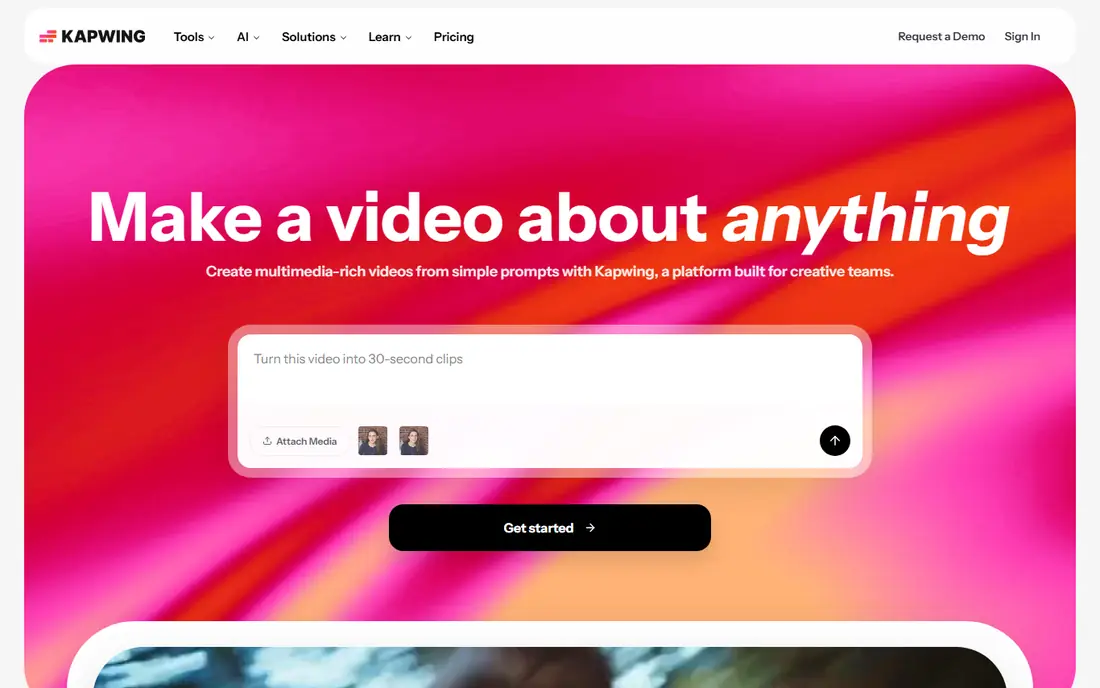
Kapwing is the fastest browser option for resizing a video to fit Instagram, TikTok, YouTube, or a stream layout. Its resize tool offers aspect ratio presets and choices such as fit to center, fill and crop, and speaker focus, so you can adapt one video to several platforms without rebuilding the edit. For a social media manager handling daily clips, that speed is the main appeal.
The trade-off is quality control and watermarks. Browser tools re-encode on export, and free Kapwing exports may carry a watermark, so check the export terms before publishing client work. For quick social clips, Kapwing is excellent. For a final master file, a desktop encoder such as HandBrake gives finer control.
- Aspect ratio presets for every social platform
- Fit, fill, and crop options
- No install needed
- Free exports may carry a watermark
- Large files upload slowly
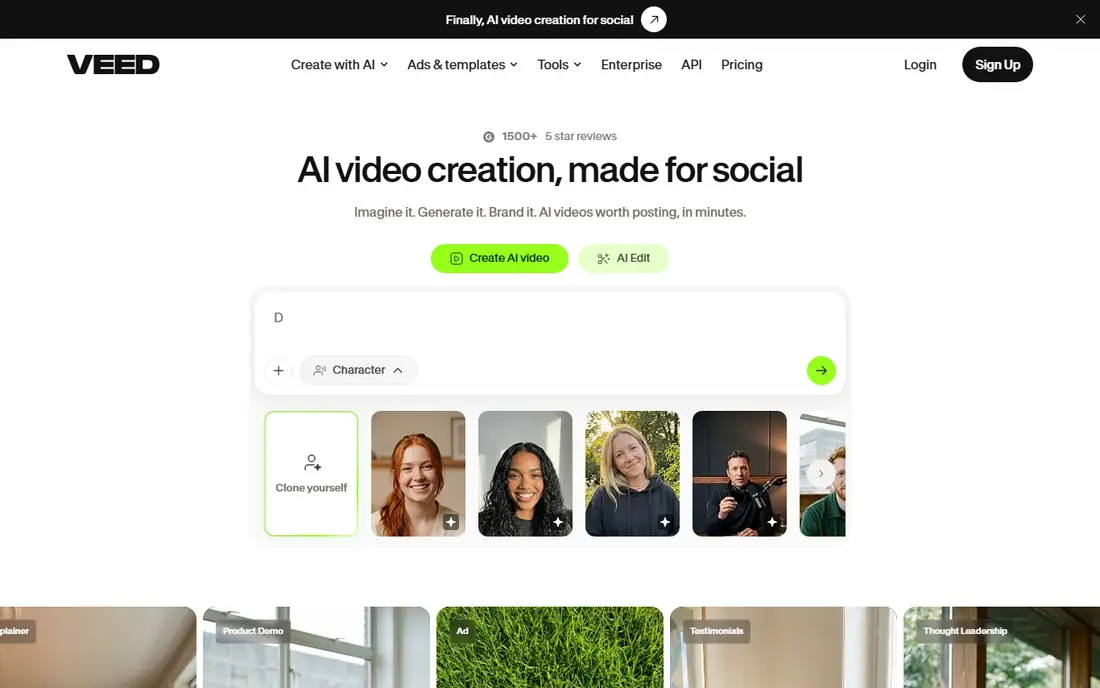
VEED stands out among browser tools because its compressor shows file size estimates as you move the quality slider, which makes the quality-versus-size trade visible before you export. You can also pick a lower resolution directly, such as moving from 4K to 1080p, and adjust advanced settings for resolution and bitrate. Free compression covers files up to 1GB, which handles most social and marketing clips.
The catch is the same as with other browser tools: large files take time to upload, and watermark-free exports with larger limits require a paid plan. For a quick resize of a finished clip, VEED is one of the easiest tools to use well. For a library of large masters, a desktop tool is faster.
- Simple compression slider with live file size estimate
- Broad format support
- Free compression up to 1GB
- Paid plan needed for larger files and watermark-free exports
- Browser upload time for big files
Clideo is the simplest tool on this list, and that simplicity is the point. Upload a video, pick a new size or aspect ratio, and download the result, all without installing software. For a one-off resize of a phone clip or a presentation video, Clideo gets the job done with the least friction.
The honest weakness is control. Clideo offers fewer codec and bitrate settings than HandBrake or DaVinci Resolve, so a picky creator will notice less room to protect detail. Free exports may also carry a watermark, so check the output before using it publicly. Use Clideo for speed, and a desktop encoder when quality is the priority.
- Very simple resize workflow
- No software to install
- Works on any device
- Fewer quality controls than desktop tools
- Free exports may carry a watermark
Clipchamp is a good fit for Windows users who want to resize without learning a new professional tool. It ships with Windows 11, offers a browser-based editor with drag-and-drop simplicity, and exports at 720p or 1080p on the free tier. For trimming, resizing, and sharing a clip quickly, it is more than enough.
The catch is codec control. Clipchamp does not let you pick codecs or fine-tune quality settings the way HandBrake does, so a creator chasing the smallest file at the best quality will hit limits. Premium features also arrive through Microsoft 365. Use Clipchamp for everyday resizing, and HandBrake when you need precise control.
- Included with Windows 11
- Simple drag-and-drop editing
- Export at 720p or 1080p on the free tier
- Limited codec control
- Premium features require Microsoft 365
DaVinci Resolve is a full professional editor, and it earns a place here for creators who resize as part of editing rather than as a separate step. Its export controls cover resolution, codec, bitrate, and frame rate, and its color tools help a resized video keep its look. The free version is unusually capable, which makes it a strong choice for a YouTuber or filmmaker who already edits in Resolve.
The downside is weight. Resolve is a large download with real system requirements, and opening it just to resize one clip is overkill. If you already edit in Resolve, resize there. If you only need resizing, HandBrake is faster and lighter.
- Professional editing and color tools
- High-quality export controls
- Free version is very capable
- Heavy download and system requirements
- Overkill for a simple resize
Adobe Media Encoder is the professional choice for batch resizing, especially for teams already editing in Premiere Pro or After Effects. You can build presets, queue dozens of files, and use watch folders that encode new files automatically, which saves hours on a series or a campaign. Its codec and quality controls are thorough, and output is consistent across a batch.
The honest catch is cost and context. Media Encoder is a subscription product, and it makes most sense inside a Creative Cloud workflow. A solo creator who only resizes occasionally will get the same visible quality from HandBrake for free. Choose Media Encoder when batch volume and Adobe integration justify the subscription.
- Deep preset and watch-folder support
- Integrates with Premiere Pro and After Effects
- Reliable batch processing
- Subscription pricing
- Best value only inside a Creative Cloud workflow
Movavi Video Converter
Who it suits: Simple desktop conversion and resizing
Movavi Video Converter suits beginners who want a desktop tool without HandBrake's learning curve. Its interface is straightforward, device presets cover phones, tablets, and TVs, and batch conversion handles several files at once. For a user who resizes family videos or course clips and wants a clean workflow, Movavi is an easy recommendation.
The trade-off is price and depth. Full use requires payment, the trial has limits, and codec controls are thinner than HandBrake's. If you are willing to learn two settings in HandBrake, you can match Movavi's quality for free. If you prefer a guided interface and do not mind paying, Movavi is the friendlier path.
- Simple interface for beginners
- Device presets
- Batch conversion
- Paid product for full use
- Trial limits apply
- Less codec depth than HandBrake
FFmpeg is the engine behind many tools on this list, and advanced users can use it directly for total control. A single command can resize, change codec, preserve frame rate, and process hundreds of files in a script, which makes it the best choice for automated workflows and servers. It supports modern codecs including H.265 and AV1, and its scaling filters are high quality when set correctly.
The catch is the interface. FFmpeg is command-line only, and a poorly chosen command can degrade quality badly, so it suits users who are comfortable reading documentation and testing settings. For everyone else, HandBrake offers the same engine with a safer interface. Use FFmpeg when automation matters more than convenience.
- Free and open source
- Total control over codec, filters, and scaling
- Ideal for automated batches
- Command-line only
- Steep learning curve
- Easy to pick poor settings
How we picked these
We compared official feature pages, pricing, and format support for tools that resize video while giving the user real control over quality. We favored tools that support modern codecs, let you keep the original frame rate, and offer presets or quality controls rather than only a single export button. Free tools that are genuinely usable made the list alongside paid professional tools, and where a price could not be confirmed from the vendor, we used See website.
Resizing without visible quality loss
The core rule is simple: change as little as possible besides size. Keep the frame rate the same, avoid re-encoding twice, and start from the highest-quality source file you have, not from an already compressed copy. When you must shrink a file, prefer a modern codec such as H.265 over H.264 at the same quality, and use constant quality settings rather than a low fixed bitrate that starves complex scenes.
For aspect ratio changes, decide between cropping, padding, and fitting before you export. Cropping fills the frame but cuts content, padding with bars preserves everything but adds empty space, and fitting with a blurred background is a popular compromise for social video. Whichever you choose, check faces, text, and captions at the final size, since a crop that looks fine on a desktop preview can cut a headline on a phone.
A practical test routine
Export a 10-second test clip with your chosen settings, then compare it with the original on the screen where viewers will watch it. Look at faces, fine text, and fast motion, which show compression problems first. If the test looks clean, run the full export. If it softens, raise quality or switch to a more efficient codec before committing to a long encode.
Frequently asked questions
Can you resize a video with truly zero quality loss?
Only in limited cases, such as changing container format without re-encoding or cropping with a lossless codec, and those cases rarely shrink a file much. In practice, good resizing means loss that viewers cannot see, achieved with efficient codecs and sensible quality settings.
Which codec is best for resizing without losing quality?
H.265 is a good default for smaller files at high quality with broad device support, and AV1 can go smaller still where devices support it. H.264 remains the safest choice for maximum compatibility, at the cost of larger files.
Should I change the frame rate when resizing?
Usually no. Keep the original frame rate unless you have a specific delivery requirement, since changing it can introduce judder or soften motion. Resolution and codec are the settings to adjust first.
Is an online resizer as good as a desktop tool?
For quick social clips, yes, and tools such as Kapwing and VEED handle that job well. For masters, large files, or precise quality control, a desktop tool such as HandBrake or DaVinci Resolve gives better settings and avoids upload time.
Why does my resized video look blurry?
Common causes are a bitrate set too low for the resolution, a second re-encode from an already compressed source, or upscaling a low-resolution clip to a larger size. Start from the best source, use constant quality, and avoid upscaling beyond the original resolution.
Sources we checked (9)

Online Jobs is an independent blog about careers, online work, learning new skills and the tools that help people earn. More about us.
Keep reading
All posts
Zoom Alternatives
Zoom alternatives compared for 2026: Google Meet, Microsoft Teams, Webex, Jitsi and more for free calls, large meetings and webinars for teams and classrooms.

Which Software Is Best for Data Entry
Compare the best data entry software for forms, OCR scanning, and spreadsheets, with free plans, pricing, and honest limits for each tool before you commit.

What Is the Best Free Tool to Rotate a PDF
What is the best free tool to rotate a PDF? We compare eight free rotation tools on per-page control, limits, privacy and saved output quality in detail.