Best Tool to Extract PDF Pages in 2026: 9 Tools Compared

How we put this together: we compare official feature and pricing pages, app store listings, privacy policies and public user reviews. Prices change, so check the provider's site before you pay.
Key takeaways
- For a one-off job, a free online extractor from iLovePDF, Smallpdf, Lumin, or Foxit is enough, and you do not need to install anything.
- For sensitive documents, pick a tool that processes files in your browser or a desktop editor, so the file never sits on a remote server.
- Page selection matters more than branding, so check that a tool lets you pick single pages, ranges, and non-consecutive pages before you rely on it.
- Desktop editors from Adobe, Foxit, and Sejda suit repeat work, batch jobs, and files that need editing after extraction.
Quick comparison
| Name | Who it suits | Starting price | Free option | |
|---|---|---|---|---|
 iLovePDF | Quick online extraction | Free | Yes | Visit |
 Smallpdf | Simple online PDF work | Free | Yes | Visit |
 Adobe Acrobat | Desktop editing plus extraction | See website | No | Visit |
 Sejda | Browser and desktop PDF tools | Free | Yes | Visit |
 PDF24 Tools | Free desktop and online tools | Free | Yes | Visit |
 Lumin | Free online extraction and editing | Free | Yes | Visit |
 Foxit | Free online tool plus desktop editor | Free | Yes | Visit |
 PDF Candy | Broad free online PDF toolkit | Free | Yes | Visit |
 PDF2Go | Online extraction with editing options | Free | Yes | Visit |
The best tool to extract PDF pages
Extracting pages sounds simple, but the right tool depends on privacy, file size, and how often you do it. The picks below cover free online tools for quick jobs and desktop editors for repeat work, so you can match the tool to the document in front of you.
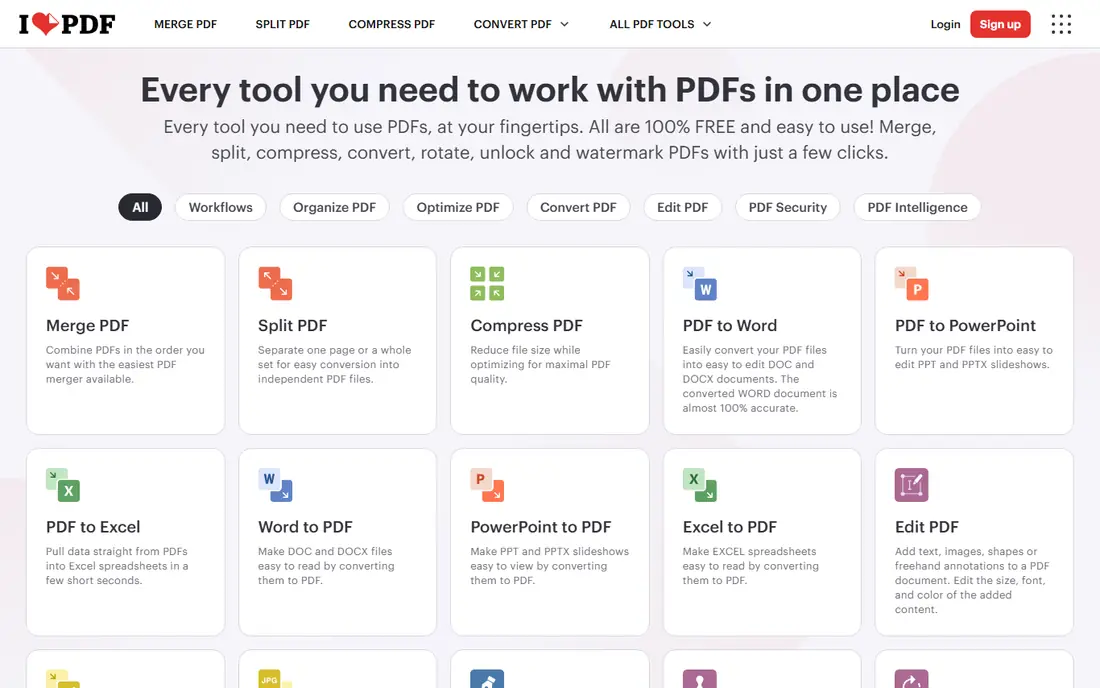
iLovePDF is the tool many people open first for a reason, which is that the workflow is obvious. Upload a PDF, tick the pages you want, and download a new file with only those pages. That simplicity suits office staff, students, and anyone who needs a chapter or a form page sent onward without the full report.
The limit to respect is privacy and volume. Free accounts face task and size limits, and files are processed online, so avoid uploading contracts or medical records unless you have checked the retention policy. For everyday reports and course material, it is a fast and reliable first pick.
- Clear page selection by range or single pages
- Fast for small and medium files
- Other PDF tools in the same account
- Free use has limits on file size and tasks
- Sensitive files are uploaded to a server
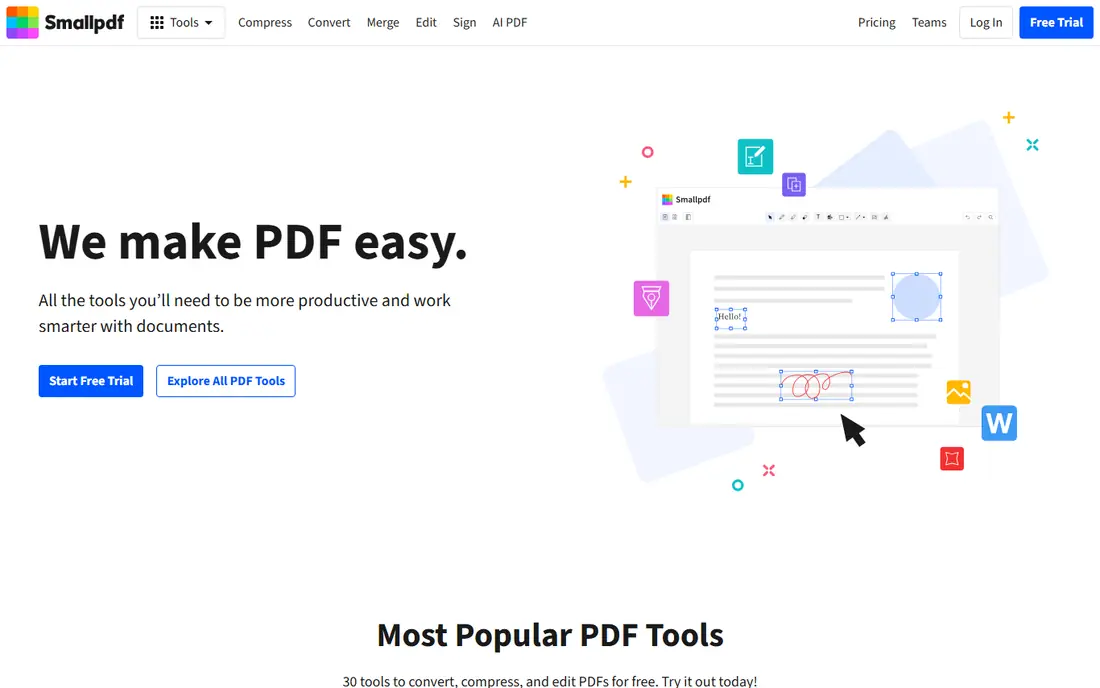
Smallpdf takes a similar approach to iLovePDF but with a calmer interface that some users prefer. You can extract pages, split a file, or compress the result without learning a full editor, and the steps read clearly on a phone as well as a desktop. That makes it useful for quick fixes away from your main computer.
Free use is limited, so a person who extracts pages all day will hit the cap. It is also an online service, so the same privacy caution applies as with other upload based tools. For occasional use, though, the free tier handles the core job well.
- Clean interface for splitting and extracting
- Works in any browser
- Pairs extraction with compression and conversion
- Free plan limits daily tasks
- Larger files may need a paid plan
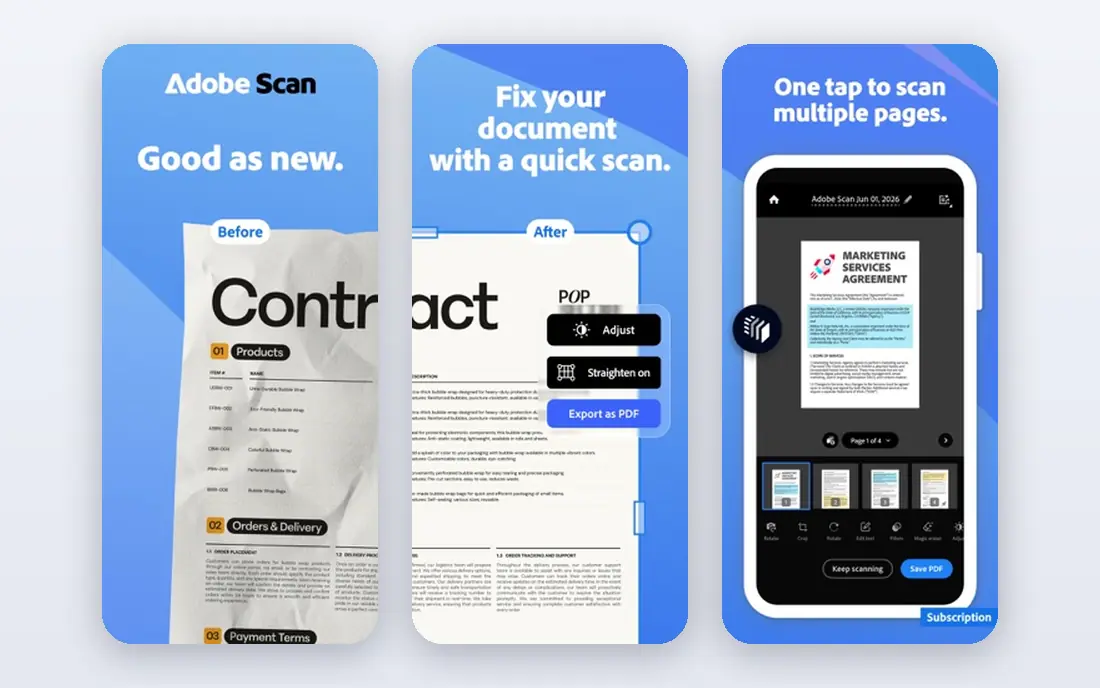
Adobe Acrobat is the pick when extraction is one step in larger PDF work. You can extract pages, reorder them, edit text, add signatures, and prepare a file for print in one program, and large or complex files tend to behave well. Offices that already pay for Acrobat should use it rather than adding another tool.
The downside is cost and weight. A person who only needs to pull two pages from a report once a month does not need a full Acrobat subscription. Choose Acrobat when PDF work is weekly, when files are large, or when accuracy for forms and print output matters.
- Full PDF editor with page organization
- Handles large and complex files
- Trusted format handling for forms and print
- Paid subscription
- Heavier than a simple extractor
- Online version needs an account for some tasks
Sejda bridges the gap between a quick online tool and a desktop editor. The online version handles extraction with clear thumbnails, so picking non-consecutive pages is easy, and the desktop version lets you work offline when privacy or file size matters. That mix suits freelancers who move between home and client offices.
Free online limits apply, and heavy users will need a paid plan. Still, Sejda is a strong middle choice, since it covers extraction, editing, and signing without forcing you into a large subscription on day one.
- Page extraction plus editing and signing tools
- Desktop version for offline work
- Clear page thumbnails
- Free online use has hourly and file limits
- Some features need a paid plan
PDF24 Tools is a useful pick for people who want free PDF work without an account for every task. The online tools cover extraction, splitting, merging, and compression, and the desktop Creator gives an offline option for Windows users. That combination keeps costs at zero for many common jobs.
The interface will not win design awards, and advanced editing is thinner than in Acrobat. For extraction itself, though, PDF24 does the job cleanly, and the free desktop option is a real advantage for sensitive or large files.
- Wide free toolkit online and on desktop
- No account needed for many tasks
- Good for repeat extraction
- Interface is functional rather than polished
- Some tools are simpler than paid editors
Lumin presents extraction as a free browser task, which makes it easy to recommend for a quick job. You can pull pages or ranges, keep the original look of the document, and export the result as a single file or separate files. The mobile app also helps when the document arrives on a phone.
As with other online tools, privacy is the main caution. Lumin states that files are encrypted during processing, but a highly sensitive document still belongs in a desktop editor. For course notes, reports, and public documents, Lumin is a fast free option.
- Free page extraction in the browser
- Keeps original formatting on extracted pages
- Mobile app for on the go work
- Files are processed online
- Advanced editing and team features need paid plans
Foxit gives you two paths, which is why it fits many readers. The free online tool extracts selected pages in a browser, and the desktop Foxit PDF Editor handles offline extraction and batch tasks for repeat work. That pairing suits a team that sometimes needs a quick extract and sometimes needs a full editing session.
The free online tool is best for single files rather than large batches, and the full desktop feature set needs a paid licence. If you already use Foxit at work, though, extraction is already in your toolkit, and there is no need to add another service.
- Free online extraction with page selection
- Desktop editor for offline and batch work
- Files deleted after online processing per its policy
- Desktop editor is paid for full features
- Online tool suits single jobs better than batch work
PDF Candy is a good generalist pick when extraction is part of a chain of tasks. You can extract pages, then compress the result, convert it, or merge it with another file without switching sites. The workflow is simple, and the free tier covers occasional use well.
Heavy users will meet free limits, and sensitive documents still call for a desktop tool. For students and office users who handle varied PDF tasks through the week, PDF Candy keeps the whole chain in one place.
- Many PDF tools in one free site
- Simple extraction workflow
- Useful for conversion and compression after extraction
- Free use has limits
- Online processing means privacy care for sensitive files
PDF2Go rounds out this list for users who pull pages from files stored in cloud drives. You can open a file from Dropbox or Google Drive, extract the pages you need, and download the result without moving files around on your computer. Rotation and basic editing sit in the same workflow, which saves steps.
The free tier limits file size and tasks, so large or frequent jobs may need a paid plan. It is still a solid choice for occasional cloud based work, as long as sensitive documents go to a desktop editor instead.
- Extract, split, rotate, and edit pages online
- Works from cloud storage
- No install needed
- Free use has file and task limits
- Upload based processing needs privacy care
How we picked these
We compared official tool pages, free plan limits, and privacy notes for PDF extractors, and we kept tools that let users select specific pages and download a new PDF with only those pages. We left out tools that only split a file into fixed chunks without page choice, tools that required payment for a single extraction, and tools whose sites did not load. Where paid pricing varied, we used See website rather than a guessed figure.
How to extract pages safely and cleanly
First, decide where the file should be processed. For public reports, course material, and marketing PDFs, an online tool is fine. For contracts, medical records, financial statements, and anything with personal data, use a desktop editor or a browser based tool that processes the file on your device, and delete the original upload copy if the service keeps one.
Next, check your page selection twice. Tick single pages and ranges carefully, and preview the result before sending it on, since an extra page can share more than you meant to share. Keep the original file unchanged, and save the extracted file under a clear name that shows which pages it holds.
Finally, think about file size and sharing. Compress the extracted file if it will go by email, and confirm that links, bookmarks, and form fields survived if the recipient needs them. A quick open and scroll through the new file catches most errors before they reach someone else.
Frequently asked questions
What is the best free tool to extract PDF pages?
iLovePDF, Smallpdf, Lumin, and Foxit all offer free online extraction, and PDF24 Tools adds a free desktop option. Pick based on privacy needs and how often you extract, rather than branding alone.
Can I extract pages without uploading my file?
Yes, with a desktop editor such as Adobe Acrobat, Foxit PDF Editor, Sejda Desktop, or PDF24 Creator, the file stays on your computer. Some browser tools also process files locally, so check the tool description before uploading a sensitive file.
What is the difference between extracting and splitting a PDF?
Extracting creates one new PDF with only the pages you chose, while splitting breaks a file into several PDFs at set points. Use extraction when you need a short excerpt, and splitting when you need the whole document in smaller parts.
Do extracted pages keep their original quality?
In most tools here, yes, extracted pages keep their text, images, and layout. Always preview the new file, since compression settings or a faulty upload can change quality in rare cases.
Can I extract pages on my phone?
Yes, most online tools here work in a mobile browser, and Lumin and others offer mobile apps. For long documents, a desktop screen makes page selection easier and reduces mistakes.
Sources we checked (9)

Online Jobs is an independent blog about careers, online work, learning new skills and the tools that help people earn. More about us.
Keep reading
All posts
Zoom Alternatives
Zoom alternatives compared for 2026: Google Meet, Microsoft Teams, Webex, Jitsi and more for free calls, large meetings and webinars for teams and classrooms.
Which Software Is Best for PDF Page Removal
Which software is best for PDF page removal? We compare free and paid tools for deleting pages quickly, safely, and without harming your file in this guide.
Which Software Is Best for Data Entry
Compare the best data entry software for forms, OCR scanning, and spreadsheets, with free plans, pricing, and honest limits for each tool before you commit.