Best Tool to Enhance Video Quality in 2026: 9 Tools Compared


Maximum upscale quality on a strong PC · Starting price: See website
How we put this together: we compare official feature and pricing pages, app store listings, privacy policies and public user reviews. Prices change, so check the provider's site before you pay.
Key takeaways
- Topaz Video AI is the quality benchmark for desktop upscaling, but it needs a strong GPU and patience.
- HitPaw VikPea and AVCLabs are friendlier desktop alternatives for creators who want one-click enhancement.
- TensorPix and Nero AI suit weaker computers, since processing happens in the cloud.
- DaVinci Resolve Studio is the best pick if you also need full editing and color tools.
- AI upscalers invent plausible detail, so they suit viewing and presentation, not evidence or forensic use.
Quick comparison
| Name | Who it suits | Starting price | Free option | |
|---|---|---|---|---|
| Topaz Video AI | Maximum upscale quality on a strong PC | See website | Free trial | Visit |
 HitPaw VikPea | One-click desktop enhancement | See website | Free trial | Visit |
 AVCLabs Video Enhancer AI | Desktop all-rounder for restore and upscale | See website | Free trial | Visit |
 UniFab | Upscaling bundled with conversion | See website | Free trial | Visit |
 TensorPix | Cloud upscaling on weak hardware | See website | Yes | Visit |
 DaVinci Resolve Studio | Enhancement inside a full editor | $295 one-time | Free trial | Visit |
 Wondershare Filmora | Casual enhancement inside an editor | See website | Yes | Visit |
 Nero AI Video Upscaler | Quick browser upscales | See website | Yes | Visit |
 Remini | Fast phone and web enhancement | See website | Yes | Visit |
The best tools to enhance video quality
Video enhancement means upscaling resolution, reducing noise, stabilizing shaky footage, and sharpening soft detail. AI tools do this by predicting plausible detail, which looks impressive on old clips but cannot recover what the camera never recorded. These nine tools cover desktop power, cloud convenience, and editing-suite options.
Topaz Video AI is the benchmark other upscalers are judged against. Its models upscale to 4K and 8K, reduce noise, deinterlace old footage, stabilize shaky clips, and interpolate frame rates, with separate models for different kinds of source material. Processing runs locally, so private footage never uploads to a cloud service.
The costs are hardware and time. A capable GPU is close to essential, and 4K renders take a long while even on strong machines. Topaz has also sold desktop and web versions under separate plans, so confirm which one you are buying. For maximum quality on a strong PC, nothing here beats it.
- Best-in-class upscaling, denoising, deinterlacing, and frame interpolation
- Models tuned for different footage types
- Local processing keeps files private
- Demands a strong GPU and long render times
- Pricing has changed often, so check the current plan carefully

HitPaw VikPea, formerly HitPaw Video Enhancer, is built for creators who want results without tuning models. Upload a clip, pick an enhancement model, and export up to 4K or 8K, with face refinement and colorization for old footage. Versions cover desktop, web, and mobile, which is wider device coverage than most rivals.
The one-click approach can oversharpen, producing halos around edges on some clips, so preview before a full export. Pricing varies by plan and promotion, so check the current offer. For a friendly desktop enhancer, VikPea is the easiest route to visibly better video.
- Simple one-click enhancement to 4K and 8K
- Face sharpening and black-and-white colorization
- Windows, Mac, web, and mobile versions
- Sharpening can look aggressive on some footage
- Pricing and plan terms vary by promotion
AVCLabs Video Enhancer AI
Who it suits: Desktop all-rounder for restore and upscale
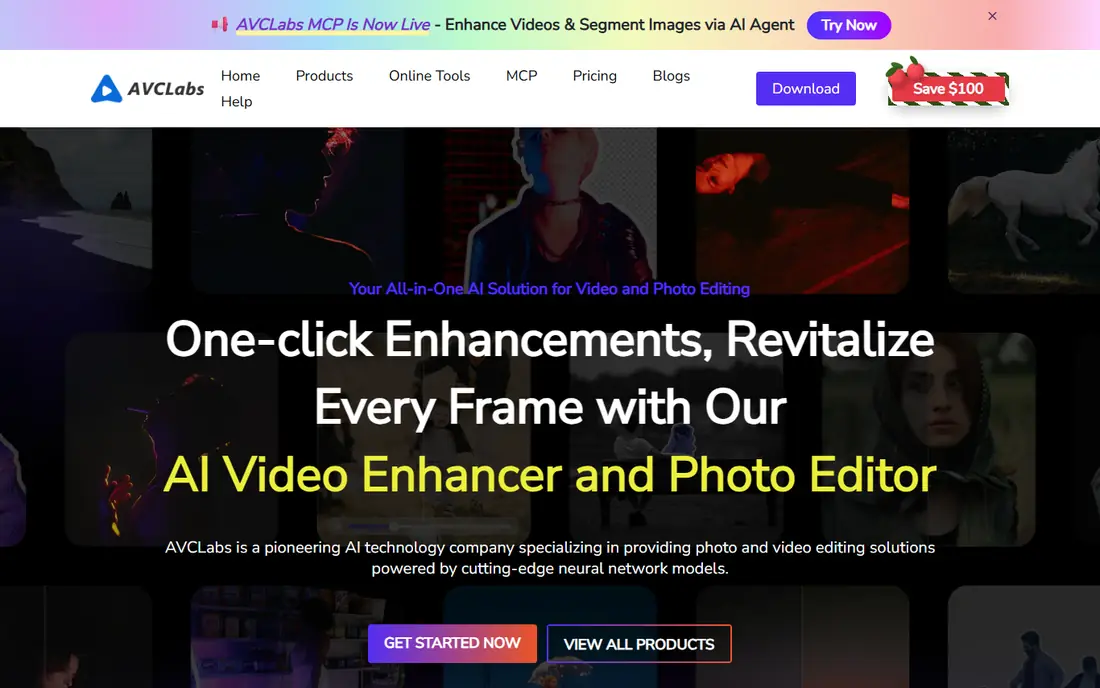
AVCLabs Video Enhancer AI balances restoration and upscaling. It upscales to 4K and 8K, reduces blur and noise, refines faces, colorizes black-and-white footage, and corrects color, all from a straightforward interface. It suits home video archives and historical footage where restoration matters as much as sharpness.
Render times are long on mid-range machines, and AVCLabs sells its face-blurring tool separately, so check which product a plan covers. For archive restoration on a desktop, AVCLabs is a strong, approachable alternative to Topaz.
- Upscaling to 4K and 8K with denoising and face refinement
- Colorization and color correction
- Simpler interface than Topaz
- Needs a capable GPU for fast renders
- Enhancer and blur tools are sold separately
UniFab, from the DVDFab team, bundles AI video enhancement with conversion, editing, and compression. If your workflow already involves converting formats for different platforms, having enhancement in the same suite saves switching tools. The interface is simple, and batch handling suits creators with many clips.
The trade-off is depth. UniFab's enhancement models are capable but not as specialized as Topaz's, and power users may miss fine control. For creators who want enhancement as part of a broader video toolkit, UniFab is good value.
- AI upscaling plus conversion, editing, and compression in one suite
- Simple interface
- Useful for creators who convert often
- Enhancement is one feature among many
- Less model depth than Topaz
TensorPix runs enhancement in the cloud, which makes it the right pick for laptops and older machines that cannot run Topaz. Upload a clip, preview the enhanced result free, and pay only for the exports you keep. The browser workflow needs no install and no GPU.
Upload time is the bottleneck on slow connections, and processing a large archive gets expensive per video. For occasional clips on a weak computer, TensorPix is the most practical option on this list.
- Cloud processing, so no GPU needed
- Free previews before paying
- Simple browser workflow
- Uploads take time on slow connections
- Per-video costs add up for large libraries
DaVinci Resolve Studio suits creators who already edit video and want enhancement inside that workflow. Super Scale upscales footage, noise reduction cleans grainy clips, and stabilization steadies handheld shots, all before color grading in the same timeline. The Studio license costs $295 once, with no subscription.
The catch is complexity. Resolve is a full editor, not a one-click enhancer, and beginners face a learning curve. If you edit video anyway and want enhancement without a second tool, Resolve Studio is excellent value.
- Super Scale upscaling and strong noise reduction inside a full editor
- One-time Studio license
- Outstanding color tools
- Steep learning curve for non-editors
- Enhancement is part of editing, not a one-click tool
Filmora adds AI enhancement to a beginner-friendly editor, which suits social creators who want slightly sharper clips without learning a specialist tool. Upscaling, denoising, and stabilization sit alongside templates, titles, and effects, so a clip can be enhanced and published from one app.
Maximum quality trails Topaz and AVCLabs, and free exports carry a watermark. For casual creators who edit in Filmora already, its enhancement features are a convenient bonus rather than a reason to buy it alone.
- AI upscaling and enhancement inside an easy editor
- Good for social creators
- Templates and effects included
- Upscaling tops out below dedicated tools
- Free exports carry a watermark
Nero AI Video Upscaler is a browser tool for fast, no-install enhancement. Upload a clip, upscale it, and download the result, with a free tier for occasional use. It suits social creators who need a quick quality lift on a short clip without installing software or owning a strong GPU.
Control is limited compared with desktop tools, and results vary with source quality, as with all cloud upscalers. For quick jobs on any machine, Nero is a handy option to keep bookmarked.
- Browser-based with nothing to install
- Quick upscales for social clips
- Free tier for trying it
- Less control than desktop tools
- Quality varies by source footage
Remini is best known for photos, but its video enhancement is useful for short clips, especially ones where faces matter. Processing is fast, the phone and web workflow is simple, and a free tier lets you test results before paying. For a quick lift on a social clip, it is the fastest tool here.
Long videos, high-resolution output, and fine control are not its strengths, and pricing varies by platform. Use Remini for short clips and social posts, and a desktop tool for longer or more demanding projects.
- Very fast enhancement on phone and web
- Strong on faces
- Free tier with ads
- Less suited to long or high-resolution video
- Subscription pricing varies by platform
How we picked these
We compared official feature and pricing pages and recent upscaler comparisons, favoring tools that genuinely enhance existing video rather than generate new clips. We covered desktop power tools, cloud options for weak hardware, and enhancement inside full editors. Where pricing has changed often or varies by promotion, we say so instead of stating a single figure.
Getting a good result from a video enhancer
Start with realistic expectations. AI upscaling predicts detail that looks plausible, which flatters old footage but cannot restore information the camera never captured. Test on a short clip first, and compare the enhanced version against the original at full size, since small previews hide artifacts like oversharpening and flicker.
Match the tool to the job. Use Topaz or AVCLabs for archives and high-quality output, TensorPix or Nero for quick cloud jobs, and an editor like Resolve or Filmora when enhancement is one step in a longer edit. Check your hardware before buying a desktop tool, since GPU requirements decide render times. Finally, keep the original file. Enhanced exports are interpretations, and you may want to reprocess them when models improve.
Frequently asked questions
What is the best app to enhance video quality?
Topaz Video AI gives the highest quality on a strong PC, while HitPaw VikPea and AVCLabs are easier desktop alternatives. For weak computers, TensorPix and Nero AI process in the cloud. The best pick depends on your hardware, clip length, and quality target.
What is the best software to enhance video quality for old footage?
AVCLabs and Topaz Video AI suit old footage best, thanks to denoising, face refinement, and colorization for black-and-white material. Preview a short section first, since aggressive sharpening can create halos on damaged footage.
Can AI video enhancers really turn 480p into 4K?
They can output a 4K file, but the extra detail is predicted by the model, not recovered from the original. Results often look much better than the source, especially on faces and textures, but they are reconstructions rather than true original detail.
Do I need a powerful computer for video enhancement?
Desktop tools like Topaz and AVCLabs benefit greatly from a strong GPU, and renders can be slow without one. Cloud tools like TensorPix and Nero AI need only a browser and a decent upload connection, so they suit weaker machines.
Is enhanced video safe to use as evidence?
No. AI enhancement invents plausible detail, so enhanced footage should not be presented as an accurate record of events. Use enhancement for viewing, presentation, and creative work, and keep original files untouched for any formal purpose.
Sources we checked (9)

Online Jobs is an independent blog about careers, online work, learning new skills and the tools that help people earn. More about us.
Keep reading
All posts
Zoom Alternatives
Zoom alternatives compared for 2026: Google Meet, Microsoft Teams, Webex, Jitsi and more for free calls, large meetings and webinars for teams and classrooms.

What Is the Best Free Tool to Rotate a PDF
What is the best free tool to rotate a PDF? We compare eight free rotation tools on per-page control, limits, privacy and saved output quality in detail.

What Is the Best AI Dubbing Tool
We compared the best AI dubbing tools in 2026, from ElevenLabs and HeyGen to Rask AI, Dubverse and Veed, for videos and creators in many languages worldwide.