Best Tools That Can Format Documents in 2026: 9 Tools Compared


Standard document formatting · Starting price: See website
How we put this together: we compare official feature and pricing pages, app store listings, privacy policies and public user reviews. Prices change, so check the provider's site before you pay.
Key takeaways
- Microsoft Word remains the standard for document formatting, with styles, templates, and compatibility no rival fully matches.
- Google Docs suits collaborative formatting, with real-time editing and free access.
- LibreOffice Writer suits users who want powerful free formatting without a subscription.
- Overleaf suits academic and technical documents, with LaTeX formatting for equations and references.
- The best tool follows the document: a business report needs Word, a shared draft needs Docs, and a thesis needs Overleaf or Scrivener.
Quick comparison
| Name | Who it suits | Starting price | Free option | |
|---|---|---|---|---|
| Microsoft Word | Standard document formatting | See website | Free trial | Visit |
 Google Docs Google Docs | Collaborative formatting | Free | Yes | Visit |
 LibreOffice Writer LibreOffice Writer | Free offline formatting | Free | Yes | Visit |
 WPS Office WPS Office | Word-compatible free suite | Free | Yes | Visit |
 Zoho Writer Zoho Writer | Online collaborative docs | Free | Yes | Visit |
 Scrivener Scrivener | Long document structure | See website | Free trial | Visit |
 Overleaf Overleaf | Academic LaTeX formatting | Free | Yes | Visit |
 Apple Pages Apple Pages | Apple device documents | Free | Yes | Visit |
 Notion Notion | Flexible formatted pages | Free | Yes | Visit |
The best tools that can format documents
Document formatting covers styles, headings, tables, page layout, and templates that turn raw text into a professional document. The options below range from word processors to academic and flexible page tools. We compared official feature pages and pricing pages to sort them by use case and collaboration needs.
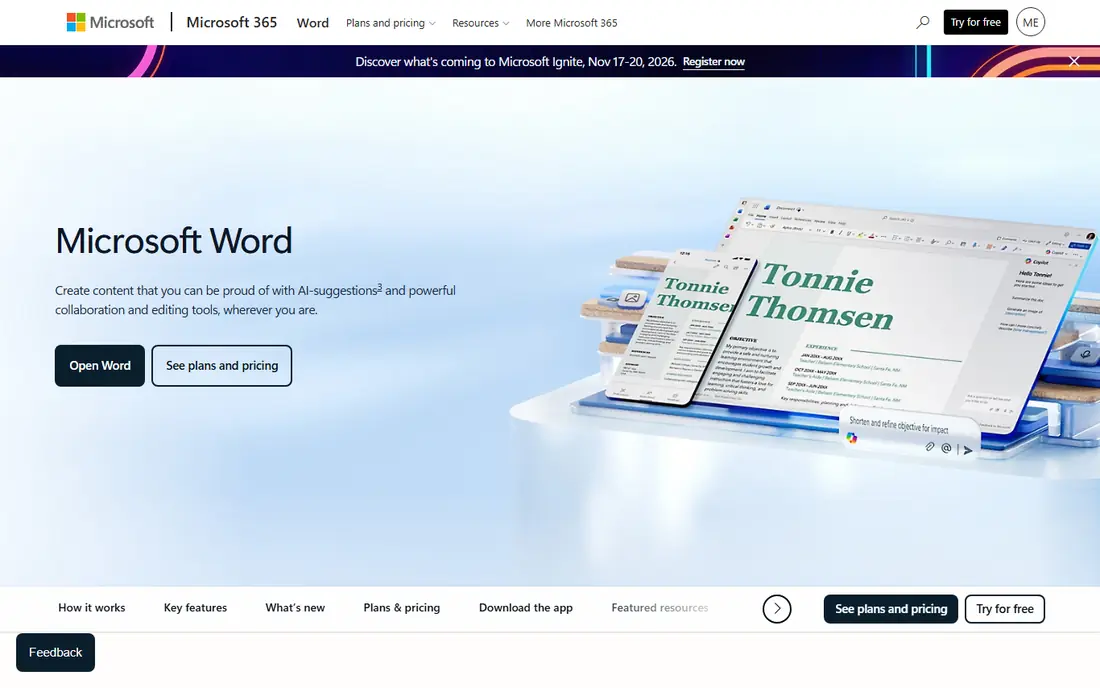
Microsoft Word remains the standard for document formatting. Styles, headings, tables of contents, footnotes, and templates work exactly as employers, publishers, and schools expect, and track changes handles collaborative editing. A free trial covers evaluation, with pricing through Microsoft 365 plans listed on Microsoft's site.
Subscription pricing applies for full use, and the desktop app holds features the web version lacks. For a document that must look right everywhere it is opened, Word is still the safest choice.
- Industry-standard formatting
- Styles, templates, and track changes
- Best compatibility
- Subscription pricing
- Desktop app needed for full features
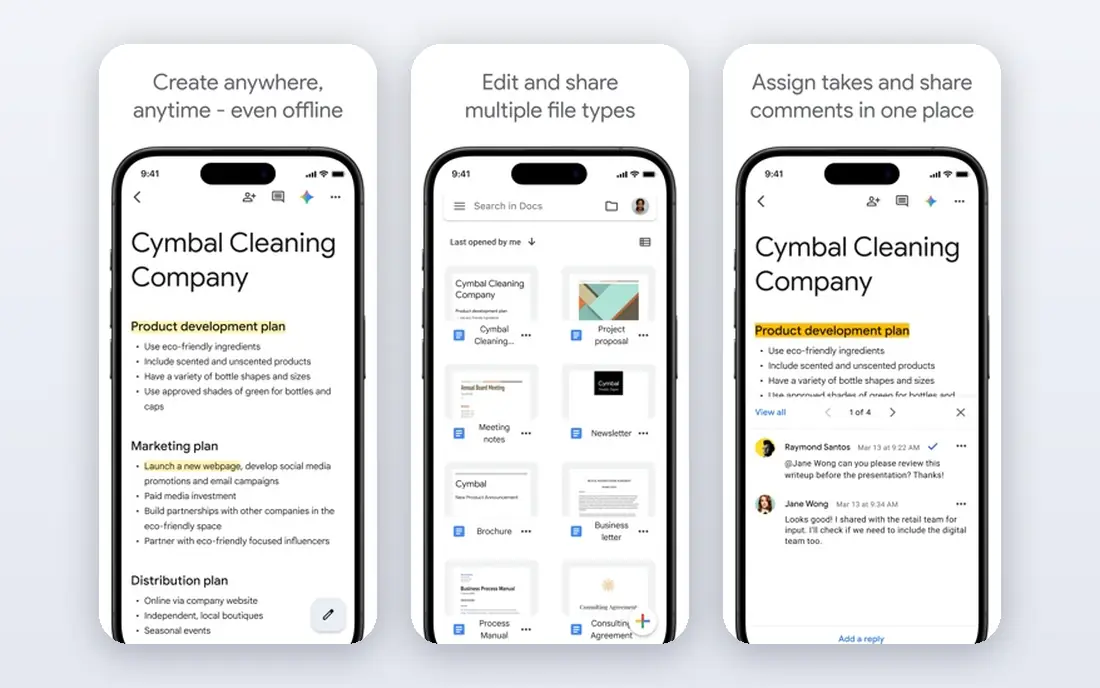
Google Docs offers free, collaborative document formatting in the browser, with real-time editing, comments, and suggestions that make shared drafts painless. Styles, headings, tables, and templates cover most formatting needs, and files save automatically to Drive. No subscription is needed for core use.
Advanced layout, like complex section formatting and precise page control, trails Word. For a shared draft, a school paper, or a team document, Docs' collaboration beats Word's formatting depth.
- Free and collaborative
- Real-time editing
- Styles and templates included
- Advanced layout trails Word
- Offline use needs setup
LibreOffice Writer is a free, open-source word processor with powerful styles, templates, tables, and page formatting, working fully offline on Windows, Mac, and Linux. It opens and saves Word formats, making it a genuine free alternative for most documents. No account or subscription is needed.
The interface feels dated, and Word compatibility is close but not perfect for complex documents. For a user who wants free, offline formatting without a subscription, Writer is the best option.
- Free and open source
- Powerful styles and templates
- Works offline
- Interface feels dated
- Word compatibility is close but not perfect
WPS Office offers a free office suite with strong Word compatibility, a familiar ribbon interface, and built-in PDF tools. Its Writer app formats documents much like Word, with styles, templates, and tables, and it runs on Windows, Mac, Android, and iPhone. A free tier covers core use, with premium plans priced on WPS' site.
Ads appear on the free tier, and full features need premium. For a user who wants Word-like formatting free with a modern interface, WPS Office is the most polished free suite here.
- Free tier with strong Word compatibility
- Familiar interface
- PDF tools included
- Ads on the free tier
- Premium needed for full features
Zoho Writer is a free online word processor with styles, templates, tables, and real-time collaboration, plus document signing and form filling. It integrates with Zoho's wider suite, suiting businesses already using Zoho apps. A free tier covers core use, with paid plans priced on Zoho's site.
The user base is smaller than Google Docs', and advanced formatting trails Word. For a Zoho household or a team that wants a free online word processor beyond Docs, Writer is a strong option.
- Free online word processor
- Collaboration and styles
- Zoho ecosystem integration
- Smaller user base
- Advanced features trail Word
Scrivener suits long documents like books, theses, and reports, organizing chapters, scenes, and research in one project with a corkboard and outliner. Its compile feature formats the whole document into Word, PDF, ebook, or manuscript formats with consistent styles. A free trial covers evaluation, with pricing listed on Literature and Latte's site.
The learning curve is real, and it is not a general word processor for short memos. For a writer structuring a long, complex document, Scrivener's organization beats every standard word processor here.
- Structures long documents
- Corkboard and outlining
- Compiles to many formats
- Learning curve
- Not a general word processor
Overleaf offers online LaTeX editing for academic and technical documents, with templates for journals, theses, and conference papers, plus collaboration and version history. LaTeX handles equations, cross-references, and bibliographies with precision no word processor matches. A free tier covers core use, with paid plans priced on Overleaf's site.
The LaTeX learning curve is steep, and simple documents do not need it. For a researcher, student, or engineer formatting a paper with equations and references, Overleaf is the professional standard.
- LaTeX formatting for equations and references
- Templates for journals
- Collaboration
- LaTeX learning curve
- Overkill for simple documents
Apple Pages offers free document formatting on Mac, iPhone, and iPad, with beautiful templates, styles, and page layout tools that suit reports, newsletters, and flyers. It opens and exports Word formats, and iCloud keeps documents in sync. No subscription is needed on Apple devices.
It works poorly on Windows and Android, and advanced features trail Word. For an Apple user who wants polished documents without paying, Pages is the natural choice.
- Free on Apple devices
- Beautiful templates
- Good Word compatibility
- Weaker on Windows and Android
- Advanced features trail Word
Notion formats pages with flexible blocks, covering headings, tables, databases, callouts, and embeds in a wiki-style workspace. It suits team wikis, project docs, and personal notes that live online rather than printing to paper. A free tier covers personal use, with paid plans priced on Notion's site.
It is not a print-focused word processor, and export formatting is basic next to Word. For a team building living documents, wikis, and knowledge bases, Notion's flexible formatting is a strong choice.
- Flexible blocks for formatted pages
- Databases and wikis
- Collaboration
- Not a print-focused word processor
- Export formatting is basic
How we picked these
We compared official feature pages and pricing pages for document formatting tools that operate today. We favored tools with real styles, templates, and layout control, and we included standard, collaborative, free, academic, and flexible options rather than only one style. Prices are the standard published rates from each vendor's own site, and where pricing varies by plan we say so rather than guessing.
What to check before you choose
Start with the document's destination. A business report or publisher submission needs Word, a shared draft needs Google Docs or Zoho Writer, a thesis needs Overleaf or Scrivener, and a wiki needs Notion. Destination decides the tool faster than any feature table.
Use styles, not manual formatting
Styles for headings, body text, and captions keep documents consistent and make tables of contents automatic. Every tool here supports styles, so learn them before manually bolding and resizing text. A styled document reformats cleanly; a manually formatted one breaks on every edit.
Test compatibility with recipients
A document that looks perfect in your app may shift in a recipient's Word or printer. Test with the actual recipient's app, especially for resumes, manuscripts, and client reports. When compatibility matters most, Word format is the safest exchange format.
Keep templates for repeat documents
Reports, letters, invoices, and proposals repeat structure, so build templates once and reuse them. Word, Docs, Writer, and Pages all support templates, and a good template saves more time than any formatting trick. Store templates where the whole team can find them.
Frequently asked questions
What is the best tool that can format documents?
Microsoft Word is our pick for standard formatting and compatibility, Google Docs for collaboration, and LibreOffice Writer for free offline use. Overleaf suits academic papers, Scrivener suits long documents, and Notion suits wikis. The best tool follows the document's purpose.
What is the best free document formatting tool?
Google Docs is the best free online option, with collaboration and styles at no cost. LibreOffice Writer is the best free offline option, while WPS Office offers the most Word-like free experience. Apple Pages is free for Apple device owners.
Is Google Docs good for formatting documents?
Yes, Google Docs handles styles, headings, tables, templates, and page setup well for most documents, with real-time collaboration as a bonus. Complex section layouts and precise print control trail Word, so publisher-ready manuscripts may still need Word or LaTeX.
What tool formats academic papers best?
Overleaf leads for academic papers, with LaTeX formatting for equations, references, and journal templates. Scrivener suits long theses with complex structure, while Word remains the standard for papers submitted in Word format. Check your journal or school's required format first.
Can I format documents on my phone?
Yes, Google Docs, WPS Office, Pages, and Zoho Writer all offer mobile apps with formatting tools, though complex layout work is easier on a computer. For quick edits, headings, and lists, mobile formatting works fine. Save heavy layout work for a desktop.
What is the difference between formatting and editing a document?
Editing changes the words, while formatting changes how they look: fonts, headings, spacing, tables, and page layout. Good formatting makes a document readable and professional without changing its meaning. Most tools here cover both, with styles bridging the two.
Sources we checked (9)

Online Jobs is an independent blog about careers, online work, learning new skills and the tools that help people earn. More about us.
Keep reading
All posts
Zoom Alternatives
Zoom alternatives compared for 2026: Google Meet, Microsoft Teams, Webex, Jitsi and more for free calls, large meetings and webinars for teams and classrooms.
What Is the Best Free Tool to Rotate a PDF
What is the best free tool to rotate a PDF? We compare eight free rotation tools on per-page control, limits, privacy and saved output quality in detail.

What Is the Best AI Dubbing Tool
We compared the best AI dubbing tools in 2026, from ElevenLabs and HeyGen to Rask AI, Dubverse and Veed, for videos and creators in many languages worldwide.