Best Team Collaboration Software in 2026: 8 Products Compared

How we put this together: we compare official feature and pricing pages, app store listings, privacy policies and public user reviews. Prices change, so check the provider's site before you pay.
Key takeaways
- Most teams need two layers, not one tool: a place to talk and a place to track work, and the best setups keep those layers connected.
- Slack and Microsoft Teams lead for chat, while Asana, monday.com, Trello and ClickUp lead for turning talk into assigned work.
- Free plans are useful for small teams, but message history, guest access and automation limits are where most teams hit a wall.
- Notion and Miro work best as shared thinking space, for docs, wikis and visual planning, rather than as a strict task tracker.
- Our pick for most small teams is to start with a free plan, set clear channel and board rules, and only pay when a limit actually slows work down.
Quick comparison
| Name | Who it suits | Starting price | Free option | |
|---|---|---|---|---|
 Slack Slack | fast team chat and integrations | See website | Yes | Visit |
 Microsoft Teams Microsoft Teams | teams already using Microsoft 365 | See website | Yes | Visit |
 Asana Asana | structured projects and workflows | See website | Yes | Visit |
 monday.com monday.com | visual project boards | See website | Yes | Visit |
 Trello Trello | simple kanban boards | See website | Yes | Visit |
 ClickUp ClickUp | all in one work hub | See website | Yes | Visit |
 Notion Notion | docs, wikis and light projects | See website | Yes | Visit |
 Miro Miro | visual brainstorming and workshops | See website | Yes | Visit |
The best team collaboration software
These eight tools cover chat, task tracking, docs and visual planning, and each one suits a different kind of team.
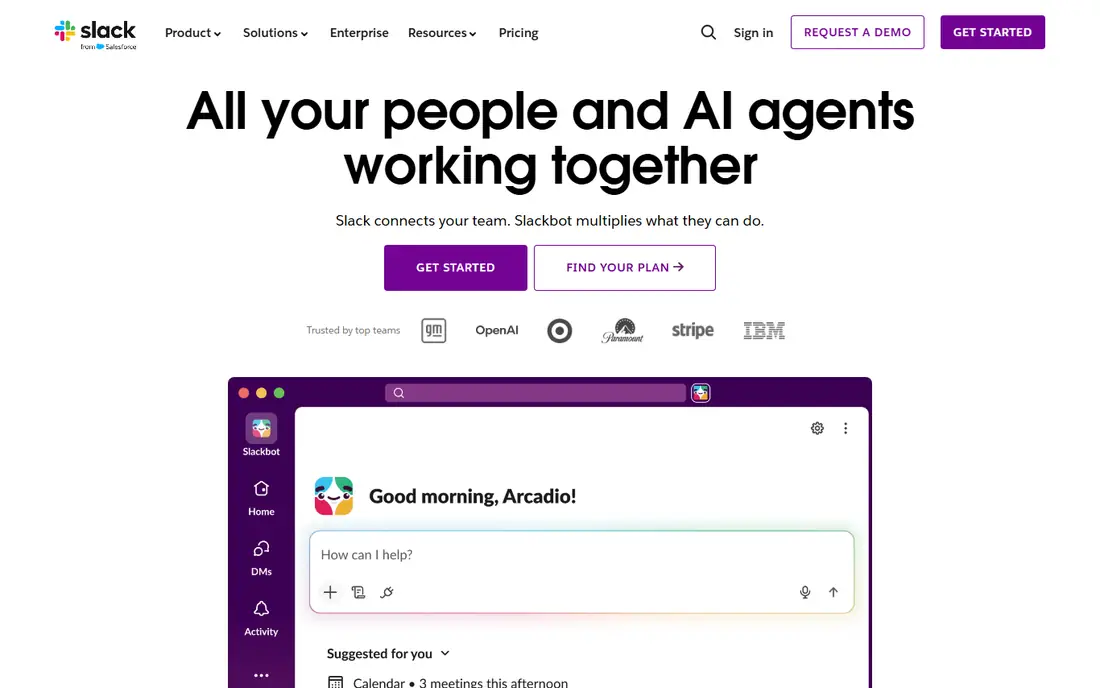
Slack fits teams that live in conversation. Channels keep topics apart, threads keep side talk from swamping a main discussion, and huddles give a quick voice option without booking a meeting. The integration library is a real strength, since project tools, support desks and code tools can post updates straight into a channel. The catch is cost and sprawl. Per seat pricing adds up for larger teams, and a workspace with too many channels can feel noisy. Set a short list of active channels, archive the rest, and agree when a discussion should move into a task tool instead of staying in chat.
- Clear channel structure
- Wide integration library
- Quick huddles and threads
- Costs rise with each seat
- Free message history is limited
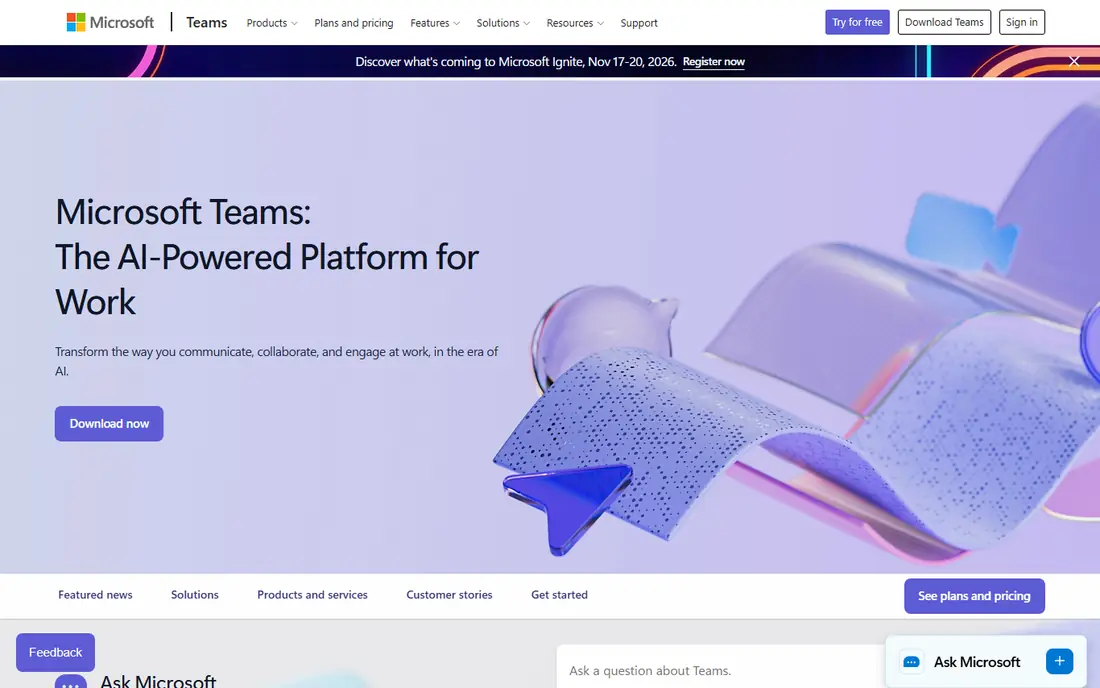
Teams makes most sense when a team already pays for Microsoft 365. Chat, video meetings, shared files and Office documents sit in the same workspace, which cuts down on separate accounts and logins. For organisations that use Outlook, SharePoint and OneDrive daily, that closeness is hard to beat. The trade-off is complexity. The interface packs chat, channels, files and apps into one window, and new users can take time to find their way around. Teams still wins on value for Microsoft shops, but a team with no Microsoft stack may prefer a lighter chat tool.
- Chat, meetings and files in one place
- Strong Microsoft 365 links
- Built in video meetings
- Interface can feel busy
- Some features depend on a Microsoft 365 plan
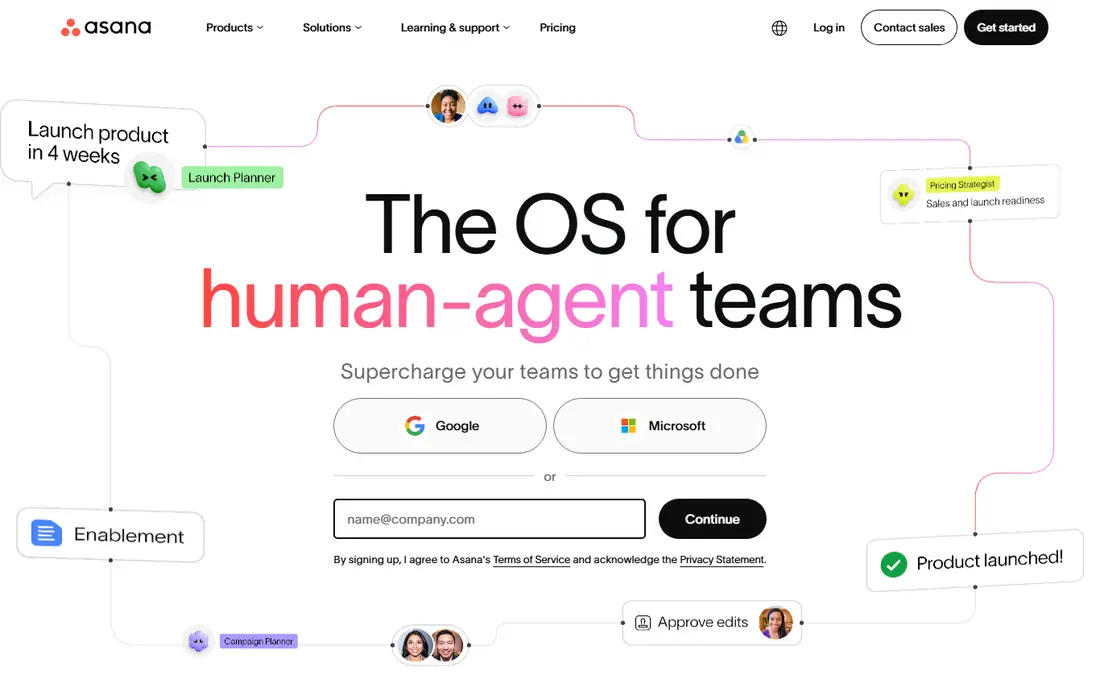
Asana suits teams that run repeatable work. Campaign launches, client onboarding and product releases all benefit from tasks with one owner, a due date and a clear status. Timeline views show how work overlaps, and automation rules can assign tasks or move them when a stage changes. The honest catch is that Asana rewards discipline. A team that does not update tasks will still lose track of work, and the tool will only look as good as the habits behind it. Start with one project, one template and a weekly review, then expand once the routine sticks.
- Clear task ownership
- Timeline and portfolio views
- Useful automation rules
- Can feel formal for very small teams
- Advanced features sit on higher plans
monday.com appeals to teams that want to see work at a glance. Colour coded status columns, timelines and dashboards make progress easy to read in a meeting, and boards can be shaped around sales, marketing, operations or product work. Non technical users often pick it up faster than a more formal project tool. The risk is board sprawl. When every team builds its own board with its own columns, the same work can appear in several places. Agree on a small set of status labels, name one owner per board, and review dashboards monthly so old boards do not pile up.
- Highly visual boards
- Flexible columns and dashboards
- Easy status views
- Pricing varies by plan and seats
- Boards need upkeep to stay accurate
Trello is the calmest tool on this list. A board, a few lists and a set of cards is often all a small team needs, and new members can learn it in minutes. Cards hold checklists, due dates, attachments and comments, so a simple workflow stays visible without extra training. The limit shows up when work gets complex. Reporting, portfolio views and advanced automation are thinner than in Asana or monday.com, and large programmes can outgrow a card board. For a small team, a content calendar or a hiring pipeline, that simplicity is the point, not a flaw.
- Very easy to learn
- Clear kanban boards
- Useful templates
- Limited for complex reporting
- Power features sit on paid plans
ClickUp tries to replace several tools at once. Tasks, docs, goals, whiteboards and chat can live in one workspace, and views range from lists and boards to calendars and Gantt style charts. Teams that want one login for most daily work will find a lot to like here. The downside is the learning curve. A workspace with every feature switched on can feel heavy, and a team that only needs a task list may find the extra options distracting. Turn on only the views and features the team will use in the first month, and add more later if a real need appears.
- Docs, tasks, goals and chat in one workspace
- Many view options
- Generous free tier
- Many features can overwhelm new users
- Setup takes time
Notion works best as a shared brain for a team. Meeting notes, handbooks, project docs and small databases can live together, and pages can link to each other in a way that mirrors how a team actually thinks. For documentation heavy teams, that flexibility is a genuine advantage. As a strict task tracker, Notion is less convincing. Automation and reporting are lighter than in dedicated project tools, and a workspace can grow messy without clear page ownership. Use Notion for knowledge, pair it with a task tool for delivery, and the two together cover most needs.
- Flexible docs and databases
- Good for wikis and meeting notes
- Clean writing space
- Weaker for strict workflow automation
- Large workspaces need governance
Miro gives remote teams a shared wall to think on. Brainstorms, journey maps, sprint planning and retros all work well on a large canvas, and templates give a workshop a clear starting shape. Sticky notes, diagrams and comments keep a session active even when people join from different places. Miro is not a place to manage delivery. Tasks created on a board still need an owner and a due date in a project tool, or they will fade once the workshop ends. Treat Miro as the thinking stage, then move agreed actions into Asana, Trello or ClickUp before the meeting closes.
- Large shared canvas
- Strong templates
- Good for remote workshops
- Not a task tracker
- Boards can get crowded without structure
How we picked these
We compared official feature pages, pricing pages, app store listings and public reviews for tools that are widely used for team chat, project tracking, docs and visual work. We favoured tools that are still actively developed, that offer a free plan or trial for small teams, and that cover a distinct job rather than repeating the same feature set. We also weighed integration options, since a collaboration tool that cannot connect to email, files or calendars will create extra manual work. We did not claim hands-on testing for every tool, and we did not rank by user counts or review scores that change often. Instead, we looked at what each tool is built for, where its free plan stops, and what kind of team is most likely to stay with it after the first month. Prices change, so check the vendor site before buying, and start with a free plan where one exists.
Choosing the right setup for your team
Start with the problem, not the product. A team drowning in email needs chat and clear channels. A team missing deadlines needs task ownership and due dates. A team that keeps answering the same questions needs a wiki. Buying a large platform before naming the problem usually ends with a tool nobody opens.
Keep the stack small
Two or three tools, used well, beat six tools used badly. Pick one chat tool, one task tool and, if needed, one docs or visual tool. Write down which tool holds the final decision for each kind of work, so people do not hunt through chat history for a task that should live on a board.
Set rules early
Agree on channel names, board owners and update habits in the first week. Decide how quickly messages need a reply, when a chat should become a task, and who archives old boards. These small rules do more for collaboration than any new feature, and they cost nothing to set.
Check the free plan limits
Before paying, check message history, guest access, storage and automation limits against real use. A free plan that covers ten people today may feel tight at twenty, and a per seat price that looks small can grow fast. Trial the paid plan with one team first, and only roll it out wider when the extra features earn their keep.
Frequently asked questions
What is the best team collaboration software for a small team?
For most small teams, a simple pair works best: Slack or Teams for chat, plus Trello or Asana for tasks. That setup is easy to learn, easy to explain to new hires, and cheap to start on free plans. Add Notion or Miro only when docs or visual planning become a regular need.
What are the best free online collaboration tools?
Slack, Microsoft Teams, Asana, Trello, ClickUp, Notion and Miro all offer free plans, though limits differ. Slack limits free message history, Asana and Trello limit some advanced features, and Notion limits some collaboration controls on free plans. Compare the limit that matters most to your team before committing.
What is the best collaboration tool for remote teams?
Remote teams benefit most from a chat tool with good video options, a task tool with clear ownership, and a shared docs space. Microsoft Teams covers chat and meetings in one place, while Slack plus Asana or ClickUp gives a more flexible mix. Add Miro for workshops that need a shared visual space.
Should we use one tool or several collaboration tools?
Most teams do better with a small set of tools that each do one job well. One tool that tries to cover chat, tasks, docs and whiteboards can feel heavy, while separate tools need clear rules about where work lives. Pick a core pair, set ownership rules, and only add a tool when a gap is clear.
How do team collaboration platforms differ from project management software?
Collaboration platforms focus on communication, shared docs and joint work in real time. Project management software focuses on tasks, deadlines, dependencies and reporting. Many tools now overlap, which is why teams often pair a chat tool with a project tool rather than expecting one product to do both jobs perfectly.
Sources we checked (8)

Online Jobs is an independent blog about careers, online work, learning new skills and the tools that help people earn. More about us.
Keep reading
All posts
Zoom Alternatives
Zoom alternatives compared for 2026: Google Meet, Microsoft Teams, Webex, Jitsi and more for free calls, large meetings and webinars for teams and classrooms.

What Is the Best Free Tool to Rotate a PDF
What is the best free tool to rotate a PDF? We compare eight free rotation tools on per-page control, limits, privacy and saved output quality in detail.

What Is the Best AI Dubbing Tool
We compared the best AI dubbing tools in 2026, from ElevenLabs and HeyGen to Rask AI, Dubverse and Veed, for videos and creators in many languages worldwide.