Best Software to Reduce PDF Size in 2026: 9 Tools Compared


Precise optimisation and professional files · Starting price: See website
How we put this together: we compare official feature and pricing pages, app store listings, privacy policies and public user reviews. Prices change, so check the provider's site before you pay.
Key takeaways
- Most PDFs shrink best by compressing images first, so tools with a quality or resolution setting give you more control than one click tools.
- Free online tools suit occasional files, while desktop editors suit sensitive documents that should never leave your computer.
- Adobe Acrobat offers the most precise optimisation controls, while PDF24 and iLovePDF offer generous free compression for everyday use.
- Always check the compressed file before sending it, since strong compression can blur small text and fine detail in scanned pages.
Quick comparison
| Name | Who it suits | Starting price | Free option | |
|---|---|---|---|---|
| Adobe Acrobat | Precise optimisation and professional files | See website | Free trial | Visit |
 Smallpdf Smallpdf | Quick browser compression | See website | Yes | Visit |
 iLovePDF iLovePDF | Everyday free compression | Free | Yes | Visit |
 PDF24 Tools PDF24 Tools | Free desktop and online compression | Free | Yes | Visit |
 Sejda Sejda | Simple online compression with options | Free | Yes | Visit |
 UPDF UPDF | All in one PDF editor with compression | See website | Yes | Visit |
 PDFgear PDFgear | Free desktop PDF tools | Free | Yes | Visit |
 Foxit PDF Editor Foxit PDF Editor | Business PDF editing and optimisation | See website | Free trial | Visit |
 PDF Candy PDF Candy | Browser tools with batch options | Free | Yes | Visit |
The best software to reduce PDF size
A PDF can be large for several reasons: high resolution images, embedded fonts, scanned pages, or objects left over from editing. The best tool for you depends on which problem your file has, and on whether you can upload it to a website. This list mixes online compressors, which are fast and need no install, with desktop editors, which keep files local and offer batch work. Try a moderate setting first, then check text sharpness before you choose a stronger setting.
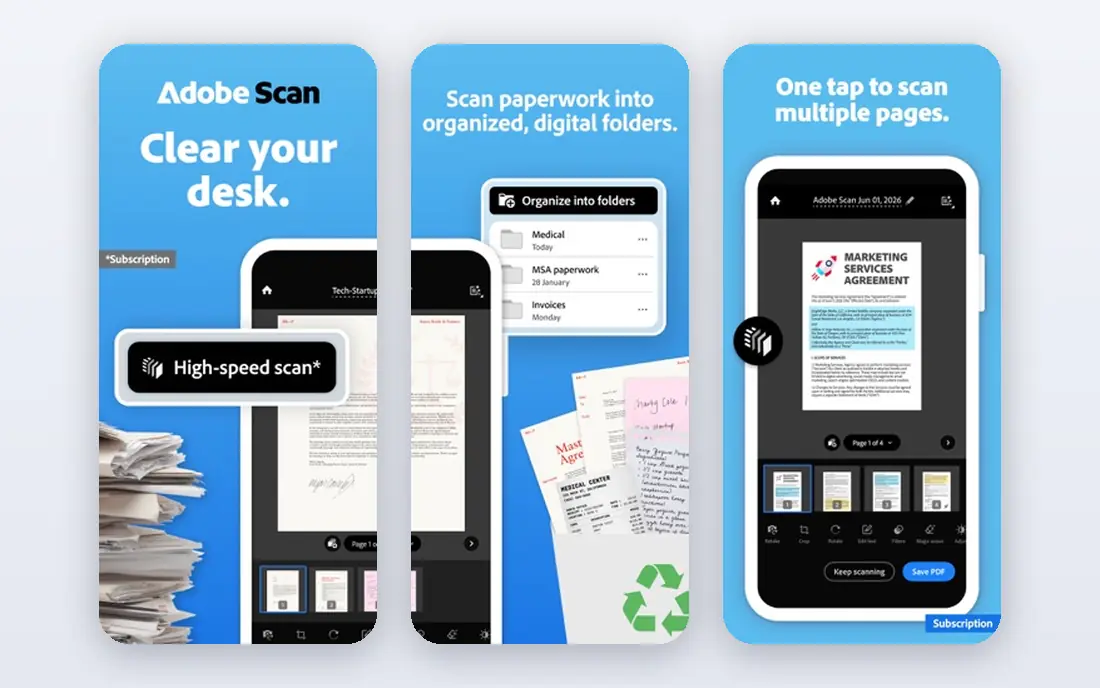
Adobe Acrobat is the reference tool for PDF work, since Adobe created the PDF format, and its Optimizer gives you the finest control in this list. You can downsample images to a chosen resolution, subset fonts, remove unused objects and choose different settings for colour, greyscale and monochrome images. That control matters when a file must stay sharp for print, or when a client file must shrink enough for email without losing detail. The free online compressor handles a single file quickly, while the desktop app handles batch work and repeatable settings.
The downside is price and weight. Acrobat is a full PDF editor, so it is more than most people need for occasional compression, and the paid plan costs more than a simple online tool. If you compress PDFs every day, or you prepare files for clients, print or legal use, that cost is easier to justify. If you only shrink a file once a month, start with a free tool below and keep Acrobat for files where quality cannot slip.
- PDF Optimizer with detailed controls
- Strong font and image handling
- Trusted for client and legal files
- Paid plans cost more than most rivals
- The full desktop app can feel heavy for a single small file
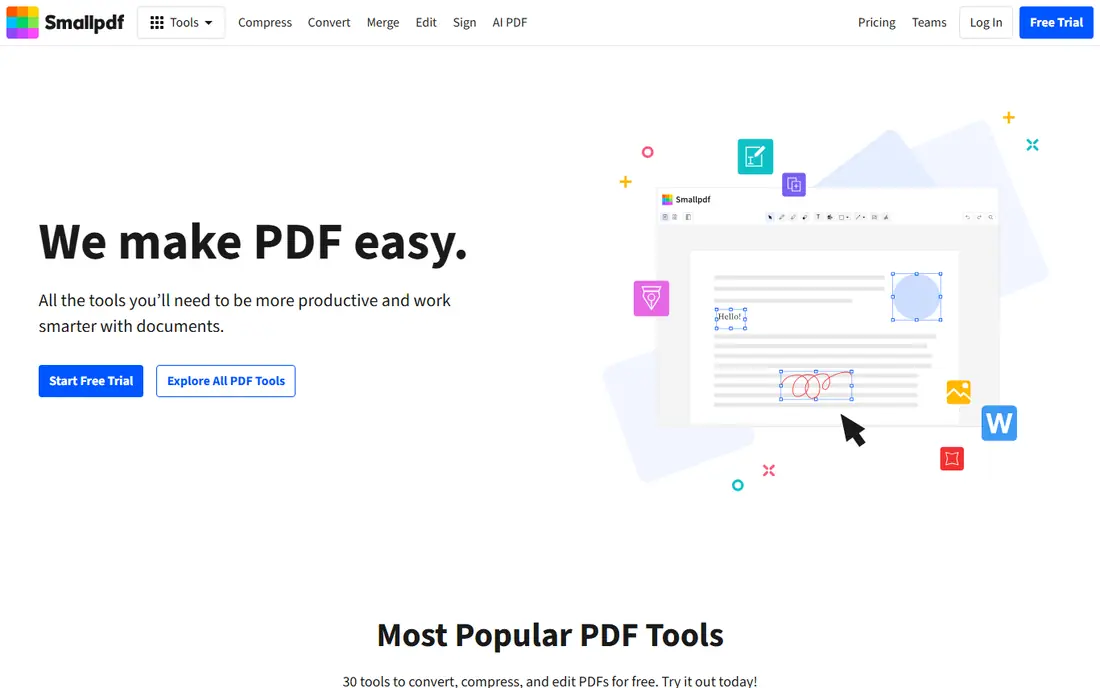
Smallpdf is the easiest tool here for a quick job. Drag a file into the browser, choose basic or strong compression, and download the result in seconds, with no install needed. It works on any device with a browser and connects to cloud storage. For anyone emailing a file just over the attachment limit, that speed is the whole appeal.
The free tier is the limit. Free users can only run a small number of tasks per day, and strong compression sits behind the paid plan, so a heavy user will hit the cap quickly. Smallpdf also processes files on its servers, so it is not the best choice for highly sensitive documents. Use it for everyday files, and switch to a desktop tool for contracts, medical records or anything you would not email to a stranger.
- Very easy drag and drop workflow
- Basic and strong compression options
- Desktop and mobile apps available
- Free use is limited to a small number of tasks per day
- Strong compression requires a paid plan
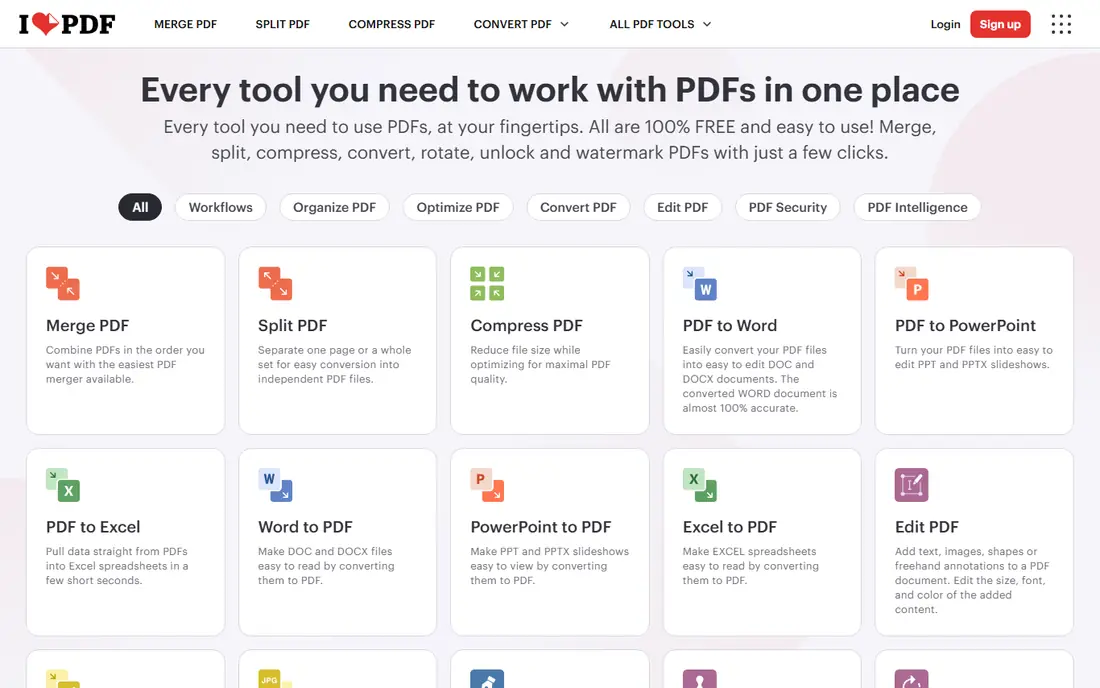
iLovePDF is a dependable free online compressor with a clean layout and a useful set of companion tools for merging, splitting, converting and signing PDFs. You can compress a file in a browser without installing anything, and the basic compression setting keeps most documents readable for screen use and email. That makes it a good default for weekly use.
The trade offs are familiar for online tools. Your file leaves your computer during processing, so sensitive documents deserve a desktop alternative, and the largest files and heaviest batch work sit behind a paid plan. For everyday reports, forms and lecture notes, those limits rarely matter. Check the result before you send it, especially if the original had small charts or scanned handwriting, since strong settings can soften fine detail.
- Generous free online compression
- Simple interface
- Many other PDF tools in one place
- Files are uploaded to its servers
- Advanced batch and large file handling need a paid plan
PDF24 Tools stands out because it is free in a way most rivals are not: the online compressor costs nothing for basic use, and there is also a free desktop app for Windows. That combination suits people who want a free tool at home and a local option for sensitive files. The online version handles the usual drag and drop workflow, while the desktop app keeps files on your own machine, which is a real privacy advantage for work documents.
The interface is more functional than beautiful, and it lacks some of the guided help and polish of Smallpdf or Adobe. Mac users also get less from the desktop side, since the full desktop app is Windows focused. If you use Windows and you want a free, local compressor without daily caps, PDF24 is hard to beat. If you use a Mac, pair the online tools with a local editor such as PDFgear for sensitive files.
- Free online tools plus a free Windows desktop app
- No account needed for basic use
- Good privacy option on desktop
- Interface is less polished than paid rivals
- Mac and Linux users rely mainly on the online tools
Sejda is a quiet, capable online PDF service that does compression well without pushing you toward a large suite of tools. You upload a file, pick a compression approach, and download a smaller version, with options that let you balance size against quality. The site also offers editing, merging and signing tools. For occasional users, that simplicity is a strength.
Free use is limited by the hour and by the day, so Sejda is not the tool for compressing dozens of files in one sitting unless you pay. Like other online tools, it processes files on its servers, so keep sensitive documents local. Use Sejda when you want a straightforward browser tool with a bit more control than a single button compressor, and when your file count stays modest.
- Clear compression choices
- Works in the browser
- Files are deleted after processing under its stated policy
- Free use has hourly and daily limits
- Very large files need a paid plan
UPDF is a full PDF editor that also compresses well, with low, medium, high and ultra levels that let you choose how hard to squeeze a file. That range is useful: low suits print files that must stay sharp, while high or ultra suits a file that only needs to be read on screen or sent by email. Because UPDF is also an editor, you can fix a page or remove blank pages before you compress.
The free version lets you try the workflow, but sustained use and some advanced features require a paid plan, so check the current pricing page before you commit. UPDF is best for people who already need a PDF editor and want compression built in, rather than for someone who only needs a single online squeeze. If you edit PDFs weekly, the combined tool saves switching between apps.
- Desktop editor with several compression levels
- Editing, annotation and conversion in one app
- Works on Windows, Mac, iOS and Android
- Some advanced features need a paid plan
- Free version has limits on use
PDFgear is a strong privacy pick because its free desktop app processes files on your own computer, so a sensitive contract or medical form never needs to be uploaded. The desktop app covers the basics well: viewing, editing, annotating, converting and compressing PDFs, without a subscription for core use. That makes it a good recommendation for anyone who handles private documents and does not want to pay for Acrobat.
The trade off is polish and depth. PDFgear does not match Acrobat for advanced optimisation controls or for large enterprise workflows, and its online version is simpler than the desktop app. For most personal jobs, that does not matter. Install the desktop app and compress locally.
- Free desktop app for Windows and Mac
- Files stay local on desktop
- Editing and conversion included
- Online version has fewer features than the desktop app
- Interface is plainer than paid editors
Foxit PDF Editor is a business grade alternative to Acrobat, with optimisation tools that reduce file size by compressing images, removing unused data and cleaning up document structure. It handles large files well, and it fits teams that already use Foxit for editing, signing and form work, since compression sits inside the same workflow. If your office standardises on Foxit, using its optimizer keeps files consistent and avoids adding another vendor.
For a casual user, Foxit is more tool than needed, and the paid pricing reflects its business focus. The free trial lets you test whether the optimizer and editing tools justify the cost, but a student or home user who only compresses occasionally will do better with PDF24, PDFgear or iLovePDF. Choose Foxit when PDF work is part of your job and you want one editor for editing, optimisation and signing.
- Optimizer and PDF standard tools in a business editor
- Good performance on large files
- Team and enterprise options
- Paid pricing is aimed at businesses
- Casual users will find free tools simpler and cheaper
PDF Candy bundles compression with a wide set of browser tools for converting, merging, splitting, editing and protecting PDFs. That breadth helps when a file needs more than compression: you can merge two reports and compress the result without installing anything.
Free use has limits, and the heaviest batch work requires a paid plan, so PDF Candy is best for occasional multi step jobs rather than daily bulk compression. As with other online tools, keep sensitive files local and use a desktop editor instead. For a quick browser job that involves several steps, PDF Candy is a practical all in one choice.
- Many PDF tools in one browser service
- Batch handling on paid plans
- Supports cloud storage connections
- Free use is limited
- Strong batch work and larger files need a paid plan
How we picked these
We compared official product pages, pricing pages and public guides to PDF compression in October 2026, and we kept only tools that are live, maintained and clearly able to reduce PDF file size. We favoured tools with a stated compression or optimisation feature, not general editors that only re-save a file, and we mixed online and desktop options so readers with different privacy needs have a real choice. Where a price was not confirmed on the vendor site during research, we wrote See website rather than repeating a third party figure.
How to get a smaller file without ruining it
Start by finding why the file is large. Open it and look at the images: a scanned page at very high resolution, or photos pasted at full camera size, will dominate the file. Downsampling images to 150 dots per inch is usually enough for screen reading and email, while print work should stay at 300 dots per inch or higher. Next, remove blank pages, duplicate pages and oversized embedded files, since compression alone cannot fix a document that carries pages nobody needs.
Choose your setting by destination, not by maximum shrinkage. A file for email or a web upload can use stronger compression, while a file for print, archiving or legal use should use a lighter setting and keep text sharp. Always open the compressed file and check small text, charts and signatures before you send it, and keep the original until the recipient confirms the smaller version opens correctly. If a file must stay private, use a desktop tool, turn off cloud sync for that folder while you work, and delete any test uploads.
Frequently asked questions
How much can I reduce a PDF file size?
It depends on the file. Text heavy PDFs may shrink by 20 to 40 percent, while image heavy or scanned PDFs can shrink by 50 percent or more with lossy compression. Lossless compression keeps quality intact but gives smaller savings, while stronger lossy settings trade some sharpness for a much smaller file. Test a moderate setting first and check the result before you go stronger.
Can I reduce PDF size without losing quality?
Yes, for some files. Lossless methods remove redundant data, unused objects and unneeded metadata without changing visible content, but the savings are modest. If images dominate the file, some quality loss is usually needed for a large reduction, although downsampling to the resolution you actually need often looks identical on screen. For print or archival files, keep a high quality original and share a compressed copy.
Is it safe to compress a PDF online?
For everyday documents, reputable online tools use encrypted connections and delete uploads after a stated period, but your file still leaves your computer. For contracts, medical records, financial statements or legal filings, use a desktop tool such as PDFgear, PDF24 or Acrobat on your own machine. Read the privacy policy before uploading anything sensitive, and avoid free tools that do not state a deletion policy.
Why is my PDF still large after compression?
The usual causes are scanned pages, high resolution images, embedded fonts, or a file that was already optimised. Try removing blank pages, replacing oversized images before compression, and using a desktop optimizer with image downsampling controls. If the file is mostly scanned text, optical character recognition plus image compression may help, but check readability after each step.
What is the best free software to reduce PDF size?
For online use, iLovePDF and PDF24 Tools offer generous free compression, while PDFgear and PDF24 offer free desktop options that keep files local. The best free pick depends on your system: Windows users get the most from PDF24 desktop, while Mac users may prefer PDFgear desktop. For a single quick file, any of the free online tools here will work.
Can I compress many PDFs at once?
Yes, with the right tool. Desktop editors such as Adobe Acrobat and Foxit support batch optimisation, and some online services offer batch compression on paid plans. Free online tools often limit batch size, so split a large job into smaller groups or use a desktop app. Always spot check several files from a batch, since one bad setting can affect every file in the group.
Sources we checked (9)

Online Jobs is an independent blog about careers, online work, learning new skills and the tools that help people earn. More about us.
Keep reading
All posts
Zoom Alternatives
Zoom alternatives compared for 2026: Google Meet, Microsoft Teams, Webex, Jitsi and more for free calls, large meetings and webinars for teams and classrooms.
What Is the Best Free Tool to Rotate a PDF
What is the best free tool to rotate a PDF? We compare eight free rotation tools on per-page control, limits, privacy and saved output quality in detail.
What Is the Best AI Dubbing Tool
We compared the best AI dubbing tools in 2026, from ElevenLabs and HeyGen to Rask AI, Dubverse and Veed, for videos and creators in many languages worldwide.