Best software for png to jpg conversion in 2026: 9 tools Compared

How we put this together: we compare official feature and pricing pages, app store listings, privacy policies and public user reviews. Prices change, so check the provider's site before you pay.
Key takeaways
- XnConvert and IrfanView are the strongest free desktop picks for fast batch conversion on Windows.
- ImageMagick suits people who want scripted, repeatable conversion for large folders.
- CloudConvert, FreeConvert, and Convertio work well when you need a quick conversion without installing anything.
- Total Image Converter is worth a look for very large batches with resizing and watermarking in one pass.
- JPG cannot keep transparency, so check any PNG with a transparent background before you convert it.
Quick comparison
| Name | Who it suits | Starting price | Free option | |
|---|---|---|---|---|
 XnConvert | Free batch conversion | Free | Yes | Visit |
 IrfanView | Fast Windows viewing and conversion | Free | Yes | Visit |
 ImageMagick | Scripted batch work | Free | Yes | Visit |
 Total Image Converter | Large desktop batches | See website | Free trial | Visit |
 CloudConvert | Online conversion with options | Free | Yes | Visit |
 FreeConvert | Quick online conversion | Free | Yes | Visit |
 Convertio | Simple online conversion | Free | Yes | Visit |
 GIMP | Editing plus conversion | Free | Yes | Visit |
 FastStone Photo Resizer | Resize and convert together | Free | Yes | Visit |
The best software for png to jpg conversion
PNG files are useful for graphics and screenshots, but they can be large for photos. JPG files are usually much smaller, which helps with web pages, email attachments, and storage. The tools below all convert PNG to JPG, but they differ in speed, batch handling, quality control, and whether you need to install anything.
Remember that JPG does not support transparency. A transparent area in a PNG will usually become white or another solid colour in the JPG, so check logos and graphics with clear backgrounds before you replace the original file.
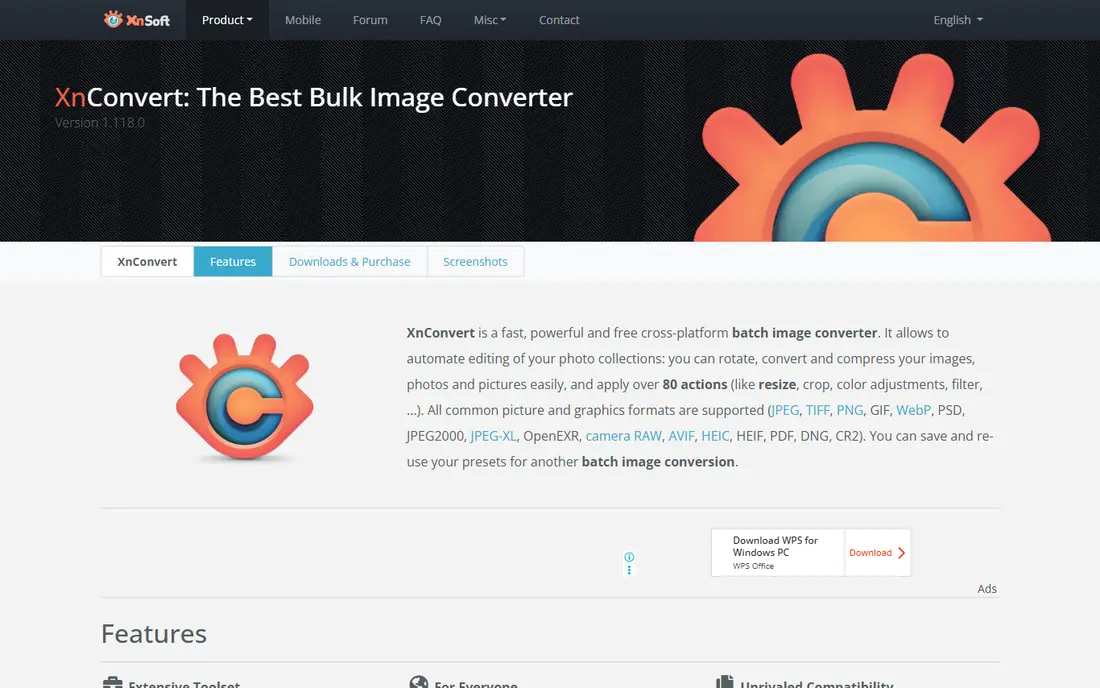
XnConvert is our pick for most people who need a free desktop converter. You add files or a folder, choose JPG as the output, set quality, and convert the batch in one run. You can also resize images, adjust brightness, or add a watermark before saving, which saves a second pass in another app.
The interface is practical rather than pretty, and the number of options can feel like a lot at first. Stick to the input, output, and actions tabs and ignore the rest until you need it. For regular batch work on a desktop, XnConvert is fast, free, and reliable.
- Batch conversion for whole folders
- Resize, crop, and rotate during conversion
- Supports many image formats
- Interface looks dated
- Settings can overwhelm a first-time user
- No cloud storage built in
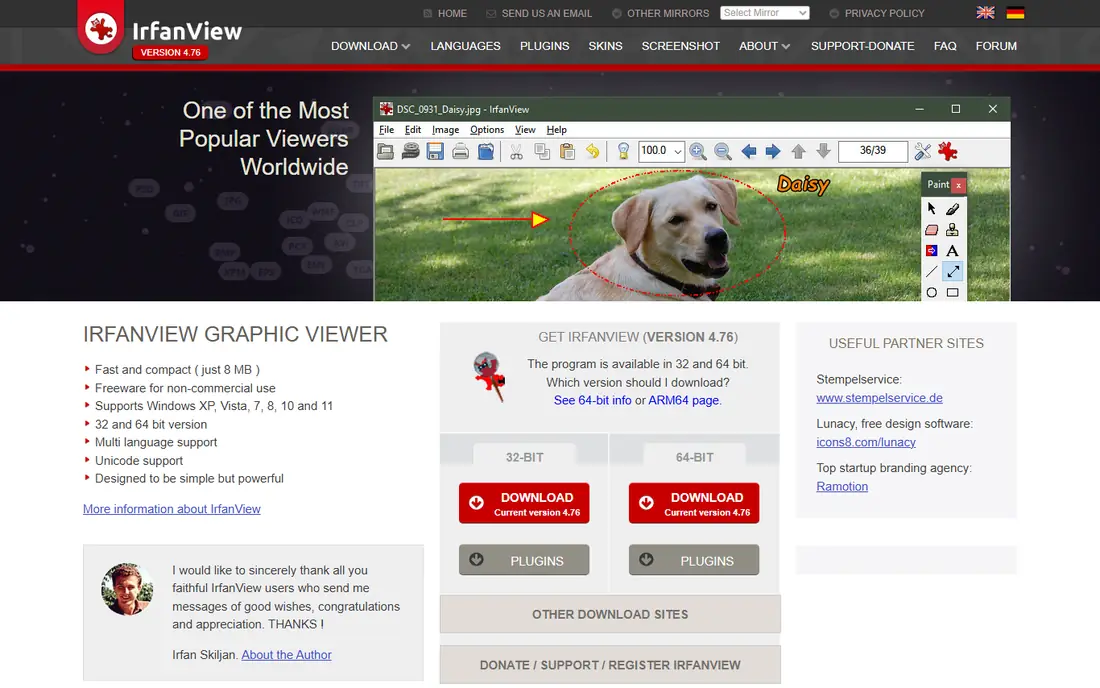
IrfanView has been a Windows staple for years, and its batch conversion tool remains one of the quickest ways to turn a folder of PNG files into JPG files. Open the batch dialog, pick your files, choose JPG, set quality, and run the job. It handles large folders without fuss and does not demand a powerful machine.
IrfanView is not a photo editor, so do not expect layered editing or advanced retouching. It is a viewer and converter first, with just enough adjustment tools for everyday jobs. If you use Windows and want speed above all else, it is a strong, free choice.
- Very fast viewer with batch conversion
- Simple quality slider for JPG output
- Small download and low system demands
- Windows only for the main app
- Interface is old-fashioned
- Editing tools are basic compared with a full editor
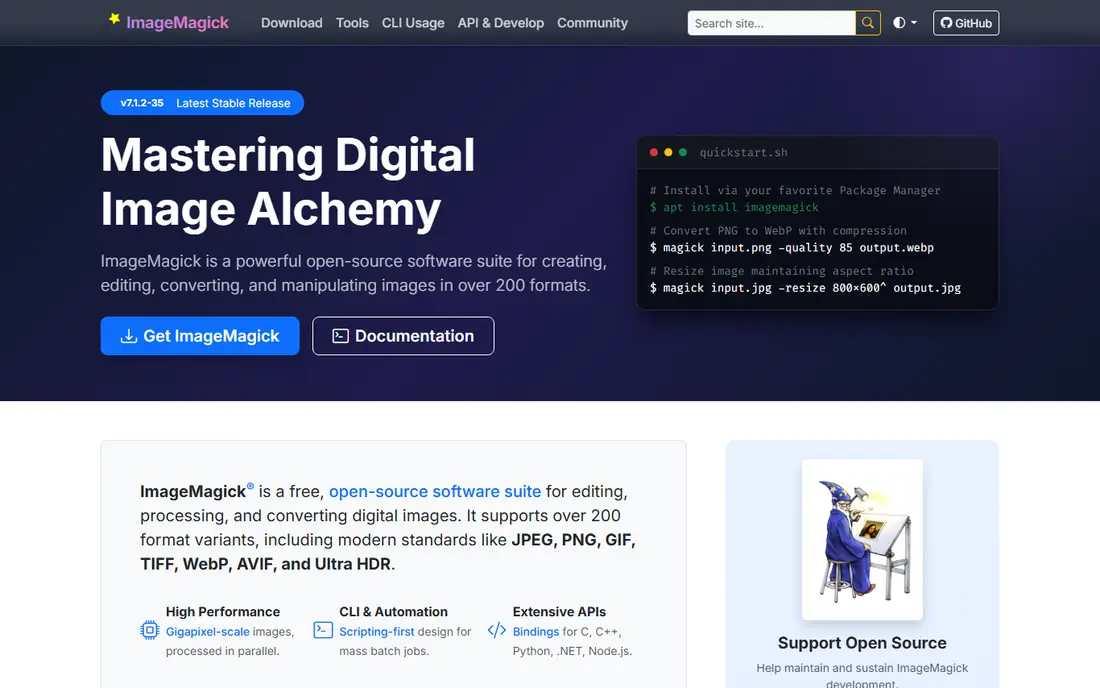
ImageMagick is the tool behind many automated image workflows. With a single command, you can convert every PNG in a folder to JPG at a chosen quality, strip metadata, and resize at the same time. That repeatability matters for developers, web teams, and anyone who converts the same kind of files every week.
The catch is that you work in a terminal, not a drag-and-drop window. A wrong command can overwrite files, so keep a backup and test on a copy first. If you are comfortable with command lines, ImageMagick is unmatched for scale. If you are not, a graphical tool above will be faster to learn.
- Powerful command-line batch conversion
- Works on Windows, Mac, and Linux
- Can be automated in scripts and workflows
- No simple graphical interface by default
- Commands need care to avoid overwriting originals
- Learning curve for beginners
Total Image Converter suits people who convert images in bulk for work. It reads a wide range of formats, writes JPG and many other outputs, and lets you resize, crop, and watermark during the same conversion. That single-pass approach saves time when you prepare hundreds of images for a website or a client folder.
You pay for the full version, so it makes most sense if you convert often enough to justify the cost. Occasional users will do fine with a free tool. For heavy, repeated desktop batches, the breadth of formats and the automation options make it worth testing.
- Wide format support including RAW and HEIC input
- Resize, crop, and watermark in one pass
- Command-line option for automation
- Paid software after the trial
- Windows only
- Interface is functional rather than modern
CloudConvert is a good online choice when you need more control than a one-click converter offers. You can set JPG quality, resize, and adjust other output options before converting, and you can pull files from cloud storage rather than only from your computer. That control helps for web work where file size and quality need to balance.
Free use is limited, so very large batches may need a paid plan or a desktop tool. For occasional jobs, a few files at a time, or work on a computer where you cannot install software, CloudConvert is a solid, flexible option.
- Supports many formats with detailed output settings
- Batch conversion in the browser
- Integrations with cloud storage
- Free use has limits on conversion time and volume
- Large files need an upload
- Quality depends on settings you choose
FreeConvert is the tool to reach for when you have a handful of PNG files and want JPG versions fast. Upload, choose JPG, convert, and download, with advanced quality and size options if you want them. The lack of an account requirement for basic jobs keeps the process short.
The free limits matter if you convert every day or work with very large images. In that case, a desktop converter will be cheaper and faster over time. For one-off conversions, especially of an unusual format, FreeConvert is hard to beat for convenience.
- No account needed for many quick jobs
- Supports a very wide range of formats
- Simple drag-and-drop workflow
- Free tier limits file size and daily use
- Online ads can clutter the page
- Large batches are slower than desktop conversion
Convertio keeps the process to three steps, which is exactly what many users want. You choose files, pick JPG, and download the result. Cloud storage links make it useful on shared computers or tablets where installing software is not practical.
As with other online tools, the free tier is best for small jobs. If you hit the daily limit, you will need to wait, pay, or switch to a desktop tool. For a quick conversion on any device, Convertio is a dependable, low-friction pick.
- Very simple interface
- Works from cloud storage as well as local files
- Batch conversion for smaller jobs
- Free plan limits file size and daily conversions
- Conversion speed varies with file size
- No desktop automation
GIMP is not primarily a converter, but it is a strong choice when conversion is part of editing. You can open a PNG, adjust colour, crop, or retouch it, then export as JPG with a quality setting you control. That workflow suits photographers and designers who need to fix an image before they shrink it.
For a folder of 500 untouched PNG files, GIMP alone is slow, because batch work needs extra setup. Use it when each image needs attention. Use a dedicated batch converter when the files only need a format change and a resize.
- Full free image editor
- Precise export quality controls for JPG
- Works on Windows, Mac, and Linux
- Batch conversion needs a plug-in or script for large jobs
- Interface can feel complex
- Overkill if you only need conversion
FastStone Photo Resizer does one job well. It takes a batch of images, resizes them, renames them if needed, and saves them as JPG files in a single run. That is exactly the workflow for preparing photos for a website, a presentation, or an email where both size and format need to change.
It will not replace a full editor, and Windows-only support limits its audience. For Windows users who prepare image sets regularly, though, it is a fast, free, and focused tool that avoids the clutter of larger programs.
- Batch resize, rename, and convert in one tool
- Simple interface for repeated jobs
- Free for home use
- Windows only
- Editing features are limited
- Design looks dated
How we picked these
We checked official product pages, help pages, and pricing pages for each tool, along with public reviews of batch handling and format support. We kept only tools that are live in October 2026, genuinely convert PNG to JPG, and are practical for either single files or batches. Online tools were judged on free limits and upload handling, while desktop tools were judged on batch speed, quality control, and format range.
Where a price was not clearly confirmed on the vendor site, we used See website rather than repeating a figure from a review site. Conversion quality also depends on the source image, so we recommend testing with a copy of a typical file before converting a whole folder.
Choosing the right conversion tool
Think about volume first. One or two files suit any online converter. Dozens of files suit a desktop batch tool. Hundreds of files, repeated weekly, suit a scripted tool or a paid batch converter with automation. Matching the tool to volume saves more time than any single feature.
Set quality with a test file
JPG quality is a trade-off between file size and visible detail. A setting around 80 to 90 percent works well for many photos, while lower settings suit thumbnails and web previews. Convert one representative photo at two or three quality levels, compare file sizes, and zoom in on edges and text before you run the full batch.
Watch transparency and text
JPG files cannot keep a transparent background, and sharp text can show artefacts at low quality. Keep the original PNG for logos, icons, and graphics with transparency, and only convert photos, screenshots for sharing, and images where a solid background is fine. For text-heavy graphics, keep quality high or stay with PNG.
Keep originals until you check the output
Always convert into a new folder or with new file names, and keep the PNG originals until you have opened several JPG outputs. Check colour, sharpness, and file size, and confirm that no file was skipped. That simple check prevents a batch error from becoming a lost set of images.
Frequently asked questions
What is the best png to jpg conversion tool?
For free desktop batch work, XnConvert is our top pick, with IrfanView close behind for Windows speed. For online use, CloudConvert offers the most control, while FreeConvert and Convertio are simpler for quick jobs. The best png to jpg conversion tool depends on how many files you have and whether you can install software.
Is PNG to JPG conversion free?
Yes, in many cases. XnConvert, IrfanView, ImageMagick, and GIMP are free, and the online tools in this list offer free tiers. Paid tools and paid online plans mainly buy higher limits, faster processing, or extra batch features, rather than a different basic conversion.
Does converting PNG to JPG lose quality?
JPG uses lossy compression, so some detail is lost, especially at low quality settings. At a high quality setting, the loss is hard to see in most photos. Keep the original PNG if you may need to edit or re-export the image later, and avoid converting the same JPG file again and again.
What happens to transparency when I convert PNG to JPG?
Transparency is lost, because JPG has no alpha channel. Transparent areas usually become white, though some tools let you choose another background colour. Check the result before you publish, especially for logos and overlays that relied on a clear background.
Can I convert many PNG files to JPG at once?
Yes. XnConvert, IrfanView, ImageMagick, Total Image Converter, and FastStone Photo Resizer all support batch conversion, and the online tools support smaller batches. For very large folders, a desktop or command-line tool will be faster and more reliable than uploading files one by one.
Should I use JPG or PNG for photos on a website?
JPG is usually better for photos, because the smaller file size helps pages load faster. PNG is better for logos, icons, and graphics with sharp lines or transparency. For photos with no transparency, converting PNG to JPG at a sensible quality setting is a practical way to cut page weight.
Sources we checked (9)

Online Jobs is an independent blog about careers, online work, learning new skills and the tools that help people earn. More about us.
Keep reading
All posts
Zoom Alternatives
Zoom alternatives compared for 2026: Google Meet, Microsoft Teams, Webex, Jitsi and more for free calls, large meetings and webinars for teams and classrooms.
Which Software Is Best for Data Entry
Compare the best data entry software for forms, OCR scanning, and spreadsheets, with free plans, pricing, and honest limits for each tool before you commit.

What Is the Best Free Tool to Rotate a PDF
What is the best free tool to rotate a PDF? We compare eight free rotation tools on per-page control, limits, privacy and saved output quality in detail.