Best Software for Movie Clip Editing in 2026: 9 Tools Compared

How we put this together: we compare official feature and pricing pages, app store listings, privacy policies and public user reviews. Prices change, so check the provider's site before you pay.
Key takeaways
- DaVinci Resolve gives the strongest free starting point, with editing, color and audio in one download.
- Adobe Premiere Pro remains the safer choice for teams that share projects and use After Effects.
- Final Cut Pro suits Mac owners who prefer a one-time purchase over a subscription.
- CapCut and Filmora are faster for short clips, while the pro editors win on long, complex timelines.
- Check export limits and hardware needs before paying, since the cheapest plan is not always the cheapest workflow.
Quick comparison
| Name | Who it suits | Starting price | Free option | |
|---|---|---|---|---|
 DaVinci Resolve | Free pro editing and color | Free | Yes | Visit |
 Adobe Premiere Pro | Team and agency projects | $22.99 per month | Free trial | Visit |
 Final Cut Pro | Mac editors buying once | $299.99 one-time | Free trial | Visit |
 CapCut | Short social clips | Free | Yes | Visit |
 Wondershare Filmora | Beginners and YouTube creators | $9.99 per month | Yes | Visit |
 CyberLink PowerDirector | Fast Windows editing | $4.58 per month | Yes | Visit |
 Movavi Video Editor | Simple desktop edits | $19.95 per month | Yes | Visit |
 Clipchamp | Browser and Windows edits | Free | Yes | Visit |
 Lightworks | Focused film-style cutting | Free | Yes | Visit |
The best software for movie clip editing
Movie clips cover a wide range, from a 30 second social cut to a short film with dialogue, music and color work. The tools below handle that range in different ways, so the right pick depends on clip length, device and how much control you want over the final look.
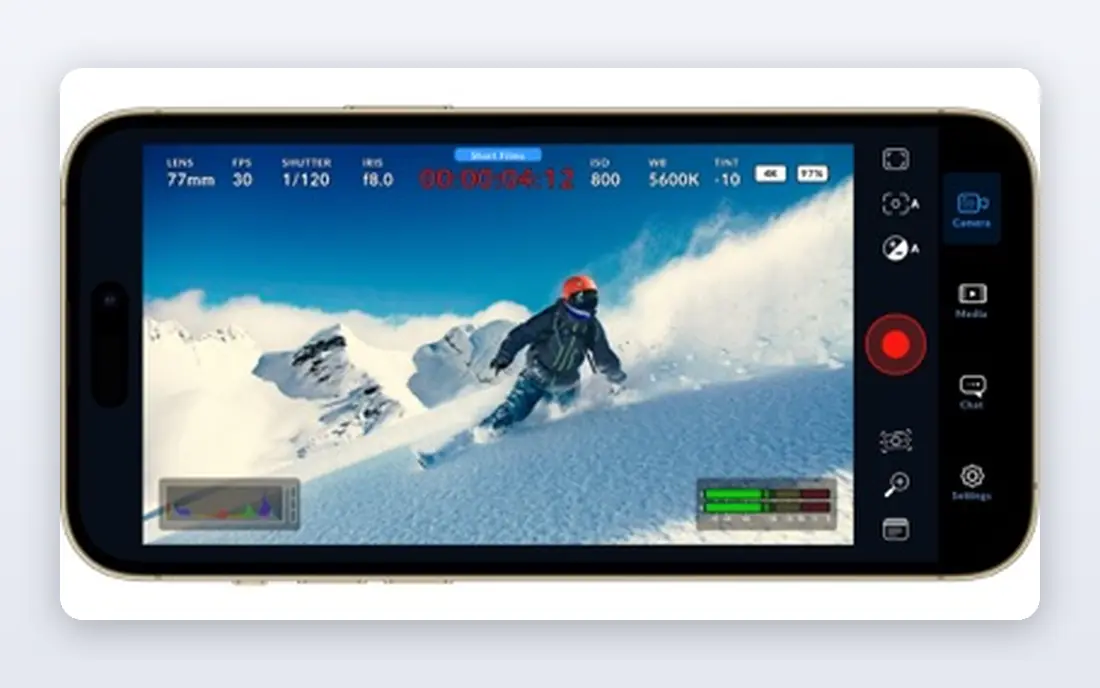
For many editors, Resolve is the obvious place to start because the free version is genuinely usable, not a short demo. You can cut clips, grade color, mix audio and add titles without switching apps, which keeps short film projects tidy. The color page is the main reason people stay, since it gives fine control over skin tones, contrast and mood without extra software. The trade-off is time and hardware. The interface has several pages, and a new editor can feel lost between the cut page, edit page and color page. Older laptops may struggle with 4K footage, so use proxy files or lower preview resolution when playback stutters. If you can accept that learning period, Resolve covers more ground for no money than any other tool here.
- Full editor, color tools and audio in one app
- Free version exports without a watermark
- Strong format support
- Needs a capable computer
- Learning curve is steep for beginners
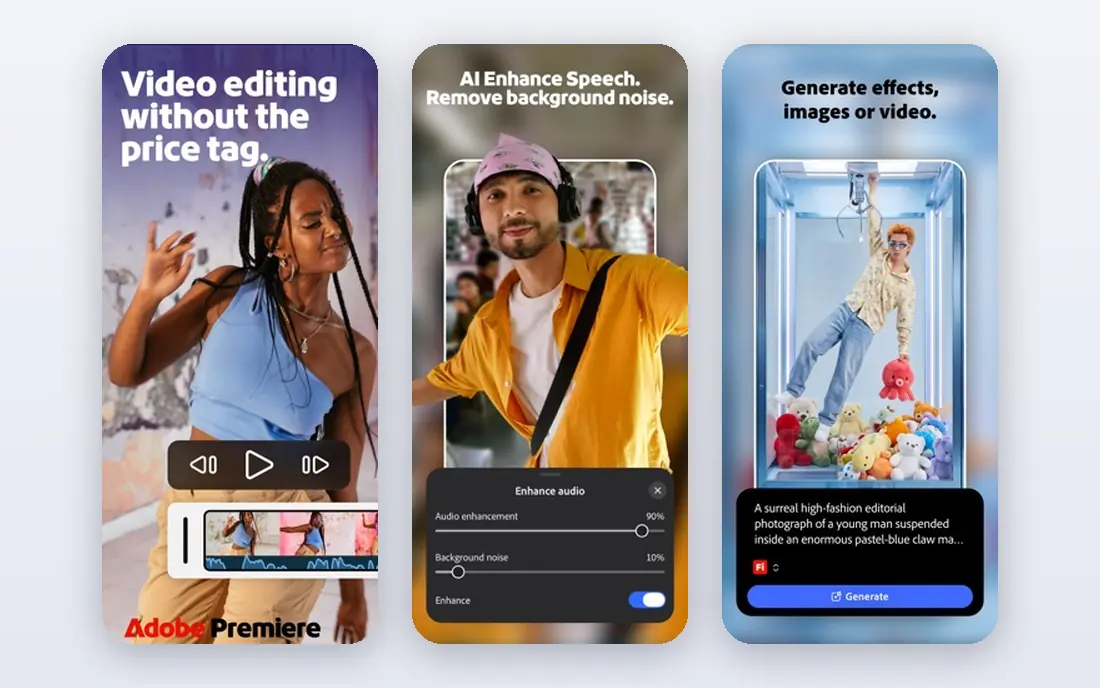
Premiere Pro fits editors who work with other people or hand projects to clients. Shared projects, Productions workflows and Adobe cloud libraries make it easier to split work across editors, sound designers and motion designers. If a client already uses After Effects, staying inside Adobe saves conversion time and keeps graphics editable. The cost adds up over years, and that matters for hobby editors. Premiere Pro also rewards a modern machine, especially for 4K and effects heavy timelines. Try the trial on a real project, not a test clip, so you can judge playback, export speed and whether the Adobe workflow actually helps your kind of work.
- Industry standard timeline and collaboration
- Deep links to After Effects and Audition
- Broad format support
- Subscription only
- Can feel heavy on modest machines
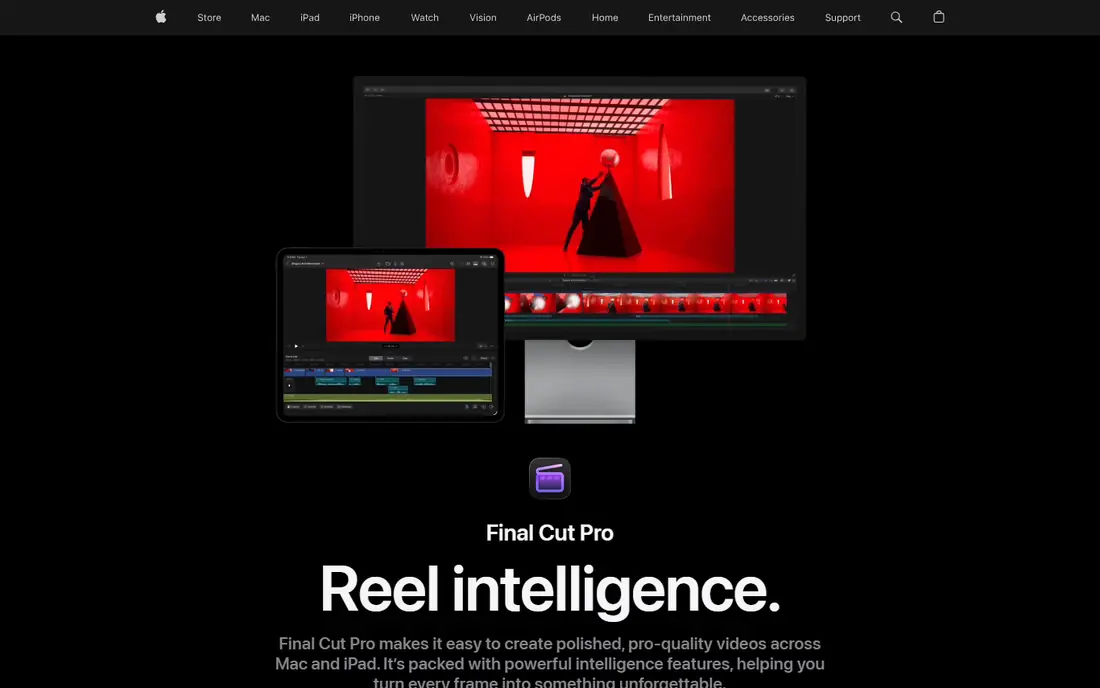
Final Cut Pro is built around speed on Apple hardware. The magnetic timeline pulls clips together as you trim, which helps when you are assembling a rough cut from many takes. On Apple silicon machines, playback and export are often noticeably quicker than on comparable cross platform editors, and that saves time on longer clips. The main limit is platform. If you move to Windows later, your projects do not travel with you in a simple way. The magnetic timeline also divides opinion, since editors used to traditional tracks may need a week to adjust. For Mac owners who edit regularly and dislike subscriptions, the one-time price is easy to justify over two or three years.
- Very fast on Apple silicon
- Magnetic timeline speeds assembly
- One-time purchase
- Mac and iPad only
- Plugin and template costs can add up
CapCut wins on speed for short clips. Templates, auto captions, beat aware cuts and a large effects library let you turn raw phone footage into a finished vertical video in minutes. The phone and desktop apps share projects, so you can start on the train and finish at a desk. For movie style work, CapCut shows its limits sooner. Color tools are simpler, audio mixing is basic, and long timelines feel cramped compared with Resolve or Premiere Pro. Treat it as a short clip specialist, and use a pro editor when a project needs careful sound design, precise color or a complex story structure.
- Fast templates and auto captions
- Works on phone, desktop and web
- Easy vertical video workflow
- Pro features sit behind a subscription
- Less depth for long-form color and audio work
Filmora is a comfortable middle step between a phone app and a pro editor. The layout is clear, effects are easy to find, and AI tools for captions, background removal and audio cleanup help creators who edit alone. For YouTube clips, vlogs and short promos, it covers the common jobs without a long manual. Serious color work and detailed audio mixing will push you toward Resolve or Premiere Pro eventually. Also check whether a monthly, annual or perpetual plan fits your use, since prices vary by billing term. If you edit weekly and want a gentle learning curve, Filmora is a sensible paid step up from free phone apps.
- Friendly interface with templates and AI tools
- Good stock and title options
- Available on Windows and Mac
- Free exports carry a watermark
- Advanced color and audio controls are limited
PowerDirector has long been a Windows favorite for editors who value render speed. On a mid range PC, exports often finish sooner than in heavier pro editors, which matters when you publish several clips a week. The template and effects libraries also help with intros, titles and social versions of the same clip. The downside is clutter. Panels, packs and upsell prompts can distract a new editor, and some features are locked to subscription plans. Spend an hour hiding panels you do not use and learning the keyboard shortcuts, and PowerDirector becomes a fast, practical daily editor for Windows users.
- Fast rendering on many Windows PCs
- Large effects and template library
- Strong 360 and AI tools on higher plans
- Interface can feel crowded
- Mac version is more limited than Windows
Movavi suits people who want a finished clip without learning a pro tool. Import footage, trim, add music and titles, and export, all from a timeline that stays readable. For family films, school projects, product clips and short social videos, that simplicity is a feature, not a weakness. Longer projects with many tracks, precise audio work or heavy effects will feel constrained. Check export limits on the free version before starting a project you plan to publish. If your clips stay under a few minutes and you value a calm interface, Movavi is a low friction choice.
- Very easy to learn
- Clean timeline for short projects
- Built-in titles and transitions
- Free version limits exports
- Not built for complex multi-track film work
Clipchamp is the easiest editor to start on a Windows PC, since it is already there for many users and also runs in a browser. Drag clips onto a timeline, add text and music, and export a clean 1080p video from the free plan. For office clips, class projects and quick social edits, that is often enough. The web version depends on your connection and browser, so large 4K projects can feel slow. Premium stock, brand kits and 4K export sit behind Microsoft 365 or a paid plan, so check what your existing subscription already includes. As a free, low setup editor, Clipchamp is hard to beat for simple movie clips.
- No install needed for web editing
- Simple templates and stock library
- Built into Windows
- 4K export and some stock need a paid plan
- Needs a steady internet connection for web use
Lightworks takes a different approach, with trimming tools shaped by feature film editing rather than social templates. Editors who like keyboard driven cutting and careful pacing often enjoy it once the layout clicks. The free version is a useful way to learn those habits without paying first. The interface will not suit everyone, and free exports are limited in resolution and destination compared with Resolve. Paid plans remove those limits and add more formats. Choose Lightworks if you want to practice traditional cutting craft, and choose Resolve if free 4K export matters more.
- Film editing heritage and precise trimming
- Free version for learning
- Cross platform
- Interface feels dated to some users
- Free export is limited to 720p for YouTube and Vimeo
How we picked these
We compared official feature pages, pricing pages, app store listings and public documentation for each editor, and kept only tools that are actively available in October 2026. We favored editors that cover a clear use case, from free pro work to fast social clips, rather than listing every editor with a similar feature set. Where pricing varies by billing term or region, we used the starting figure shown on the vendor site and noted one-time purchases separately, so readers can check the current price before buying.
Choosing the right editor for your clips
Match the tool to clip length
Short social clips reward templates, captions and fast export. Long clips reward timeline control, audio mixing and color tools. Picking a social editor for a 20 minute short film usually creates more work later, while picking a pro editor for a 30 second clip can slow a simple job.
Check your computer first
Pro editors need a modern processor, enough memory and storage space for proxy files. Before you pay, download the free version or trial, import your own footage, and test playback and export. A tool that runs well on a review machine may still struggle with your camera files.
Think about export and ownership
Free plans differ on watermarks, resolution and where you can publish. If you plan to post clips for a client or a channel, confirm the export rules on the plan you will actually use, not the headline free offer. Also keep project files and original footage backed up, since moving between editors is rarely clean.
Frequently asked questions
What is the best free software for movie clip editing?
DaVinci Resolve is our pick for free work, since it offers full editing, color and audio without a watermark on exports. Clipchamp is simpler for quick web edits, and CapCut is faster for vertical social clips. Choose Resolve when quality and control matter most, and a simpler tool when speed matters more.
Is Premiere Pro worth it for short clips?
It can be, if you already work in Adobe tools or collaborate with a team. For solo short clips, Resolve, Filmora or CapCut often finish the job faster and for less money. Use the Premiere Pro trial on a real deadline project before committing to a subscription.
Can I edit movies on a phone?
Yes, for short clips and rough cuts, especially with CapCut, Filmora mobile or LumaFusion on iPad. Phones struggle with long timelines, large files and precise audio work, so most editors move to a desktop app for a finished short film. Use the phone for capture and assembly, then polish on desktop when the project grows.
Do I need a powerful computer for 4K editing?
A modern machine helps, but proxy editing makes 4K work possible on mid range computers. Resolve, Premiere Pro and Final Cut Pro all support proxies or optimized media. If playback stutters, lower preview quality, close other apps, and store footage on a fast drive before upgrading hardware.
What file format should I export for YouTube and social platforms?
MP4 with H.264 video is a safe default for most platforms, with H.265 as an option when file size matters and your device supports it. Export at the resolution you filmed in, keep the frame rate matched to your timeline, and check platform upload guidance for maximum length and file size.
How long does it take to learn a pro editor?
Basic cutting can take a weekend, while confident color, audio and effects work takes weeks of regular practice. Start with one project type, learn trimming and audio levels first, and add color grading later. Tutorials help, but a finished project teaches faster than watching hours of feature tours.
Sources we checked (9)
- https://www.blackmagicdesign.com/products/davinciresolve
- https://www.adobe.com/products/premiere.html
- https://www.apple.com/final-cut-pro
- https://www.capcut.com
- https://filmora.wondershare.com
- https://www.cyberlink.com/products/powerdirector-video-editing-software
- https://www.movavi.com/video-editor
- https://www.clipchamp.com
- https://lwks.com

Online Jobs is an independent blog about careers, online work, learning new skills and the tools that help people earn. More about us.
Keep reading
All posts
Zoom Alternatives
Zoom alternatives compared for 2026: Google Meet, Microsoft Teams, Webex, Jitsi and more for free calls, large meetings and webinars for teams and classrooms.
Which Software Is Best for Data Entry
Compare the best data entry software for forms, OCR scanning, and spreadsheets, with free plans, pricing, and honest limits for each tool before you commit.

What Is the Best Free Tool to Rotate a PDF
What is the best free tool to rotate a PDF? We compare eight free rotation tools on per-page control, limits, privacy and saved output quality in detail.