Best Software Development Tools in 2026: 10 Tools Compared

How we put this together: we compare official feature and pricing pages, app store listings, privacy policies and public user reviews. Prices change, so check the provider's site before you pay.
Key takeaways
- Visual Studio Code is our pick for most developers, because it is free, fast, and supports almost every language through extensions.
- GitHub is the default home for code collaboration, with hosting, pull requests, and automation in one platform.
- Docker solves environment differences by packaging an app with its dependencies, which helps teams ship the same code everywhere.
- Postman, GitLab, and IntelliJ IDEA cover API testing, full DevOps, and deep Java and Kotlin work, each with a clear strength.
- Start free where possible, because most tools on this list offer a free tier that covers a solo developer or a small team.
Quick comparison
| Name | Who it suits | Starting price | Free option | |
|---|---|---|---|---|
 Visual Studio Code Visual Studio Code | Everyday coding | Free | Yes | Visit |
 GitHub GitHub | Code hosting and collaboration | Free | Yes | Visit |
 GitLab GitLab | Full DevOps platform | Free | Yes | Visit |
 Docker Docker | Containers and environments | Free | Yes | Visit |
 Postman Postman | API testing | Free | Yes | Visit |
 IntelliJ IDEA IntelliJ IDEA | Java and Kotlin work | Free | Yes | Visit |
 Cursor Cursor | AI-assisted coding | $20 per month | Free trial | Visit |
 Jenkins Jenkins | Self-hosted automation | Free | Yes | Visit |
 Android Studio Android Studio | Android app development | Free | Yes | Visit |
 Sublime Text Sublime Text | Fast lightweight editing | See website | Free trial | Visit |
The best software development tools
Software development tools cover editing, hosting, testing, deployment, and automation. No single tool does all of it well, so a typical stack combines an editor, a code host, a container tool, and a testing tool. The list below covers that stack, with a clear role for each tool.
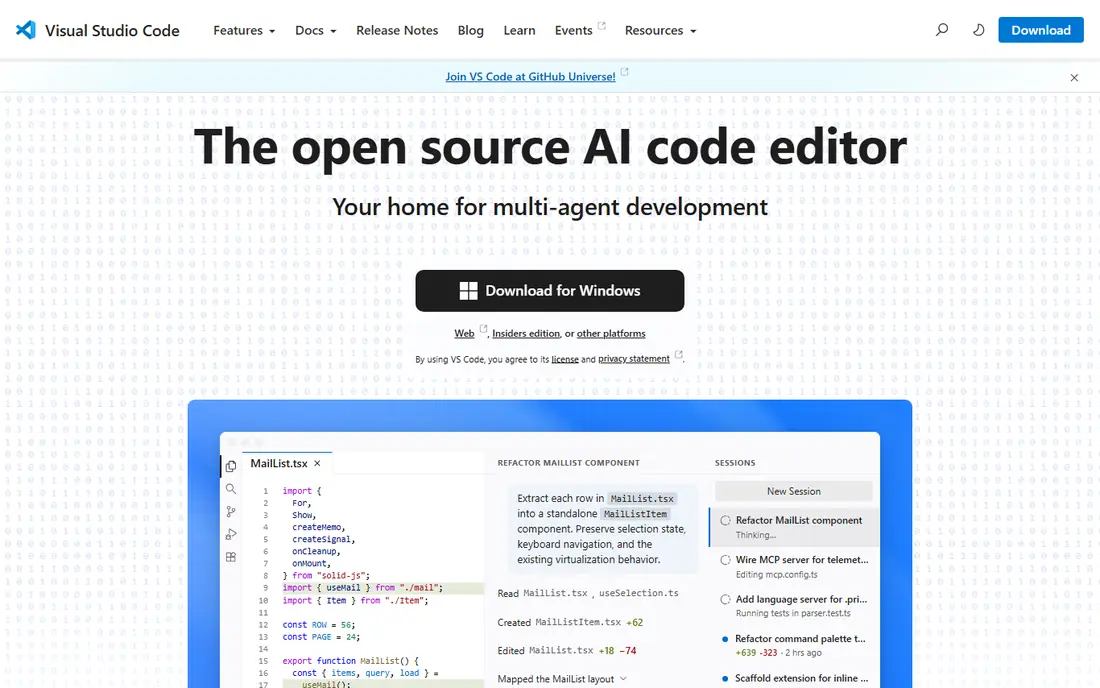
Visual Studio Code, usually called VS Code, is the default editor for most developers because it balances speed, features, and language support. It is free, runs on Windows, Mac, and Linux, and supports almost every language through extensions, from JavaScript and Python to Rust and Go. Built-in Git, debugging, terminal, and remote development tools cover daily work without a paid IDE.
The extension model is both a strength and a limit. A clean VS Code install is fast, but a heavy extension set can slow startup and editing, so install only what a project needs. For most web, mobile, and backend work, VS Code is the right starting point, and it pairs well with GitHub, Docker, and Postman on this list.
- Free and open source
- A huge extension library
- Strong Git, debugging, and remote support
- Heavy extension use can slow it down
- Some language features need the right extension setup
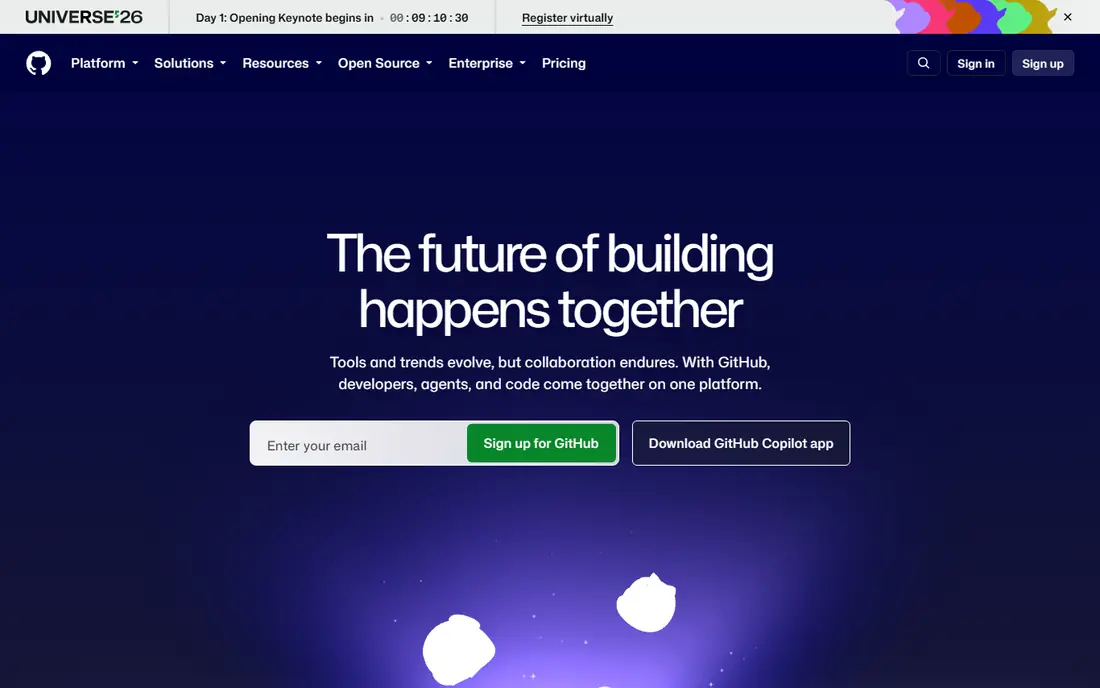
GitHub is where most open source and commercial code lives, and it is the default collaboration tool for a reason. Repositories, branches, pull requests, code review, and issue tracking cover team workflow, while GitHub Actions adds testing and deployment automation in the same platform. A free plan covers unlimited public and private repositories for individuals, with limits on some features.
Paid plans add advanced code review, security, and administration for teams and enterprises, so check the plan that fits your team size. GitHub also hosts GitHub Copilot, an AI coding assistant, as a separate paid add-on. For a solo developer or a small team, the free plan is often enough to start, and GitHub remains the safest place to host code that others may need to find.
- Free public and private repositories for individuals
- Pull requests and code review
- Actions for automation
- Advanced team and enterprise features need paid plans
- Private project limits vary by plan
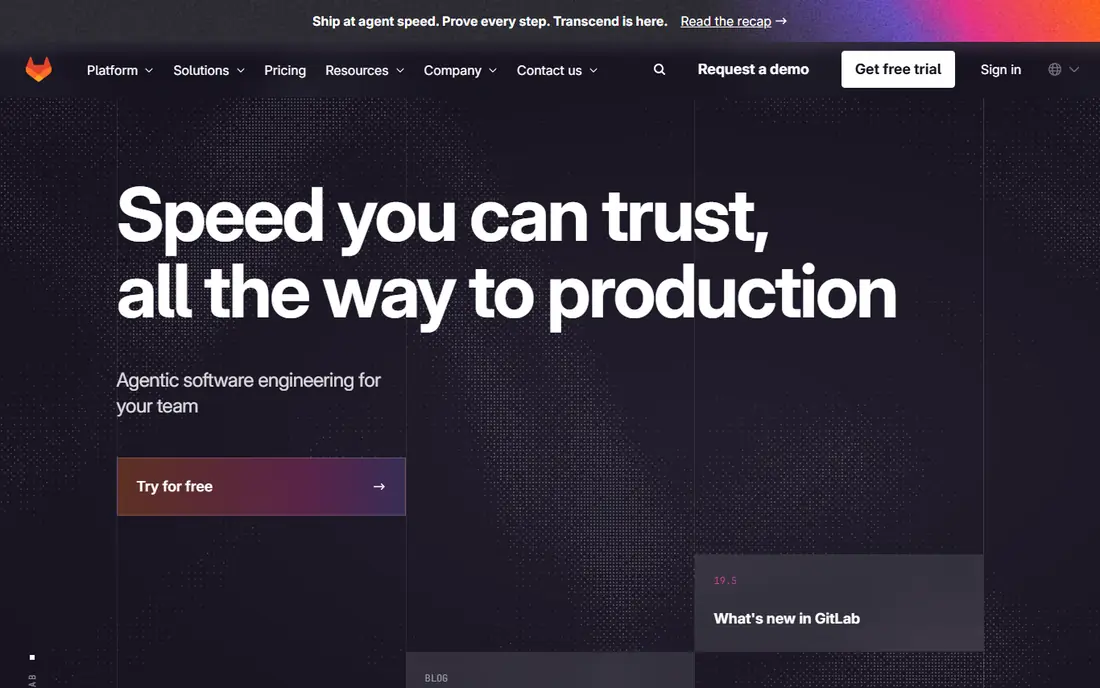
GitLab is a full DevOps platform, which means it covers code hosting, continuous integration and delivery, issue tracking, and security scanning in one product. That breadth helps a team that wants one login and one pipeline, rather than stitching GitHub, Jenkins, and a separate CI tool together. The free tier covers many small team needs, and self-hosting lets a company run GitLab on its own servers.
The interface packs in many features, so a new user can feel lost compared with GitHub simpler repository view. Paid plans start at $29 per user per month for Premium in recent listings, which is higher than some GitHub team plans. GitLab suits a team that wants an all-in-one DevOps platform, while GitHub suits a team that wants the largest community and ecosystem.
- One platform for code, CI/CD, issues, and security
- A free tier for small teams
- Self-hosting options
- The interface can feel busy
- Paid tiers start higher than GitHub for some teams
Docker packages an app with its libraries and settings into a container, so the same code runs the same way on a laptop, a test server, and production. That consistency ends the classic problem where code works on one machine and fails on another. Docker Hub offers many ready-made images, and Docker works with GitHub Actions, GitLab CI, Jenkins, and major clouds.
Learning Docker takes time, especially for networking, volumes, and multi-container setups with Docker Compose. Desktop licensing terms also matter for larger companies, so check the current Docker Desktop terms for your team size. For a solo developer, Docker Desktop is free for personal use, and it makes onboarding faster.
- Consistent environments across machines
- A huge image library
- Works with most CI and cloud tools
- A learning curve for networking and volumes
- Desktop licensing terms matter for larger companies
Postman is the standard tool for building, testing, and documenting APIs. You can send requests, save them in collections, write tests, share them with a team, and monitor an API for failures. That workflow helps a backend developer, a frontend developer, and a tester agree on what an API should do, before code ships.
The free plan covers individual use and small team basics, while paid plans start at $9 per user per month in some listings, with higher tiers for larger teams. For a single quick request, a command-line tool or a browser extension may be faster. For a team that builds and maintains APIs, Postman collections become living documentation that saves time across a project.
- Easy API requests, collections, and tests
- Shared workspaces for teams
- Mock servers and monitors
- Advanced team features need paid plans
- The app can feel heavy for a single quick request
IntelliJ IDEA is the JetBrains IDE for Java and Kotlin, and it remains the standard for serious JVM work. Code completion, refactoring, debugging, and framework support are deeper than a general editor, which helps on a large codebase with many modules. The Community edition is free and covers core Java and Kotlin work, while Ultimate adds web, database, and enterprise framework support.
Ultimate pricing starts at $199 for the first year for individuals in recent listings, with lower renewal prices, so check the JetBrains pricing page. IntelliJ IDEA uses more memory than VS Code, so a weaker machine may feel the difference. For Java and Kotlin teams, the productivity gain is often worth it, while a polyglot developer may prefer VS Code for other languages.
- Deep Java and Kotlin intelligence
- Strong refactoring and debugging
- A Community edition for free
- The full Ultimate edition is paid
- The IDE uses more resources than VS Code
Cursor is an AI-native code editor built on VS Code, which means it feels familiar but adds agent-driven coding, chat, and code generation throughout the workflow. You can ask it to build a feature, fix a bug, or refactor a file, and it edits across files rather than just completing a line. For a developer who wants AI help beyond autocomplete, Cursor is the current leader in this category.
Pro pricing starts at $20 per user per month, with a credit-pool model for advanced AI usage that heavy users should budget carefully. AI output still needs testing and review, because generated code can contain bugs or security issues. Cursor suits a developer who will review AI work carefully, not someone who wants to ship generated code without checks.
- AI-native editing with agent workflows
- Built on VS Code, so extensions and shortcuts feel familiar
- Strong code generation
- Paid plans use a credit model that heavy users must budget
- AI output still needs review
Jenkins is the long-running open source automation server for continuous integration and delivery. It runs builds, tests, and deployments on your own servers, with a huge plugin library for almost every language, cloud, and tool. That control suits a company with strict security rules, legacy systems, or a need to run automation on private infrastructure.
Setup and maintenance are the cost. Jenkins needs updates, plugin management, and backup care, and its interface feels dated next to GitHub Actions or GitLab CI. For a small team starting fresh, GitHub Actions or GitLab CI is simpler. For a team that needs self-hosted automation with deep plugin support, Jenkins remains a solid, free choice.
- Free and open source
- A huge plugin library
- Full control over CI/CD on your own servers
- Setup and maintenance take time
- The interface feels dated compared with GitHub Actions or GitLab
Android Studio is the official IDE for Android app development, built on IntelliJ IDEA. It offers an emulator, layout editors, profiling tools, and templates for Android apps, plus strong Kotlin support, which is now the preferred language for Android. For a developer building an Android app, Android Studio is the expected tool, with the best emulator and device support.
It is heavy on memory and disk, and it is not a general-purpose editor for web or backend work. A developer who builds for both Android and iOS may also use a cross-platform tool, but Android Studio remains the right place to test and polish an Android app. It is free, and it pairs well with GitHub for code hosting and with Docker for backend services.
- The official Android IDE
- An emulator and layout tools
- Strong Kotlin and Java support
- Heavy on system resources
- Best for Android only, not general coding
Sublime Text is a lightweight editor prized for speed. It opens fast, handles large files well, and offers a clean interface with multi-cursor editing, Goto tools, and a package system for languages and features. For a developer who wants a quick editor for notes, config files, and small edits, Sublime Text feels lighter than a full IDE.
It lacks the built-in Git, debugging, and extension depth of VS Code, and package setup needs more manual work. The evaluation version is free to try, with purchase prompts, and a license is a one-time purchase in recent listings, so check the vendor site for the current price. Sublime Text suits a developer who values speed above all, while VS Code suits a developer who wants a full daily IDE.
- Very fast startup and editing
- A clean interface
- Good for quick edits and large files
- Package setup needs more work than VS Code
- The evaluation version shows purchase prompts
How we picked these
We compared official feature pages, pricing pages, documentation, and public reviews for development tools that serve solo developers, small teams, and growing companies in the United States. We favored tools with a free tier, a clear role in a stack, and broad language or platform support, and we noted where paid plans, licensing, or resource use limited a choice. We did not claim hands-on testing, and we did not rank an editor against a CI tool as if they did the same job.
Check the vendor pricing page before you buy, because team pricing, AI credits, and desktop licensing terms change often, especially for Docker, Cursor, and JetBrains tools.
What to build your stack around
Start with an editor, a code host, and a way to test, then add tools only when a real pain appears. A stack that grows with a project is easier to maintain than a stack chosen from a feature list on day one. Keep the core tools simple, and document how they fit together for a new team member.
Editor, host, and test loop
VS Code covers editing for most languages, GitHub or GitLab covers hosting and review, and Postman covers API testing. That loop is the heart of daily development. Add IntelliJ IDEA for Java and Kotlin depth, or Android Studio for Android work, when a project needs that specialist tool.
Containers, CI, and deployment
Docker gives you a consistent environment, while GitHub Actions, GitLab CI, or Jenkins automates testing and deployment. Choose GitHub Actions for a GitHub-hosted project, GitLab CI for a GitLab project, and Jenkins when you need self-hosted control. Test the pipeline on a small project first, and keep secrets out of code and logs.
AI tools and code review
AI editors such as Cursor can speed up routine code, but they do not replace review, testing, and security checks. Treat AI output as a draft, run tests, and review changes in a pull request as you would for a human colleague. Set team rules for AI use, including what code can be sent to an AI service, before a team adopts it widely.
Frequently asked questions
What is the best software for app development?
VS Code is our pick for most app development, because it is free and supports many languages through extensions. Android Studio is best for native Android apps, IntelliJ IDEA is best for Java and Kotlin apps, and GitHub covers hosting and collaboration. The best app development software for you depends on the platform, language, and team size.
What is the best mobile app development software?
Android Studio is best for native Android development, while VS Code with cross-platform frameworks suits apps that target both Android and iOS. GitHub, Docker, and Postman support the backend and API work behind a mobile app. Choose native tools when platform performance matters most, and cross-platform tools when one codebase for both platforms matters more.
What are the best software development tools for beginners?
VS Code, GitHub, Docker, and Postman form a good beginner stack, because all offer free tiers and large learning communities. Start with VS Code and GitHub, learn Git basics, then add Docker for environments and Postman for API testing. Avoid paid AI tools until you can review code and test changes confidently.
What is the best application development platform for teams?
GitLab suits a team that wants one platform for code, CI/CD, and security, while GitHub suits a team that wants the largest community and ecosystem. Both offer free tiers for small teams, with paid plans for larger teams. Compare CI minutes, security features, and self-hosting needs, because those limits decide the real cost.
Is VS Code really free?
Yes, Visual Studio Code is free and open source for individual and commercial use, with extensions that may carry their own licenses. GitHub Copilot and other AI add-ons are separate paid products. VS Code itself does not require a subscription, which is one reason it is the default editor for many developers.
Do I need Docker to develop software?
No, but Docker helps when an app must run the same way on several machines, or when onboarding a new developer. A simple website or script may not need Docker, while a backend service with a database, cache, and several dependencies benefits from it. Learn Docker basics early, and use it when environment differences start to waste time.
Sources we checked (10)
- https://code.visualstudio.com
- https://github.com/pricing
- https://about.gitlab.com/pricing
- https://www.docker.com/pricing
- https://www.postman.com/pricing
- https://www.jetbrains.com/idea/buy
- https://www.cursor.com/pricing
- https://www.jenkins.io
- https://developer.android.com/studio
- https://www.sublimetext.com/buy

Online Jobs is an independent blog about careers, online work, learning new skills and the tools that help people earn. More about us.
Keep reading
All posts
Best Writing Software
Looking for the best writing software in 2026? We compared 9 writing apps for books, articles and screenplays on price, features and fit. All verified.

Best Weather Apps
Searching for the best weather app? We compared eight top weather apps for accurate forecasts, radar, severe alerts, and daily planning near you today.

Best Video Editing Software
We compared the best video editing software for beginners and pros, checking official pricing, free plans and honest limits before ranking all nine editors.