Best Screen Mirroring App in 2026: 9 Apps Compared


Phone to PC with control · Starting price: $12.95 per month
How we put this together: we compare official feature and pricing pages, app store listings, privacy policies and public user reviews. Prices change, so check the provider's site before you pay.
Key takeaways
- LetsView is the best free screen mirroring app for casual phone to PC use, with no watermark in its core free version.
- ApowerMirror is the best paid option for phone to PC mirroring with control, recording, and multi-device support.
- AirDroid Cast suits remote teams and presentations, since it can cast from a browser without installing software on the receiving device.
- For TV viewing, built-in casting through Google Home or your TV's own AirPlay and Chromecast support is often simpler than a separate app.
Quick comparison
| Name | Who it suits | Starting price | Free option | |
|---|---|---|---|---|
| ApowerMirror | Phone to PC with control | $12.95 per month | Free trial | Visit |
 LetsView | Free casual mirroring | Free | Yes | Visit |
 AirDroid Cast | Browser-based team casting | Free | Yes | Visit |
 AirServer | Receiving AirPlay and Chromecast | See website | Free trial | Visit |
 Google Home | Android to TV casting | Free | Yes | Visit |
 Phone Link | Android to Windows | Free | Yes | Visit |
 Reflector | Receiving mirroring on PC | See website | Free trial | Visit |
 Vysor | Android control from PC | Free | Yes | Visit |
 Scrcpy | Free open-source Android mirroring | Free | Yes | Visit |
The best screen mirroring apps
We compared official feature pages, pricing pages, and recent mirroring guides, focusing on direction of mirroring, control, latency, platform support, and free limits. Screen mirroring works best when both devices share a stable Wi-Fi network, and some apps also support USB for lower latency. Only mirror devices you own or have permission to view, and be careful with private notifications on a shared screen.
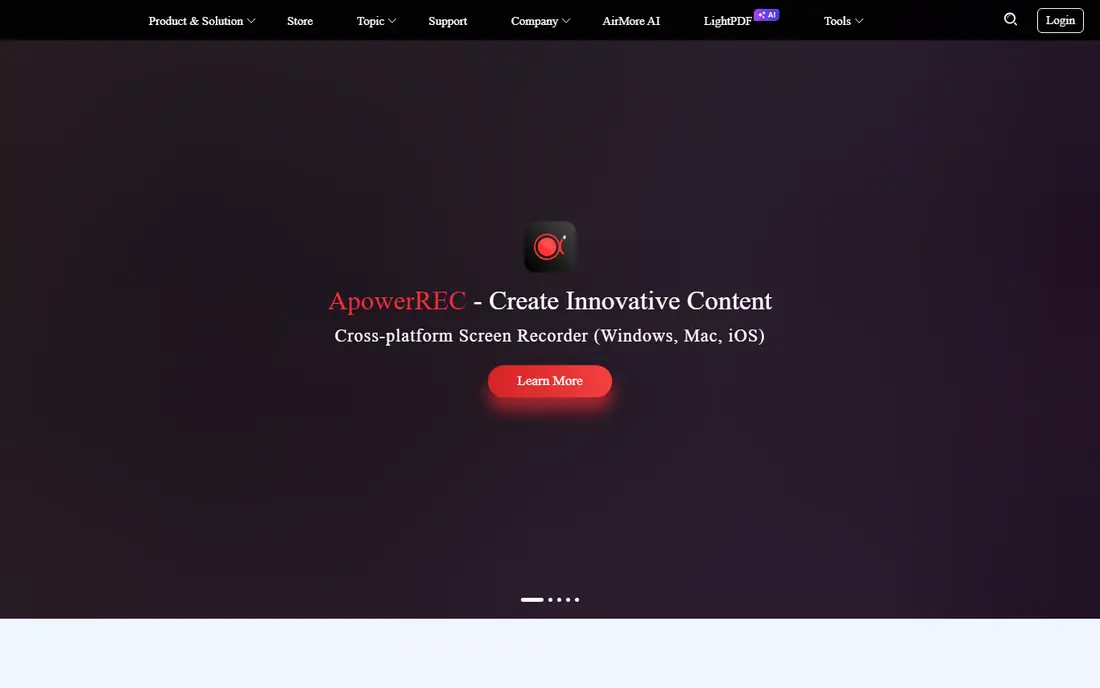
ApowerMirror is our pick for users who need more than just viewing a phone on a larger screen. It mirrors Android and iOS phones to a PC or Mac over Wi-Fi or USB, lets you control an Android phone with a mouse and keyboard, and adds screen recording and a game keyboard for mobile games on PC. Support for up to four devices at once helps teachers and presenters show several screens.
The cost is the main barrier. Recent listings show $12.95 per user per month, with a yearly option around $29.95, and a free version that is limited. iPhone users should also note that Apple restricts remote control, so full control is an Android strength. If you present, demo apps, or play mobile games on PC regularly, ApowerMirror is worth a trial.
- Mirrors Android and iOS to Windows or Mac
- Controls Android from PC
- Records screen and supports up to four devices
- Paid plans needed for full use
- IOS control is more limited than Android
- Price varies by billing term
LetsView is the best free screen mirroring app for most casual users, teachers, and students. It mirrors phones to Windows or Mac and between computers, adds a whiteboard for lessons, and supports screen recording and screenshots. For classroom demos, family photos on a larger screen, or simple presentations, it does the job without payment.
The limits are performance and control. On older devices or congested Wi-Fi, lag can appear, and you will not get the full Android control that ApowerMirror offers. Still, for free mirroring, LetsView is a strong first try. Test it on your actual Wi-Fi before relying on it for a live lesson or meeting.
- Free with no watermark in core use
- Mirrors phone to PC and PC to phone
- Whiteboard and recording tools
- No USB option in the main free flow
- Can lag on older devices or weak Wi-Fi
- No remote control for iOS
AirDroid Cast suits remote teams, support staff, and presenters who move between rooms and computers. Its standout feature is browser-based casting: a phone can cast to a PC through a browser, so the receiving computer does not need a new install. That helps in offices, classrooms, and client sites where you cannot install software freely.
The free tier covers basic casting, while Premium, listed at $2.49 per month in recent guides, adds remote control and higher-quality options. Some delay can appear with high-resolution video, so it is better for demos and presentations than for fast-paced gaming. If you need flexible, browser-based mirroring, start here.
- Casts from a browser without receiver software
- Remote control for Android and iOS
- Stable on weaker networks
- Premium features start at $2.49 per month
- High-resolution video can show slight delay
AirServer works in the opposite direction to most apps here: it turns your computer into a receiver, so iPhones, iPads, Android devices, and Chromebooks can cast to it. That makes it useful for a classroom or meeting room PC connected to a projector, where many different devices need to share in turn. It supports AirPlay, Google Cast, and Miracast, which covers most phones and tablets.
It is not a phone to phone mirroring app, and it requires a paid licence after the trial, with pricing varying by licence type. Network setup also matters, since AirPlay and Cast discovery can be blocked on strict school or office Wi-Fi. For a shared display PC, AirServer is a practical, professional choice.
- Turns a PC or Mac into an AirPlay, Google Cast, and Miracast receiver
- Good for classrooms and meeting rooms
- Receiver only, so it does not mirror a phone to another phone
- Paid licence needed after trial
- Setup varies by network
Google Home is the simplest screen mirroring app for Android users who mainly want to show a phone on a TV. If your TV or streaming device has Chromecast built in, you can cast a tab, an app, or in some cases your full screen from the Google Home app with little setup. It is free, and it integrates with Google Assistant and smart home devices.
It is not a full PC mirroring tool, and it does not offer the remote control or recording features of ApowerMirror. iPhone users can cast supported apps, but full screen mirroring is more limited than on Android. If your main job is phone to TV, try Google Home before paying for anything else.
- Free
- Built-in Chromecast casting to TVs and speakers
- Simple setup for Android users
- Android and Chromecast focused
- Limited control features
- Needs a Chromecast built-in TV or device
Phone Link, formerly Your Phone, is built into Windows and is the easiest way to see an Android phone on a Windows PC for daily work. It shows notifications, messages, photos, and in many cases the full phone screen, so you can reply and check apps without picking up the phone. For office workers with an Android phone and a Windows laptop, it is a natural fit.
iPhone support is more limited, especially for full screen mirroring, and some features need specific Samsung or Android models. Performance also depends on Bluetooth and Wi-Fi quality. If you already use Windows and Android, set up Phone Link first, since it costs nothing extra and covers most daily mirroring needs.
- Free with Windows
- Shows Android phone screen, notifications, and messages on PC
- Good for daily work
- Android focused, with limited iPhone screen mirroring
- Needs a compatible phone and Windows PC
- Depends on Bluetooth and Wi-Fi
Reflector, like AirServer, turns a computer into a wireless display receiver. Teachers, trainers, and app developers can show an iPhone, iPad, Android phone, or Chromebook on a PC or Mac connected to a projector, and show several devices at once for comparison. That makes it useful for demos, lessons, and device testing.
It does not mirror a phone directly to a TV, and it requires a paid licence after the trial, with pricing varying by licence. If you need a receiver for a presentation PC, compare Reflector with AirServer on trial and pick the one that works best on your network. For simple phone to PC viewing, LetsView remains the free alternative.
- Receives AirPlay, Google Cast, and Miracast on PC or Mac
- Good for demos and classrooms
- Supports multiple devices
- Receiver only
- Paid licence after trial
- Not a phone to TV app
Vysor is a practical tool for Android users who want to view and control a phone from a PC, especially developers, testers, and support staff. You can use a mouse and keyboard on the phone screen, type with a full keyboard, and take screenshots, all from a browser or desktop app. USB connection gives lower latency than Wi-Fi for many tasks.
The free version limits resolution and features, and Pro is needed for full quality, wireless use, and advanced controls. iPhone users should look elsewhere, since Vysor is Android only. If you control Android devices from a PC daily, Vysor is a focused, reliable option.
- Views and controls Android from a browser or desktop app
- USB and wireless options
- Useful for developers and testers
- Android only
- Free version limits quality and features
- Pro needed for full-resolution and wireless use
Scrcpy is the best free screen mirroring app for technical Android users who want low latency without paying or signing up. It mirrors and controls an Android device over USB or Wi-Fi, supports recording, and runs on Windows, Mac, and Linux. Because it is open source, there are no ads, subscriptions, or account requirements.
The barrier is setup. Scrcpy is a command-line tool, so beginners who want a one-tap app should choose LetsView or AirDroid Cast instead. There is also no iOS version. If you are comfortable with basic setup and want a free, fast Android mirroring tool, Scrcpy is hard to beat.
- Completely free and open source
- Low latency over USB or Wi-Fi
- Screen recording and Android control
- Android only
- Command-line setup can intimidate beginners
- No official iOS version
How we picked these
We compared official feature and pricing pages and recent mirroring guides, and we weighted mirroring direction, control, platform support, latency, and free limits. We included phone to PC, phone to TV, receiver, and open-source options so different jobs are covered. Where pricing varies by licence or billing, we wrote See website rather than guessing.
Choosing by job
Phone to TV for videos and photos
Use Google Home with a Chromecast built-in TV, or your TV's own AirPlay or Cast support, before installing a separate app. Built-in casting is usually simpler, more stable, and free. A separate mirroring app helps mainly when you need full screen mirroring for apps that do not support casting.
Phone to PC for work and teaching
LetsView is the best free start, AirDroid Cast is best for browser-based team use, and ApowerMirror is best when you need control, recording, and multi-device support. Test on your Wi-Fi with a real presentation, since network quality affects lag more than app choice in many rooms.
Receiving many devices on one display
AirServer and Reflector turn a PC into a receiver for AirPlay, Cast, and Miracast devices, which suits classrooms and meeting rooms. Compare both on trial, check your network rules, and pick the one that discovers devices reliably on your Wi-Fi.
Frequently asked questions
What is the best screen mirroring app?
LetsView is the best free screen mirroring app for casual phone to PC use, while ApowerMirror is the best paid option for control and recording. AirDroid Cast is best for browser-based team casting, and Google Home is best for Android to TV. The best app for screen mirroring depends on whether you mirror to a TV, a PC, or a shared display.
What is the best free screen mirroring app?
LetsView offers the strongest free phone to PC mirroring, with no watermark in core use. Google Home is free for Android to TV casting, Phone Link is free for Android to Windows, and Scrcpy is free for technical Android users. Try the free option that matches your devices before paying for a premium app.
How do I mirror my phone to my TV?
Use Chromecast built into your TV or a streaming device for Android, or AirPlay for iPhone, and cast from a supported app or the Google Home app. If your TV does not support casting, a mirroring app on a PC connected to the TV, or a receiver app such as AirServer, can bridge the gap. Make sure both devices are on the same Wi-Fi network.
Why is my screen mirroring laggy?
Lag usually comes from weak or congested Wi-Fi, an older device, or high-resolution video. Move closer to the router, close other streaming apps, lower the resolution if the app allows it, or try USB mirroring for lower latency. For gaming or fast video, a wired connection or a dedicated receiver works better than Wi-Fi mirroring.
Can I control my phone from my PC while mirroring?
Yes, on Android, with ApowerMirror, AirDroid Cast Premium, Vysor, and Scrcpy all offering control from a PC. iPhone control is restricted by Apple, so most apps offer viewing only for iOS. Check the app's platform notes before paying for a control feature, since Android and iOS limits differ.
Is screen mirroring safe?
Mirroring is safe when you only connect devices you own or trust, on a private network, and when you hide private notifications before sharing. Avoid mirroring on public Wi-Fi for sensitive work, and disconnect when you finish. Never mirror a device you do not have permission to view.
Sources we checked (9)

Online Jobs is an independent blog about careers, online work, learning new skills and the tools that help people earn. More about us.
Keep reading
All posts
Zoom Alternatives
Zoom alternatives compared for 2026: Google Meet, Microsoft Teams, Webex, Jitsi and more for free calls, large meetings and webinars for teams and classrooms.
Which Software Is Best for PDF Page Removal
Which software is best for PDF page removal? We compare free and paid tools for deleting pages quickly, safely, and without harming your file in this guide.
Which Software Is Best for Data Entry
Compare the best data entry software for forms, OCR scanning, and spreadsheets, with free plans, pricing, and honest limits for each tool before you commit.