Best Scanning App in 2026: 8 Apps Compared

How we put this together: we compare official feature and pricing pages, app store listings, privacy policies and public user reviews. Prices change, so check the provider's site before you pay.
Key takeaways
- Adobe Scan is the strongest all-round free scanner for most people, with clean PDFs and strong text recognition.
- Genius Scan suits people who hate subscriptions, with a capable free tier and a low-cost paid upgrade for extra features.
- Apple Notes and Google Drive suit people who only scan now and then, because both are already on the phone at no extra cost.
- Microsoft Lens is not in this list, because Microsoft retired it in 2026: it left app stores in February and stopped creating new scans in March.
Quick comparison
| Name | Who it suits | Starting price | Free option | |
|---|---|---|---|---|
 Adobe Scan | All-round free scanning with OCR | Free | Yes | Visit |
 CamScanner | Wide PDF tools and features | Free | Yes | Visit |
 Scanner Pro | iPhone power users | Free | Yes | Visit |
 Genius Scan | Simple scanning without a subscription | Free | Yes | Visit |
 SwiftScan | Fast, polished scanning on the move | Free | Yes | Visit |
 iScanner | Extra features and AI polish | Free | Yes | Visit |
 Apple Notes | Free built-in scanning on iPhone | Free | Yes | Visit |
 Google Drive | Free built-in scanning on Android | Free | Yes | Visit |
The best scanning apps
The best document scanning software depends on how often you scan and what you do with the scan. A receipt for expenses needs text recognition and export. A contract needs a clean, multi-page PDF. A book page needs good edge detection and contrast. We compared official app store listings, vendor feature pages and public pricing information, and we kept the focus on apps that are live now. Note that Microsoft Lens, once a standard free pick, was retired by Microsoft in 2026, so we did not include it, and its users should use the scan feature in OneDrive or another app here instead.
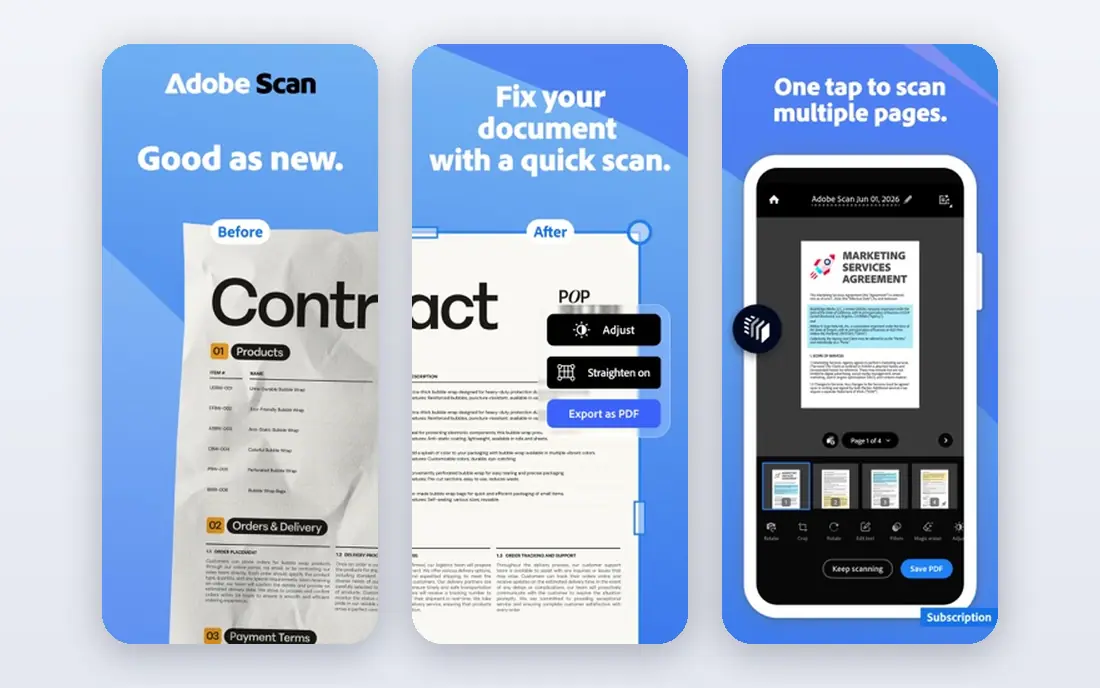
Adobe Scan is the best scanning app for most people, because it does the core job well and its free tier is generous. It detects page edges, flattens and cleans up the image, and runs text recognition so the resulting PDF is searchable. Scans can be stored in Adobe cloud storage, which suits people who already use Adobe products, and sharing a clean PDF takes few steps.
The catch is the upsell. Premium features and extra storage sit behind a paid Acrobat plan, at about $9.99 a month in published terms, though most casual users will not need them. You also need an Adobe account for full use. If you scan often and want searchable PDFs without a watermark, Adobe Scan is the safest first install.
- Strong automatic edge detection and cleanup
- Text recognition makes PDFs searchable
- No watermark on free scans in published terms
- Premium features and extra storage need a paid Acrobat plan
- An Adobe account is needed for full use
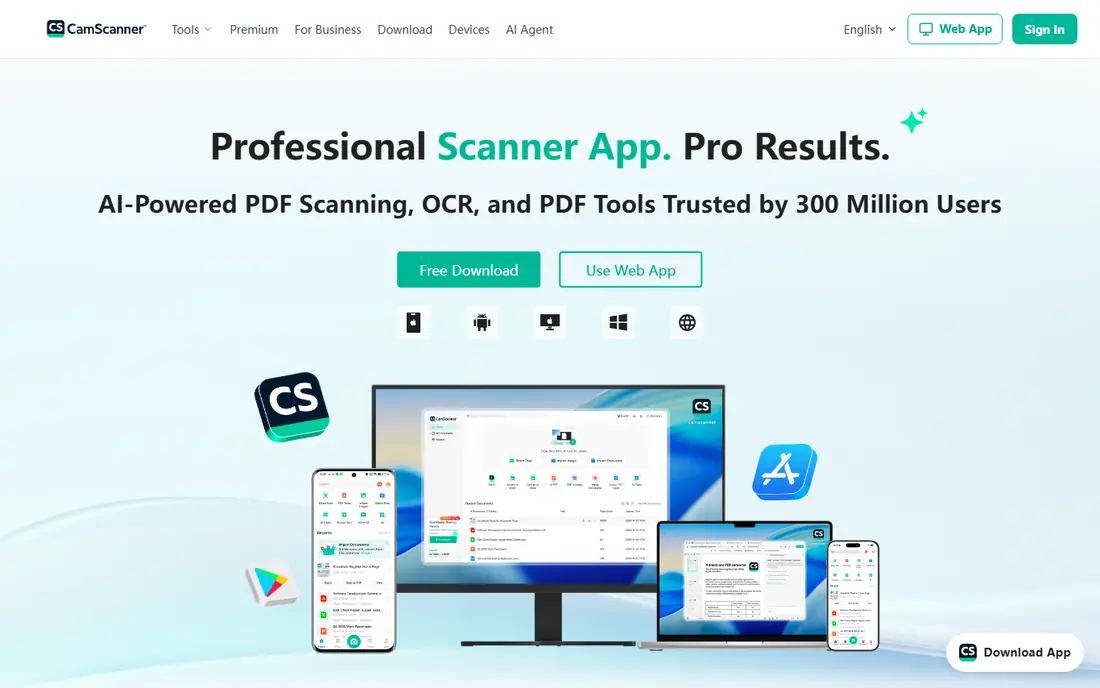
CamScanner offers more PDF tools than most rivals: scanning, merging, annotation, document organisation and cloud sync in one app. That breadth suits people who do more than scan, such as students who merge lecture notes or office workers who annotate contracts before sharing them. It is available on both iPhone and Android, which helps mixed-device households.
The main drawback is the watermark on free scans, which makes it a poor pick for formal documents unless you pay. Premium pricing, at about $9.99 a month in some listings, is also higher than Genius Scan's one-time paid upgrade. Use CamScanner if you need its wider PDF toolkit, and use Adobe Scan or Genius Scan if you need a clean free scan.
- Wide range of PDF tools, including merge and annotation
- Cloud sync options
- Long-running and widely available
- Free scans carry a watermark in published terms
- Premium price is higher than some rivals
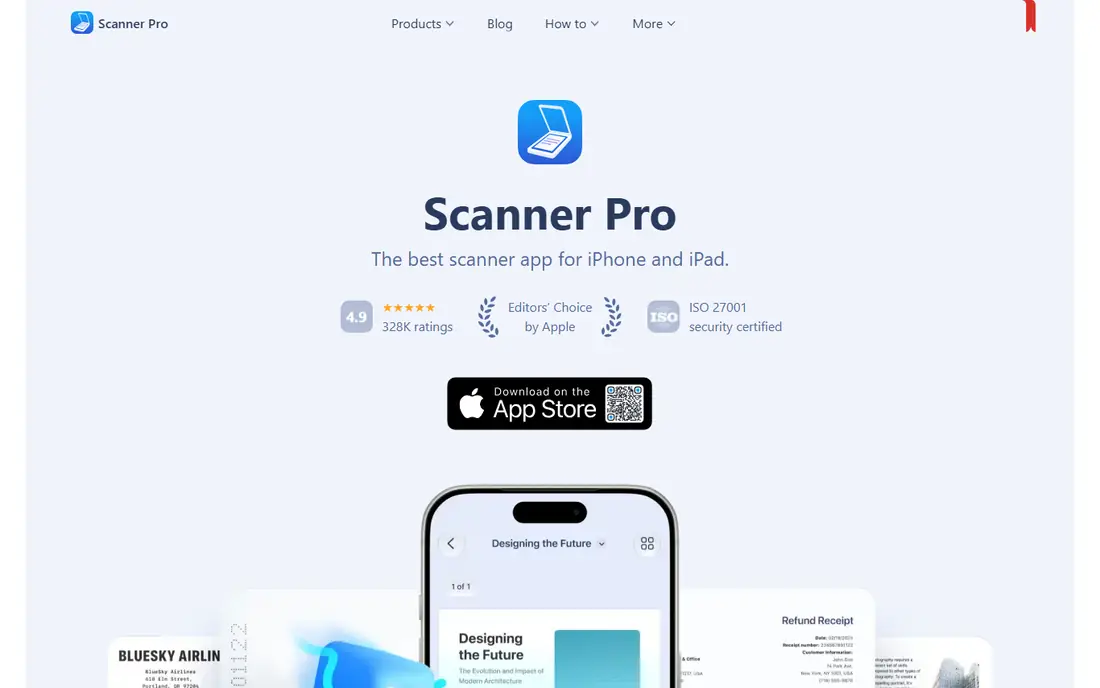
Scanner Pro, from Readdle, is the iPhone power-user pick. It scans quickly, handles multi-page PDFs well, and offers workflows, automation and export options that suit people who scan daily on an iPhone or iPad. The design feels native to Apple devices, and it pairs well with other Readdle apps for document work.
It is Apple-only, so Android users should look elsewhere. It is also no longer a simple one-time purchase in the way older articles described: the app is free to download, and paid features sit behind in-app purchases branded Scanner Pro Plus. Check the current in-app terms in the App Store before you buy, and test the free tier on your real documents first.
- Strong iPhone and iPad workflow
- Good edge detection and PDF handling
- Useful automation and export options
- Apple devices only
- Paid features sit behind in-app purchases under the Scanner Pro Plus label
Genius Scan is the quiet workhorse of this list. It scans fast, detects edges well, exports clean PDFs, and does not watermark free scans in published terms. If you like it, the full paid upgrade costs a small one-time amount in many listings, rather than a monthly subscription, which appeals to people who hate recurring app fees.
The trade-off is depth. Text recognition and some advanced features sit behind the paid tier, and Genius Scan offers fewer extras than CamScanner or iScanner. For most everyday scanning, though, the free tier is enough, and the one-time paid upgrade is a fair price for the extra features. If you scan receipts and forms and want a simple, honest app, Genius Scan is a strong pick.
- Fast scans with good edge detection
- No watermark on free scans in published terms
- Low-cost paid upgrade instead of a monthly fee
- Text recognition sits behind the paid tier in published terms
- Fewer extra features than CamScanner or iScanner
SwiftScan, formerly Scanbot, suits people who scan on the move. Capture is fast, edge detection is reliable, the interface is clean, and cloud sync covers many services, which helps freelancers and travellers who scan receipts, tickets and forms away from a desk. It also offers faxing and organisation tools that some rivals lack.
The catch is the free tier. Free scans carry a watermark in published terms, and full text recognition sits behind a paid plan, at about $2.99 a month in some listings. That makes SwiftScan a better paid pick than a free pick. If you scan often and value speed and polish, the paid plan is reasonable. If you scan rarely, Adobe Scan or Genius Scan will cost you less.
- Fast capture and clean interface
- Good cloud sync options
- Useful for travellers and freelancers who scan often
- Free scans carry a watermark in published terms
- Full text recognition sits behind a paid plan
iScanner goes beyond basic scanning, with AI polish for scanned pages, document tools, and extra features that suit users who want one app for many paper jobs. It handles multi-page PDFs, text recognition and organisation, and it is a good pick for people who scan varied documents, from IDs to receipts to notes, and want help cleaning them up.
The trade-off is focus and price. Full features need a paid plan, and the interface can feel busy if you only want a quick scan. Casual users may prefer the simpler Genius Scan or Adobe Scan. Users who want extra polish and document tools in one app, and who scan often enough to justify a subscription, will get more from iScanner.
- Extra features beside scanning, including AI polish and document tools
- Good for users who want one app for many document jobs
- Paid plan needed for full features
- Interface and upsells can feel busy for simple scanning
Apple Notes is the best scanning app for iPhone users who scan now and then, because it is already there. Open a note, tap the scan option, and Notes captures the page, flattens it and saves it as a document inside the note. Text inside the scan is selectable and searchable on device through Live Text, which covers the most common need for a quick scan.
It lacks the export depth, batch tools and cloud options of a dedicated scanner, and it is Apple-only. For a receipt, a form or a single contract page, though, Notes is enough, and it costs nothing extra. If you scan daily, in batches, or across Android and iPhone, choose Adobe Scan or Genius Scan instead.
- Already on every iPhone at no extra cost
- Built-in scanner with text recognition on device
- No extra account or subscription
- Apple devices only
- Fewer export and organisation features than a dedicated scanner app
Google Drive is the Android equivalent of Apple Notes for casual scanning. Tap the plus button, choose Scan, and Drive captures the document, crops it and saves it as a PDF in your Drive folders. That direct link to Drive organisation suits people who already store documents in Google Drive, and it costs nothing beyond a Google account.
It offers fewer advanced features than Adobe Scan, Genius Scan or iScanner, such as deep text recognition controls or batch automation. For occasional scanning, that gap rarely matters. For daily, high-volume scanning, a dedicated app will save time. If you only scan a few documents a week, start with Google Drive and only install another app when you hit a limit.
- Already on most Android phones at no extra cost
- Scan to PDF with auto-crop
- Files organise directly in Drive
- Fewer advanced scanner features than a dedicated app
- Best value inside the Google ecosystem
How we picked these
We compared official app store listings, vendor feature pages and public pricing information for scanning apps that are live now and that handle document scanning as a core job. We favoured apps with a usable free tier, clean PDF export and text recognition, and we included built-in options because many readers do not need a separate app at all. We did not claim hands-on testing we did not do, and we excluded Microsoft Lens because Microsoft retired it in 2026.
What to check before you choose
How often you scan
Occasional scanners should start with Apple Notes or Google Drive. Daily scanners should pay for a dedicated app with batch tools, better text recognition and faster export.
Watermarks and text recognition
Check if free scans carry a watermark and if text recognition is free or paid. A watermark ruins a formal document, and paid text recognition matters if you need searchable PDFs.
Export and organisation
Check where scans go: to a PDF on your phone, to cloud storage, or to an email. A scan you cannot find later is no better than paper.
Privacy for sensitive documents
For contracts, IDs or medical forms, check the app's privacy terms, cloud storage and on-device processing. Keep sensitive scans on device where possible, and avoid uploading them to a service you do not trust.
Frequently asked questions
What is the best document scanning software for phones?
Adobe Scan is the strongest all-round phone scanner here, with clean PDFs and strong text recognition. Genius Scan suits people who want a simple free scan without a subscription, while SwiftScan suits frequent scanners who value speed.
What is the best scanner app for free use?
Adobe Scan, Genius Scan, Apple Notes and Google Drive all offer genuinely useful free scanning. Adobe Scan and Genius Scan suit both iPhone and Android, while Apple Notes suits iPhone and Google Drive suits Android best.
What is the best free scanning app without a watermark?
Genius Scan and Adobe Scan are strong picks for watermark-free free scans in published terms, while SwiftScan and CamScanner watermark free scans. Always check the current App Store or Google Play terms, because free terms change.
What is the best app for scanning documents to PDF?
All eight apps here export to PDF, but Adobe Scan, Scanner Pro and Genius Scan handle multi-page PDFs most cleanly for everyday use. Check export options in a trial, including file size, quality and cloud destination.
What happened to Microsoft Lens?
Microsoft retired Microsoft Lens in 2026. It left app stores in February 2026 and stopped creating new scans in March 2026. Microsoft points former Lens users to the scan feature in OneDrive, and Adobe Scan or Genius Scan are good standalone replacements.
Sources we checked (8)

Online Jobs is an independent blog about careers, online work, learning new skills and the tools that help people earn. More about us.
Keep reading
All posts
Zoom Alternatives
Zoom alternatives compared for 2026: Google Meet, Microsoft Teams, Webex, Jitsi and more for free calls, large meetings and webinars for teams and classrooms.
Which Software Is Best for Data Entry
Compare the best data entry software for forms, OCR scanning, and spreadsheets, with free plans, pricing, and honest limits for each tool before you commit.
What Is the Best Free Tool to Rotate a PDF
What is the best free tool to rotate a PDF? We compare eight free rotation tools on per-page control, limits, privacy and saved output quality in detail.