Best RGB Software in 2026: 8 Tools Compared

How we put this together: we compare official feature and pricing pages, app store listings, privacy policies and public user reviews. Prices change, so check the provider's site before you pay.
Key takeaways
- The best RGB software for PC with mixed brands is OpenRGB or SignalRGB, because vendor apps mainly control their own hardware.
- If you own mostly one brand, that brand's own app usually gives deeper fan, key and game controls than a cross-brand tool.
- Free cross-brand tools can conflict with vendor apps, so close vendor software fully before running a second RGB tool.
- Check your exact motherboard, RAM, GPU and peripheral models against the supported device list before you install anything.
Quick comparison
| Name | Who it suits | Starting price | Free option | |
|---|---|---|---|---|
 OpenRGB | Free cross-brand control | Free | Yes | Visit |
 SignalRGB | Synced effects across brands | Free | Yes | Visit |
 Corsair iCUE | Corsair systems and fans | Free | Yes | Visit |
 Razer Synapse | Razer peripherals and Chroma | Free | Yes | Visit |
 ASUS Armoury Crate | ASUS motherboards and gear | Free | Yes | Visit |
 MSI Mystic Light | MSI boards and graphics cards | Free | Yes | Visit |
 Logitech G Hub | Logitech G peripherals | Free | Yes | Visit |
 NZXT CAM | NZXT cases, cooling and lighting | Free | Yes | Visit |
The best RGB software
RGB software has two jobs: set colours and effects, and keep them in sync across devices. Vendor tools do the first job well for their own gear, while cross-brand tools try to do the second job for a mixed PC. We list both, starting with the cross-brand options.
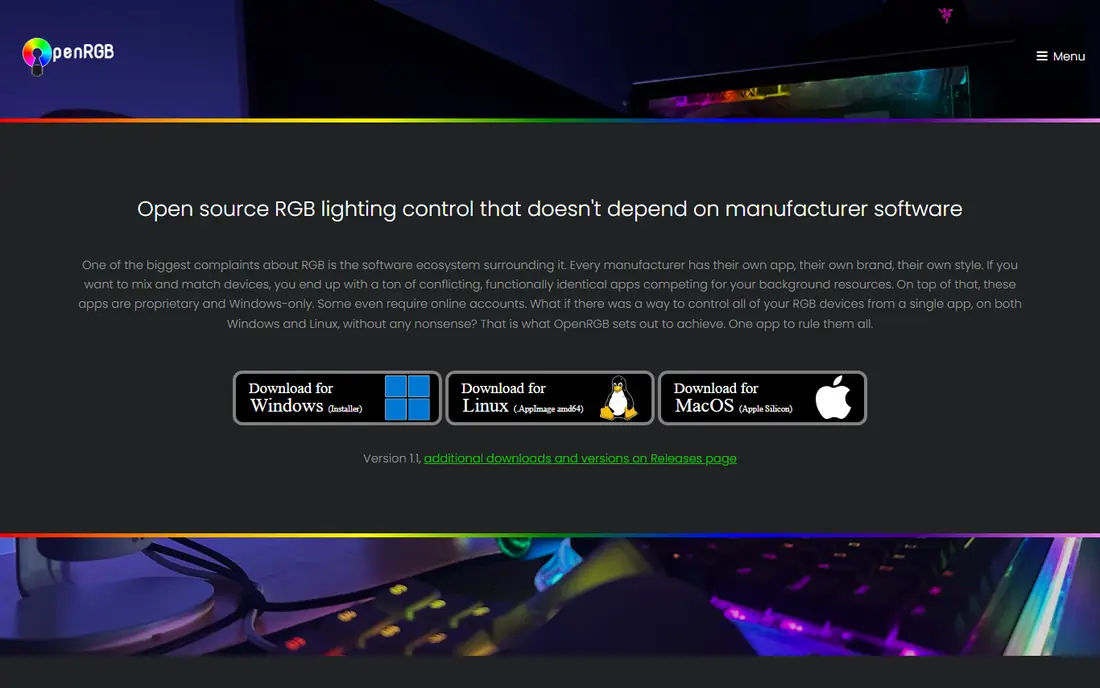
OpenRGB is our pick for a mixed-brand PC on a budget. It aims to control RGB devices from many brands in one app, including motherboards, RAM, fans, LED strips, keyboards and mice, without needing five vendor apps at startup. It runs offline, needs no account, and lets you save profiles and control lighting through a command line or SDK if you want automation.
The trade-off is polish and coverage. The interface is plain, and very new hardware may wait for community support before it appears in the device list. OpenRGB also focuses on lighting, not deep fan curves or game integrations. If your main goal is one clean lighting setup across brands, with no subscription and no account, OpenRGB is the best starting point.
- Free and open source
- No account needed
- Works on Windows and Linux
- Profiles and SDK
- Interface is functional
- Some new hardware needs community support first
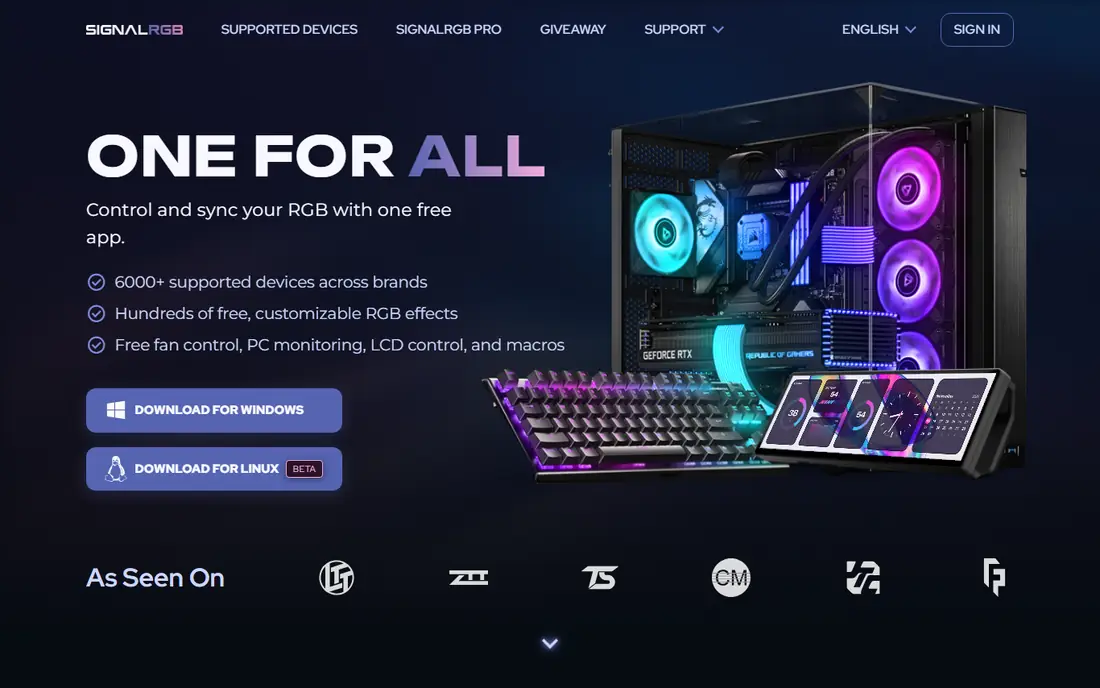
SignalRGB is the more polished cross-brand option. It syncs lighting across devices from brands such as Razer, Corsair, Logitech and SteelSeries, offers a library of effects, and adds game integrations, audio visualiser and fan controls in its Pro tier. For a gaming PC where the light show matters, that effect library is a real draw.
It is Windows only, and Pro features need a subscription, so check current Pro pricing in the app before you rely on a paid effect. Like OpenRGB, it can conflict with vendor apps, so close those apps and their background services first. If you want synced effects with less setup than OpenRGB, SignalRGB is the easier cross-brand pick on Windows.
- Free core app
- Large effect library
- Synced effects across brands
- Game integrations in Pro
- Windows only
- Pro features need payment
- Vendor apps must be closed first
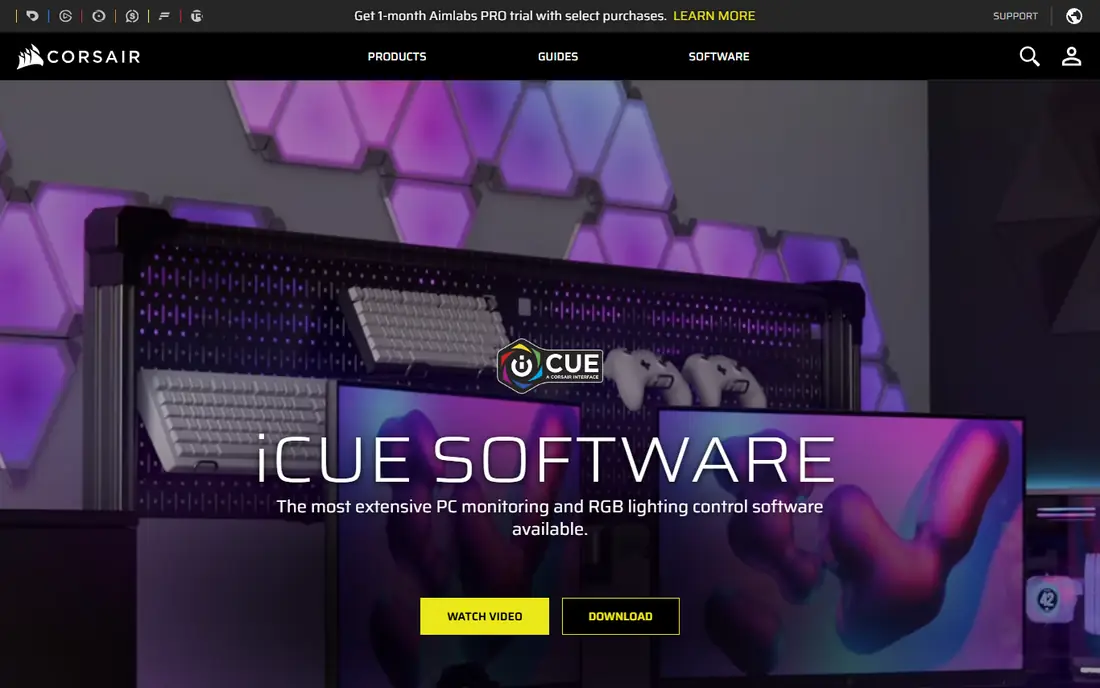
Corsair iCUE is the right choice if your PC is mostly Corsair. It controls Corsair keyboards, mice, headsets, RAM, fans, coolers and cases, and it adds fan curves, cooling profiles and system monitoring alongside lighting. Scenes and profiles let you switch a whole setup for work, gaming or night use in one click.
Outside Corsair gear, its value drops fast. It will not replace a cross-brand tool for a mixed PC, and it can feel heavy if you only need simple lighting. If you already own Corsair fans, a Corsair cooler or Corsair RAM, iCUE gives you the deepest control for that hardware, including cooling, not just colour.
- Deep Corsair device control
- Fan and cooling controls
- Profiles and scenes
- Best only for Corsair gear
- Can feel heavy at startup
Razer Synapse is built for Razer keyboards, mice, headsets and other Chroma devices. It offers per-key lighting, macros, profiles and Chroma effects that can react to games and apps, and it syncs settings across Razer devices. For a Razer-heavy desk, that depth is hard to match with a generic tool.
It is not a general PC lighting manager. Motherboard, RAM and case lighting from other brands are better handled elsewhere, and some users dislike the account and cloud elements. If Razer peripherals are your main RGB gear, Synapse is the natural pick. For a mixed PC, use it for Razer gear only and a cross-brand tool for the rest, but not both at once on the same device.
- Strong Razer peripheral control
- Chroma effects
- Macros and profiles
- Razer focused
- Account and cloud features may annoy some users
ASUS Armoury Crate is the hub for ASUS motherboards, graphics cards, laptops and peripherals that support Aura Sync. It lets you sync lighting across compatible ASUS parts, adjust performance and fan settings on supported systems, and update drivers and firmware for ASUS gear. For an ASUS-based build, that single hub avoids juggling separate utilities.
The app is large, and it is not a cross-brand solution, so non-ASUS lighting still needs another tool. Some users also find updates and background services heavier than a light RGB app. If your motherboard and GPU are ASUS, Armoury Crate is worth installing for firmware and Aura control, even if you use OpenRGB or SignalRGB for day-to-day lighting.
- Controls ASUS Aura Sync gear
- System and fan tools
- One app for ASUS hardware
- ASUS focused
- Install can feel large
- Some users report update issues
MSI Mystic Light, now part of MSI Center, controls lighting on MSI motherboards, graphics cards, cases and compatible peripherals. It offers synced effects across MSI parts and links to other MSI Center tools for performance and monitoring. Setup is simple if you already use MSI Center for drivers or system settings.
It is a brand tool, not a universal one, and its effect library is narrower than SignalRGB or OpenRGB with plugins. For an MSI build, it is the simplest path to synced lighting, and it avoids adding another app. For a mixed build, treat it as the MSI layer, and check that it is closed before a cross-brand tool takes control of the same devices.
- Syncs MSI Mystic Light gear
- Simple effects
- Works with MSI Center
- MSI focused
- Effect range is narrower than SignalRGB
Logitech G Hub controls Logitech G keyboards, mice, headsets and speakers, with LIGHTSYNC lighting, macros, DPI settings and per-game profiles. It is a peripheral manager first, and lighting is part of a wider setup for gaming gear. That depth matters for competitive players who change sensitivity, keys and lighting by game.
It does not control PC internals such as motherboards, RAM or case fans, so it cannot be your only RGB app for a full PC. Use G Hub for Logitech gear, where it is clearly the best fit, and a cross-brand tool for the rest of the system. The combination works well as long as you do not run two tools against the same Logitech device at once.
- Strong Logitech G control
- LIGHTSYNC effects
- Profiles per game
- Logitech focused
- No motherboard or RAM control
NZXT CAM is the pick for NZXT cases, coolers and lighting controllers. It manages NZXT fans, pumps, lighting strips and case lighting, with fan curves, temperature views and profiles in one dashboard. For an NZXT build, it ties cooling and lighting together in a way a pure RGB app does not.
Outside NZXT hardware, CAM adds little, and its lighting features are tied to NZXT controllers and strips. If you own an NZXT case or cooler, CAM is a useful companion to a cross-brand tool. If you do not, skip it and choose OpenRGB, SignalRGB or your main brand's app instead.
- NZXT case and cooler control
- Fan curves
- Clean monitoring views
- NZXT focused
- Lighting depth depends on NZXT hardware
How we picked these
We compared official feature pages, pricing pages and supported device lists for RGB software, and we favoured tools that are still available, free to download, and clearly state which hardware they control. We checked cross-brand coverage, effect libraries, fan and cooling controls, platform support and account requirements. We did not claim hands-on testing, and where a paid Pro tier exists we noted that core control is free and Pro pricing should be checked in the app.
How to choose the right RGB software for PC
Start by listing your hardware by brand. If one brand dominates, install that brand's app first and test its lighting, fan and profile features. If you have three or more brands, test OpenRGB or SignalRGB, and keep vendor apps only for firmware updates, closing them fully before the cross-brand tool runs.
Next, check the supported device list for your exact models, not just the brand name. A motherboard, RAM kit or GPU can use a different controller even within one brand, and support can lag for new releases. Finally, decide how much light show you want. A static colour or simple cycle needs almost any tool, while game-reactive effects, audio visualisers and per-key animations favour SignalRGB, iCUE or Synapse, depending on your gear. Keep startup apps light, because every extra RGB service adds boot time.
Frequently asked questions
What is the best RGB software for PC?
OpenRGB is the best free cross-brand pick, and SignalRGB is the best polished cross-brand pick on Windows. If your PC is mostly one brand, that brand's app, such as Corsair iCUE, Razer Synapse or ASUS Armoury Crate, usually gives deeper control for its own gear.
Is OpenRGB safe to use?
OpenRGB is open source and widely used, but it works directly with hardware controllers, so you should download it only from its official site and check your exact devices on its supported list. Close vendor RGB apps first, and avoid running two RGB tools on the same device at once.
Can one RGB app control all brands?
Cross-brand tools such as OpenRGB and SignalRGB control many brands, but coverage varies by model and release date. No tool controls every device, so check your motherboard, RAM, GPU, fans and peripherals against the supported list before you commit.
Do I need to pay for RGB software?
No, for basic control. OpenRGB is free, SignalRGB has a free core app, and vendor apps such as iCUE, Synapse, Armoury Crate, Mystic Light, G Hub and CAM are free to download. Paid tiers mainly add extra effects, game integrations and fan controls.
Why does my RGB device not show up?
Common causes are a vendor app still running in the background, a missing driver or firmware update, a hub plugged into the wrong port, or a device model that is not yet supported. Close other RGB apps, update firmware through the vendor app, then try the cross-brand tool again.
Does RGB software slow down a PC?
It can, if many RGB apps run at startup with background services. Keep one main RGB tool running, close vendor apps you do not need, and use a static colour or close the app during competitive gaming if you want to rule out any effect on performance.
Sources we checked (8)

Online Jobs is an independent blog about careers, online work, learning new skills and the tools that help people earn. More about us.
Keep reading
All posts
Zoom Alternatives
Zoom alternatives compared for 2026: Google Meet, Microsoft Teams, Webex, Jitsi and more for free calls, large meetings and webinars for teams and classrooms.

Which Software Is Best for Data Entry
Compare the best data entry software for forms, OCR scanning, and spreadsheets, with free plans, pricing, and honest limits for each tool before you commit.

What's the Best App to Read PDFs
Find what's the best app to read PDFs in 2026, from Adobe Acrobat Reader and Foxit to PDF Expert and Xodo, with free options and honest limits for every device.