Best Remote Computer Access Software in 2026: 8 Tools Compared


All-round remote access and support · Starting price: See website
How we put this together: we compare official feature and pricing pages, app store listings, privacy policies and public user reviews. Prices change, so check the provider's site before you pay.
Key takeaways
- Chrome Remote Desktop is free and enough for simple personal access, while paid tools add unattended access, file transfer, and multi-monitor support.
- RemotePC and Splashtop offer the lowest entry cost for reaching your own machines, while TeamViewer and AnyDesk suit support work and frequent sessions.
- Zoho Assist and ConnectWise ScreenConnect are built for helping other people, with technician seats, session tools, and support queues.
- Decide first whether you need access to your own computers, help for clients, or both, because pricing and features follow that choice.
Quick comparison
| Name | Who it suits | Starting price | Free option | |
|---|---|---|---|---|
| TeamViewer | All-round remote access and support | See website | Yes | Visit |
 AnyDesk AnyDesk | Fast, low-latency sessions | See website | Yes | Visit |
 Splashtop Splashtop | Low-cost access for individuals and teams | See website | Free trial | Visit |
 RemotePC RemotePC | Cheap unattended access to your own machines | See website | Free trial | Visit |
 Zoho Assist Zoho Assist | Small support teams | See website | Yes | Visit |
 ConnectWise ScreenConnect ConnectWise ScreenConnect | IT teams and managed service providers | See website | Free trial | Visit |
 Chrome Remote Desktop Chrome Remote Desktop | Free personal access | Free | Yes | Visit |
 RealVNC Connect RealVNC Connect | Secure, cross-platform access | See website | Free trial | Visit |
The best remote computer access software
Remote access software lets you open another computer from your own desk, your phone, or a laptop on the road. The use cases differ a lot, from reaching a home PC to fixing a client machine, so the best tool depends on who owns the other computer and how often you connect. We compared official feature pages, pricing pages, and app listings, and we focused on connection quality, security options, unattended access, file transfer, and price at a realistic team size.
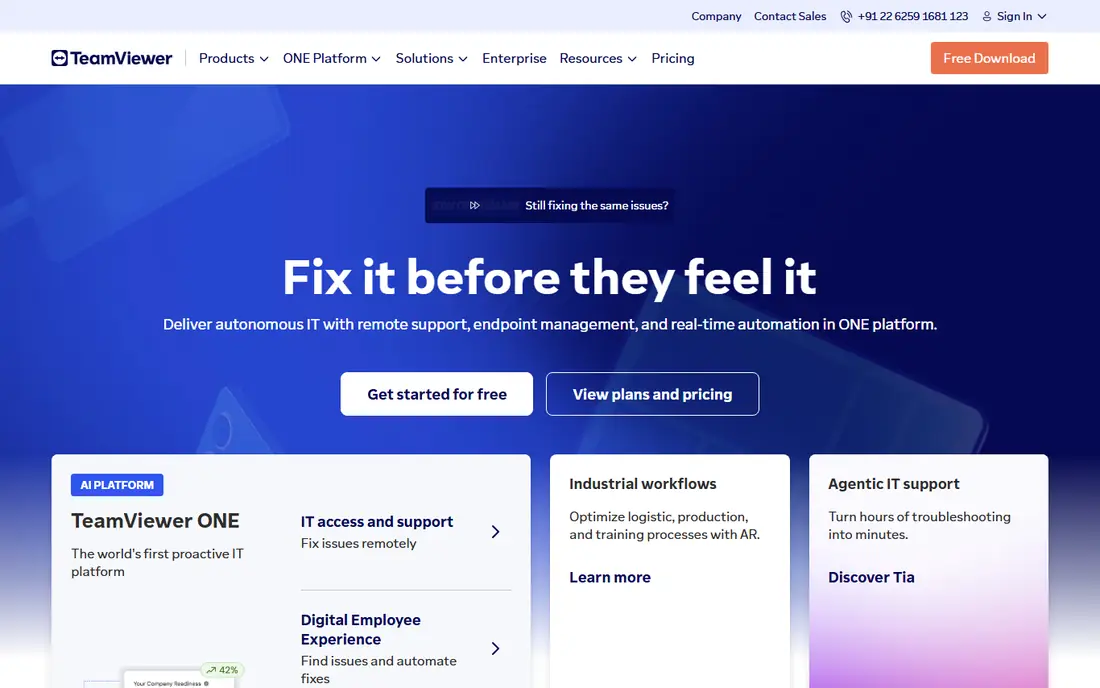
TeamViewer is the safe default when you need remote access to work across Windows, Mac, Linux, phones, and tablets. It handles unattended access, file transfer, multi-monitor views, and session recording, and most people you help will already know the name. That familiarity matters when you are guiding a non-technical person through a first connection.
The price is the main drawback for a small business. Commercial plans cost more than RemotePC or Splashtop, and the free tier is meant for personal use, not business work. If you support clients every day, or you need compliance features and central management, the cost can be justified. If you only reach your own two computers, a cheaper tool will do the same job.
- Wide device support
- Strong security and session tools
- Well-known and widely used
- Commercial pricing is higher than budget rivals
- Free use is for personal use only
- Account checks can interrupt casual users
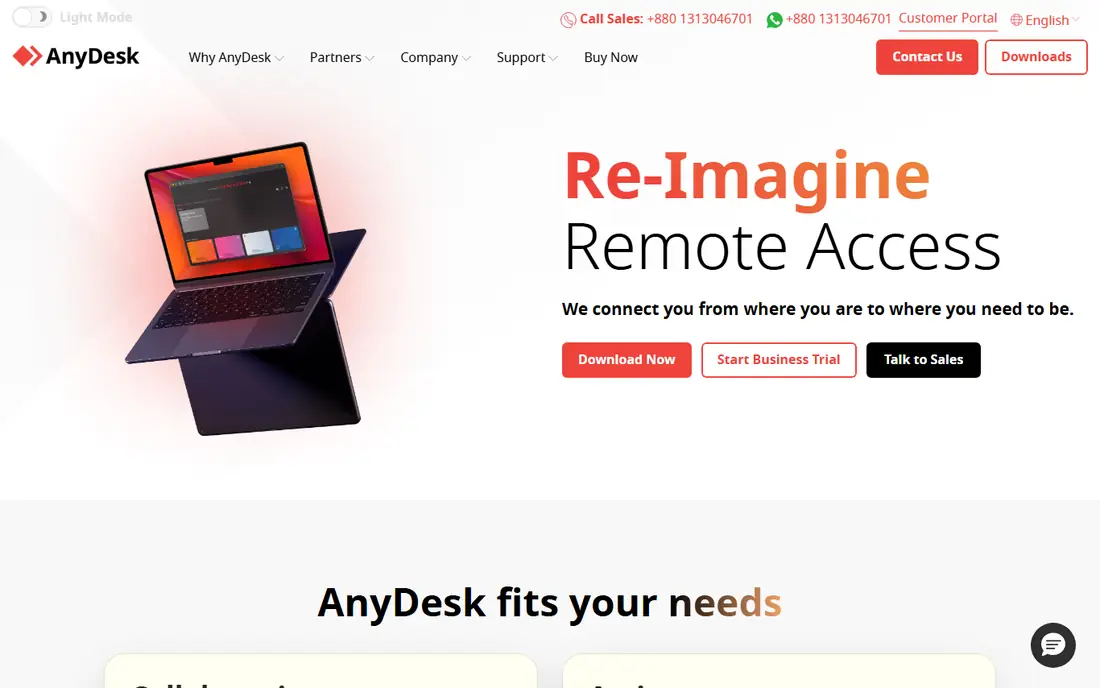
AnyDesk is known for speed. Sessions feel close to sitting at the machine, which helps when you are editing, moving files, or working through a slow connection. The app is small, installs quickly, and works on a wide range of devices, including older computers that struggle with heavier tools.
For a support technician, that speed saves time across a day of sessions. For a home user, the free personal tier may be enough. Business users should check the plan that matches their session count and management needs, since the entry plan and the team plans differ in useful ways, such as address book controls and session logging.
- Quick connections with low lag
- Light app that runs well on older machines
- Good for frequent support sessions
- Some advanced management features sit on higher plans
- Free use is for personal use
- Pricing varies by plan and billing term
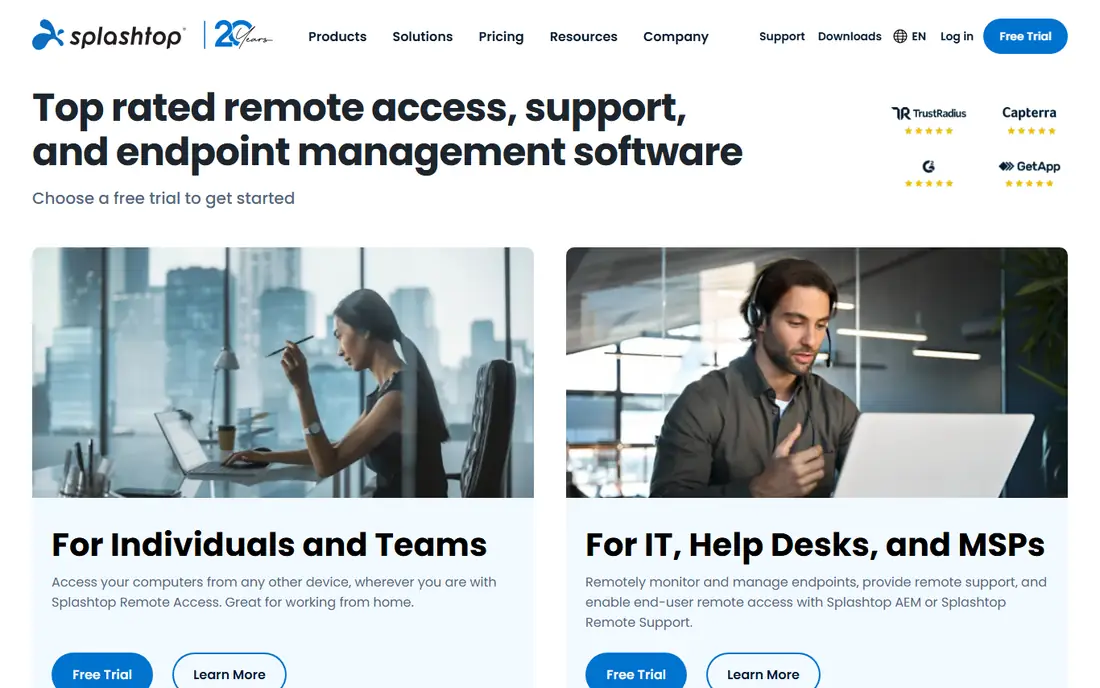
Splashtop splits its products by job, with one line for reaching your own computers and another for supporting other people. That split keeps the personal access price low, and performance is strong for documents, email, and business apps. If your main need is working from home on an office PC, Splashtop is one of the best-value choices.
Buyers should read the product names carefully. Access and support products are not the same, and a team that needs both may need two plans. Once you pick the right line, though, the setup is simple, and the per-user price stays below most big-name rivals.
- Low entry price for personal access
- Good performance for office work
- Separate products for access and support
- Product lineup can confuse buyers
- Some features need a higher tier
- Support tools are a separate purchase in some cases
RemotePC wins on price for owners who want to reach their own machines. Plans are priced by computer count, so a person with one home PC and one office PC pays far less than with a per-technician tool. Unattended access, file transfer, and remote printing cover the daily needs of remote work.
It is less suited to a support business that helps many different clients each day. Technician tools, session queues, and client branding are not its focus. For personal use and for a small business owner with a fixed set of machines, RemotePC is a practical, low-cost pick.
- Very low price for one or a few computers
- Unattended access and file transfer
- Simple setup for non-technical users
- Support features are thinner than technician tools
- Interface is plain
- Pricing depends on computer count
Zoho Assist is built for helping other people, not just reaching your own PC. A technician can start an on-demand session, take control with permission, transfer files, and reboot a machine into a support session. The free plan gives a small team a way to try that workflow before paying.
It fits best if you already use Zoho products, since tickets, CRM records, and chat can sit near the support session. Standalone buyers should compare it with ScreenConnect on session tools and reporting. For a small help desk on a budget, Zoho Assist is a strong starting point.
- Free plan for a small team
- Technician pricing for support work
- Useful integrations with Zoho apps
- Some features need higher plans
- Performance can vary by network
- Fewer third-party integrations than larger suites
ConnectWise ScreenConnect
Who it suits: IT teams and managed service providers
ScreenConnect, from ConnectWise, is a workhorse for IT teams. Technicians can run concurrent sessions, share a toolbox of scripts and tools, and manage unattended machines from one console. For a managed service provider with several technicians and many client machines, that structure pays for itself in saved time.
A solo user will find it heavier than RemotePC or Chrome Remote Desktop, and the price reflects its team focus. But if support is your business, and you need session history, permissions, and a console that several people can use at once, ScreenConnect belongs at the top of the shortlist.
- Built for multi-technician support
- Strong session management and toolboxes
- Good for managed service providers
- Pricing and setup suit teams more than solo users
- Learning curve for new technicians
- Some features need add-ons
Chrome Remote Desktop is the simplest free option for personal use. Install the extension, sign in, and you can reach your own computers or help a family member with a one-time code. There is no subscription, no seat count, and no complex console to learn.
The limits show up quickly for business use. There is no support queue, no detailed session logging, and no advanced management for many machines. For a student, a home worker, or a person helping a parent, it is often all you need. For a support team, pair it with a proper technician tool instead of stretching it beyond its design.
- Completely free
- Simple setup with a Google account
- Works in the Chrome browser
- Fewer features than paid tools
- No built-in technician console
- Limited file transfer and multi-monitor options
RealVNC Connect is the classic choice for people who want VNC-based access with solid security. It supports a wide range of systems, including Linux and small devices, and it offers encryption, multi-factor authentication, and granular access controls. For a technical user with mixed machines, that control is appealing.
Beginners may find the setup more involved than TeamViewer or Chrome Remote Desktop, and the pricing model rewards careful counting of devices. If you value a proven, cross-platform standard and you are comfortable with a technical setup, RealVNC Connect is a dependable pick.
- Long-standing VNC standard
- Strong encryption options
- Works across many platforms including Raspberry Pi
- Setup can feel technical for beginners
- Pricing is per device in some plans
- Interface is more plain than modern rivals
How we picked these
We compared official feature and pricing pages, app listings, and help documentation. We favored tools that are still sold and supported, that cover Windows and Mac at minimum, and that state their security options clearly. We treated personal use and business use separately, since free tiers often cover only personal use, and we left prices as See website where the vendor page did not give one clear starting price.
What to check before you choose
Start with the job. If you reach your own computers, look at per-computer or per-user access plans and unattended access. If you help clients, look at technician seats, on-demand sessions, and session history. If you do both, check whether one plan covers both, or whether you will pay twice.
Security deserves a second look. Turn on two-factor authentication, use strong, unique passwords, and check whether the tool supports device approval, session timeouts, and access logs. Never share a permanent access code in a public chat, and remove access from machines you no longer use. A fast connection is useless if the account behind it is easy to break into.
Finally, test on your real network. Try the tool on a slow connection, on a phone, and with two monitors if you use them. Check file transfer, clipboard sharing, and how the tool behaves when the other machine reboots. A short trial on your own machines will reveal more than a feature page, and it will show whether the price matches the daily experience.
Frequently asked questions
What is the best computer remote access software?
For most people, TeamViewer or AnyDesk are strong all-round picks, RemotePC and Splashtop offer better value for personal access, and Zoho Assist or ScreenConnect suit support teams. The best pick follows your job: own machines, client support, or both.
Is there a free remote access tool?
Yes. Chrome Remote Desktop is free for personal use, and TeamViewer and AnyDesk offer free personal tiers. Business use usually needs a paid plan, so check the license terms before using a free tier for work.
How much does remote access software cost?
Prices vary by model. Some tools charge per computer, others per user or per technician, and some charge per device. Check the vendor pricing page for the model that matches your machine count and team size, since the cheapest headline price may not match your setup.
Is remote access software safe?
It can be, if you use strong passwords, two-factor authentication, and device approval, and if you only accept sessions from people you trust. Keep the software updated, review connected devices, and remove access promptly when a machine or a technician leaves.
Can I access my computer from my phone?
Yes. Most tools in this list offer iOS and Android apps, with touch controls, zoom, and on-screen keyboards. Performance on a phone suits checking files and running apps, but long editing sessions are easier on a laptop or tablet.
What is the difference between remote access and remote support?
Remote access usually means reaching your own machines at any time, often unattended. Remote support means helping another person on demand, with their permission, for a single session. Some tools do both, but many price and package them separately.
Sources we checked (8)

Online Jobs is an independent blog about careers, online work, learning new skills and the tools that help people earn. More about us.
Keep reading
All posts
Zoom Alternatives
Zoom alternatives compared for 2026: Google Meet, Microsoft Teams, Webex, Jitsi and more for free calls, large meetings and webinars for teams and classrooms.

What Is the Best Free Tool to Rotate a PDF
What is the best free tool to rotate a PDF? We compare eight free rotation tools on per-page control, limits, privacy and saved output quality in detail.

What Is the Best AI Dubbing Tool
We compared the best AI dubbing tools in 2026, from ElevenLabs and HeyGen to Rask AI, Dubverse and Veed, for videos and creators in many languages worldwide.