Best Remote Collaboration Tools in 2026: 9 Tools Compared

How we put this together: we compare official feature and pricing pages, app store listings, privacy policies and public user reviews. Prices change, so check the provider's site before you pay.
Key takeaways
- Most remote teams need three things covered: chat, video, and a shared place for work, and no single tool here does all three equally well.
- Slack and Microsoft Teams lead for day to day messaging, while Zoom remains the strongest choice for meeting heavy teams.
- Notion, ClickUp, and Asana suit teams that want tasks and documents in one place rather than scattered across apps.
- Miro and Loom fill gaps the others miss, with visual workshops on one side and short recorded updates on the other.
- Free plans are useful for small teams, but message history, storage, and meeting limits often push growing teams to a paid plan.
Quick comparison
| Name | Who it suits | Starting price | Free option | |
|---|---|---|---|---|
 Slack | Fast team messaging | $7.25 per user per month | Yes | Visit |
 Microsoft Teams | Microsoft 365 teams | $6 per user per month | Yes | Visit |
 Zoom Workplace | Video first teams | $13.32 per user per month | Yes | Visit |
 Notion | Docs and wikis | $10 per user per month | Yes | Visit |
 Asana | Structured project work | $10.99 per user per month | Yes | Visit |
 ClickUp | All in one work hub | $7 per user per month | Yes | Visit |
 Miro | Visual workshops | $8 per user per month | Yes | Visit |
 Trello | Simple visual boards | $5 per user per month | Yes | Visit |
 Loom | Short recorded updates | $12.50 per user per month | Yes | Visit |
The best remote collaboration tools
Remote work fails more often from lost context than from bad tools. The picks below cover chat, video, documents, tasks, and visual work, so you can build a small stack that fits how your team actually works.
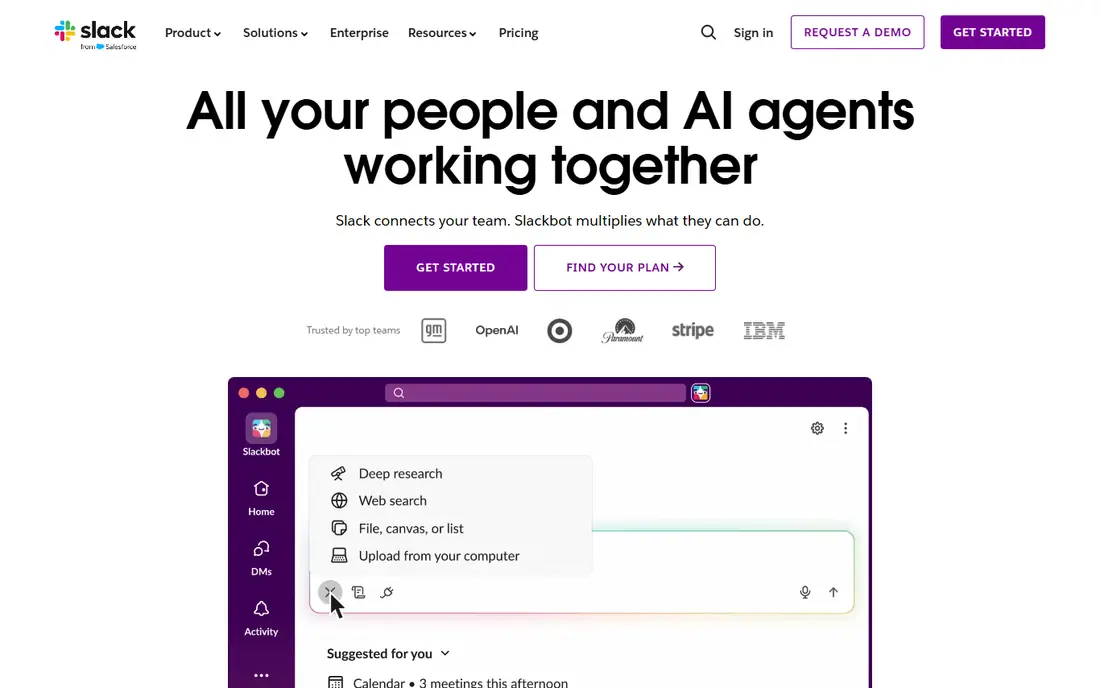
Slack works best for teams that live in chat and want quick answers without scheduling a call. Channels give each project, client, or topic its own space, and threads keep side conversations from taking over the main flow. The integration library is a real strength, since it connects chat to calendars, project tools, file storage, and many smaller apps teams already use.
The catch is volume. A Slack workspace with no rules soon fills with channels nobody reads and pings nobody needs. Teams that set clear norms, such as using threads, naming channels well, and moving longer decisions into documents, get far more from it. The free plan suits a trial or a very small team, but paid plans add the history and admin controls most growing teams need.
- Channel based chat keeps topics separate
- Very large integration library
- Threads and search make past decisions easy to find
- Message history is limited on the free plan
- Busy workspaces can become noisy without good channel discipline

Microsoft Teams makes most sense when your team already uses Outlook, Word, Excel, and OneDrive. Meetings, chat, and file editing sit together, so people spend less time switching apps or hunting for the latest version of a document. For larger companies, the admin controls and compliance options are a genuine reason to choose it over a simpler chat app.
The trade off is focus. Teams packs a lot into one window, and new users can find it harder to learn than Slack. If your team mainly uses Google tools or a mix of unrelated apps, some of that advantage fades. Still, for Microsoft centred workplaces, it is the practical default, and our pick for most people in that position.
- Chat, meetings, and Office files in one app
- Strong fit for companies already paying for Microsoft 365
- Admin and security controls for larger firms
- The interface can feel crowded
- Some features work best only inside the Microsoft ecosystem
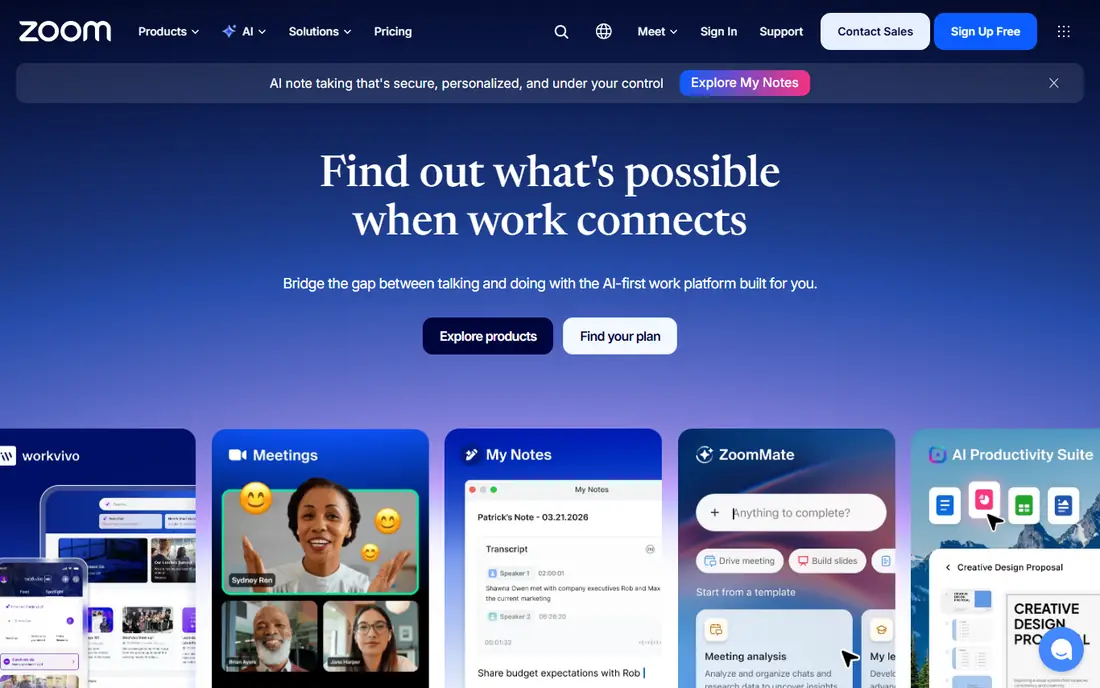
Zoom earned its place because video calls usually just work, even with larger groups or weaker connections. Screen sharing is clear, breakout rooms help workshops and training, and scheduling from a calendar is simple. The newer Workplace features add chat and documents, which helps teams that want meeting notes and follow up tasks close to the call itself.
The honest weakness is not the software but how teams use it. When every question becomes a video call, calendars fill up and deep work suffers. Zoom works best paired with a written home for decisions, such as Notion or a shared doc, and with recorded updates for anything that does not need a live discussion. Used that way, it is hard to beat for client calls and team meetings.
- Reliable video and audio for large meetings
- Screen sharing, breakout rooms, and webinar options
- Docs and chat now sit alongside meetings
- The free plan limits group meetings to 40 minutes
- Meeting heavy habits can eat into focused work time
Notion suits remote teams that need a written memory. Handbooks, project pages, meeting notes, and simple databases live in one searchable place, which matters when teammates work in different time zones and cannot just ask across a desk. Templates speed up the start, and the free plan is generous enough for individuals and small teams to test it properly.
The risk is drift. Without someone tidying pages and setting a clear structure, a Notion workspace grows into a maze of half finished docs. Teams that assign owners, archive old pages, and keep project tracking in a dedicated tool when work gets complex will get the best return. For documentation heavy teams, it is our top pick in this list.
- Flexible pages, databases, and wikis in one workspace
- Good templates for handbooks, roadmaps, and meeting notes
- Works well for async teams
- It can become messy without an owner
- It is not a full replacement for a dedicated project tool on complex work
Asana fits teams that run many projects at once and need to see who owns what and when it is due. Tasks, subtasks, timelines, and workload views give managers a clear picture without constant status meetings. It also handles cross team work well, since a task can live in more than one project while keeping a single thread of comments and files.
For a team of three with simple work, Asana can feel formal. The setup pays off once work involves handoffs, deadlines, and more than one department. The free plan covers basic task tracking, so small teams can start there and move up only when timelines, reporting, or automation become part of daily work.
- Clear task ownership, due dates, and timelines
- Good views for lists, boards, and calendars
- Goals help connect daily work to bigger plans
- Smaller teams may find it more structured than they need
- Advanced features sit on higher priced plans
ClickUp appeals to teams that want fewer subscriptions. Instead of separate tools for tasks, docs, and chat, it tries to cover them in one workspace, with views that suit different working styles. That breadth is useful for small businesses that do not want to pay for five tools, and the starting price compares well with buying those tools separately.
Breadth is also the drawback. New users face many settings, and a team that turns everything on at once can spend more time configuring than working. Start with one use, such as task tracking, and add docs or goals only when the team asks for them. For teams willing to set it up carefully, ClickUp offers strong value.
- Tasks, docs, chat, goals, and dashboards in one place
- Highly customisable views
- Competitive starting price for what it includes
- The range of options can overwhelm new users
- Setup takes time to get right
Miro is the tool for work that does not fit neatly in a list or a document. Teams use it to map a customer journey, plan a product launch, run a retrospective, or sketch ideas together in real time. Sticky notes, frames, and templates make a remote workshop feel closer to a real whiteboard session, and people who rarely speak in video calls often contribute more on a board.
It is not a home for long documents or detailed task tracking, and it should not try to be. Pair Miro with a task tool so workshop ideas turn into owned actions after the session. The free plan gives three editable boards, which is enough to test it, while teams that run regular workshops will want a paid plan.
- Large canvas for brainstorming, mapping, and planning
- Templates for retros, journey maps, and workshops
- Good for live sessions across time zones
- Text heavy work fits better in docs
- The free plan limits the number of editable boards
Trello remains a good choice for teams that want a board and nothing more. A card moves from one list to the next, comments and checklists sit on the card, and everyone can see the state of work at a glance. New team members need almost no training, which matters for small businesses, volunteers, and short term projects.
The limit appears as work grows. Trello lacks the reporting, workload views, and structured fields that Asana or ClickUp offer, so larger projects can outgrow it. That is not a flaw for its target user. If your team wants a simple shared board and already handles chat and docs elsewhere, Trello is a clean, low cost fit.
- Very easy to learn
- Boards, lists, and cards suit visual thinkers
- Free plan covers many small team needs
- Limited reporting and structure for large projects
- Power ups and automation add cost on bigger setups
Loom solves a specific remote problem: the meeting that could have been a short video. A teammate records a walkthrough, a design review, or a status update, and others watch when it suits them, across time zones, without finding a shared slot. Time stamped comments keep feedback tied to the exact moment in the video, which beats a long email thread.
It works best as a complement, not a replacement, for live conversation. Urgent decisions, sensitive feedback, and anything that needs back and forth discussion still belong in a call or a chat. Teams that use Loom for routine updates often free up meeting time for the conversations that truly need everyone present.
- Record screen, camera, or both in minutes
- Viewers can watch at their own pace and leave time stamped comments
- Cuts down on live meetings
- Free plan limits the number of videos
- Recorded updates do not suit urgent or sensitive conversations
How we picked these
We compared official feature pages, pricing pages, and app store listings for widely used collaboration tools, and we favoured tools that are actively maintained, available on desktop and mobile, and used by remote teams in real workplaces. We looked for coverage across chat, video, documents, tasks, and visual work, rather than picking nine versions of the same chat app. Prices shown are the starting paid prices listed by each vendor at the time of writing, and free plan details come from the same vendor pages. Where a vendor bundles a tool with a larger suite, we note that, since the true cost depends on what your team already pays for.
Choosing a stack that fits your team
Start with the work, not the app list. A team that spends its day in client meetings needs strong video first. A team spread across time zones needs written docs and recorded updates more than another chat channel. Write down the three jobs your tools must do every week, then pick one tool for each job and stop there. Adding a fourth or fifth tool usually creates more places to check, not better collaboration.
Set rules before you add tools
Agree on where decisions live, how fast replies are expected, and when a call beats a message. A short written guide, kept in your wiki, prevents the common failure where half the team posts in chat, half in email, and nobody can find the final decision. Revisit the guide after a month and drop any tool the team rarely opens.
Watch the total cost
Per user pricing looks small until it multiplies across a team, so count seats, guests, and any add ons before you commit. Free plans help you test, but check message history, storage, and meeting limits against your real use. A tool that fits five people may strain at twenty, and switching later costs time even when the new tool is better.
Frequently asked questions
What are the best communication tools for remote teams?
Chat tools such as Slack and Microsoft Teams suit daily messaging, while Zoom covers live video and Loom covers recorded updates. Most teams need one of each, plus a shared place for documents and tasks, rather than a single app that claims to do everything.
What are the best collaboration tools for virtual teams?
The best set depends on the work. For general office work, we would start with Slack or Teams for chat, Zoom for meetings, and Notion or Asana for shared work. Add Miro only if your team runs workshops or visual planning sessions.
What is the best collaborative software for a small remote team?
Small teams often do well with a free plan from Trello or Notion plus a chat tool they already use. Keep the stack small, since each extra tool adds a place to check and a login to manage, and upgrade only when a clear limit, such as message history, starts to hurt.
Should remote teams use one tool or several?
Several, but few. One tool for chat, one for meetings, and one for tasks and docs covers most needs. The risk is not the number of tools but unclear rules about where each kind of work lives.
Is a free collaboration plan enough for a remote team?
A free plan can be enough for a small team with light needs, especially for testing. Larger teams usually hit limits on history, storage, board counts, or meeting length, and then a paid plan becomes worth the cost.
How do we reduce video meeting fatigue in a remote team?
Move routine updates to recorded video or written notes, keep live meetings shorter with a clear agenda, and protect blocks of time with no meetings at all. Tools help, but the habit of asking whether a meeting is needed matters more than any single app.
Sources we checked (9)

Online Jobs is an independent blog about careers, online work, learning new skills and the tools that help people earn. More about us.
Keep reading
All posts
Zoom Alternatives
Zoom alternatives compared for 2026: Google Meet, Microsoft Teams, Webex, Jitsi and more for free calls, large meetings and webinars for teams and classrooms.
Which Software Is Best for PDF Page Removal
Which software is best for PDF page removal? We compare free and paid tools for deleting pages quickly, safely, and without harming your file in this guide.

Which Software Is Best for Data Entry
Compare the best data entry software for forms, OCR scanning, and spreadsheets, with free plans, pricing, and honest limits for each tool before you commit.