Best Remote Access Software in 2026: 8 Tools Compared


Free personal access · Starting price: Free
How we put this together: we compare official feature and pricing pages, app store listings, privacy policies and public user reviews. Prices change, so check the provider's site before you pay.
Key takeaways
- Chrome Remote Desktop is the best free option for personal access to your own computers.
- TeamViewer suits IT teams and support work, with broad platform coverage and managed devices.
- AnyDesk suits fast connections on weaker networks, thanks to its focus on low-latency performance.
- Splashtop offers strong value for small businesses that need multi-monitor and high-quality video.
- RustDesk suits privacy-minded teams that want to self-host the connection relay.
Quick comparison
| Name | Who it suits | Starting price | Free option | |
|---|---|---|---|---|
| Chrome Remote Desktop | Free personal access | Free | Yes | Visit |
 TeamViewer TeamViewer | IT support teams | See website | Yes | Visit |
 AnyDesk AnyDesk | Fast low-latency access | See website | Yes | Visit |
 Splashtop Splashtop | Business value and video | See website | No | Visit |
 RemotePC RemotePC | Small office value | See website | No | Visit |
 Zoho Assist Zoho Assist | Support teams | See website | Free trial | Visit |
 RustDesk RustDesk | Self-hosted access | Free | Yes | Visit |
 RealVNC Connect RealVNC Connect | Mixed VNC infrastructure | See website | Free trial | Visit |
The best remote access software
Remote access software has to do a simple job well: connect you to another computer, show its screen clearly, and let you control it without delay or confusion. The best tool depends on whether you are helping family, supporting customers, working from home, or managing many machines. The eight tools below cover those jobs.
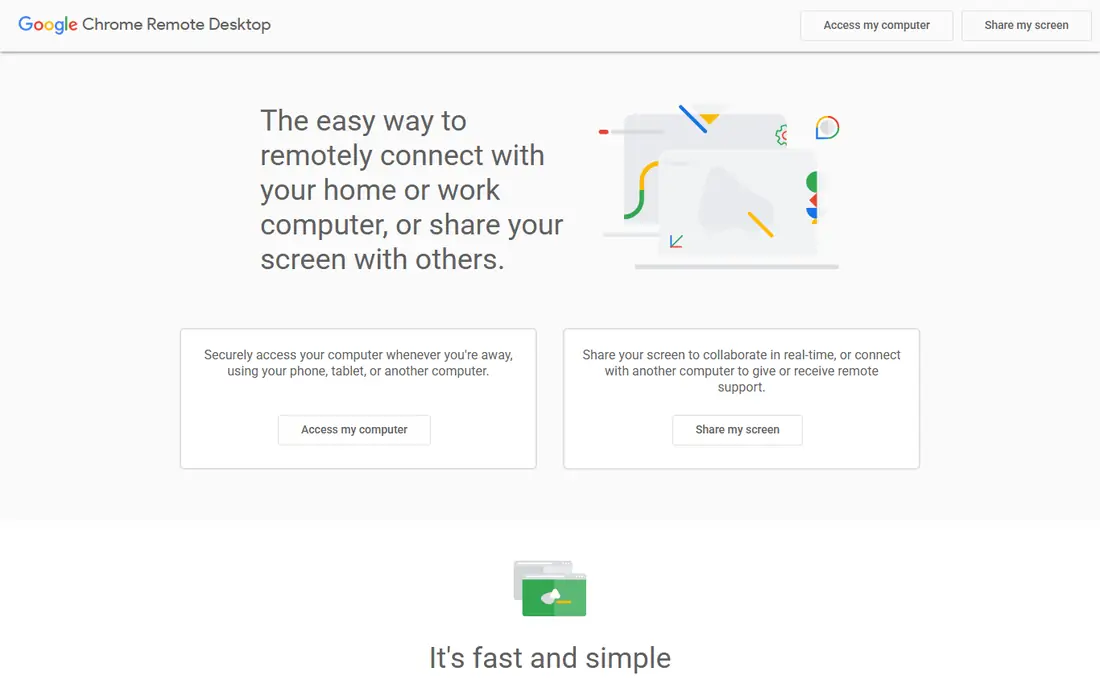
Chrome Remote Desktop is the easiest way to reach your own computer from elsewhere, because setup is little more than installing an extension and signing in with a Google account. You can access a home PC from a laptop or phone, and you can also offer one-off remote help to someone else. For personal use, there is no subscription, session limit, or complex admin panel to learn. Business support teams will want more. There is no ticket queue, device grouping, session recording, or advanced admin control of the kind found in TeamViewer or Zoho Assist. Chrome Remote Desktop is best kept for personal machines and occasional help, not as a full support platform.
- Free for personal use
- Simple browser-based setup
- Works across major desktop and mobile platforms
- Limited support-team features
- File transfer is basic compared with paid tools
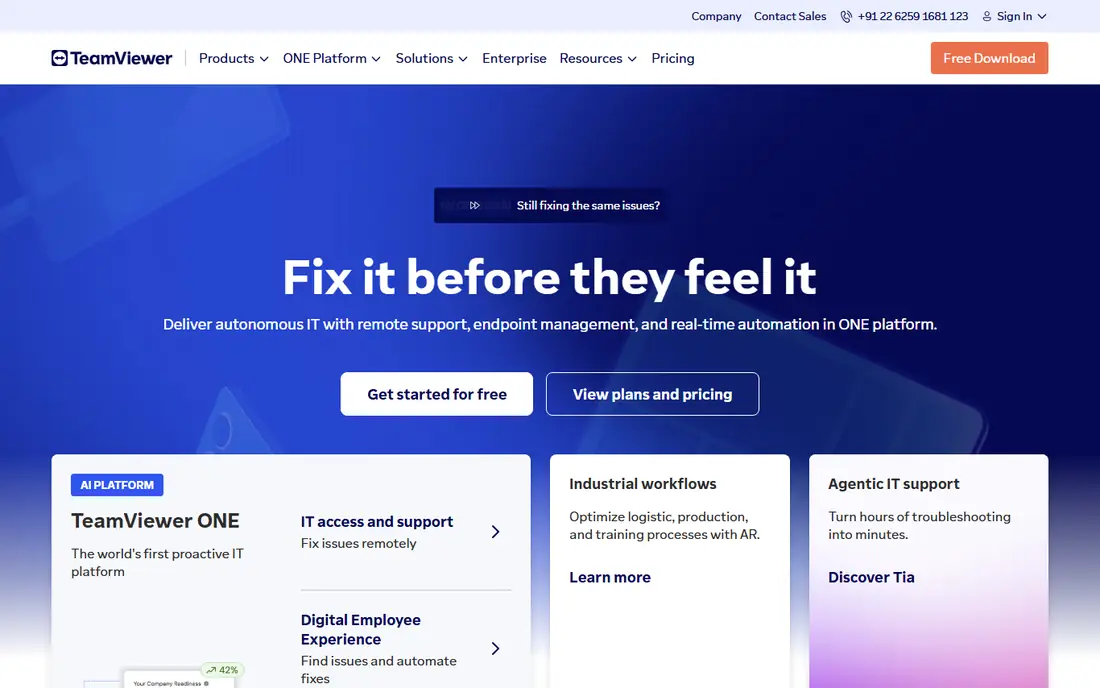
TeamViewer is the familiar name in remote support for a reason, with apps for Windows, macOS, Linux, iOS, Android, and ChromeOS. Support teams can use unattended access, file transfer, session handling, and device management from one console, which makes it practical for helping many users. It also handles cross-platform help well, so a Windows technician can support a Mac user without switching tools. Price is the main barrier. Business plans are costly for a one-person team, and personal use must stay non-commercial, with commercial use flagged by the service. TeamViewer suits organisations that need a proven, managed support tool and can justify the subscription.
- Broad platform coverage
- Unattended access
- Device management and support features
- Business pricing is high for small teams
- Personal use is limited to non-commercial use
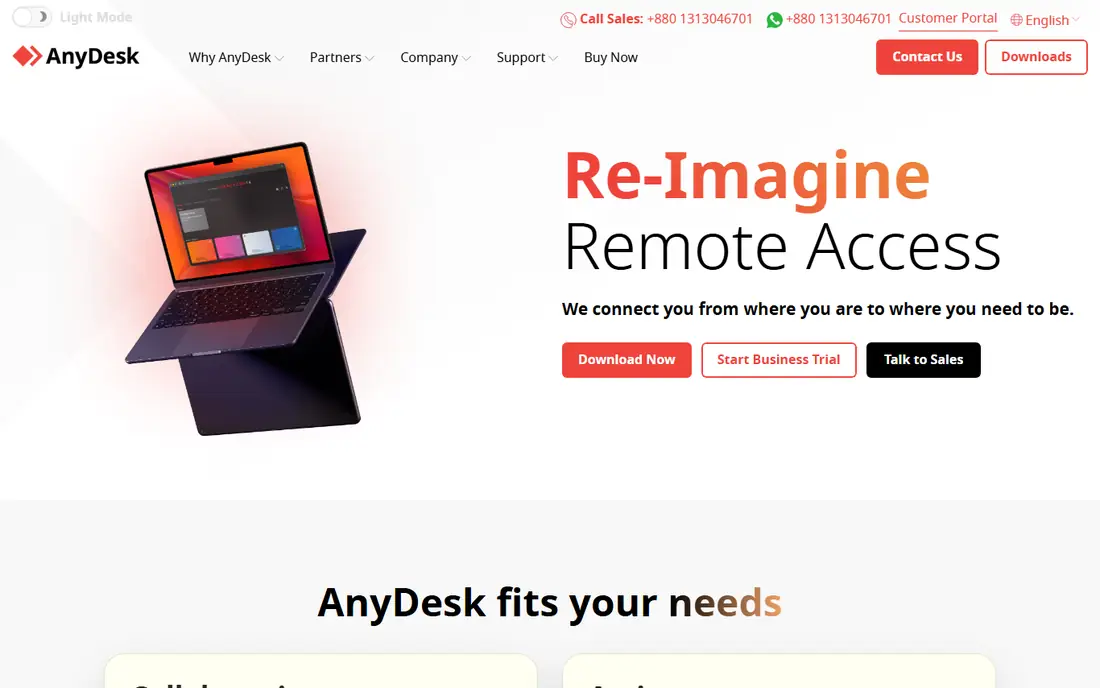
AnyDesk is built around speed, with a codec designed to keep frame rates smooth on slower or unstable connections. That matters when you are working from a weak home connection, a mobile network, or an older machine. The client is also lightweight, so it installs and starts quickly compared with heavier suites. Free use is for personal, non-commercial purposes, and business users need a paid plan for unattended access and team features. AnyDesk is a strong TeamViewer alternative for small IT teams and power users, provided the plan covers the number of devices and sessions you actually need.
- Fast performance on slow connections
- Lightweight client
- Unattended access on paid plans
- Personal free use has limits for business work
- Advanced admin features need higher plans
Splashtop stands out for remote workers and creative users who need clear video, smooth motion, and multi-monitor support. It handles 4K streaming and multi-monitor layouts well on paid plans, which helps video editors, designers, and remote workers who use more than one screen. Small business pricing is also more approachable than TeamViewer for many teams. There is no free business tier to test at scale, so you will need a trial or paid plan to judge it properly. Session recording, compliance tools, and remote support extras sit on higher plans, so check which tier covers your actual workflow before committing.
- Strong video quality
- Multi-monitor support
- Lower business pricing than some rivals
- No permanent free business plan
- Advanced compliance features need higher tiers
RemotePC is a practical value pick for small offices that need reliable unattended access without paying for a large support suite. It covers Windows, Mac, Linux, iOS, Android, and ChromeOS, with file transfer, chat, and multi-monitor options on its plans. For a small team that mainly needs to reach office PCs from home, it does the job at a lower cost. It is less polished for large support operations, with fewer managed-service features than TeamViewer or ConnectWise-style tools. RemotePC fits personal use, freelancers, and small offices best, especially when the priority is steady access rather than a full helpdesk platform.
- Good value for small offices
- Unattended access
- File transfer and multi-monitor support
- Interface is plainer than Splashtop
- Support-team tools are less extensive than TeamViewer
Zoho Assist is built for support teams that run attended and unattended sessions from a browser, without asking customers to install a heavy client. Technicians can start a session from a link, transfer files, reboot remotely, and manage devices, which suits helpdesks and managed service work. Pricing is also competitive for teams that support many endpoints. The free and lower tiers have limits on sessions, technicians, and features, so larger teams will need a paid plan. Zoho Assist is strongest for organisations already using Zoho products, though it works well as a standalone support tool too.
- Browser-based support sessions
- Unattended access
- Good value for support teams
- Free tier is limited
- Deeper admin features need higher plans
RustDesk appeals to teams that want control over their remote access infrastructure, because the client is open source and you can self-host the relay server. That means connection data does not have to pass through a third-party cloud, which matters for privacy-minded organisations and internal networks. The basic client is free and covers remote control, file transfer, and multi-monitor use. Self-hosting is the catch. You need technical skill to set up, secure, and maintain a relay, and you take on updates and availability yourself. RustDesk suits technical teams with that capacity, while non-technical users are better served by a managed tool such as Chrome Remote Desktop or Splashtop.
- Open-source client
- Self-hosting option
- No vendor lock-in for the relay
- Self-hosting needs technical setup
- Commercial support options are more limited
RealVNC Connect is the pick for mixed environments that already use VNC, including Linux machines, servers, and Raspberry Pi devices. It offers encrypted connections, unattended access, file transfer, and multi-monitor support depending on plan, and it fits infrastructure work better than a simple consumer app. Teams managing varied hardware will value its breadth. Setup is more technical than Chrome Remote Desktop or AnyDesk, and pricing varies by device count and plan. RealVNC Connect suits IT and infrastructure teams, while casual users who only need to reach one home PC should start with a simpler free tool.
- VNC standard support
- Works on many platforms including Raspberry Pi
- Unattended access
- Pricing depends on devices and features
- Setup is more technical than consumer tools
How we picked these
We compared official feature pages, pricing pages, and public platform notes for remote access tools that cover personal use, IT support, business access, and self-hosting. We favoured tools with a clear audience, cross-platform support, unattended access where relevant, and a stated free or trial option. We also noted where personal free use is limited to non-commercial use, because that affects small businesses that try a free tier for work. We did not claim hands-on speed testing across networks, and we did not rank by a single performance number. The picks reflect use case, platform coverage, security features, and value, so readers can match a tool to personal, small office, or support-team work. Prices change by plan and device count, so check the vendor pricing page before buying.
Choosing the right remote access tool for you
Start with who you are helping and how often. Personal access to your own machines needs little more than a free, simple tool. Support work needs unattended access, session control, and device management. Creative remote work needs video quality and multi-monitor support, while privacy-led teams need to weigh self-hosting against managed convenience.
Security checks that matter for every tool
Use strong, unique passwords, turn on two-factor authentication where offered, and never accept a remote connection from someone you do not know. Scammers often use remote access tools to gain control of a victim machine, so a request to install one from an unexpected caller or message should be treated as a warning sign. Limit unattended access to machines you own or manage, and review connected devices regularly.
Test on your real connection
Try a trial on the slowest connection you will actually use, not only on fast office Wi-Fi. Check screen clarity, typing delay, file transfer, and multi-monitor behaviour, and confirm that mobile access works if you plan to work from a phone or tablet. A tool that feels fast on a strong connection may feel very different on a weak one.
Frequently asked questions
What is the best remote access software for personal use?
Chrome Remote Desktop is the best free personal option, with simple setup and no subscription for your own machines. AnyDesk also offers a free personal tier with faster performance on weak connections. For personal use only, start free and pay only if you need unattended business features.
What is the best remote access tool for IT support?
TeamViewer is the most established support tool, with broad platform coverage and managed device features. Zoho Assist is a strong value alternative for support teams, with browser-based sessions and unattended access. The best choice depends on team size, device count, and budget.
Is remote access software safe?
Reputable tools use encryption and account security, but safety also depends on how you use them. Never share access codes with strangers, use two-factor authentication, and keep unattended access limited to trusted machines. If someone unexpected asks you to install remote access software, pause and verify through a trusted channel first.
What is the best free remote desktop software?
Chrome Remote Desktop is the best fully free option for personal use, with no session limits tied to a paid plan. RustDesk is also free and open source, with a self-hosting option for technical users. AnyDesk and TeamViewer offer free personal tiers, but business use requires a paid licence.
Can I access my computer from my phone?
Yes, Chrome Remote Desktop, TeamViewer, AnyDesk, Splashtop, and most tools on this list offer mobile apps for iOS and Android. Mobile access works well for checking files or a running task, though long work sessions are easier on a laptop or desktop. Check multi-monitor and keyboard support in the mobile app before relying on it daily.
Do I need unattended access?
Unattended access lets you connect to a machine without someone at the other end accepting the session, which suits home PCs and office machines you manage. Attended access is enough for one-off help, where the other person starts the session. Choose unattended access only for machines you own or are authorised to manage, and protect it with strong account security.
Sources we checked (8)

Online Jobs is an independent blog about careers, online work, learning new skills and the tools that help people earn. More about us.
Keep reading
All posts
Best Writing Software
Looking for the best writing software in 2026? We compared 9 writing apps for books, articles and screenplays on price, features and fit. All verified.
Best Weather Apps
Searching for the best weather app? We compared eight top weather apps for accurate forecasts, radar, severe alerts, and daily planning near you today.

Best Video Editing Software
We compared the best video editing software for beginners and pros, checking official pricing, free plans and honest limits before ranking all nine editors.