Best Professional Photo Editing Software in 2026: 9 Apps Compared


Retouching and compositing · Starting price: $22.99 per month
How we put this together: we compare official feature and pricing pages, app store listings, privacy policies and public user reviews. Prices change, so check the provider's site before you pay.
Key takeaways
- Photoshop remains the strongest choice for retouching and compositing, while Lightroom leads for large photo libraries and fast RAW workflow.
- Capture One suits studio work and tethered shooting, and DxO PhotoLab suits photographers who put RAW image quality first.
- Affinity Photo now gives professional pixel editing at no cost, which changes the value calculation for anyone who dislikes subscriptions.
- One-time purchases from DxO, ON1 and Pixelmator Pro can cost less over several years than a monthly plan, even if updates are less frequent.
- Free editors such as GIMP are capable, but they demand more time for setup and lack the polished RAW workflow of paid rivals.
Quick comparison
| Name | Who it suits | Starting price | Free option | |
|---|---|---|---|---|
| Adobe Photoshop | Retouching and compositing | $22.99 per month | Free trial | Visit |
 Adobe Lightroom | Large RAW libraries | $11.99 per month | Free trial | Visit |
 Capture One | Studio and tethered work | $18 per month | Free trial | Visit |
 DxO PhotoLab | RAW image quality | $229 one-time | Free trial | Visit |
 Affinity Photo | Full editing without a subscription | Free | Yes | Visit |
 Luminar Neo | Fast AI-assisted edits | $119 one-time | Free trial | Visit |
 ON1 Photo RAW | All-in-one organizing and editing | $99.99 one-time | Free trial | Visit |
 Pixelmator Pro | Mac photo editing | $49.99 one-time | Free trial | Visit |
 GIMP | Free pixel editing | Free | Yes | Visit |
The best professional photo editing software
Professional editing is not one job. Some photographers need to sort thousands of RAW files, others need to rebuild a single image pixel by pixel, and many need both. The tools below cover that range, from subscription suites to free editors that still handle serious work.

Photoshop is the reference point for pixel-level work. Layers, masks, selections and blending give a retoucher fine control over skin, product shots, composites and design files in a way that simpler editors cannot match. Recent AI tools help with removing objects, extending backgrounds and cleaning up distractions, but the core strength remains manual control when a job needs it. The catch is cost and complexity. A monthly plan makes sense for daily professional use, yet it feels heavy for someone who edits a few shoots a month. The interface also rewards practice, so new users should expect a learning period before work feels fast. For studios that share PSD files and rely on plugins, however, Photoshop is still hard to replace.
- Deep layer and masking tools
- Strong generative fill for complex edits
- Wide plugin and file support
- Subscription cost adds up
- Steep learning curve for new users
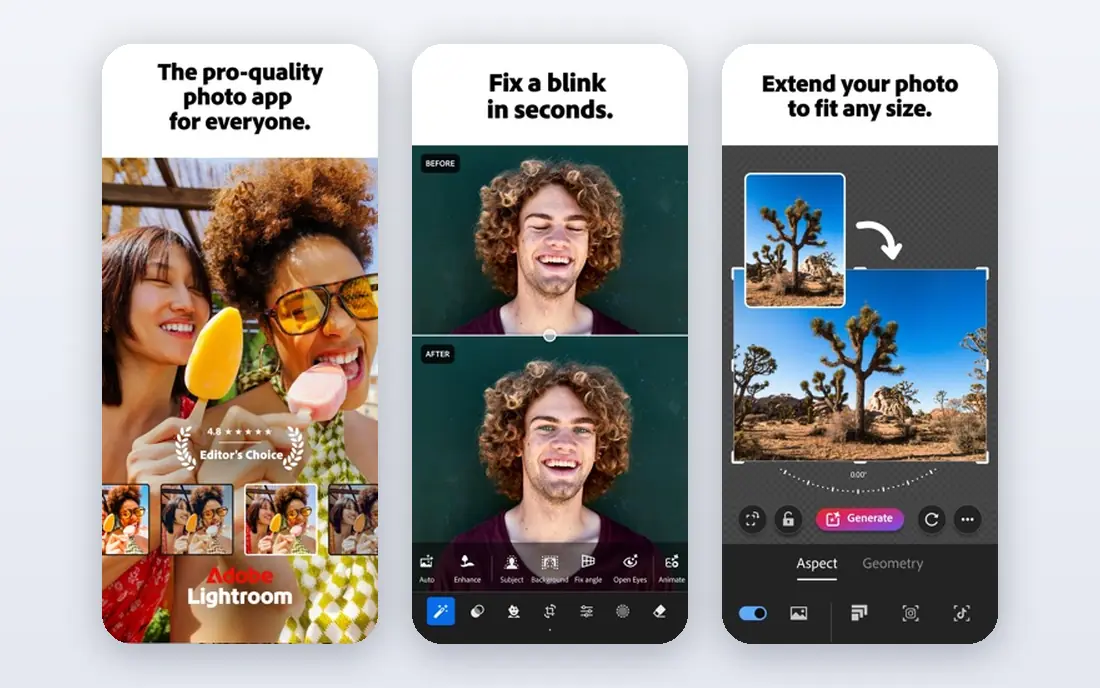
Lightroom is built around the daily work of a photographer, not the single hero image. Import, culling, colour, exposure and export happen in one flow, and edits stay non-destructive so the original file is never harmed. Masks for sky, subject and background make local adjustments quicker than they were a few years ago, and mobile sync helps when editing away from a desk. Where Lightroom stops short is deep manipulation. Composites, major object work and detailed retouching still belong in Photoshop. That pairing is the point of the Photography plan for many pros, but buyers who only want Lightroom should check the current plan options before subscribing. For wedding, event and portrait photographers with large catalogues, Lightroom remains the most practical hub.
- Fast non-destructive RAW workflow
- Strong organization and search
- Cloud sync across devices
- Pixel editing is limited compared with Photoshop
- Subscription only
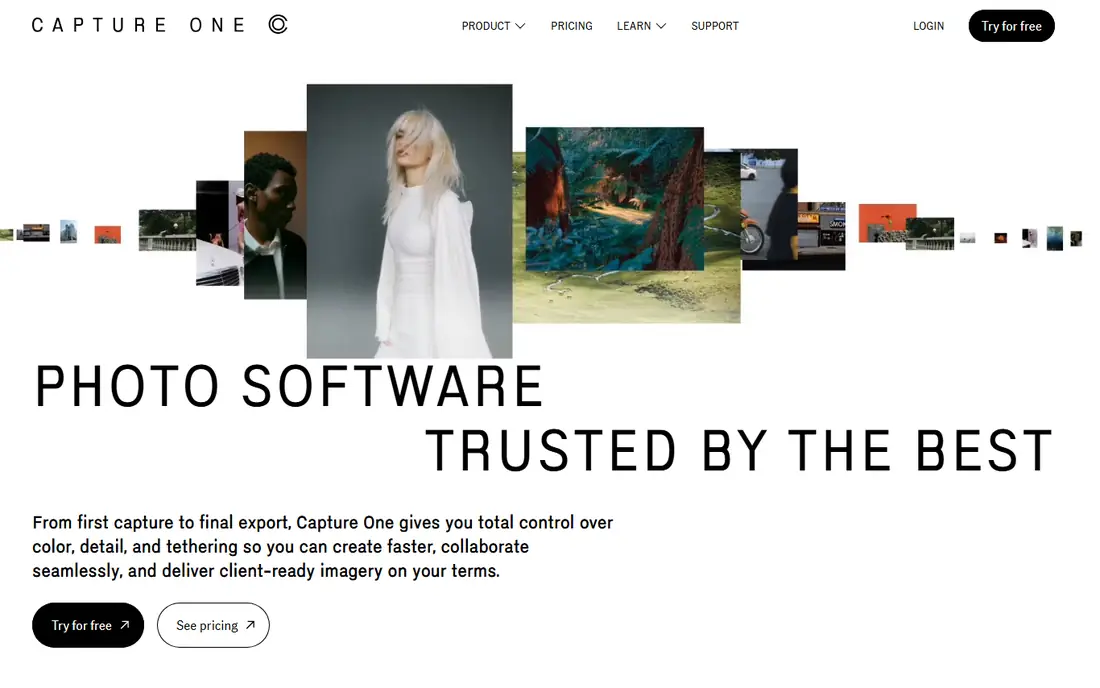
Capture One earns its place in studios because tethered shooting feels dependable. Photographers can review shots on a large screen as they shoot, adjust colour live, and keep sessions organised by client and job. Colour editing is detailed and restrained, which suits product, fashion and commercial work where accurate skin and product tones matter more than dramatic presets. The trade-off is price and ecosystem. It costs more than a basic Lightroom plan, and its plugin and preset world is smaller than Adobe's. Photographers who shoot on location without tethering may not use its best feature often enough to justify the cost. For studio teams, though, the live review and colour control are worth paying for.
- Excellent colour tools and tethered shooting
- Strong session workflow for studios
- Precise RAW controls
- Higher price than some rivals
- Smaller plugin range than Adobe
DxO PhotoLab starts from the RAW file and tries to get the most from it. Its noise reduction and optical corrections are a real strength for high ISO work and for lenses with known flaws, and the detail in shadows and highlights holds up well in large prints. Photographers who judge an editor by final image quality rather than by catalogue features will like what it produces. Library management is the weaker side. It does not match Lightroom for searching, sorting and syncing very large collections, so some users pair it with another organiser. The one-time Elite price is also a larger upfront payment, even if it can work out cheaper over time. For image quality first, and workflow second, PhotoLab is a strong pick.
- Strong noise reduction and lens corrections
- Excellent RAW detail
- One-time purchase option
- Library tools are weaker than Lightroom
- No mobile companion of the same depth
Affinity Photo changed the value argument for professional editing. It offers layers, masks, live filters, retouching and panorama and HDR tools in a desktop app that now costs nothing under Canva, according to current vendor listings. That makes it a serious option for freelancers, students and small studios that want Photoshop-style control without a monthly bill. It is not a direct Lightroom replacement. Catalogue and batch RAW workflow are less developed, so photographers with huge libraries may still need a separate organiser. Plugin support is also narrower than Photoshop. Even with those limits, the editing depth for the price is difficult to beat, and it handles most commercial retouching tasks well.
- Full layer and retouching tools at no cost
- Fast performance
- PSD support for shared work
- RAW workflow is less complete than Lightroom
- Fewer third-party plugins than Photoshop
Luminar Neo is aimed at photographers who want a polished result quickly. AI tools for sky replacement, portrait enhancement and relighting can turn a flat file into a finished image in minutes, and presets give a useful starting point for consistent looks across a set. The interface is far less intimidating than Photoshop, which helps when editing volume matters. Control is the compromise. When an AI result misses the mark, fine manual correction can feel limited compared with a layer-based editor. Users on older computers should also test performance before buying, since AI processing is demanding. For portrait, travel and social work where speed matters, Neo is a practical second editor or a main editor for less complex jobs.
- Quick AI tools for sky, portrait and outdoor edits
- Friendly interface
- Useful presets
- Less precise manual control than Photoshop
- Performance can vary on older machines
ON1 Photo RAW tries to cover the whole job in one program. Browsing, RAW development, layers, effects and export sit together, so photographers do not need to move between a catalogue app and a pixel editor for most tasks. AI masking and portrait tools speed up common edits, and the one-time price suits buyers who want to avoid subscriptions. The breadth comes with a busy interface, and some individual tools do not feel as polished as the best specialist options. A user who mainly needs top-tier retouching may still prefer Photoshop, and a user who mainly needs tethering may prefer Capture One. As a single purchase that handles most of a professional workflow, however, ON1 is a solid middle ground.
- RAW editing, layers and effects in one app
- One-time purchase
- Useful AI masking tools
- Interface can feel busy
- Some tools are less refined than specialist rivals
Pixelmator Pro is the clearest pick for Mac-only photographers who want a fast, modern editor. It feels native on macOS, runs well on Apple silicon, and includes machine learning tools for removing backgrounds, upscaling and cleaning up images. Layer editing, colour adjustment and RAW support cover most professional stills work without a subscription. Being Mac only is the main limit. Mixed teams on Windows and Mac cannot standardise on it, and the plugin and tutorial world is smaller than Adobe's. For a solo Mac photographer, those limits matter less than speed and price. At a one-time price, it is one of the best value professional editors on Apple hardware.
- Fast native Mac performance
- Strong ML-assisted tools
- One-time price
- Mac only
- Smaller community and plugin range than Adobe
GIMP remains the free editor that professionals can actually use for pixel work. Layers, masks, brushes, filters and a large plugin range handle retouching, compositing and graphic tasks that many free apps cannot. It runs on all major desktop systems, which helps teams with mixed hardware and tight budgets. The RAW side is the weak point, since RAW handling relies on plugins and a separate workflow rather than a built-in Lightroom-style catalogue. The interface also assumes the user knows what they want, so beginners may need tutorials before work feels smooth. For a no-cost editor with real depth, and for users comfortable setting up their own workflow, GIMP still earns its place.
- Free and open source
- Deep layer and plugin support
- Runs on Windows, Mac and Linux
- RAW workflow needs plugins
- Interface feels dated and less guided
How we picked these
We compared official feature pages, pricing pages, app store listings and public reviews for editors that are actively sold or maintained in October 2026. We weighted RAW quality, masking and retouching depth, library workflow, file compatibility and total cost over time, rather than judging by presets or marketing claims alone. Products that were discontinued, limited to a single outdated version, or unable to handle professional file types did not make the list.
What to check before you pay
Start with your main job, not with the longest feature list. A wedding photographer needs fast culling and consistent colour across thousands of files, while a retoucher needs layers, masks and plugin support for a smaller number of images. Check whether your camera RAW files are supported, whether the app exports the formats your clients need, and whether your computer meets the requirements for AI tools. Try the trial on a real job, not on a single test photo. Import a full shoot, edit a difficult file, export for print and for web, and share a file with a collaborator if your workflow needs it. That test will reveal slow performance, missing export options or catalogue limits faster than any review. Also add up three years of cost, including upgrades, so a cheap monthly plan and a larger one-time purchase can be compared fairly.
Frequently asked questions
What is the best photo editing software for professionals?
Photoshop is the strongest all-round pixel editor, Lightroom is the strongest RAW workflow hub, and Capture One is the strongest studio choice. The best pick depends on whether your main work is retouching, library management or tethered shooting. Many professionals use Lightroom or Capture One plus Photoshop for that reason.
What is the best professional photo editing app for beginners?
Luminar Neo and Affinity Photo are good starting points because they offer strong tools without the full complexity of Photoshop. Luminar Neo is faster for quick results, while Affinity Photo gives more manual control as skills grow. Both let a new professional produce client-ready work without a large monthly cost.
Is there a good free option for professional photo editing?
Yes. Affinity Photo is now free and offers professional layer editing, while GIMP is free and open source with deep plugin support. Affinity Photo is easier for most users, while GIMP suits users who want cross-platform support and are comfortable setting up a RAW workflow with plugins.
Do professionals need Photoshop and Lightroom together?
Many do, because the two tools cover different jobs. Lightroom handles sorting, colour and export for large shoots, while Photoshop handles composites, detailed retouching and design files. If your work is mainly single-image retouching, Photoshop alone may be enough, and if your work is mainly colour and delivery, Lightroom alone may be enough.
What is the top photo editing software for professionals on Mac?
Pixelmator Pro is a strong Mac-only value pick, while Photoshop, Lightroom, Capture One and Affinity Photo all run well on Mac. Pixelmator Pro suits solo Mac users who want speed and a one-time price. Larger teams may prefer Adobe or Capture One for file sharing and plugin support.
How much should a professional photo editor cost?
A free editor can cover many jobs, a one-time purchase often falls between $49.99 and $229, and subscriptions often fall between $11.99 and $22.99 per month for Adobe plans. Compare three years of cost, check whether upgrades are included, and avoid paying for a large suite if you only use one tool in it.
Sources we checked (9)
- https://www.adobe.com/products/photoshop.html
- https://www.adobe.com/products/photoshop-lightroom.html
- https://www.captureone.com
- https://www.dxo.com/dxo-photolab/
- https://affinity.serif.com/en-gb/photo/
- https://skylum.com/luminar
- https://www.on1.com/products/photo-raw/
- https://www.pixelmator.com/pro/
- https://www.gimp.org

Online Jobs is an independent blog about careers, online work, learning new skills and the tools that help people earn. More about us.
Keep reading
All posts
Zoom Alternatives
Zoom alternatives compared for 2026: Google Meet, Microsoft Teams, Webex, Jitsi and more for free calls, large meetings and webinars for teams and classrooms.
Which Software Is Best for Data Entry
Compare the best data entry software for forms, OCR scanning, and spreadsheets, with free plans, pricing, and honest limits for each tool before you commit.

What's the Best App to Read PDFs
Find what's the best app to read PDFs in 2026, from Adobe Acrobat Reader and Foxit to PDF Expert and Xodo, with free options and honest limits for every device.