Best platform for PDF insertion in 2026: 9 Tools Compared

How we put this together: we compare official feature and pricing pages, app store listings, privacy policies and public user reviews. Prices change, so check the provider's site before you pay.
Key takeaways
- PDF24 Tools and Sejda offer the clearest page insertion workflows for occasional use, with PDF24 standing out for free use.
- iLovePDF and Smallpdf suit people who already use a wider PDF toolkit and want insertion alongside merging and editing.
- Adobe Acrobat remains the safest choice for large, complex, or sensitive documents that need reliable formatting.
- Offline tools such as PDFsam Basic and PDFgear Desktop keep files on your own computer, which matters for private documents.
- Always check the finished PDF page by page, because inserted pages can shift headers, footers, and page numbers.
Quick comparison
| Name | Who it suits | Starting price | Free option | |
|---|---|---|---|---|
 PDF24 Tools | Free page insertion with no account | Free | Yes | Visit |
 Sejda | Occasional insertion with clear privacy handling | See website | Yes | Visit |
 iLovePDF | Simple insertion inside a broad PDF suite | See website | Yes | Visit |
 Smallpdf | Quick polished insertion for one off jobs | See website | Yes | Visit |
 Adobe Acrobat | Large and complex documents | See website | Free trial | Visit |
 PDFgear | Frequent use without daily caps | Free | Yes | Visit |
 Lumin | Insertion plus editing and signing in one place | See website | Yes | Visit |
 PDF2Go | Browser based insertion with conversion tools | See website | Yes | Visit |
 PDFsam Basic | Offline page work on any desktop system | Free | Yes | Visit |
The best platform for PDF insertion
Inserting pages into a PDF sounds simple until you try it. Some tools only merge whole files, some only add a blank page, and some make it hard to place a page exactly between two existing pages. The tools below were chosen because they let you control placement, handle pages from another file, and produce a finished PDF that still reads in order.
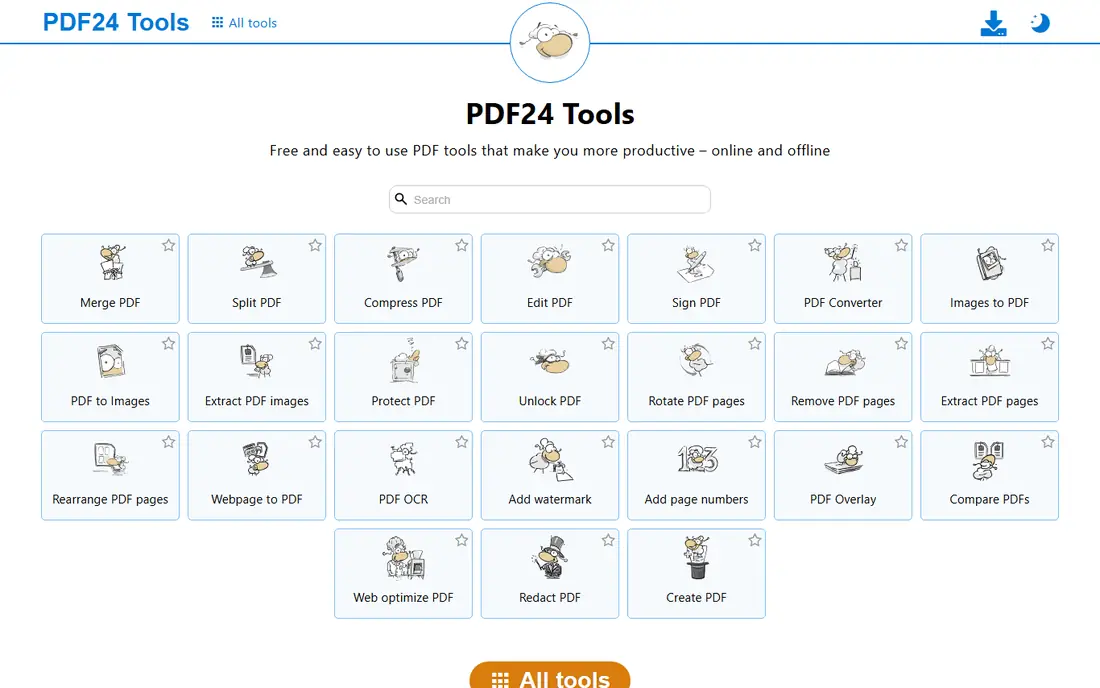
PDF24 Tools is the first place to try if you need to insert pages and do not want to pay or sign up. Its insert pages tool lets you choose where a new page goes, add a blank page, or pull pages from another PDF. The workflow is visual, so you can see the order before you download the result.
The main trade off is privacy. Web processing means your file leaves your computer, which is fine for a public handout but less ideal for a contract or a medical form. PDF24 also offers a desktop creator for Windows, which helps when you want the same tools without uploading. For everyday insertion jobs, it is hard to beat on price and simplicity.
- Free to use with no registration for web tools
- Supports blank pages and pages from other PDFs
- Desktop app available for Windows
- Uploaded files go to a server for web processing
- Interface covers many tools, so the right one takes a moment to find
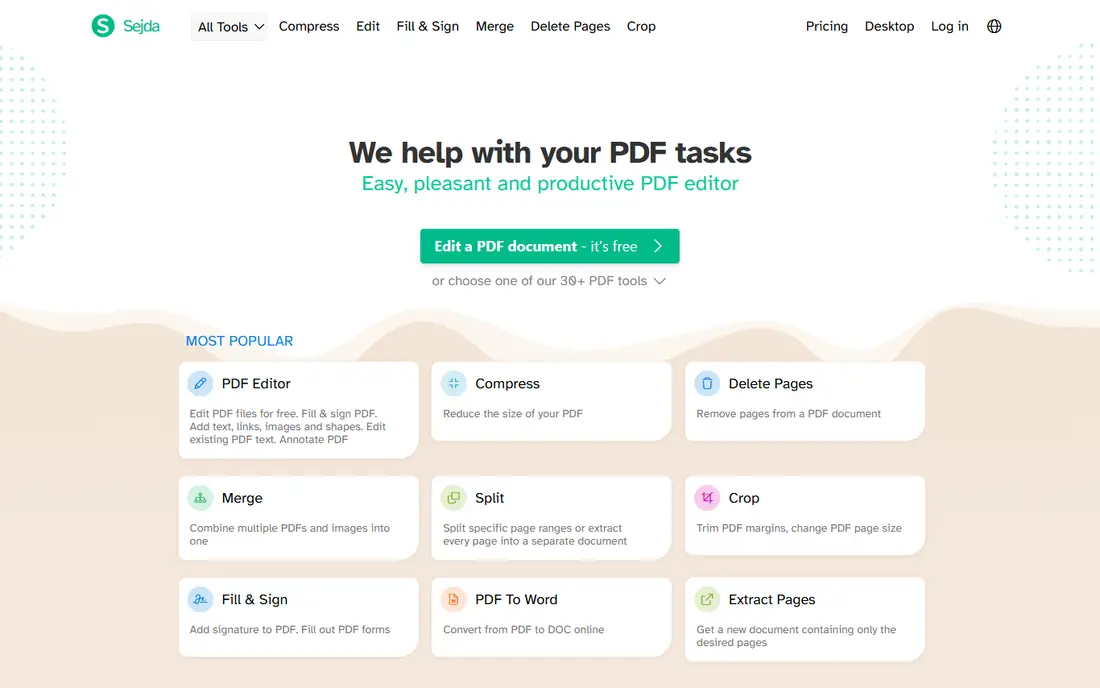
Sejda suits people who insert pages a few times a month and care about what happens to their files. You can upload a PDF, insert pages, reorder them, and download the result without creating an account. Sejda states that uploaded files are deleted after a short period, which is reassuring for documents that are not highly sensitive but still private.
Free limits are the catch. Files are capped by size and pages, and only a few tasks are allowed per day on the free plan. That is enough for a report or an application form, but not for a team processing documents all day. Paid plans remove those caps and add desktop use, so occasional users can pay for a week only when a big job arrives.
- No account needed for basic use
- Clear file deletion policy
- Clean page editing tools
- Free plan caps daily tasks and file size
- Larger jobs need a paid plan or week pass
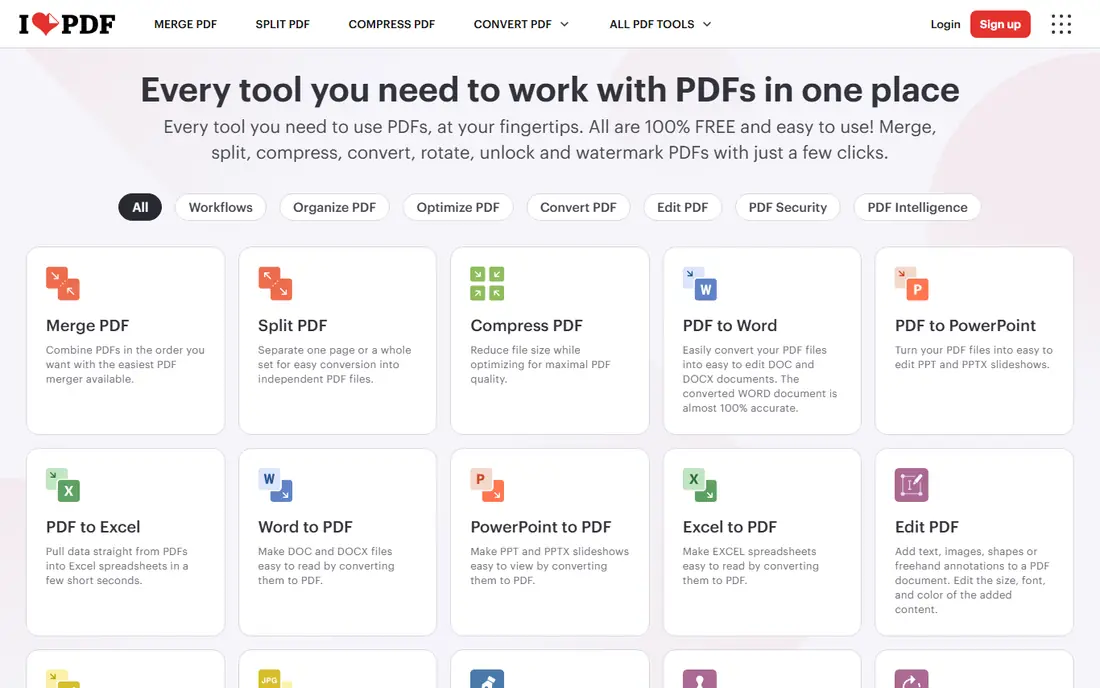
iLovePDF works well when insertion is one part of a longer PDF workflow. You can merge files, organise pages, split a document, and compress the result without switching services. The thumbnail view makes it easy to drag a new page into place and spot a page that landed in the wrong spot before you save.
The free tier is useful for testing, but regular users will hit limits on file size or tasks. Premium pricing is modest compared with full PDF editors, and it also includes desktop and mobile apps. If you handle PDFs weekly, iLovePDF is a practical all rounder rather than a one trick insertion tool.
- Very clear thumbnail view for ordering pages
- Desktop and mobile apps available
- Wide set of PDF tools in one account
- Free tier limits processing
- Some page tools are easier in the paid version
Smallpdf is the tool many people reach for when they want a job done in two minutes. Upload a file, use the organise or edit tools to add and move pages, and download a clean result. The design stays out of the way, which helps when you are working on a phone or a borrowed computer.
Free use is the main limit. Only a couple of tasks are allowed before Smallpdf asks you to upgrade or wait, so it is not the best choice for daily work on a free plan. For a single urgent insertion, it is fast and reliable. For repeated jobs, compare its monthly price with iLovePDF or PDF24 before committing.
- Polished and fast interface
- Works well on mobile browsers
- Good tools for compressing and converting after insertion
- Free use is limited to a small number of tasks
- Paid plan needed for regular work
Adobe Acrobat is overkill for adding one page to a short document, and it is the right choice for a long report, a form with fields, or a file with layered graphics. Its Organize Pages view shows thumbnails, lets you insert pages from a file or scanner, rotate and delete pages, and keep bookmarks and links intact more reliably than most web tools.
Cost and complexity are the downsides. A subscription makes sense only if you already use Acrobat for editing, signing, or forms. If you do, insertion is straightforward and the output is consistent. If you do not, start with a free web tool and move to Acrobat only when formatting problems keep appearing.
- Most reliable handling of complex layouts and forms
- Full page organisation tools
- Strong security and signing features
- Subscription cost is high for occasional use
- Interface is heavier than simple web tools
PDFgear stands out because its core desktop tools are free, without the daily task caps that frustrate users of other free tiers. You can open a PDF, insert and reorder pages, annotate, and export, all on your own computer. That combination suits students, small offices, and anyone who handles PDFs every day but does not want a subscription.
The online tools are handy for a quick job, but the desktop app is where PDFgear earns its place. Installation takes a few minutes, and the payoff is faster work on large files and no upload step for private documents. Check which features are free on your platform before relying on it for a specific job, since mobile and desktop versions differ slightly.
- Core PDF tools are free on desktop
- Page organisation is straightforward
- Works on Windows, Mac, and mobile
- Online version is more limited than desktop
- Advanced AI features may need a paid plan
Lumin fits people who need to insert a page and then keep working on the same document. After placing the new page, you can edit text, add comments, fill a form, or send the file for signature without exporting to another app. Integration with Google Drive also helps teams that already store documents there.
The free plan is enough to test the workflow, but heavier use needs a subscription. Lumin is therefore a better pick for office and school work, where insertion is part of editing, than for a single one off task. If you only need to insert a page and nothing else, a simpler free tool will be faster.
- Page organisation inside a full editor
- Signing and annotation tools included
- Syncs with Google Drive
- Free plan has limits
- Best value comes with a paid plan for regular use
PDF2Go is a solid browser option when you cannot install software. Its page tools let you add, delete, and reorder pages, and the same site can convert Word, image, and other files into PDF pages for insertion. That conversion step is useful when the page you need to insert starts life as a scanned image or a Word document.
As with other web tools, privacy and limits matter. Do not upload highly sensitive documents unless you have checked the retention policy, and expect size caps on the free plan. For public documents, homework, and office files, PDF2Go is a dependable choice that needs no setup.
- Works fully in the browser with no install
- Conversion tools sit alongside page tools
- Simple upload and download flow
- Free version has file size and task limits
- Uploaded files are processed on a server
PDFsam Basic is the privacy first option. Because it runs on your computer, your files never leave your device, and there are no daily caps or watermarks on the basic version. You can merge PDFs, extract pages, split by page ranges, and rotate pages, which covers most insertion jobs even if the workflow is less direct than a web insert tool.
The learning curve is real. PDFsam is built for people who are comfortable with desktop software, and its merge module is the usual route to inserting pages from another file. Once you learn that route, it is fast and repeatable. For sensitive documents or large batches, that extra learning is worth it.
- Free and open source
- Works offline on Windows, Mac, and Linux
- Handles large files without upload limits
- Interface is more technical than web tools
- Insertion is done through merge and split workflows rather than a single insert button
How we picked these
We compared official feature pages, pricing pages, and public documentation, and we favoured tools that are still available in October 2026 and that genuinely support inserting pages at a chosen position, not only merging whole files end to end. We checked free limits where vendors publish them, and we included a mix of free web tools, a full professional editor, and offline desktop options. Prices change often, so treat any price here as a starting point and confirm the current plan on the vendor site before you rely on it for regular work.
Choosing the right insertion workflow
Start by asking where the new page comes from. If it is a blank page, almost any tool on this list will do. If it comes from another PDF, choose a tool with a clear thumbnail view so you can place it precisely. If it comes from a Word file or an image, pick a tool with conversion built in, or convert first and then insert the resulting PDF page.
File sensitivity should guide the second choice. Public and low risk files are fine in a browser tool. Contracts, payroll records, medical forms, and client files belong in an offline tool such as PDFsam Basic or PDFgear Desktop, or in Acrobat on your own computer. Deleting a file from a server after processing helps, but keeping it local removes the upload step entirely.
Check the result before you send it
Inserted pages can change more than page order. Headers, footers, and page numbers may no longer match, and a scanned page may appear at a different size from the rest of the document. Open the finished PDF, scroll through every page, and check that text still reads clearly and that links and bookmarks still point to the right places. A two minute check avoids sending a document that looks unfinished.
When merging is not the same as inserting
Merging joins whole files, while inserting places pages inside an existing file. Many tools use the word merge for both jobs, which causes confusion. If you only need to add three pages in the middle of a report, use an organise or insert tool, not a simple merge. If you need to join five complete reports into one file, a merge tool is faster and less error prone.
Frequently asked questions
What is the best platform for PDF insertion for a one off job?
PDF24 Tools is a strong first try for a one off job, because it is free, needs no account, and supports blank pages and pages from other files. Sejda is a good alternative when you want a clear deletion policy. For a private document, use an offline tool instead of uploading to any website.
Can I insert a blank page into a PDF for free?
Yes. PDF24 Tools, Sejda, and PDFgear all support adding blank pages, though free limits may apply on web plans. In Acrobat, you can insert a blank page from the Organize Pages view. Always check the blank page size matches the rest of the document, or it will stand out in print.
Can I insert pages from another PDF in the middle of a file?
Yes, and that is the core job these tools are built for. Open the organise or insert view, choose the position between two pages, and select the source file and pages. Preview the order in thumbnail view before saving, since it is easy to place pages one position too early or too late.
Will inserting pages change my PDF formatting?
It should not change existing pages, but it can affect page numbers, headers, and bookmarks. Some tools renumber pages automatically, while others leave the original numbers in place. Check the finished file, and update a table of contents or page references by hand if your document uses them.
Is it safe to insert pages into a PDF online?
For public or low risk files, reputable web tools are generally safe, especially those that state a short deletion period. For sensitive files, use an offline desktop tool so the file never leaves your computer. Avoid uploading documents with passwords, financial details, or personal health information to a free web tool you have not checked.
What is the difference between inserting pages and merging PDFs?
Merging combines whole files into one longer file, usually in the order you list them. Inserting places selected pages at a specific point inside an existing file, which may be at the start, in the middle, or at the end. Use merging for joining complete documents, and insertion for fixing or extending a single document.
Sources we checked (9)

Online Jobs is an independent blog about careers, online work, learning new skills and the tools that help people earn. More about us.
Keep reading
All posts
n8n Alternatives
n8n alternatives compared for 2026, with Zapier, Make, Activepieces, and more, covering visual builders, code steps, self-hosting, and pricing models.

eBay Alternatives
Looking for ebay alternatives? We compared 9 marketplaces for sellers on fees, buyer reach, categories and ease of listing, to help you sell with confidence.

ZoomInfo Alternatives
The best ZoomInfo alternatives in 2026, compared on price, free plans, data coverage, and which tool fits small teams or large sales teams best in detail.