Best Online Tool to Reduce PDFs in 2026: 8 Tools Compared

How we put this together: we compare official feature and pricing pages, app store listings, privacy policies and public user reviews. Prices change, so check the provider's site before you pay.
Key takeaways
- iLovePDF, Smallpdf, and PDF24 cover most everyday compression, with a simple upload, choose level, and download flow.
- Sejda and PDF2Go suit users who want more control over images, resolution, and output quality.
- Adobe Acrobat online suits people who already use Adobe tools and want compression inside a wider PDF workflow.
- For sensitive files, prefer a desktop tool or check retention terms, because browser tools upload your file to a server.
Quick comparison
| Name | Who it suits | Starting price | Free option | |
|---|---|---|---|---|
 iLovePDF | Everyday PDF compression | Free | Yes | Visit |
 Smallpdf | Polished all-in-one PDF tools | See website | Yes | Visit |
 PDF24 Tools | Free browser compression | Free | Yes | Visit |
 Sejda | Controlled compression settings | Free | Yes | Visit |
 PDF2Go | Simple online compression | Free | Yes | Visit |
 Adobe Acrobat online | Compression inside Adobe workflow | See website | Free trial | Visit |
 PDF Candy | Wide PDF toolkit with compression | Free | Yes | Visit |
 Soda PDF | Online compression plus editing | Free | Yes | Visit |
The best online tool to reduce pdfs
A PDF that is too large will not upload, will not email cleanly, and will frustrate anyone on a slow connection. We picked online tools that actually shrink PDFs in a browser, with clear quality choices, and we kept the product set focused on compression rather than repeating merge and split tools.
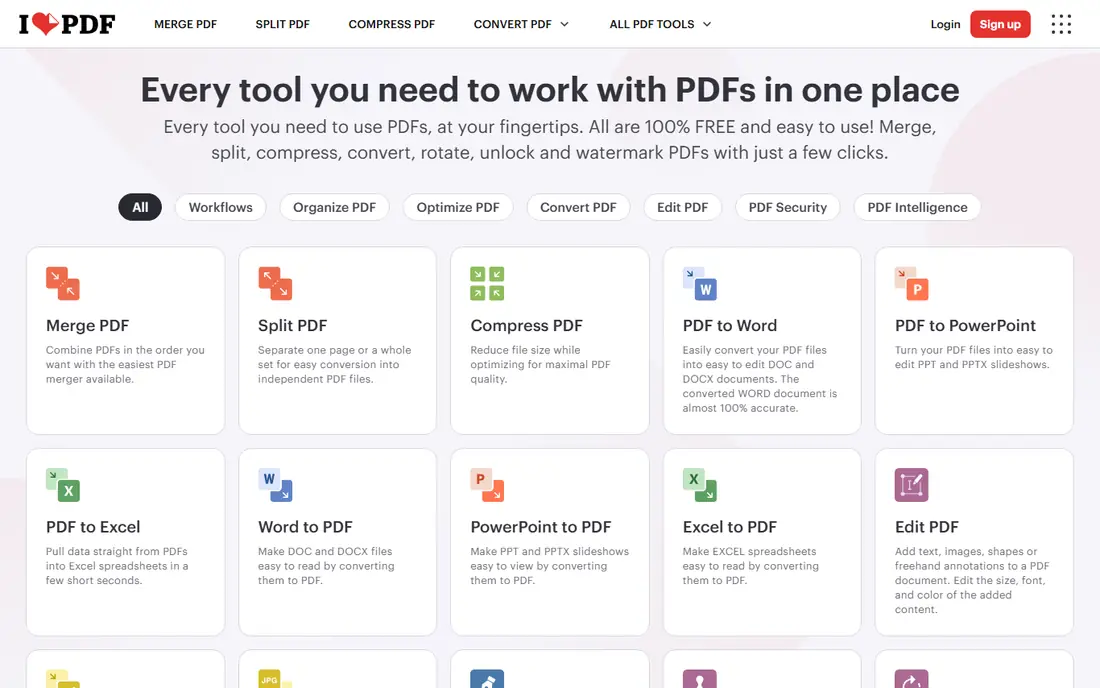
iLovePDF is the tool many people open first when a PDF is too big, because the flow is hard to get wrong. Upload a file, pick a compression level, and download the smaller result. That simplicity helps students submitting assignments, office workers emailing reports, and anyone who needs a smaller file in under a minute. The wider toolkit also covers conversion and editing if a later task needs it. The catch is limits and quality trade-offs. Free use restricts how much you can process, and the strongest setting will reduce image quality on photo-heavy documents. For text reports and standard office PDFs, the middle setting often gives a good balance. Keep the original file, compare the compressed version at full zoom, and only send the smaller file when text and key images still read clearly.
- Very simple compress flow
- Choice of compression levels
- Full PDF toolkit for later tasks
- Free use has daily and file limits
- Strongest compression can soften image-heavy pages
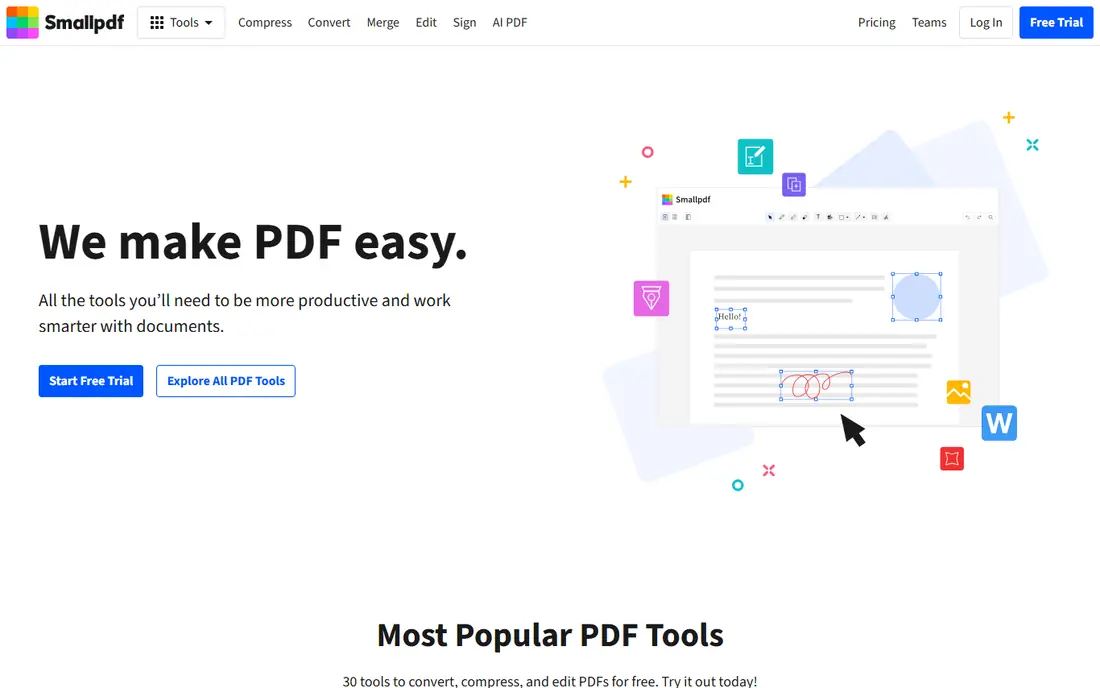
Smallpdf feels like the polished option in this list. The compressor is easy to find, the interface explains the steps clearly, and the result downloads quickly for typical office files. Beyond compression, Smallpdf offers conversion, e-signing, editing, and storage tools, which suits people who handle PDFs daily and want one account for many tasks rather than a separate site for each job. Free use is limited, especially for larger files, so heavy users will need a paid plan. That is fair for a polished suite, but it means Smallpdf is not the best pick for occasional large-file compression on a tight budget. Use the free tier for small, everyday files, and judge the paid plan on whether you also use its other tools, not on compression alone.
- Clean interface and fast processing
- Compression plus conversion, signing, and editing
- Mobile and desktop apps
- Free tier limits file size and daily tasks
- Advanced compression needs a paid plan
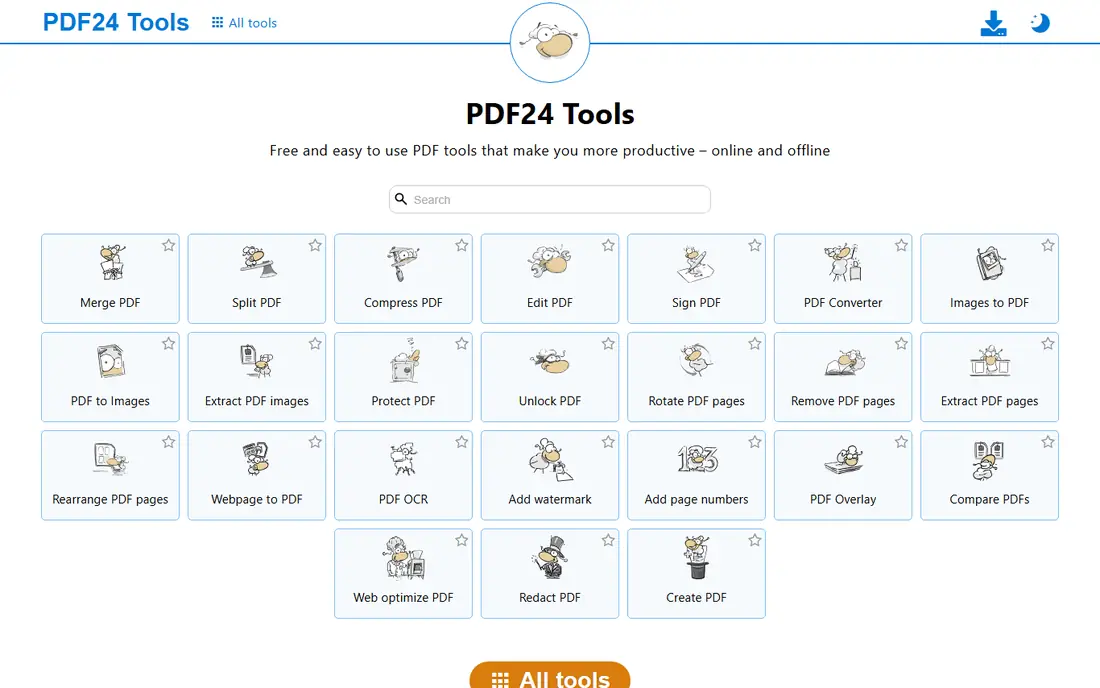
PDF24 Tools stands out for free use. The online compressor handles common files without a paywall for basic tasks, and a desktop app offers an offline route for users who prefer not to upload files. That combination suits budget-conscious users, schools, and offices that process many PDFs but do not want a subscription for a simple job. The interface is less refined than Smallpdf or iLovePDF, and results vary by file type. A text-heavy PDF may shrink well, while an image-heavy scan may need a stronger tool or a desktop optimiser. Still, for free, everyday compression, PDF24 Tools is a dependable first try, especially when you want to avoid account creation for a quick task.
- Free online tools with no watermark on output in normal use
- Desktop app option for offline work
- Wide PDF toolkit
- Interface is functional rather than polished
- Compression ratios can be lower than specialist tools on some files
Sejda suits users who want control rather than a single button. You can adjust image downsampling, quality, and other settings to balance size against readability, which helps for scanned documents and reports with charts. That control matters when a one-click tool either barely shrinks a file or damages it too much, because Sejda lets you aim between those extremes. The extra options also mean extra decisions. Beginners may find the settings screen busy, and free use limits how many tasks you can run. We would use Sejda when a standard compressor fails on a specific file, or when image quality must stay high for printing. Save a copy of the original, test two settings, and compare the outputs before choosing the smaller file to send.
- Lets you tune image quality and resolution
- Clear options for scanned and image-heavy PDFs
- Browser-based with no install
- Free plan limits tasks per day and file handling
- Interface asks more questions than one-click tools
PDF2Go keeps compression straightforward. Upload from your device or cloud storage, pick a preset, and download the result. That cloud pickup helps when a file already lives in Drive or Dropbox, because you do not need to download and re-upload it first. The tool also sits inside a wider PDF suite, so conversion or editing after compression is close at hand. As with most free online tools, limits apply to file size and daily use, and the strongest presets can soften images. PDF2Go is a good middle option: simpler than Sejda, less polished than Smallpdf, but reliable for everyday files. For a single large or sensitive file, compare it with a desktop option before sending the compressed version onward.
- Simple upload and compress flow
- Optional quality presets
- Works from Drive and Dropbox as well as local files
- Free use has limits
- Advanced features and larger files need a paid plan
Adobe Acrobat online appeals to people who already trust Adobe for PDF work. The online compressor uses Adobe PDF handling, which helps with compatibility for forms, fonts, and complex documents that smaller tools may render differently. If your team already uses Acrobat for editing, signing, or reviewing, keeping compression in the same workflow avoids extra accounts and file moves. For occasional free compression, Adobe online is less generous than iLovePDF or PDF24 Tools, and the full desktop Acrobat suite is a paid product. Judge it on workflow value, not on free compression alone. If you only need to shrink one file a month, a free-first tool will serve you better. If PDF work is daily, Adobe consistency may justify the cost.
- Adobe PDF handling and compatibility
- Useful inside a wider Acrobat workflow
- Clear quality levels on the online tool
- Full features need a paid Acrobat plan
- Free online use is limited compared with free-first tools
PDF Candy is a broad PDF toolkit that includes a compressor alongside dozens of other tools. That breadth helps when compression is one step in a longer job, such as converting a document, compressing it, then splitting or merging pages. The browser version needs no install, while a desktop version offers offline processing for users who prefer it. The downside is focus. The site presents many tools at once, so a user who only wants compression must ignore a lot of promotion for other features. Free web limits also apply. Use PDF Candy when you already use its toolkit, or when a job needs several PDF steps in one place. For a single quick compression, a simpler tool may feel faster.
- Large toolkit with compression, conversion, and editing
- Browser-based
- Desktop version for offline work
- Free web use has limits
- Interface promotes the wider suite, which can distract from a quick task
Soda PDF rounds out the list as another full PDF suite with a usable online compressor. Office users will find the flow familiar: upload, compress, download, then edit or convert if needed. Browser and desktop options give flexibility for teams that mix online and offline work, and the editing tools cover common fixes without opening a second app. Free use will not suit heavy daily compression, and the paid plan is where the full suite opens up. Soda PDF makes most sense for users who want compression plus editing in one account, rather than for users who only shrink PDFs occasionally. Compare its free limits with iLovePDF and PDF24 Tools on your real file sizes before committing to a paid plan.
- Online compressor plus editing, conversion, and signing tools
- Browser and desktop options
- Clean workflow for office files
- Free online use is limited
- Full features need a paid plan
How we picked these
We compared official feature pages, pricing pages, and help documentation for online tools that offer a dedicated PDF compression function in a browser. We favoured tools that are still maintained, that state compression levels or quality options, and that produce a downloadable PDF without forcing a full desktop install. Where pricing could not be confirmed from the vendor site at the time of writing, we listed it as See website. We did not claim hands-on testing, and we kept the list focused on compression rather than duplicating merge and split products.
How to choose the right option
Test with your real file, not a sample
Compression results depend on the file. A text report, a scanned form, and a photo-heavy deck shrink very differently. Test your actual PDF in two tools, compare size and readability at full zoom, and keep the original until you are happy. A tool that wins on one file type may lose on another.
Choose quality before maximum size
The smallest file is not always the best file. Pick the lowest compression that still meets your upload or email limit, and check small text, charts, and signatures after compression. If a chart becomes unreadable, step back one quality level and try again, or split a very large file instead of crushing it.
Think about privacy before uploading
Browser compressors upload your file to a server for processing. For contracts, medical forms, or other sensitive documents, check the retention policy, or use a desktop tool that processes locally. A few extra minutes for privacy is worth more than a slightly smaller file, and many teams set a simple rule: public files online, sensitive files offline.
Frequently asked questions
What is the best online tool to reduce pdfs for free?
For free everyday use, iLovePDF and PDF24 Tools are strong starting points, because both handle common files in a browser without a paid plan for basic tasks. Test both on your file, because results vary by content. If a file is image-heavy, Sejda gives more control over quality settings.
How much can I reduce a PDF file size?
It depends on the content. Text-heavy PDFs may shrink modestly, because text already compresses well, while image-heavy PDFs can shrink a lot when images are downsampled. Scanned PDFs sit in between and depend on scan resolution. Always compare the compressed file for readability, because a large reduction that damages charts is not a good trade.
Will compressing a PDF reduce its quality?
It can, especially for images. Lossy compression removes image detail to save space, while gentler settings preserve more quality at a larger size. Use the lightest setting that meets your size limit, and check the result at full zoom before sending it. Keep the original file so you can try again with different settings.
Is it safe to compress PDFs online?
For non-sensitive files, reputable online tools are generally convenient, but they do upload your file to a server. Check the privacy and retention terms, avoid uploading highly sensitive documents to a free tool, and prefer a desktop compressor for contracts, IDs, or medical records. Delete the processed file from the service when that option is available.
Why is my PDF still large after compression?
A PDF may stay large because it holds high-resolution images, embedded fonts, or many pages that compression cannot remove without quality loss. Try a stronger image setting, remove unused pages, or downsample images before creating the PDF. If the file must stay print-quality, splitting it into parts may work better than forcing extreme compression.
Sources we checked (8)

Online Jobs is an independent blog about careers, online work, learning new skills and the tools that help people earn. More about us.
Keep reading
All posts
Best platform for PDF insertion
Find the best platform for PDF insertion in 2026, with tools to add pages, insert files, and place blank pages exactly where you need them in a file now.
n8n Alternatives
n8n alternatives compared for 2026, with Zapier, Make, Activepieces, and more, covering visual builders, code steps, self-hosting, and pricing models.
eBay Alternatives
Looking for ebay alternatives? We compared 9 marketplaces for sellers on fees, buyer reach, categories and ease of listing, to help you sell with confidence.