Best free service to merge PDFs in 2026: 9 Tools Compared

How we put this together: we compare official feature and pricing pages, app store listings, privacy policies and public user reviews. Prices change, so check the provider's site before you pay.
Key takeaways
- PDF24 Tools and PDFsam Basic offer the most genuinely free merging, with PDF24 online and PDFsam offline.
- iLovePDF and Smallpdf are easy to use for free, but their free tiers limit tasks, file size, or both.
- Sejda suits occasional free merging with clear privacy handling, while PDFgear suits frequent free use on desktop.
- For sensitive documents, choose an offline tool so the file never leaves your computer.
- Free does not always mean unlimited: check file size, page count, and daily task limits before starting a large merge.
Quick comparison
| Name | Who it suits | Starting price | Free option | |
|---|---|---|---|---|
 PDF24 Tools | Unlimited free merging online | Free | Yes | Visit |
 PDFsam Basic | Free offline merging with no limits | Free | Yes | Visit |
 iLovePDF | Easy free merging in a full suite | Free | Yes | Visit |
 Smallpdf | Polished free merging for small jobs | Free | Yes | Visit |
 Sejda | Occasional free merging with privacy controls | Free | Yes | Visit |
 PDFgear | Free desktop merging without caps | Free | Yes | Visit |
 Adobe Acrobat Online | Free merging from Adobe in a browser | Free | Yes | Visit |
 PDF2Go | Free browser merging with conversion | Free | Yes | Visit |
 macOS Preview | Free built in merging on a Mac | Free | Yes | Visit |
The best free service to merge PDFs
Merging PDFs should be free for most people. Joining two reports, combining scanned pages, or building one file from several chapters does not need a subscription. The tools below all offer a real free route to merging, not just a trial. They differ in limits, privacy, and ease of use, so the best free service depends on how often you merge and how sensitive your files are.
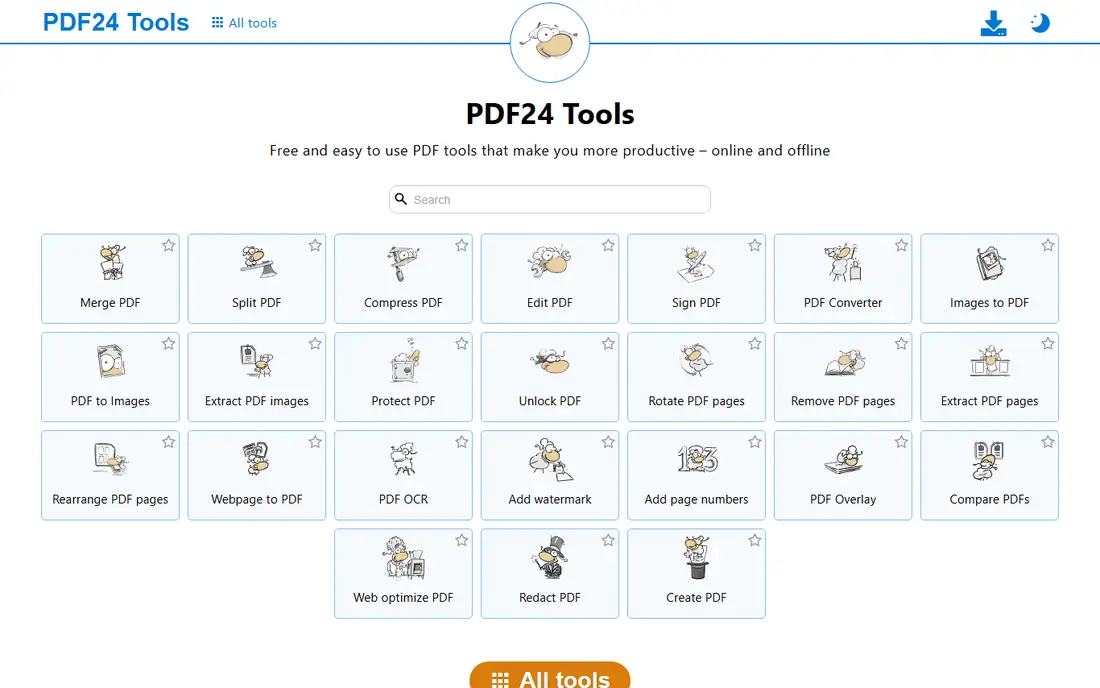
PDF24 Tools is the strongest free online merger for most users. Upload your files, drag them into order, and download one combined PDF, without creating an account or hitting a daily task limit on the web tools. Page reordering before merging helps when files arrive out of order, which is common with scanned documents.
The main caution is privacy. Files are processed on a server, so PDF24 is best for public, school, or low risk documents. For private files, PDF24 also offers desktop software for Windows, which keeps processing local. If you merge often and want a free tool with no subscription pressure, PDF24 is the first place to try.
- Free merging with no account for web tools
- Reorder pages before combining
- Desktop tools available for Windows
- Web processing uploads files to a server
- Interface lists many tools, so finding merge takes a moment
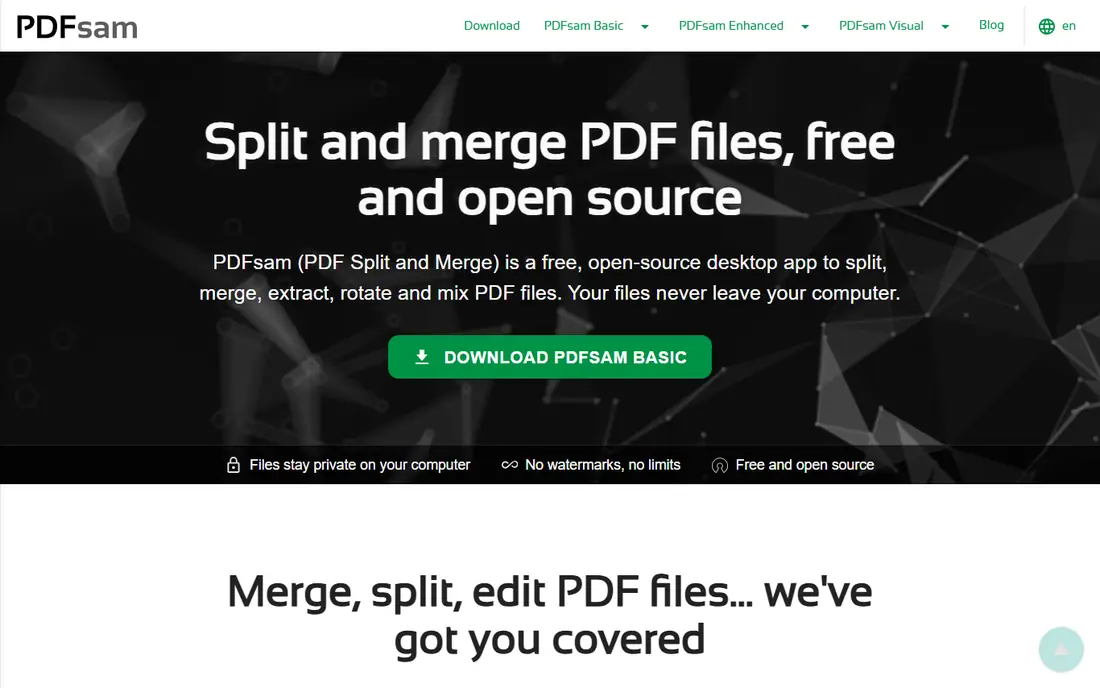
PDFsam Basic is the best free merger for sensitive or large files. Because it runs on your computer, your documents never leave your device, and there are no daily caps to work around. You can merge whole files, merge selected pages, rotate pages, and set bookmarks, all without paying or signing up.
The trade off is setup. You need to install the app, and the interface assumes you are comfortable with desktop software. Once installed, merging becomes a repeatable two minute job. For contracts, HR files, medical forms, or large batches, PDFsam Basic is the free tool we would choose first.
- Free and open source
- Works offline on Windows, Mac, and Linux
- No watermarks, size caps, or daily limits in Basic
- Desktop install needed
- Interface is more technical than a web merger
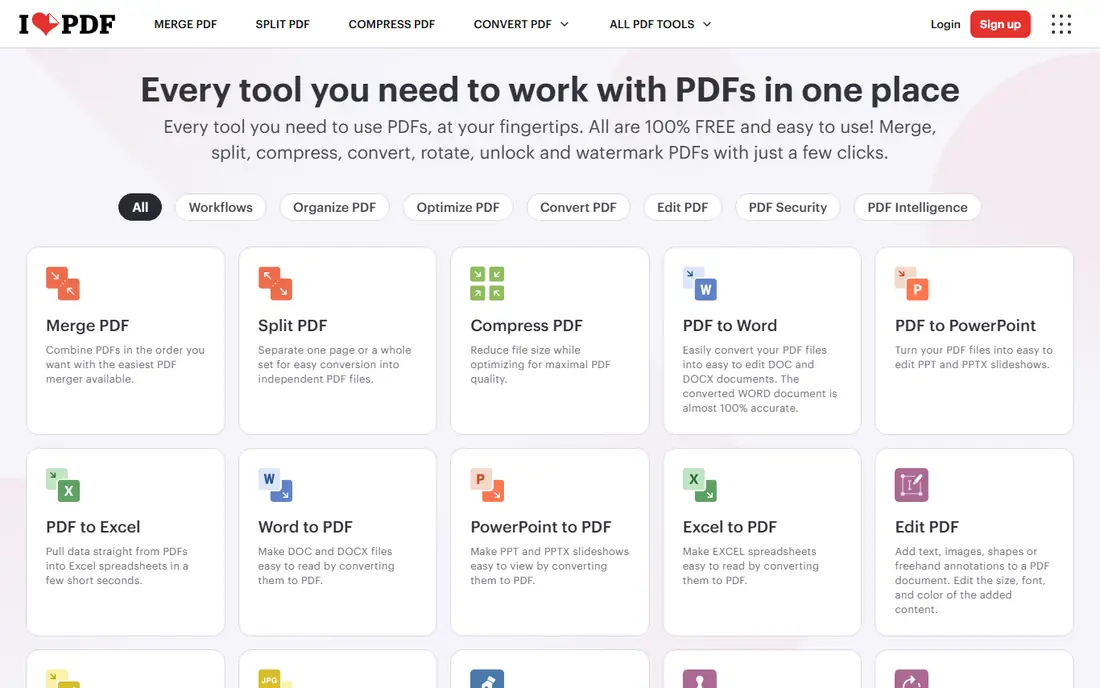
iLovePDF makes merging feel effortless. Drag files into order, rotate or delete individual pages if needed, and download the result. The same account also covers splitting, compressing, converting, and signing, so merging is rarely a dead end that forces you to another service.
Free limits are the catch. File size and task limits apply on the free tier, and heavy users will hit them quickly. For a student or office worker who merges a few times a month, the free tier is usually enough. For daily merging, PDF24 or PDFsam Basic will save money and frustration.
- Very clear merge interface with page reordering
- Desktop and mobile apps
- Many other PDF tools in one place
- Free tier limits processing and file size
- Regular users will need a paid plan
Smallpdf is the prettiest free merger on this list, and the fastest to learn. Upload files, reorder them, and download a combined PDF in under a minute. The design stays simple, which helps on a phone or a shared computer where you do not want to install anything.
Free use is limited, though. Only a couple of tasks are allowed before Smallpdf asks you to wait or upgrade, so it is not a good daily tool on a free plan. For a single urgent merge, it is excellent. For repeated work, use PDF24 for free online merging or PDFsam for free offline merging.
- Fast and polished interface
- Works well in a mobile browser
- Good follow on tools for compression and conversion
- Free use is limited to a small number of tasks
- Paid plan needed for regular merging
Sejda suits people who merge occasionally and care about file handling. You can merge files, reorder pages, and edit the result in the browser without an account. Sejda states that uploaded files are deleted after a short period, which is reassuring for documents that are not highly sensitive but still private.
Free limits are tight: files are capped by size and pages, and only a few tasks are allowed per day. That covers a homework assignment or a job application, but not a team merging reports all day. Paid options include a week pass, which is useful for a single large project without a monthly commitment.
- No account needed for basic use
- Clear file deletion policy
- Page editing alongside merging
- Free plan caps file size, pages, and daily tasks
- Larger jobs need a paid plan
PDFgear is a strong free option for people who merge often and do not want daily caps. Its desktop app lets you merge files, reorder pages, annotate, and export, all for free for core tools. Working locally also keeps files private and speeds up large merges, since there is no upload step.
The online tools are handy for a quick job on another computer, but the desktop app is the main draw. Check which features are free on your platform, since desktop and mobile versions differ slightly. For a free tool that feels like a full PDF editor, PDFgear is hard to beat.
- Core desktop tools are free
- Merging and page organisation are straightforward
- Works on Windows, Mac, and mobile
- Online version is more limited
- Some advanced features may need a paid plan
Adobe Acrobat Online offers a free merge tool for users who trust the Adobe name and do not want to install software. Upload files, order them, and download a combined PDF. The workflow is simple, and output quality is consistent, especially for files with complex formatting.
Free limits apply, and the online tools do not include the full editing power of Acrobat Pro. If you already pay for Acrobat, use the desktop app for merging instead, since it handles large and complex files better. If you need a free one off merge from a known brand, the online tool is a safe choice.
- Trusted Adobe processing
- Simple merge workflow
- No install needed
- Free online tools are limited
- Full Acrobat features need a paid subscription
PDF2Go is useful when the files you want to merge are not all PDFs yet. Convert a Word document or an image to PDF, then merge it with other PDFs in the same session. That saves a separate conversion step, which is handy for assignments, applications, and reports built from mixed sources.
As with other web mergers, privacy and limits matter. Do not upload sensitive documents without checking the retention policy, and expect caps on the free plan. For public documents and mixed file types, PDF2Go is a flexible free option that needs no install.
- Works fully in the browser
- Converts Word and image files for merging
- Simple upload and reorder flow
- Free version has file size and task limits
- Files are processed on a server
macOS Preview is the best free merger for Mac users who did not know they already had one. Open a PDF, show thumbnails, drag pages or whole files into the sidebar in order, and export as a new PDF. It works offline, costs nothing, and has no limits, which makes it ideal for private documents.
The main risk is overwriting. Preview can save changes to the original file, so export a new copy rather than saving over the source. It also lacks the batch and bookmark tools of PDFsam, but for joining a few files on a Mac, Preview is fast, private, and already installed.
- Already installed on every Mac
- Works fully offline
- No account, upload, or limits
- Mac only
- Easy to overwrite the original file if you are not careful
- No advanced merge options
How we picked these
We compared official feature and pricing pages for PDF tools still available in October 2026, and we favoured tools with a real free merging route, not only a paid trial. We checked published free limits where vendors state them, and we included online, desktop, and built in options so readers on any system have a free path. Prices for paid upgrades change often, so confirm the current plan on the vendor site if you plan to upgrade for regular work.
Free merging: what to check before you start
Free limits are the most common surprise. Check file size, page count, and daily tasks before uploading a large batch, since a tool that handles two small files may stop at a 50 MB report. Also check whether the free result includes a watermark. None of the main tools on this list watermark a merged PDF on their standard free tiers, but that can change, so preview the output before sending it on.
Privacy is the second check. Online mergers upload your file to a server, even if only for a short time. For a public handout, that is fine. For a contract, a tax return, or a client file, use PDFsam Basic, PDFgear Desktop, or macOS Preview, so the file stays on your computer. A free tool that keeps your data local is worth more than a polished web tool for sensitive work.
Order, rotation, and bookmarks
Merging is more than joining files. Check page order in thumbnail view, rotate any pages that arrived sideways from a scanner, and delete blank pages before you download. If your merged file needs bookmarks for navigation, PDFsam Basic and Acrobat handle that better than most free web tools. A quick preview of the finished file, page by page, catches most errors before the file reaches its reader.
Frequently asked questions
What is the best free service to merge PDFs?
PDF24 Tools is the best free online service for most people, because it merges without an account and without a daily task limit on its web tools. PDFsam Basic is the best free offline service, because it has no limits and keeps files on your computer. Choose PDF24 for convenience, and PDFsam for privacy or large files.
Can I merge PDFs for free without signing up?
Yes. PDF24 Tools, Sejda, and PDFsam Basic all allow merging without an account, though Sejda limits free tasks per day. PDFsam Basic needs an install but no account, while PDF24 works in a browser. Avoid tools that demand an account and card details for a supposedly free merge.
Is there a free PDF merger with no file size limit?
PDFsam Basic has no size limit in its free Basic version, because it runs locally and is not constrained by upload limits. macOS Preview also has no practical limit for files your Mac can open. Online free tools almost always cap file size, usually well below the size of a large scanned report.
Will a free PDF merger add a watermark?
Most reputable free mergers do not watermark a merged PDF. PDF24, PDFsam Basic, iLovePDF, and Smallpdf do not add a watermark to a standard merge on their free tiers. If a tool you find does watermark, switch to one on this list rather than paying to remove it, since free alternatives are widely available.
Can I merge PDFs on my phone for free?
Yes, through a mobile browser or app. iLovePDF, Smallpdf, and PDFgear all offer mobile apps or mobile friendly web tools. For a private file, a desktop tool is still safer, but for a public document, a phone merge works well. Check the file size limit first, since phone uploads of large scans can fail on a slow connection.
What is the difference between merging and combining PDFs?
There is no practical difference: merging and combining both mean joining multiple PDF files into one file. Some tools also use organise or assemble for the same job, with page reordering included. If a tool only joins whole files in order, use its organise view to reorder pages before you download.
Sources we checked (9)
- https://tools.pdf24.org/en/merge-pdf
- https://pdfsam.org
- https://www.ilovepdf.com/merge_pdf
- https://smallpdf.com/merge-pdf
- https://www.sejda.com/merge-pdf
- https://www.pdfgear.com
- https://www.adobe.com/acrobat/online/merge-pdf.html
- https://www.pdf2go.com/merge-pdf
- https://support.apple.com/guide/preview/welcome/mac

Online Jobs is an independent blog about careers, online work, learning new skills and the tools that help people earn. More about us.
Keep reading
All posts
Best platform for PDF insertion
Find the best platform for PDF insertion in 2026, with tools to add pages, insert files, and place blank pages exactly where you need them in a file now.
Best online service to insert PDFs
Compare the best online service to insert PDFs in 2026, with browser tools to add pages to a PDF online, no install needed, for quick web based jobs now.
Best Online Tool to Reduce PDFs
We compared the best online tool to reduce pdfs, from free browser compressors to full suites, to help you shrink files without ruining quality or readability.