Best online service to insert PDFs in 2026: 10 Tools Compared

How we put this together: we compare official feature and pricing pages, app store listings, privacy policies and public user reviews. Prices change, so check the provider's site before you pay.
Key takeaways
- This list covers online only tools that run in a browser, while our companion platform list also covers desktop and full PDF editors.
- PDF2Go, AvePDF, and PDF Candy are the most useful browser only options for inserting pages without installing software.
- Sejda, iLovePDF, and Smallpdf appear here for their online workflows, but their desktop versions belong to the wider platform comparison.
- For private documents, an online tool is a trade off: convenience against uploading a file to a server.
- Always preview page order after insertion, since a page placed one position out can change the meaning of a document.
Quick comparison
| Name | Who it suits | Starting price | Free option | |
|---|---|---|---|---|
 PDF2Go | Browser insertion with conversion | Free | Yes | Visit |
 AvePDF | Simple online page tools | Free | Yes | Visit |
 PDF Candy | Online page tools with conversion | Free | Yes | Visit |
 Sejda Online | Privacy conscious online insertion | Free | Yes | Visit |
 iLovePDF Online | Online insertion in a full web suite | Free | Yes | Visit |
 Smallpdf Online | Fast online insertion for one off jobs | Free | Yes | Visit |
 Lumin Online | Online insertion plus editing and signing | Free | Yes | Visit |
 PDFescape Online | Online editing with page tools | Free | Yes | Visit |
 DocHub | Online editing and page work with signing | Free | Yes | Visit |
 Soda PDF Online | Online PDF suite with page organisation | Free | Yes | Visit |
The best online service to insert PDFs
An online service to insert PDFs does one job in a browser: open a file, add pages where you need them, and download the result, with no install and no desktop app. That distinction matters. The companion platform list for PDF insertion covers desktop tools, full editors, and offline software as well. This list stays online only, so every tool here works on a borrowed computer, a Chromebook, or a phone browser, as long as you have an internet connection.
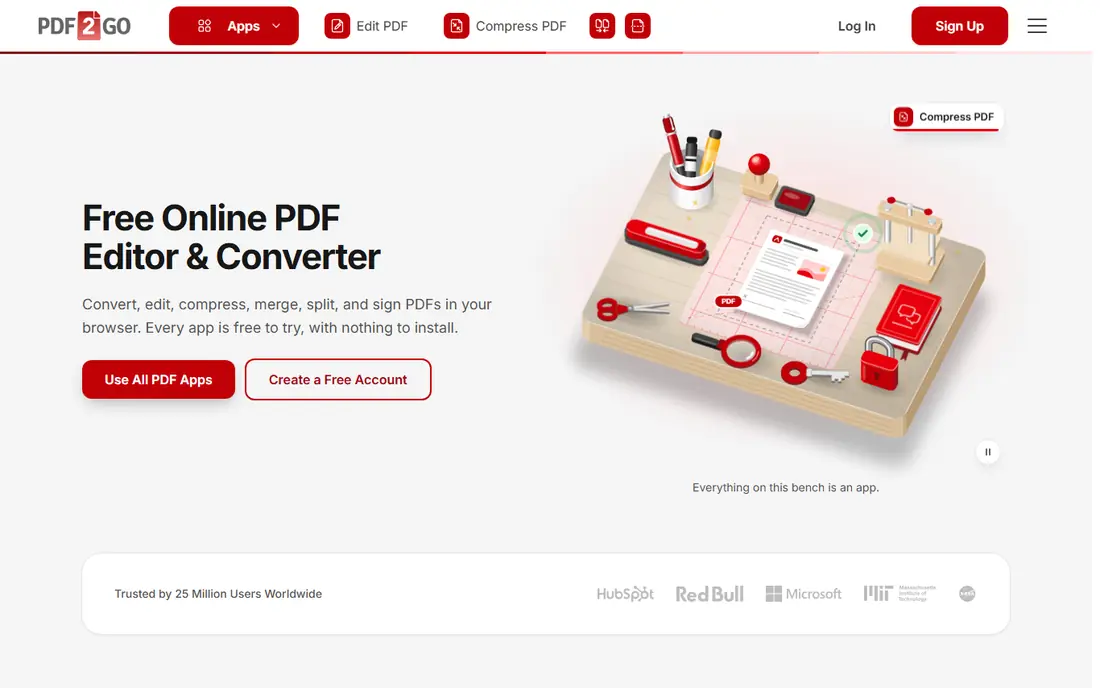
PDF2Go is a natural first choice for an online only job. Its page tools let you add, delete, and reorder pages in a browser, and its conversion tools let you turn a Word document or an image into a PDF page first. That matters when the page you need to insert does not start life as a PDF, which is common for scanned notes and typed appendices.
Free limits apply, and server processing means PDF2Go is best for public or low risk documents. For a quick online insertion on any computer, it is flexible and easy to learn. For a private file, use an offline tool from the companion platform list instead of uploading.
- Fully browser based with no install
- Converts Word and image files into pages for insertion
- Simple upload and reorder flow
- Free version has file size and task limits
- Files are processed on a server
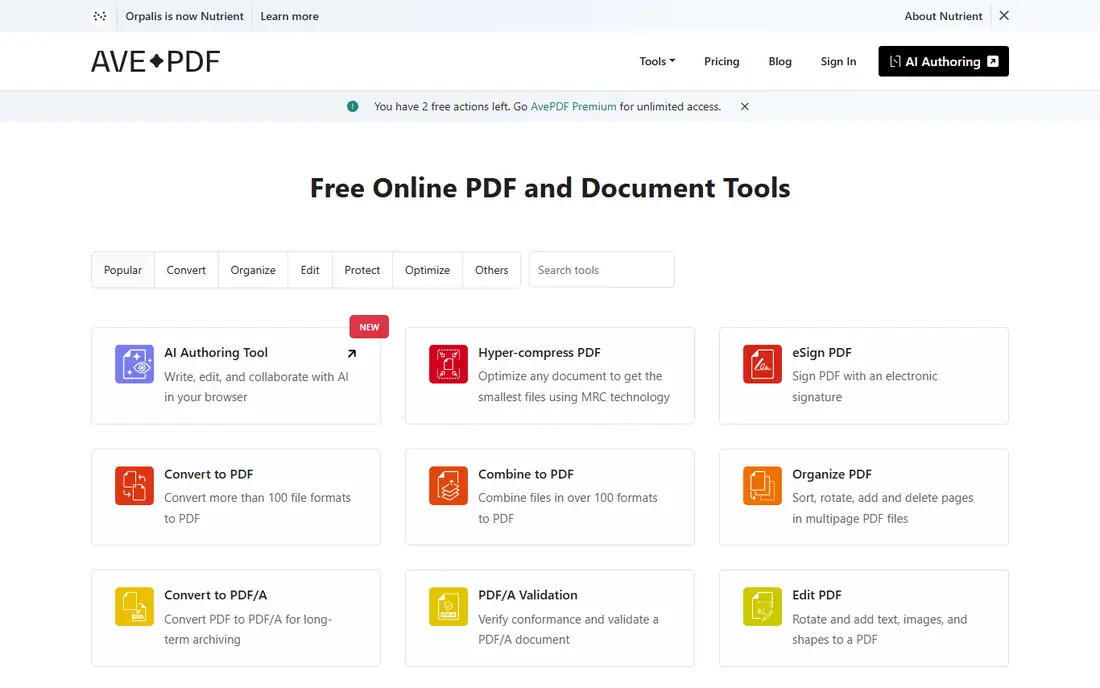
AvePDF offers a straightforward online workflow for page work. Choose the organise or page tool, upload a file, insert or reorder pages, and download the result. The interface stays focused on one task at a time, which helps when you only need to fix a single document and do not want a full editor in the way.
AvePDF is less widely known than iLovePDF or Smallpdf, so check its current limits and privacy policy before uploading a sensitive file. For a simple online insertion where you want a clean, task based tool rather than a large suite, AvePDF is a useful alternative that deserves a try.
- Clean browser interface focused on single tasks
- Page organisation alongside other PDF tools
- No install needed
- Smaller brand with fewer support resources
- Free limits and processing details vary by tool
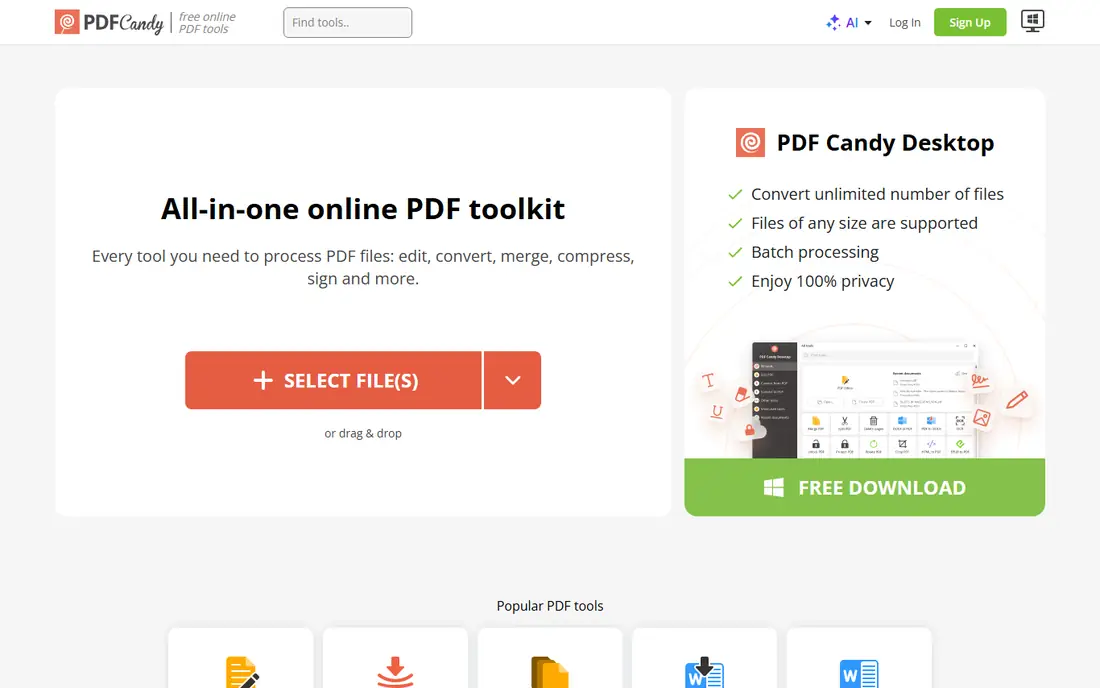
PDF Candy suits online users who need insertion plus conversion in the same session. Convert a file to PDF, insert its pages into a main document, reorder the result, and download it, all without leaving the browser. That workflow is handy for reports built from mixed sources, such as a Word appendix and scanned images.
Free use is limited by tasks, so PDF Candy is best for occasional online jobs rather than daily batch work. Paid plans remove those limits and add desktop access, but the online tools alone cover most insertion needs. Check the current free limits before starting a large job.
- Wide set of online PDF tools including page organisation
- Conversion tools for Word, image, and other formats
- Browser only workflow
- Free online use has task limits
- Some advanced tools need a paid plan
Sejda Online is included here for its browser workflow, even though Sejda also offers a desktop app in the wider platform list. Online, you can upload a PDF, insert pages, reorder them, and download the result without creating an account. Sejda states that files are deleted after a short period, which is reassuring for documents that are not highly sensitive.
Free caps are the limit. Files are limited by size and pages, and only a few tasks are allowed per day. That is enough for a report or an application, but not for a team working online all day. A week pass is available for a single large project, which avoids a monthly subscription for occasional users.
- No account needed for basic online use
- Clear file deletion policy
- Clean page editing in a browser
- Free online plan caps file size, pages, and daily tasks
- Larger jobs need a paid plan
iLovePDF Online is the web version of a tool that also appears in the wider platform list, where its desktop and mobile apps are part of the appeal. Online, its strength is the thumbnail view: you can see pages, drag a new page into place, and spot an error before downloading. The same account also covers merging, splitting, compressing, and signing in a browser.
Free limits on file size and tasks apply online, so heavy users will need Premium. For an occasional online insertion, the free tier is enough, and the familiar interface makes it a safe recommendation for users who already know iLovePDF from other PDF jobs.
- Clear thumbnail view for ordering pages online
- Many other web tools in one account
- Mobile friendly browser workflow
- Free online tier limits processing
- Regular online users will need a paid plan
Smallpdf Online is the fastest online option for a single urgent job. Upload a file in a browser, use the organise tools to add and move pages, and download a clean result in under a minute. The design is simple, which helps on a phone or a shared computer where you cannot install software.
Free use is the main limit, with only a couple of tasks before Smallpdf asks you to upgrade or wait. That makes Smallpdf Online a poor choice for daily online work on a free plan, but an excellent choice for a one off insertion. If you merge and insert online every day, compare its price with iLovePDF or a desktop tool.
- Polished and fast browser interface
- Works well on mobile browsers
- Good follow on tools for compression after insertion
- Free online use is limited to a small number of tasks
- Paid plan needed for regular work
Lumin Online fits users who need to insert a page and then keep working in the same browser session. After placing the new page, you can edit text, add comments, fill a form, or send the file for signature, all online. Integration with Google Drive helps teams that already store documents there and want to avoid downloads and re uploads.
The free online plan is enough to test the workflow, but heavier use needs a subscription. Lumin Online is therefore better for office and school work done in a browser, where insertion is part of editing, than for a single quick task. For that single task, a simpler online tool will be faster.
- Page organisation inside a full online editor
- Signing and annotation in the same browser session
- Google Drive integration
- Free online plan has limits
- Best value comes with a paid plan for regular use
PDFescape Online is a long running browser editor that includes page organisation alongside text editing, annotation, and form filling. You can open a PDF online, insert and reorder pages, add text or shapes, and download the result, all without installing software. That combination suits users who need to fix a document, not just insert a page.
The interface feels older than Smallpdf or iLovePDF, and free limits apply to file size and pages. For a basic online insertion plus a few edits, PDFescape Online is still a practical free option, especially on a computer where you cannot install new software.
- Browser based PDF editor with page tools
- Free online version for basic jobs
- No install needed
- Interface is older than newer web tools
- Free version has page and file size limits
DocHub is best known as an online editor and signing tool, but it also handles page work in a browser. Open a PDF from Drive or Dropbox, organise pages, add text, signatures, and checkboxes, and share the finished file. That workflow suits agreements, applications, and forms where insertion is one step in preparing a document for signature.
DocHub is not a dedicated insertion tool, so its page workflow is less direct than PDF2Go or AvePDF. Free limits on documents apply, and heavier use needs a paid plan. Choose DocHub when signing and sharing matter as much as insertion, and choose a dedicated page tool when insertion is the only job.
- Browser editing with signing and sharing
- Integrates with Google Drive and Dropbox
- Useful for forms and agreements
- Page insertion is part of a wider editor, not a dedicated insert tool
- Free plan has document limits
Soda PDF Online rounds out this list as a full web suite with page organisation built in. Upload a PDF, insert and reorder pages, edit text, convert files, and download the result, all in a browser. That breadth helps when insertion leads to further edits, such as fixing a heading or adding a footer after new pages change the layout.
The suite approach has a cost in simplicity. Finding the page tool among many options takes a moment, and free limits apply. For a user who already uses Soda PDF Online for other jobs, insertion is a natural extra. For a first time user with a single page to insert, a simpler tool such as PDF2Go or AvePDF will be faster.
- Full online PDF suite including page organisation
- Browser workflow with no install
- Conversion and editing tools included
- Free online tools have limits
- Interface can feel busy for a single insertion job
How we picked these
We compared official product pages and pricing pages for online PDF tools still available in October 2026, and we favoured tools that run fully in a browser with no install required. To keep this list genuinely different from the companion platform list, we prioritised browser only and web first tools, and we limited overlap to three widely used online workflows where the online version is a distinct product experience. We excluded desktop only tools, even where they are excellent, because they do not meet the online only test for this article. Prices and free limits change often, so confirm them on the vendor site before a large job.
Online insertion versus platform insertion
The distinction between this article and the platform article is practical, not just editorial. An online service is chosen for speed and access: any computer, no install, no admin rights needed. A platform is chosen for power and privacy: desktop software, offline work, large files, and sensitive documents. A student on a library computer needs an online service. An office handling client contracts needs a platform, or at least a desktop tool.
That also explains why some names appear in both lists. Sejda, iLovePDF, and Smallpdf offer both online and desktop experiences, and the online workflow is different enough to judge on its own. The other seven tools here, PDF2Go, AvePDF, PDF Candy, Lumin Online, PDFescape Online, DocHub, and Soda PDF Online, are web first and do not duplicate the desktop focused picks in the platform list.
Privacy online
Every online tool uploads your file to a server, even if only briefly. Check the retention policy, use a reputable provider, and avoid uploading highly sensitive documents to a free online tool. For contracts, payroll, medical, or client files, use an offline desktop tool from the platform list, or a paid online plan with clear data handling. Convenience is real, but it should not override privacy for sensitive work.
Frequently asked questions
What is the best online service to insert PDFs?
PDF2Go is a strong first choice for online insertion, because it works fully in a browser, converts other file types into pages, and needs no install. AvePDF and PDF Candy are good alternatives for simple online page work. For a private document, use an offline tool instead of any online service.
How is this different from the best platform for PDF insertion?
The platform list covers desktop tools, full editors, and offline software as well as web tools. This list covers online only services that run in a browser with no install. Overlap is limited to Sejda, iLovePDF, and Smallpdf, whose online workflows are distinct, while the other seven tools here are web first picks.
Can I insert pages into a PDF online for free?
Yes. PDF2Go, AvePDF, PDF Candy, Sejda Online, iLovePDF Online, and Smallpdf Online all offer free online insertion, with limits on file size, pages, or daily tasks. For a single small job, a free tier is usually enough. For daily work, expect to pay or switch to a free desktop tool.
Can I insert a page from a Word document into a PDF online?
Yes, with a tool that converts first. PDF2Go and PDF Candy can convert a Word file to PDF, after which its pages can be inserted into your main PDF. Alternatively, export the Word file as a PDF yourself, then use any insertion tool to place its pages. Check the converted page size matches the main document.
Is it safe to insert pages into a PDF online?
For public or low risk files, reputable online tools are generally safe, especially those with a short deletion period. For sensitive files, use an offline tool so the file never leaves your computer. Never upload a document with passwords, financial details, or health information to a free online tool you have not checked.
Do online PDF insertion tools work on a phone?
Yes, most online tools work in a mobile browser, and iLovePDF and Smallpdf also offer mobile apps. Page reordering is easier on a larger screen, so a tablet or computer is better for a long document. For a short insertion on a phone, PDF2Go and Smallpdf Online both work well in a mobile browser.
Sources we checked (10)

Online Jobs is an independent blog about careers, online work, learning new skills and the tools that help people earn. More about us.
Keep reading
All posts
Best platform for PDF insertion
Find the best platform for PDF insertion in 2026, with tools to add pages, insert files, and place blank pages exactly where you need them in a file now.
Best Online Tool to Reduce PDFs
We compared the best online tool to reduce pdfs, from free browser compressors to full suites, to help you shrink files without ruining quality or readability.
n8n Alternatives
n8n alternatives compared for 2026, with Zapier, Make, Activepieces, and more, covering visual builders, code steps, self-hosting, and pricing models.