Best Planner App Free in 2026: 8 Free Apps Compared

How we put this together: we compare official feature and pricing pages, app store listings, privacy policies and public user reviews. Prices change, so check the provider's site before you pay.
Key takeaways
- Todoist and TickTick are the strongest free daily planners for tasks, while Microsoft To Do and Google Tasks are the simplest free options.
- Google Calendar is the best free schedule planner when your day is built around times and appointments.
- Any.do suits people who need a daily planning routine, and Notion suits people who want tasks inside notes and projects.
- Trello works best when planning means moving cards across a board, rather than checking off a list.
Quick comparison
| Name | Who it suits | Starting price | Free option | |
|---|---|---|---|---|
 Todoist | Everyday task planning | Free | Yes | Visit |
 TickTick | Tasks, calendar, and habits in one | Free | Yes | Visit |
 Microsoft To Do | Free planning in Microsoft 365 | Free | Yes | Visit |
 Google Calendar | Free schedule planning | Free | Yes | Visit |
 Any.do | A daily planning routine | Free | Yes | Visit |
 Notion | Tasks inside notes and projects | Free | Yes | Visit |
 Trello | Board-based planning | Free | Yes | Visit |
 Google Tasks | Simple lists inside Google | Free | Yes | Visit |
The best planner apps free
The best free planner app depends on how you plan: by list, by calendar, or by board. We compared official free plans, task and calendar features, reminders, and sharing, and we kept only apps with a genuinely usable free plan. All eight apps below can be used for free, though each reserves some features for paid plans.
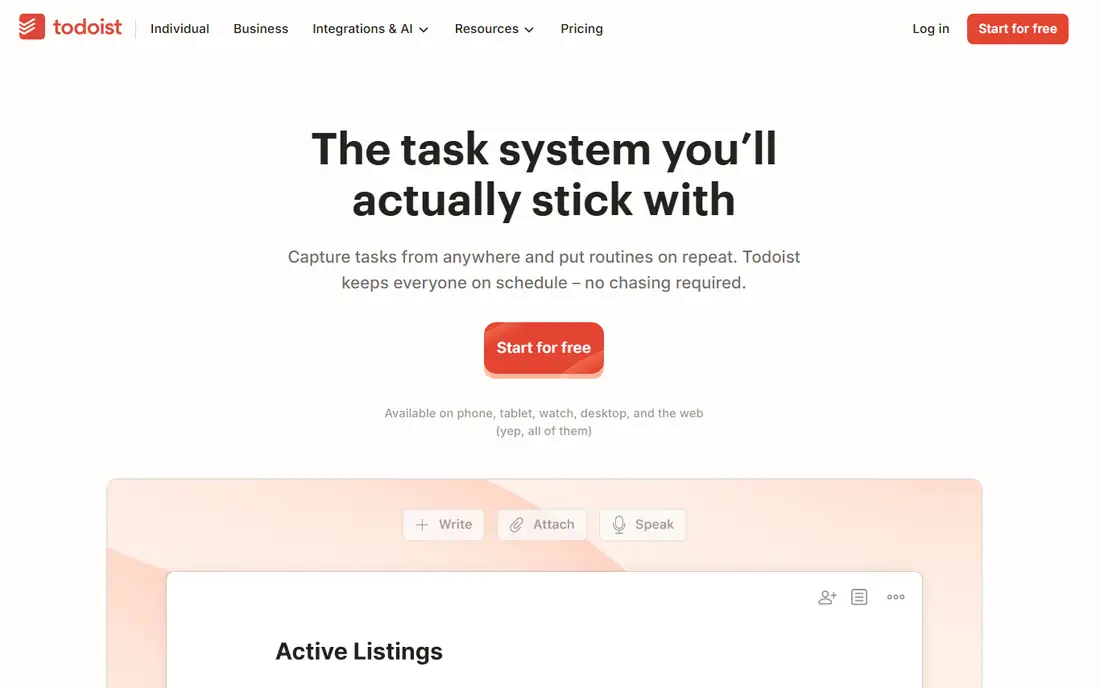
Todoist is the safest free planner for most people. Type a task in plain words with a date, and it schedules correctly, which makes capture fast enough that you actually use it. Projects, labels, and filters help you split work, home, and personal tasks without a complex setup.
The free plan has limits. Reminders are a paid feature, and you are capped on projects, so heavy users may need Pro. For daily planning with a moderate number of projects, the free plan covers the core job well, and it syncs across phone, desktop, and web.
- Fast natural-language task entry
- Works on all platforms
- Projects and labels
- Reminders need a paid plan
- Calendar view is limited on the free plan
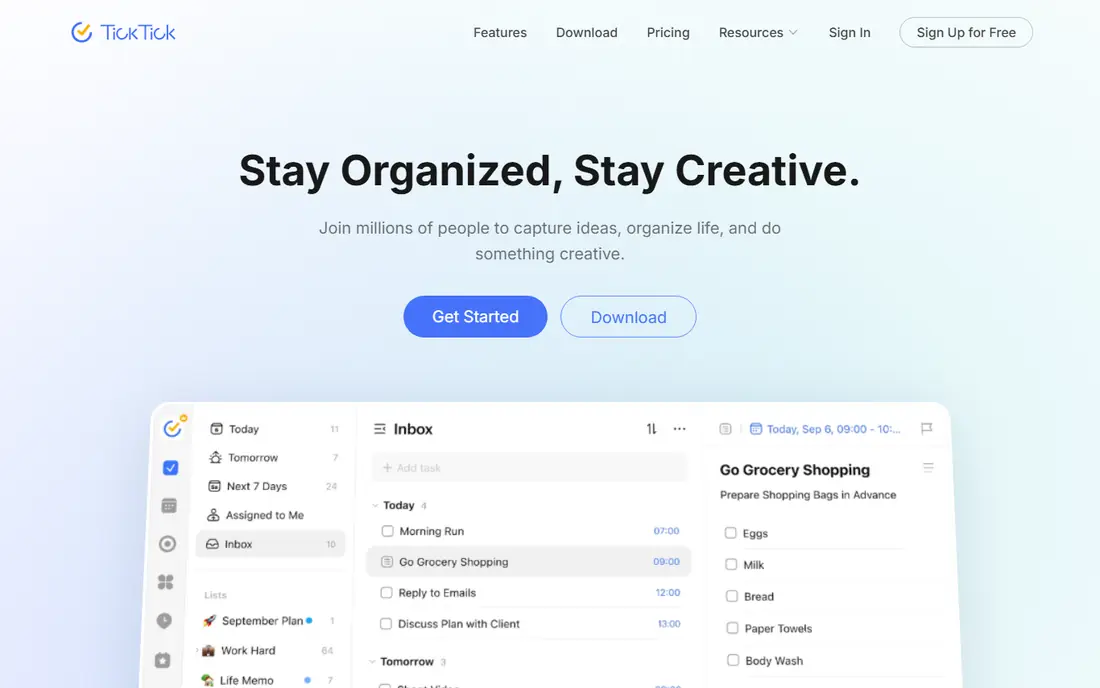
TickTick packs more into one free app than most rivals. Tasks sit beside a calendar view, habit tracking, and a focus timer, so many people can drop two or three other apps. The free plan is generous for personal use, and the mobile widgets make checking the day quick.
The trade-off is clutter. With so many features on show, the interface can feel busy compared with Todoist or Microsoft To Do. If you want one app for tasks, habits, and time blocking, that breadth is a plus. If you want the simplest possible list, a leaner app will feel calmer.
- Calendar view, habits, and Pomodoro timer included
- Generous free plan
- Good widgets
- Interface feels busier than Todoist
- Some features need Premium
Microsoft To Do is the obvious free planner if your work runs on Outlook or Microsoft 365. It is free with a Microsoft account, it syncs with Outlook tasks and flagged email, and its My Day view gives you a simple daily planning ritual: pick the tasks for today, then work through them.
It is thinner than Todoist or TickTick for complex projects, filters, and recurring rules. There is also no natural-language date entry. For straightforward daily lists inside the Microsoft world, though, it is hard to fault, because there is no paywall waiting behind the features you use most.
- Completely free
- My Day planning view
- Syncs with Outlook tasks
- Limited projects and filters
- No natural-language dates
Google Calendar is a planner in a different sense: it plans by time, not by list. If your day is shaped by meetings, appointments, and deadlines, blocking time on a calendar often works better than a long task list. Sharing calendars, sending invites, and setting reminders are all free and simple.
On its own, Google Calendar is weak for task details, subtasks, and project tracking. Pair it with Google Tasks for lists, or with Todoist or TickTick for richer tasks. Used as the time layer of your system, with a task app underneath, it is one of the most useful free planning tools available.
- Time blocking and shared calendars
- Reminders and event invites
- Works with Gmail
- Not a task manager on its own
- Needs Google Tasks for detailed lists
Any.do is built around a daily habit: each morning, its Plan My Day view walks you through the tasks you want to do today. That nudge helps people who make lists and then forget them, and the built-in calendar keeps timed tasks visible beside untimed ones. Shared lists also suit households and small teams.
The free plan covers personal lists, but some sharing and premium features need a paid plan. If you already plan every morning, you may not need the routine. If you struggle to start the day with a plan, Any.do is designed to solve exactly that problem.
- Plan My Day routine
- Calendar and lists together
- Good for shared lists
- Some sharing and advanced features need Premium
- Free plan is more limited than TickTick
Notion suits planners who want tasks to live beside notes, documents, and project pages. You can build a daily planner, a habit tracker, or a project board from the same blocks, and views such as calendar, board, and timeline show the same tasks in different ways. The free personal plan is generous for one person.
The cost is setup time. Notion starts as a blank page, so you must build or copy a planner template before it feels useful. For a simple to-do list, that is too much work. For someone who already keeps notes and projects in Notion, adding tasks there keeps everything in one system.
- Tasks, notes, and databases in one place
- Flexible views
- Free for personal use
- Setup takes time
- Overkill for a simple daily list
Trello plans by board, not by list. Each task is a card you drag from To Do to Doing to Done, which suits visual planners and small teams tracking a project. Cards can hold checklists, dates, attachments, and comments, and the free plan covers the basics for personal and small-team use.
For a daily personal planner, Trello can feel indirect. Dated tasks, recurring rules, and reminders are less central than in Todoist or TickTick. If your work is project-shaped and you like seeing progress across columns, Trello is a strong free pick. If your day is a list to check off, choose a list app instead.
- Visual boards and cards
- Easy drag-and-drop
- Good for shared planning
- Weak for dated task lists
- Power-ups and automation need paid plans
Google Tasks is the simplest planner in this list, and that is its appeal. It lives inside Gmail and Google Calendar, so tasks sit beside the email and events that create them. You can make lists, add subtasks, and set due dates, all for free with a Google account.
Its limits are clear. Lists cannot be shared, there is no built-in calendar view, and features stop at the basics. If you live in Gmail and Calendar and want a light task list without another app, Google Tasks is enough. If you need sharing, projects, or habits, pick TickTick, Todoist, or Notion instead.
- Free and simple
- Lives inside Gmail and Calendar
- Subtasks and due dates
- No list sharing
- No calendar view of its own
- Basic features only
How we picked these
We compared official free plans, task and calendar features, reminders, and sharing options for planner apps that exist and work today. We required a free plan that covers real daily planning, not just a trial, and we split the list across lists, calendars, boards, and all-in-one workspaces so readers can match the app to how they plan. Paid prices change often, so check the vendor site if you later upgrade.
How to pick a free planner that you will actually use
Start with how your day is shaped. If your day is a list of tasks, choose Todoist, TickTick, or Microsoft To Do. If your day is appointments and time blocks, start with Google Calendar and add a task app underneath. If your work is a project with stages, Trello boards may fit better than any list.
Next, test the free plan for a full week with real tasks. Check whether reminders, recurring tasks, and sharing work without paying, since those limits decide whether the free plan is usable or just a demo. Also check the phone app and widgets, because a planner you only open on a desktop will not catch tasks on the go.
Finally, keep the system small. One planner, one calendar, and one place for notes is enough for most people. Adding a second task app usually creates duplicate lists and missed tasks. Pick the app that felt easiest in week one, move your real lists into it, and review the plan each morning before you add more tools.
Frequently asked questions
What is the best free planner app?
Todoist is the best free planner app for most people, thanks to fast task entry and wide platform support. TickTick is better if you want a calendar, habits, and a timer in the same app. Microsoft To Do is the best free option inside Microsoft 365, and Google Calendar is best for schedule-based planning.
What is the best free daily planner app?
Any.do is built for daily planning, with a Plan My Day routine that prompts you to choose tasks each morning. Microsoft To Do also offers a My Day view for free. Todoist and TickTick can serve as daily planners too, by filtering tasks to today and working through them in order.
What is the best free schedule planner app?
Google Calendar is the strongest free schedule planner, with time blocking, shared calendars, and event invites. TickTick adds a calendar view beside tasks, which suits people who want times and tasks together. For appointments alone, Google Calendar is usually enough.
Are free planner apps really free?
Yes, for personal use, but each free plan has limits. Common limits include reminders, project counts, sharing, and calendar views on paid tiers. Read the free plan details before you commit, and test the features you need most during your first week.
Can I use a free planner app on both phone and computer?
Yes. Todoist, TickTick, Microsoft To Do, Google Calendar, Any.do, Notion, Trello, and Google Tasks all work on phones and on the web, and most offer desktop apps too. Check the app store listing for your device if you need offline access, since offline support varies.
Sources we checked (8)

Online Jobs is an independent blog about careers, online work, learning new skills and the tools that help people earn. More about us.
Keep reading
All posts
Zoom Alternatives
Zoom alternatives compared for 2026: Google Meet, Microsoft Teams, Webex, Jitsi and more for free calls, large meetings and webinars for teams and classrooms.
Which Software Is Best for Data Entry
Compare the best data entry software for forms, OCR scanning, and spreadsheets, with free plans, pricing, and honest limits for each tool before you commit.
What Is the Best Free Tool to Rotate a PDF
What is the best free tool to rotate a PDF? We compare eight free rotation tools on per-page control, limits, privacy and saved output quality in detail.