Best Photo Restoration App in 2026: 9 Apps Compared

How we put this together: we compare official feature and pricing pages, app store listings, privacy policies and public user reviews. Prices change, so check the provider's site before you pay.
Key takeaways
- Remini is the fastest pick for faces on a phone, while VanceAI Photo Restorer handles whole-photo damage, such as scratches and fading, in a browser.
- MyHeritage suits family historians, because its photo tools sit alongside a family tree and archive, not as a standalone editor.
- Adobe Photoshop and AKVIS Retoucher remain the right choices for severe damage, where AI alone cannot rebuild missing areas convincingly.
- Keep the original scan untouched and save restorations as new files, so a bad AI result never destroys the only copy you have.
Quick comparison
| Name | Who it suits | Starting price | Free option | |
|---|---|---|---|---|
 Remini | Quick mobile face restoration | See website | Free trial | Visit |
 VanceAI Photo Restorer | One-click browser restoration | $9 per month | Yes | Visit |
 MyHeritage | Family archive photos | See website | Yes | Visit |
 Adobe Photoshop | Manual professional repair | See website | Free trial | Visit |
 Topaz Photo AI | Photographer-grade enhancement | See website | Free trial | Visit |
 Fotor | Budget browser editing | $8.99 per month | Yes | Visit |
 Hotpot.ai | Cheap web fixes without an account | See website | Yes | Visit |
 AKVIS Retoucher | Manual scratch and damage repair | $87 one-time | Free trial | Visit |
 Photomyne | Digitising whole albums by phone | $59.99 per year | Free trial | Visit |
The best photo restoration apps
Old photos fail in different ways: faded colour, blurry faces, scratches, tears and low resolution. No single tool fixes all of them, so this list mixes one-click AI tools for quick wins with manual tools for hard cases. Start with a high-quality scan, because every tool here works better from a clean original than from a photo of a photo.
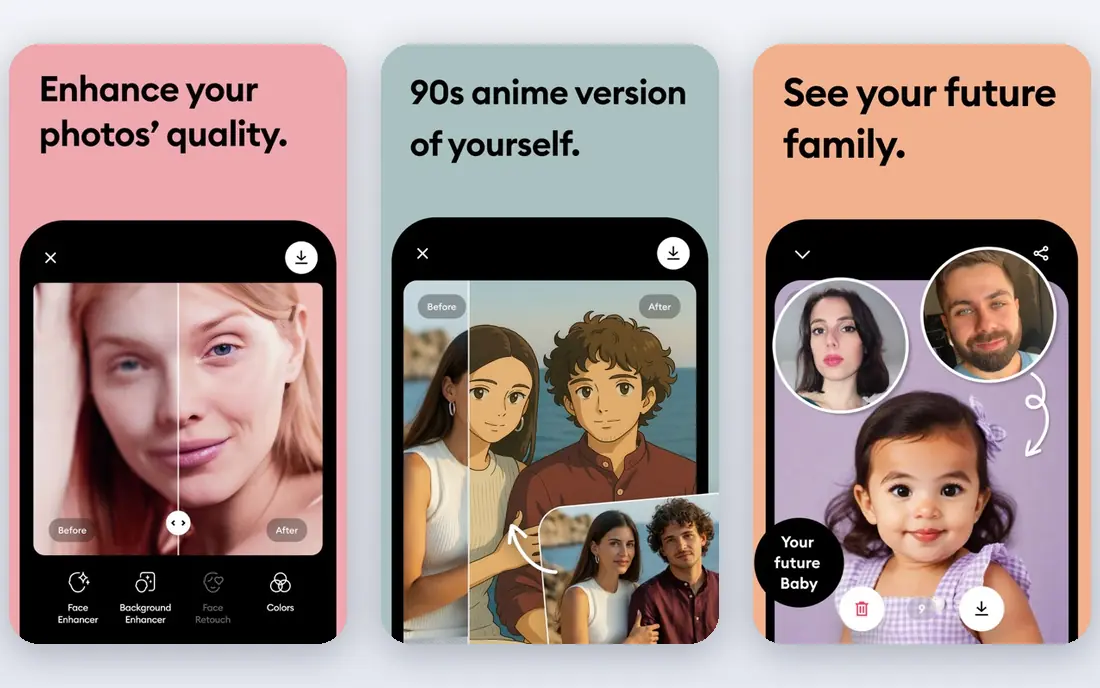
Remini is the app most people reach for first, and for portraits it earns that spot. Upload a blurry or faded face, and the AI rebuilds detail in seconds, often turning an unusable snapshot into something worth printing. The mobile app is where Remini works best, with a web version for desktop use, and video enhancement is a useful bonus for old family clips.
The catch is cost and control. Pricing varies between app stores and subscription options, so check the price shown in your store before subscribing, and the free tier is limited with ads and caps. Remini also guesses at facial detail, which means results can look slightly different from the real person. For a quick, impressive portrait fix, it is still the easiest win in this list.
- Strong face detail recovery
- Very fast on a phone
- Video enhancement included
- Subscription pricing varies by store
- Free use is limited and ad-supported

VanceAI Photo Restorer is the best browser option for whole-photo repair. Rather than focusing only on faces, it tackles scratches, fading, blur and colour shift in one pass, which suits the typical shoebox photo that has several problems at once. The Starter plan at $9 per month on annual billing includes monthly credits, and a small free credit allowance lets you test it on real photos first.
Credit systems need care on large archives. A box of 500 photos will burn through credits fast, so work through a test batch, check the results at print size, and only then commit to a larger plan. For a family archive of tens or low hundreds of photos, VanceAI is the most balanced tool here.
- Handles scratches, fading and blur together
- Credit system suits small batches
- Works in a browser
- Credits run out on large archives
- Results vary on severe damage
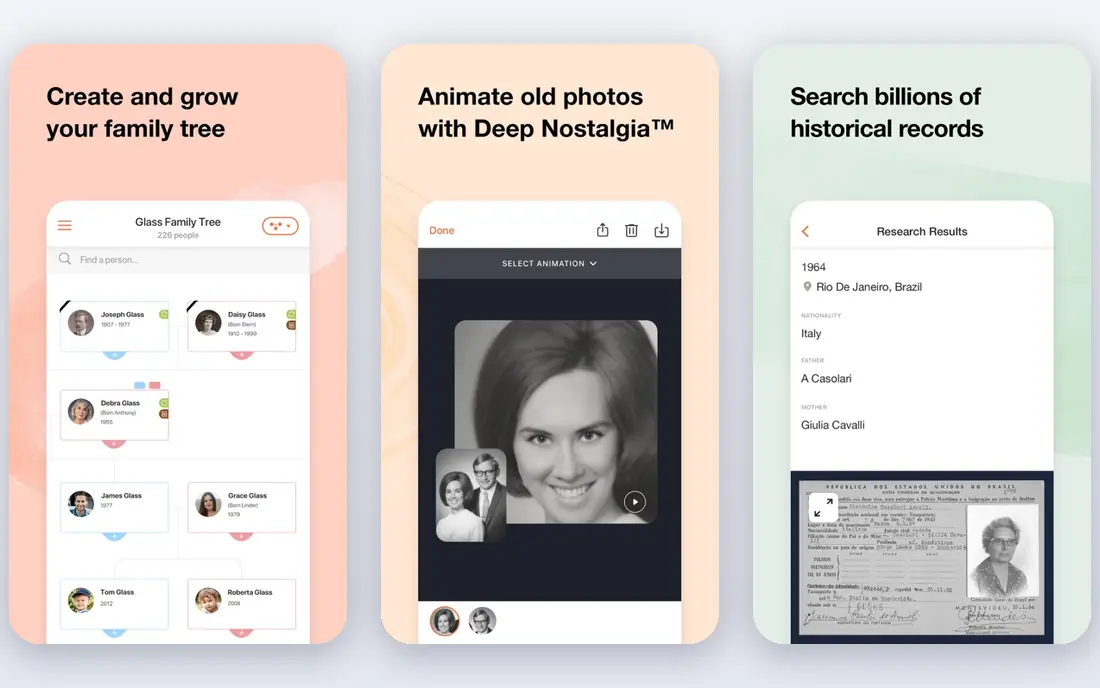
MyHeritage is the natural pick if you are already building a family tree. Its photo tools enhance faces, colourise black and white images and repair damage, and the results sit directly in your family archive alongside names, dates and stories. That context matters: a restored photo is more useful when it stays linked to the people in it.
The pricing shape is the trade-off. Photo tools are bundled with a MyHeritage subscription rather than sold as a cheap standalone app, and free enhancements are limited per account. If you only need to fix ten photos and have no interest in genealogy, a cheaper tool wins. If you are preserving a family history, MyHeritage is the coherent choice.
- Enhance, colourise and repair in one archive
- Family tree integration
- Simple for non-editors
- Full features need a genealogy subscription
- Limited free enhancements
Photoshop remains the tool for photos that AI cannot honestly fix. Large tears, missing corners, stains across a face and complex backgrounds need manual cloning, healing and rebuilding, and Photoshop gives you every control to do it properly. Neural filters add AI assistance for colour, sharpening and face work, so you are not starting from zero even on a manual job.
The price is a subscription, and the learning curve is real. A beginner who just wants ten faded snapshots fixed will do better with Remini or VanceAI. Anyone restoring a historically important photo, or a photo with damage across a large area, should use Photoshop, or hire someone who does, rather than trusting a one-click result.
- Full manual control
- Neural filters for AI help
- Best for tears and missing areas
- Subscription cost
- Steep learning curve for beginners
Topaz Photo AI is aimed at photographers who want control over sharpening, noise removal and upscaling, and it brings that same quality to old photos that are soft or grainy rather than torn. Processing happens on your computer, which suits people who prefer not to upload family photos to a web service, and the free trial lets you preview results fully before buying.
It is not the best tool for physical damage. Scratches and tears need manual repair elsewhere, and the price reflects a professional audience. For a collection of faded, noisy prints that need to look good at larger sizes, Topaz is the quality pick. For quick phone fixes, Remini is faster and cheaper.
- Excellent sharpening and noise removal
- Preview before you pay
- Desktop processing
- Priced for photographers
- Not a scratch repair specialist
Fotor is a general photo editor with a useful one-click enhancement path, and its Pro plan at $8.99 per month makes it one of the cheapest paid options here. If your photos are mainly faded, dull or slightly blurry, Fotor will improve them quickly in a browser, and you also get a full editor for cropping, colour and text afterwards.
Do not expect specialist repair. Deep scratches, tears and heavy damage are beyond what Fotor handles well, and results depend heavily on scan quality. For a small budget and lightly damaged photos, Fotor is a sensible all-rounder. For a precious archive, pair it with a specialist tool for the hard cases.
- Low price
- Easy browser workflow
- General editing alongside restoration
- Restoration is lighter than specialist tools
- Best results need good scans
Hotpot.ai suits the person with one photo to fix and no desire to install anything. Several tools work in the browser without an account, and prepaid credits cover extra use without a subscription. That low-commitment model is ideal for testing whether AI restoration helps your photo at all before you spend more elsewhere.
The experience is functional rather than polished, and quality varies between its different tools, so try more than one if the first result disappoints. Hotpot.ai will not replace Photoshop for serious damage, but for a quick, cheap fix on a lightly damaged photo, it is hard to beat on convenience.
- No account needed for basic use
- Cheap credit options
- Fast for single photos
- Interface is utilitarian
- Quality varies by tool
AKVIS Retoucher is a desktop tool built for the specific job of removing scratches, dust, stains and small tears. You mark the damaged area, and the tool rebuilds it from surrounding texture, with manual controls for tricky spots. The $87 one-time Home licence appeals to people who dislike subscriptions, and processing stays on your own computer.
The work is manual, so a large archive will take real time, and the interface is functional rather than modern. For a handful of scratched prints where you want control without a Photoshop subscription, AKVIS is a strong middle ground between one-click AI and full professional editing.
- One-time licence
- Strong scratch and dust removal
- Desktop processing
- Manual work takes time
- Interface feels dated
Photomyne solves the step before restoration: getting a whole album into digital form. Point your phone at a page of photos, and it detects, crops and saves each photo separately, which is far faster than scanning one by one. Built-in enhancement and colourisation then improve the results, and albums stay organised in the app.
Phone scans are not as good as a flatbed scan, and lighting matters: glare and shadows will show in the result. For speed across a large album, Photomyne is still the best starting point, and you can send the best scans to VanceAI or Photoshop afterwards for deeper repair. The $59.99 per year plan is best judged after the free trial on your own album.
- Scans multiple photos at once
- Auto-crops and organises
- Colourisation included
- Annual subscription
- Phone scans vary with lighting
How we picked these
We compared official feature and pricing pages, app store listings and privacy notes for tools that restore, enhance or repair old and damaged photos, and we kept only tools actively available in October 2026. We favoured a mix of mobile, browser and desktop tools, and we separated one-click AI tools from manual repair tools, because they solve different problems. Where pricing varies by store, billing term or credit pack, we use See website rather than publishing a figure that may not match what a reader sees at checkout.
Getting a good result from any tool
Scan properly first
A 600 dpi flatbed scan in colour, saved as a TIFF or high-quality JPEG, gives every tool more to work with than a phone photo of a print. Clean the scanner glass, scan without auto-enhance if you can, and keep the untouched scan as your master copy. Every restoration should be saved as a new file.
Test on your worst photo, not your best
Run a free trial or free credits on the hardest photo in your batch first. If a tool handles your worst case acceptably, it will handle the rest. If it invents strange facial detail or smears a damaged area, you have learned that before spending money or processing hundreds of images.
Know when to stop with AI
AI tools guess at missing detail, and on a badly damaged face that guess can change how a person looks. For historically important photos, or photos where likeness matters, use AI for a preview and manual repair for the final version. A slightly soft but honest result beats a sharp result that invents a stranger's face.
Frequently asked questions
What is the best photo restoration app?
Remini is the best app for quick face restoration on a phone, while VanceAI Photo Restorer is the best browser tool for whole-photo damage such as scratches and fading. MyHeritage suits family historians, and Photoshop suits severe damage. The best app depends on whether your photos need face work, surface repair or manual rebuilding.
What is the best photo restoration software for old photos?
For old photos with mixed damage, VanceAI Photo Restorer and MyHeritage cover the most cases with the least effort. AKVIS Retoucher and Photoshop handle scratches and tears that AI tools cannot rebuild well. Start with a specialist AI tool for a test batch, and move to manual tools only for the photos that still look wrong.
Can I restore old photos for free?
Yes, within limits. VanceAI, MyHeritage, Fotor and Hotpot.ai all offer free tiers or free credits, and Remini offers limited free use. Free tiers suit a small family project, but a large archive will usually need a paid month or a credit pack. Always test free options on your hardest photo before paying.
Can software fix torn or creased photos?
AI tools handle light creases and small tears, but large tears and missing areas need manual repair in Photoshop or AKVIS Retoucher, where you control the rebuilding. No one-click tool reliably rebuilds a photo torn in half, and results on severe damage should be checked at full size before printing.
Is it safe to upload family photos to restoration websites?
Web tools process your photos on their servers, which is how the AI works, so read the vendor privacy policy if the photos are sensitive. Desktop tools such as Photoshop, Topaz Photo AI and AKVIS Retoucher keep processing on your computer. For anything you would not post publicly, prefer local processing or check how long the vendor keeps uploads.
Sources we checked (9)

Online Jobs is an independent blog about careers, online work, learning new skills and the tools that help people earn. More about us.
Keep reading
All posts
Zoom Alternatives
Zoom alternatives compared for 2026: Google Meet, Microsoft Teams, Webex, Jitsi and more for free calls, large meetings and webinars for teams and classrooms.

What Is the Best Free Tool to Rotate a PDF
What is the best free tool to rotate a PDF? We compare eight free rotation tools on per-page control, limits, privacy and saved output quality in detail.

What Is the Best AI Dubbing Tool
We compared the best AI dubbing tools in 2026, from ElevenLabs and HeyGen to Rask AI, Dubverse and Veed, for videos and creators in many languages worldwide.