Best Photo Filter Tool Online in 2026: 8 Tools Compared

How we put this together: we compare official feature and pricing pages, app store listings, privacy policies and public user reviews. Prices change, so check the provider's site before you pay.
Key takeaways
- Photopea is our pick for layered, Photoshop-style editing in a browser, with no install or account needed for basic use.
- Canva is best for turning a filtered photo into a finished social post or layout, while Adobe Express suits template-based content.
- Pixlr offers a good middle ground, with a simple editor for quick filters and a layered editor for deeper work.
- Fotor, BeFunky and Picsart are best for quick filters, effects and collages, especially on mobile or for social posts.
- Polarr suits people who want precise filter controls and custom presets, with a clean editor that works in a browser.
Quick comparison
| Name | Who it suits | Starting price | Free option | |
|---|---|---|---|---|
 Photopea | Layered browser editing | Free | Yes | Visit |
 Canva | Filtered photos in layouts | Free | Yes | Visit |
 Pixlr | Quick and layered editing | Free | Yes | Visit |
 Fotor | Quick filters and effects | Free | Yes | Visit |
 BeFunky | Filters and collages | Free | Yes | Visit |
 Adobe Express | Template-based photo content | Free | Yes | Visit |
 Polarr | Precise filters and presets | Free | Yes | Visit |
 Picsart | Social filters and stickers | Free | Yes | Visit |
The best photo filter tool online
We compared browser tools that apply filters, adjust light and colour, and export a finished photo without installing desktop software. The list covers layered editors, design tools and quick filter apps, so you can pick based on whether you want a simple filter, a social post or a layered edit.
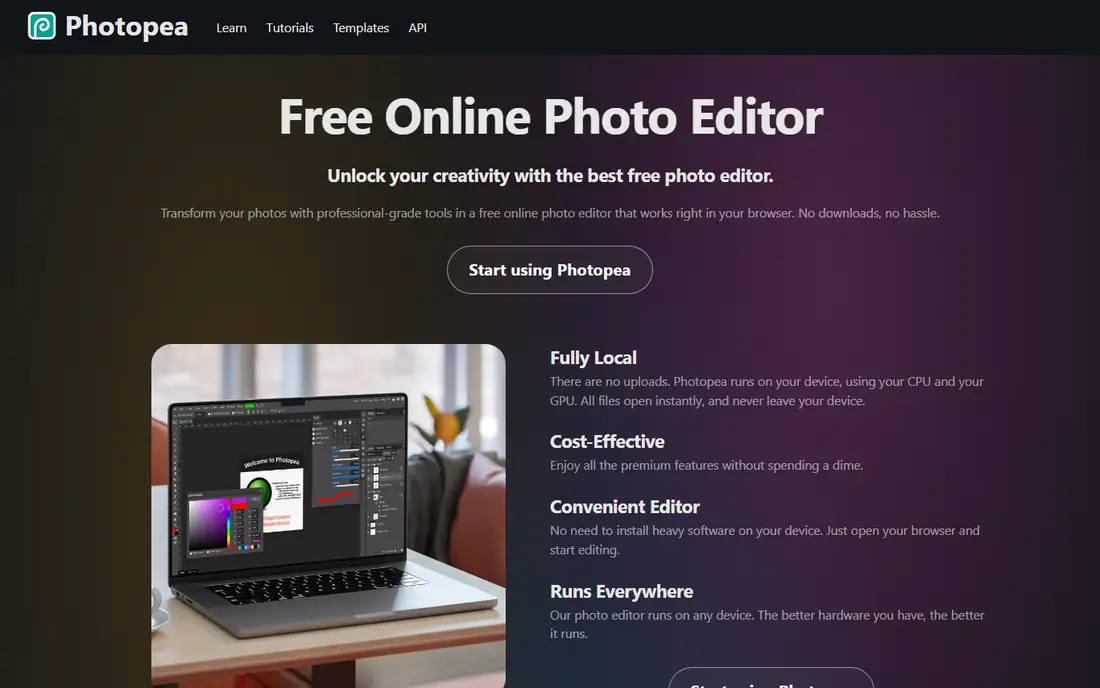
Photopea is the closest free browser alternative to Photoshop for filter work. You can open a photo, add adjustment layers for brightness, colour and tone, apply filters, and use masks to limit an effect to part of the image. It also opens PSD files with layers intact, which helps if someone sends you a Photoshop file and you do not have Photoshop installed.
The free version shows ads in a side panel, and Premium removes ads and adds storage and AI credits. Performance is the honest limit: very large files and many layers feel better in a desktop app. For quick edits, memes, graphics and PSD work on a shared computer or Chromebook, Photopea is the most capable free tool on this list.
- Layers, masks and adjustment layers in a browser
- Opens PSD files
- Files processed locally in the browser as described by the vendor
- Free version shows ads
- Large files can slow down on weaker machines
- Interface takes time to learn if you are new to layered editing
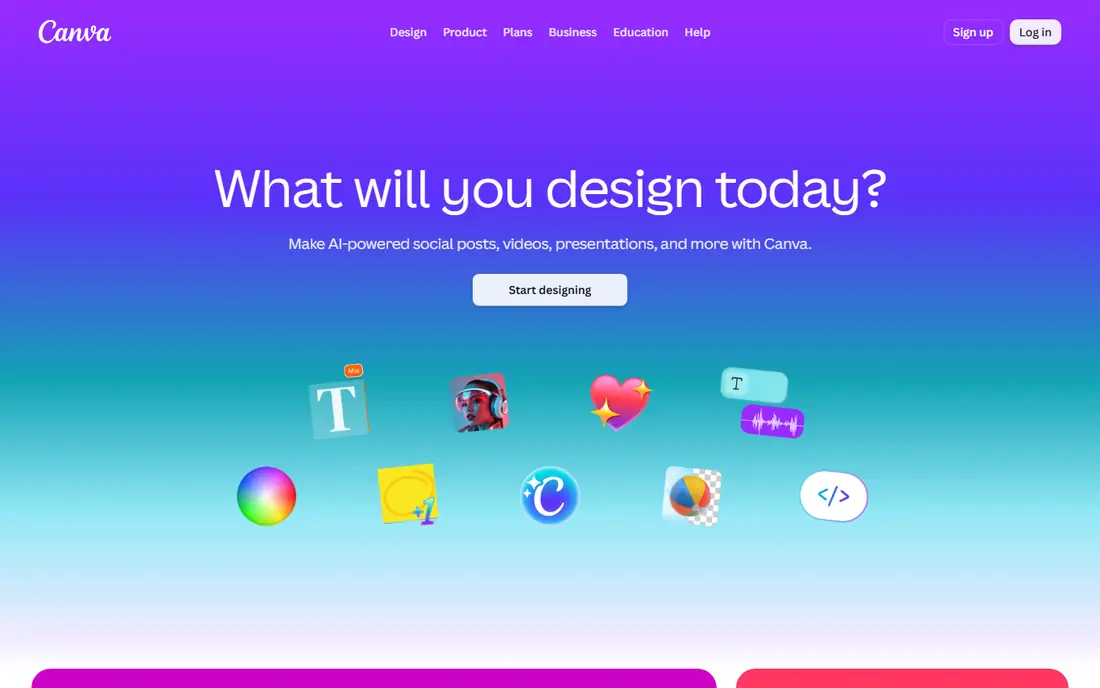
Canva is best if a filtered photo is only part of a finished design. You can apply a filter, adjust brightness and contrast, crop for a social format, then add text, shapes and a template layout in the same editor. That workflow suits social posts, presentations and marketing graphics, where the photo needs to fit a design, not only look good alone.
Free filters cover many everyday needs, but some effects, background tools and premium assets need a Pro plan. Layer control is also thinner than Photopea, so Canva is not the pick for complex compositing. If your goal is a finished post, not a layered photo edit, Canva is faster than a pure editor.
- Easy filters and photo adjustments
- Huge template library for social posts
- Team sharing and brand tools
- Some filters, effects and assets need a Pro plan
- Layered editing is thinner than Photopea
- Exports can be limited on free for some formats
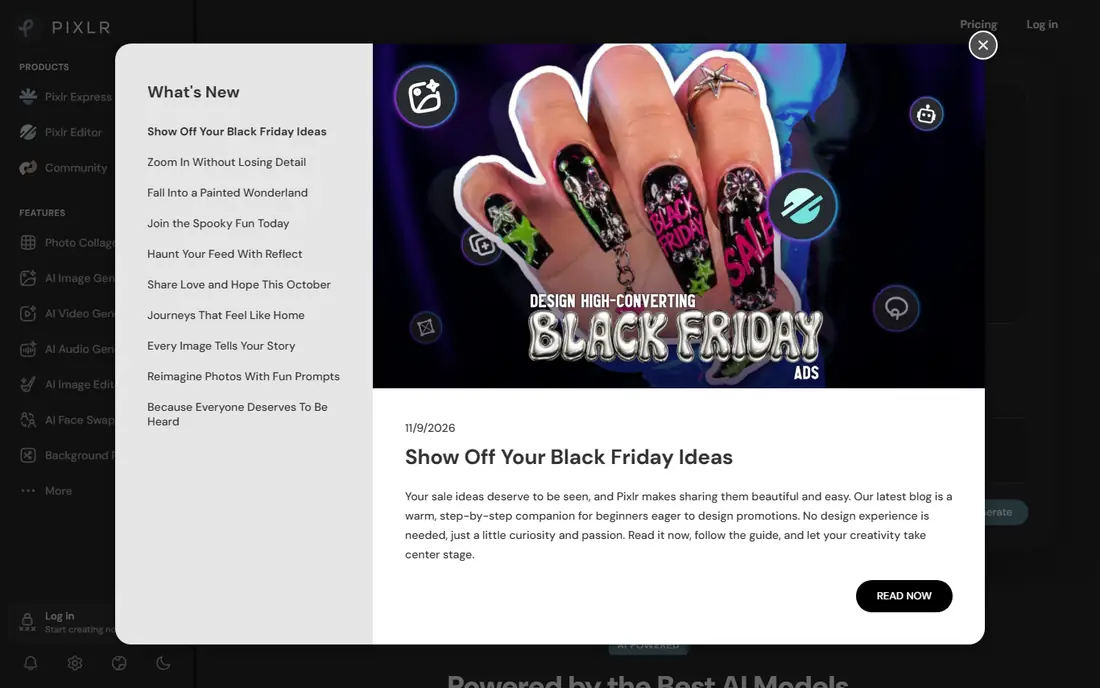
Pixlr gives you a choice that most tools on this list do not: a simple editor for quick filters and a layered editor for deeper work. Pixlr Express suits a fast filter, crop and colour fix, while Pixlr Editor suits layers, masks and more precise adjustments. AI tools for background removal and generation sit alongside filters, though allowances vary by plan.
Free access has limits on saves and AI use in recent listings, and paid plans remove those limits and add more AI allowances. For a single tool that covers both quick social filters and layered edits, Pixlr is a strong middle ground between Canva and Photopea.
- Two editors, one simple and one layered
- Filters, effects and AI tools
- Works in a browser without install
- Free access has save and AI limits in recent listings
- Some features need a paid plan
- Interface can feel busy
Fotor is built for speed. You upload a photo, pick a filter or effect, adjust basic light and colour, and export for social use. One-tap enhancements help when a photo is dark or flat, and collage and design tools let you turn several photos into one layout. Beginners will find Fotor easier than Photopea or Pixlr Editor.
The free Basic plan is limited, with AI credits that run out quickly and export differences compared with Pro in recent listings. Ads also appear on free. Fotor suits quick, fun filters and social edits, not layered compositing or print work where precise control matters.
- Quick filters, effects and one-tap enhancements
- Collage and design tools
- Easy for beginners
- Free plan has limited AI credits and export differences in recent listings
- Ads on free
- Many advanced features need Pro
BeFunky combines a photo editor, a collage maker and a graphic designer in one browser tool. Filters, artsy effects and basic touch-ups are easy to apply, and collages are a particular strength, with layouts that suit social posts, cards and photo grids. The designer side adds text and templates for finished layouts.
Advanced AI features and some premium effects need a paid plan, and free tools are more basic than layered editors. BeFunky is best for casual users who want filters, collages and simple designs without learning a Photoshop-style interface. For layered work, Photopea or Pixlr Editor are stronger.
- Easy photo filters and touch-ups
- Collage maker
- Graphic designer for social layouts
- Advanced AI and premium features need a paid plan
- Free tools are more basic than Pixlr or Photopea
- Export options vary by plan
Adobe Express is a template-first tool for turning photos into content. You can apply filters and adjustments, remove a background on some plans, and place the photo into a social template with text and brand colours. Adobe fonts and stock assets add polish, and the tool works well for teams that already use Adobe products.
Photo editing depth is thinner than Photopea, and premium features, effects and assets need a paid plan. Adobe Express suits content creators who want a fast, template-based workflow, not photographers who need layered RAW-style control. For a quick filtered post with text, it is faster than a layered editor.
- Free plan with standard photo editing
- Templates for social, marketing and video
- Adobe fonts and assets
- Premium features need a paid plan
- Layered photo editing is thinner than Photopea
- Some tools need an Adobe account
Polarr is for people who care about how a filter is built, not only how it looks. You get detailed controls for light, colour, tone and local adjustments, plus custom presets you can save, share or apply across a set of photos. That makes Polarr useful for a consistent look across a social feed or a photo series, where the same filter needs to work on many images.
Templates and design layouts are thinner than Canva or Adobe Express, and some advanced tools need a paid plan. Polarr sits between a quick filter app and a layered editor: more precise than Fotor or BeFunky, simpler than Photopea for filter-focused work. If you want control over a filter, start here.
- Precise filter and colour controls
- Custom presets and filter sharing
- Clean editor that works in a browser
- Some advanced tools and presets need a paid plan
- Less template and design content than Canva
- Learning curve for full colour controls
Picsart is the most social tool on this list, with a large library of filters, stickers, effects and templates for fun, expressive edits. It suits phone-first users who want a quick, eye-catching photo for social media, with stickers, text and effects in the same editor. The web editor covers many of the same tools for desktop use.
Many popular effects need a Gold plan, and free features and exports vary by plan in recent listings. Picsart is less suited to precise colour work or layered print editing than Polarr or Photopea. For playful social filters and quick creative edits, it is one of the easiest tools to enjoy.
- Large filter, sticker and effect library
- Easy social edits
- Mobile and web editors
- Many popular effects and tools need a Gold plan
- Free exports and features vary by plan
- Ads on free in recent listings
How we picked these
We compared official feature pages, pricing pages and app store listings, plus public reviews of free tier limits, export terms and filter quality. We looked at whether a tool offers simple filters, layered editing, templates or presets, and whether core filters are free or paid. We also noted ads, watermarks and export limits where vendors or reviews reported them, since those decide whether a free tool is actually usable.
We did not claim hands-on testing that did not happen, and we did not invent ratings, user counts or filter counts where vendors did not publish them clearly. Prices and free limits change often, so we used Free as the starting price where a free plan covers core filters, and pointed readers to vendor pages for current paid prices and AI allowances.
How to pick the best photo filter app for your photos
Match the tool to the job, not to the longest feature list. For a quick social filter, Fotor, BeFunky or Picsart are fastest. For a filtered photo inside a post or presentation, Canva or Adobe Express are faster. For precise filters across many photos, Polarr is stronger. For layered edits, PSD files or masks, Photopea or Pixlr Editor are the right tools.
Filters, exports and originals
Always keep the original photo before you apply a filter, since a filtered export cannot be undone cleanly. Check export size and format, especially for print or large screens, since some free plans limit resolution or add watermarks on certain features. Test a filter on a few photos from the same shoot, not only one favourite, since a filter that suits one light condition may fail on another.
Free plans, AI credits and privacy
Check whether AI features use credits, how many you get free, and what happens when they run out. Check whether uploads are processed locally, as in Photopea, or on a server, since that matters for private photos. For client or brand work, check licence terms for filters, stickers and stock assets, and avoid using a filter app for photos you would not want stored on a third-party server.
Frequently asked questions
What is the best online photo filter tool?
Photopea is best for layered browser editing, Canva is best for filtered photos in layouts, and Pixlr is best for both quick and layered editing in one service. Fotor and BeFunky are best for quick filters and collages, while Polarr is best for precise filters and presets. The best photo filter app for you depends on whether you want a quick filter, a social post or a layered edit.
What is the best free photo filter app?
Photopea, Canva, Pixlr, Fotor, BeFunky, Adobe Express, Polarr and Picsart all offer free plans for core filters. Photopea offers the most editing depth free, though it shows ads, while Canva and Adobe Express offer the best free templates. Check export limits and AI credits on free plans, since those vary and can affect whether a free tool fits your job.
Which photo filter tool is best for Instagram?
Canva, Picsart and Adobe Express are best for Instagram, thanks to social templates, crop sizes and text tools alongside filters. Polarr is best if you want a consistent filter preset across a feed. For a single photo with a precise look, Polarr or Photopea give more control, while Canva gives a faster path to a finished post.
Can I use these tools without installing software?
Yes. Photopea, Canva, Pixlr, Fotor, BeFunky, Adobe Express, Polarr and Picsart all work in a browser, with mobile apps also available for many of them. Photopea needs no account for basic use, while most other tools need an account to save projects or use premium features. Check browser support for large files, since layered edits perform better on a desktop browser.
Do free photo editors add watermarks?
Some free tools add watermarks or limits on certain premium features, while others, such as Photopea for basic edits, do not watermark in the way some design tools do. Check the export terms on the tool page before you start, since watermark rules vary by feature, not only by tool. If a watermark matters for client work, test an export before you build a full project.
How do I make a filter look consistent across many photos?
Use a preset in Polarr or a saved adjustment in Photopea or Pixlr, and apply the same preset to photos shot in similar light. Avoid stacking many filters, since that can shift skin tones and colours unpredictably. Check the result on a phone and a desktop screen, since colours look different across devices, and keep the originals so you can reapply a preset later.
Sources we checked (8)

Online Jobs is an independent blog about careers, online work, learning new skills and the tools that help people earn. More about us.
Keep reading
All posts
Zoom Alternatives
Zoom alternatives compared for 2026: Google Meet, Microsoft Teams, Webex, Jitsi and more for free calls, large meetings and webinars for teams and classrooms.
What Is the Best Free Tool to Rotate a PDF
What is the best free tool to rotate a PDF? We compare eight free rotation tools on per-page control, limits, privacy and saved output quality in detail.

What Is the Best AI Dubbing Tool
We compared the best AI dubbing tools in 2026, from ElevenLabs and HeyGen to Rask AI, Dubverse and Veed, for videos and creators in many languages worldwide.