Best Photo Editor App in 2026: 8 Products Compared

How we put this together: we compare official feature and pricing pages, app store listings, privacy policies and public user reviews. Prices change, so check the provider's site before you pay.
Key takeaways
- Snapseed is our pick for a completely free editor with strong manual controls and no subscription pressure.
- Adobe Lightroom is the strongest choice for photographers who want RAW editing, presets, and cloud sync across devices.
- VSCO suits people who want a consistent film style with less time spent on sliders.
- Canva and PicsArt are better picks when text, templates, and social formats matter as much as the photo itself.
- Pixlr and Polarr are useful middle options for browser editing and custom filters without a heavy learning curve.
Quick comparison
| Name | Who it suits | Starting price | Free option | |
|---|---|---|---|---|
 Adobe Lightroom Adobe Lightroom | Serious photo editing | Free | Yes | Visit |
 Snapseed Snapseed | Completely free editing | Free | Yes | Visit |
 VSCO VSCO | Film style presets | Free | Yes | Visit |
 PicsArt PicsArt | Creative social edits | Free | Yes | Visit |
 Canva Canva | Design plus photo edits | Free | Yes | Visit |
 Adobe Photoshop Express Adobe Photoshop Express | Quick Adobe edits | Free | Yes | Visit |
 Polarr Polarr | Custom filters | Free | Yes | Visit |
 Pixlr Pixlr | Browser and app editing | Free | Yes | Visit |
The best photo editor app
We compared official feature pages, pricing pages, app store listings, privacy policies, and public reviews to find editors that still work well in 2026. Our list covers serious photographers, casual phone shooters, and creators who need fast social posts.
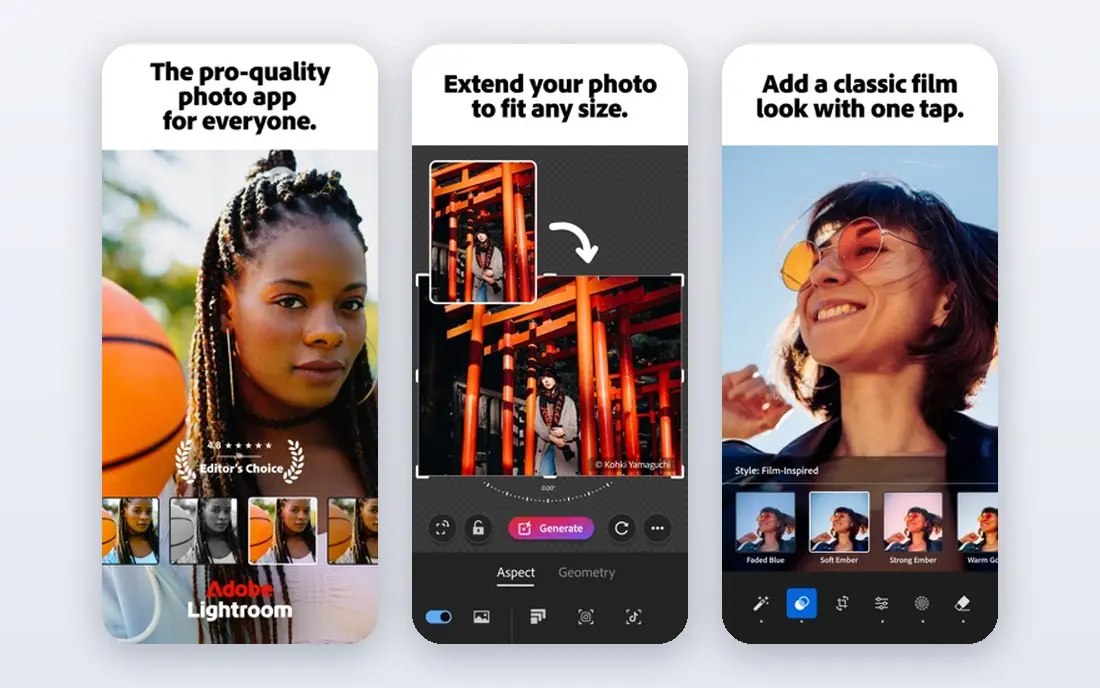
Lightroom stands out because it gives you control over light, colour, and detail without forcing you to work on a desktop. You can adjust exposure, contrast, highlights, shadows, and white balance with fine sliders, and you can apply the same edit to a whole set of photos. That batch approach matters when you return from a trip with hundreds of shots that share the same lighting problem.
The free tier is a good starting point for basic edits, and the paid plans add cloud storage and more advanced tools. If you shoot in RAW, Lightroom is easier to justify than a simple filter app, because it preserves more detail for later edits. The catch is the subscription model, so check what is included in the free tier before you build a workflow around a paid feature.
- Strong RAW editing
- Useful presets and masking tools
- Sync across phone, tablet, and desktop
- Full features need a paid plan
- Cloud storage limits can add cost
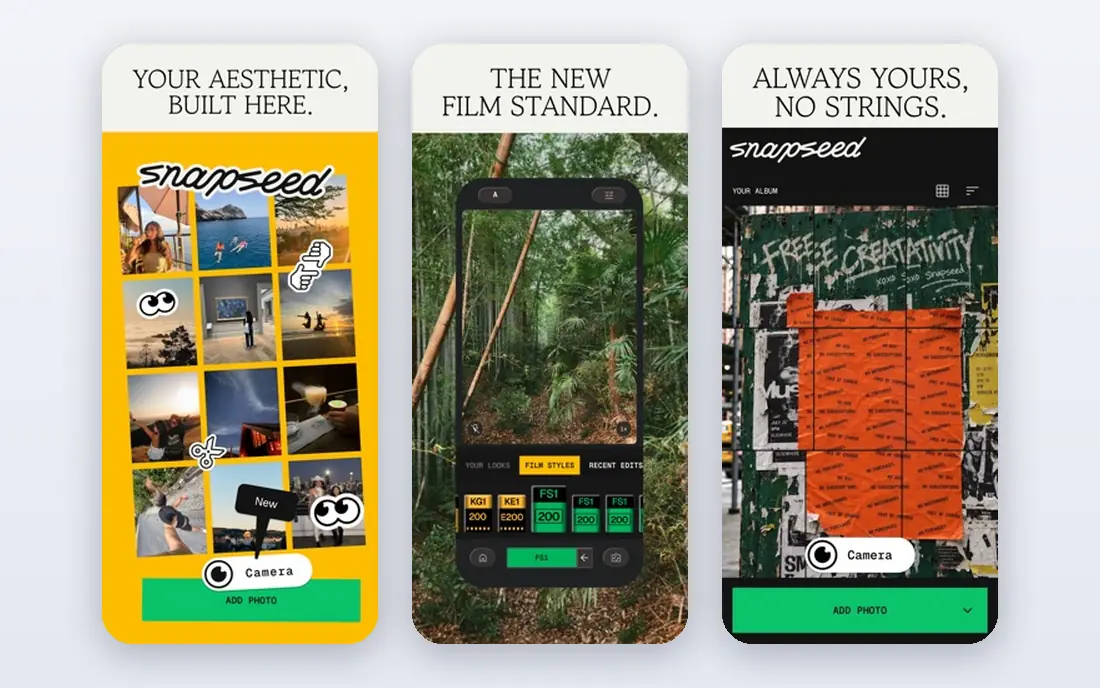
Snapseed remains our pick for people who want a powerful editor without paying a monthly fee. It offers tools for tuning, cropping, perspective, white balance, and selective adjustments, and it lets you stack edits and go back to change an earlier step. That non-destructive approach is rare in a free app, and it helps beginners learn what each adjustment actually does.
The app works well for single photos and for quick fixes before sharing. It does not offer the same cloud library as Lightroom, so you need your own backup plan for originals. If you edit on one phone and rarely switch devices, that trade-off is easy to accept, and the price makes it a low-risk first download.
- Full manual controls at no cost
- Selective edits and healing tools
- No ads in the core app
- No cloud sync
- Interface feels dated to some users
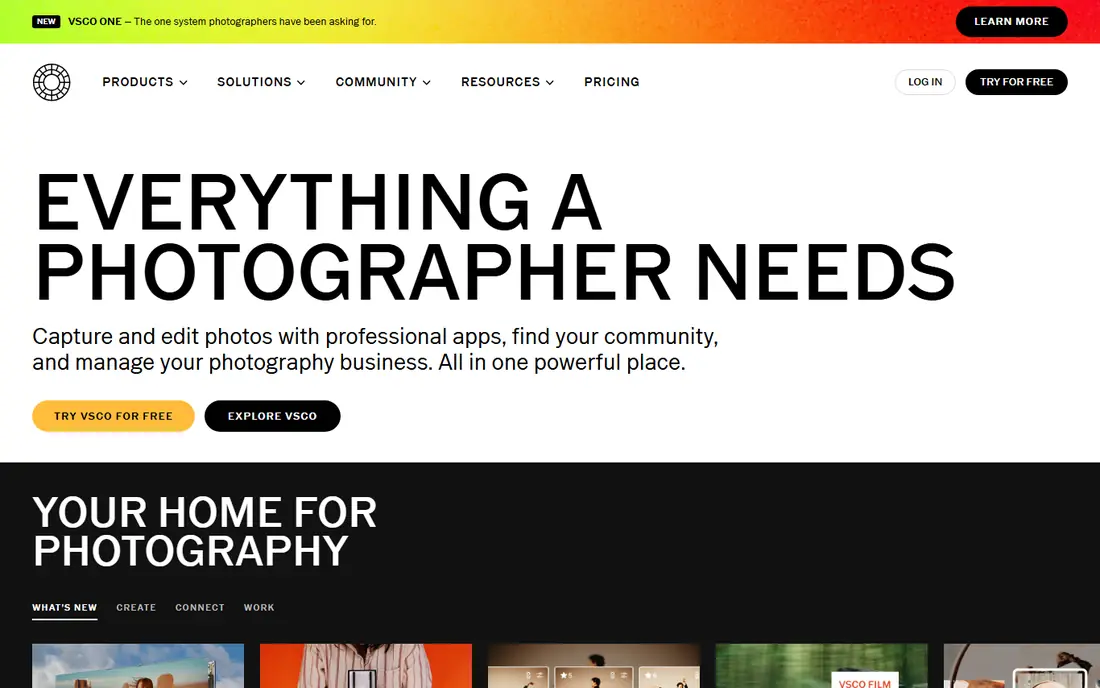
VSCO appeals to photographers who want a look, not a long list of sliders. Its presets lean toward film tones, muted colours, and soft contrast, and the editing tools let you fine-tune strength, exposure, and skin tone after you pick a preset. That order of work suits people who post often and want their feed to look consistent from one week to the next.
The free version lets you try the basic tools and a small set of presets, while a membership opens the full preset library and extra video tools. If you enjoy experimenting with colour, VSCO can save time, but it is less suited to heavy retouching or complex local edits. Treat it as a style tool first and a repair tool second.
- Distinct film-inspired presets
- Clean editing tools
- Community features for sharing work
- Best presets sit behind a paid plan
- Fewer advanced masking tools than Lightroom
PicsArt is built for creators who want a photo to stand out in a feed, not just look correctly exposed. You can remove a background, swap a sky, add text, layer stickers, and build a collage in one app, which reduces the need to jump between three tools. The template library also helps when you need a story, post, or thumbnail in a hurry.
The downside is that the app packs in a lot, so the home screen can feel busy and some features push toward a paid plan. If you only need clean colour edits, Snapseed or Lightroom will feel calmer. If you make content daily, PicsArt earns its place by covering design and editing in one place.
- Large sticker, background, and effect library
- Easy collages and text
- Strong for social formats
- Free version includes ads and watermarks on some exports
- Interface can feel crowded
Canva is the right pick when the final product is a poster, invitation, social post, or presentation rather than a single polished photo. You can crop, adjust brightness, add filters, remove a background on paid plans, and place the image into a ready-made layout with text. That combination is useful for small business owners, teachers, and creators who need finished graphics fast.
For pure photography, Canva will not replace Lightroom. Its sliders are simpler, and it lacks the same depth for RAW files and local adjustments. Use it after your main edit, or as your main tool when design, not photography, is the job. The free plan is generous for basic design work, so you can test it without a card.
- Huge template library
- Simple text and layout tools
- Easy resizing for social platforms
- Photo controls are less detailed than dedicated editors
- Best features need a paid plan
Photoshop Express is a lighter Adobe option for people who want quick results and a familiar brand. It offers auto fixes, filters, cropping, blemish tools, and collage layouts, and it is easier to learn than full Photoshop. That speed matters when you need to clean up a photo for a listing, a post, or a message.
The trade-off is depth. You will not get the same masking, colour grading, or RAW workflow as Lightroom, and some tools sit behind account or plan limits. If you already use Adobe tools and want a fast mobile companion, Express fits well. If you want full control, start with Lightroom instead.
- Fast one-tap fixes and filters
- Collage tools
- Adobe account sync for some features
- Less control than Lightroom
- Some features need sign-in or a paid plan
Polarr suits editors who like to build a personal style and reuse it. You can create a filter from your own adjustments, save it, and apply it to later photos, which helps keep a series consistent. The app also offers masking, object tools, and batch options that go beyond a basic filter app, without the heavier setup of a desktop editor.
The free tier covers a useful range of edits, but some of the more advanced features require payment. That is normal for this category, so check the current plan page before you rely on a specific tool. For photographers who want custom looks without a subscription to a full suite, Polarr is a strong middle ground.
- Custom filter creation and sharing
- Useful masking and local tools
- Works in a browser and as an app
- Advanced tools need a paid plan
- Smaller community than larger rivals
Pixlr is a practical pick when you do not want to install anything or when you work across shared computers. The browser editor handles cropping, filters, layers, and background removal, and the mobile app covers the same quick edits on the go. That flexibility helps students, office workers, and creators who switch devices during the day.
The free version is usable, but ads and plan limits can interrupt longer sessions. If you edit daily and need high-resolution exports without friction, a paid plan or a dedicated app may suit you better. For occasional edits and fast social images, Pixlr is hard to beat for convenience.
- Works in a browser with no install
- AI cutout and effects
- Good for quick web edits
- Free version includes ads
- Export quality and features vary by plan
How we picked these
We compared official feature pages, pricing pages, app store listings, privacy policies, and public reviews for each app. We checked that each app is still available in 2026, that it offers a real free tier or a clear paid plan, and that it fits the topic of photo editing rather than general design alone. We did not claim hands-on testing, and we avoided ranking by a single store score, since scores change and can reflect older versions.
We favoured apps with clear privacy information, a way to export your work, and a free starting point. We also looked for a mix of serious editors and fast creative tools, because a photographer and a social creator need different strengths. Where a price or plan limit could not be confirmed on the vendor site, we wrote See website in other guides, and here we used Free only where a free tier is clearly listed.
What to check before you choose a photo editor
Start with how you shoot and where you share. If you shoot RAW or edit large batches, pick an editor with strong tonal controls and batch tools. If you post daily, pick one with presets, templates, and fast export sizes for each platform. If you only fix the odd photo, a free app with manual controls will cover most needs without a subscription.
Free plans and paid limits
Read the free plan carefully, not just the headline word free. Some apps limit exports, add watermarks, or lock the best presets and background tools behind payment. Check whether you can export at full resolution, whether your edits stay editable, and whether you can cancel a plan without losing your library. A free app that fits your workflow is better than a paid app whose best tools you never use.
Privacy and backups
Check where your photos are stored and what the app does with them. Editors with cloud sync should explain storage limits, deletion, and account security in plain terms. Keep your own backup of originals, especially if you use a cloud-only library. That habit protects you if a plan changes, a device is lost, or an app is removed from a store.
Editing style and learning time
A powerful editor is only useful if you will open it. If sliders feel overwhelming, start with presets and a few manual controls, then move to masking and local edits later. If you love detail, pick an app that lets you save your own presets and revisit each edit step. The best app is the one that matches your patience, your device, and your usual type of photo.
Frequently asked questions
What is the best free photo editor app?
Snapseed is our pick for a completely free editor, because it offers manual controls, selective edits, and healing tools without a subscription. Lightroom, VSCO, Canva, and Pixlr also offer useful free tiers, but their best features often sit behind paid plans. Try Snapseed first if cost is your main concern, then add a second app for design or presets.
What is the best free picture editing app for beginners?
Canva and Photoshop Express are good beginner options, because they offer one-tap fixes, filters, and templates with a short learning curve. Snapseed is also beginner friendly once you try the tuning tools, and it rewards a little practice with much more control. Pick the app whose home screen feels clear to you, since you are more likely to keep using it.
Which app is best for editing photos for social media?
PicsArt and Canva are strong for social media, because they combine photo edits with text, stickers, templates, and platform sizes. VSCO is a good choice if you want a consistent colour style across posts. For the photo itself, edit in Lightroom or Snapseed first, then finish the design in Canva or PicsArt if you need text or a layout.
Is there a best completely free photo editing app with no ads?
Snapseed is the closest match in this list, because its core editing experience does not rely on ads or a subscription to open basic tools. Other free apps may show ads, limit exports, or lock features behind payment, so check the current store listing and plan page. If you need cloud sync or advanced AI tools, you will likely need a paid plan somewhere.
What is the best free photo editor software for a computer?
Pixlr and Polarr both work in a browser, which makes them useful on a computer without an install. Lightroom and Canva also offer web and desktop options, with more depth in Lightroom and more design tools in Canva. If you need full desktop control, check the vendor pricing page for the desktop plan, since mobile free tiers do not always match desktop access.
Should I pay for a photo editor?
Pay only when a paid feature saves you real time or solves a repeated problem, such as batch editing, cloud sync, background removal, or a large preset library. Start free, track which limits you hit in a normal week, and then compare the paid plan that removes those limits. If you edit rarely, a free app is usually enough, and you can keep the money for other tools.
Sources we checked (8)

Online Jobs is an independent blog about careers, online work, learning new skills and the tools that help people earn. More about us.
Keep reading
All posts
Best Tools to Unblur Photos for Free
We compared the best tool to unblur photos for free, covering face repair, web tools, desktop apps, free limits, watermarks, and what blur cannot fix.
Best Photo Editing Software for Beginners
The best photo editing software for beginners in 2026, compared on price, ease of use, and free plans, so you can start editing without confusion from day one.

Zoom Alternatives
Zoom alternatives compared for 2026: Google Meet, Microsoft Teams, Webex, Jitsi and more for free calls, large meetings and webinars for teams and classrooms.