Best Photo Editing Software for Beginners in 2026: 8 Tools Compared


photo workflow and organising · Starting price: $11.99 per month
How we put this together: we compare official feature and pricing pages, app store listings, privacy policies and public user reviews. Prices change, so check the provider's site before you pay.
Key takeaways
- Affinity, GIMP, and Darktable let beginners start free, while Lightroom suits people who want a guided photo workflow.
- Luminar Neo is the friendliest paid pick for fast results, because its guided tools do much of the early work.
- Photoshop Elements suits beginners who want Adobe tools without a subscription.
- Start with a free tool or trial, edit real photos, and only pay when you hit a clear limit.
Quick comparison
| Name | Who it suits | Starting price | Free option | |
|---|---|---|---|---|
| Adobe Lightroom | photo workflow and organising | $11.99 per month | No | Visit |
 Luminar Neo Luminar Neo | fast guided edits | $119 one-time | No | Visit |
 Affinity Affinity | free full photo editor | Free | Yes | Visit |
 Photoshop Elements Photoshop Elements | simple Adobe editing without a subscription | $99.99 one-time | No | Visit |
 ON1 Photo RAW ON1 Photo RAW | organising plus editing in one purchase | $99.99 one-time | No | Visit |
 GIMP GIMP | free layered editing | Free | Yes | Visit |
 Darktable Darktable | free RAW workflow | Free | Yes | Visit |
 Photopea Photopea | browser-based editing | Free | Yes | Visit |
The best photo editing software for beginners
Beginner editing is about learning a few skills well: exposure, colour, cropping, and retouching, without getting lost in menus. The tools below range from free mobile editors to full desktop software, so you can start simple and move up only when your photos demand it.
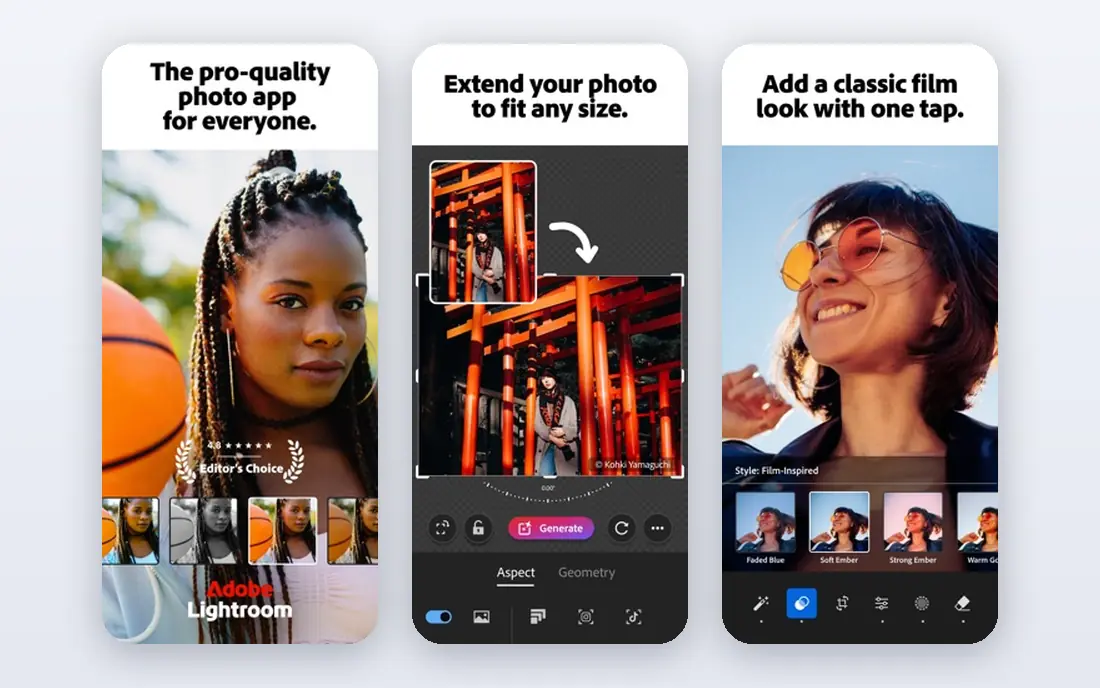
Lightroom is the best starting point inside the Adobe world, because it focuses on developing photos rather than pixel-level compositing. Sliders for exposure, contrast, highlights, and colour are easy to understand, and presets let you apply a look in one click, then adjust it to taste. It also organises photos by date, rating, and keyword, which matters once your library grows.
The cost is a subscription, with Lightroom plans listed from about $11.99 per month in recent summaries, and a free trial to test it. Lightroom will not replace Photoshop for heavy retouching or compositing, but most beginners do not need those tools yet. If you shoot in RAW and want a tidy workflow, Lightroom is a safe first paid pick.
- Clear sliders for exposure and colour
- Photo organising and presets
- Mobile apps included in many plans
- Subscription only
- No layered compositing like Photoshop
- Catalog system takes a little learning
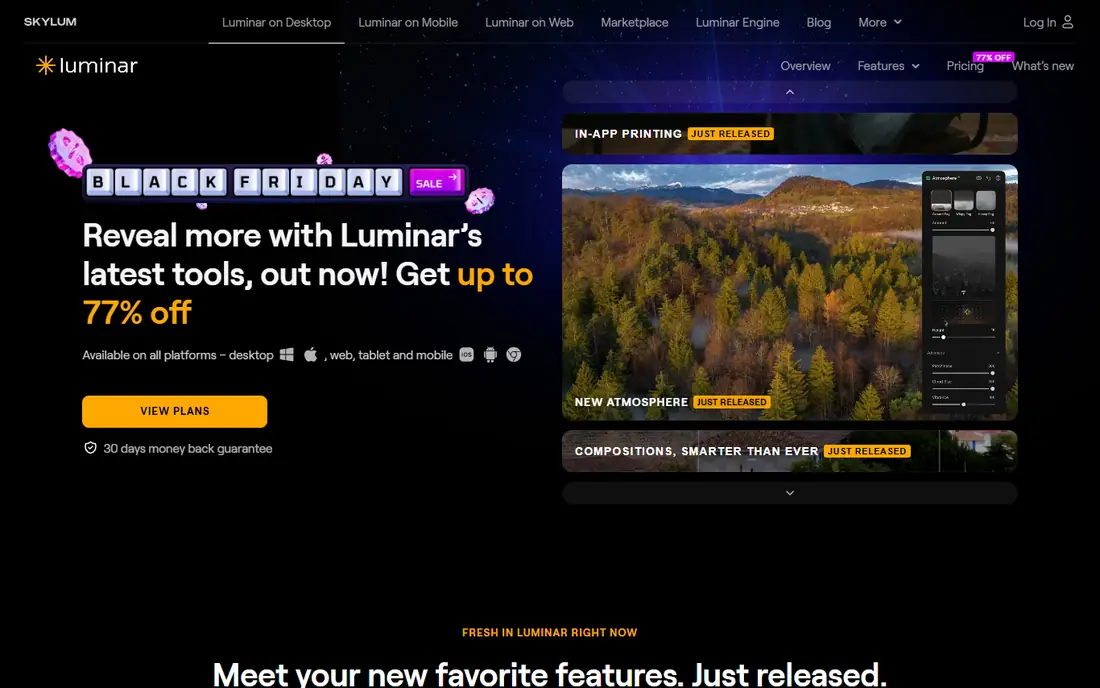
Luminar Neo is built for beginners who want good results quickly. Its guided tools can replace a sky, brighten a portrait, or relight a scene with a few sliders, and templates give you a starting look that you can then refine. That speed helps new editors learn what a good edit looks like before they master every manual control.
Perpetual licences have been listed from about $119, with subscription options also available, and a free trial to test it. The trade-off is control: experienced editors may find some tools less precise than Lightroom's manual sliders. For a beginner, though, Luminar Neo's balance of guidance and real editing power is hard to beat.
- Guided AI tools for sky, portraits, and relighting
- Templates for quick looks
- Perpetual licence option
- Less precise manual control than Lightroom for some jobs
- No built-in catalog as deep as Lightroom
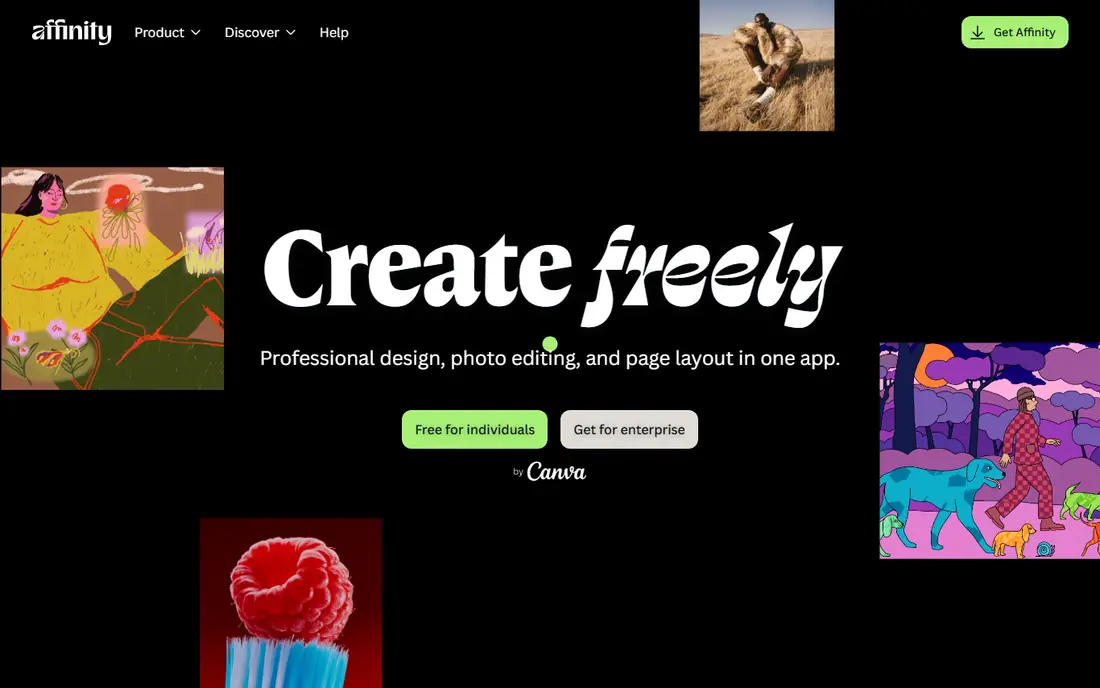
Affinity, now part of Canva, is the standout free desktop editor in this list. It covers layers, masks, retouching, and RAW development in a modern interface, without a subscription for core features. You need a free Canva account to download it, and some AI features sit behind a paid Canva plan, but the core editor is free.
Affinity expects you to learn editing concepts yourself, so it is less hand-holding than Luminar Neo. That is also its strength: skills you learn in Affinity transfer to Photoshop later, because the concepts are the same. If you want a free editor that can grow with you for years, start here.
- Free with a Canva account
- Layers, masks, and retouching
- Modern interface for a free tool
- No Lightroom-style catalog
- Some AI features need a paid Canva plan
- Learning curve is steeper than Luminar Neo
Photoshop Elements
Who it suits: simple Adobe editing without a subscription
Photoshop Elements is Adobe's beginner editor, and it suits people who want the Photoshop name without a monthly bill. Guided edits walk you through common jobs, such as removing objects, fixing skin, or creating a panorama, while the expert mode gives you layers and manual control when you are ready. Recent listings put the price at about $99.99 as a one-time purchase with a three-year licence term.
Elements is not full Photoshop, and it lacks some pro colour and compositing tools, but most beginners will not miss them for a long time. If you want Adobe tools, a guided mode, and no subscription, Elements is the natural pick. Check the current licence term on Adobe's page before you buy, because it differs from a perpetual licence.
- Guided edits for common fixes
- Layers and retouching tools
- One-time purchase, not a subscription
- Licence terms limit use to a set period in recent listings
- Fewer pro tools than full Photoshop
ON1 Photo RAW tries to replace both Lightroom and a basic Photoshop in one purchase. You can organise photos, develop RAW files, work with layers, and apply effects without switching apps, and recent listings put the price at about $99.99 for a perpetual licence. For beginners who want one app that does most jobs, that all-in-one approach is appealing.
The interface is busier than Lightroom or Luminar Neo, because it packs in more tools, so give yourself a few sessions to learn the layout. Start with the basic develop panel, then explore layers and effects only when a photo needs them. ON1 suits beginners who want to buy once and avoid subscriptions while keeping room to grow.
- RAW editing plus photo organising
- Layers and effects in one app
- Perpetual licence option
- Interface can feel busy for pure beginners
- Preset and effect library takes time to explore
GIMP is the classic free Photoshop alternative, and it remains a strong choice for beginners on a zero budget. It handles layers, masks, selections, and retouching, and a large plugin library extends it further. It runs on Windows, Mac, and Linux, with no account required, which makes it easy to install on any computer.
The interface takes getting used to, and RAW files need a plugin rather than built-in support, so photographers who shoot RAW may prefer Affinity or darktable for that job. For general editing, such as cropping, colour fixes, and simple compositing, GIMP covers the basics well. If you want free and powerful, and you do not mind a less polished layout, GIMP is a solid pick.
- Completely free and open source
- Layers, masks, and plugins
- Works on Windows, Mac, and Linux
- Interface feels dated
- RAW support needs a plugin
- Learning curve is steeper than Affinity for some users
Darktable is our pick for beginners who shoot in RAW and want a free Lightroom-style workflow. It develops RAW files, organises photos, and applies edits non-destructively, so you can undo a change without losing the original. It runs on Windows, Mac, and Linux, with no account or subscription required.
Darktable is not a layered compositing editor, and its interface takes a few sessions to learn, because it packs in many professional controls. For learning exposure, colour, and RAW development on a zero budget, though, it is a strong choice. Use it to build a photo library habit, then add Affinity later if you need layers and retouching.
- Free and open source
- RAW development and photo organising
- Non-destructive editing
- Interface takes time to learn
- No layered compositing like Affinity
- Fewer guided templates than Luminar Neo
Photopea is a free editor that runs entirely in a web browser, which makes it ideal for a shared computer, a Chromebook, or a quick edit when you cannot install software. It supports layers, masks, and PSD files, so it feels closer to Photoshop than most web editors. The free tier covers most beginner jobs, with a paid option to remove ads and add extra features.
Because it runs in a browser, performance depends on your device and connection, and very large files can feel slower than in a desktop app. Still, for learning layers, trying compositing, or editing a photo on someone else's computer, Photopea is a useful free tool to keep bookmarked. It also pairs well with a desktop RAW editor such as Darktable.
- Runs in any browser with no install
- Layers and PSD support
- Free tier covers most basic edits
- Ads on the free tier
- Needs an internet connection
- Performance depends on your browser and computer
How we picked these
We compared official product pages, pricing pages, and app store listings for photo editors that a beginner can learn without prior experience, and are still sold or maintained. We kept a mix of free and paid tools, mobile and desktop editors, and subscription and one-time purchases, and we noted where prices vary by licence type. We did not claim hands-on testing, and we favoured editors with guided modes, clear sliders, or free tiers for learning.
What to check before you choose an editor
Start with where you edit. Browser editors suit quick edits on a shared computer, while desktop editors suit RAW files, large libraries, and detailed retouching. Next, check the pricing model: a free editor or trial lets you learn the basics before you pay, while a subscription makes sense only if you edit every week.
Learn three skills first
Focus on exposure, white balance, and cropping before you buy presets or learn advanced retouching. Those three skills improve almost every photo, and every editor here teaches them in a slightly different way. Edit the same five photos in two shortlisted editors, and pick the one whose sliders feel clearest to you, because the editor you enjoy opening is the one you will keep using.
Old photos and inexpensive options
If your main job is restoring old photos, look for healing, dust removal, and colour tools rather than AI sky replacement, and test a trial on a scanned photo first. For inexpensive editing, Affinity, GIMP, Darktable, and Photopea all start free, and ON1 Photo RAW and Luminar Neo offer one-time purchases that avoid a monthly bill. Check the current price on each vendor site, because licence terms change.
Frequently asked questions
What is the best photo editing app for beginners?
Luminar Neo suits beginners who want fast guided results, Lightroom suits beginners who want a photo workflow, and Affinity suits beginners who want a free full editor. Try a free tool or trial first, and pick the interface that feels clearest to you.
What is the best and easiest photo editing software?
For ease alone, Luminar Neo is the simplest paid pick here, because guided tools do much of the work. For a desktop editor that stays easy as you learn more, Lightroom's sliders and presets are a good middle ground.
Can I edit photos for free?
Yes. Affinity, GIMP, Darktable, and Photopea all offer free tiers that cover basic and intermediate editing. Paid tools add guided AI features, catalogs, or pro controls, but you do not need them to learn exposure, colour, and cropping.
Do I need Photoshop as a beginner?
No, most beginners do not need full Photoshop. Lightroom, Affinity, or Photoshop Elements cover developing, organising, and retouching for most photos. Add Photoshop later only if you need heavy compositing, advanced retouching, or client files in PSD format.
What is the best inexpensive photo editing software?
Affinity is free for core features, and ON1 Photo RAW and Luminar Neo offer one-time purchases from about $99.99 and $119 in recent listings. Compare the total first-year cost, including any subscription or upgrade fees, before you choose. It also pairs well with a browser editor such as Photopea for quick edits.
Sources we checked (8)

Online Jobs is an independent blog about careers, online work, learning new skills and the tools that help people earn. More about us.
Keep reading
All posts
Best Tools to Unblur Photos for Free
We compared the best tool to unblur photos for free, covering face repair, web tools, desktop apps, free limits, watermarks, and what blur cannot fix.
Best Photo Editor App
Best photo editor app guide: we compare 8 photo editors on editing control, presets, free plans, and pricing so you can pick the right app for photos.

Zoom Alternatives
Zoom alternatives compared for 2026: Google Meet, Microsoft Teams, Webex, Jitsi and more for free calls, large meetings and webinars for teams and classrooms.