Best Photo Editing Apps in 2026: 9 Apps Compared

How we put this together: we compare official feature and pricing pages, app store listings, privacy policies and public user reviews. Prices change, so check the provider's site before you pay.
Key takeaways
- Affinity is now free, which makes it the best starting point for serious desktop editing without a subscription.
- Adobe Lightroom and Photoshop remain the strongest pair for photographers who need broad camera support and cloud sync.
- Pixlr and Photopea cover most everyday edits for free, in a browser.
- GIMP and Darktable are powerful free options, but both need more patience to learn than paid rivals.
- Pay for a subscription only when its AI tools, cloud library or collaboration features earn their monthly cost for your actual work.
Quick comparison
| Name | Who it suits | Starting price | Free option | |
|---|---|---|---|---|
 Affinity Affinity | Serious desktop editing for free | Free | Yes | Visit |
 Adobe Lightroom Adobe Lightroom | Photo organisation and RAW editing | $11.99 per month | Free trial | Visit |
 Adobe Photoshop Adobe Photoshop | Advanced image manipulation | $22.99 per month | Free trial | Visit |
 Pixlr Pixlr | Free browser editing | Free | Yes | Visit |
 Photopea Photopea | Browser editing with PSD support | Free | Yes | Visit |
 GIMP GIMP | Free desktop editing and retouching | Free | Yes | Visit |
 Darktable Darktable | Free RAW workflow | Free | Yes | Visit |
 Capture One Pro Capture One Pro | Studio and tethered shooting | See website | Free trial | Visit |
 Luminar Neo Luminar Neo | AI-assisted editing for beginners | See website | Free trial | Visit |
The best photo editing apps
We compared official feature pages, pricing pages, app store listings and public reviews, and we separated phone editors, browser editors and desktop editors, since a tool that is perfect on a phone can be weak for a RAW workflow. The list below covers each job, with free options alongside paid ones.
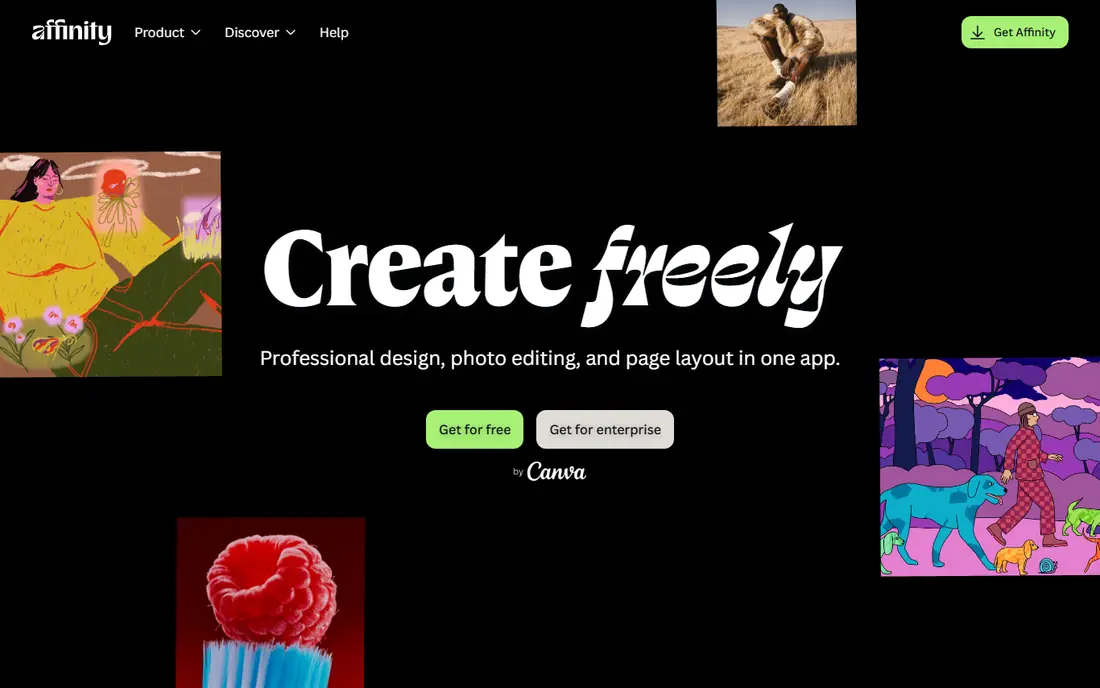
Affinity changed this category when Canva made its photo, design and publishing apps free. The photo editor offers layers, masks, non-destructive adjustments, RAW support and a professional toolset that previously cost a one-time fee, and it runs on Windows and Mac with a legacy iPad app. For a photographer or designer who dislikes subscriptions, that combination is now the default recommendation.
The trade-offs are ecosystem and AI. Photoshop still has a larger plugin library and more advanced generative tools, and some Affinity users will miss specific Adobe integrations. For everyday retouching, compositing and print preparation, though, Affinity covers the work, and its speed on modest hardware is a real advantage. Try it with your three most common file types before paying for anything else.
- Full layers, masks and RAW support
- Fast performance
- No subscription
- Smaller plugin ecosystem than Photoshop
- Some AI features lag Adobe
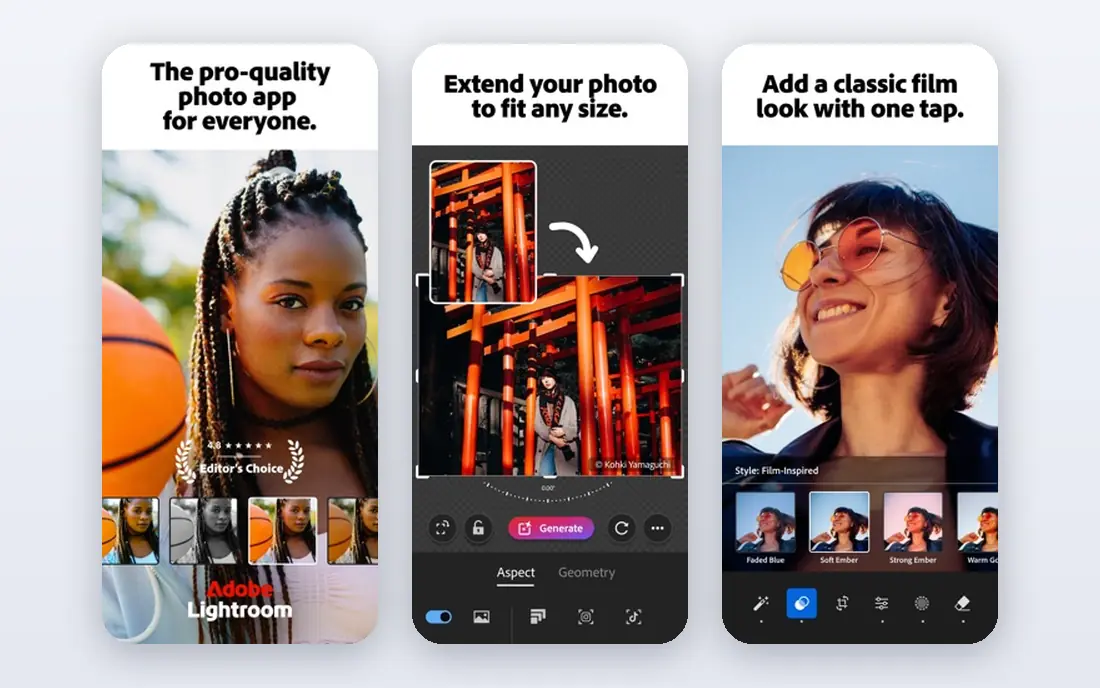
Lightroom is the best organisation tool for a large photo library. It imports RAW files from a wide range of cameras, applies non-destructive edits, and syncs across desktop and mobile, so a shoot started on a laptop can be finished on a phone. Masking tools for sky, subject and background are strong, and presets speed up consistent looks for weddings, travel and product work.
The subscription is the honest cost. Adobe lists Lightroom at $11.99 per month on an annual plan, with the Photography plan at $19.99 per month adding Lightroom Classic, Photoshop and 1TB of storage in many listings. If you stop paying, cloud access changes, so keep original files and exports outside the cloud library. For a working photographer with thousands of images, the catalogue alone can justify the price.
- Strong catalogue and cloud sync
- Broad camera RAW support
- Excellent masking and presets
- Subscription only
- Cloud library needs care if you stop paying
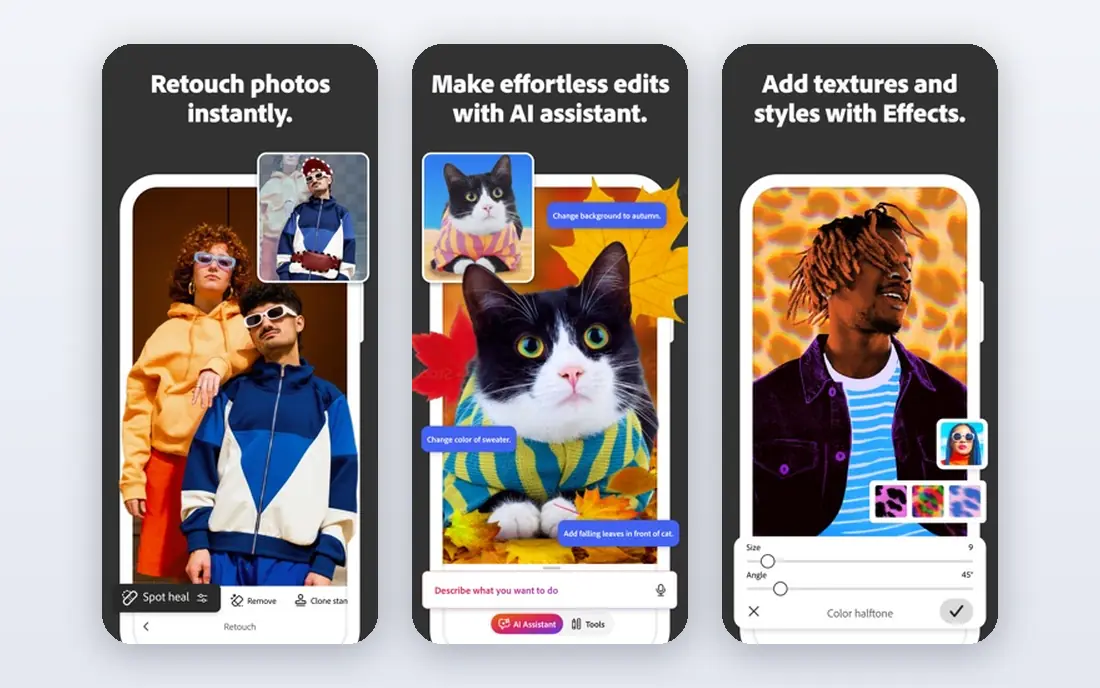
Photoshop remains the standard for advanced manipulation. Layers, masks, selections, retouching brushes and generative fill cover work that simpler editors cannot, from product retouching to complex composites, and its plugin ecosystem extends it further. Adobe lists the single app at $22.99 per month on an annual plan billed monthly, with a free trial.
For casual edits, Photoshop is more tool than you need, and its price reflects professional use. A hobbyist who crops, adjusts exposure and adds text will get the same visible result from Affinity, Photopea or Pixlr for free. Pay for Photoshop when its AI features, file exchange or collaboration tools earn their cost in real jobs, not out of habit.
- Deepest retouching and compositing tools
- Large plugin ecosystem
- Strong AI features
- Subscription only
- More than most casual editors need
When you need an edit without installing anything, Pixlr opens in a browser tab and gets to work. It covers cropping, exposure, colour and text, plus AI cutout and batch tools for quick social media edits, and it handles common file types without asking you to download an app. For a Chromebook, a borrowed computer or a single quick job, that convenience is hard to beat.
The free tier is where the limits show. Advanced tools sit behind a Premium subscription, and free use is ad-supported, so heavy editors will feel the nudge to pay. For everyday edits, though, the free tier does the job, and it pairs well with a desktop editor when a project grows.
- Runs fully in a browser with no install
- AI cutout and batch tools for quick edits
- Free tier covers everyday adjustments
- Advanced tools need a Premium subscription
- Free tier is ad-supported
Photopea is the most useful browser editor we found. It opens PSD files natively, along with XCF, Sketch and XD files, and it offers layers, masks, selections and adjustments in an interface that Photoshop users will recognise. That makes it ideal for a borrowed computer, a school machine or a quick fix when you cannot install software.
The free version includes ads, and heavy files can strain a browser, so it is not a full replacement for a desktop editor on a large project. A paid plan removes ads and adds more steps in history, but the free tier already covers most everyday edits. Keep a local copy of important files, since browser work is only as safe as your save habits.
- Opens PSD, XCF and Sketch files in a browser
- Layers and masks included
- No install needed
- Ads in the free version
- Performance depends on browser and computer
GIMP is the long-standing free alternative to Photoshop on desktop. It offers layers, masks, retouching tools, scripting and a large plugin library, and it runs on Windows, Mac and Linux without a subscription or ads. For a user who wants full control and does not mind learning a less polished interface, GIMP can handle serious retouching and graphic work.
The interface is the main barrier. Menus and workflows feel older than Affinity or Photoshop, and RAW files need a plugin rather than built-in support. That means a photographer with a RAW workflow may prefer Darktable for organisation and GIMP for retouching, used together. If you value freedom and control over polish, GIMP remains a strong free pick.
- Free and open source
- Deep retouching, scripting and plugin support
- Runs on Windows, Mac and Linux
- Interface feels dated
- RAW support needs a plugin
- Learning curve is steep
Darktable is the free answer to Lightroom for RAW photographers. It offers non-destructive editing, a catalogue, tethering in some setups and professional colour management, all without a subscription. Its modules for exposure, colour, noise and lens correction are deep, and the community around it is active and helpful.
Learning Darktable takes patience, since its module system differs from Lightroom and its presets are fewer. A beginner may feel lost on first open, but a photographer who edits RAW files weekly will find a workflow that rivals paid tools. Pair it with GIMP for pixel-level retouching, and you have a complete free desktop setup.
- Free and open source
- Non-destructive RAW editing
- Professional colour management
- Steep learning curve
- Fewer presets and guided tools than Lightroom
Capture One Pro is built for studio work. Tethered shooting, where photos appear on a large screen as you shoot, is its standout strength, and its colour tools, sessions and layer adjustments suit fashion, product and portrait photographers. Camera support is broad, with hundreds of models listed, and its RAW rendering has a distinct look that many studio photographers prefer.
Price is the barrier for casual use. Capture One offers subscription and perpetual options, with Pro listed at $18.00 per month on an annual plan in recent comparisons, and a perpetual licence at $349 in the same sources, so check the vendor site for the current offer. If you do not shoot tethered, Lightroom or Darktable will likely serve you better for less.
- Excellent tethered shooting
- Strong colour tools and sessions
- Broad camera support
- Higher price than Lightroom
- Smaller preset and plugin ecosystem
Luminar Neo suits editors who want fast, visible results without learning masks and layers in depth. Its AI tools can replace a sky, enhance a portrait, relight a scene or remove an object with a few clicks, and its interface is friendlier than GIMP or Darktable. It also works as a plugin inside Lightroom and Photoshop, so it can supplement a workflow rather than replace it.
Advanced control is thinner than in Photoshop or Affinity, and pricing has changed over time, with perpetual and subscription options appearing in different listings. Check the current licence on the vendor site before buying, and trial the AI tools on your own photos, since results vary with image quality. For a beginner who wants quick improvements, Luminar Neo is a fair choice.
- AI tools for sky, portrait and relighting
- Simple interface
- Works as a plugin for other editors
- Less control for advanced retouching
- Pricing and licence terms change often
How we picked these
We compared official feature pages, pricing pages, app store listings and public reviews, and we weighed file support, organisation and export options alongside editing tools. We included free, one-time and subscription models, and we separated phone, browser and desktop tools so each recommendation fits the device it will actually run on.
We did not run hands-on editing tests for this guide. Our comparisons rest on vendor documentation and published reviews, not on our own benchmark results. Where a price could not be verified on the vendor site at the time of writing, we wrote See website rather than repeating a figure from a review site.
How to choose the right editor
Start with the file you edit most. A phone JPEG for social media needs Pixlr or Photopea, a RAW shoot needs Lightroom, Darktable or Capture One, and a composite or retouching job needs Photoshop, Affinity or GIMP. Choosing by file type avoids paying for tools you will never open.
Test with your own photos
Open your three most common file types, do one real job end to end, and export for your usual destination, whether that is print, web or social media. That test reveals missing RAW support, slow performance and export limits that a feature list hides. Keep originals backed up separately, so an editor change never risks your archive.
Think about the ten-year cost
A subscription that feels small each month adds up over years, while a free or one-time tool costs nothing after purchase but may not read RAW files from future cameras as quickly. Neither model is automatically cheaper, so weigh the monthly cost against how often you edit and how much you value new camera support.
Frequently asked questions
What is the best photo editing app overall?
Affinity is the best free desktop editor for most people, Lightroom is best for organising and editing RAW photos, and Pixlr is best for free browser editing. The best overall choice depends on whether you edit on a phone, in a browser or on a desktop.
Is there a best free photo editing app?
Yes. Affinity is free on desktop, Pixlr and Photopea are free in a browser, and GIMP and Darktable are free and open source on desktop. Together they cover almost every everyday editing job without a subscription.
What photo editing software do professionals use?
Adobe Lightroom and Photoshop are the most common professional pair, with Capture One Pro popular for studio and tethered work. Many professionals now also use Affinity for retouching and design, especially where a subscription is not wanted.
Can I edit RAW photos for free?
Yes. Darktable offers a full free RAW workflow, Affinity supports RAW files, and Photopea handles many RAW formats in a browser. Lightroom and Capture One offer more polished RAW tools, but they require payment after a trial.
Is Photoshop worth paying for?
Photoshop is worth it if you do advanced retouching, compositing or client work that needs its AI tools and plugin ecosystem. For cropping, exposure, colour and social media edits, Affinity, Photopea or Pixlr will give you the same visible result for free.
What is the best photo editing app for beginners?
Pixlr is best for beginners in a browser, Photopea is best for layered work, and Luminar Neo is best on desktop if you want AI help. Affinity is also beginner-friendly for desktop editing once you learn its layout, and it costs nothing.
Sources we checked (8)

Online Jobs is an independent blog about careers, online work, learning new skills and the tools that help people earn. More about us.
Keep reading
All posts
Best Writing Software
Looking for the best writing software in 2026? We compared 9 writing apps for books, articles and screenplays on price, features and fit. All verified.

Best Weather Apps
Searching for the best weather app? We compared eight top weather apps for accurate forecasts, radar, severe alerts, and daily planning near you today.
Best Video Editing Software
We compared the best video editing software for beginners and pros, checking official pricing, free plans and honest limits before ranking all nine editors.