Best PDF Scanning App in 2026: 8 Apps Compared


Clean PDFs with text recognition · Starting price: $9.99 per month
How we put this together: we compare official feature and pricing pages, app store listings, privacy policies and public user reviews. Prices change, so check the provider's site before you pay.
Key takeaways
- Adobe Scan gives the cleanest free scans for most people, with strong text recognition and no watermark on basic scans.
- Genius Scan suits people who dislike subscriptions, with a free tier that has no watermark and a paid upgrade for text recognition.
- Apple Notes and Google Drive cover occasional scanning for free, since they are already on your phone.
- Microsoft Lens was retired in 2026, so former Lens users should move to OneDrive scanning or another app on this list.
- Check privacy before scanning sensitive papers, since some apps upload pages to a cloud while others keep text recognition on the device.
Quick comparison
| Name | Who it suits | Starting price | Free option | |
|---|---|---|---|---|
| Adobe Scan | Clean PDFs with text recognition | $9.99 per month | Yes | Visit |
 Genius Scan | Subscription-free scanning | See website | Yes | Visit |
 SwiftScan | Fast scanning on the move | See website | Yes | Visit |
 CamScanner | Many PDF tools | See website | Yes | Visit |
 Scanner Pro | iPhone power users | See website | Yes | Visit |
 iScanner | Everyday scanning extras | See website | Yes | Visit |
 Google Drive | Built-in Android scanning | Free | Yes | Visit |
 Apple Notes | Built-in iPhone scanning | Free | Yes | Visit |
The best pdf scanning apps
We compared official app pages and app store listings for scanners that create multi-page PDFs from phone photos, with attention to text recognition, watermarks, export options, and privacy. Most apps are free to download, with paid tiers for text recognition, batch tools, or cloud storage, so the free tier limits matter more than the download price.
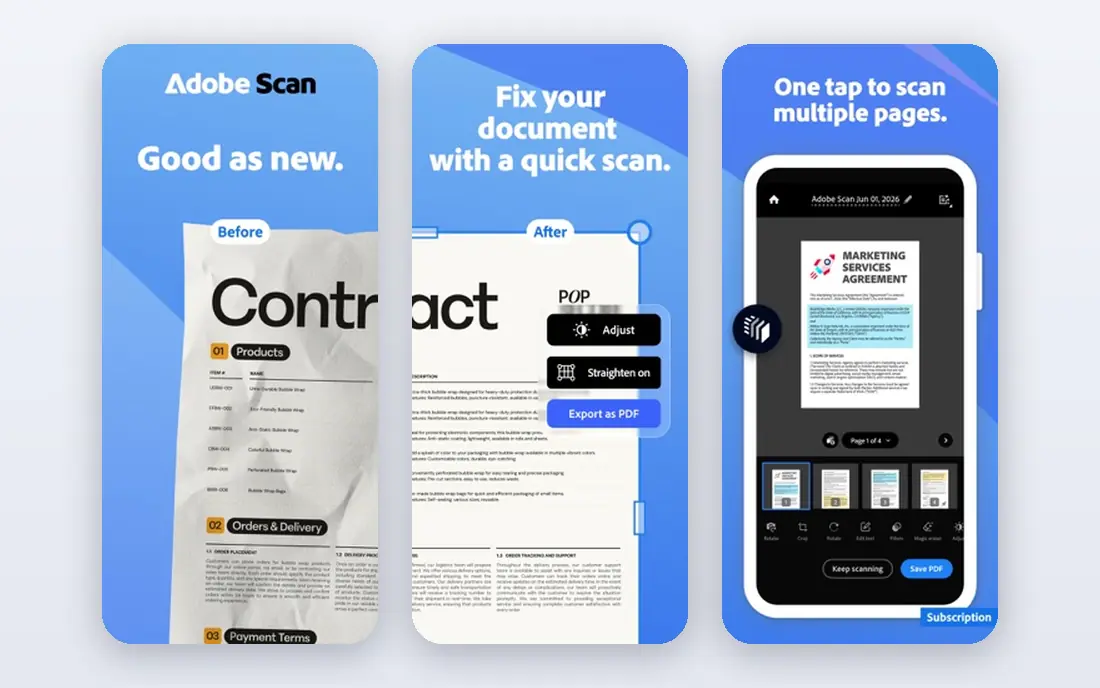
Adobe Scan remains the strongest general pick for clean, searchable PDFs. Point the camera at a page, and the app finds edges, flattens the page, cleans up contrast, and runs text recognition so the resulting PDF can be searched and copied. The free tier is generous for everyday documents, receipts, and forms, with no watermark to spoil a professional-looking scan.
The catch is the Adobe ecosystem. Extra storage, editing, and premium tools sit behind a paid Acrobat plan that casual users may never need. Adobe Scan suits people who already use Adobe tools, students and office workers who scan daily, and anyone who wants the most polished free result without learning a new system.
- Automatic page detection and cleanup
- Searchable text recognition
- No watermark on free scans
- Full features need an Acrobat subscription
- Scans benefit from an Adobe account
- Cloud storage is central to the workflow
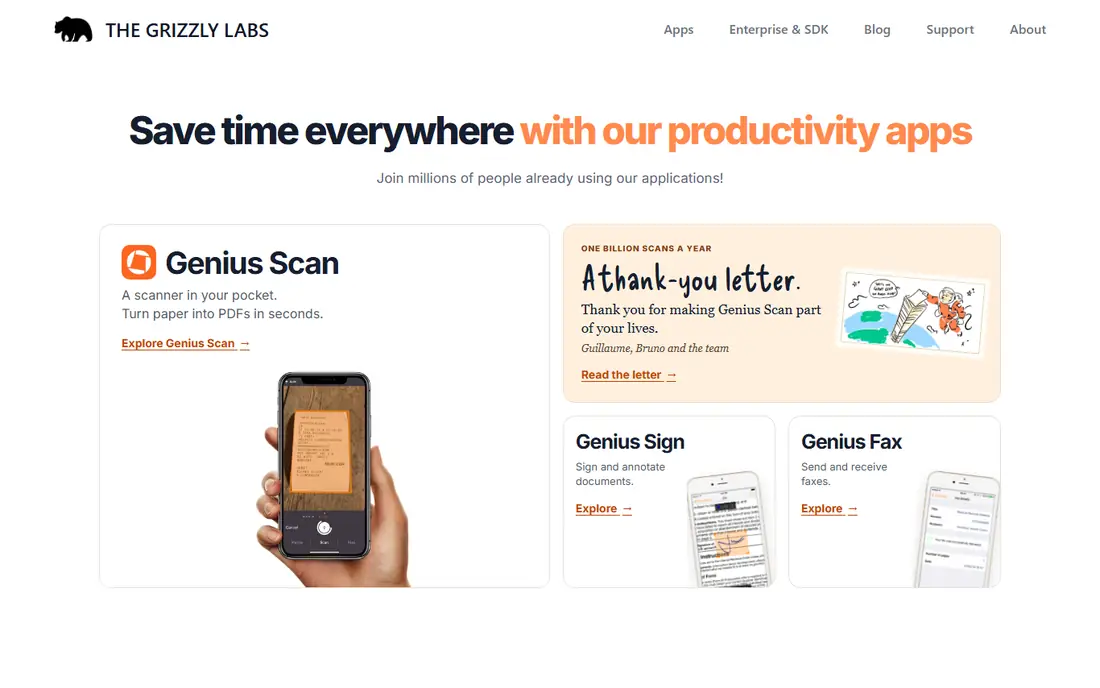
Genius Scan is the quiet workhorse of this list. The free version scans quickly, finds page edges well, joins pages into one PDF, and does so without ads or a watermark, which is rare among free scanners. Batch mode helps when a whole folder of papers needs digitizing in one sitting.
Paid features, including on-device text recognition, smart file naming, and auto-export to cloud folders, sit behind a one-time or yearly upgrade depending on platform, so check the current app store terms before buying. Genius Scan suits people who dislike monthly subscriptions, former Microsoft Lens users who want a simple replacement, and anyone scanning sensitive papers who prefers on-device processing.
- Free tier with no ads and no watermark
- Fast batch scanning
- On-device text recognition in the paid tier
- Text recognition and auto-export need the paid tier
- Interface is plain next to Adobe
- Cloud sync is optional and separate
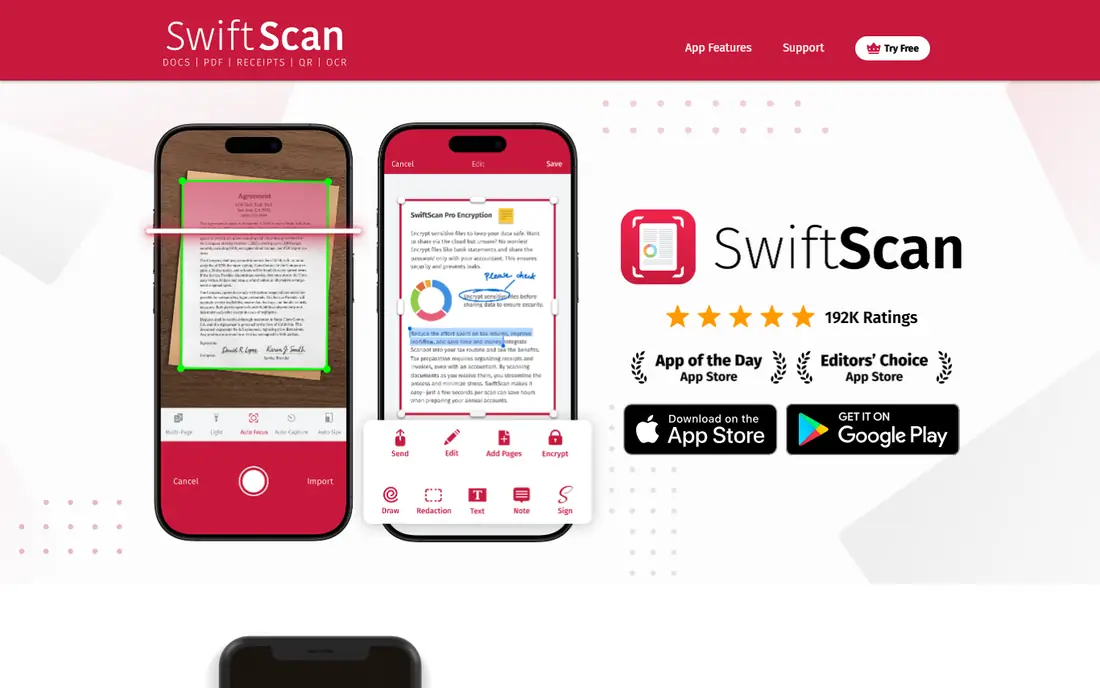
SwiftScan, formerly Scanbot, is built for speed. Capture is fast, edge detection is reliable, and the interface stays out of the way when scanning receipts, contracts, or travel documents on the move. Cloud sync to services such as Dropbox, Google Drive, and iCloud makes it easy to file scans from a phone to a computer.
The free tier watermark is the main limit, since watermarked scans look unprofessional for work or official use. SwiftScan suits frequent scanners, freelancers, and travelers who value speed and a polished interface and do not mind paying for the full version. Occasional scanners will likely prefer a free, watermark-free option.
- Quick capture and clean interface
- Cloud sync to major services
- Good automatic edge detection
- Free scans carry a watermark
- Text recognition sits behind a subscription
- Full features need ongoing payment
CamScanner offers one of the broadest tool sets in this category, covering scanning, PDF editing, signing, and document management in one app. That breadth suits office users who want to scan, annotate, sign, and share without switching apps, and batch scanning handles multi-page reports well.
Privacy and watermarks need attention. Free scans are watermarked, and cloud handling means sensitive documents deserve a careful read of the privacy policy before upload. CamScanner suits users who need many PDF tools in one place and are comfortable with its cloud model, while privacy-focused scanners should prefer an on-device option such as Genius Scan.
- Wide set of PDF tools, including editing and signing
- Batch scanning
- Cloud sync across devices
- Free scans carry a watermark
- Documents may upload to its cloud
- Subscription needed for full tools
Scanner Pro by Readdle is the polished iPhone choice. It handles edge detection, perspective correction, and multi-page PDFs well, and its paid tier adds on-device text recognition and advanced workflows. Integration with Apple tools and cloud services fits naturally into an iPhone and Mac routine.
Android users are excluded, and the current pricing model uses in-app purchases rather than the old one-time purchase, so check the app store listing before assuming past pricing still holds. Scanner Pro suits iPhone users who scan often, want a refined interface, and prefer text recognition that runs on the device.
- Strong iPhone and iPad design
- On-device text recognition in paid tier
- Good workflow and export options
- IOS only, so Android users need another app
- Paid features sit behind in-app purchases
- Older one-time purchase model no longer applies
iScanner combines scanning with everyday document extras, such as signing, annotation, and file management, which helps when a scan needs a signature or a quick edit before sending. Capture quality is solid for receipts, letters, and forms, and sharing to email or cloud services is straightforward.
The app pushes its subscription more than simpler rivals, and some tools that look free at first need payment after a few uses. iScanner suits users who want scanning plus signing in one app and do not mind a subscription, while minimalists will prefer Genius Scan or a built-in phone scanner.
- Scanning plus document tools and signing
- Easy PDF sharing
- Useful for receipts and forms
- Full features need a subscription
- Interface includes many upsells
- Free tier limits some tools
Google Drive scanning is the easiest option for many Android users because no new app is needed. Open Drive, tap to scan, capture pages, and save them as a PDF in a chosen folder, ready to share or sync to a computer. For occasional receipts, school forms, or work papers, that simplicity beats installing another subscription app.
Dedicated scanners offer better text recognition, batch workflows, and editing, so heavy users will outgrow Drive scanning. Google Drive suits occasional scanners, Android users who already live in Drive, and anyone who wants a free, watermark-free scan without learning a new tool.
- Already on most Android phones
- Free scanning to PDF
- Scans save directly to Drive folders
- Fewer editing and text tools than dedicated apps
- Scanning is a feature, not a full app
- Organization depends on Drive folders
Apple Notes includes a document scanner that many iPhone owners overlook. Scan from inside a note, and the app captures, crops, and saves pages as a PDF, with text inside the scan searchable on the device. For a quick receipt, a signed form, or a school handout, it is fast and free, with no watermark and no subscription.
Power users who need batch naming, auto-export rules, or advanced PDF editing will still want a dedicated app. Apple Notes suits iPhone owners who scan now and then, students who keep class papers in Notes, and anyone who prefers a built-in tool with on-device handling over a cloud scanner.
- Already on every iPhone
- Free scanning with searchable text
- Scans stay in Notes or Files
- Fewer PDF management tools than dedicated apps
- IPhone only
- Export options are simpler
How we picked these
We compared official app pages and app store listings, checking that each app still scans to PDF in 2026, noting watermark rules, text recognition availability, and whether processing happens on the device or in the cloud. We excluded Microsoft Lens because Microsoft retired it in 2026, removing it from app stores and stopping new scans. We favored apps with a usable free tier and clear export options over apps that lock basic scanning behind payment.
What to check before you choose a scanner app
Decide how often you scan
Occasional scanners should start with Apple Notes or Google Drive, since both are free, watermark-free, and already installed. Daily scanners benefit from a dedicated app with batch mode, text recognition, and auto-export, even if that means paying for a tier that saves time every week.
Check watermarks and text recognition
A watermark matters for work, school, or official documents, so test a free scan before relying on an app for important papers. Text recognition matters when you need to search, copy, or file scans later, and it often sits behind a paid tier. Confirm both points in the app store listing, not just in marketing copy.
Think about privacy for sensitive papers
Some scanners upload pages to a cloud for processing or storage, while others run text recognition on the device. For tax forms, medical papers, or contracts, prefer on-device processing or a trusted cloud account, and avoid scanning highly sensitive documents in an app whose privacy policy you have not read. Delete scans you no longer need.
Test with real paper, not a perfect page
Scan a crumpled receipt, a glossy page, and a multi-page letter before committing. Good light, a flat surface, and a contrasting background help every app, but edge detection and cleanup vary widely on difficult originals. The app that handles your worst paper, not your best, is the right choice.
Frequently asked questions
What is the best pdf scanning app?
Adobe Scan is the best general pick for clean, searchable PDFs with a generous free tier, while Genius Scan is best for people who dislike subscriptions. Apple Notes and Google Drive are best for occasional free scanning, since they are already on your phone and add no watermark.
Is there a free pdf scanning app with no watermark?
Yes. Adobe Scan, Genius Scan, Google Drive scanning, and Apple Notes all offer watermark-free scans in their free tiers, though paid features such as advanced text recognition may still need payment. SwiftScan and CamScanner add watermarks to free scans, so avoid them for professional documents unless you pay.
What happened to Microsoft Lens?
Microsoft retired Microsoft Lens in 2026, removing it from app stores and stopping new scans in March 2026. Microsoft points former users to scanning inside OneDrive, and Genius Scan, Adobe Scan, and Google Drive are also practical replacements. Do not build a new workflow on Lens.
Do scanning apps need the internet?
Most apps can capture and save scans offline, but cloud sync, some text recognition, and sharing need a connection. On-device text recognition works without uploading pages, which also helps privacy. If you scan in areas with poor signal, confirm offline capture and local saving before choosing an app.
Can a phone scan replace a desktop scanner?
For most documents, receipts, and forms, yes, especially with good light and a flat surface. Desktop scanners still win for large volumes, fragile books, or very high-resolution archiving. A phone app suits everyday paperwork, while a desktop scanner suits a full filing cabinet digitization project.
Sources we checked (8)

Online Jobs is an independent blog about careers, online work, learning new skills and the tools that help people earn. More about us.
Keep reading
All posts
Zoom Alternatives
Zoom alternatives compared for 2026: Google Meet, Microsoft Teams, Webex, Jitsi and more for free calls, large meetings and webinars for teams and classrooms.
Which Software Is Best for Data Entry
Compare the best data entry software for forms, OCR scanning, and spreadsheets, with free plans, pricing, and honest limits for each tool before you commit.
What's the Best App to Read PDFs
Find what's the best app to read PDFs in 2026, from Adobe Acrobat Reader and Foxit to PDF Expert and Xodo, with free options and honest limits for every device.