Best PDF Remover Tool in 2026: 8 Tools Compared

How we put this together: we compare official feature and pricing pages, app store listings, privacy policies and public user reviews. Prices change, so check the provider's site before you pay.
Key takeaways
- PDF24 and other free tools handle simple page deletion well, while Adobe Acrobat suits regular, professional PDF work.
- Browser-based tools that process files locally, such as PDFNipper, are safer for sensitive documents than tools that upload files.
- Always keep a backup copy before deleting pages, because a saved deletion cannot be undone from the edited file alone.
- Check page thumbnails at full size before confirming, especially for contracts, reports, and scanned documents.
- If you need to keep only a few pages, extracting those pages is often faster than deleting many pages one by one.
Quick comparison
| Name | Who it suits | Starting price | Free option | |
|---|---|---|---|---|
 Adobe Acrobat | Professional PDF editing | See website | Free trial | Visit |
 Smallpdf | Quick online page removal | See website | Yes | Visit |
 iLovePDF | Simple online PDF tools | See website | Yes | Visit |
 PDF24 Tools | Free online PDF tools | Free | Yes | Visit |
 Foxit PDF Editor | Desktop and online editing | See website | Free trial | Visit |
 Sejda | Online editing with privacy controls | See website | Yes | Visit |
 PDF2Go | Online page deletion and editing | See website | Yes | Visit |
 PDFsam Basic | Free desktop page handling | Free | Yes | Visit |
The best PDF remover tool
A PDF remover tool, in this article, means a tool that deletes pages from a PDF, not a tool that removes passwords or content in other ways. These tools cover online, desktop, and local browser options, so you can pick by privacy, frequency, and file type.
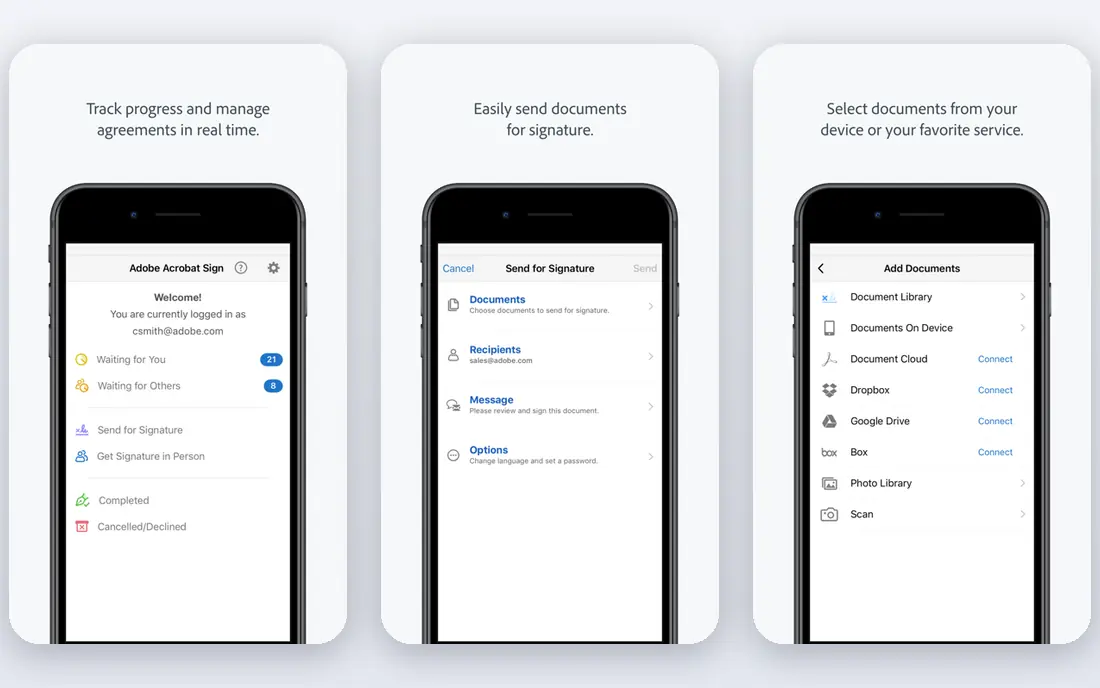
Adobe Acrobat is the professional standard for PDF work, and page deletion is straightforward: open the Pages panel, select thumbnails, delete, and save. It handles large documents, scanned files, forms, and bookmarks well, and it keeps the rest of the document intact when you remove a section. For teams that edit PDFs daily, that reliability matters. The catch is price. Acrobat is a subscription product, and it is hard to justify for a single page deletion. If you only need to clean up a PDF once or twice a year, a free tool below will do the job. Choose Acrobat when PDF editing is regular work and you need consistent, professional results.
- Reliable page deletion and organization
- Strong handling of forms and bookmarks
- Desktop and cloud versions
- Subscription cost
- Overkill for a one-off deletion
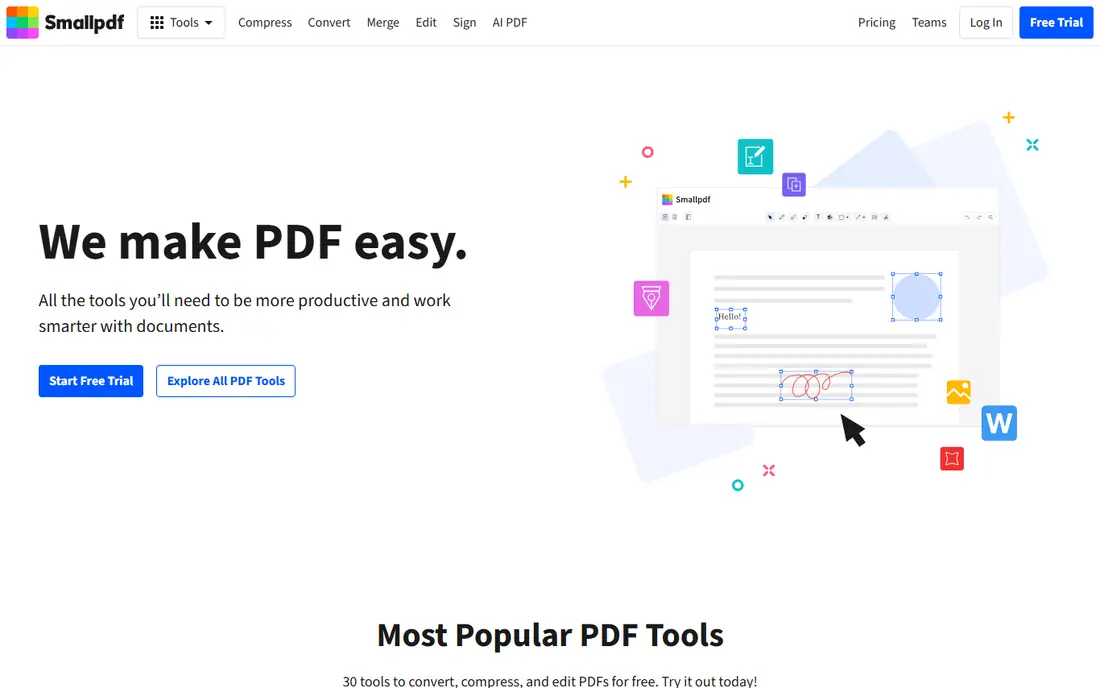
Smallpdf is easy to use for a quick cleanup. Upload a PDF, click the pages to remove, download the result, and you are done, with no software to install. It also offers compression, merging, splitting, and conversion in the same account, which helps when a document needs more than one fix. The trade-off is privacy and limits. Files are processed on Smallpdf servers, so avoid it for sensitive contracts or personal documents, and free use is limited per day. For a non-sensitive document that needs a fast tidy-up, Smallpdf is a practical choice.
- Simple drag-and-drop workflow
- Many related PDF tools
- Works in a browser
- Free use has limits
- Files are uploaded to its servers
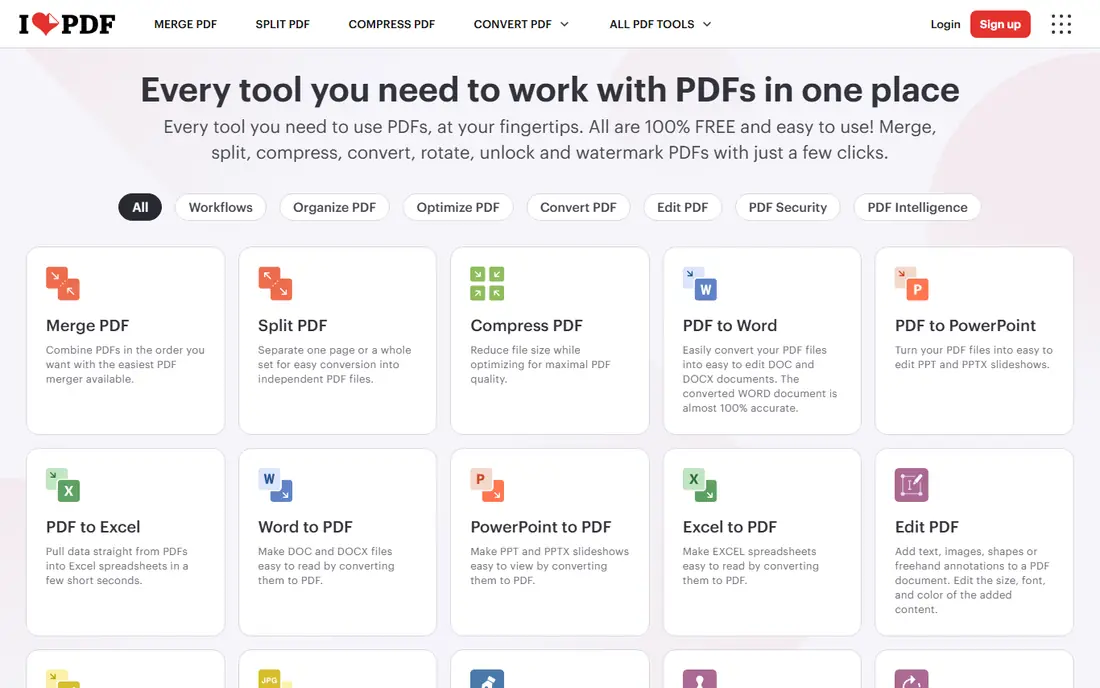
iLovePDF offers a similarly simple online workflow: upload, select pages to remove, and download a cleaned PDF. Its tool set covers merging, splitting, compressing, and converting, so you can fix several document problems in one visit. A desktop app is also available for users who prefer local software. The limit is the same as with other online tools: free tasks are limited, and uploaded files are processed on its servers. Check its privacy page for retention times, and keep sensitive files local. For everyday, non-sensitive PDFs, iLovePDF is fast and easy to learn.
- Clear page selection
- Wide PDF tool set
- Desktop app available
- Free plan has task limits
- Uploads go to its servers
PDF24 Tools is a strong free option for simple page deletion. You can upload a PDF, remove pages, and download the result without paying, and the site covers a wide range of other PDF tasks. That makes it a good bookmark for occasional users who do not want a subscription or an account. The catch is depth. PDF24 will not replace Acrobat for complex forms, redaction, or detailed document editing, and most tools run online. For deleting blank pages, outdated sections, or duplicate scans, it is more than enough, and its free model is a clear advantage.
- Free tools with no account for many tasks
- Page deletion plus merging and splitting
- Simple interface
- Fewer advanced editing features
- Online processing for most tools
Foxit gives you two routes: a free online Delete Pages tool for quick jobs, and Foxit PDF Editor for regular desktop work. The online tool lets you select thumbnails and delete pages in a browser, while the editor adds page ranges, blank-page removal, and the Pages panel for visual selection. That range suits both occasional and frequent users. The limit is that the full editor is a paid product, and the online tool caps file size, with a 100 MB limit listed on its page. For a one-off cleanup, use the online tool. For weekly PDF work, the editor trial will show whether its workflow suits your team.
- Online delete-pages tool plus full editor
- Blank-page removal
- Mobile app support
- Full editor is paid
- Online tool has file size limits
Sejda is a browser-based PDF editor with a clear focus on privacy, including automatic deletion of uploaded files after processing. Its page tools let you delete, extract, and reorder pages, and it also covers text editing, signing, and form filling for light document work. That combination suits users who need more than deletion but do not want desktop software. The trade-off is free limits. Sejda limits the number of pages and tasks in its free tier, so large documents or frequent use will need a paid plan. For a small, occasional document, Sejda is a tidy, privacy-conscious choice, provided you still avoid uploading highly sensitive files to any online service.
- Clear privacy handling
- Page deletion and editing in browser
- No install needed
- Free plan limits pages and tasks per hour
- Larger files need a paid plan
PDF2Go covers the same core job as Smallpdf and iLovePDF: upload a PDF, remove the pages you do not need, and download a cleaned file. It also lets you pull files from cloud storage, which helps when the PDF lives in Drive or Dropbox rather than on your computer. Related tools for merging, splitting, and compressing sit alongside it. The limit is privacy and free quotas, as with other online tools. Avoid PDF2Go for sensitive documents, and expect limits on free use. For a quick, non-sensitive cleanup, especially from cloud storage, PDF2Go is a simple option.
- Simple page removal workflow
- Optional file upload from cloud storage
- Related tools included
- Free use has limits
- Files are processed online
PDFsam Basic is a free, open source desktop tool for splitting, merging, extracting, and rotating PDF pages, and it works without uploading files. To remove pages, you typically split or extract the pages you want to keep, which gives the same result as deletion with a slightly different workflow. That local processing is a real privacy advantage. The catch is interface and workflow. PDFsam is less polished than Acrobat, and its page-removal route is less direct than clicking thumbnails in an online tool. For users who handle PDFs regularly and want a free local tool, PDFsam Basic is worth installing. For a one-off job, an online thumbnail tool may feel faster.
- Free and open source desktop app
- Split, merge, and extract pages
- No upload needed
- Less polished than Acrobat
- Page deletion is via split and extract workflows
How we picked these
We looked for tools that delete pages from PDFs, that are available in 2026, and that cover online, desktop, and local options. We checked official feature pages, pricing pages, and privacy pages for page deletion method, file limits, free tiers, and file retention, and we favored tools with a clear deletion workflow over general editors with no page tool. Where pricing was unclear, we listed See website. We did not claim hands-on testing, and we excluded tools that only remove passwords or watermarks without deleting pages.
Deleting PDF pages safely, step by step
Start with a backup. Save a copy of the original PDF under a new name before you delete anything, so you can recover a page you remove by mistake. Then open the file in your chosen tool, view thumbnails at full size, and mark only the pages you are sure about, checking page numbers against the document, not just thumbnails. Next, delete, save as a new file rather than overwriting the original, and reopen the result to check that the remaining pages are in order and that bookmarks, if any, still point to the right places. If page numbers in footers now have gaps, re-add page numbers after deletion for a clean result. Finally, for sensitive documents, prefer a local tool like PDFsam Basic, Acrobat, or a browser-local tool, and avoid uploading the file at all.
Frequently asked questions
What is the best pdf remover tool for a one-off job?
PDF24 Tools, Smallpdf, or iLovePDF all handle a one-off page deletion quickly in a browser, with no install. PDF24 is free for many tasks, while Smallpdf and iLovePDF have free limits. For a sensitive document, use a local tool instead, such as PDFsam Basic or Adobe Acrobat, so the file never leaves your computer.
Is it safe to delete pages from a PDF online?
It is safe for non-sensitive documents on reputable sites that delete files after processing, but it is not ideal for contracts, medical records, or personal data. Check the privacy page for retention time, and prefer local or browser-local tools for sensitive files. When in doubt, keep the file offline.
Can I undo page deletion after I save a PDF?
No, not from the edited file alone. Once you save and download the edited PDF, the deleted pages are gone from that file. That is why a backup copy matters. Save the edited version under a new name, keep the original, and only delete the original when you are sure the new file is correct.
How do I remove many pages at once?
Most tools let you select multiple thumbnails, or type a range such as pages 12 to 18, to delete them in one step. For a long chapter, range deletion is faster than clicking each page. If you need to keep only a few pages, use extract instead, which keeps what you pick and drops the rest.
Does deleting pages reduce PDF file size?
Usually, yes, especially if the deleted pages contain images or large scans. The reduction depends on the pages removed and whether the tool rebuilds the file cleanly. If file size still matters after deletion, use a compression tool as a separate step and check that text and images remain readable.
What if my PDF is password protected or locked for editing?
You will need the password or an editable copy from the document owner before most tools can edit it. Check the document properties for editing permissions, and do not use a remover tool to bypass restrictions on a file you do not own or have permission to edit. Contact the author for an editable copy if needed.
Sources we checked (8)

Online Jobs is an independent blog about careers, online work, learning new skills and the tools that help people earn. More about us.
Keep reading
All posts
Zoom Alternatives
Zoom alternatives compared for 2026: Google Meet, Microsoft Teams, Webex, Jitsi and more for free calls, large meetings and webinars for teams and classrooms.
What Is the Best Free Tool to Rotate a PDF
What is the best free tool to rotate a PDF? We compare eight free rotation tools on per-page control, limits, privacy and saved output quality in detail.

What Is the Best AI Dubbing Tool
We compared the best AI dubbing tools in 2026, from ElevenLabs and HeyGen to Rask AI, Dubverse and Veed, for videos and creators in many languages worldwide.