Best PDF Extraction App for Phone in 2026: 9 Apps Compared

How we put this together: we compare official feature and pricing pages, app store listings, privacy policies and public user reviews. Prices change, so check the provider's site before you pay.
Key takeaways
- The best phone extraction app depends on your source material: clean printed pages, handwritten notes, receipts, and tables each favour a different tool.
- Adobe Scan is our pick for most people, because its text recognition is strong and its free tier covers everyday scanning.
- Scanner Pro and Genius Scan are strong choices when you want text recognition handled on the phone rather than sent to a server.
- CamScanner offers a wide feature set, but its cloud uploads and ads mean you should read its privacy settings before scanning sensitive pages.
- Microsoft Lens was retired in early 2026, so former Lens users should use the scan feature in OneDrive or switch to a dedicated scanner app.
Quick comparison
| Name | Who it suits | Starting price | Free option | |
|---|---|---|---|---|
 Adobe Scan | Everyday scanning and text extraction | Free | Yes | Visit |
 Scanner Pro | On-device text recognition on iPhone | Free | Yes | Visit |
 Genius Scan | Fast, simple scanning | Free | Yes | Visit |
 SwiftScan | High-quality scans and privacy controls | Free | Yes | Visit |
 CamScanner | Feature-rich batch scanning | Free | Yes | Visit |
 iScanner | Extra editing and document tools | Free | Yes | Visit |
 Apple Notes | Free built-in scanning on iPhone | Free | Yes | Visit |
 Google Drive Scan | Free built-in scanning on Android | Free | Yes | Visit |
 Tiny Scanner | Simple, accurate scanning | Free | Yes | Visit |
The best pdf extraction app for phone
We use extraction here to mean turning a paper page, a photo, or a PDF image into text you can copy, search, and paste elsewhere, plus a clean PDF file. Every app below scans from the phone camera, and most also open existing PDFs and images. We favoured apps that keep text selectable, handle multi-page documents, and state clearly where your files go.
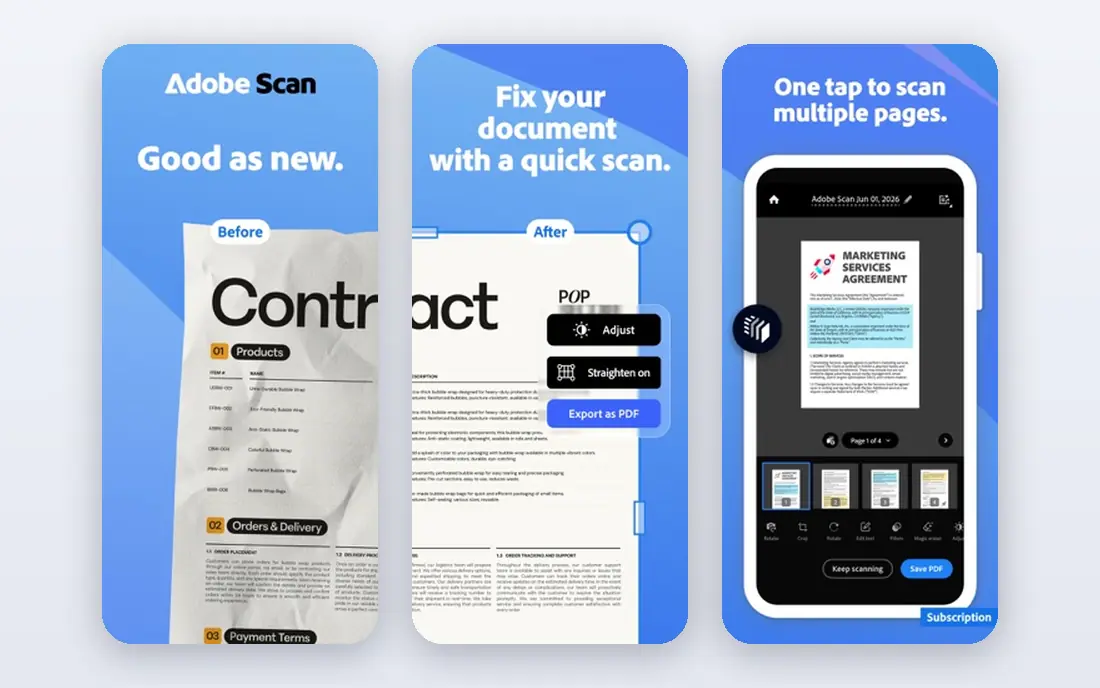
Adobe Scan is the safest default for most phone users. Point the camera at a page and it finds the edges, cleans up the image, and runs text recognition so the words in the PDF can be searched and copied. Modes for documents, books, whiteboards, and ID cards help with different page shapes, and the result opens cleanly in Acrobat for editing, signing, or sharing.
The main costs are account and subscription. You need an Adobe account for full use, and features such as editing, extra storage, and some export options sit behind Acrobat Premium. The free tier still covers everyday scanning well, and the recognition quality on printed pages is consistently strong. If you already use Adobe tools on a computer, the sync alone makes it hard to beat.
- Strong text recognition
- Automatic edge detection and cleanup
- Syncs with Adobe Document Cloud
- An account is needed for full use
- Premium features need a subscription
- Document list can feel busy
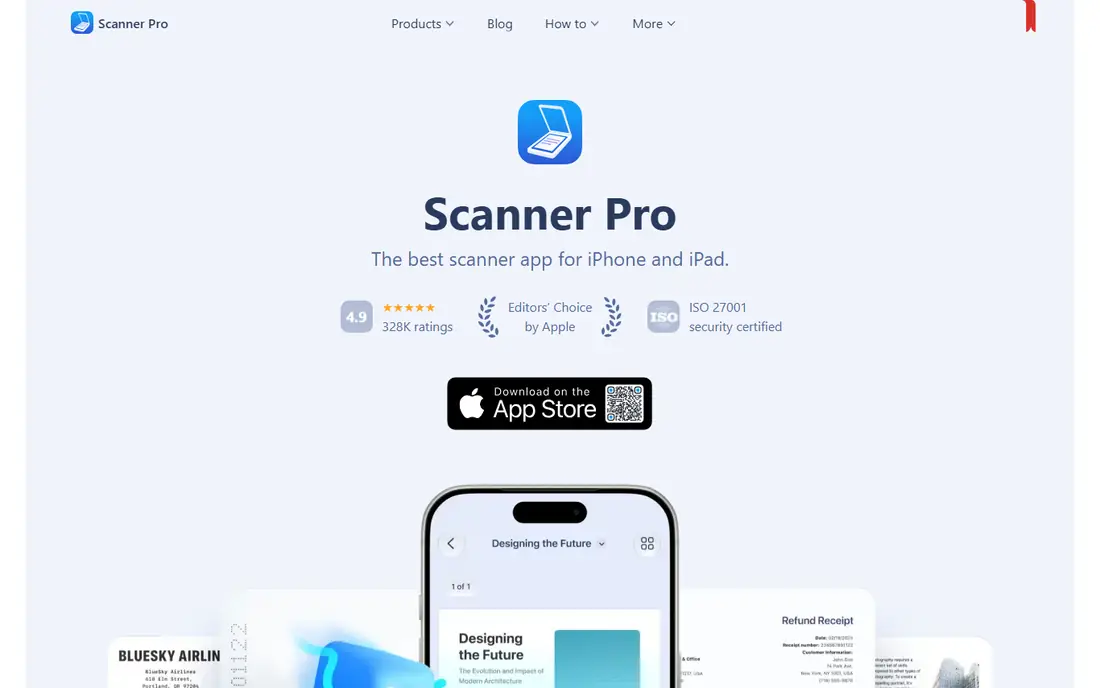
Scanner Pro, from Readdle, is the best paid all-rounder for iPhone and iPad users who care about privacy. Its text recognition can run on the device, which means sensitive pages do not have to leave your phone to become searchable text. Scans look clean, batch scanning works well, and workflows can send a finished PDF to email, cloud storage, or another app in a couple of taps.
The limits are platform and price. There is no Android version, so mixed-device households need a different pick. The app is free to download, but the fuller feature set sits behind a subscription, so check which features you actually need before paying. For iPhone users scanning contracts, receipts, or notes each week, it is a polished and private choice.
- Text recognition can run on the device
- Clean scans and workflows
- Good iPhone and iPad support
- IOS only
- Paid features need a subscription
- Some advanced tools need the paid tier
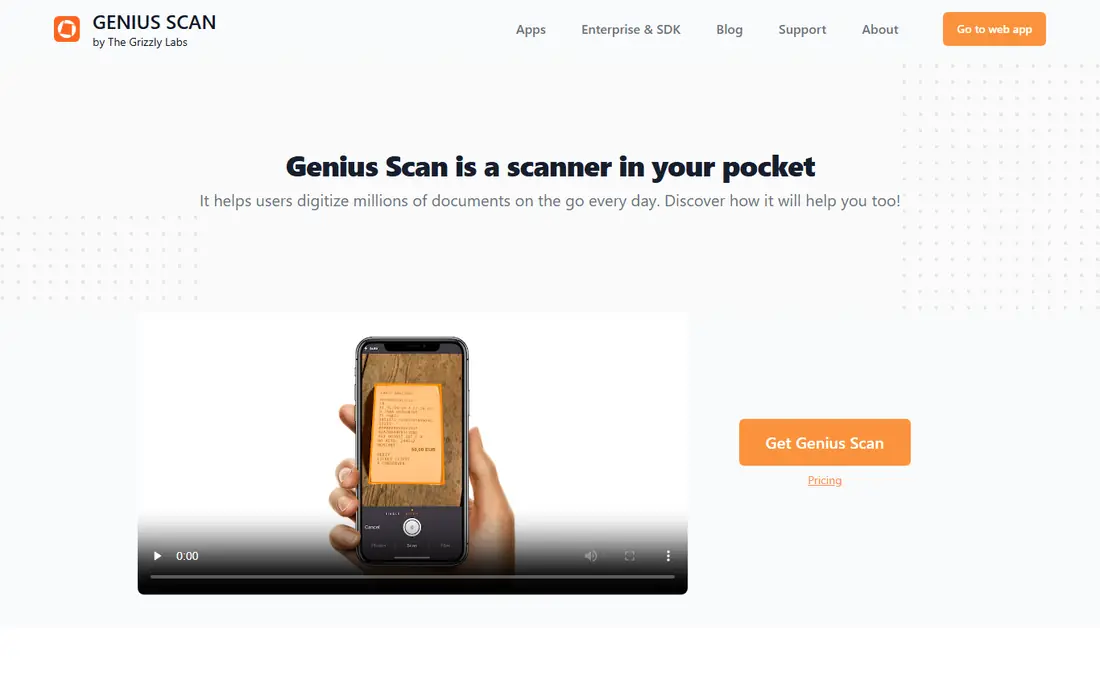
Genius Scan suits people who want to scan and move on. Capture is quick, edge detection is reliable, and the app works offline, which helps on site visits, in classrooms, and in places with poor signal. Exports to PDF are straightforward, and you can send a finished file to email, cloud storage, or a notes app without learning a large feature set.
The trade-off is depth. Text recognition and some advanced exports need the paid tier, and the editing tools are lighter than Adobe Scan or CamScanner. If your main job is turning a stack of pages into clean, readable PDFs fast, Genius Scan is excellent. If you need to pull tables into a spreadsheet every day, a richer app may suit you better.
- Very fast capture
- Works offline
- Simple export to PDF and other apps
- Text recognition features need the paid tier
- Fewer editing tools than larger apps
- Interface is plain
SwiftScan, formerly Scanbot, focuses on scan quality and control over where files go. Image enhancement is strong, colours and contrast come out clean, and local text recognition is available as an option, which helps when you do not want every page uploaded. Cloud sync can be switched on if you want it, rather than being the default for everything.
The app is less widely integrated than Adobe Scan, and the fuller feature set needs a paid tier. That is a fair trade for people who scan sensitive documents or who work in the field and want reliable results without fuss. SwiftScan is a strong pick for professionals who value clean output and privacy settings they can actually control.
- High-quality image enhancement
- Optional local text recognition
- Cloud sync is optional
- Paid tier needed for full features
- Fewer integrations than Adobe
- Smaller support community
CamScanner is one of the most feature-rich scanner apps, with batch scanning, page flattening for books, text recognition, PDF editing, and electronic signatures in the wider feature set. That breadth makes it useful for business users who scan many pages a day and need the result in several formats.
The costs are ads and cloud handling. The free version shows ads, and documents are uploaded to CamScanner's cloud by default, so you should check the privacy settings and avoid scanning highly sensitive pages unless you are comfortable with that flow. The premium price is also high compared with simpler rivals. CamScanner is best for heavy users who need its full toolkit and who accept its cloud model.
- Batch scanning and book flattening
- Wide export and editing options
- Cloud sync across devices
- Ads in the free version
- Documents upload to its cloud by default
- Premium price is high
iScanner goes beyond basic scanning with editing, polish, and document management tools that suit people who want to tidy a scan before sharing it. Text recognition is solid on printed pages, and the app handles multi-page documents, signatures, and exports without needing a second app. For a small business owner who scans, edits, and sends documents from a phone, that all-in-one approach saves time.
The free version is limited, and the subscription is the real price of the app, so casual users may find it expensive for occasional scans. Some of the extra tools will also go unused if you only need a clean PDF. iScanner is best when you scan often and want editing built into the same app.
- Wide editing and polish tools
- Good text recognition
- Document management features
- Subscription needed for full features
- Free version is limited
- Some tools feel extra for simple scanning
Apple Notes is the easiest recommendation for iPhone users who scan occasionally. The document scanner is built into Notes, it finds page edges, and Live Text makes text inside a scan selectable and searchable on the device. There is no subscription, no ads, and no new account to create, and the scan stays inside your notes until you choose to share it.
The limits are scope. Notes is not a full PDF editor, and export controls are simpler than a dedicated scanner app. Android users cannot use it at all. For receipts, forms, and short documents that you mainly need to keep and search, Apple Notes is often all you need, and it is free.
- Already on every iPhone
- No extra download
- Text in scans is searchable on device
- IPhone and iPad only
- Fewer export controls
- Not a full PDF editor
Google Drive Scan is the Android equivalent of Apple Notes for casual scanning. Open Drive, use the camera scan option, and the result saves as a PDF in your Drive, ready to share or open on a computer. There is no extra app to learn and no subscription for basic scanning, which makes it ideal for occasional use.
It is simpler than Adobe Scan or Scanner Pro, with fewer editing and batch controls, and text extraction depends on Drive's processing rather than a dedicated recognition engine on the phone. A Google account is required, which most Android users already have. For everyday Android scanning, it is a reliable free starting point.
- Built into Google Drive on Android
- No extra cost
- Scans save straight to Drive
- Simpler than dedicated apps
- Text extraction depends on Drive processing
- Google account required
Tiny Scanner keeps the job simple: scan a page, get a clean PDF, and share it. The layout is easy to learn, accuracy on printed pages is good, and PDF export works without a long setup. That simplicity suits students, field workers, and anyone who scans a few pages a week and does not want a large app getting in the way.
Advanced users will miss the deeper editing, batch workflows, and cloud tools of larger apps, and the full feature set needs a premium plan. Tiny Scanner is best as a lightweight second option, or as a main app for people who value speed and simplicity over a long feature list.
- Accurate scanning with a simple layout
- Good PDF export
- Low learning curve
- Fewer advanced features
- Premium needed for full tools
- Smaller feature set than CamScanner
How we picked these
We compared official app pages, app store listings, and public retirement notices, and we kept only apps that are available in 2026 and that genuinely extract text from scans or PDFs. We excluded Microsoft Lens because Microsoft retired it in early 2026 and now points users to scanning inside OneDrive. We favoured apps with clear privacy handling, a usable free tier, and a distinct strength, from on-device recognition to batch scanning to built-in convenience.
What to check before you choose
Start with your source material. Clean printed pages work well in almost every app here, while handwriting, faint receipts, and tables need stronger recognition and a test run. Scan the same difficult page in two apps and compare the copied text, not just how the image looks, because a pretty scan with poor recognition is useless for extraction.
Next, check where your files go. On-device recognition keeps pages on your phone, while cloud apps upload them for processing and storage. Neither approach is wrong, but sensitive contracts, medical forms, and identity documents deserve on-device handling or a trusted cloud provider with clear deletion rules. Also check export formats: a searchable PDF is enough for archiving, while editable text or spreadsheet export matters if you need to reuse tables and figures.
Finally, test in real light. Hold the phone parallel to the page, use bright even light, put the page on a contrasting background, and flatten curled pages. Ten seconds spent on crop and light beats rescanning a whole document, and it improves recognition more than switching apps usually does.
Frequently asked questions
What is the best pdf extraction app for phone?
Adobe Scan is our pick for most people because its recognition is strong, its free tier covers everyday work, and it syncs with Acrobat. Scanner Pro is better for iPhone users who want recognition on the device, and Genius Scan is better for fast offline scanning.
Can a phone app extract text from a PDF?
Yes. Most apps here open an existing PDF or image and run text recognition on it, producing searchable text you can copy. Results are best on clean printed pages, and tables, handwriting, and low-contrast scans may need manual correction.
Is Microsoft Lens still available?
No. Microsoft retired Microsoft Lens in early 2026, removing it from app stores and stopping new scans. Microsoft points former Lens users to the scan feature inside the OneDrive app, or to a dedicated scanner app such as Adobe Scan.
Do scanner apps keep my documents private?
It depends on the app. On-device recognition keeps pages on your phone, while cloud apps upload them for processing. Read the privacy policy, check whether cloud sync can be switched off, and avoid scanning highly sensitive documents in an app whose storage handling you have not checked.
Why is my extracted text full of errors?
Poor light, angled photos, curled pages, faint print, and handwriting all reduce accuracy. Rescan in bright even light with the phone parallel to the page, flatten the page, and check the crop before saving. If errors persist on clean print, try a second app, because recognition engines differ.
Sources we checked (9)

Online Jobs is an independent blog about careers, online work, learning new skills and the tools that help people earn. More about us.
Keep reading
All posts
Zoom Alternatives
Zoom alternatives compared for 2026: Google Meet, Microsoft Teams, Webex, Jitsi and more for free calls, large meetings and webinars for teams and classrooms.
What Is the Best Free Tool to Rotate a PDF
What is the best free tool to rotate a PDF? We compare eight free rotation tools on per-page control, limits, privacy and saved output quality in detail.
What Is the Best AI Dubbing Tool
We compared the best AI dubbing tools in 2026, from ElevenLabs and HeyGen to Rask AI, Dubverse and Veed, for videos and creators in many languages worldwide.