Best PDF Editor Software in 2026: 9 Tools Compared

How we put this together: we compare official feature and pricing pages, app store listings, privacy policies and public user reviews. Prices change, so check the provider's site before you pay.
Key takeaways
- Desktop editors suit heavy editing, OCR, and forms, while browser editors suit quick edits, merges, and signing.
- Free tiers are useful for light work, but paid features, watermarks, and daily limits matter more than the word free.
- If you work with scans, check OCR quality and language support before you buy, because that feature varies a lot.
- One-time licenses still exist for some tools, so compare total cost over two years, not just the monthly price.
Quick comparison
| Name | Who it suits | Starting price | Free option | |
|---|---|---|---|---|
 Adobe Acrobat | Full professional editing | See website | Free trial | Visit |
 Foxit PDF Editor | Acrobat-level features for less | See website | Free trial | Visit |
 PDFelement | Friendly full desktop editing | See website | Free trial | Visit |
 Nitro PDF Pro | Business teams on Windows and Mac | See website | Free trial | Visit |
 PDF-XChange Editor | Windows value and OCR | Free | Yes | Visit |
 Sejda | Quick browser editing | Free | Yes | Visit |
 Smallpdf | Simple browser tools | Free | Yes | Visit |
 PDFgear | Free full editing | Free | Yes | Visit |
 PDFescape | Free browser forms and editing | Free | Yes | Visit |
The best pdf editor software
PDF editors differ in where they run and what they do well. The nine tools below cover desktop power, browser speed, and free options, so you can match the editor to how often you edit and what kind of files you handle.
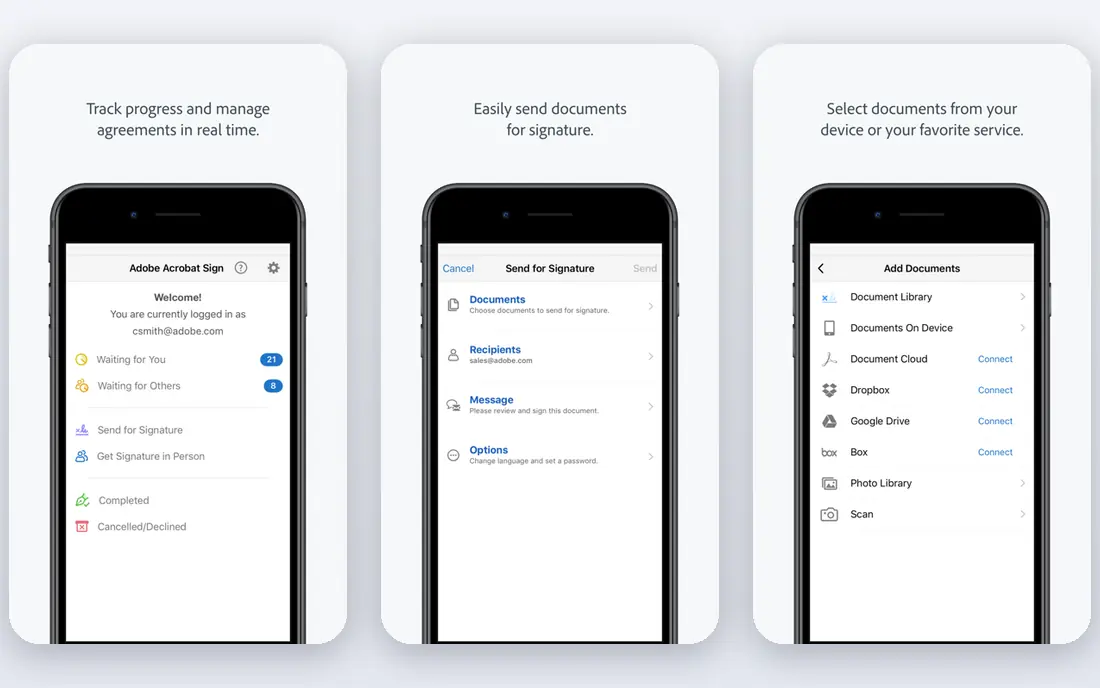
Adobe Acrobat sets the standard for PDF editing. Text and image editing, OCR for scans, form creation, redaction, and e-signing all sit in one app, and files tend to render as expected across devices. For legal, finance, and enterprise teams, that reliability is often worth the price.
The cost is the main drawback. Acrobat is subscription-only for most plans, and the monthly price adds up over time. If you edit PDFs a few times a month, a free or cheaper tool will cover most of the same jobs.
- Strongest compatibility
- Deep editing, OCR, forms, and signing
- Wide platform support
- Subscription cost is high
- More features than most people need
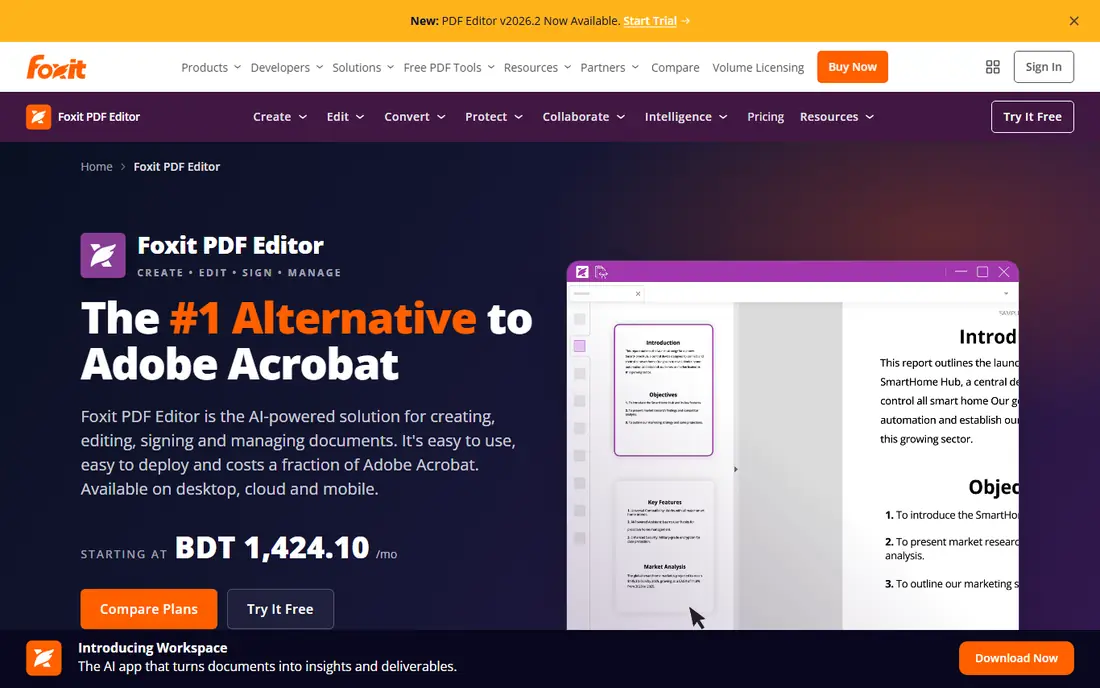
Foxit PDF Editor is the closest full alternative to Acrobat for many teams. Editing, OCR, redaction, and form handling are all present, and the app feels lighter than Acrobat on many machines. Businesses that need professional tools without Acrobat pricing often shortlist Foxit first.
The interface will feel familiar, which is a strength for some users and a drawback for others who want a fresh design. Mobile apps are less complete than the desktop version, so check mobile needs if you edit on a phone or tablet often.
- Broad editing, OCR, and form tools
- Lighter on system resources
- Perpetual license options in some offers
- Interface closely follows Acrobat
- Mobile apps lag the desktop in places
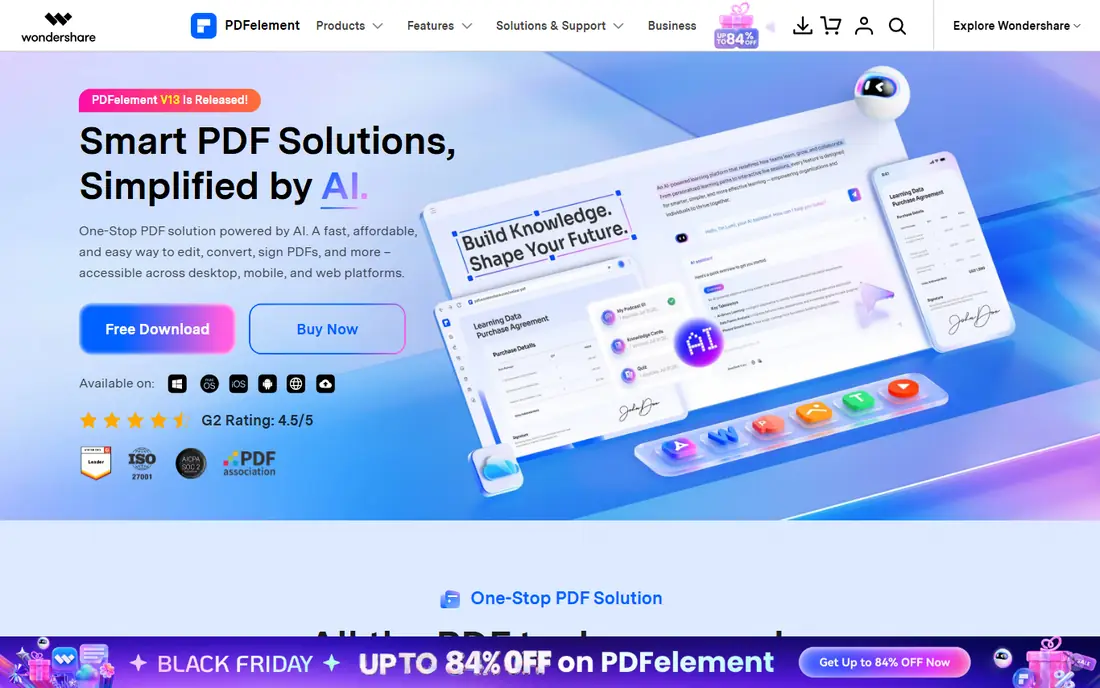
PDFelement from Wondershare suits users who want full desktop editing without a steep learning curve. Text editing, annotation, form creation, batch processing, and OCR are easy to find, and the interface is friendlier than many professional tools. For small businesses and students with regular PDF work, the value is strong.
OCR is the area to test. On clean scans it works well, but on poor scans it can trail Adobe and specialist OCR tools. If scans are your main job, trial PDFelement with your own files before you commit.
- Approachable interface
- OCR, batch work, and forms
- Good value for full editing
- OCR accuracy can trail Adobe on poor scans
- Some AI features need higher plans
Nitro PDF Pro fits business teams that need editing, conversion, signing, and batch work in one tool. It handles forms, redaction, and document workflows, and it offers both Windows and Mac versions. Teams that standardize on one editor often value its consistent tools across users.
The price sits above budget tools, so light users may not need it. Check platform details too, because feature availability can differ between Windows and Mac. For a team with daily PDF work, Nitro is a solid professional pick.
- Full editing and signing
- Useful batch tools
- Team-friendly licensing
- Price is mid to high
- Some features vary by platform
PDF-XChange Editor is the value pick for Windows users. The free version includes editing and OCR, and a one-time license buys the paid features without a subscription. That pricing model appeals to users who dislike monthly fees and want a tool that stays on their machine.
The limits are clear. It is Windows only, so Mac users need another tool. In the free version, paid features still work but mark output with a watermark, so buy a license if you need clean output from those features.
- Strong free version
- Good OCR
- One-time license options
- Windows only
- Paid features watermark files in the free version
Sejda suits quick jobs in a browser. You can edit text, fill forms, sign, merge, split, and convert files without installing software, and a desktop app is available for more regular use. For occasional edits on a shared or borrowed machine, that browser access is a real benefit.
Free use is limited by day and file size, so heavy users will need a paid plan. Large files, complex layouts, and batch work are also smoother in a desktop editor. Use Sejda for speed, and a desktop tool for volume.
- Runs in a browser
- Simple editing, forms, and signing
- Desktop app also available
- Free plan has daily and file limits
- Heavy editing suits desktop tools better
Smallpdf is the easiest browser option for common PDF tasks. Merging, splitting, compressing, converting, and signing are simple to find, and the interface stays clean even for new users. For a quick task on any machine, Smallpdf is hard to beat for speed.
The free plan limits how many tasks you can run, and text editing is not as deep as in a desktop editor. If you edit PDFs daily, or you need OCR and form design, pair Smallpdf with a desktop tool or choose a fuller editor instead.
- Very easy browser tools
- Useful merge, split, and sign options
- Clean interface
- Free plan is limited
- Deep text editing needs a desktop editor
PDFgear stands out because it offers full editing for free, with desktop and mobile apps and no subscription for core features. You can edit text, annotate, fill forms, and convert files without paying, which makes it a strong pick for personal and small business use.
Enterprise needs are the limit. Large teams that need central admin, advanced redaction workflows, or deep support may prefer Adobe, Foxit, or Nitro. For most individual users, though, PDFgear covers the core job at no cost.
- Full editing with no subscription
- Desktop and mobile apps
- No watermark on basic editing
- Fewer enterprise features
- Support and AI tools are thinner than paid rivals
PDFescape suits form filling and light editing in a browser. You can open a PDF, add text, fill fields, annotate, and save without installing software. That makes it useful for forms, applications, and short edits on any machine.
Limits apply to file size and page count on the free plan, and the desktop app is separate. For long documents, complex edits, or OCR, a desktop editor will serve you better. For short forms and quick edits, PDFescape is a practical free tool.
- Free browser editing
- Good form filling
- No install for basic jobs
- Free plan has file and page limits
- Desktop app is a separate paid product
How we picked these
We checked official feature pages, pricing pages, and app store listings, and we compared text editing, OCR, forms, signing, platform support, and free plan limits. We also read public reviews for reports on OCR accuracy and watermark rules, and we kept only editors that are current and clearly built for PDF work. Where pricing was not clear on the vendor site, we wrote See website.
How to choose a PDF editor
Start with how you edit. If you edit text in long documents, choose a desktop editor with strong text handling. If you mostly merge, split, sign, and fill forms, a browser tool may be enough. If you work with scans, test OCR with your own files, because clean test files can hide accuracy gaps.
Next, check limits that affect your daily work. Look at free plan task limits, file size caps, page limits, and watermark rules for paid features. A free tool that watermarks your output is not free for client work, and a browser tool with daily limits can block a busy day.
Finally, compare total cost. Add up subscription costs over two years, and compare them with one-time licenses where offered. For a team, add seat count and admin needs. The cheapest monthly price is not always the cheapest total, especially when a one-time license covers the same features.
Frequently asked questions
What is the best pdf editor app for most people?
Adobe Acrobat suits professional teams, Foxit and PDFelement suit most business users, and PDFgear suits personal users who want full editing for free. The best app depends on how often you edit, and whether you need OCR, forms, or signing.
What are the best free pdf editor apps?
PDFgear, PDF-XChange Editor, Sejda, Smallpdf, and PDFescape all offer free tiers, but each limits tasks, pages, or features. PDFgear offers the fullest free editing, while PDF-XChange Editor offers strong free OCR on Windows.
What is the best pdf editor tool for forms?
Adobe Acrobat, Foxit PDF Editor, and PDFelement offer the deepest form creation tools, while PDFescape and Sejda handle form filling well in a browser. Choose a desktop tool if you design forms, and a browser tool if you only fill them.
What is the top pdf editor software for Mac?
Adobe Acrobat, Foxit PDF Editor, Nitro PDF Pro, PDFelement, Smallpdf, Sejda, and PDFgear all support Mac through desktop apps or browsers. PDF-XChange Editor is Windows only, so Mac users should skip it.
Can I edit a PDF without installing software?
Yes. Sejda, Smallpdf, and PDFescape run in a browser, and they cover common edits, merges, and signing. For heavy editing, OCR, and batch work, a desktop editor is smoother and more reliable.
Does a free PDF editor add a watermark?
Some do. PDF-XChange Editor marks output from paid features in the free version, while PDFgear does not watermark basic editing. Check the watermark rule for the exact feature you need before you use a free tier for client files.
Sources we checked (9)
Online Jobs is an independent blog about careers, online work, learning new skills and the tools that help people earn. More about us.
Keep reading
All posts
Zoom Alternatives
Zoom alternatives compared for 2026: Google Meet, Microsoft Teams, Webex, Jitsi and more for free calls, large meetings and webinars for teams and classrooms.
What Is the Best Free Tool to Rotate a PDF
What is the best free tool to rotate a PDF? We compare eight free rotation tools on per-page control, limits, privacy and saved output quality in detail.
What Is the Best AI Dubbing Tool
We compared the best AI dubbing tools in 2026, from ElevenLabs and HeyGen to Rask AI, Dubverse and Veed, for videos and creators in many languages worldwide.